This feature is in beta. Please ask your CSM to enable it for your account
before following these steps.
Prerequisites
How to use Shopify in your conversations
- Go to the “AI Center” page or this URL
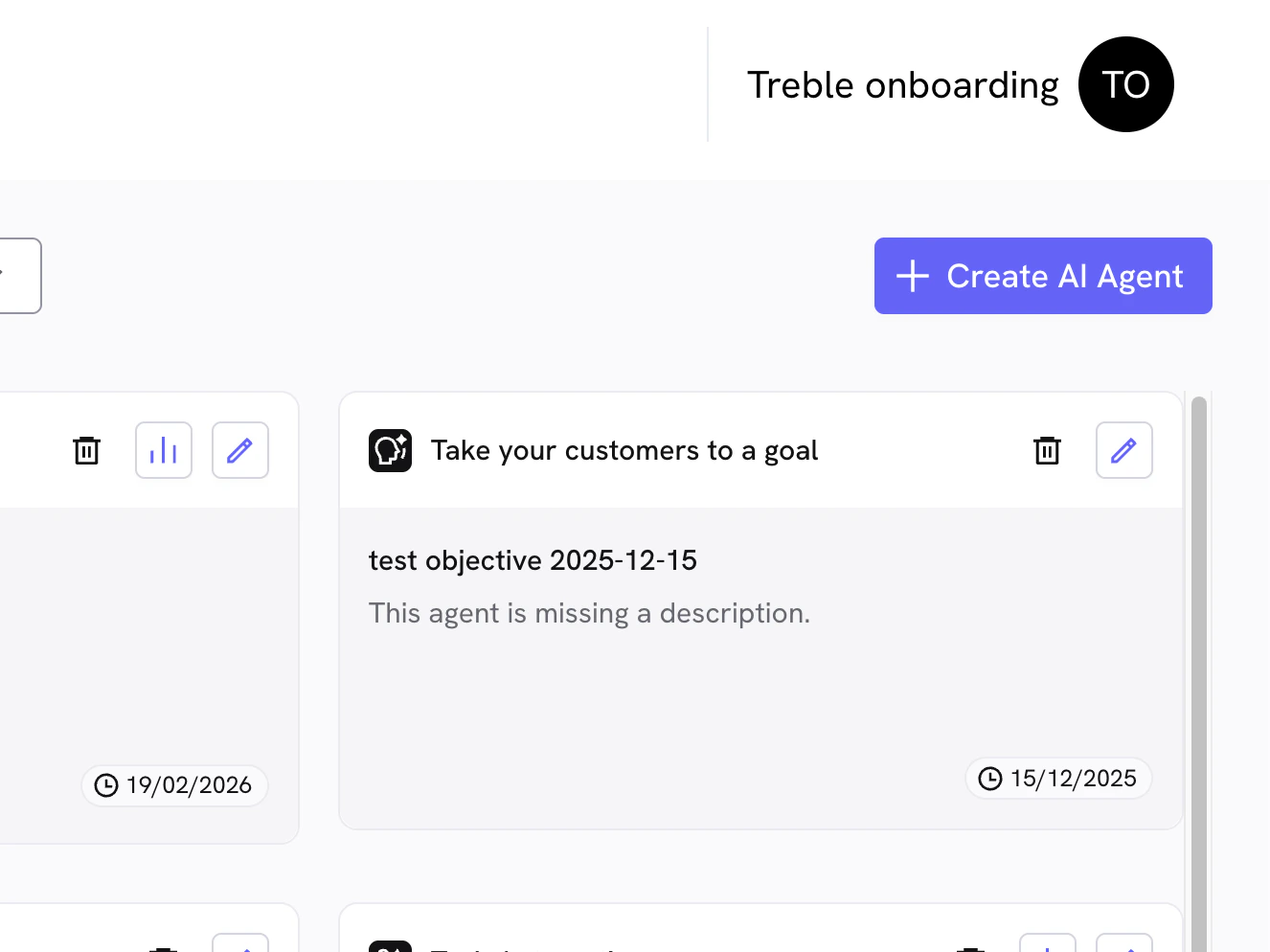
- Click on the “Create AI Agent” button
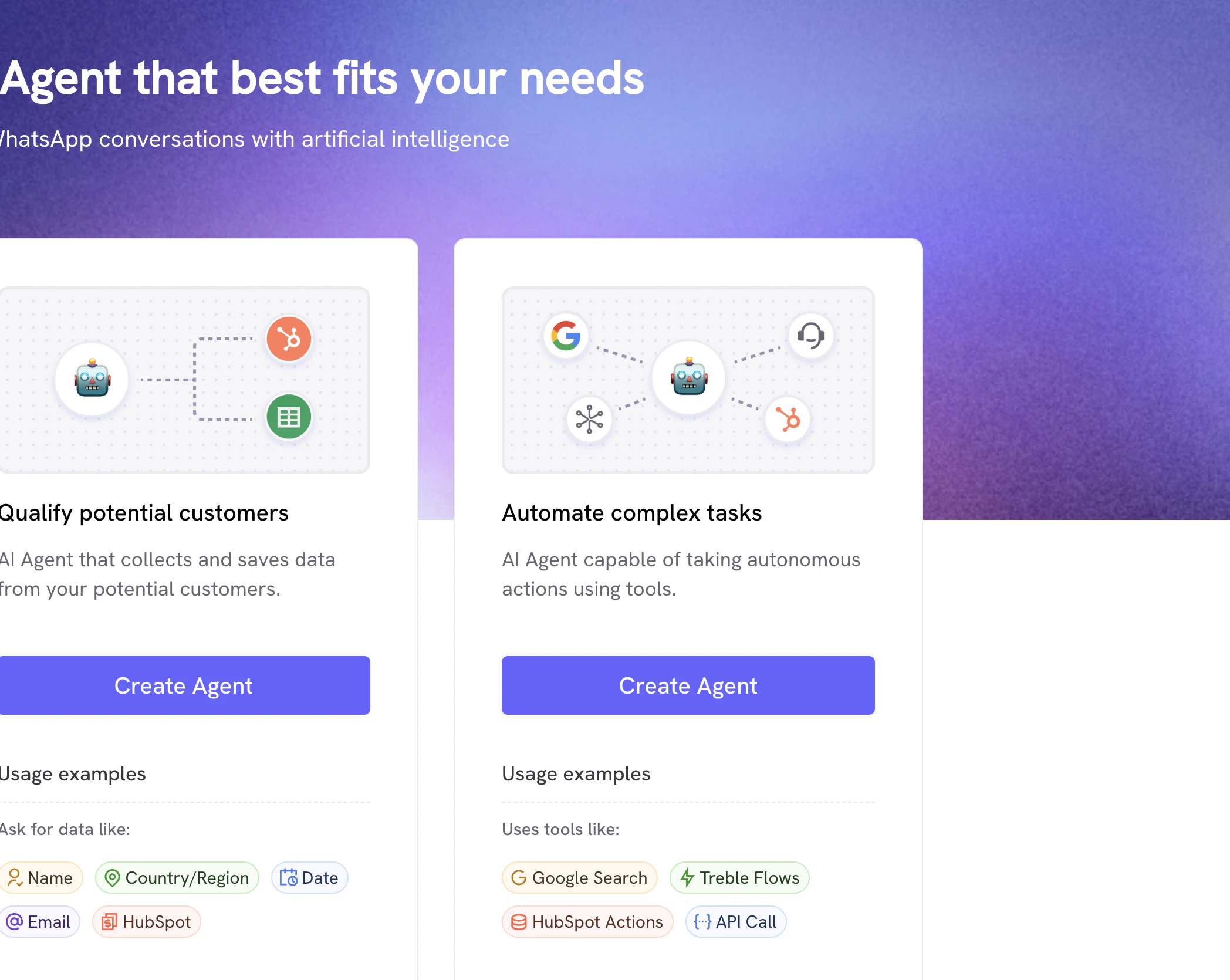
- Look for the “Automate complex tasks” option and click on it
- Give the agent a name and click on “Create” button
- In this screen you’ll be able to write the instructions for your AI Agent
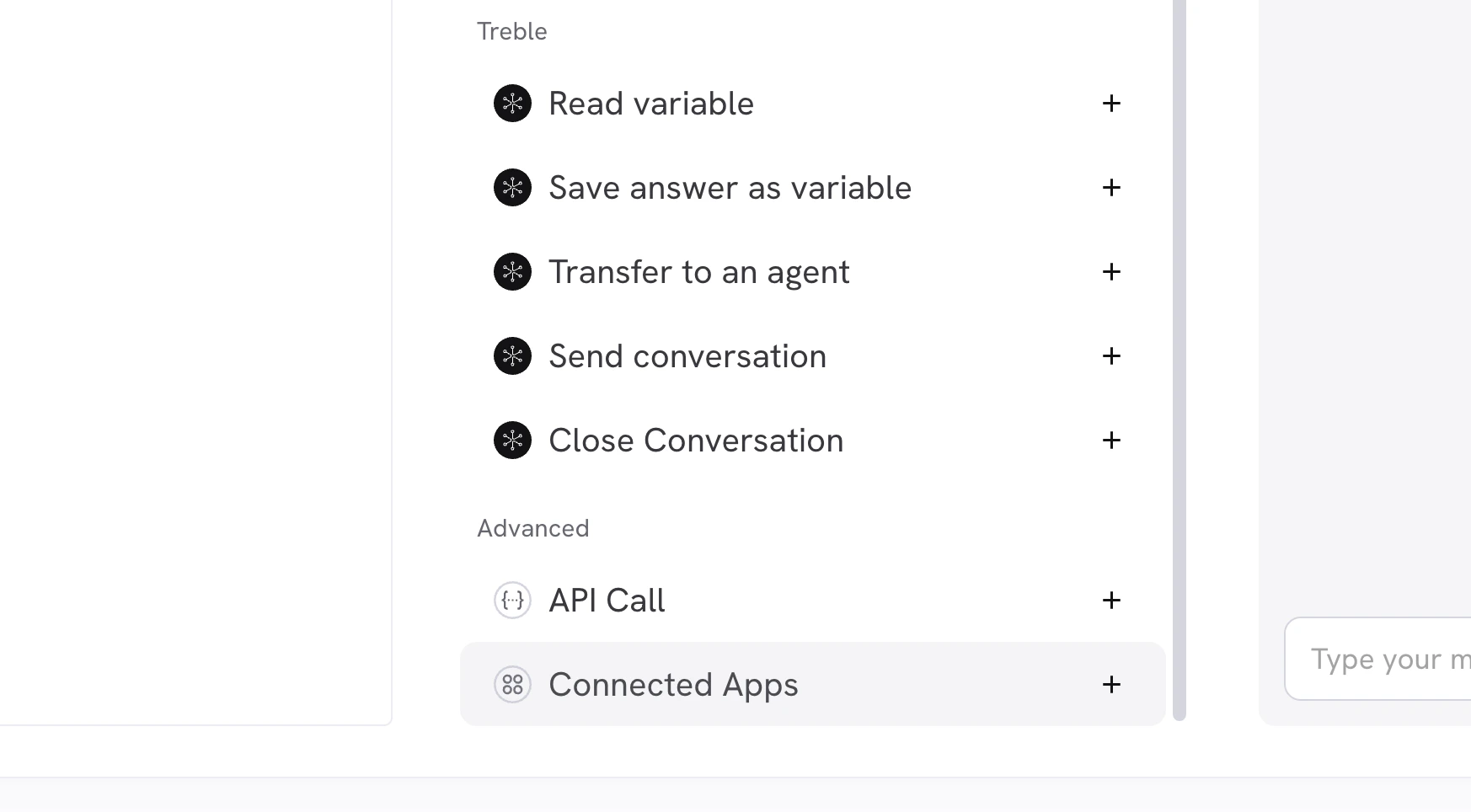
- Look for the “Advanced” section and click on “Connected Apps” button at the bottom of the screen
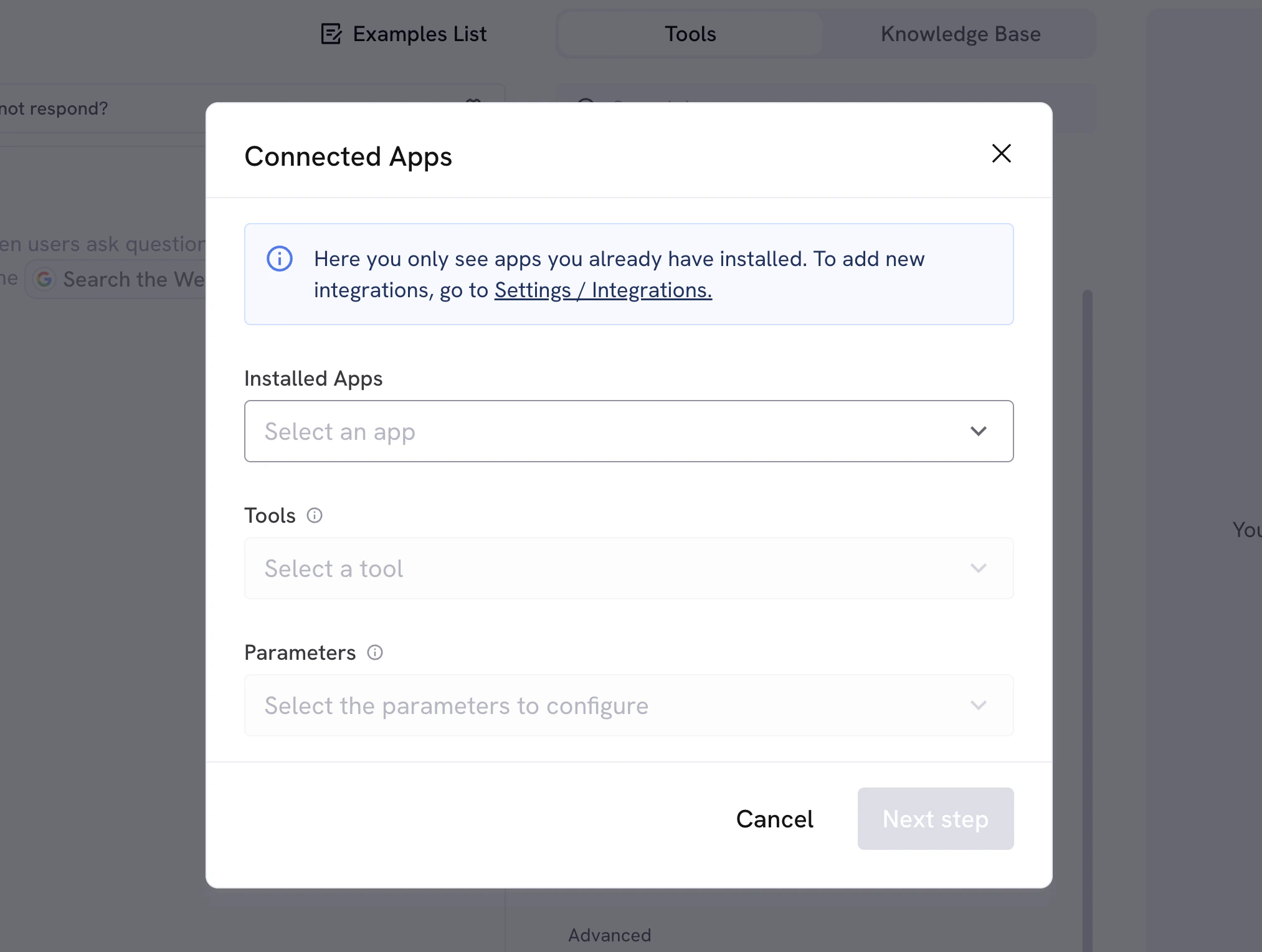
- Look for the “Shopify” app on the list of installed apps and click on it
- List Accounting Invoices
- Get Accounting Invoice
- Create Accounting Invoice
- Update Accounting Invoice
- List Accounting Contacts
- Get Accounting Contact
- Get Accounting Salesorder
- Create Accounting Salesorder
- List Accounting Salesorders
Select any of the tools, and when you click it you’ll see the 3rd dropdown “Parameters” change.
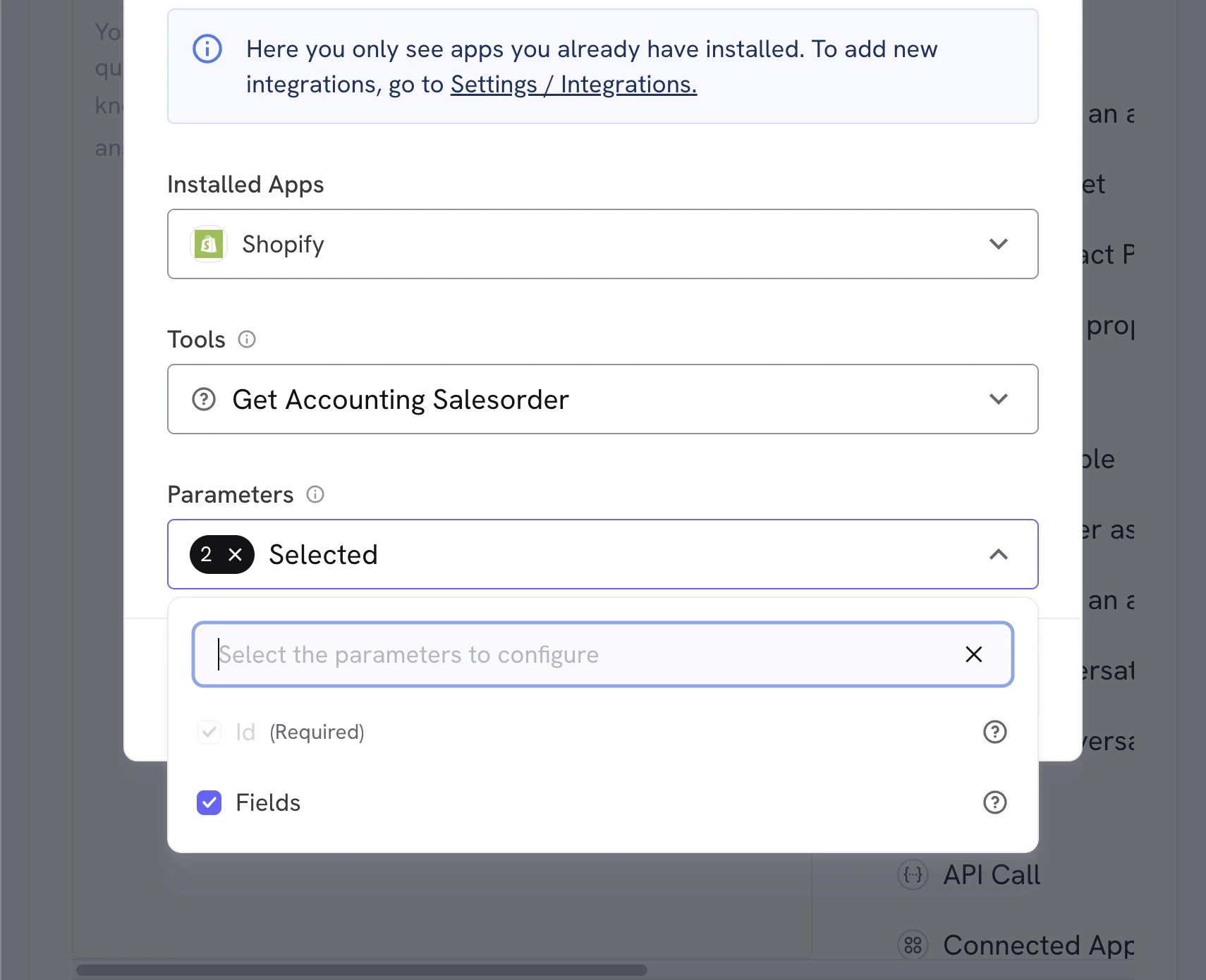 The “Parameters” dropdown will show the parameters for the tool, you’ll need to fill them out before the tool can be used.
Some tools will ask you to edit parameters. If you’re not sure what to change, just let the AI handle all of them.
Changing parameters is only useful if you need to manually send a fixed value to the AI, such as a fixed description, a fixed timezone, currency, or any other specific value.
The “Parameters” dropdown will show the parameters for the tool, you’ll need to fill them out before the tool can be used.
Some tools will ask you to edit parameters. If you’re not sure what to change, just let the AI handle all of them.
Changing parameters is only useful if you need to manually send a fixed value to the AI, such as a fixed description, a fixed timezone, currency, or any other specific value.
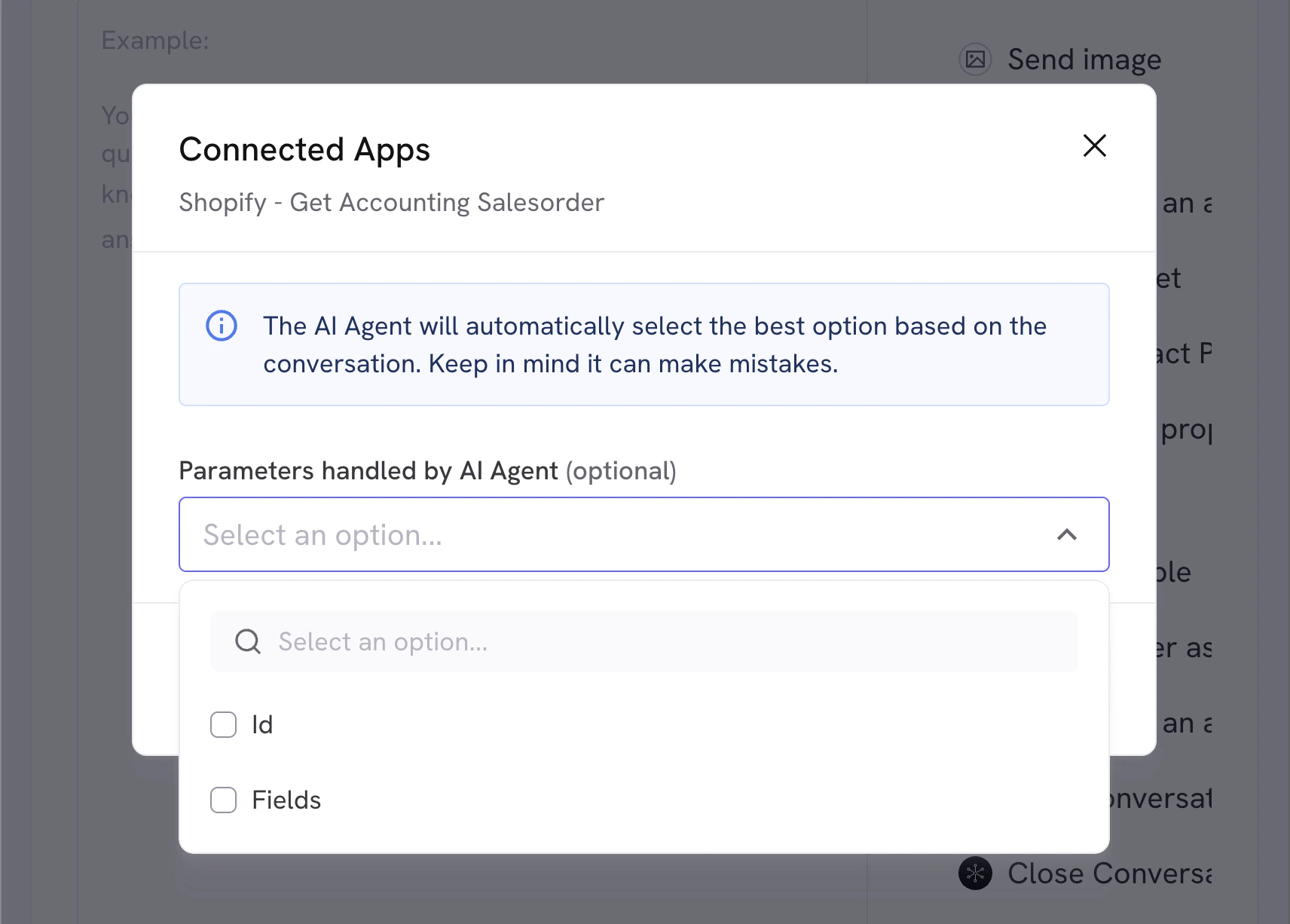 This will override the value the AI tries to generate, so it’s advised to let the AI handle it unless you know the exact value you’re looking for. You can always update this if you see any issues or change your mind.
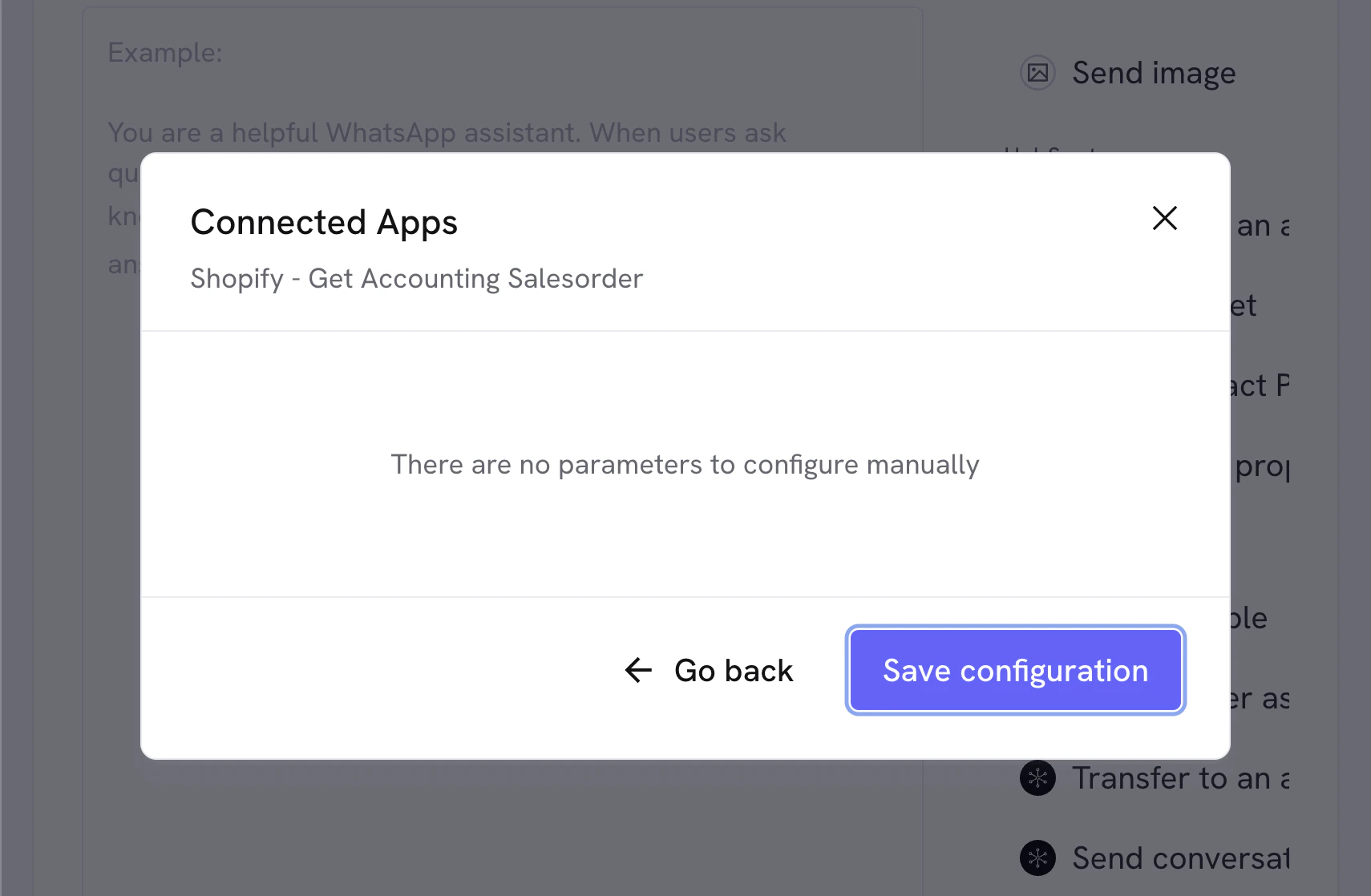
If you let AI handle all parameters you can skip step 3, otherwise, enter the fixed values you want to use in step 3.
This will override the value the AI tries to generate, so it’s advised to let the AI handle it unless you know the exact value you’re looking for. You can always update this if you see any issues or change your mind.
If you let AI handle all parameters you can skip step 3, otherwise, enter the fixed values you want to use in step 3.
 When you click “Save” you’ll see the configured action in your AI Agent editor, you can now use it in your conversations.
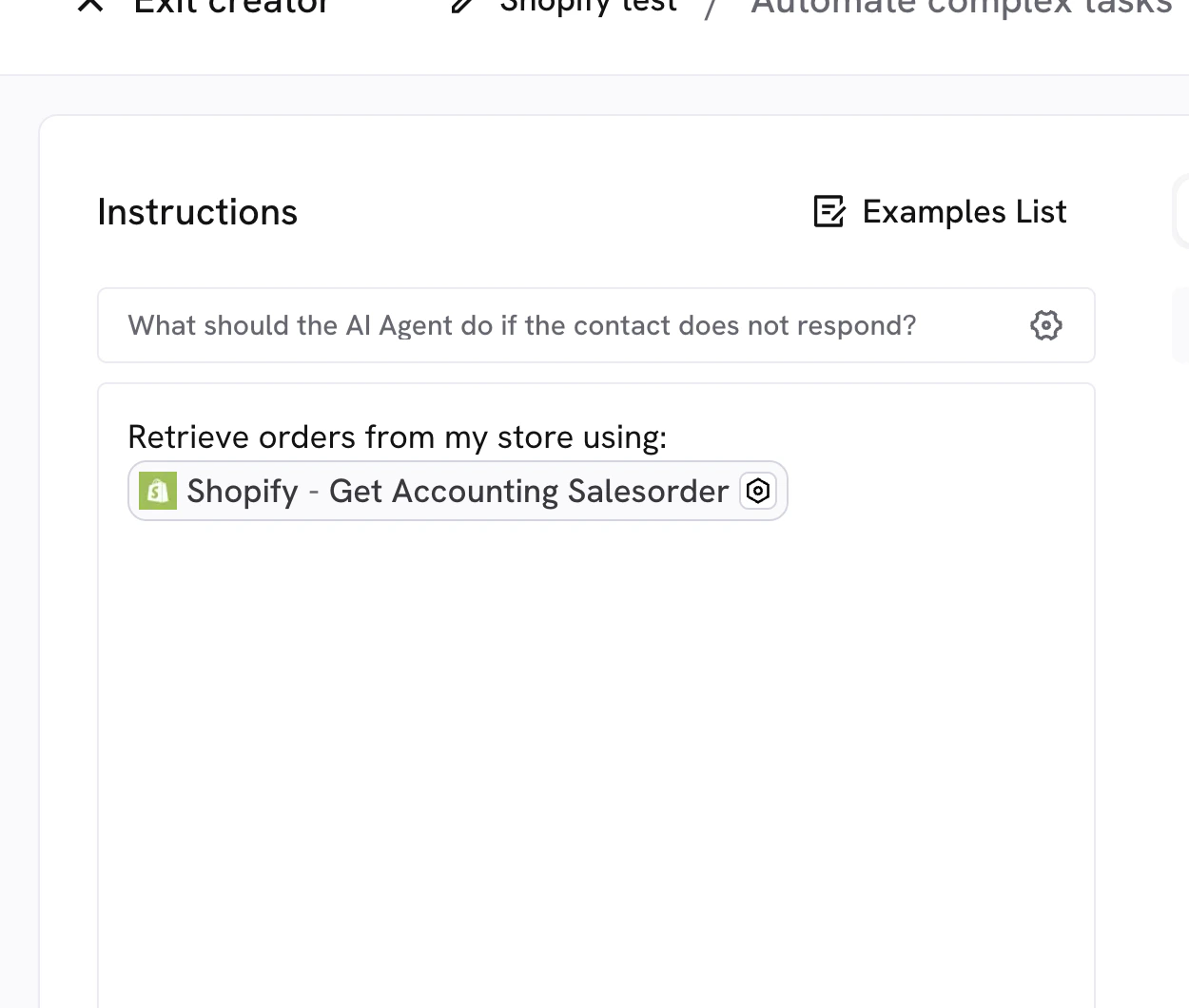 For your reference, the available Shopify tools you can use in the Automate Complex Tasks agent are:

