

What is the Contacts section?
The Contacts section is Treble’s lightweight CRM. All WhatsApp numbers your company has interacted with are automatically centralized here: any user who receives an outbound conversation or initiates an inbound conversation is registered as a contact without any manual action on your part. From this section you can:- View and search all your contacts in one place.
- Create custom properties (text, number, or date) to enrich profiles.
- Organize contacts into lists to segment them.
- Apply filters to find exactly the segment you need.
- Execute bulk actions: send conversations, add or remove from lists, or delete contacts.
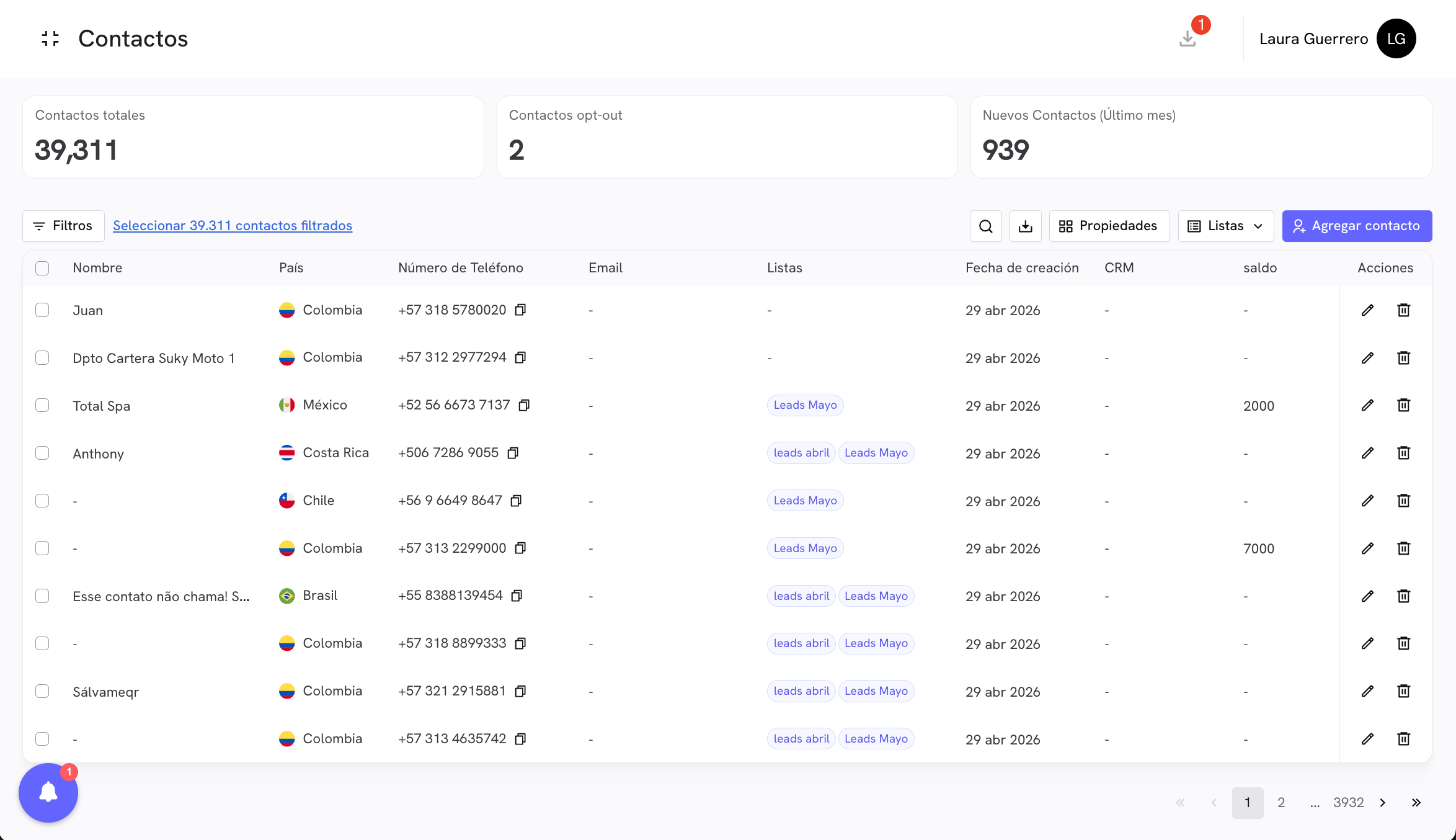
- Total Contacts: the total number of contacts registered in your account.
- Opt-out Contacts: contacts who have requested to stop receiving messages.
- New Contacts (last month): contacts created in the last 30 days, useful for measuring the growth of your base.
Adding a contact
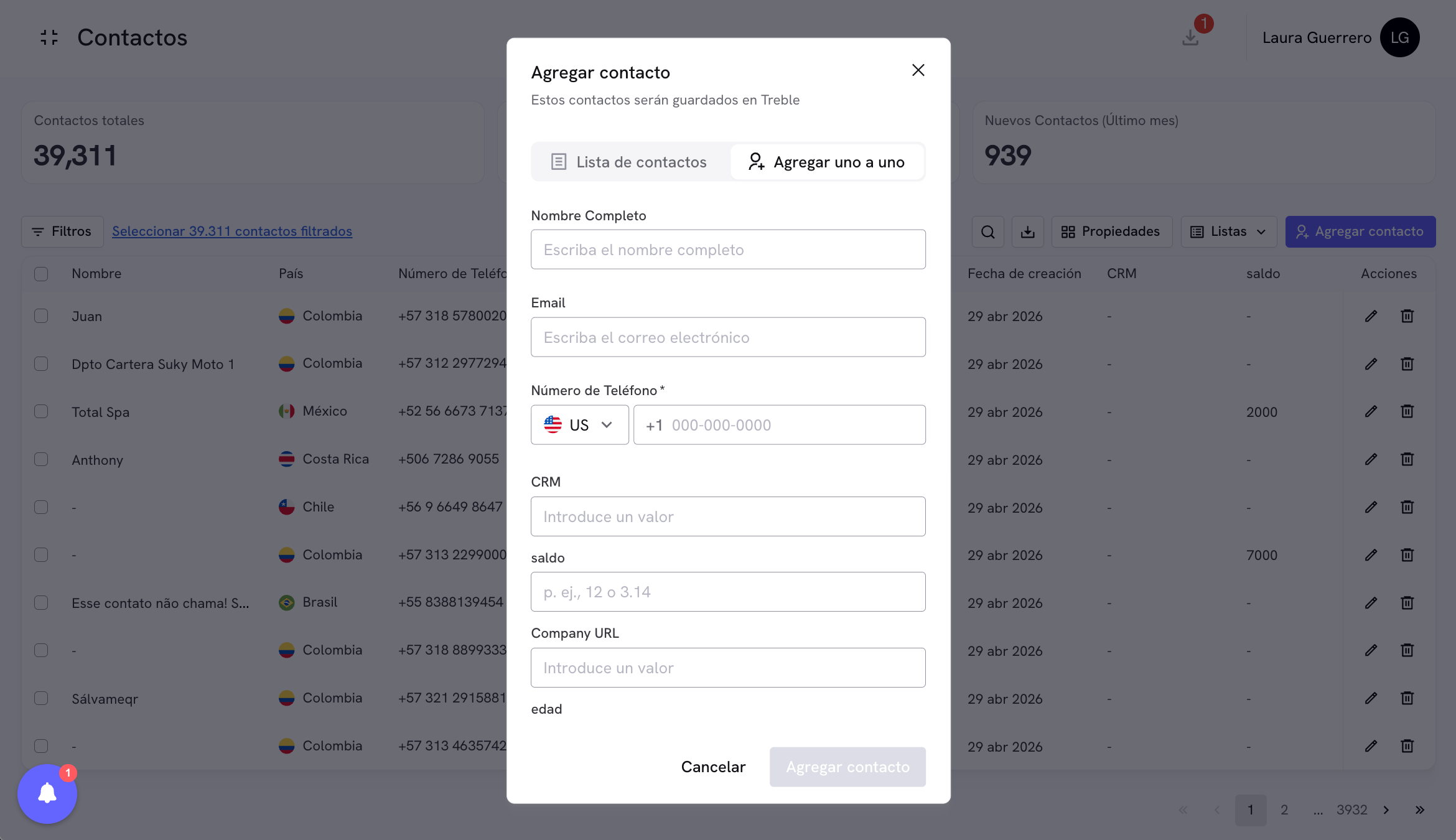
You can add contacts in two ways: one by one or by uploading a CSV file. Click the Add contact button in the top right corner to access both options.Add one by one
Fill in the form with the contact’s details:- Full Name: the contact’s name.
- Email: email address.
- Phone Number: select the country code and enter the number.
- Additional properties: any custom property you have created will appear here as an additional field (for example, CRM, balance, Company URL, age).
Add by CSV
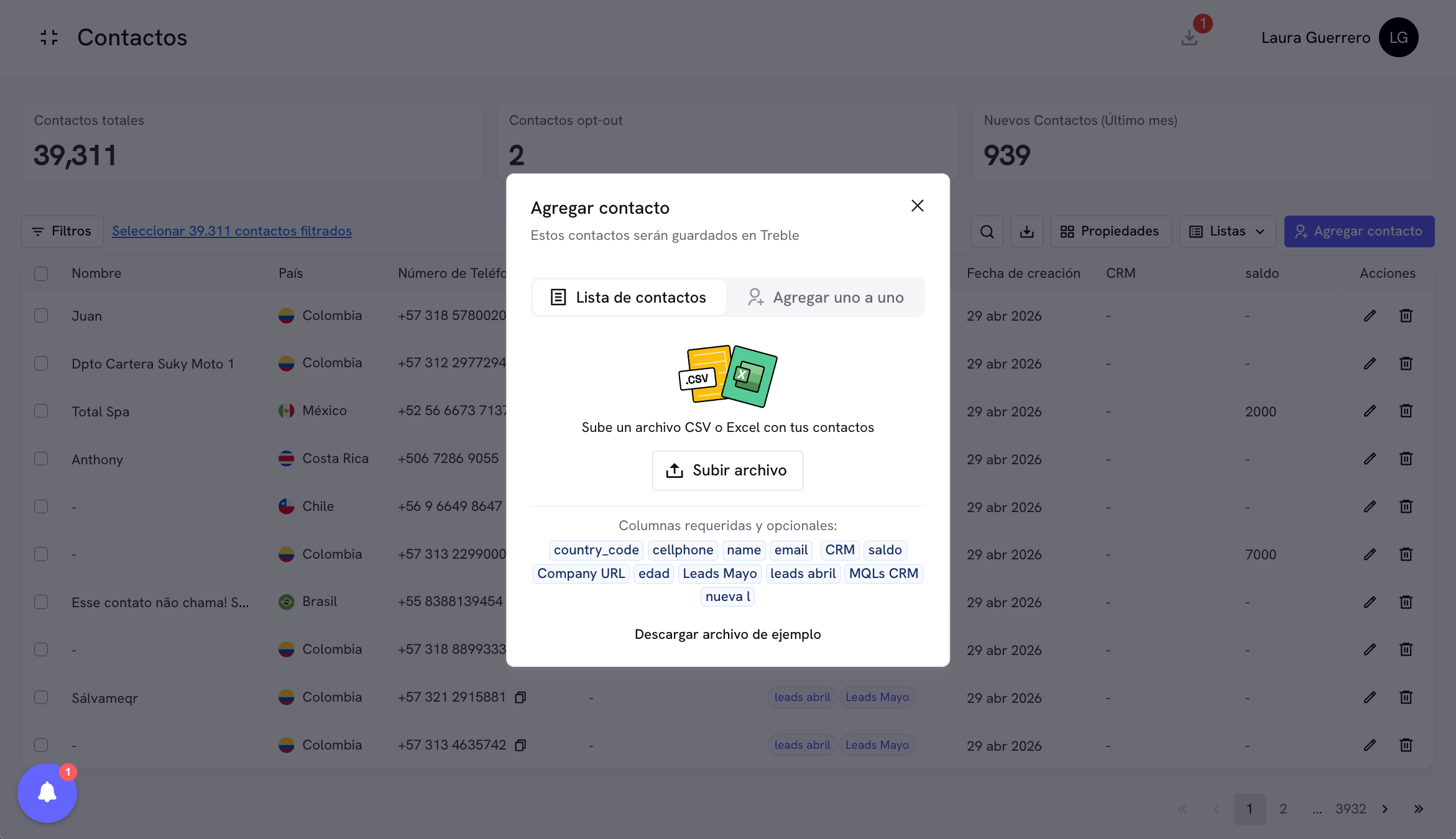
If you need to upload multiple contacts at once, use the Contact list tab inside the same modal and click Upload file. The CSV file must contain the required columns. The mandatory columns arecountry_code and cellphone. Optional columns include name, email, and any custom property you have created (for example, balance, Company URL, age, or the name of a list such as May Leads).
Custom properties
Custom properties allow you to store additional information on each contact beyond the base fields (name, phone, email). You can create properties of three types: Text, Number, or Date. To create a property, click the Properties button in the toolbar and then click Create new property.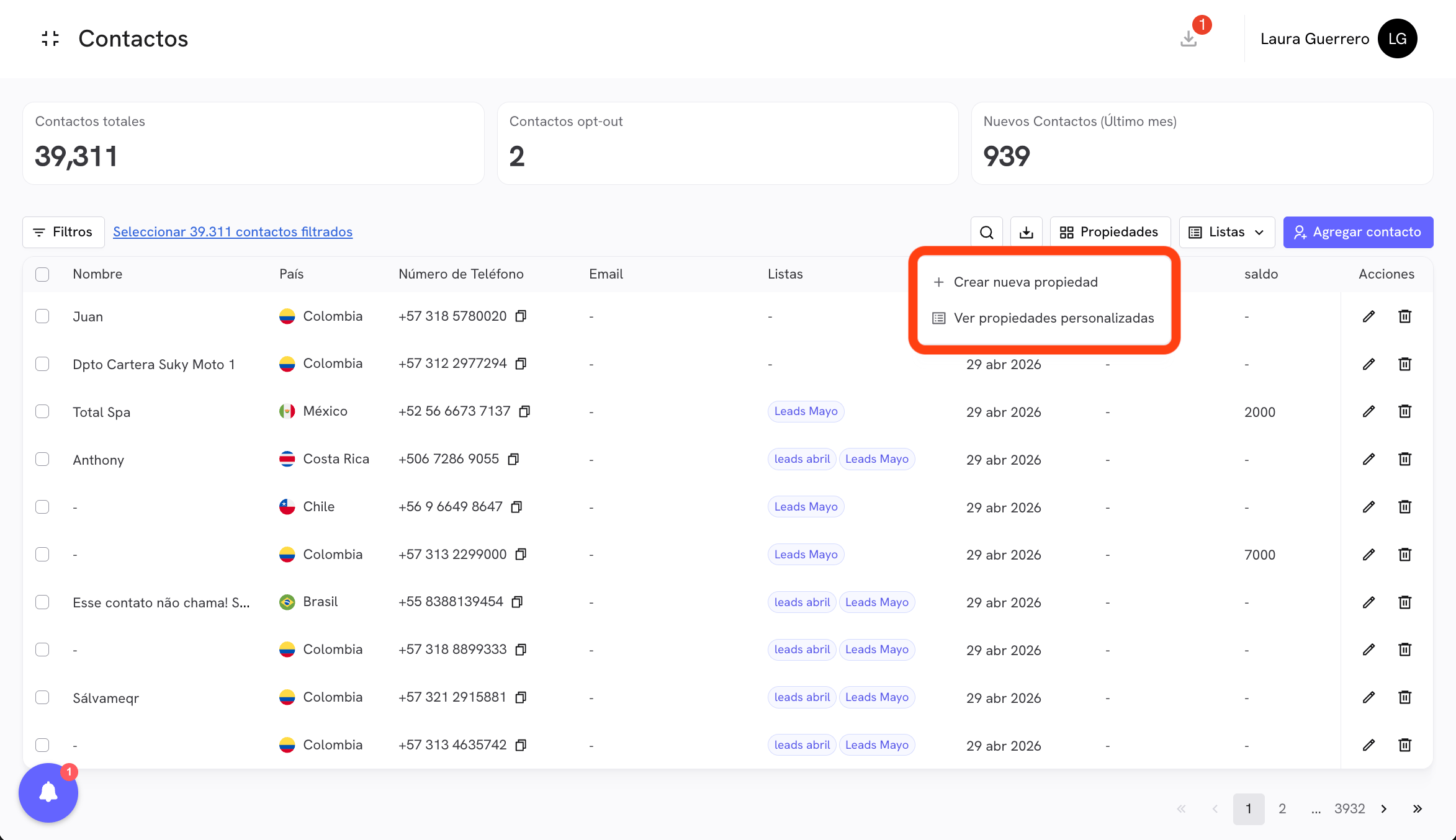
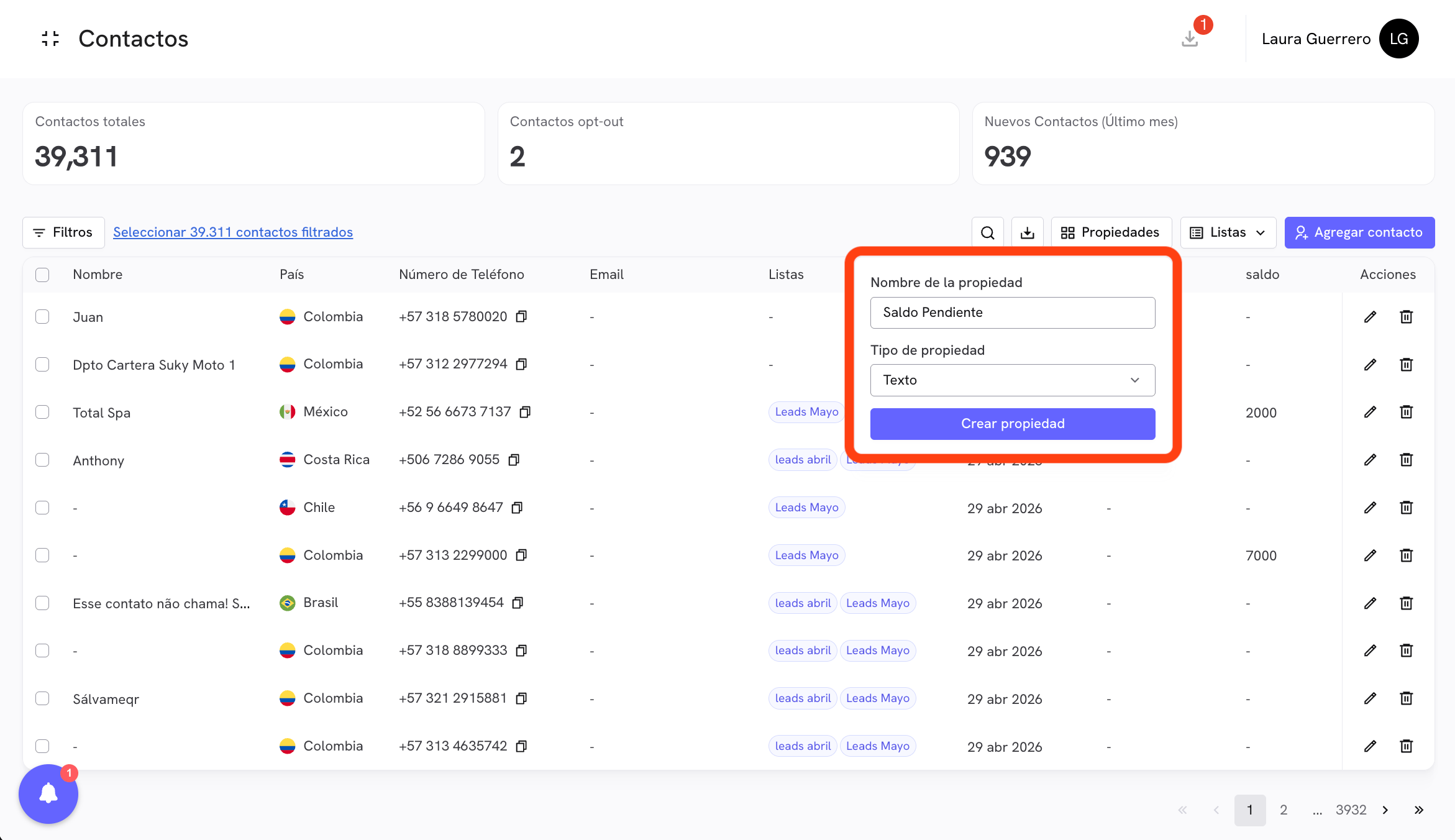
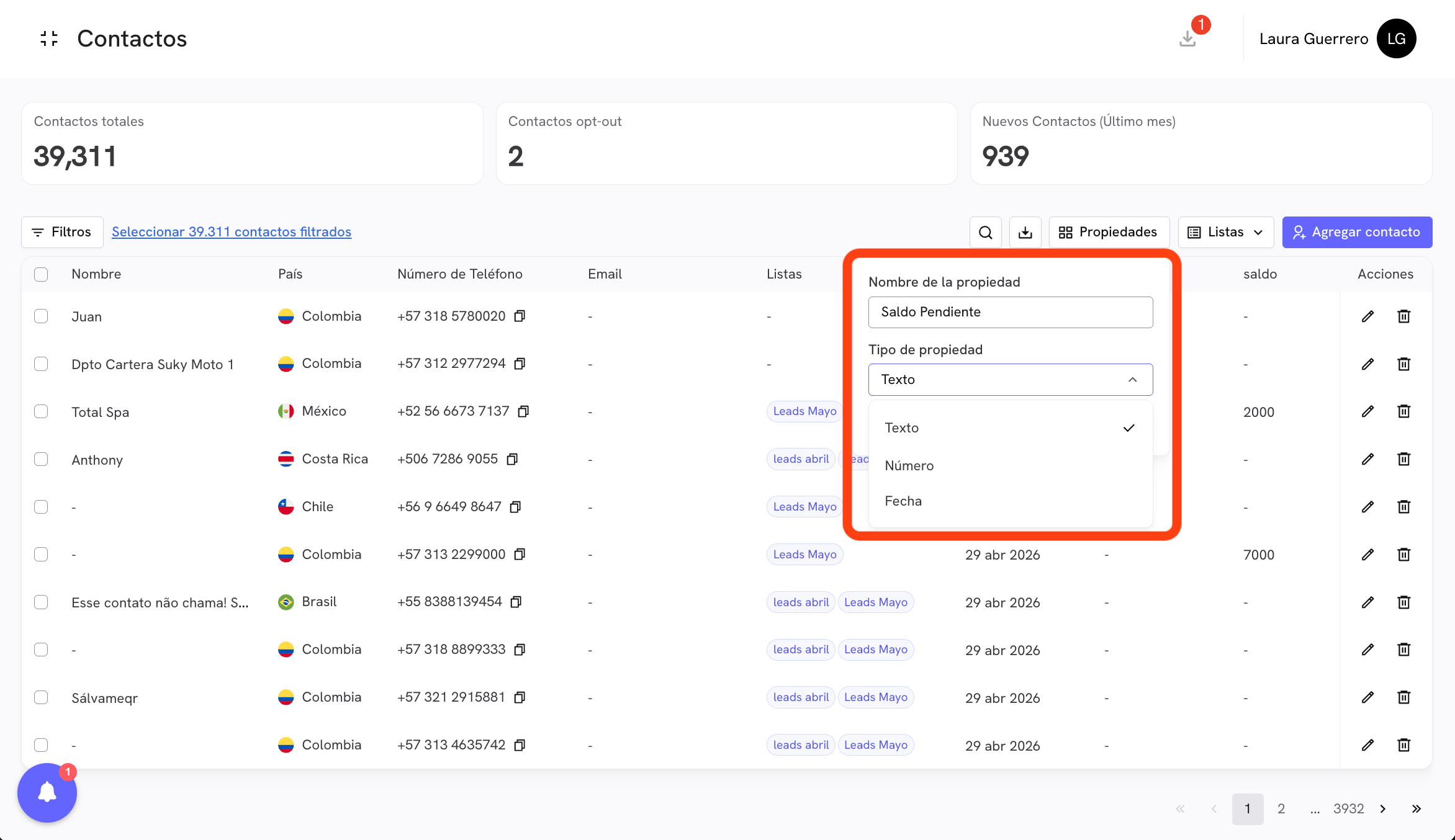
Once created, the property appears as a column in the contacts table and as an available field when adding or editing contacts, when uploading CSVs, and when using variables in the conversation editor.
To view and manage all your properties, click Properties → View custom properties.
Contact lists
Lists allow you to segment your contacts into named groups so you can filter them and send them conversations in a targeted way. To create a list, click the Lists button in the toolbar, type the name of the new list, and click Create list.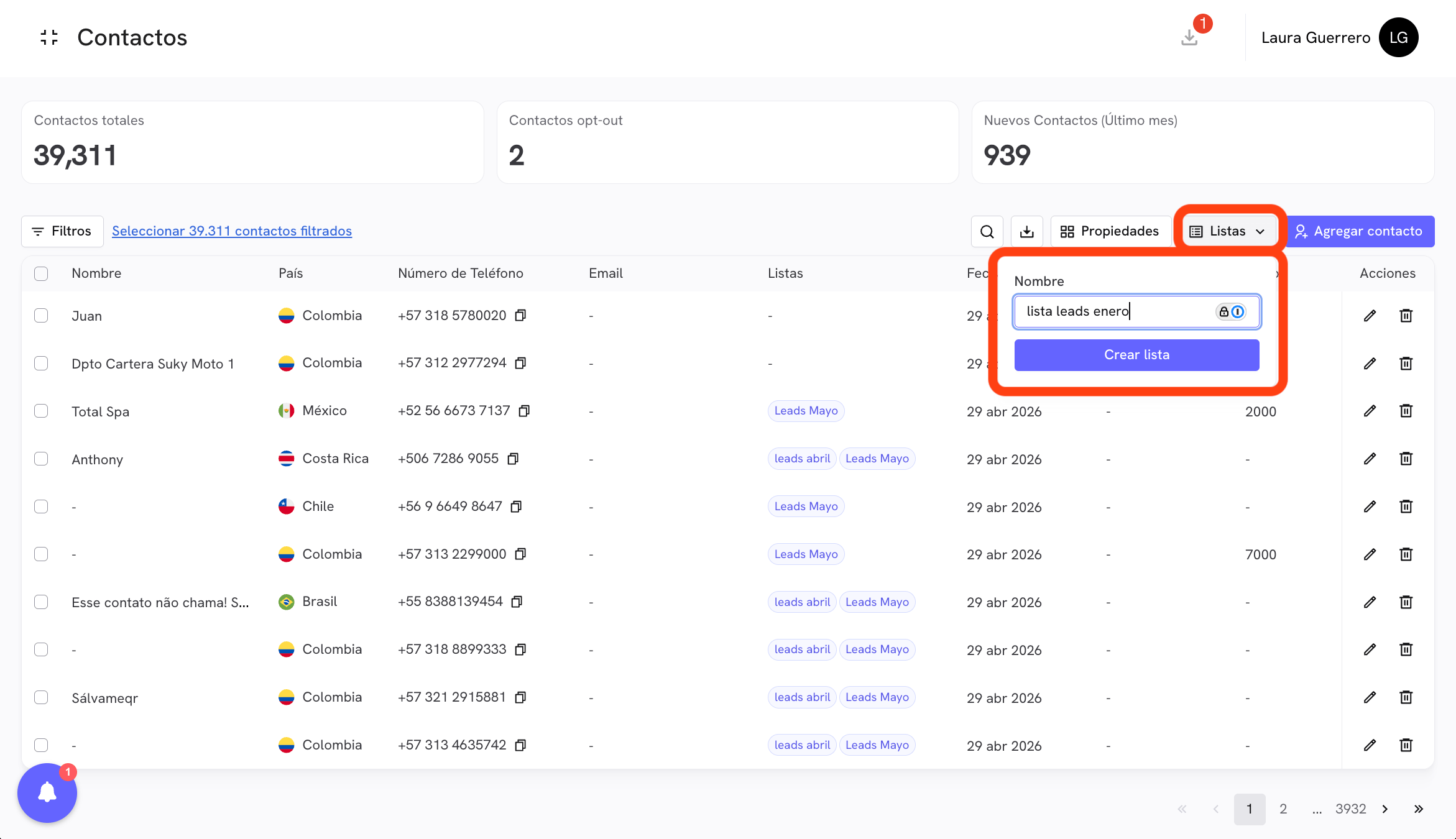
- As a column in the contacts table, showing which lists each contact belongs to.
- As an available filter in the Filters panel.
- As an option when executing Add to list or Remove from list bulk actions.
Toolbar
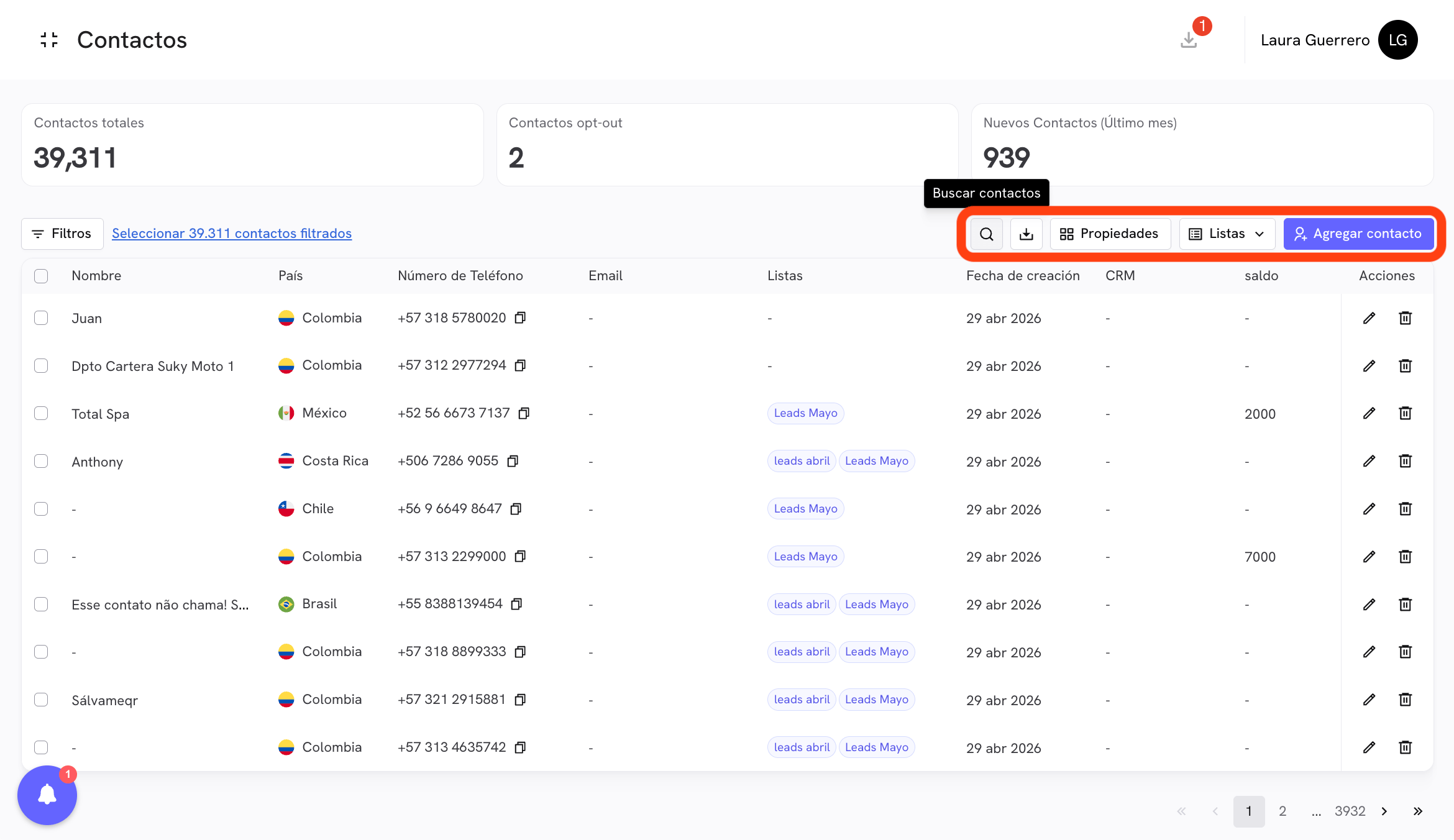
Filters
The filters panel lets you narrow the contacts view to exactly the segment you need to work with. Click the Filters button to open it.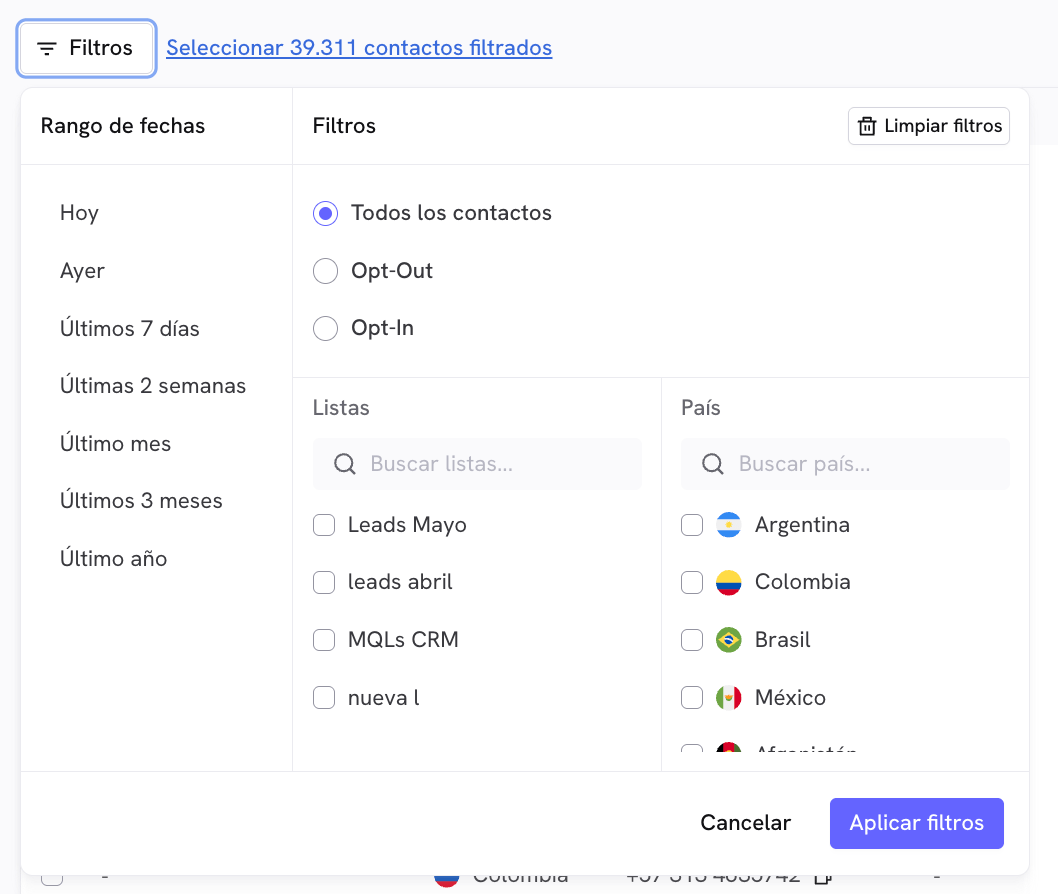
Once the filters are configured, click Apply filters. The table will update and the header will show a Select [N] filtered contacts link that lets you select all contacts that meet the criteria, regardless of the page.
Bulk actions
With one or more contacts selected, a bar appears at the bottom of the screen with the available bulk actions.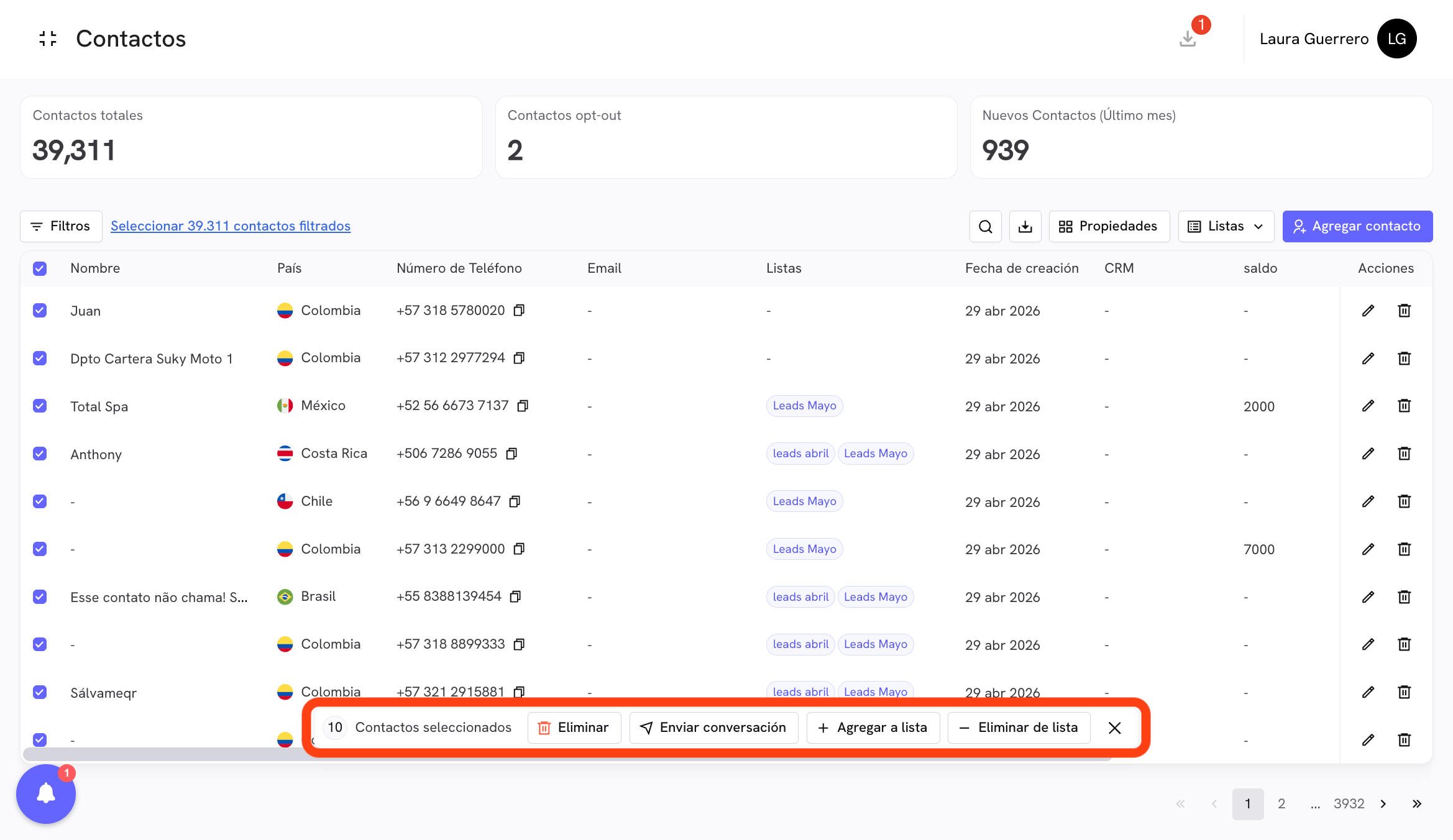
- Individually: check the box next to each contact.
- Current page: check the header checkbox to select all contacts on the visible page.
- All filtered: click the Select [N] filtered contacts link in the top bar to select all contacts that pass the active filters, even if there are thousands.
🗑 Delete
Permanently deletes the selected contacts from your account.➕ Add to list
Adds the selected contacts to an existing list. When you click, a search box appears with your available lists. Select the destination list and click Add.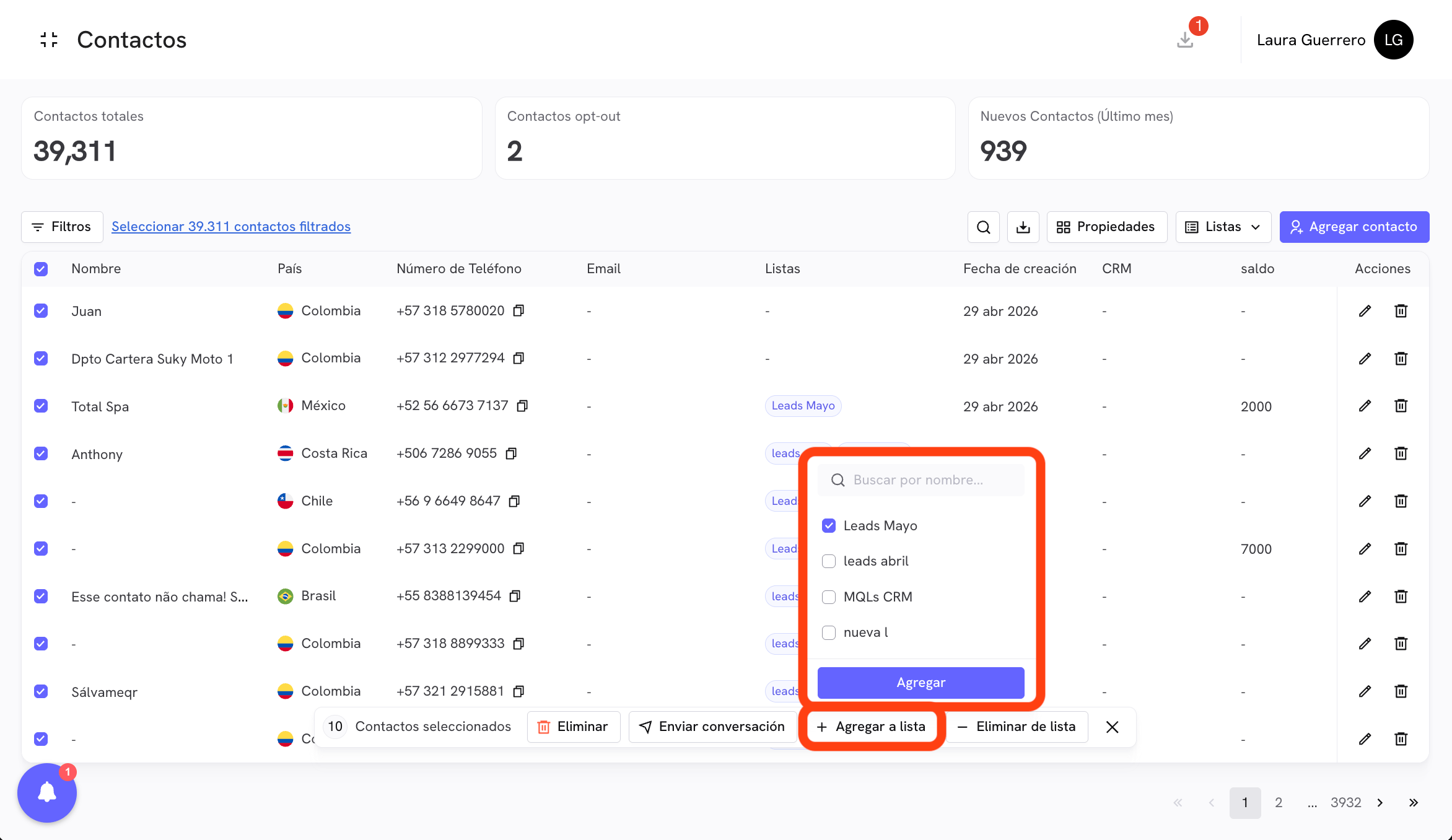
— Remove from list
Removes the selected contacts from a list. Useful for cleaning up segments without deleting the contacts from your base.📤 Send conversation
Deploys a Treble conversation to the selected contacts directly from the Contacts section. When you click, a conversation search box opens so you can choose which one to send.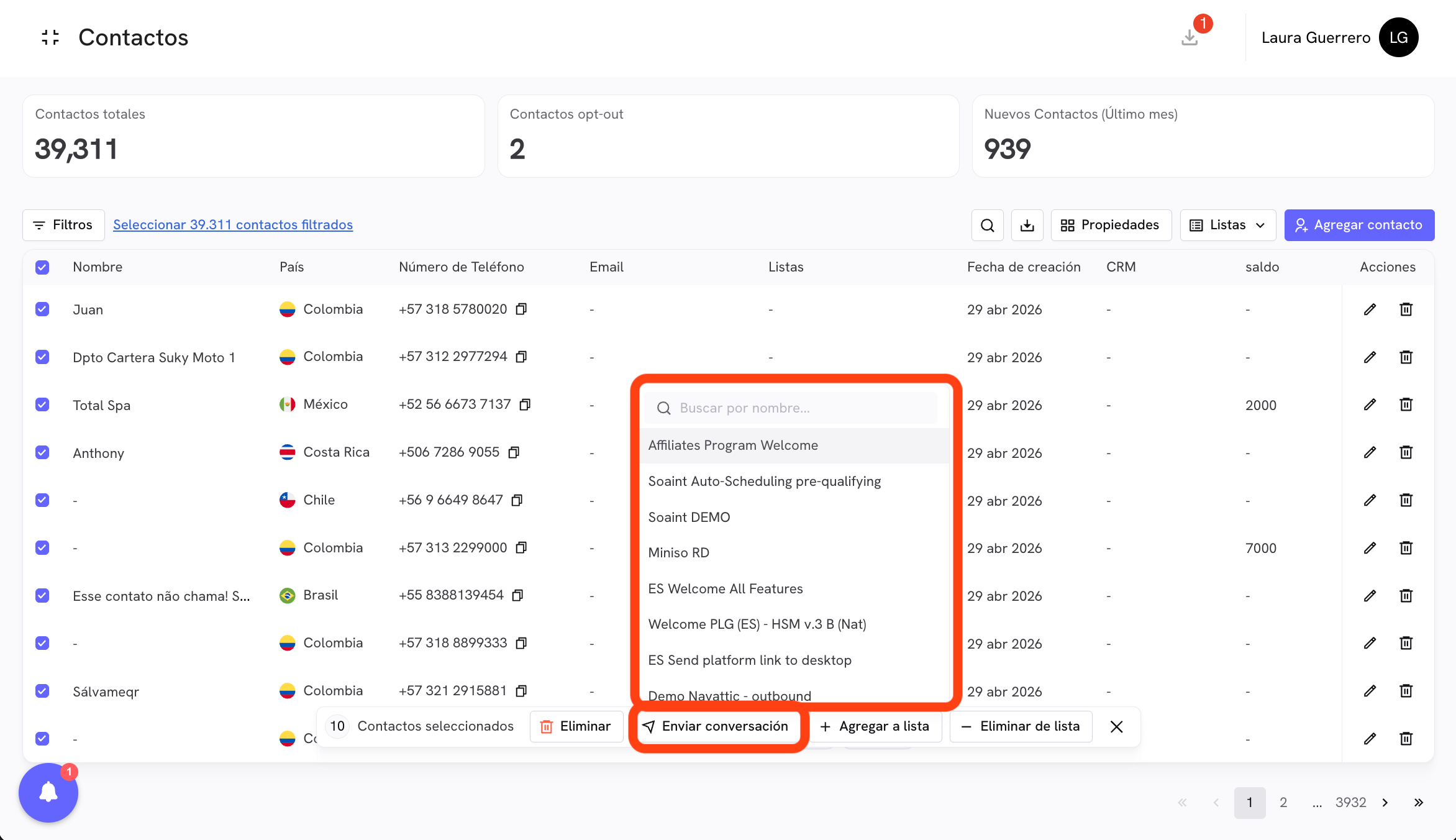
Link properties
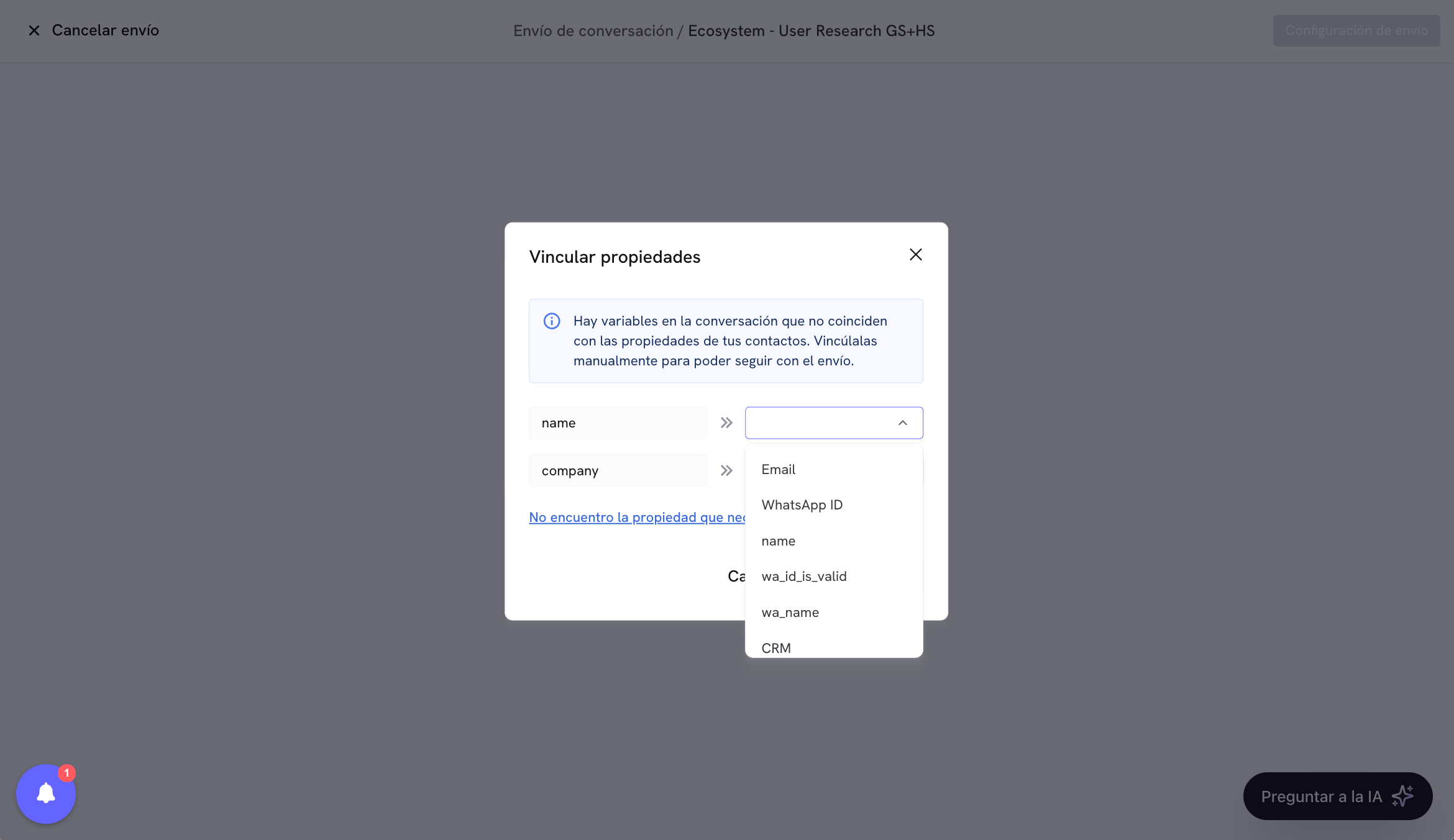
If the selected conversation contains variables (for example,{{name}} or {{company}}), Treble will automatically check whether those variables match your contacts’ properties. If there are variables that do not match, the Link properties modal will appear.
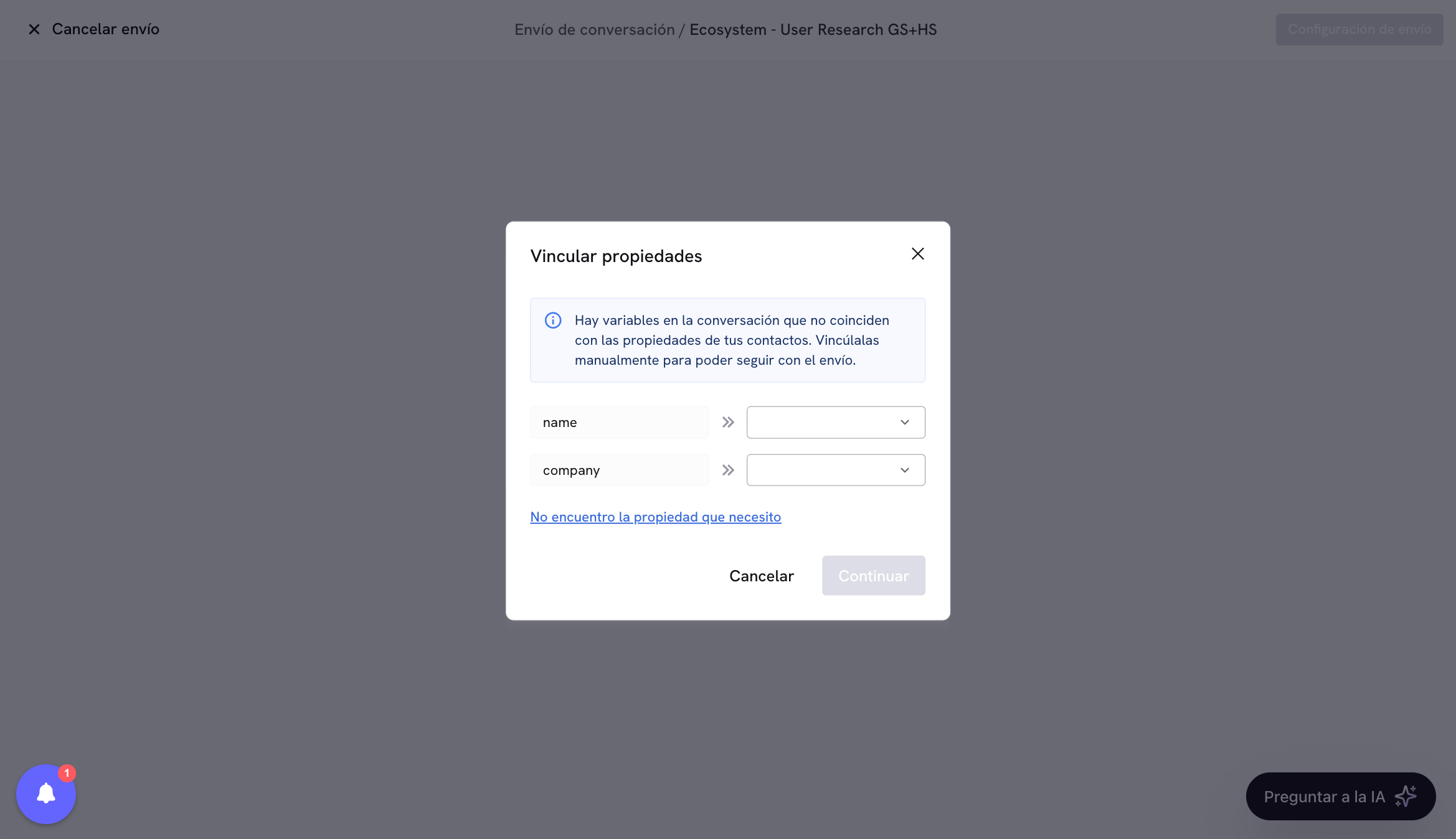
name variable can be mapped to the contact’s name property.
Contact variables in the conversation editor
Your contacts’ properties in Treble can be used as variables directly inside the conversation editor, in the same way thatHubSpot variables
are used. This means you can:- Read a contact property inside a message. For example, greet the customer by name using the
nameproperty. - Write the customer’s response into a contact property. For example, capture the email they provide and save it in their
emailproperty.
- Default properties (name and email): use the
trbcontact_d_prefix. - Custom properties: use the
trbcontact_c_prefix followed by the internal name of the property.
Just like with HubSpot variables, to save a customer’s response into a contact property you must double-click the corresponding block in the editor, select Save response as variable, and write the contact variable name (for example,
trbcontact_c_edad) in the variable name field.