

What is it for?
When an agent steps away from their computer without marking themselves as inactive, new conversations keep getting assigned to them even though they are unavailable to respond. Automatic inactivity detection solves this: if an agent does not interact with any conversation for the time you configure, Treble will send them an alert notification inside the platform. If the agent does not respond to that notification, the system will automatically mark them as inactive.This feature only detects inactivity while the agent has the Treble Sales tab open in their browser. If the agent closes the tab or browser without logging out, their status will not change. Train your agents to manually log out at the end of their shift.
How to activate it
Step 1 — Go to Settings
From the Treble Sales side menu, click on Settings.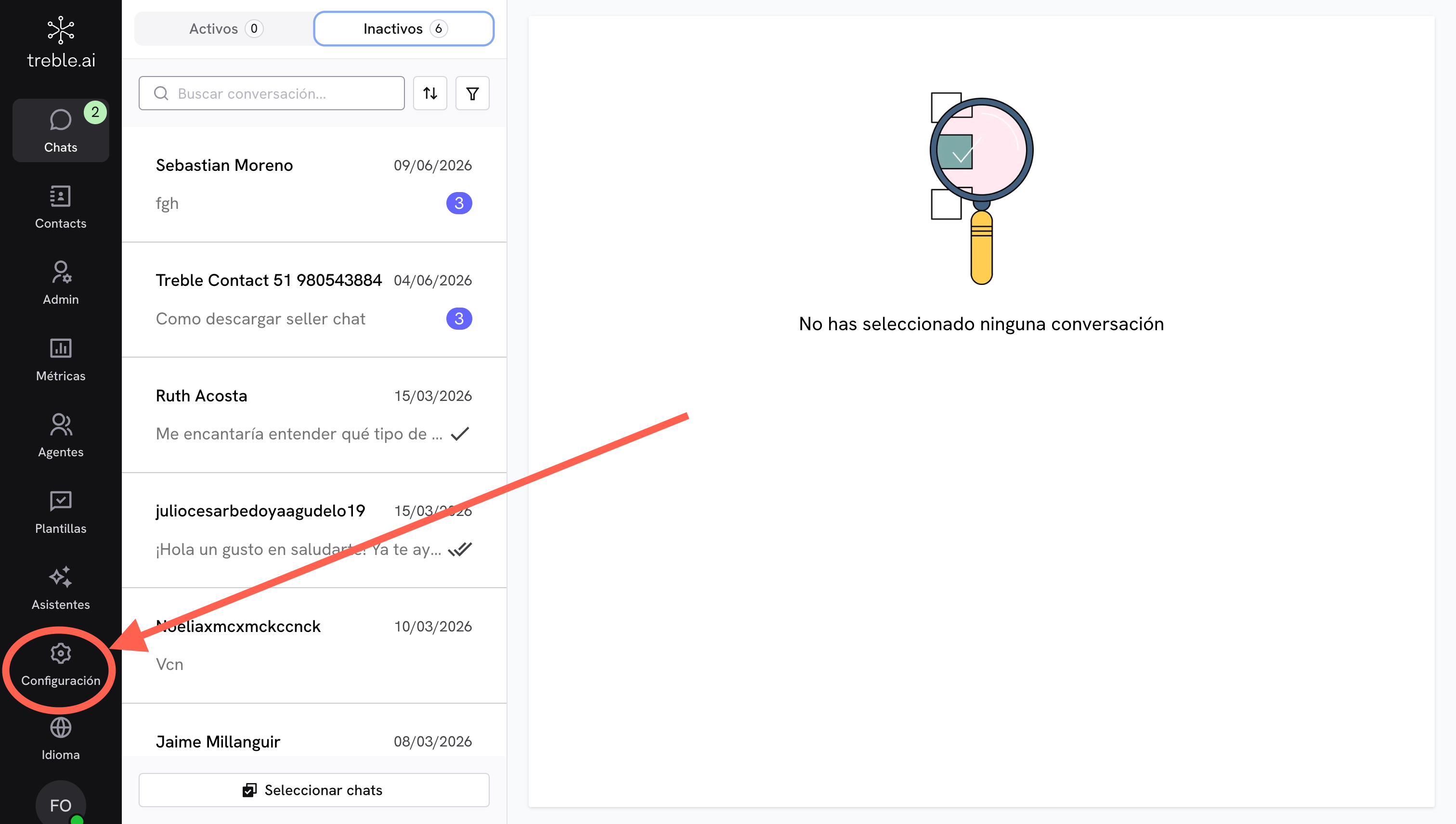
Step 2 — Enable inactivity detection
Inside Settings → Agents, enable the Automatic inactivity detection switch.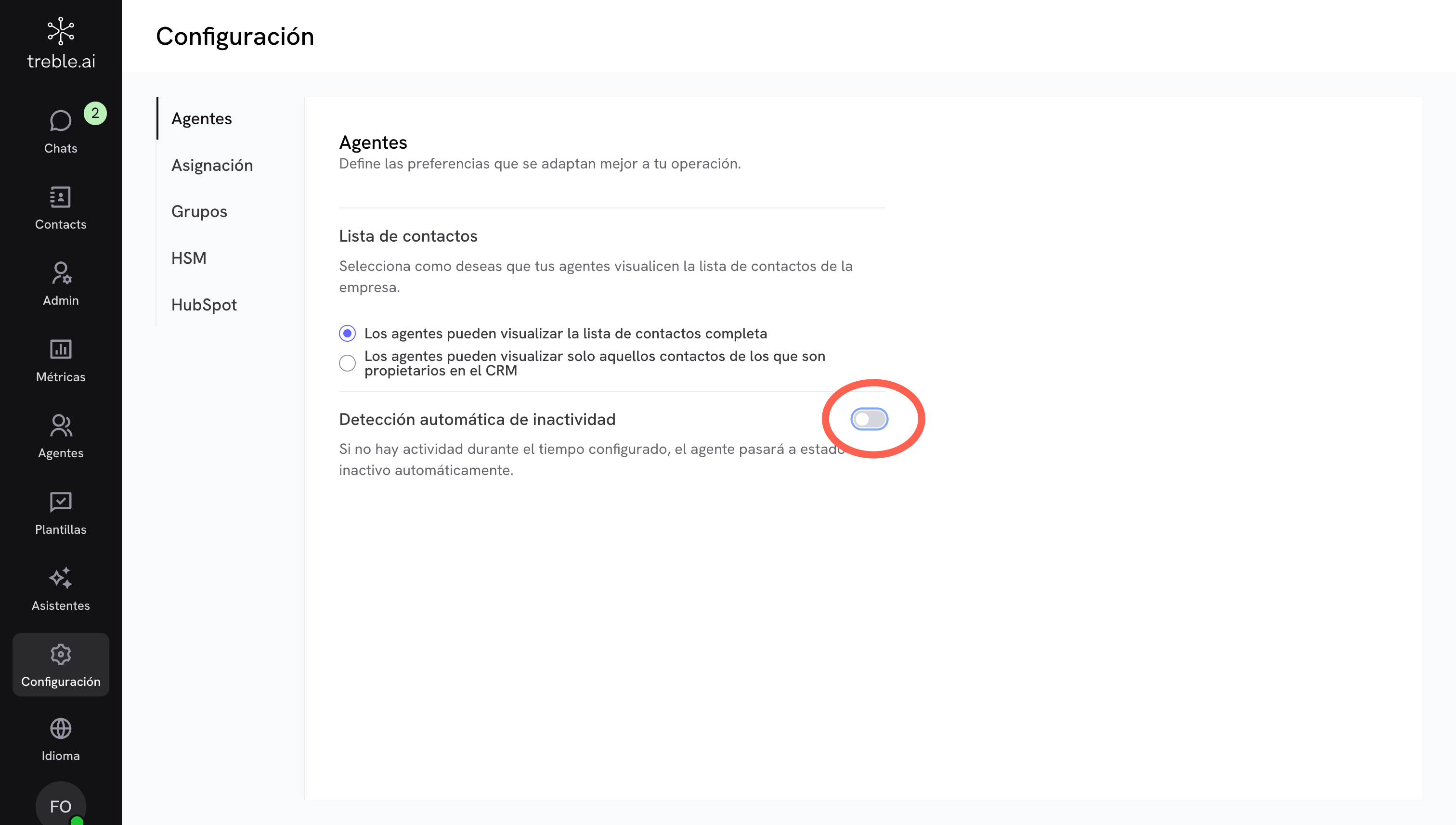
Step 3 — Configure the inactivity time
Below the switch, the Inactivity time (minutes) field will appear. Define how many minutes of inactivity must pass before the agent receives the notification and is automatically disconnected.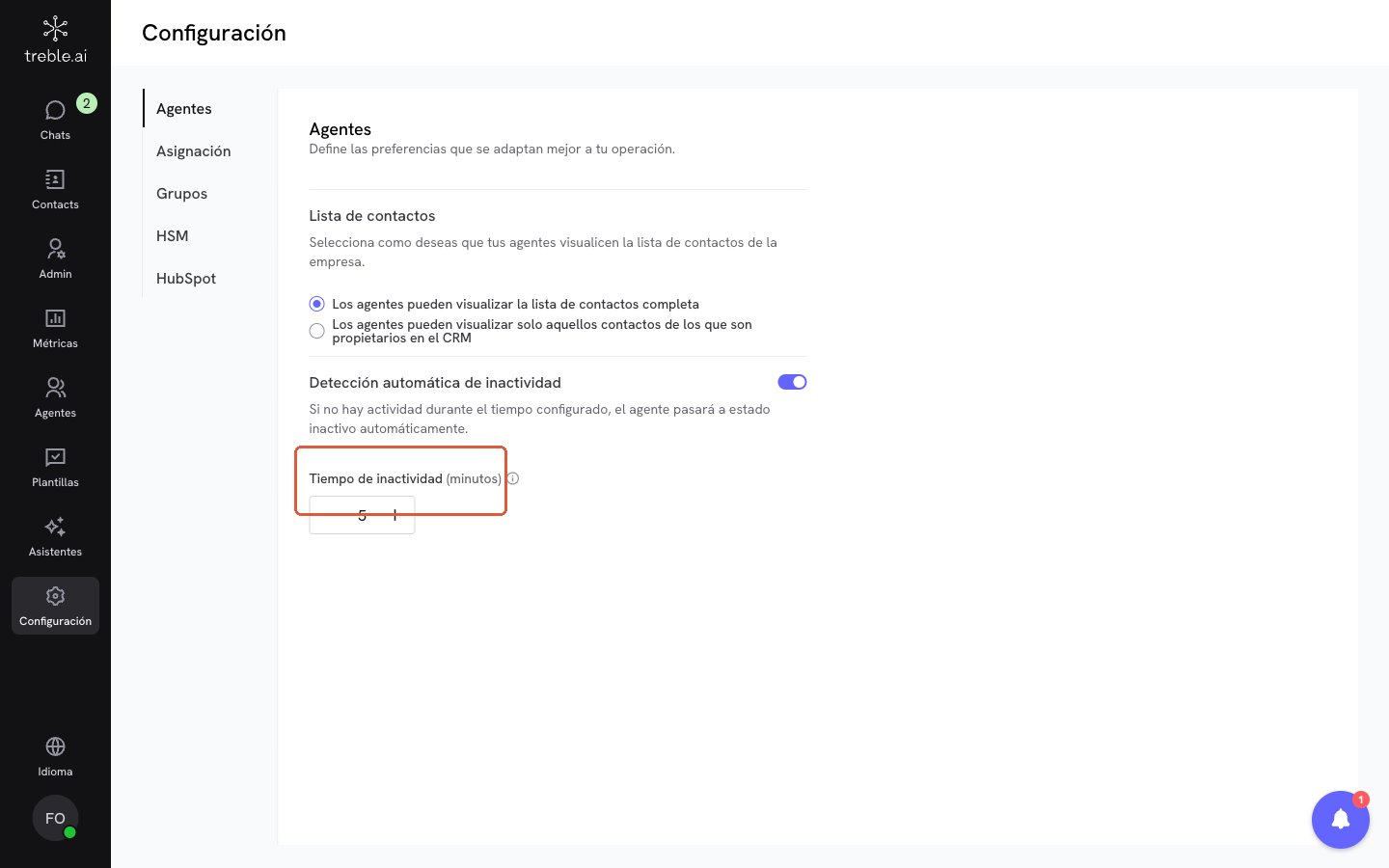
Step 4 — What the notification looks like for the agent
When an agent exceeds the configured time without interacting, they will see this alert inside the platform: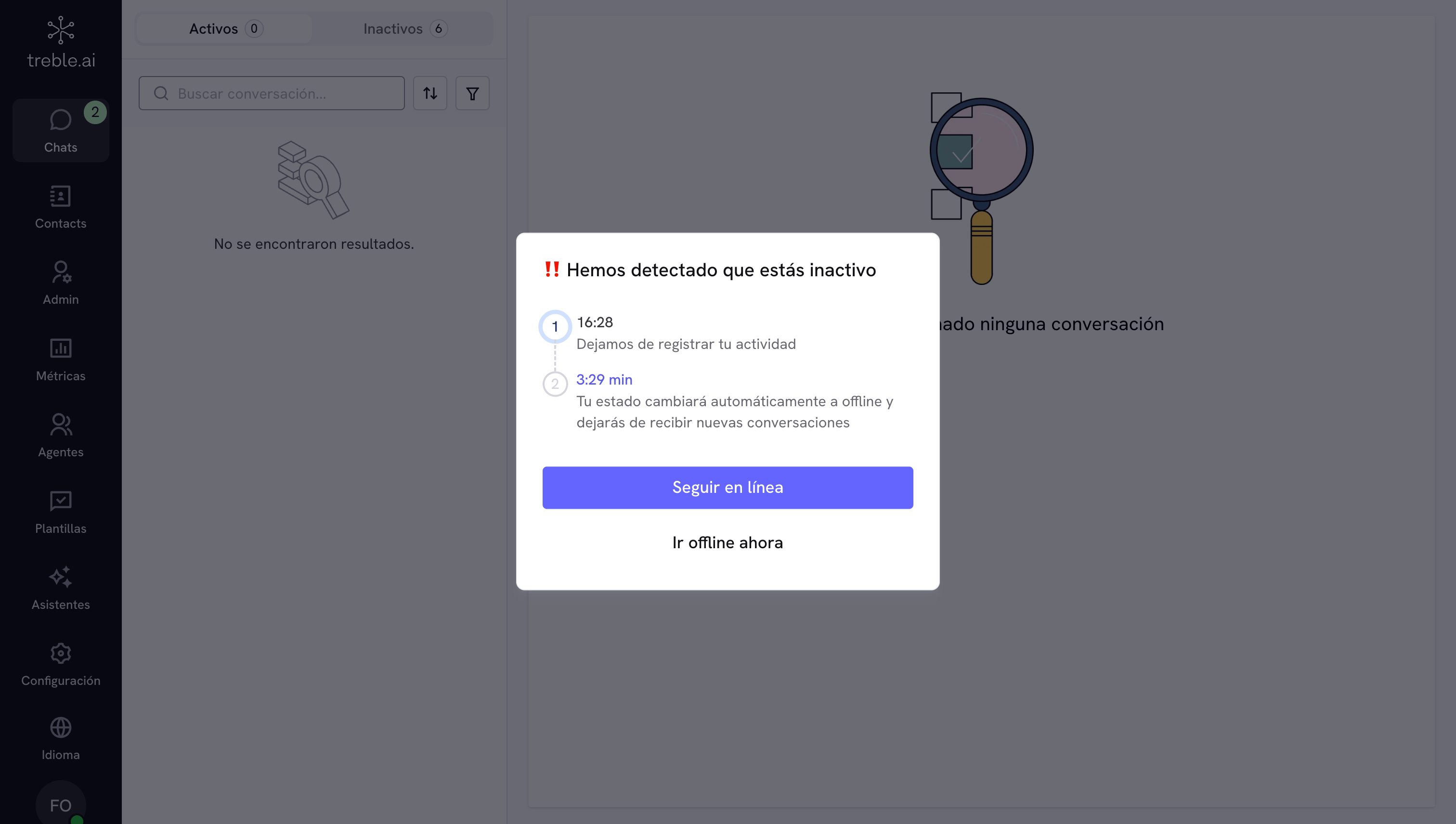
- Stay online — confirms they are still active, the counter resets, and they continue receiving conversations normally.
- Go offline now — marks themselves as inactive immediately, without waiting for the countdown to finish.
- No response — when the countdown reaches zero, Treble automatically marks them as inactive and stops assigning them new conversations.
Important considerations
- The switch applies to the entire account. It is not possible to configure different times per agent or group. If your team has roles with very different work rhythms, configure the timer to match the slowest segment and train others to manually mark themselves inactive when needed.
- No notification history. There is currently no record of how many times an alert was sent to each agent. This visibility is on the platform roadmap.
- Communicate it to your team before activating. Agents who do not know what this notification is may be confused the first time they see it. Explain that if they receive it and are active, they just need to click to confirm.
Next steps
Agent Platform
Discover all the features available for your agent team.
Notifications Settings
Make sure your agents receive real-time alerts.