This feature is in beta. Please ask your CSM to enable it for your account
before following these steps.
Prerequisites
- You need to have a Shopify account
- You need to be logged in as an admin of the Shopify account
- You need to have a Shopify store
This guide will be divided into three parts:
- Creating a custom Shopify App that will allow Treble to access your Shopify data
- Installing the custom Shopify App in your Shopify store
- Linking the custom Shopify App to Treble
1. Creating a custom Shopify App
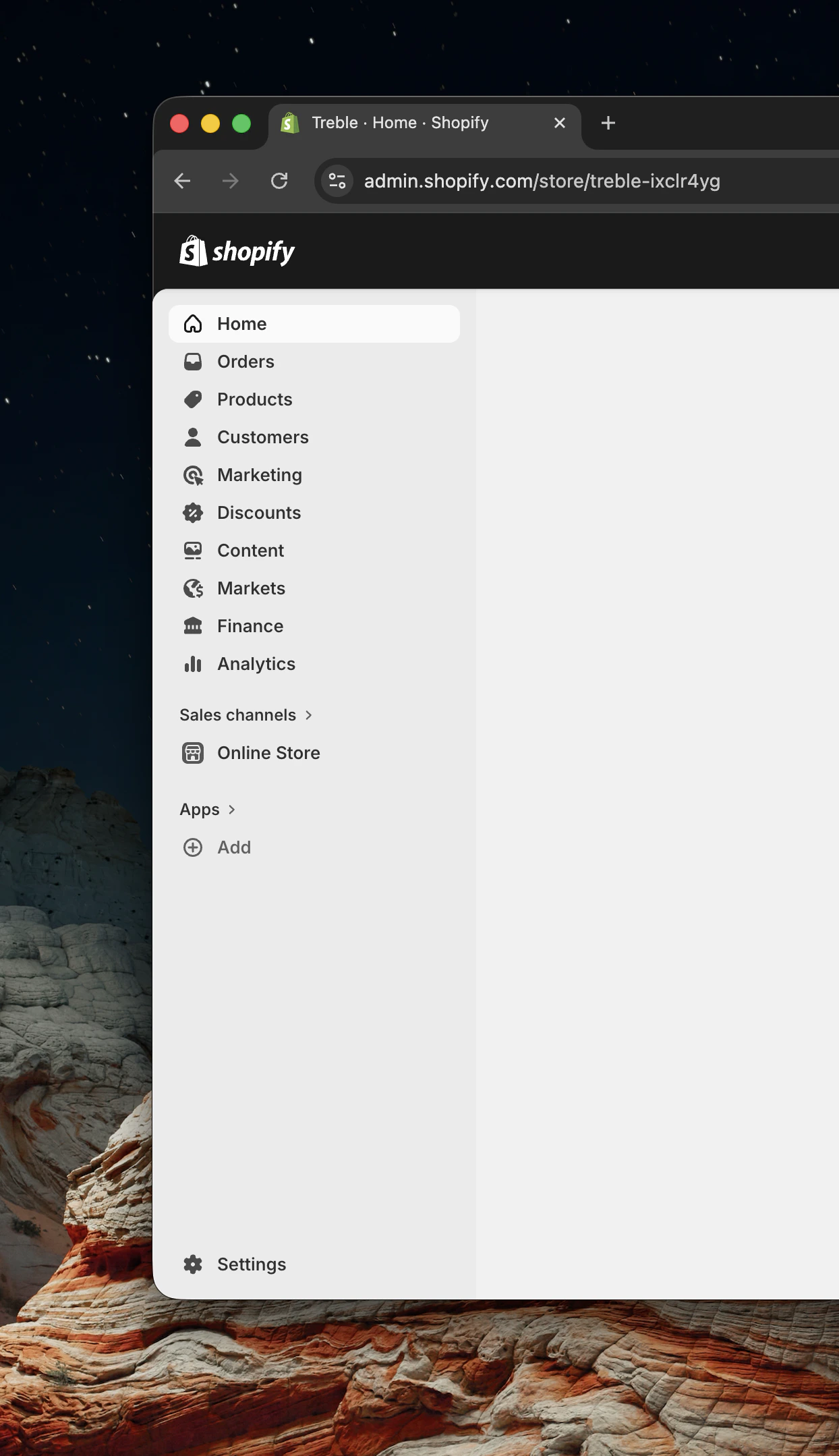
- Go into the Shopify Admin https://admin.shopify.com/ and at the bottom left of the screen, click on “Settings”
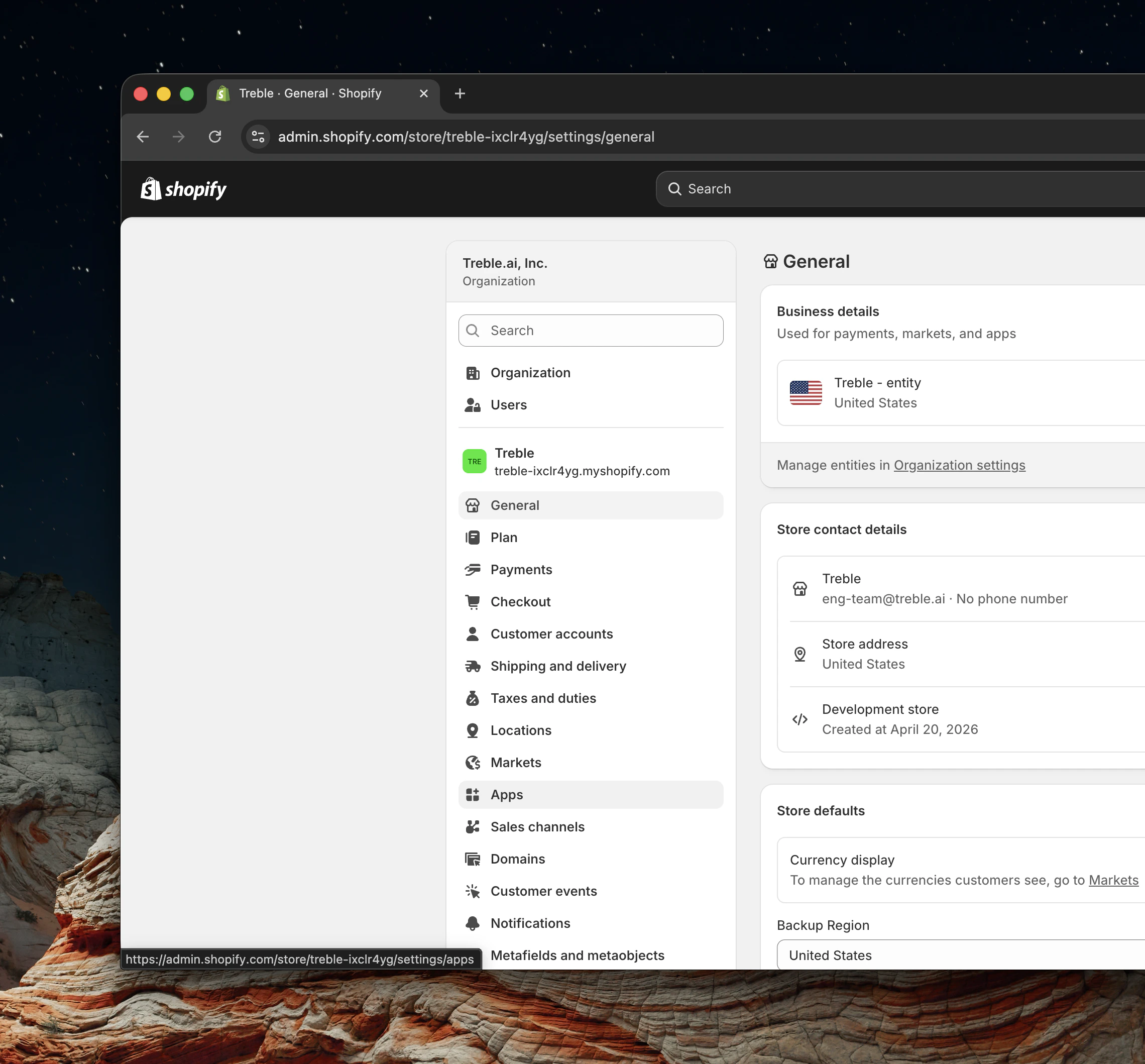
- Once you’re in the settings page, click on “Apps”
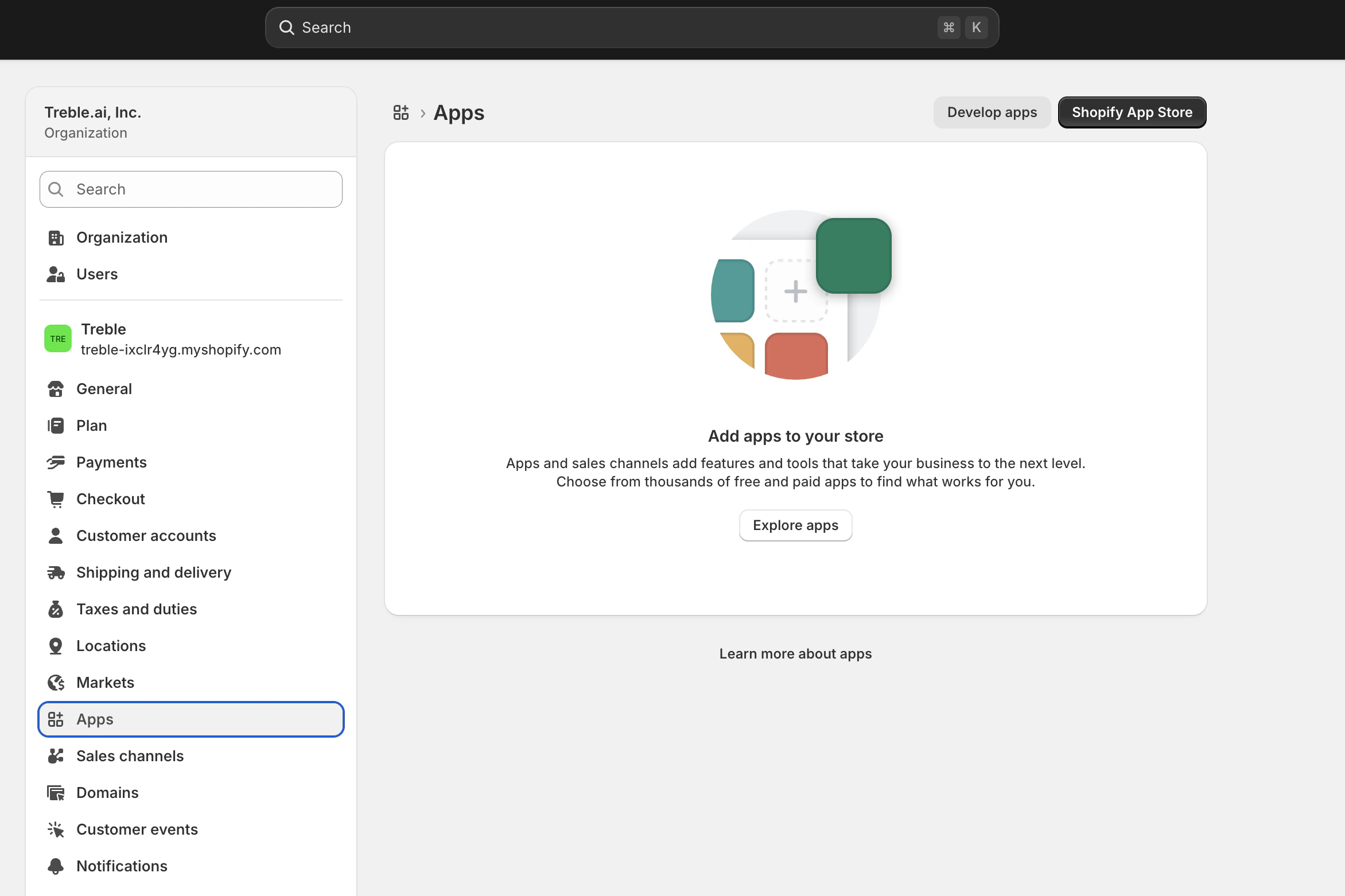
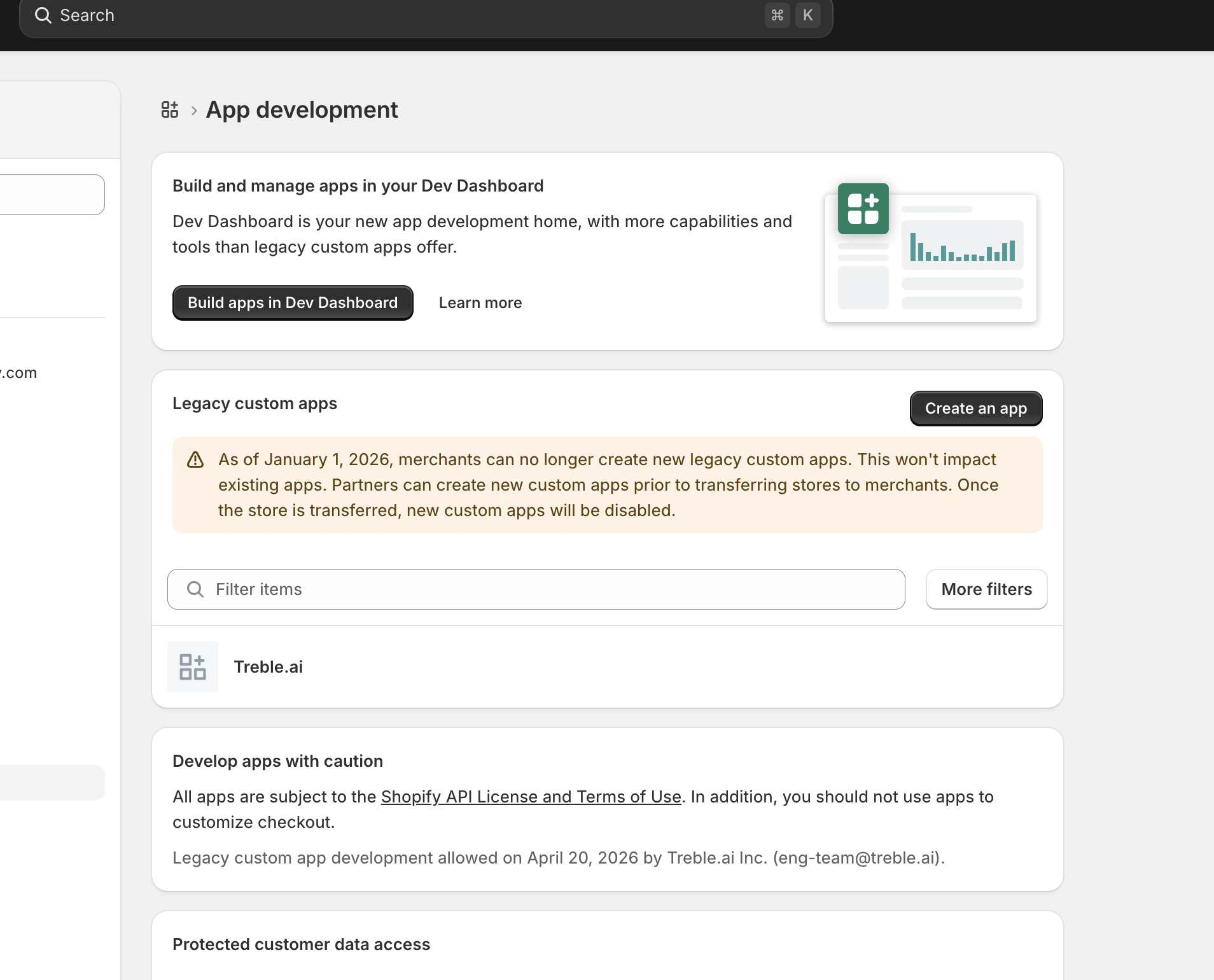
- You’ll see this screen if you don’t have any apps created or installed, if you have you’ll also see them here, we’re interested in the “Develop apps” button at the top right of the screen
- Because of how Shopify works, you’ll need to create a custom app, click the “Create an app” button (Note: This is not the same as building apps in Shopify Dev Dashboard)
- On the App name field, enter “Treble”, choose any available email from your organization on the dropdown menu
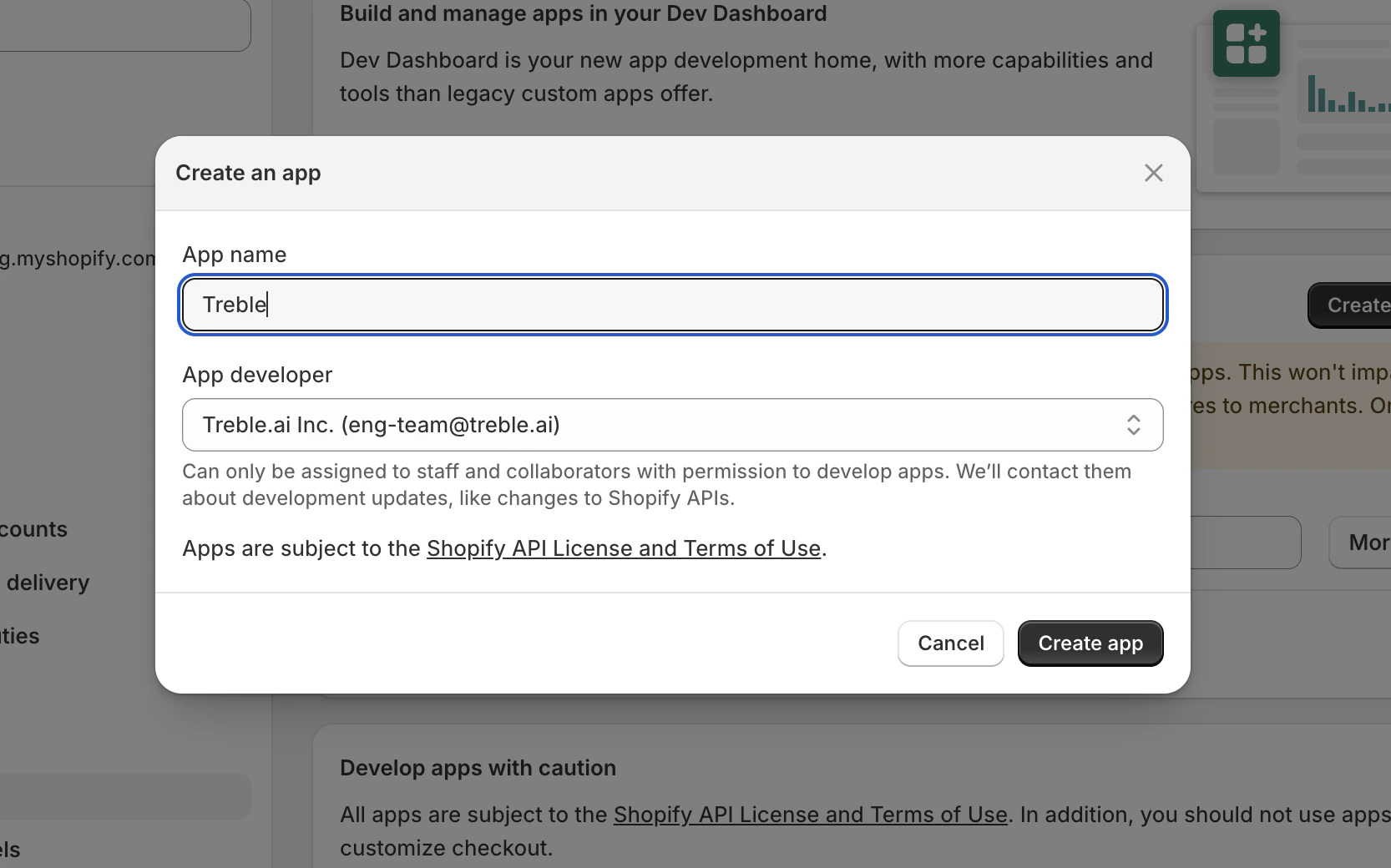
- Click on “Create app” button
Once your app has been created, you’ll need to setup the credentials
- Click on the “API credentials” tab
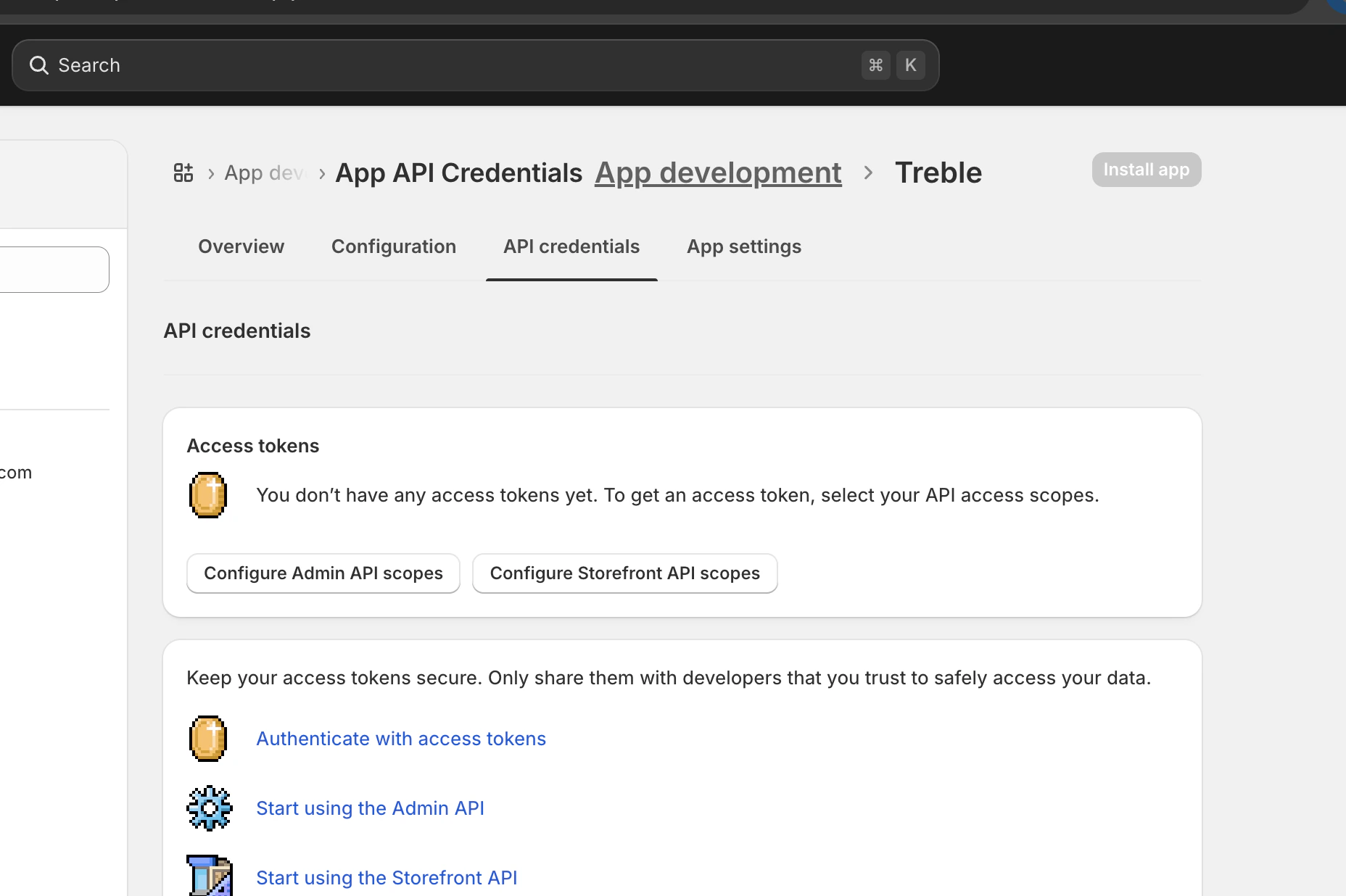
- Click on “Configure Admin API scopes”, you’ll see a list of checkboxes, the following ones should be checked:
read_customerswrite_inventoryread_inventoryread_locationswrite_ordersread_orderswrite_productsread_products
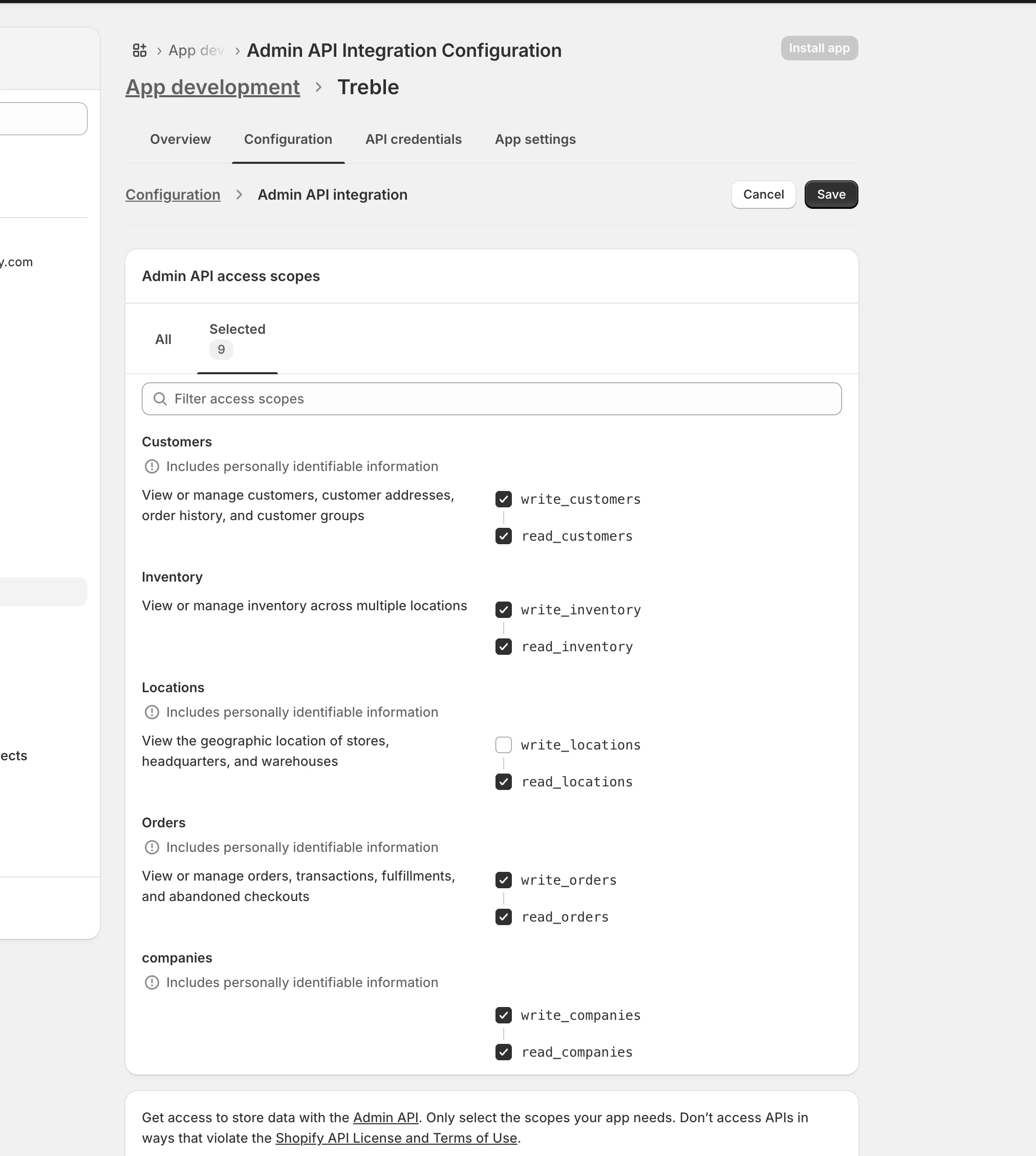
- Click on “Save”
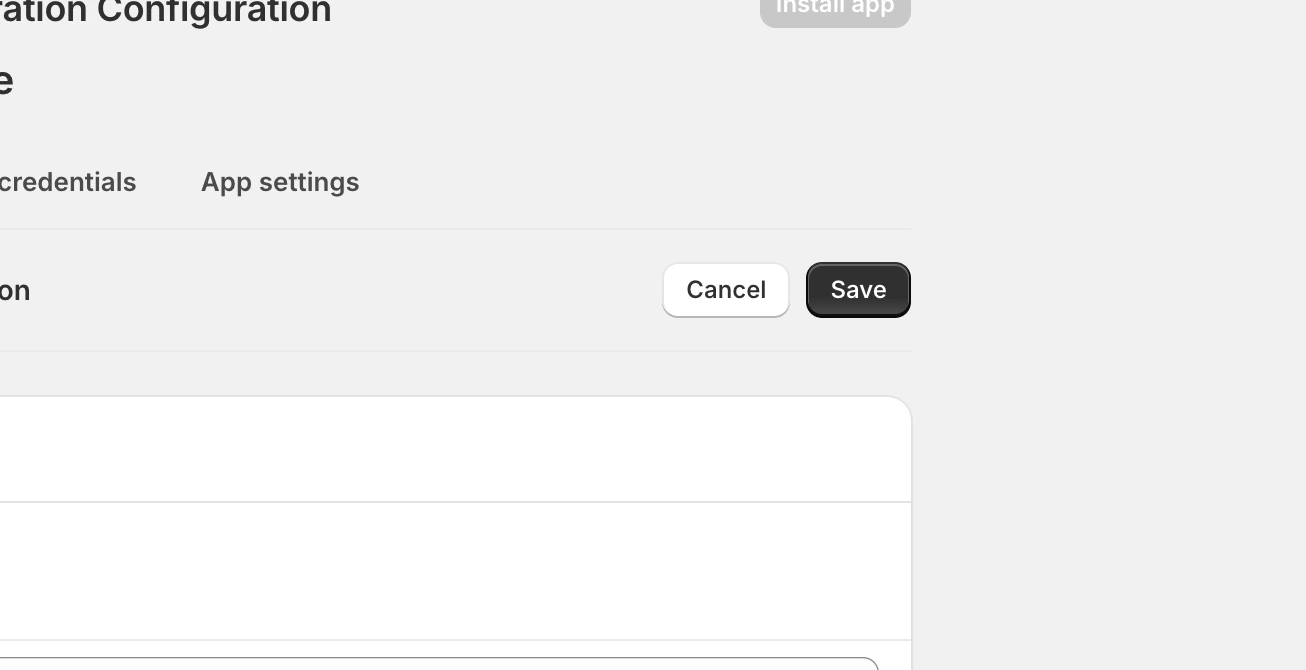
- The custom app has been created 🎉
2. Installing the custom Shopify App in your Shopify store
After creating the app, you’ll need to install it in your Shopify store.
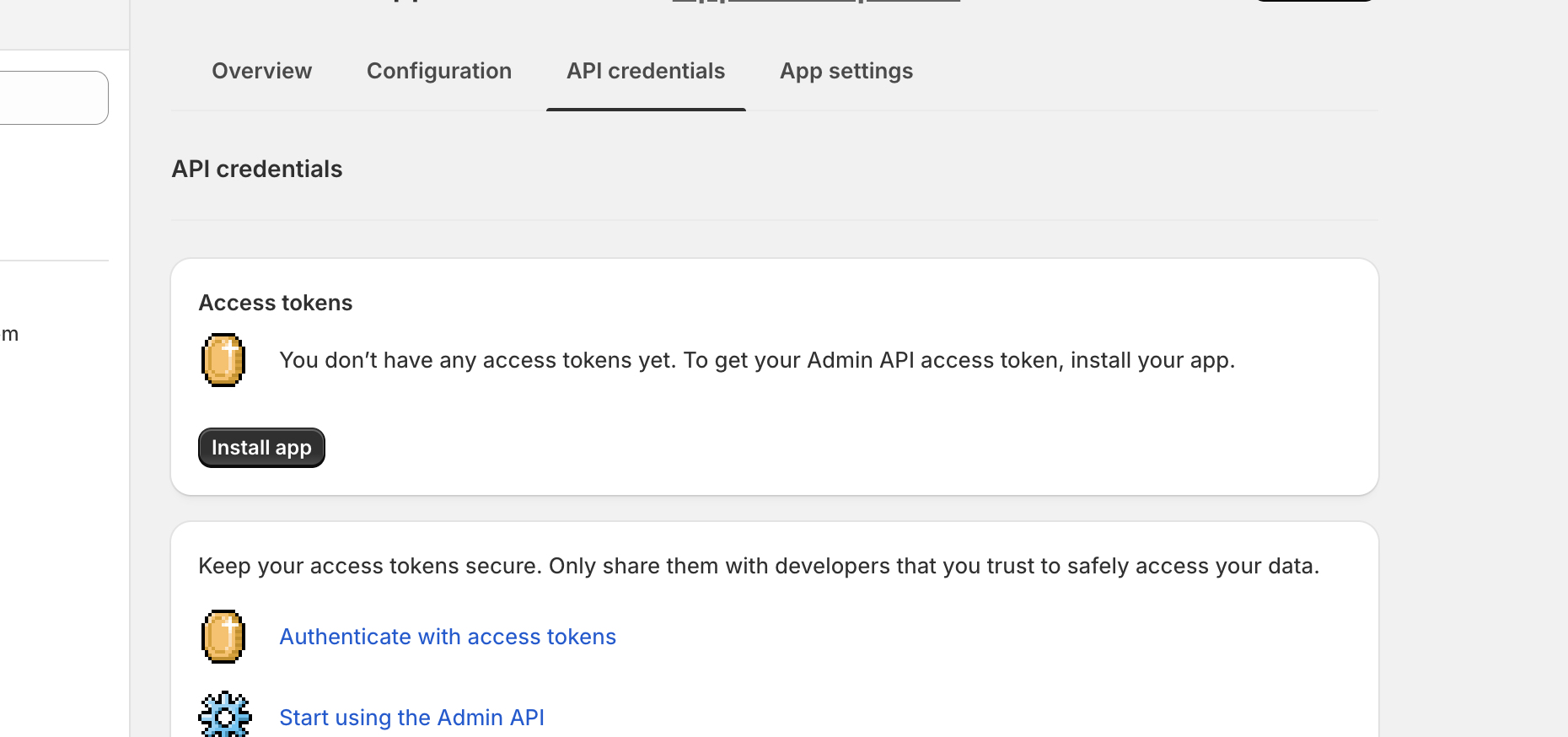
You should see a “Install app” button on the API credentials tab
- Click “Install app” button
- Proceed on the confirmation modal, Click the “Install” button
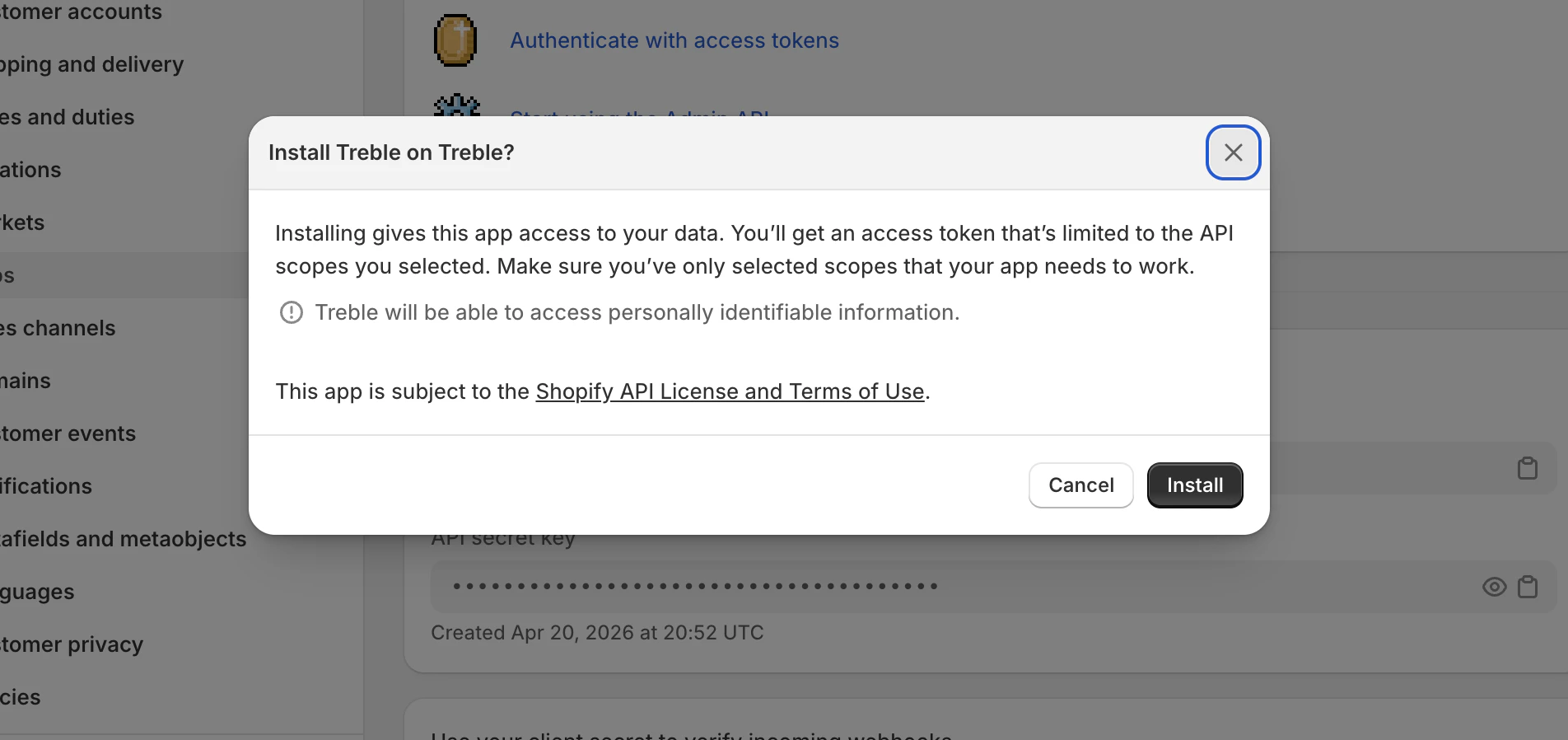 You’re acknowledging that the app we’ve created will have access to your Shopify data, this is required to proceed
- Then you’ll see this screen, you’ll be able to see a token, it’s very important to keep it in a safe place like a password manager, Shopify will only let you see it once, if you lose it, you’ll need to repeat the process from section 1
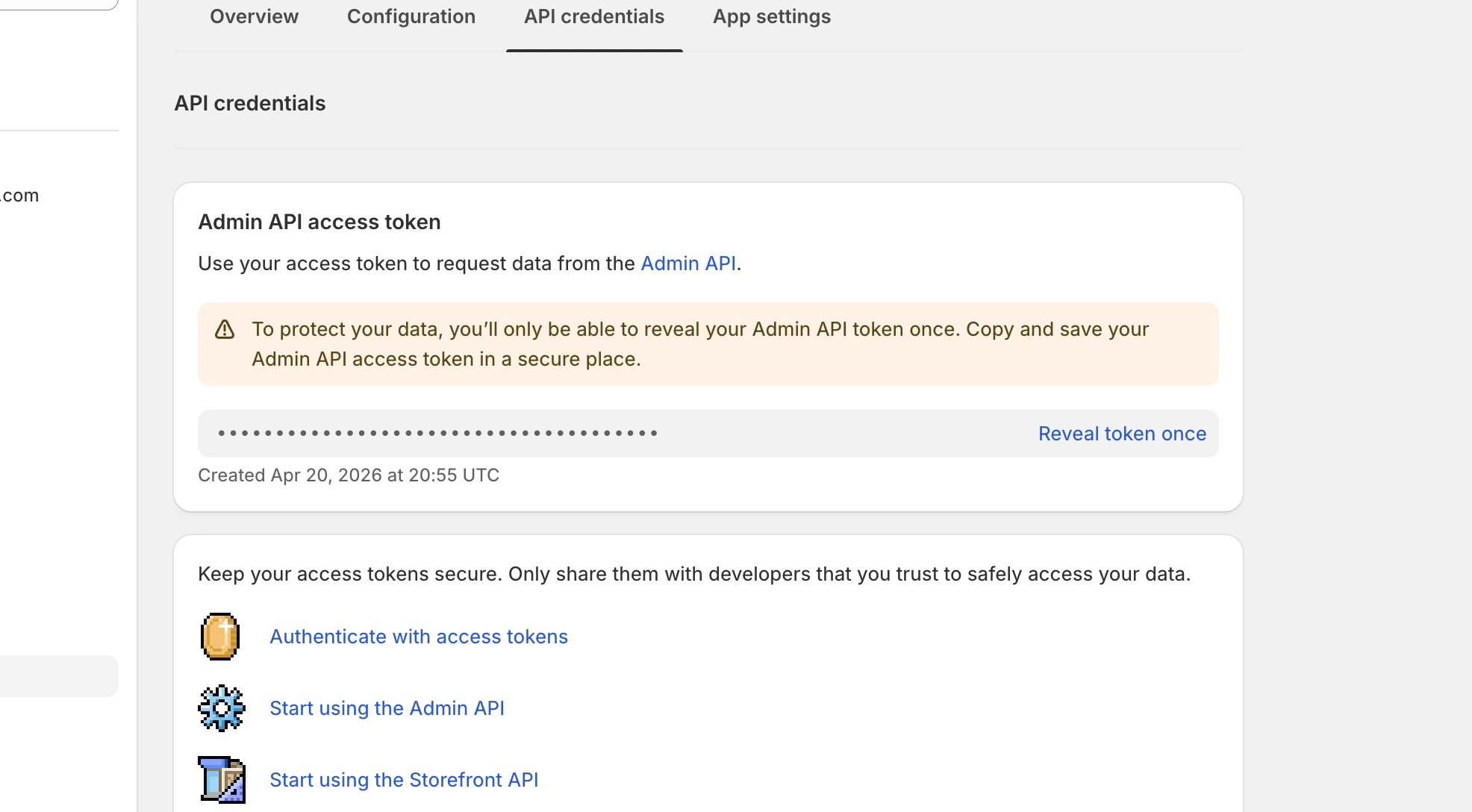
- Click on “Reveal token once”, save it, you’ll use it in section 3
3. Linking the custom Shopify App to Treble
For this step, you’ll need:
- Your Shopify App token, from section 2
- Your Shopify store ID
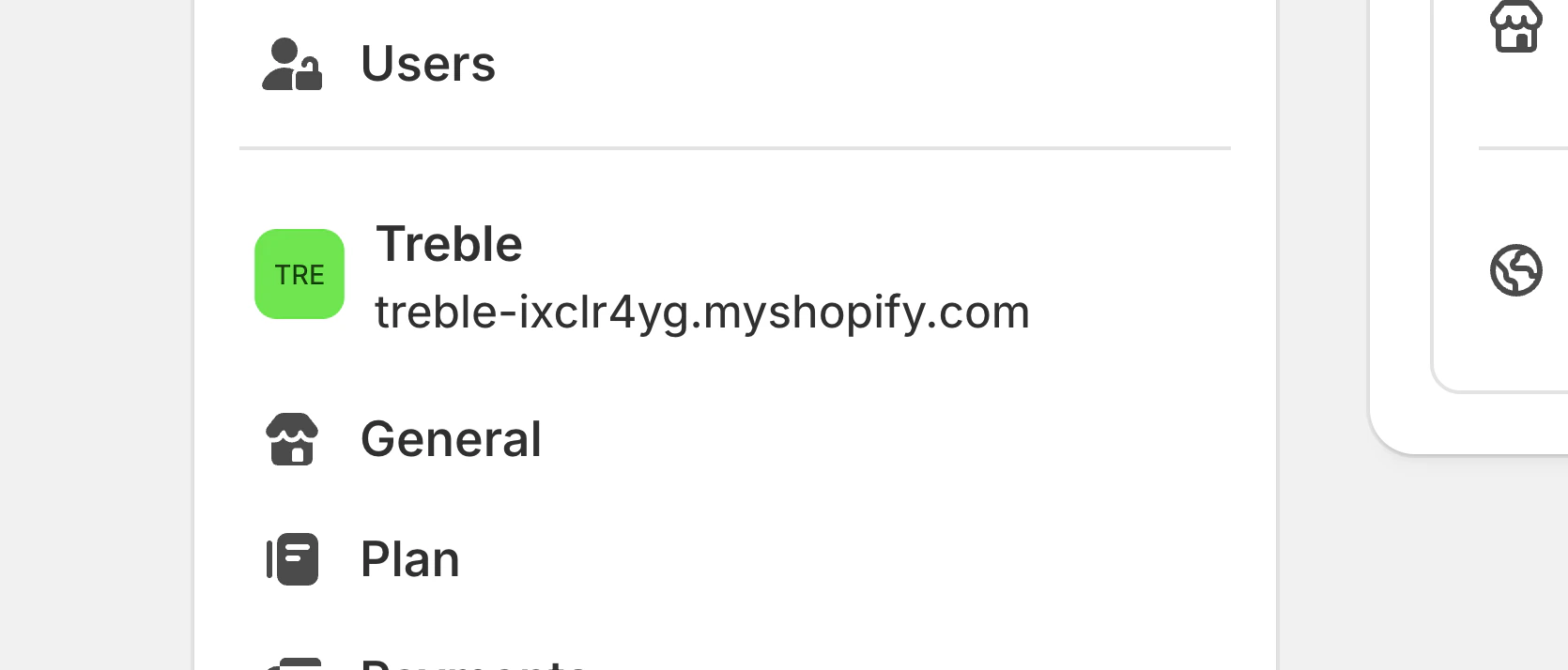
To know your Shopify store ID, look at the URL of your Shopify store, it should be something like this: https://yourstore.myshopify.com, the “yourstore” is your store ID
In our example, the store ID is treble-ixclr4yg
- Log into Treble https://app.treble.ai/
- Go to the “Settings” page
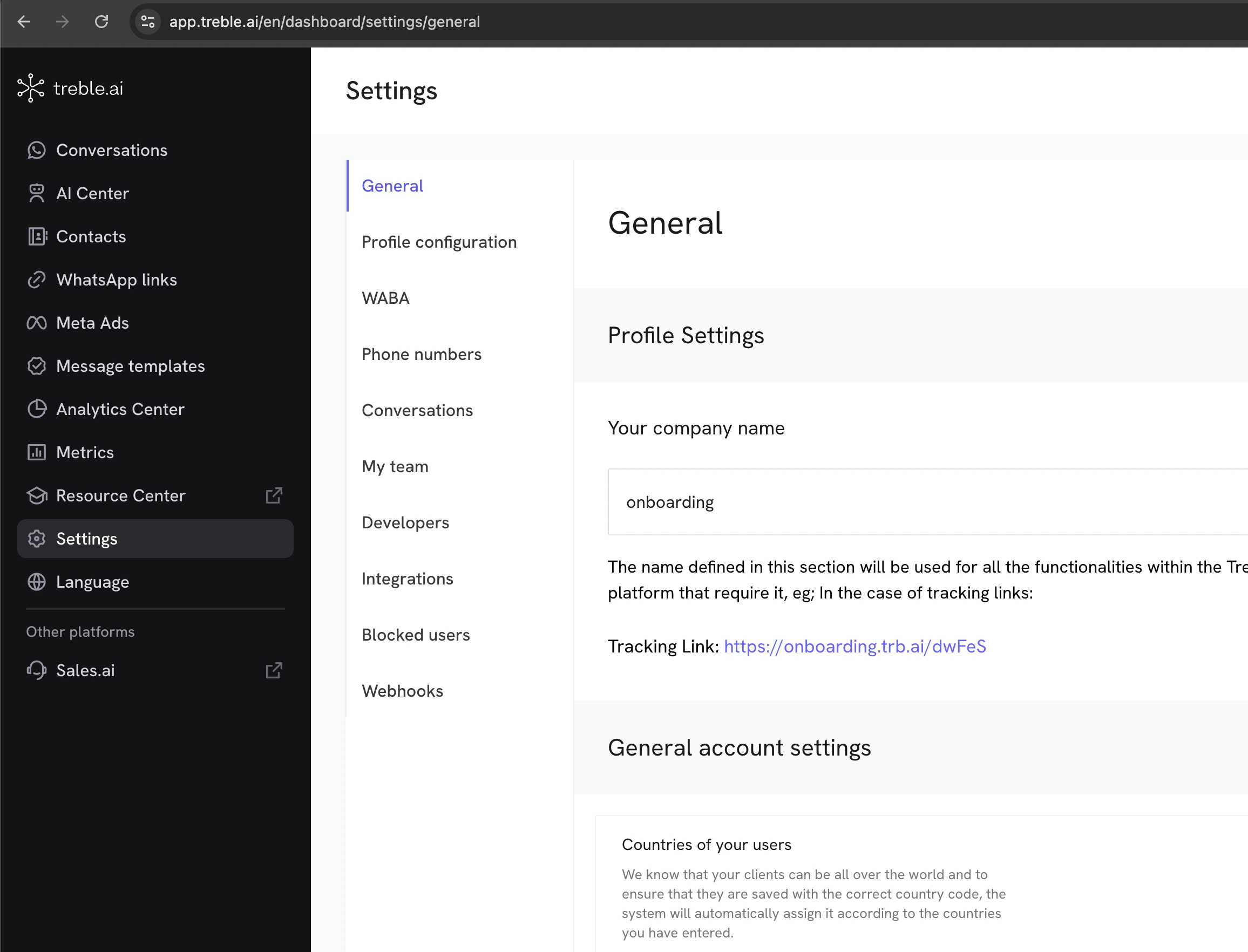
- Click on the “Integrations” tab or this URL
- Click on “Connected Apps” sub-tab
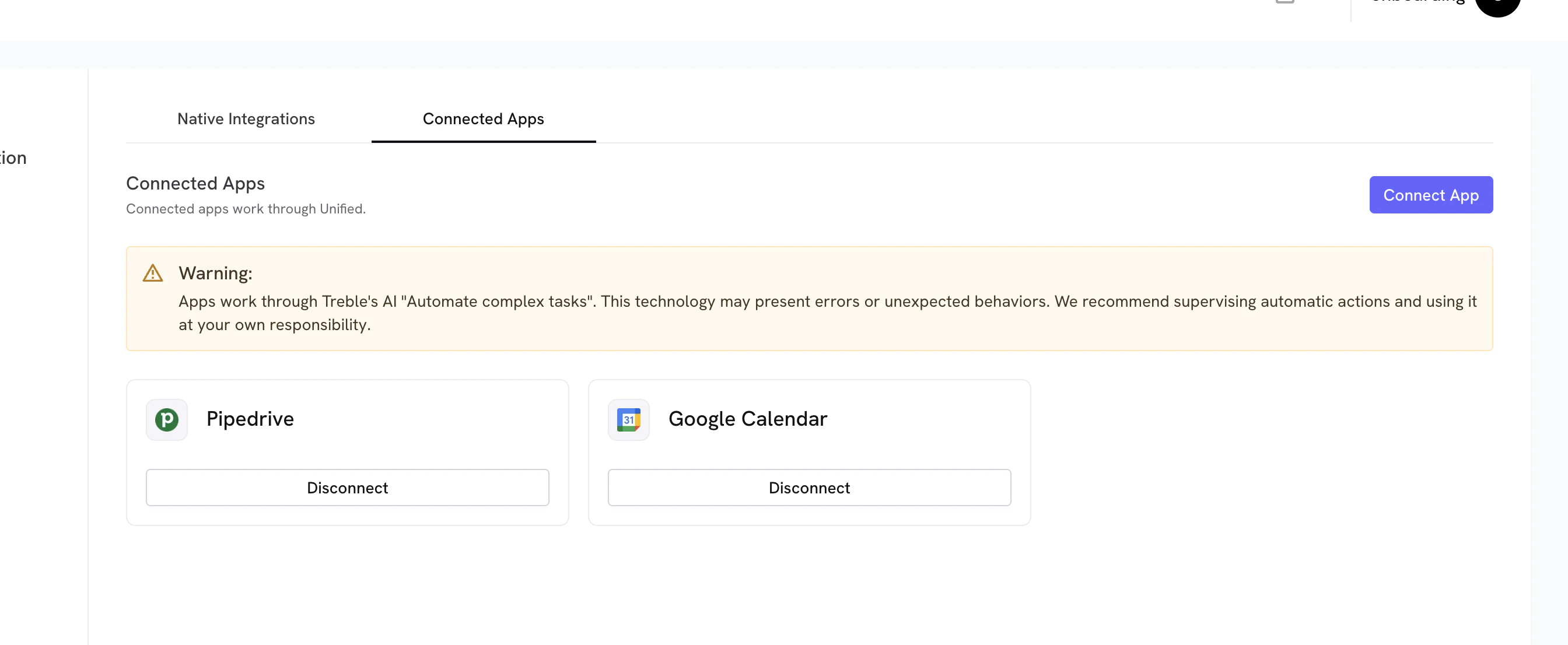
- Look for the “Connect App” button, and select “Shopify” from the list of available options
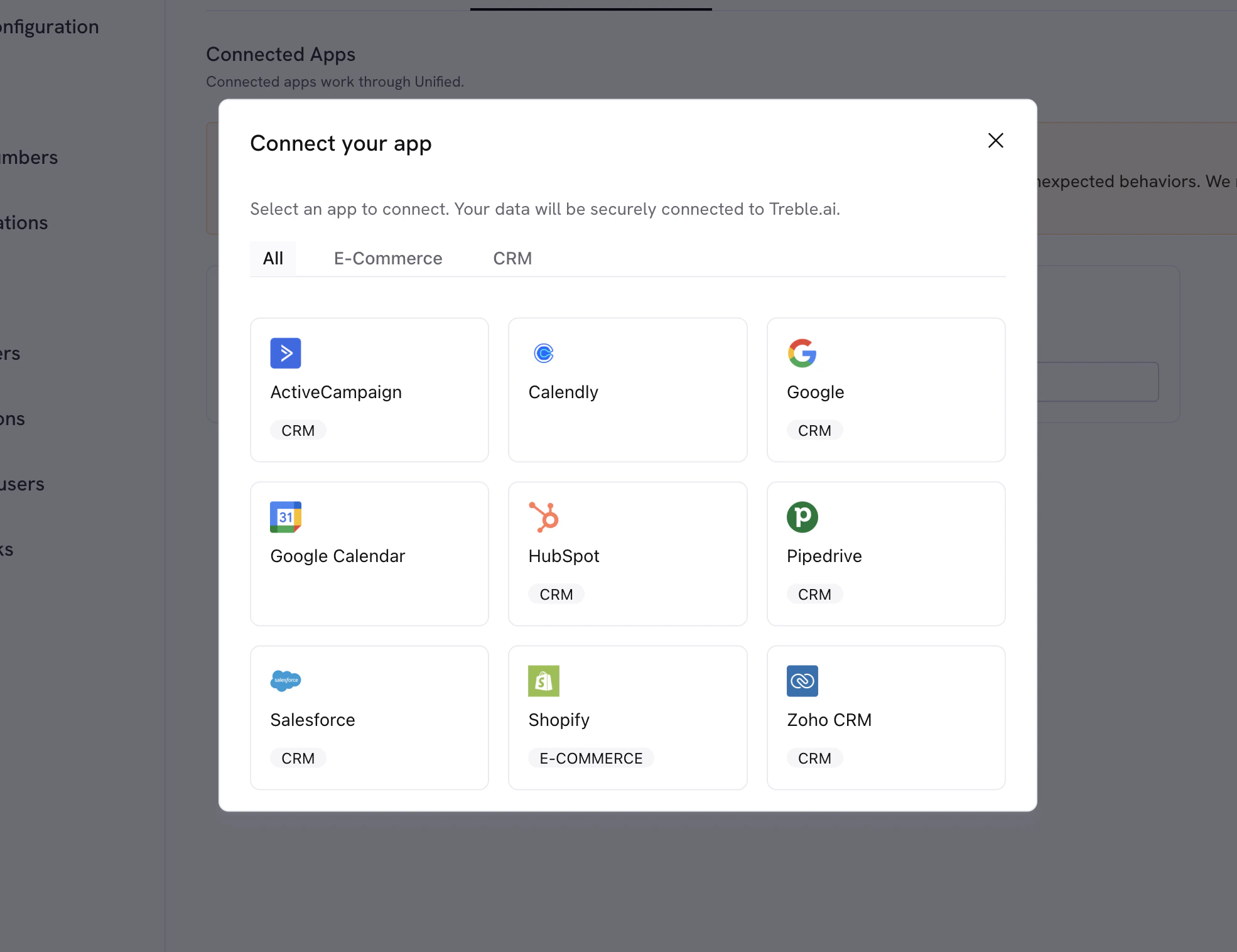
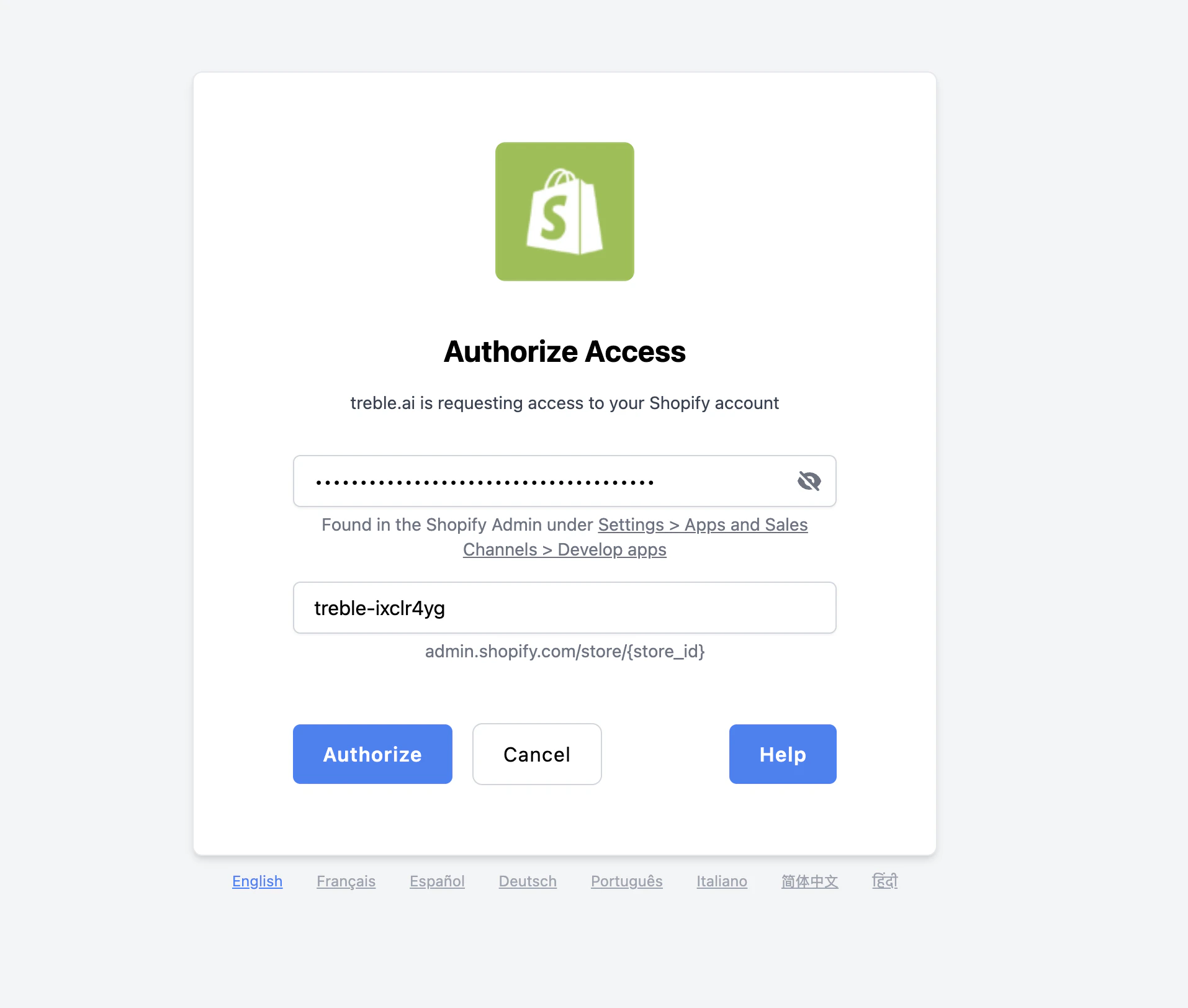
- You’ll see a form in which you’ll enter the following information:
- Admin API access token: This is the token you got in section 2
- Store ID: This is the store ID, in this example it’s
treble-ixclr4yg but you need to use your store ID
- Once both values are filled, click on “Authorize”
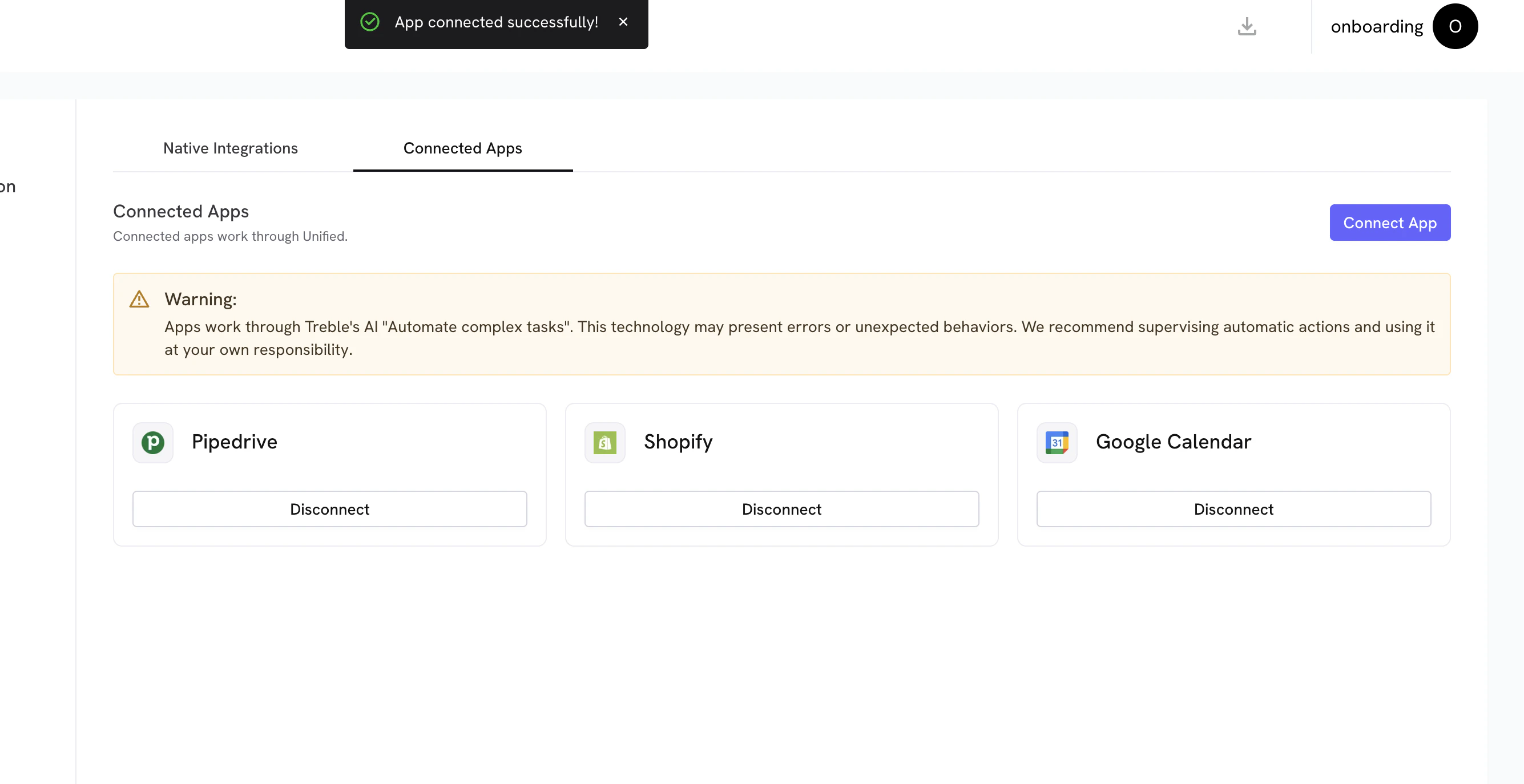
- If successful, you’ll see a message saying “App connected successfully” and you’ll see the Shopify app in the list of connected apps