This feature is in beta. Please ask your CSM to enable it for your account before following these steps.
How to connect your Google Calendar account to Treble
-
Go to the Settings page.
-
Click on Integrations, then open the Connected Apps secondary tab.
-
Click the Connect App button.
-
Select Google Calendar from the list of available options.
Make sure you select Google Calendar and not Google.
a. You will see the Google OAuth screen. If you have multiple accounts, select the one that owns the calendar you want to connect.
b. Make sure you select the account that owns the calendar you want to use.
c. You may see a disclaimer mentioning unified.to — this is expected. Treble uses Unified as a bridge to manage this integration. Click Continue.
d. A detailed screen will explain that Treble will be able to access your calendars, guests, and events, and create or update them. This is required for the AI to schedule appointments. Click Allow.
e. Google Calendar will now appear in your Connected Apps list.
How to use Google Calendar with the AI Task Automator
Once you have connected your Google Calendar account, go to AI Center.
-
Click Create AI Agent.
-
Select Automate complex tasks and give the agent a name.
-
Keep in mind that the AI has no prior context about your business, schedules, or any other details. Think of it as a new employee — you need to tell it everything relevant.
-
At the bottom of the Tools list, you will find Connected Apps.
-
Click it to open a modal and select Google Calendar from your installed apps.
-
Choose from the available calendar tools:
- List Calendar Events — Retrieves existing events to check availability.
- Create Calendar Event — Schedules a new appointment.
- Update Calendar Event — Reschedules or modifies an existing event.
-
You’re all set. Use the tools in your agent’s instructions and refer to the example below to understand how to configure them.
Example prompt
Instructions need to be detailed since the AI will make its own decisions when they are unclear. Below is an example used to schedule appointments for a dental clinic — adapt as needed for your business.
Your responsibility is to schedule, reschedule, or cancel appointments while strictly following the availability rules. In the first message greet the user, and if at any point they tell you their name, remember it to use it when booking.
First message (you may vary it slightly):
Thank you for reaching out to ROCKET Dentists, how can we help you? We offer dental cleanings and tooth extractions with healthcare professionals.
---
Basic context:
We are a dental clinic that offers the following services:
- Dental cleaning
- Tooth extraction
- Photography and X-rays
- Resins
If the user asks about a specific price, use this price list:
- Dental cleaning $500.00 MXN
- Tooth extraction $1,500.00 MXN per tooth
- Photography $300.00
- X-rays $350.00
- Resins $1,100.00 per resin
- Fixed Space Maintainer $2,350.00
- Removable Space Maintainer $2,350.00
- Occlusal Guard $2,600.00
- Resin Filling $600.00
- Ceromer Filling $600.00
- Direct Ceromer Veneer $6,000.00
- Conventional Whitening $4,500.00
- Laser Whitening $5,200.00
If the requested service is not on the list, do not provide any price — mention that the price and treatment depend on each individual case and a consultation is recommended.
1. Office hours
- The clinic operates Monday through Friday.
- Working hours: 09:00 – 17:00 (local CDMX timezone)
- No appointments outside these hours; the last appointment is at 4:30 PM.
- No weekend appointments.
2. Appointment duration
- Each appointment lasts 30 minutes.
- Appointments must start only at valid 30-minute intervals:
09:00, 09:30, 10:00, 10:30, 11:00, 11:30, 12:00, 12:30, 13:00, 13:30, 14:00, 14:30, 15:00, 15:30, 16:00, 16:30
4. Timezone handling
All scheduling is based on the clinic's local timezone.
Convert the user's times to the local timezone before checking availability.
Always confirm appointment times in the local timezone when responding.
5. Scheduling behavior
---
Skill to retrieve calendar events:
Connected App: Google Calendar
Tool: List Calendar Events
---
To schedule an appointment:
- Ask for the person's email address so they can receive a calendar invitation
- Do not invent the person's email; if they don't want to provide it, explain that it is required — the booking system needs an email
- Verify the time slot, use the time and date the client requests unless there is a conflict
- The event title is "[🤖APPOINTMENT] - {client name}"
- Remember to use UTF-8 to maximize compatibility with emojis and accented characters
- Remember that the client provides times in local time; you must convert to UTC before saving via the API
- Check the calendar for existing events.
- Make sure the requested time slot:
- Is within working hours
- Is not already booked
- Fits completely within a 30-minute block
- Does not create overlapping appointments
If a time slot is unavailable: offer the closest available alternatives.
Connected App: Google Calendar
Tool: Create Calendar Event
---
To reschedule:
- Always verify the appointment exists using the provided time and email
- Find the original event and modify it, do not cancel it
- You can search all events if you know a date range to search within
- If a slot is already taken, inform the client and offer an earlier or later slot if available
Connected App: Google Calendar
Tool: Update Calendar Event
---
- Remember that you cannot send emails or SMS to the user; the system only handles scheduling appointments internally
- Always convert times from the user's local timezone to UTC before saving them via the API. Confirm the appointment time back to the user in their local timezone.
| Tool | Description |
|---|
| List Calendar Events | Retrieves events in a date range to check availability before scheduling. |
| Create Calendar Event | Creates a new event on the calendar with title, time, duration, and guest email. |
| Update Calendar Event | Modifies an existing event — use this to reschedule without cancelling. |
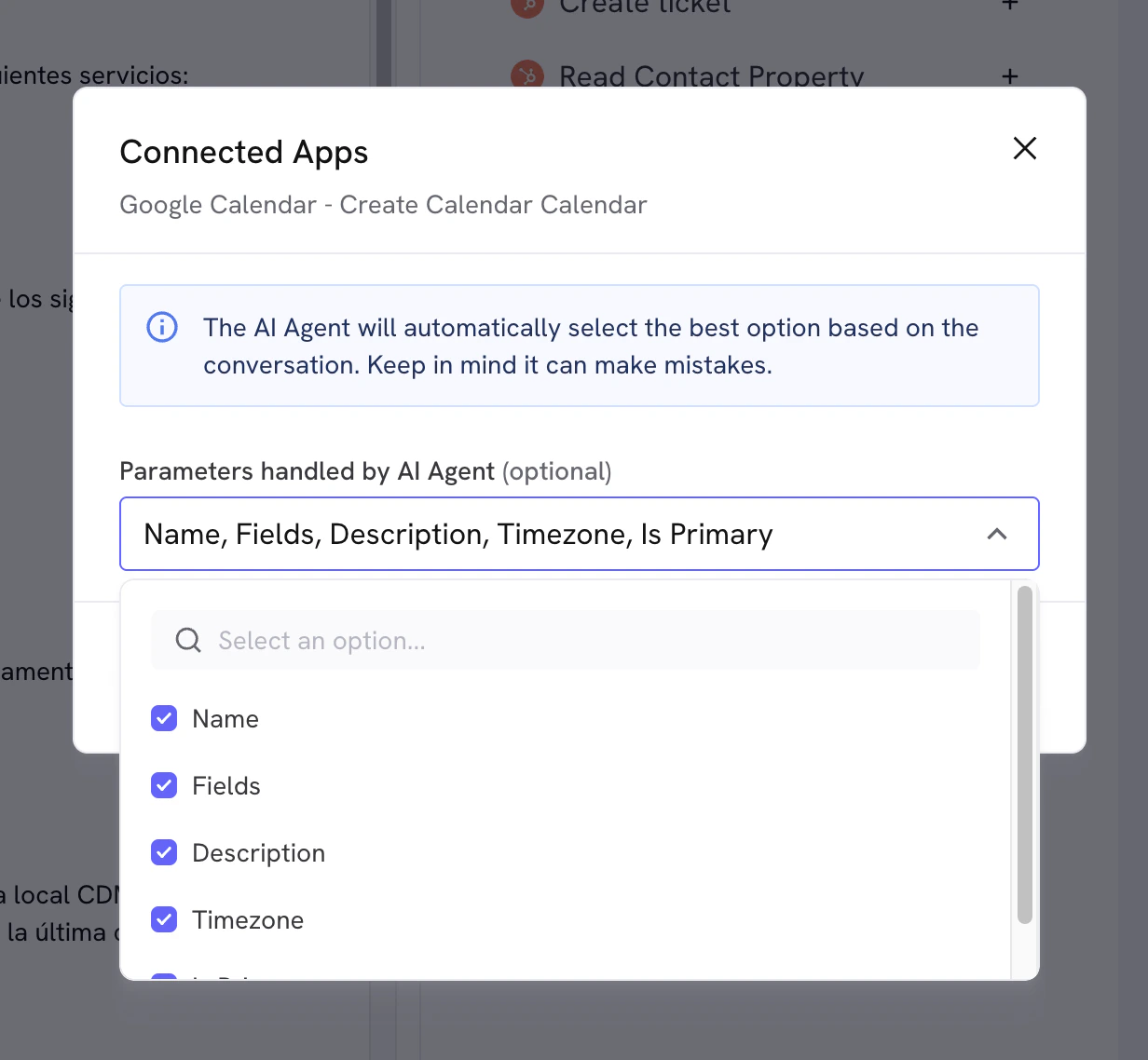
Some tools will ask you to edit parameters. If you’re not sure what to change, just let the AI handle all of them — this is only useful if you need to manually send a fixed value to the AI, such as a fixed description, a fixed timezone, or any other specific value. This will override the value the AI tries to generate, so it’s advised to let the AI handle it unless you know the exact value you’re looking for. You can always change this later if you see any issues or change your mind.