

CRM Object
The CRM Object block does the opposite of the CRM Action block: instead of writing to HubSpot, it reads a piece of data from HubSpot and saves it into a Treble variable. From there you can use it anywhere in the conversation. With this you can, for example, greet the customer mentioning the amount of their latest quote, or send them down a different path depending on the stage their deal is in.In the block menu, this block appears as Assign variables, with the description “Associate objects from contacts”. Once you add it to the conversation, the block is called CRM Object. They are the same block.
The contact properties are already available automatically as
hubspot_... variables throughout the conversation. This block is mostly useful for reading properties of deals, companies and tickets, which are not loaded on their own. Check HubSpot variables in Treble
Add the block to your conversation
- Log in to
app.treble.ai
- Go to Create Conversation
- Click on the button to display the block menu
- Look for the Assign variables block and click on it to add it
- Connect it at the point of the flow where you need the data, before the block that is going to use it
- Double-click on the block to open its configuration
Configure the block
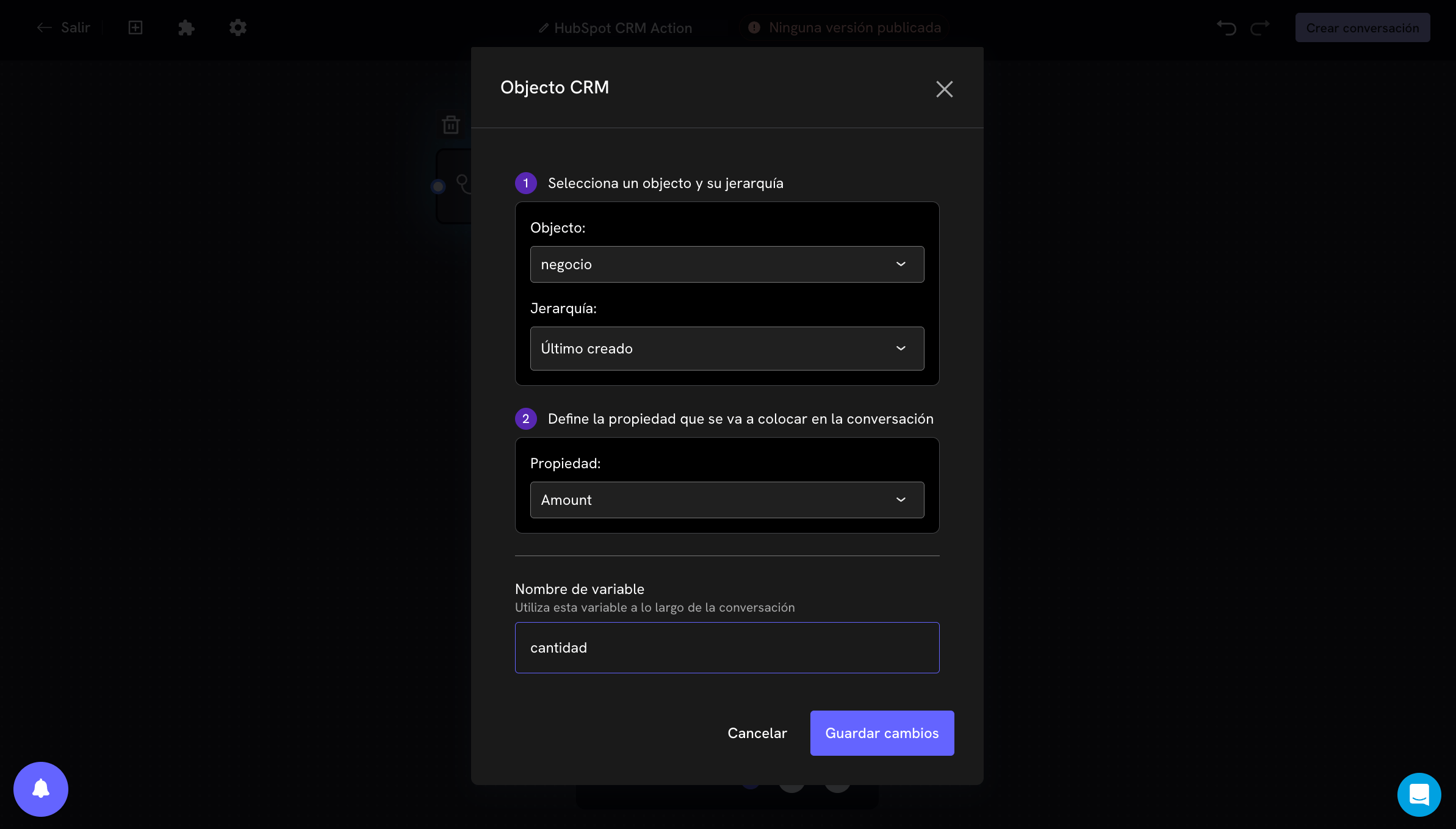
1. Select an object and its hierarchy
Just like in the CRM Action block, you choose which object you want to read from: contact, deal, company or ticket. If you choose something other than the contact, you have to tell Treble which of the associated objects to use, through the hierarchy:
The hierarchy works exactly the same as in the CRM Action block, including the behavior diagram. If you have doubts about which one to choose, check
CRM Action Block
2. Define the property that will be placed in the conversation
Select the property of the object whose value you want to bring into the conversation. For example,Amount for the amount of a deal, Deal stage, or the priority of a ticket.
What value each property type brings back
The block always saves the HubSpot value as text, no matter the property type:This block doesn’t translate anything: if you need the owner’s name instead of their ID, or an option’s label instead of its internal value, you have to resolve that separately, for example with a
Conditional
block.If you need to use a HubSpot date in your conversation, store it as text in a text-type property in HubSpot and select that property instead.
3. Name the variable
In Variable name you write what the data will be called inside Treble. That is the name you will use between braces later on. For example, if you name itamount, in the following blocks you will be able to write {{amount}}.
How the block looks in your conversation
Once configured, the block shows a summary of what it does directly on the canvas: the object, the hierarchy, the property it reads and the variable where it saves it.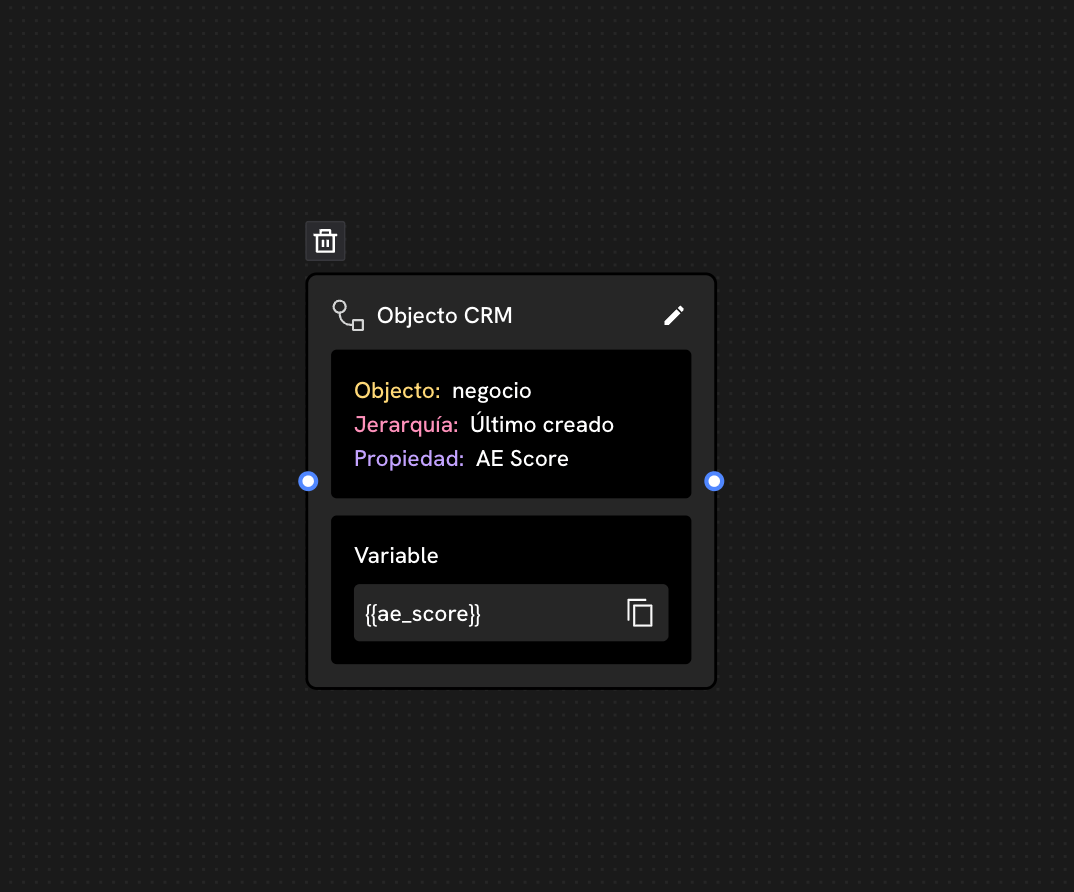
What you can do with the variable
Once saved, the variable behaves like any other Treble variable:- Show it in a message: “Your quote for
{{amount}}is still valid.” - Evaluate it in a conditional block: send the customer down one path or another depending on the stage of their deal. Check
Conditional Block
- Reuse it in a CRM Action block: read a piece of data from one object and write it into another.
- Pass it to an AI agent as conversation context.
Use cases
Pick up a quote without asking about it
You read the amount and the stage of the contact’s last created deal, and you open the conversation with that data. The customer feels you are talking about their case, not about a template.Route support based on ticket priority
You read the priority of the ticket associated with the contact and, with a conditional block, you send high priority cases straight to a human agent and the rest to the AI agent.Personalize the offer based on the company
You read the size or the industry of the company associated with the contact and use that information to decide which plan to show them.If something does not work
The variable comes in empty
- Does the contact have that object associated? If the contact does not have any deal associated in HubSpot, there is nothing to read.
- Did the hierarchy leave everything out? With “Custom”, if no object meets the exact condition, the variable remains empty.
- Is the block before the one that uses the variable? This is the most common cause.
- Does the property have a value in HubSpot? Open it in HubSpot and confirm it.
I typed the variable name wrong
Use the copy button of the block on the canvas instead of typing it by hand. Copy the name exactly, braces included.I cannot find the property I want to read
Refresh the properties with the sync button. CheckHubSpot properties in Treble