

Metrics
shows what happened with the messages you sent in your outbound campaigns: whether they arrived, whether the contact replied, how they moved through your flow, and whether they were passed to an agent.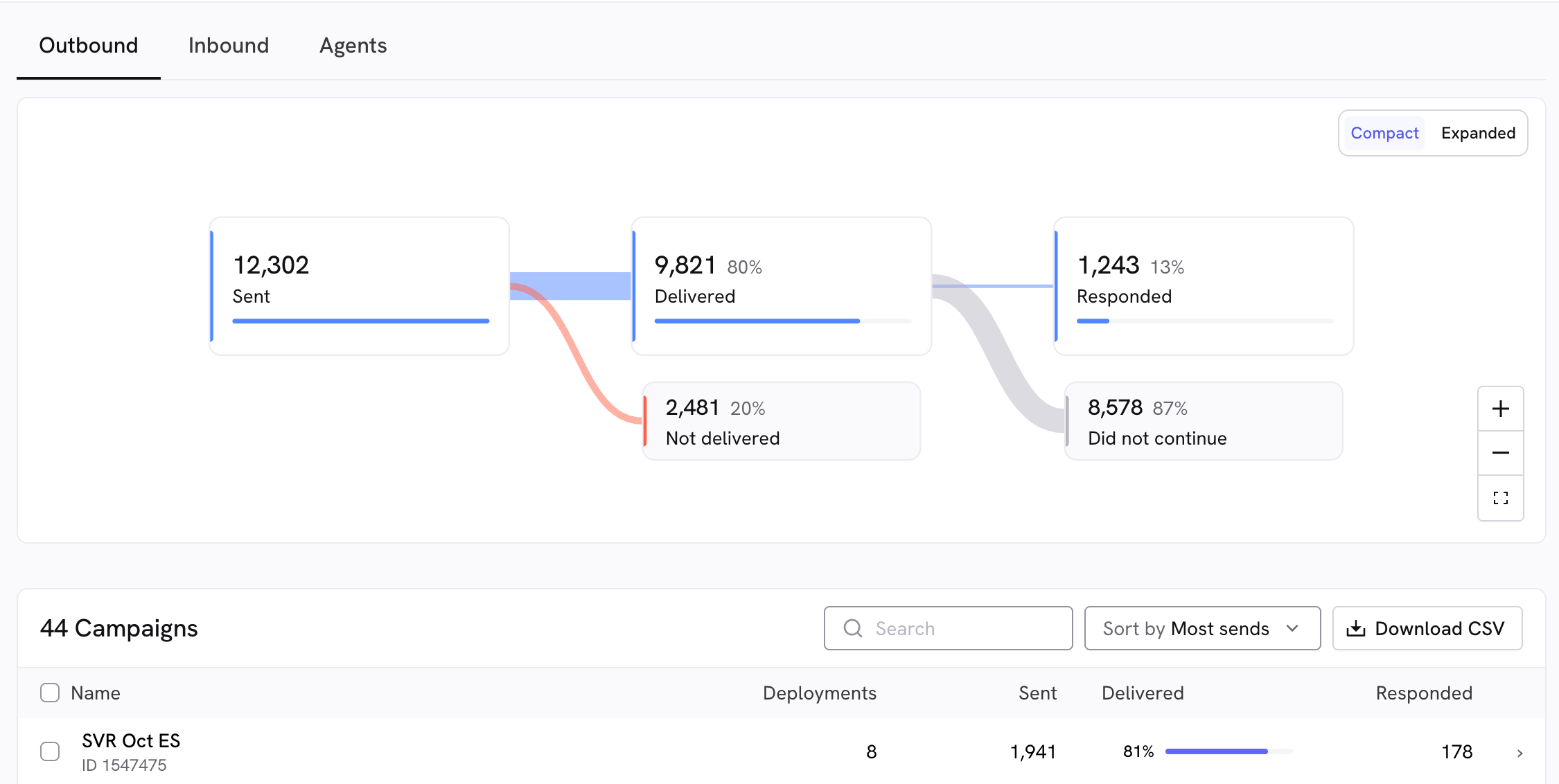
Levels of the tab
You can see your numbers at four levels. Each time you go down a level, the graph updates to show only that group:- All your campaigns (or the ones in a folder, or the ones you selected).
- One campaign: click it in the Campaigns list.
- One deployment: click it in the campaign’s Deployments list.
- One contact: click it in the Contacts list to read their conversation.
The graph
The graph shows how your messages move from the moment they’re scheduled until the contact replies. It has three views.Compact view
This is the view the page opens with:
Each card’s percentage is calculated against the card it comes from. For example, the Responded percentage is out of Delivered. Cards at zero aren’t shown.
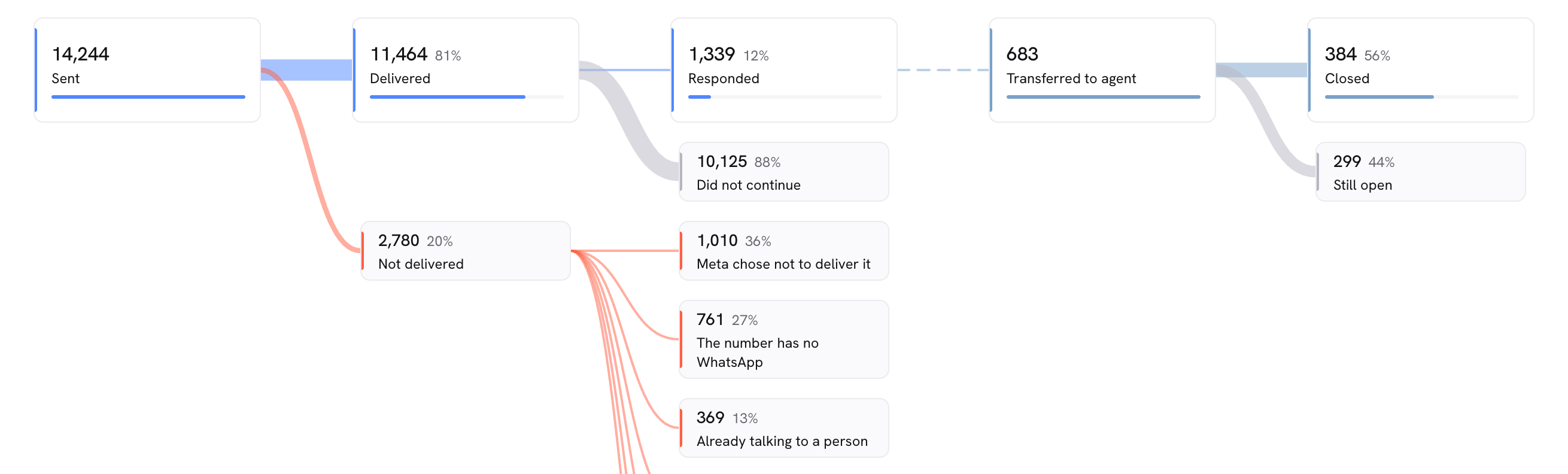
Expanded view
It shows the same as the Compact view, plus two things:- Why they weren’t delivered: the Not delivered card splits into one card per reason, from largest to smallest. Hover over each one’s info icon to see what it means and what you can do. You’ll find every reason in
Non-delivery reasons
. - What happened with the ones who replied: a second row shows the conversations Transferred to agent, split into Closed and Still open. This row counts agent conversations, not messages: a contact transferred twice counts twice.
Flow view
When you open a campaign, the Flow view shows how contacts moved through each block of your flow:- Entered: the conversations that went through any block of the flow in the period.
- One card per block: with the block’s text, its type (Template, Question, Message, Handover or AI block), how many conversations reached it, and what percentage responded. Blocks from every version of your flow that got visits are shown.
- Lines between blocks: each line shows the option the contact picked and how many times that step was taken. If a contact took the same path twice, it counts twice.
- Re-entries: the icon shows how many times contacts came back into the same block.
- Abandoned here: the conversations left unanswered at that block, as a percentage of the ones that reached it. Handover blocks don’t have this card, because they don’t wait for a reply.
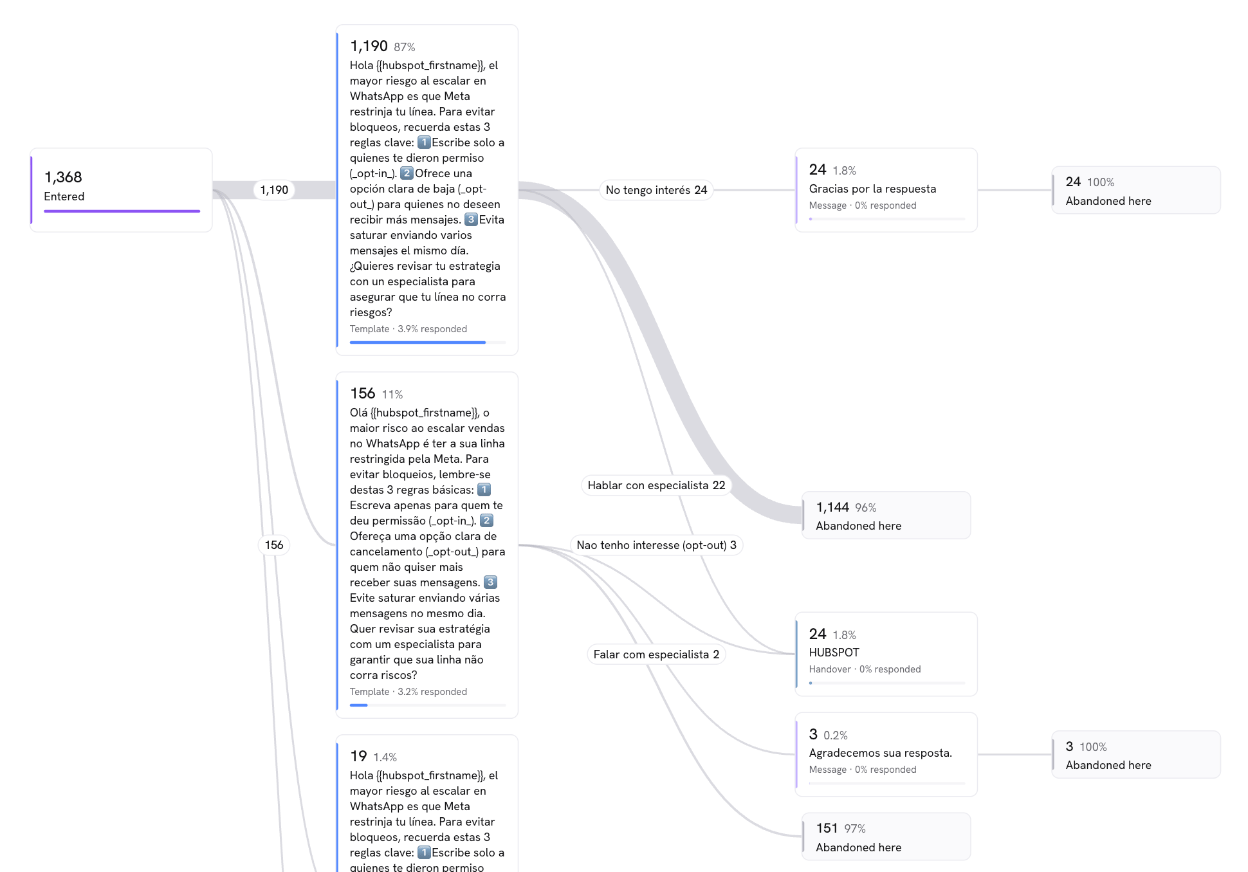
The Flow view always shows the whole campaign, even if you opened a single deployment, and it counts the visits that happened within the period. That’s why its numbers don’t always match the Compact and Expanded views.
See the contacts behind a card
Click any card in the graph to highlight its path and open a side panel with its contacts. You can search by phone and click any contact to read their conversation.- In the Compact and Expanded views, you’ll see each contact with the date of their send and its status. If the message wasn’t delivered, you’ll see the reason.
- In the Flow view, you’ll see how many contacts Reached, Answered and gave No answer at that block. On question and template blocks you’ll also see one bar per option. Click an option to see who picked it. In Who answered you can filter by All, Answered or No answer, and see each contact’s answer.
Send a campaign to those contacts
From the panel you can send a new campaign to the contacts of a card. For example, a reminder to the ones who Did not continue:1
Open the card's panel
Click the card. If you want, filter the list by option or by search: only the contacts you’re looking at will be used.
2
Click Send a campaign
Pick the campaign you want to send in Campaign to send.
3
Continue to the send flow
Click Continue to the send flow. The contacts load as the send’s contact list, with their variables. There you review them, map the variables and schedule the send before anything goes out.
Download the graph
Open the graph in full screen with the button in its bottom right corner and click Download. You can save it as PNG or PDF. The file includes the whole graph, whatever the zoom.Goals
If your flow hasgoal blocks
, you’ll see the Goals table when you open the campaign. Each goal is counted once per conversation, even if the contact clicks several times.- Block and Goal: the flow’s block and what the contact is expected to do: Read the message, Clicked the link button or Clicked the link.
- Reached: how many conversations met the goal.
- Of visits: what percentage they are of the conversations that reached that block.
- Against expected: compares the result with the percentage you set in the goal block. You’ll see Above expected, Below expected or No expectation set.
Campaigns
The Campaigns list shows every campaign with sends in the period:- Name: the campaign’s name and its ID.
- Deployments: how many deployments it had.
- Sent: how many messages were scheduled.
- Delivered: the percentage of messages delivered.
- Responded: how many delivered messages got a reply.
Deployments
When you open a campaign you’ll see its Deployments. A deployment is a launch from a CSV file or from the platform. Sends that come in through the API or an integration show up as Integration · until a date: they group the messages that went out with no gap longer than 6 hours.- Deployed: when the first message was scheduled.
- Sent, Delivered and Responded: same as in the campaigns list.
- Review: how many messages weren’t received (not received) or are still on their way (on the way). It turns red when the deployment has at least 10 messages and a quarter or more weren’t received.
Contacts
When you open a deployment you’ll see its Contacts: one row per message sent. If a contact got the message twice, they show up twice.- Contact: the contact’s phone.
- Status: Responded, Delivered, no reply, Queued, or the reason it wasn’t delivered.
- Time: when the message was scheduled.
- Uploaded with the send: the variables you uploaded when you sent the campaign.
- Saved by the flow: the variables the flow saved during the conversation.
- Answered in the flow: the contact’s last answer to each question.
Non-delivery reasons
These are the reasons a message can show up as Not delivered:Number not registered on WhatsApp
Number not registered on WhatsApp
The contact’s number doesn’t have a WhatsApp account. What to do: check the number and fix it if it’s wrong.
The number has no WhatsApp
The number has no WhatsApp
The contact can’t receive messages: they don’t have WhatsApp, use an outdated version, or haven’t accepted the latest Terms of Service. What to do: ask the contact to update WhatsApp and accept its terms.
Learn more
Meta chose not to deliver it
Meta chose not to deliver it
Meta didn’t deliver the message to protect users’ experience. It usually happens when a contact gets several templates in a row without replying. What to do: wait at least 24 hours before sending them another template, or include them in a later campaign.
Contact opted out
Contact opted out
The contact unsubscribed from your company’s messages. What to do: you can only write to them again if they agree to receive messages again.
Contact blocked by the company
Contact blocked by the company
Your company blocked this contact in Treble. What to do: unblock them if you want to write to them again.
Already talking to a person
Already talking to a person
The contact had an open conversation with an agent. Treble gives that conversation priority over new sends. What to do: try again when the agent closes the conversation.
A template variable was missing
A template variable was missing
The template has a variable that couldn’t be filled for this contact. What to do: add the missing value and send again.
Template variables don't match
Template variables don't match
More or fewer variables were sent than the template expects. What to do: send the same number of variables the template has.
Header too long
Header too long
The message header goes over the characters WhatsApp allows. What to do: shorten it and send again.
Message too long
Message too long
The message body goes over the characters WhatsApp allows. What to do: shorten it and send again.
The file could not be uploaded
The file could not be uploaded
Meta couldn’t upload the message’s image, video or document. What to do: check the file’s size and format and send again.
Template paused by WhatsApp
Template paused by WhatsApp
WhatsApp paused or disabled the template because several contacts marked it as spam or rated it poorly. What to do: try a new template.
The flow no longer exists
The flow no longer exists
The conversation this campaign uses was deleted or deactivated. What to do: check that it’s still active.
Line disconnected
Line disconnected
The WhatsApp line was disconnected or there was a server problem. What to do: check that your line is connected before sending again.
Meta sending limit
Meta sending limit
Meta limited your sends, possibly because many earlier messages were blocked or marked as spam. What to do: check your line’s quality in WhatsApp Manager.
Number sending limit
Number sending limit
The number of messages that can be sent from this phone number was exceeded. What to do: send fewer messages from this number over the next few days.
Company session limit
Company session limit
Your company’s session limit was exceeded. What to do: wait for sessions to free up or contact support to raise it.
Plan conversation limit
Plan conversation limit
Your plan’s conversation limit was reached. What to do: upgrade your plan to keep sending.
Free account daily limit
Free account daily limit
Free accounts have a limit of 50 outbound conversations per day. What to do: upgrade your plan to raise the limit.
WhatsApp payment issue
WhatsApp payment issue
There’s a payment problem with your WhatsApp Business account. What to do: contact support.
Learn more
No channel connected to Treble
No channel connected to Treble
Your account isn’t connected to Treble as its WhatsApp provider, so there’s no valid line to send from. What to do: contact support to connect it.
Test number, not sent
Test number, not sent
WhatsApp uses some numbers for experiments, and messages to those numbers aren’t delivered. What to do: nothing: WhatsApp picks these numbers.
Stopped by Treble
Stopped by Treble
The Treble team stopped this send. What to do: contact support if you need to send the campaign again.
WhatsApp reported no status
WhatsApp reported no status
WhatsApp didn’t report the message’s status, so we don’t know if it arrived. What to do: check the contact’s conversation to confirm.
Lost track of it
Lost track of it
We lost track of the message while it was being processed, so we don’t know if it arrived. What to do: check the contact’s conversation to confirm.
Other send error
Other send error
There was a connection error when sending the message. What to do: try sending it again. If it keeps happening, contact support.
How the numbers are counted
- Everything counts for the message that was scheduled in the period. If the message went out on the 30th and the contact replied on the 2nd of the next month, the reply counts in the period of the 30th.
- A message that went out but never got a delivery confirmation counts as Not delivered in the graph. In the deployments and contacts lists it shows up as on the way or Queued, because it could still arrive.
- Abandoned here can change: if a contact replies later, they stop counting as abandoned.
- CSV files use UTC time, while the page shows the time in your time zone.
Next steps
Inbound
See how the conversations your contacts start end up.
Goal block
Set measurable goals in your flow to track them in the goals table.