

Metrics
shows the conversations your contacts start when they write to your WhatsApp line: how many come in, which ad or link they come from, and how they end.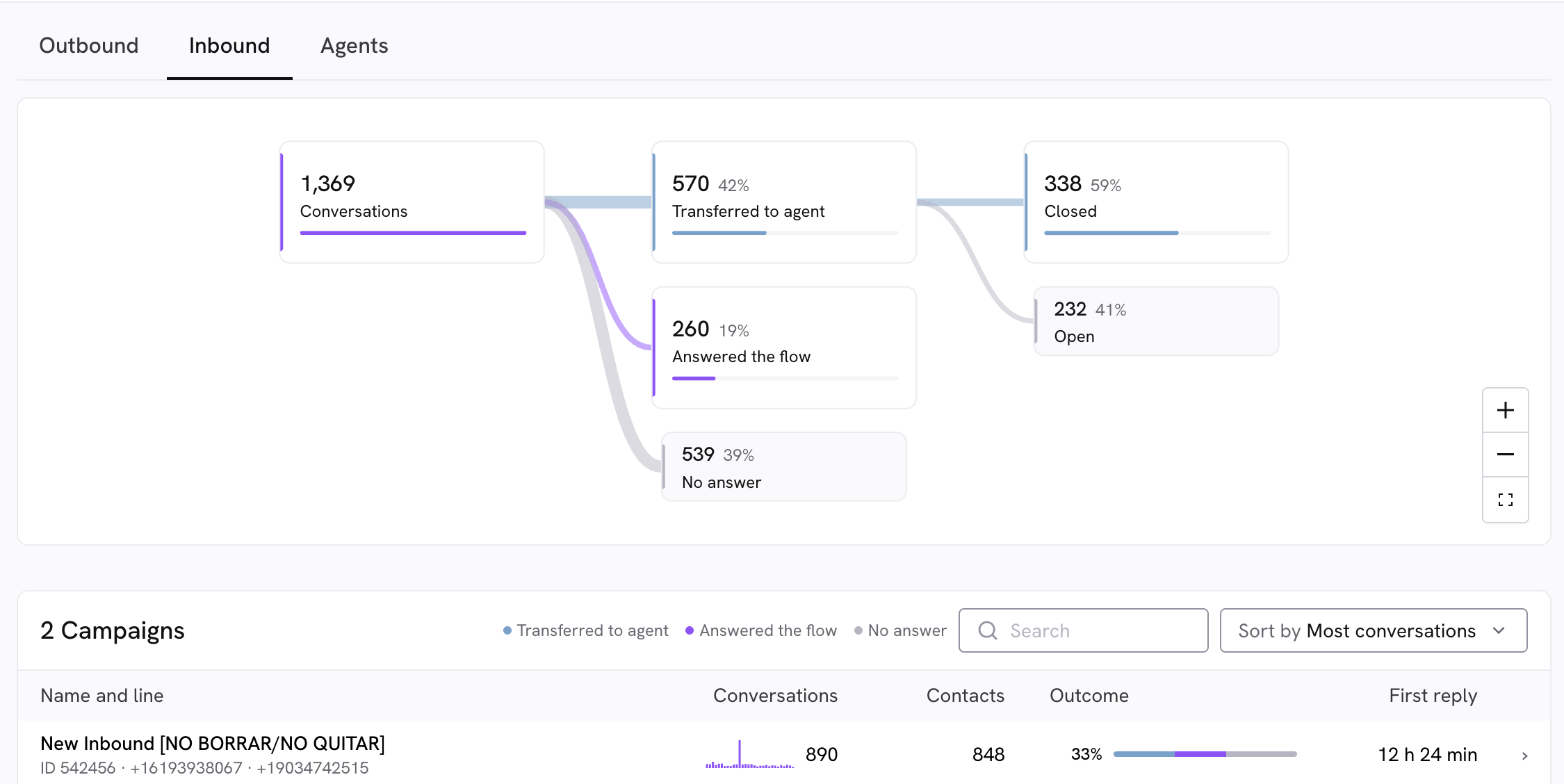
How the tab opens
- If you have a single inbound campaign in the chosen period, the tab opens straight on it.
- If you have several, you’ll see the list of campaigns first. Click one to open it.
Inbound campaigns list
Each row shows:- Name and line: the campaign’s name, its ID, and the WhatsApp line where the conversations started.
- Conversations: how many conversations started in the period, with a small chart per day.
- Contacts: how many different contacts started those conversations.
- Outcome: the percentage of conversations transferred to an agent, and a bar with the three possible outcomes: transferred to agent, answered the flow, and no answer. Hover over the bar to see each count.
- First reply: the median time an agent took to reply after getting the conversation. It shows ”—” if no agent replied.
Campaign summary
When you open a campaign you’ll see three cards:- Conversations per day: the average number of conversations per day in the period, counting the days with no conversations too.
- Contacts: how many different contacts wrote to you and how many conversations each one started on average.
- First agent reply: the median time from when the conversation passes to an agent until their first message.
The graph
Summary view
The Summary view shows how the period’s conversations ended. If you haven’t opened a campaign, it adds up all your inbound campaigns.- Conversations: every conversation that started in the period. They split into three outcomes that always add up to the total:
- Transferred to agent: at some point the conversation passed to a person on your team. It splits into:
- Closed: your team already closed them.
- Open: they’re still open with your team.
- Answered the flow: the contact answered at least one step of the flow and the conversation didn’t pass to an agent.
- No answer: the contact didn’t answer any step of the flow.
- Transferred to agent: at some point the conversation passed to a person on your team. It splits into:
- Search a phone and open any conversation to read its messages.
- Send a campaign to those contacts. The contacts load into the send flow, where you review them, map the variables and schedule the send before anything goes out. Contacts without a phone are left out.
- Download CSV with those conversations (up to 50,000 rows).
Flow view
With a campaign open, switch to Flow to see how contacts moved through each block of your flow: how many reached it, what percentage responded, and where they dropped off. It works the same as in outbound campaigns; we explain it inOutbound
. In inbound campaigns, the flow also shows Redirect cards: they tell you which other flow contacts moved to and how many went. That way you know those conversations carried on in another flow and didn’t stop at the last block. If your flow has goal blocks, below the graph you’ll also see theGoals
table.Sources
The Sources table tells you what brought your contacts. Each conversation has exactly one source:- Meta ad: the contact came from a Click-to-WhatsApp ad. You’ll see the ad’s headline and whether it was an image or a video.
- WhatsApp link: the contact’s first message matched one of your
WhatsApp links
. You’ll see the link’s name and the source you gave it (Website, Instagram, etc.). - Direct: the contact wrote without going through a link or an ad.
- Clicks: links only, how many times the link was opened in the period. It’s shown as a count, not a rate, because a QR code or a forwarded message can also open conversations without a click.
- Conversations: how many conversations it brought and what share of the campaign they are.
- Outcome: how those conversations ended, with the same bar as the campaigns list.
Conversations
The Conversations table lists every conversation that started on the campaign during the period:- Contact: the contact’s phone.
- Started: the date and time it started, in your time zone.
- Status:
- Transferred to agent: an agent took the conversation at some point.
- Answered the flow: the contact answered at least one step of the flow and no agent took it.
- No answer: the contact didn’t answer any step of the flow.
- Source: the ad, the link, or Direct.
- First message: the message the contact opened the conversation with.
How conversations are counted
- A conversation counts in the campaign where it started, and in the period that holds its first message. If a flow redirects the contact to another flow, the conversation keeps counting in the original campaign.
- What happens later counts too: if the contact replies or passes to an agent in a flow they were redirected to, that’s added to the original conversation, even if it happens after the period. That’s why a past period’s numbers can still change a little.
- The source doesn’t change with a redirect: it’s always the one from the first message.
- Each conversation counts only once: the list, the graph, the sum of the sources and the conversations table all give the same total.
Next steps
Agents
Measure how long your team takes to reply to transferred conversations.
WhatsApp links
Create links to learn which channel brings you the most conversations.