

Steps to install the Salesforce integration in Treble
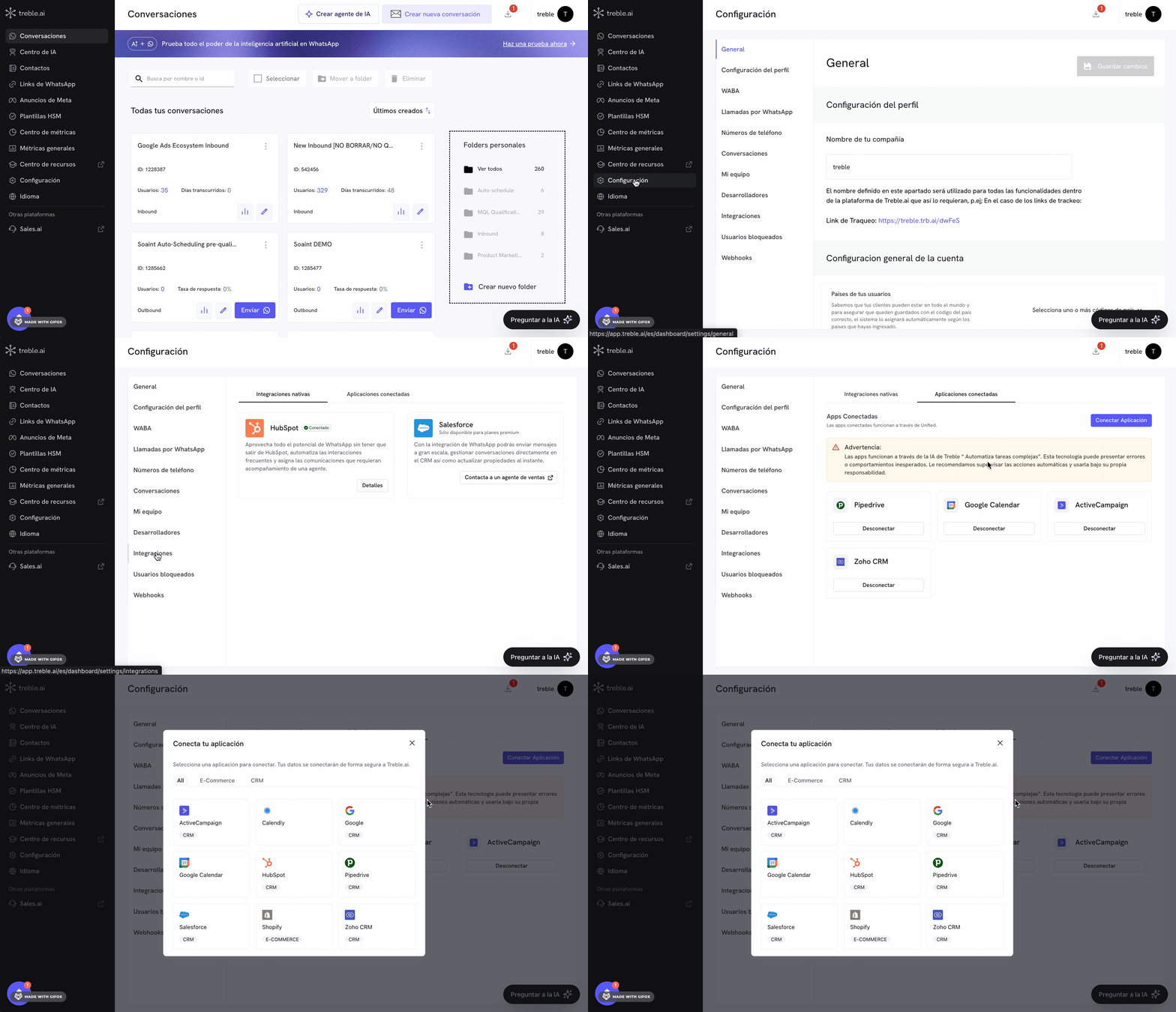
- Log in to
app.treble.ai
- Go to Settings
- Go to Integrations
- Click on the “Connected Applications” tab
1
Salesforce installation flow in Treble
At this point we will follow the instructions. Click the “Connect Application” button and a modal will open with the connection options. Click on “Salesforce”.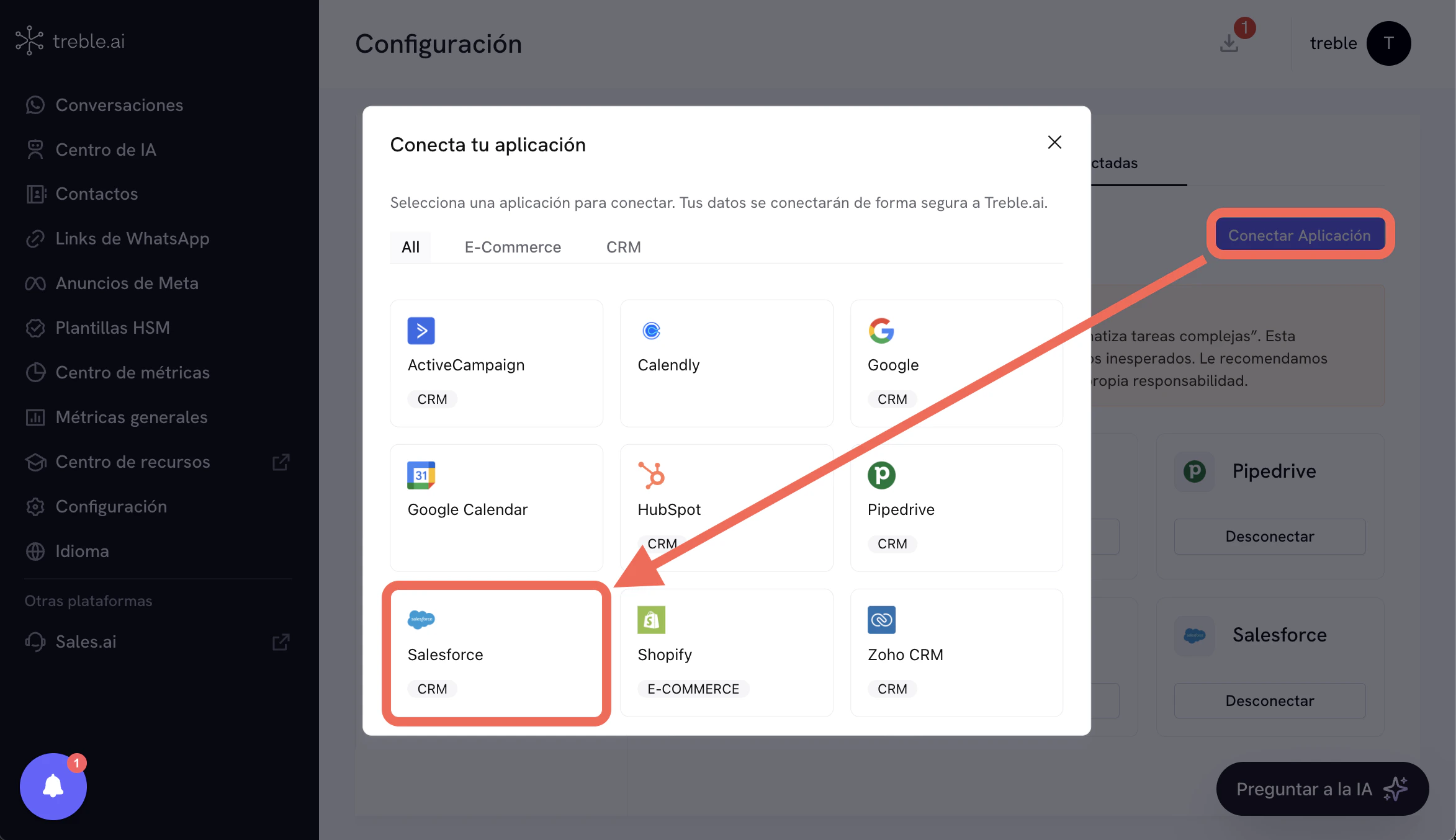
2
Log in and authorize in Salesforce
After clicking “Salesforce”, you will be redirected to the Salesforce login screen. Enter your administrator credentials and authorize Treble’s access to your Salesforce account.
3
Application connected
You have now connected the Salesforce application in Treble.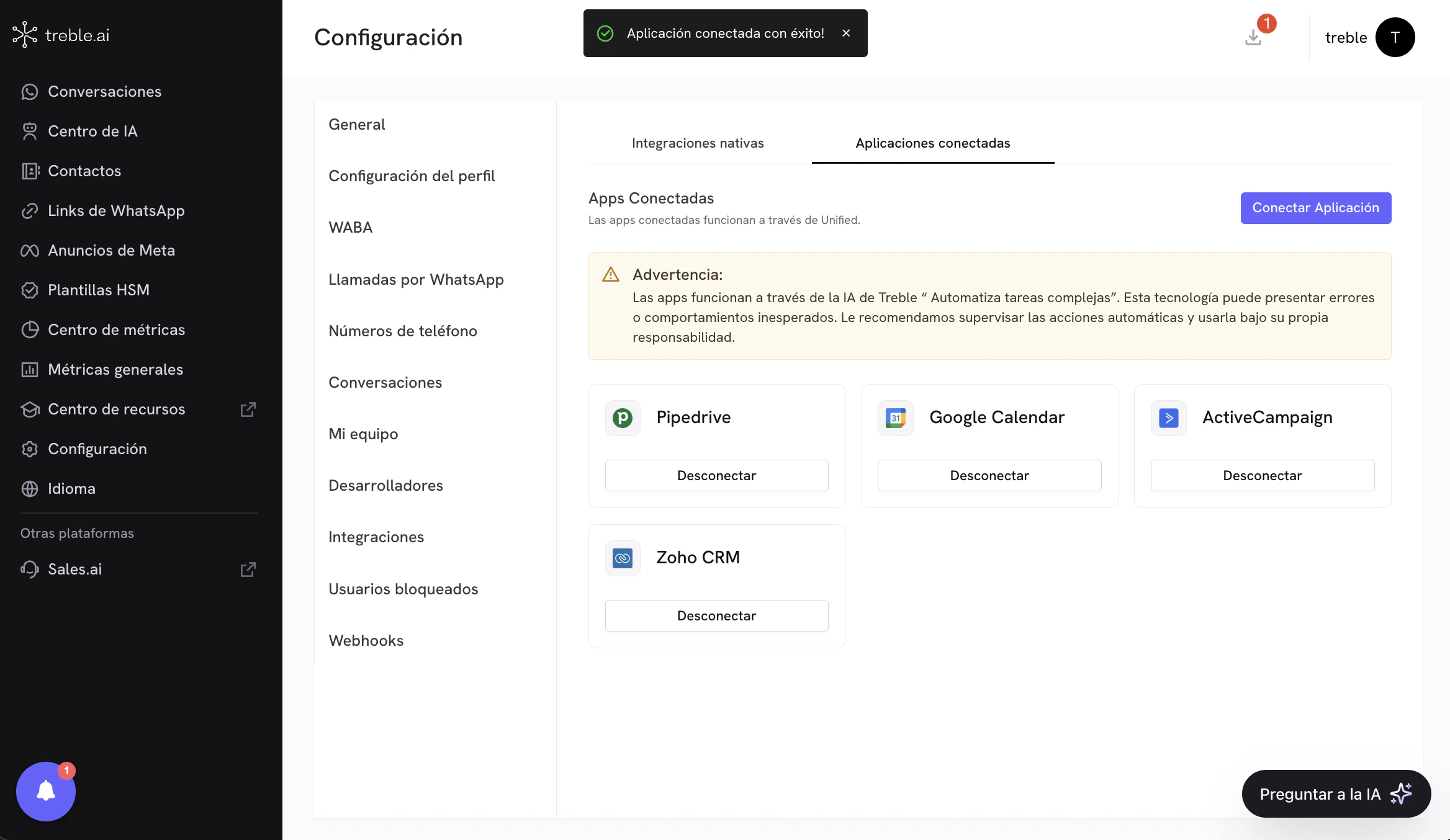
4
Use Salesforce AI tools in Treble
You can now use the Salesforce AI tools in Treble. To do this, go to the “AI Agents” section and create a new AI agent. You must select the “Automate complex tasks” option. After creating the agent, go to the “Tools” section and select the “Connected Applications” option from the tools list. In this section, select the “Salesforce” application and you will see the tools available to use in the AI.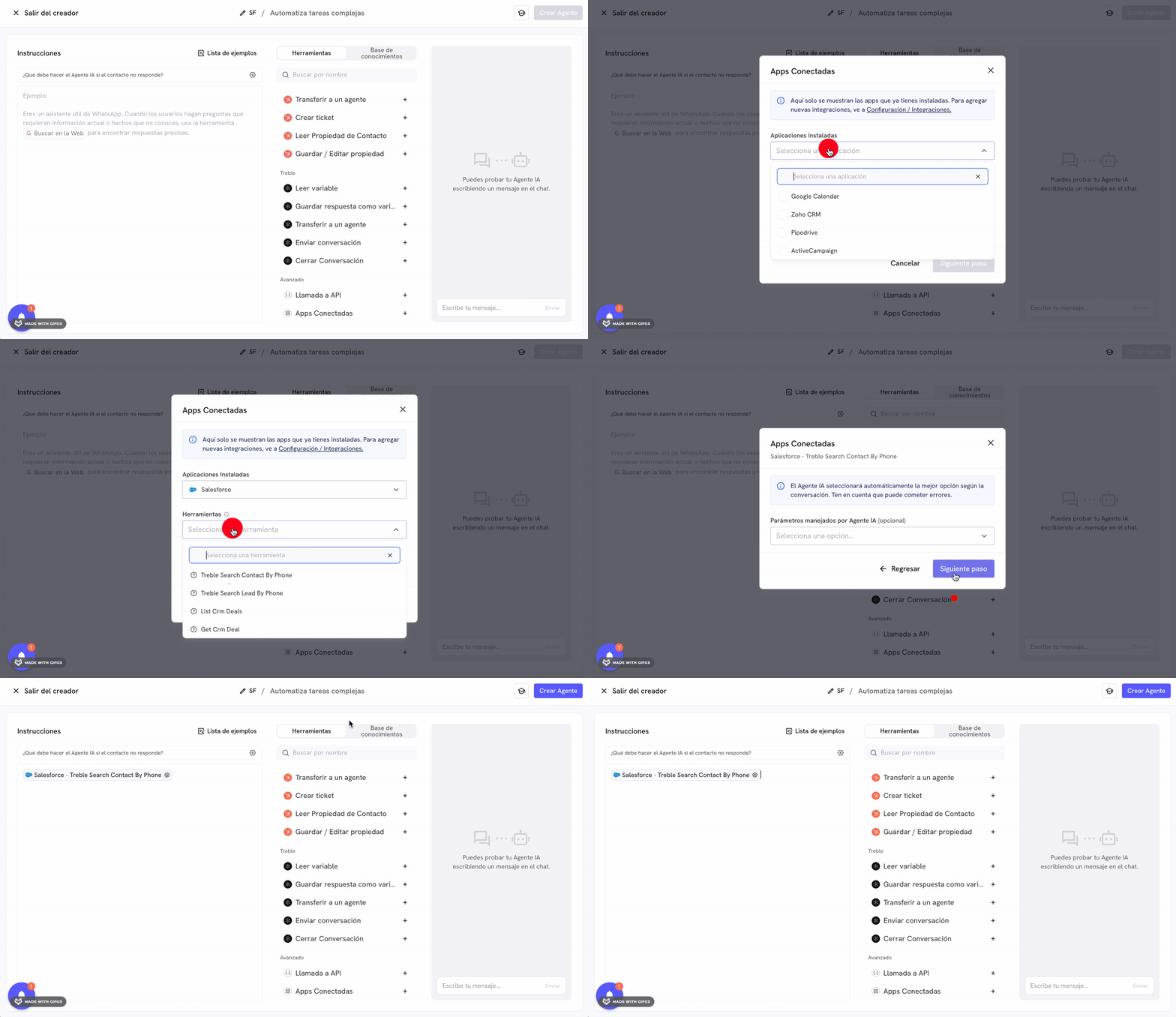
Congratulations! You have successfully installed the Salesforce integration in Treble.