

Steps to install the Treble integration in Salesforce
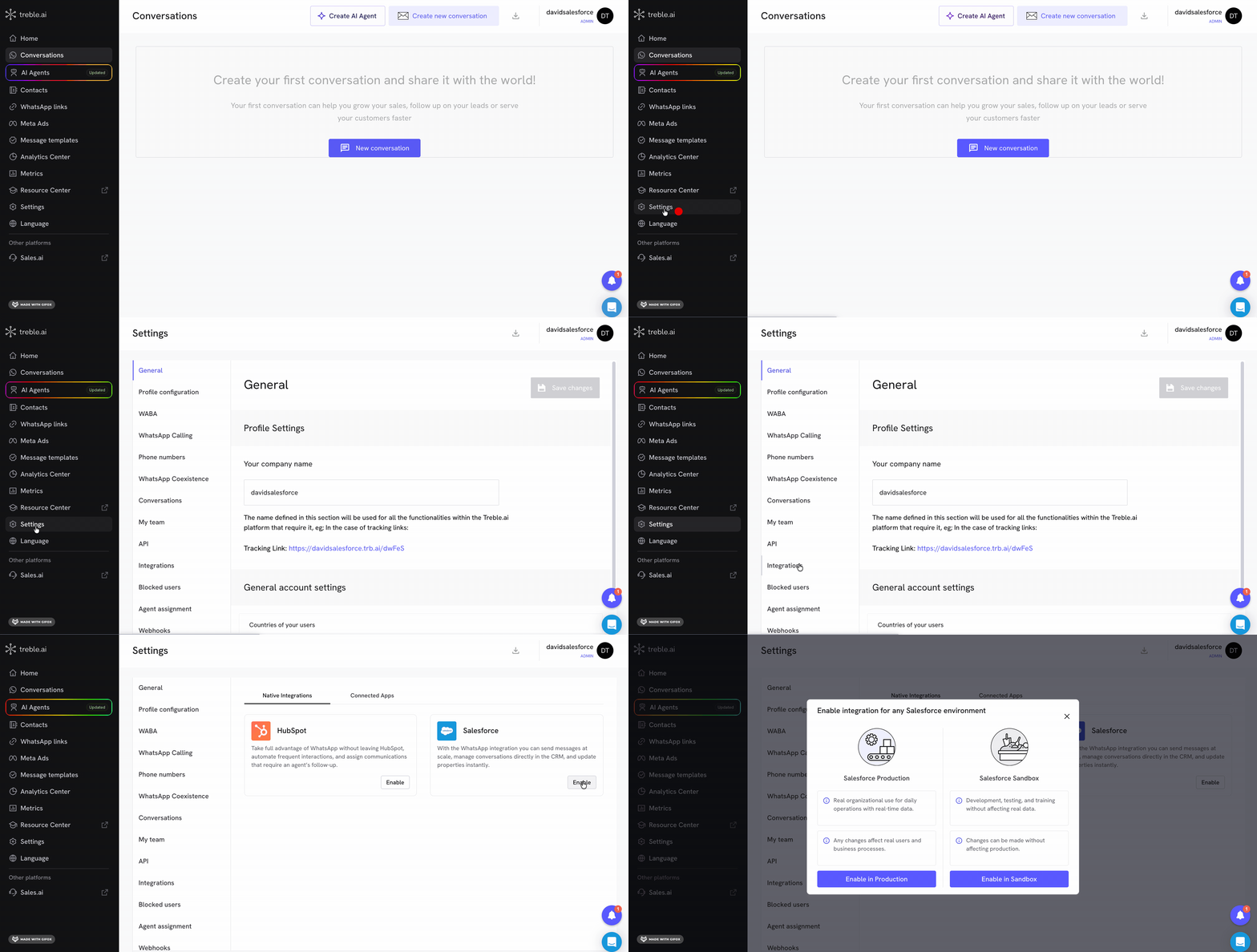
- Log in to
app.treble.ai
- Go to Settings
- Go to Integrations
- Click on “Enable” in the Salesforce section
1
Choose the Salesforce environment
Treble lets you connect any Salesforce environment. Choose whether you’re connecting your Production org or a Sandbox (usually used for testing, without affecting real data).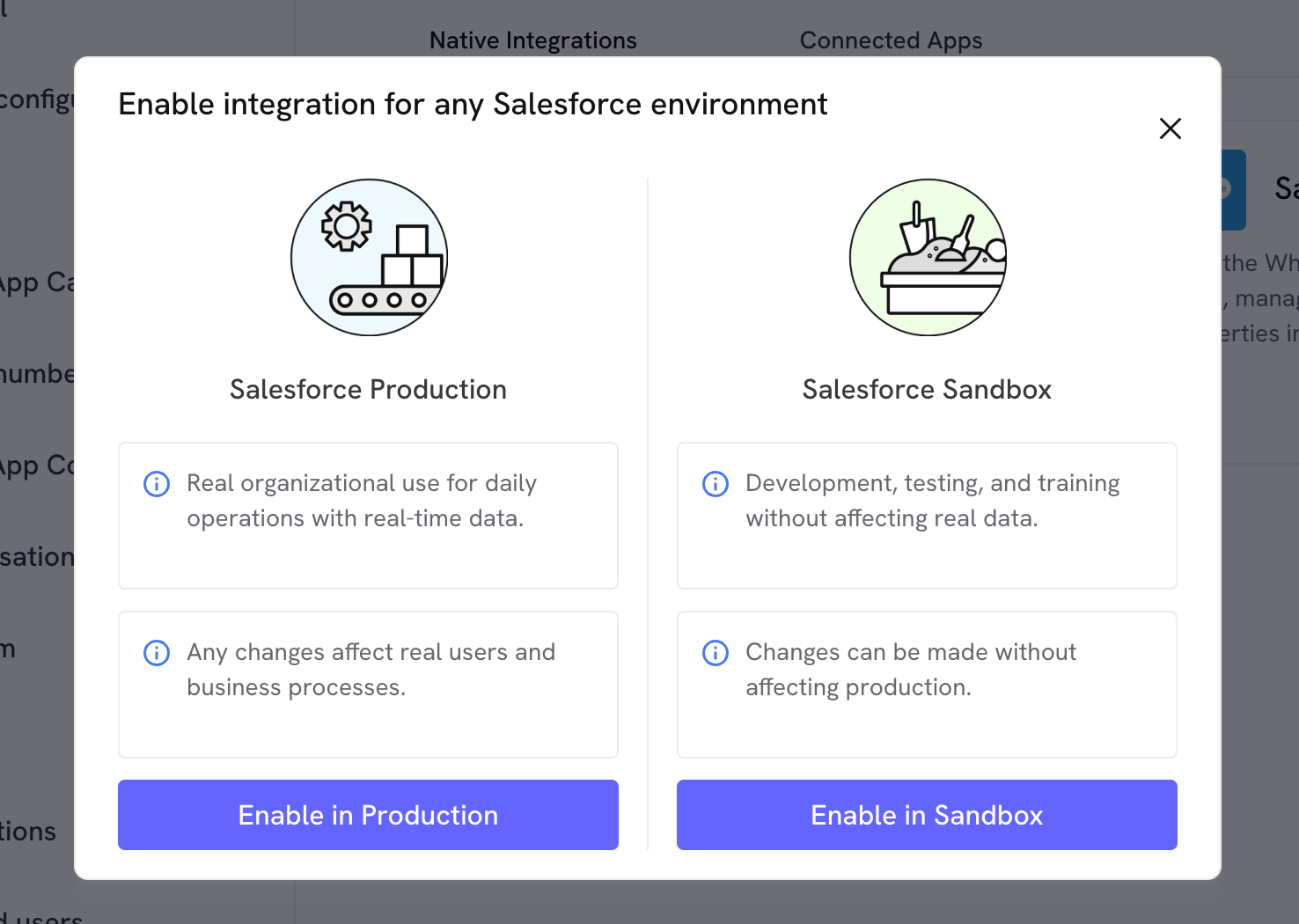
2
Authenticate with Salesforce
Enter the Salesforce username you’re going to connect the integration with and click “Confirm”.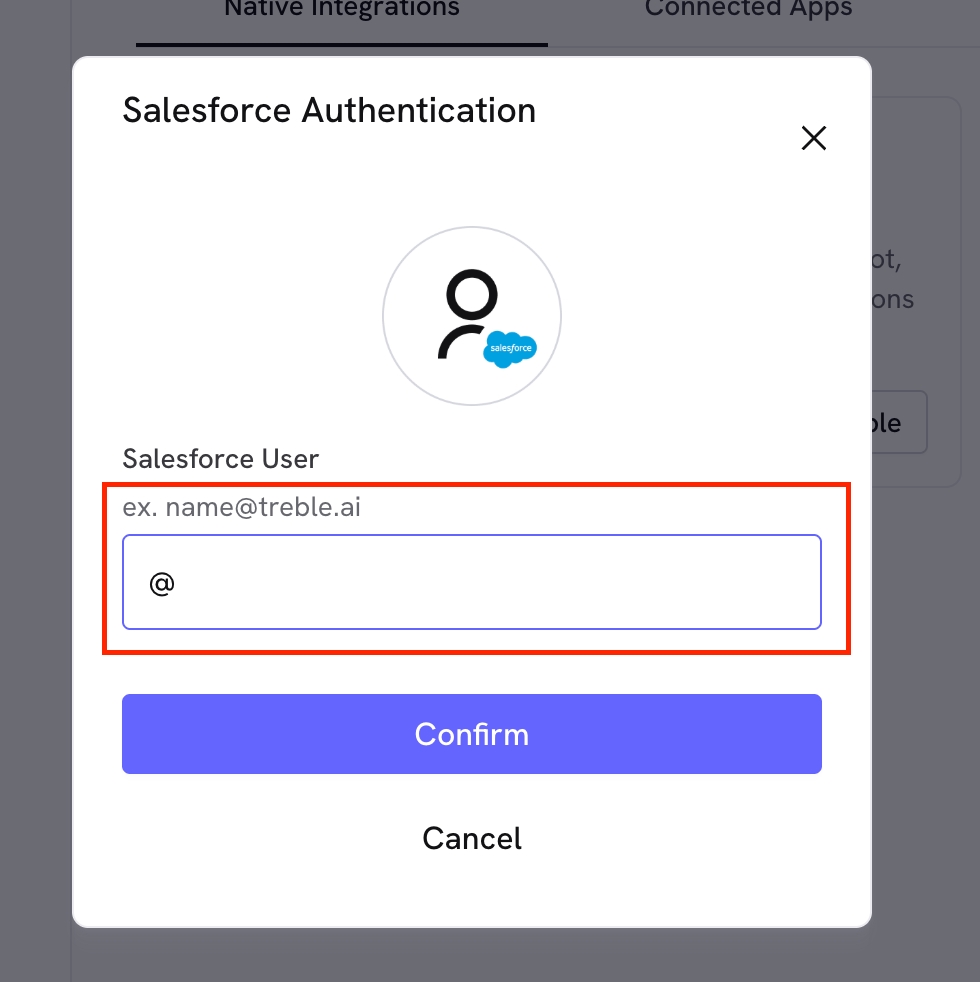
3
Configure the parent entity
Once access is authorized, go back to Settings → Integrations → Salesforce and click “Settings” to choose the parent entity (e.g. Contact or Account) that Treble will use to sync your contacts.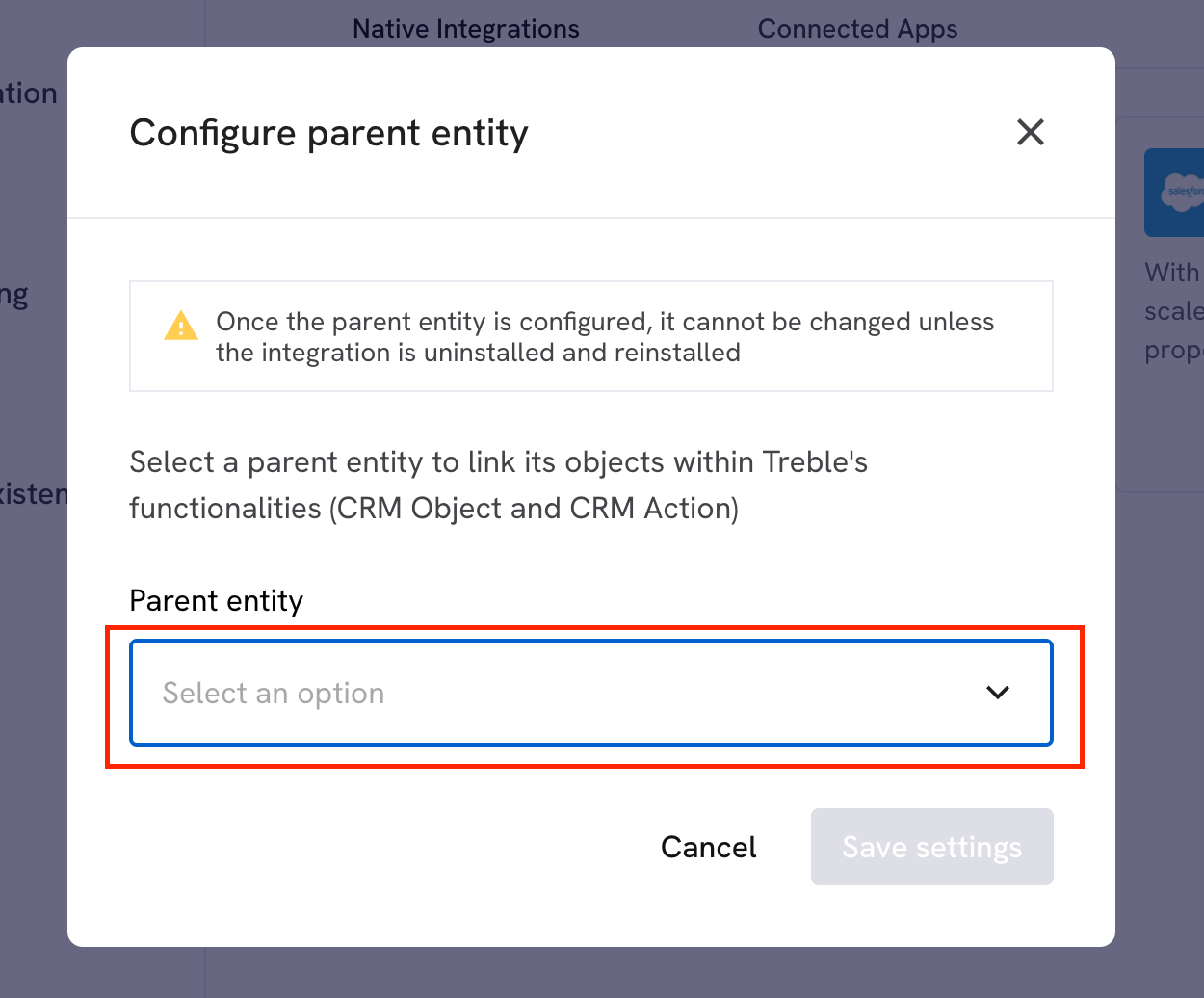
If your integration is of type Salesforce Multiple Object, this step looks different: instead of choosing a single parent entity, you’ll see “Select objects to install” and can choose several Salesforce objects at once. For each object you select, you’ll need to configure its phone field, name field, and owner field. The rest of the flow (authentication, agent selection, sync) is identical.
4
Select agents
Right after saving the configuration, Treble automatically opens a modal so you can choose which Salesforce users you want to turn into Treble agents.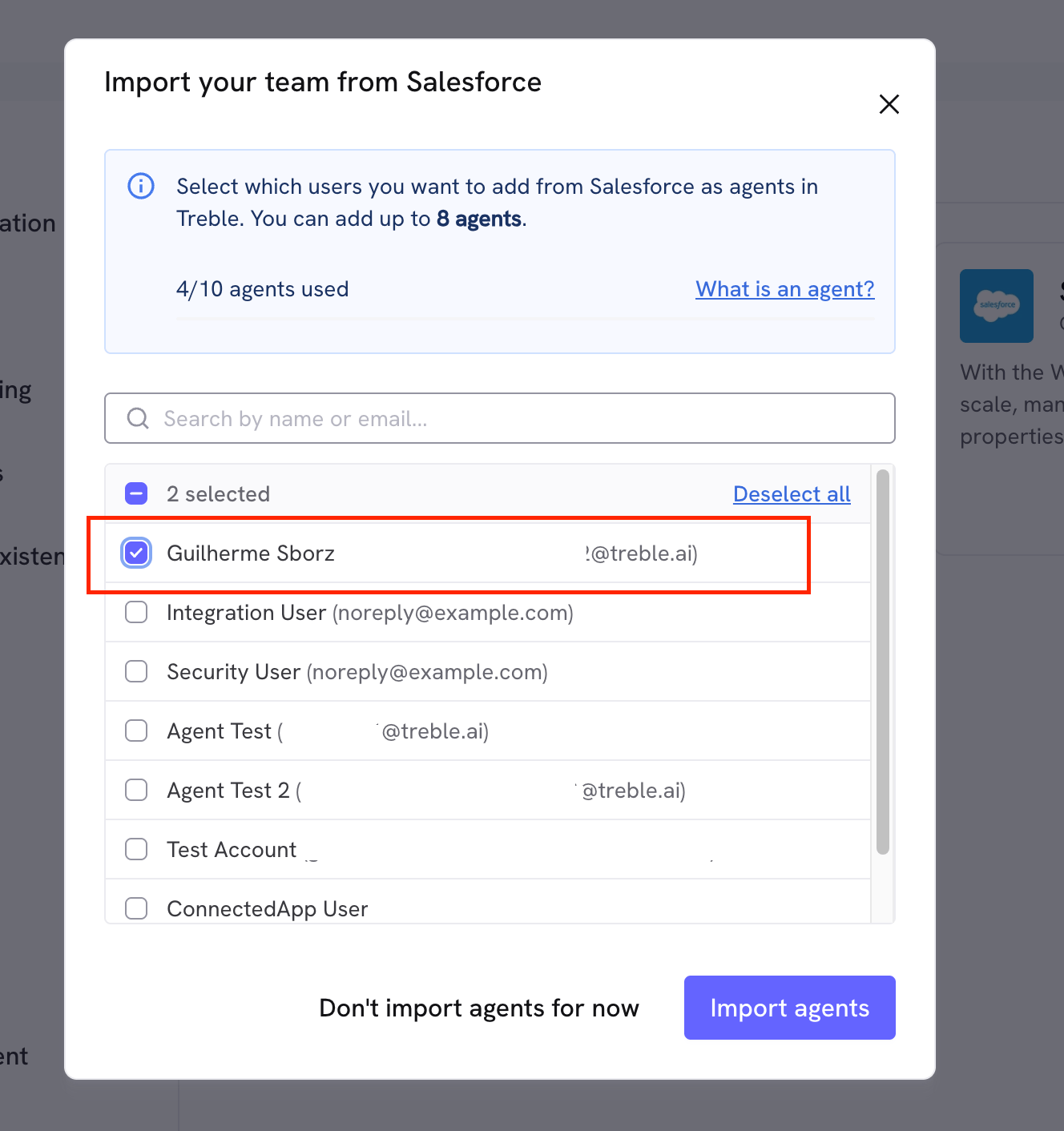
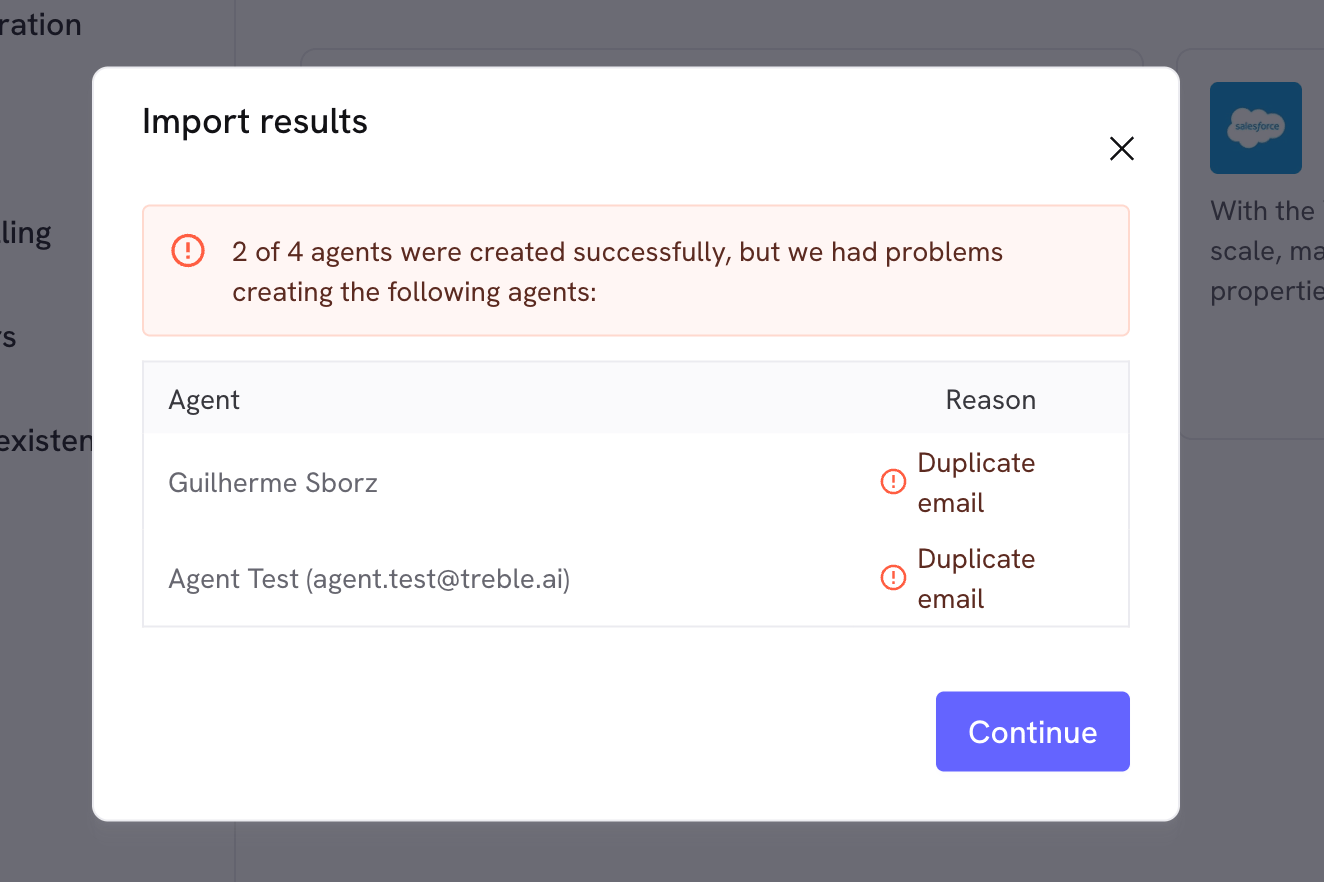
If you don’t want to add agents right now, you can click “Don’t import agents for now”. Keep in mind this modal won’t show up again afterward — if you want to add agents later, you’ll have to do it manually, one by one. See Create a new agent.
5
Contact sync
After selecting your agents, Treble starts syncing your Salesforce contacts in the background. This process can take a while depending on the size of your contact base — in the meantime, you’ll see the integration in “Processing” status.
Congratulations! At this point, you have already integrated your company with Treble and Salesforce. Once the sync finishes, you’ll see the integration as “Connected”.