

Actions available by entity
Contact
Company
Deal (Deal / Opportunity)
Pipeline
How to use Treble tools for HubSpot?
The HubSpot integration with Treble uses the AI assistant “Automate complex tasks” to run Treble tool actions for HubSpot. For this, it is essential that you know how to use the AI assistant “Automate complex tasks” in Treble and how to configure Treble tools for HubSpot. If you need more information on how to use the AI assistant “Automate complex tasks” in Treble, you can check the “Automate complex tasks” documentation in Treble at the following link:AI Assistant: Automate complex tasks in Treble
Learn how to use the AI assistant “Automate complex tasks” in Treble.
Configuration of Treble tools for HubSpot
To configure Treble tools for HubSpot, follow these steps:- Go to the “AI Agents” section in Treble.
- Create a new AI agent.
- Select the “Automate complex tasks” option.
- In the “Tools” section, select the “Connected Apps” tool.
- In the “Connected Apps” section, select the “HubSpot” application.
- In the “Tools” section, select the “HubSpot” tool you want to configure.
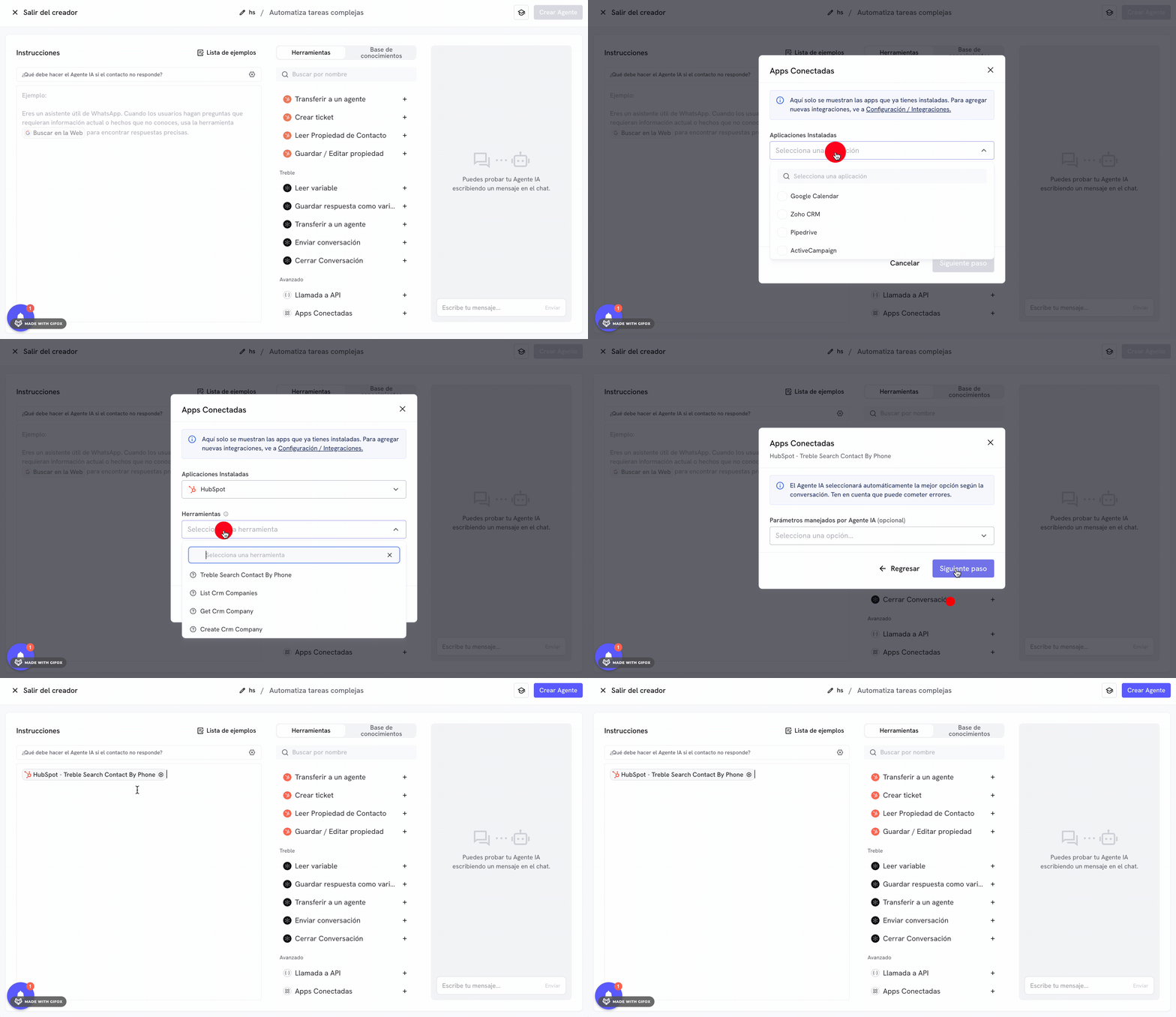
Tool: Search Contact by Phone
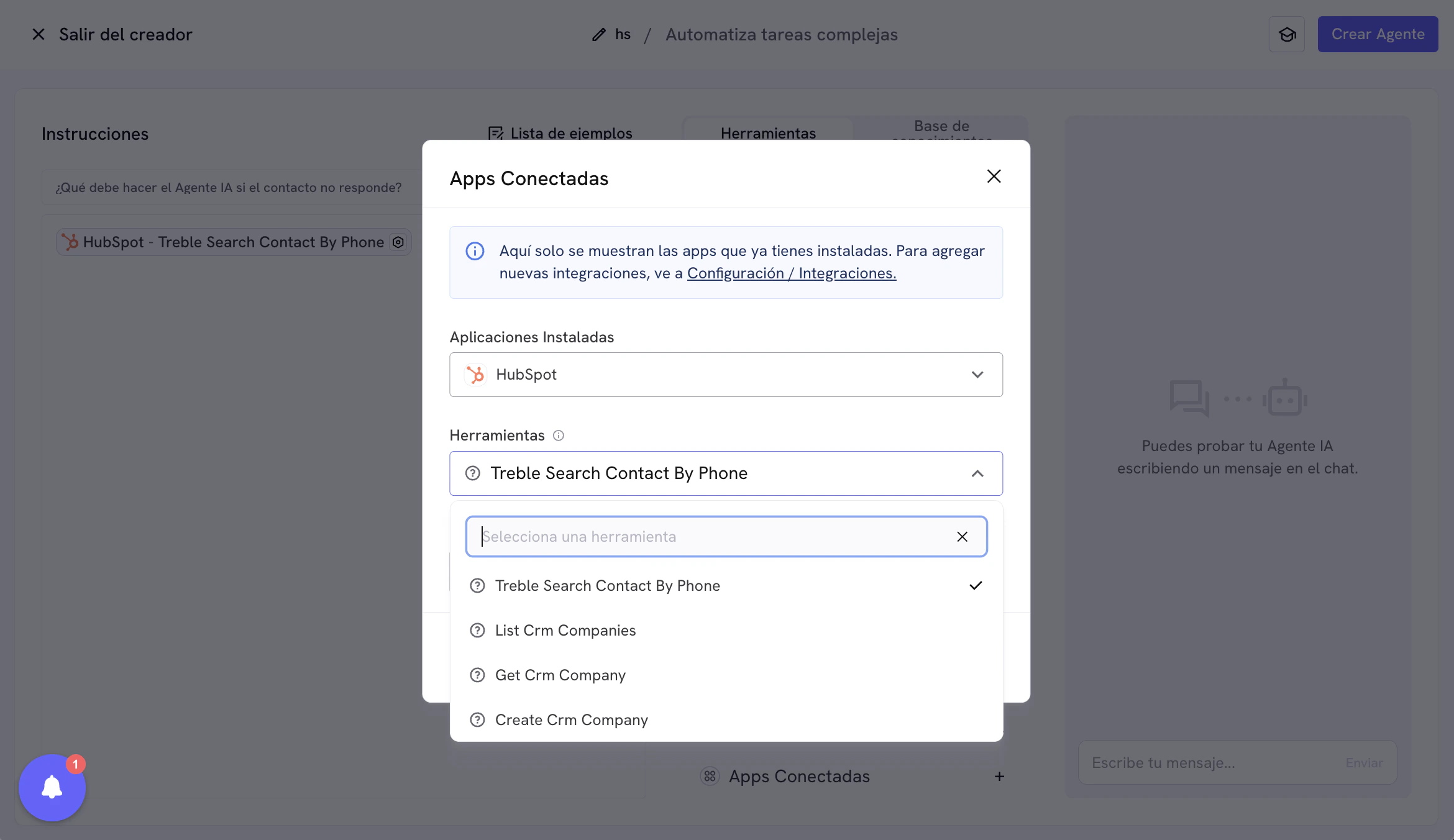
Among the listed Treble tools for HubSpot, there is the “Search Contact by Phone” tool. This tool allows you to search for Contacts by phone number. The tool automatically searches the Contact in HubSpot based on the customer’s WhatsApp phone number who is interacting with your AI assistant through a WhatsApp line connected to Treble. Your AI assistant does not need to ask for the customer’s phone number; the tool does it automatically.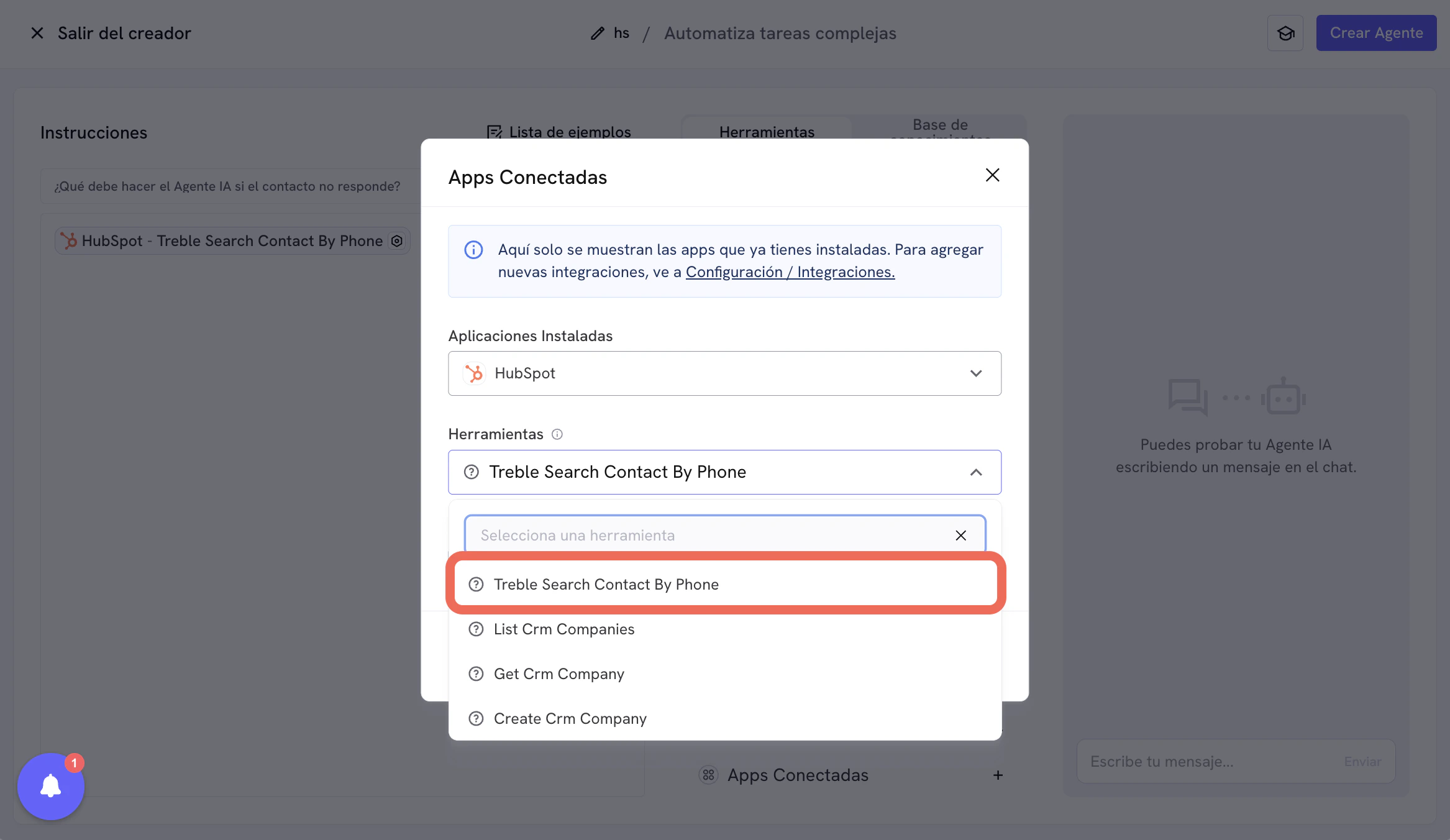
Phone format in HubSpot and properties
Treble uses international phone format to search for Contacts in HubSpot. For example, if the customer phone is from the United States and the phone number is(917) 555-0111, Treble will search it in HubSpot as +19175550111. Treble will perform the search in the Phone property in HubSpot.
Keep in mind that ultimately the AI agent decides which format to use for the search. By default, the agent will try in international format. However, if in your HubSpot phone numbers are not stored in international format, you can indicate in the agent instructions (prompt) which format it should use for the search.
Examples of instructions for the AI agent:
- Colombia: “When you use the tool to search Contact by phone, first search in Colombia local format (for example,
3001234567) and, if you do not find results, try international format (+573001234567).” - Argentina: “When searching by phone in HubSpot, prioritize Argentina local format (for example,
1151234567or3515123456). If there are no matches, try international format (+541151234567or+543515123456).” - Brazil: “To search Contacts by phone, first use Brazil local format (for example,
11987654321). If there are no results, also try international format (+5511987654321).”
Tools with Configuration Options
For the other tools, such as Create Contact, Update Contact, Create Company, Create Deal, Get a Pipeline, etc., these tools have configuration options. These configuration options allow you to interact with properties of those entities. These properties can be standard or custom. Let us look at some tool configuration examples.Example: Create Contact
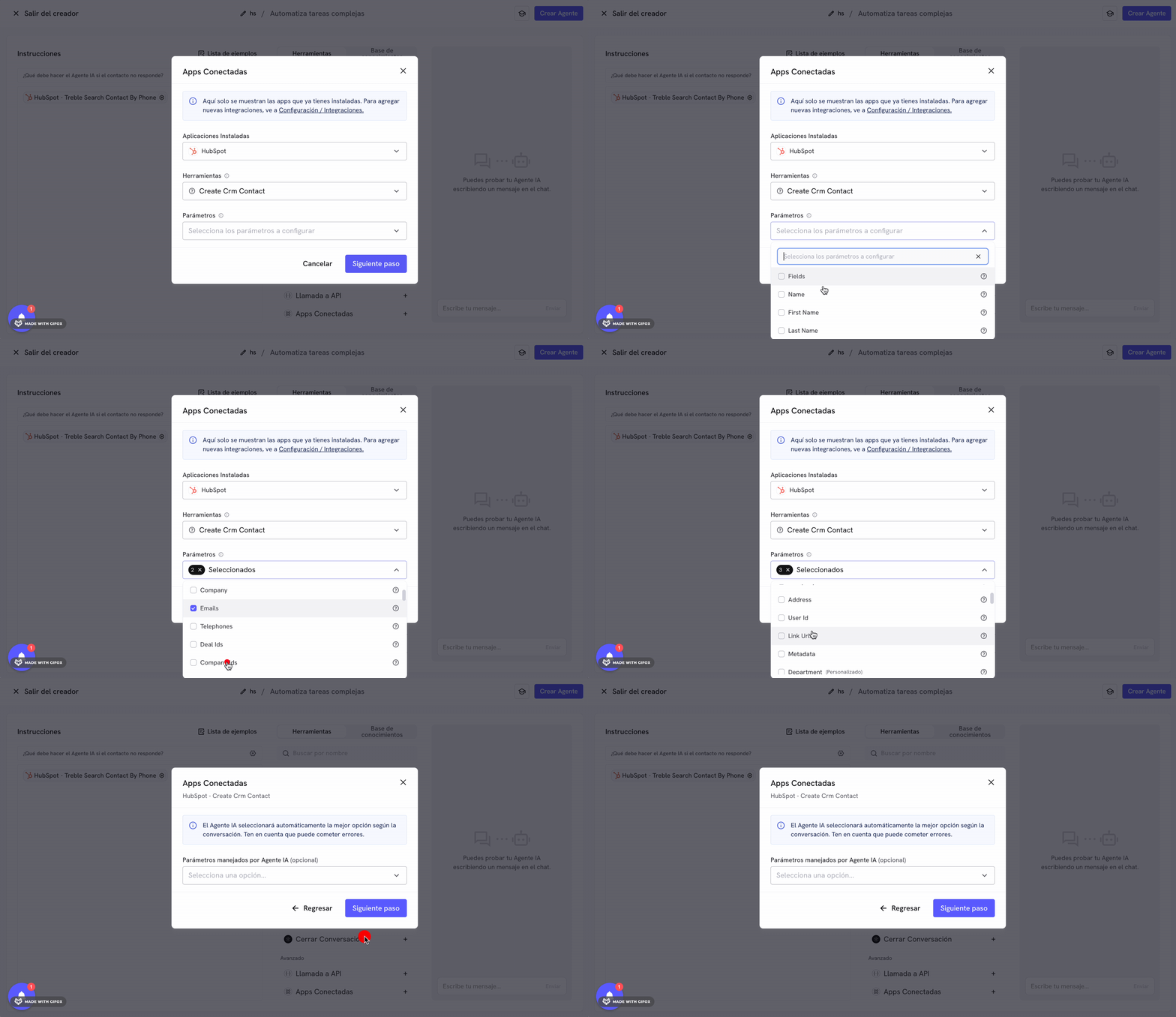
The “Create Contact” tool lets you create a new contact in HubSpot. To configure this tool, follow these steps:- Activate the HubSpot tools view in the “Tools” section of your AI assistant.
- Click the “Create CRM Contact” tool.
- In this view select the properties you want to configure for the contact. You can select standard or custom properties. In this example, we will select the properties “Name”, “Emails”, “Telephone”, and “Address”.
-
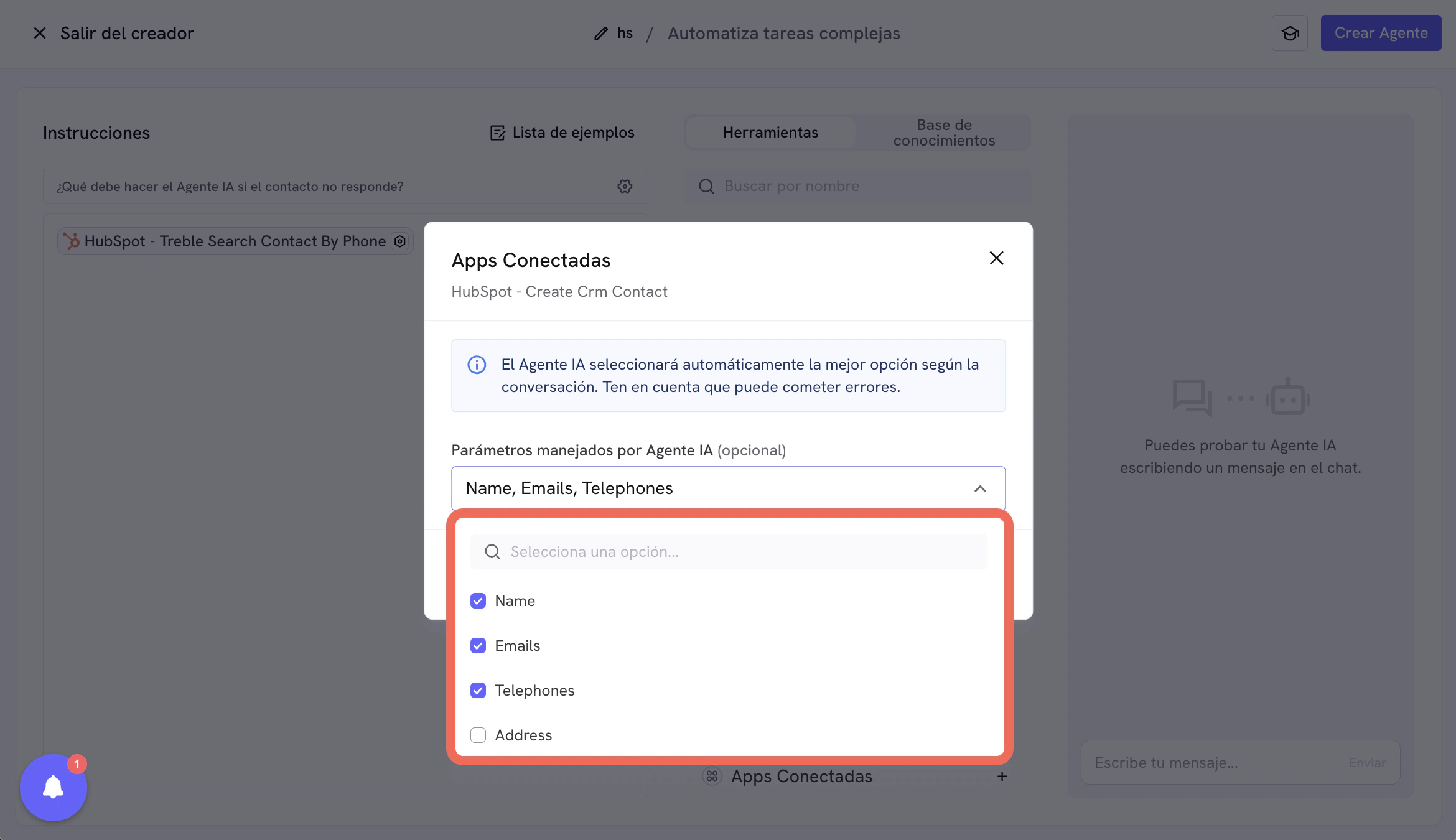
Click “Next Step”. In the “Parameters managed by AI Agent” view, you must select which properties you want the AI agent to complete dynamically during the conversation.
When a property is marked as “managed by AI Agent”, the agent will try to extract that value from the chat context (for example, name, email, or phone). If it cannot find the data clearly enough, it will ask the customer a question to complete it before running the tool.
To get better results, define explicit instructions in the agent prompt about which fields it should collect and how. Recommended example: “When you use the Create Contact tool, try to extract
Name,Emails, andTelephonefrom the conversation context. If any are missing, ask the customer briefly and then create the Contact.” In this view mark only variable fields. Fields you want to set with a predefined value (for example,Address = 123 Main St, City) can be left unselected here and configured in the next section. In this case we will select the properties “Name”, “Emails”, and “Telephone”. (We leave the “Address” property unselected to configure it manually in the next section.)
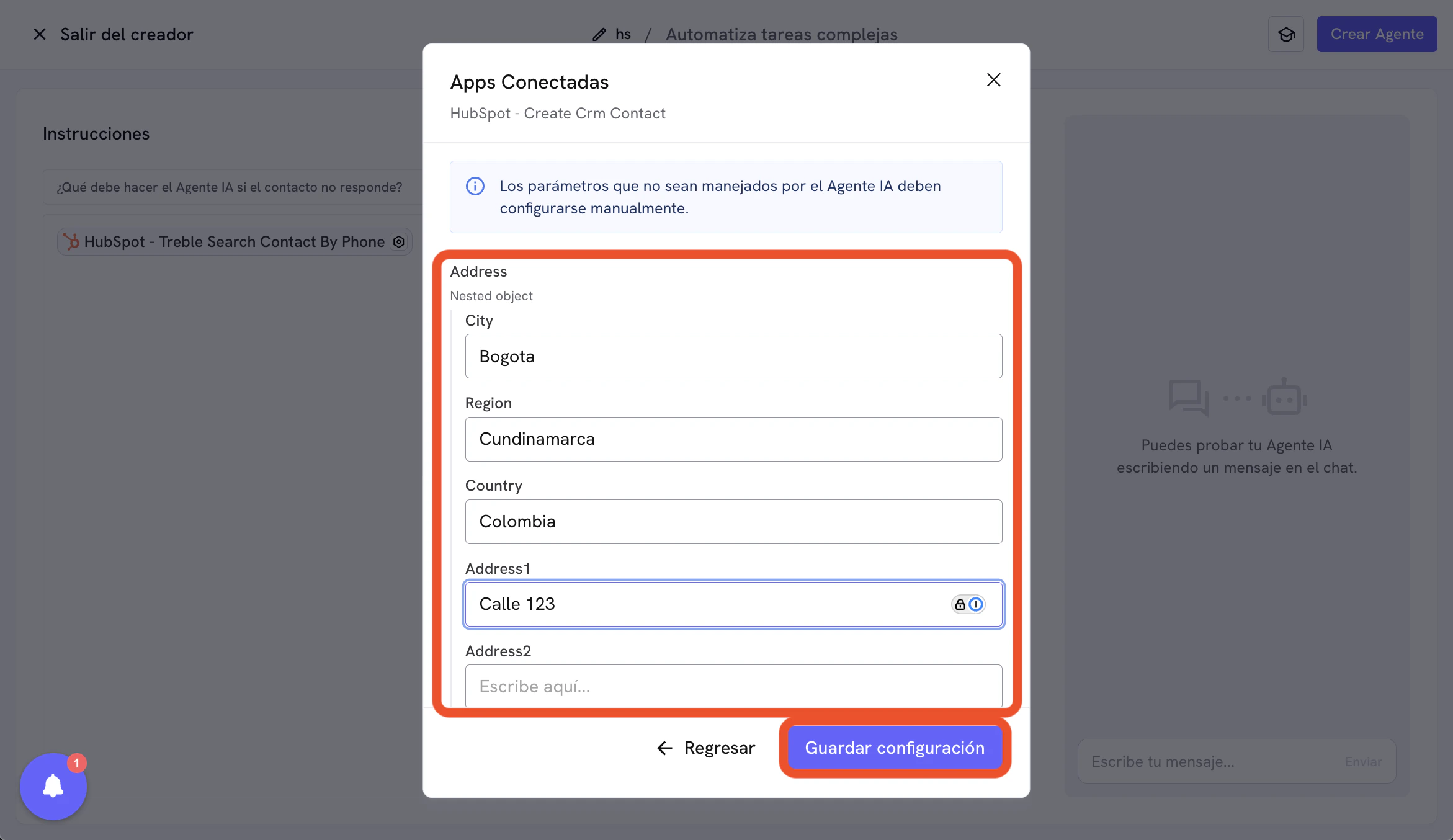
- In the next view, we will configure fields where the Contact should be created with some predefined properties. For example, if all your contacts operate in the same city and you want to record the address manually, you can write the fixed value in the “Address” field, such as
123 Main St, City. You can configure this with multiple properties, that is, you can configure several properties with a predefined value; the important part is not selecting them inside the “Parameters managed by AI Agent” view.
Congratulations! You have configured the Create Contact tool.