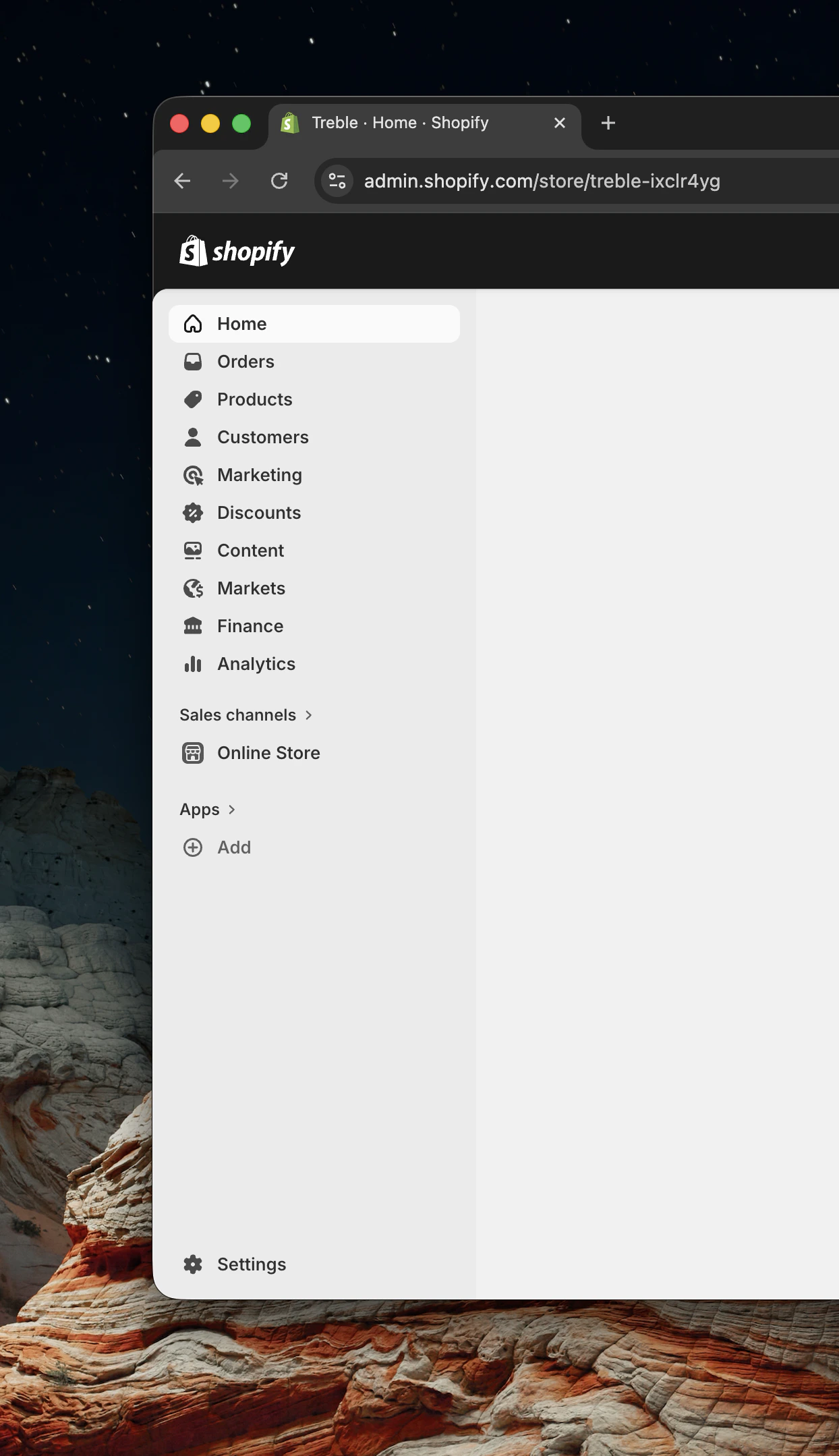
Go into the Shopify Admin https://admin.shopify.com/ and at the bottom left of the screen, click on “Settings”
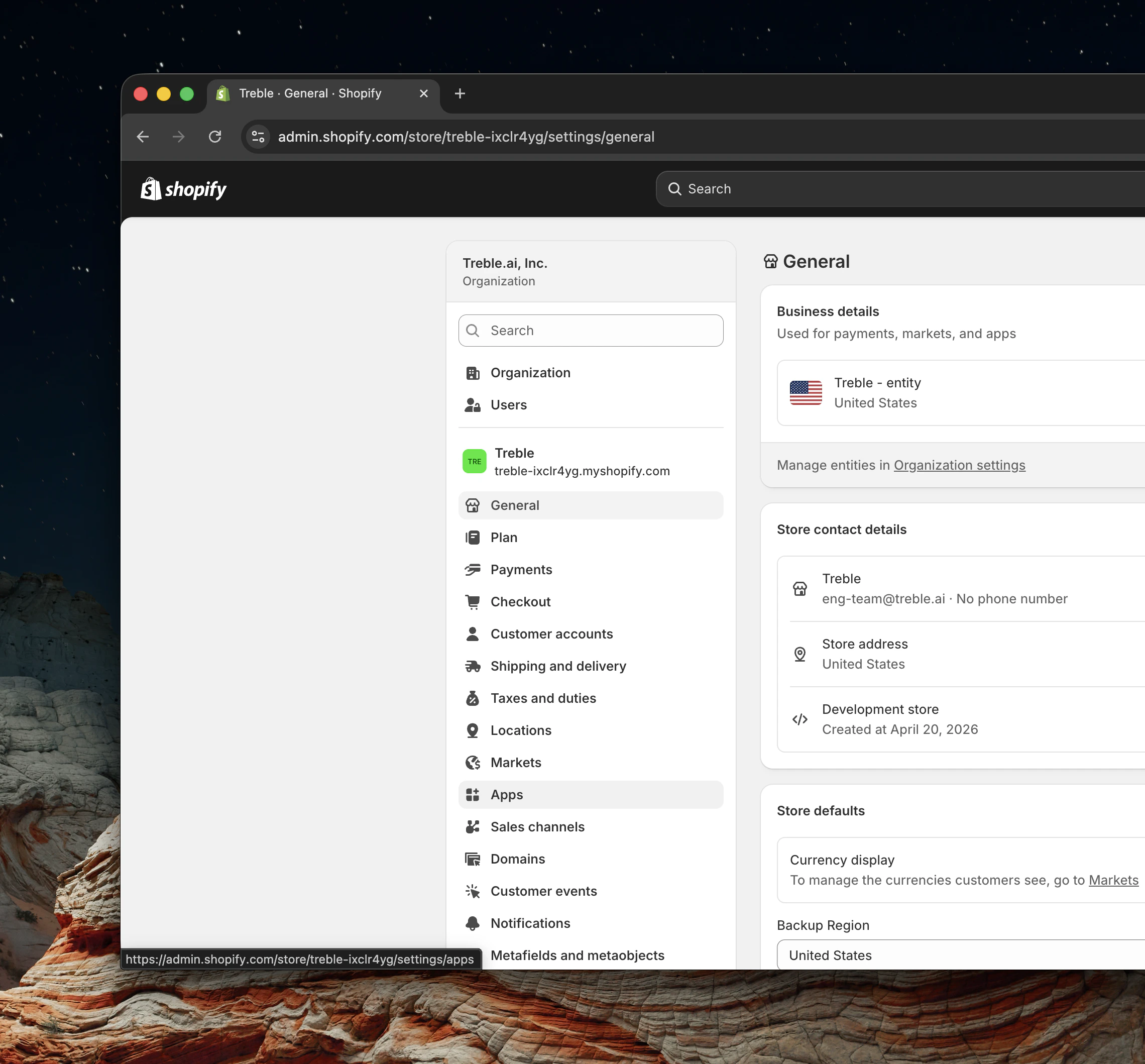
Once you’re in the settings page, click on “Apps”
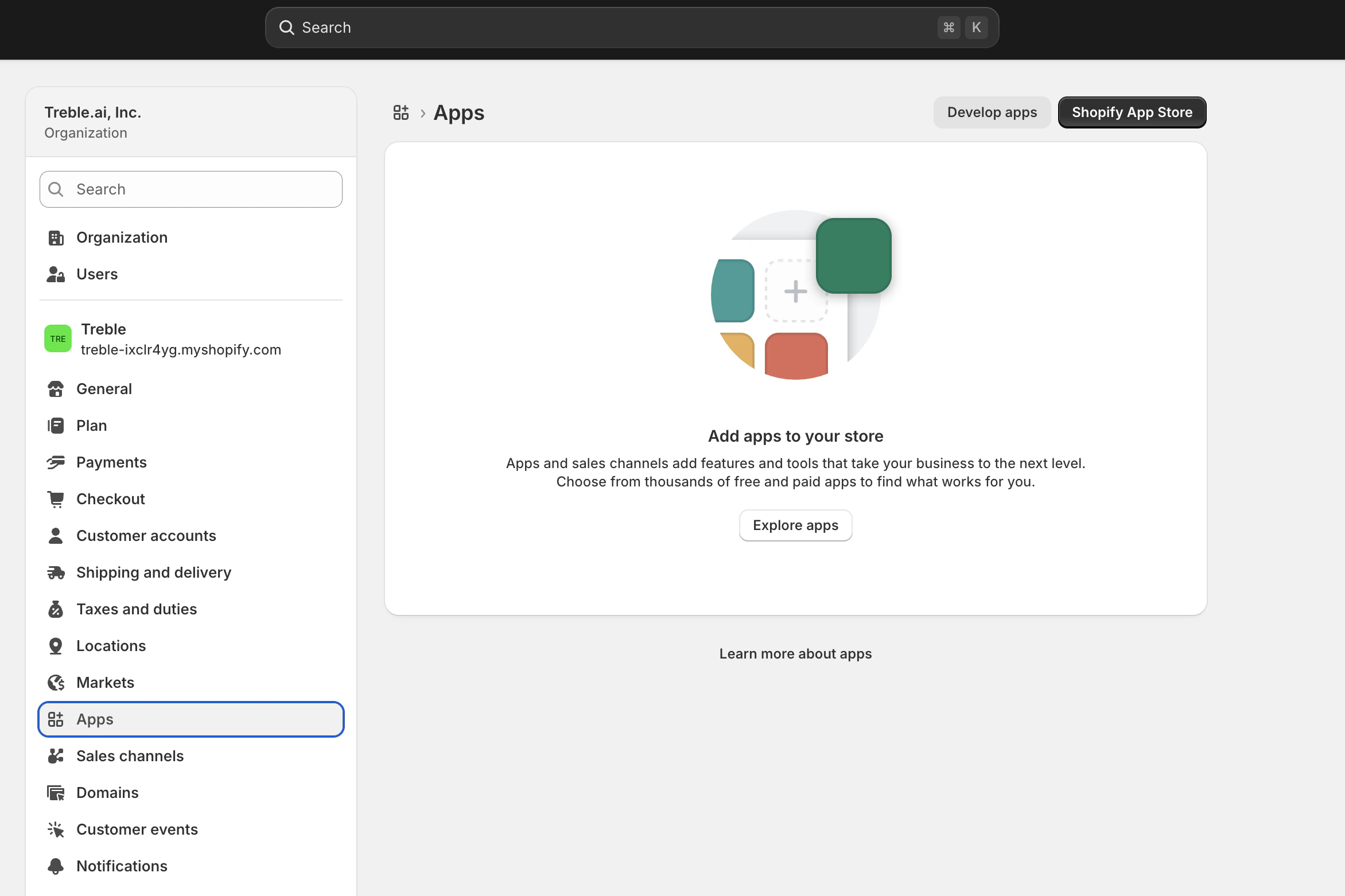
You’ll see this screen if you don’t have any apps created or installed, if you have you’ll also see them here, we’re interested in the “Develop apps” button at the top right of the screen
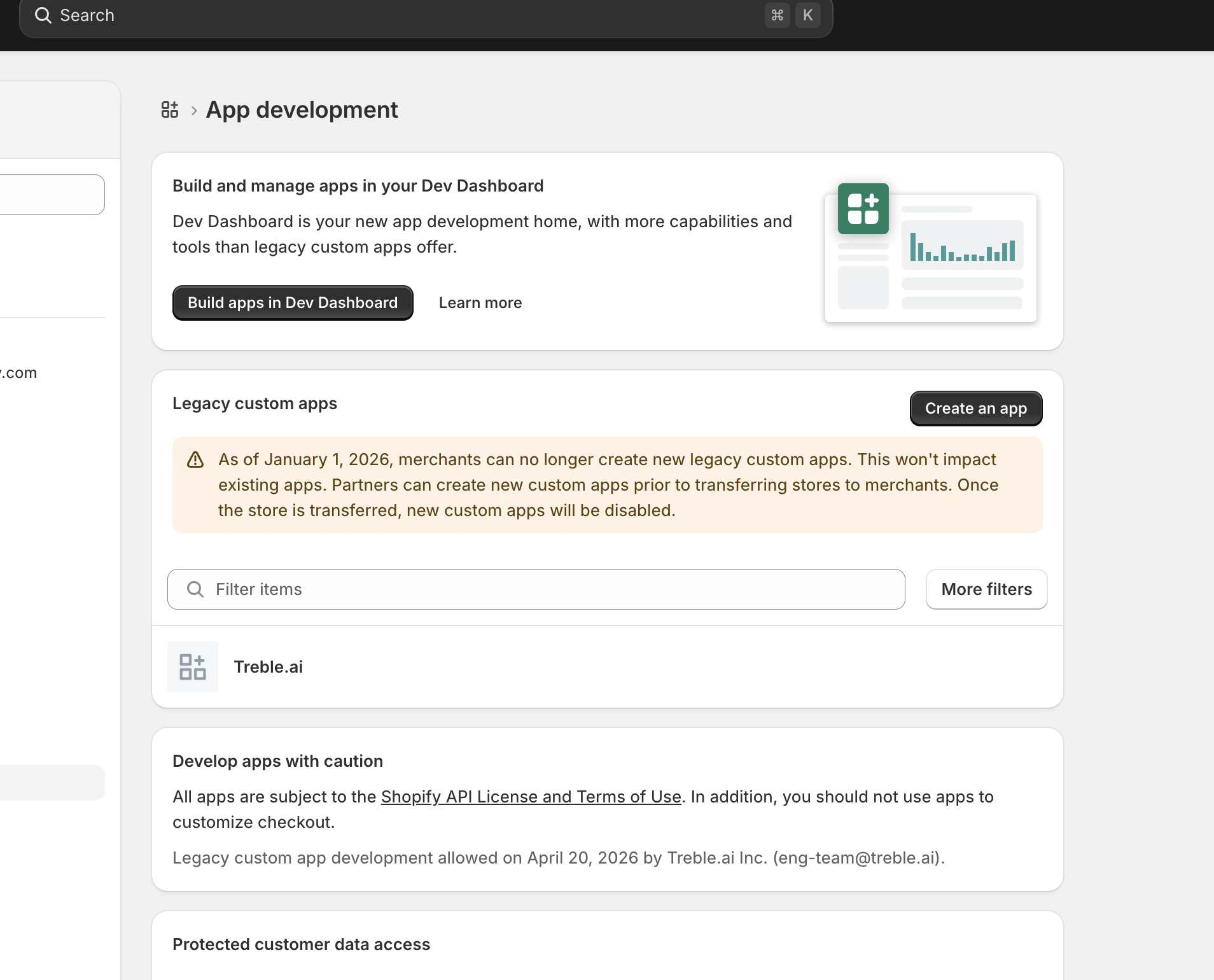
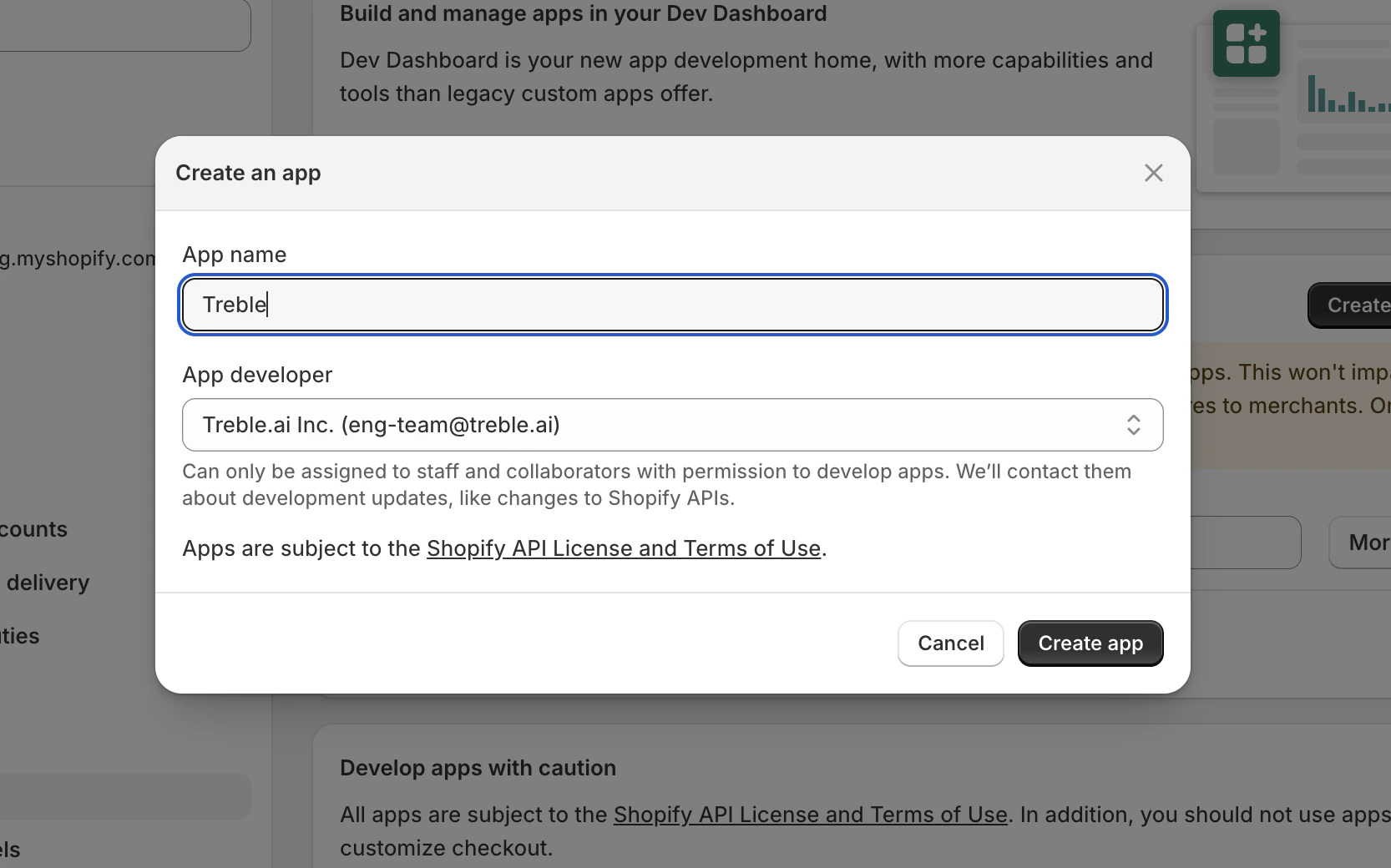
Because of how Shopify works, you’ll need to create a custom app, click the “Create an app” button (Note: This is not the same as building apps in Shopify Dev Dashboard)
On the App name field, enter “Treble”, choose any available email from your organization on the dropdown menu
2. Installing the custom Shopify App in your Shopify store
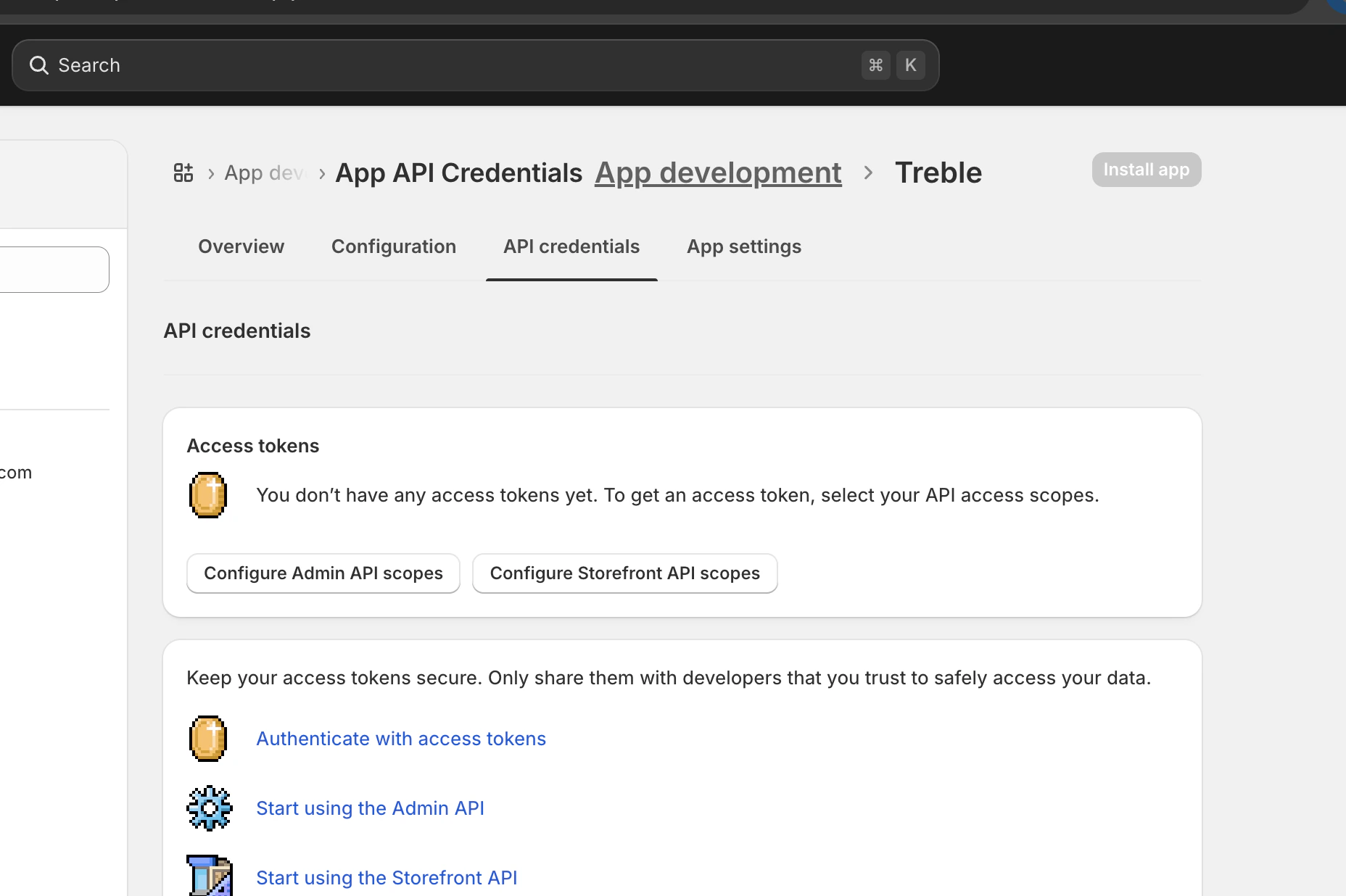
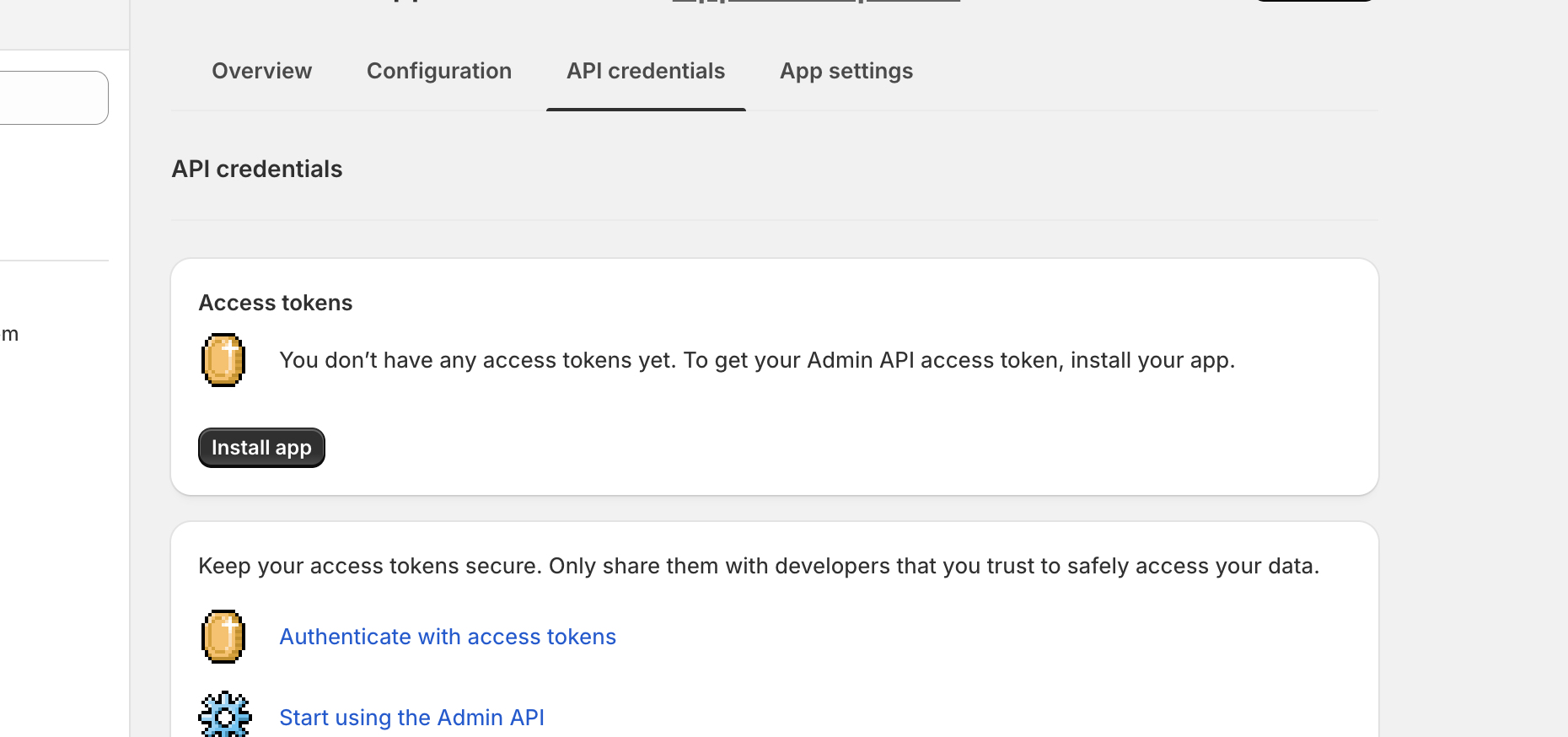
After creating the app, you’ll need to install it in your Shopify store.
You should see a “Install app” button on the API credentials tab
Click “Install app” button
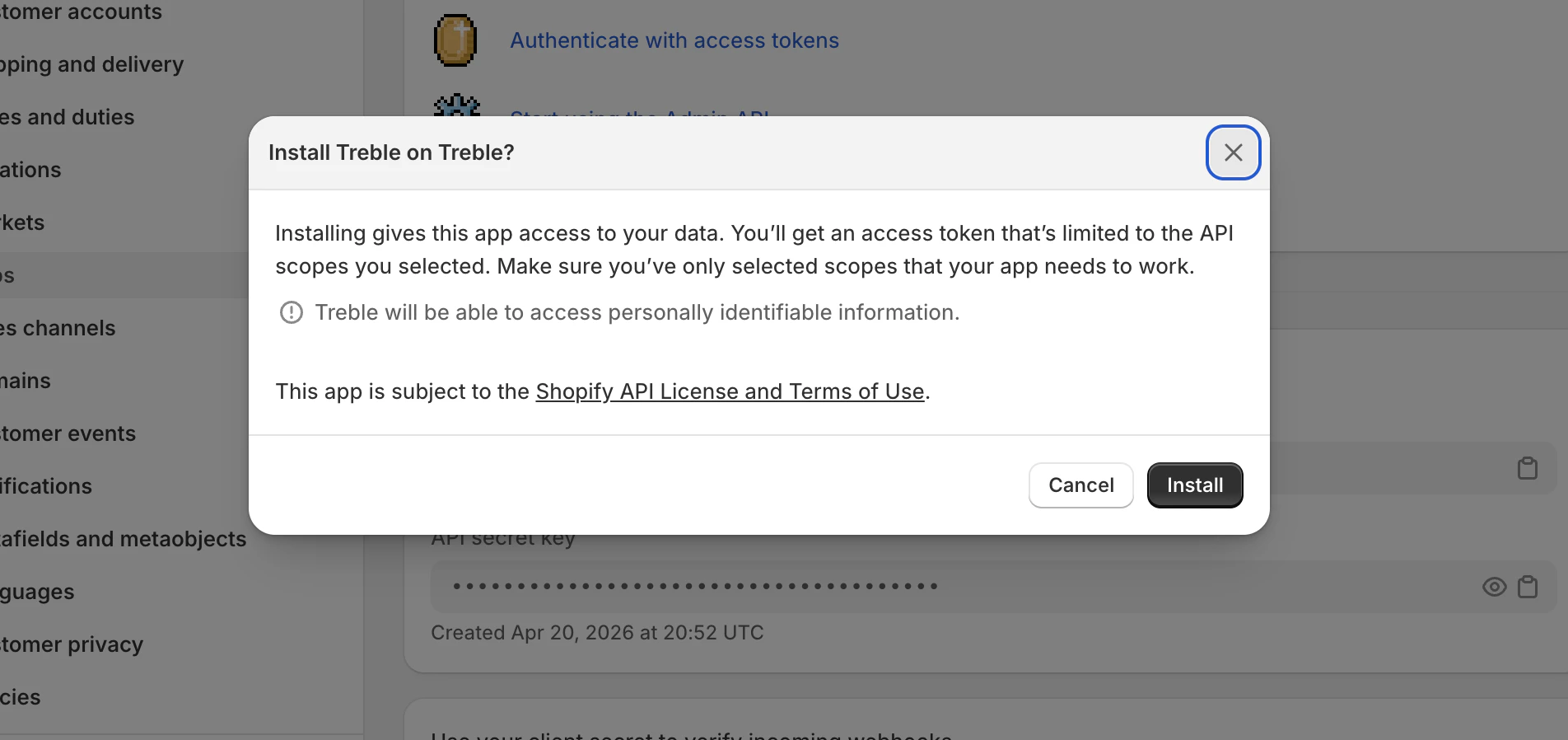
Proceed on the confirmation modal, Click the “Install” button
You’re acknowledging that the app we’ve created will have access to your Shopify data, this is required to proceed
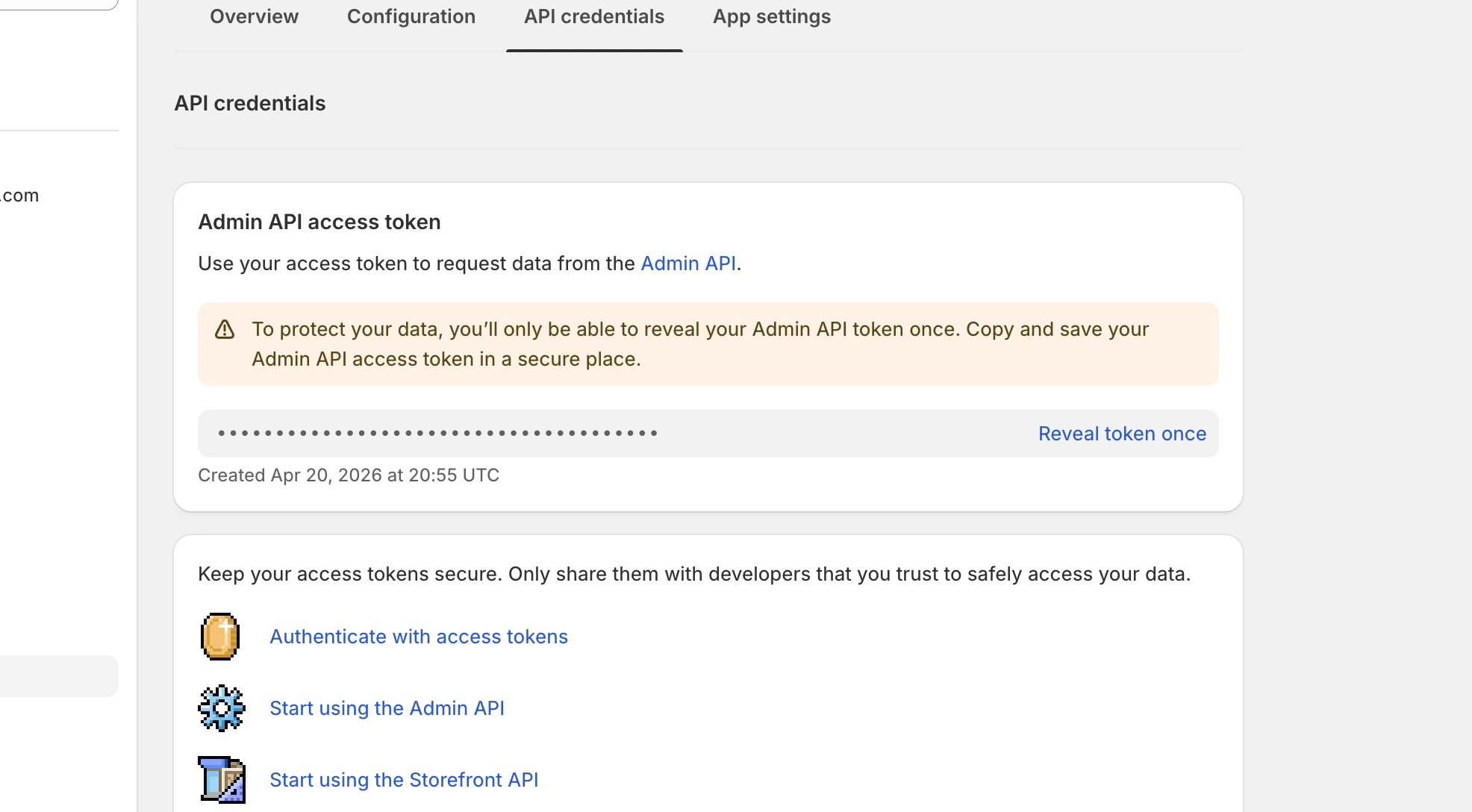
Then you’ll see this screen, you’ll be able to see a token, it’s very important to keep it in a safe place like a password manager, Shopify will only let you see it once, if you lose it, you’ll need to repeat the process from section 1
Click on “Reveal token once”, save it, you’ll use it in section 3
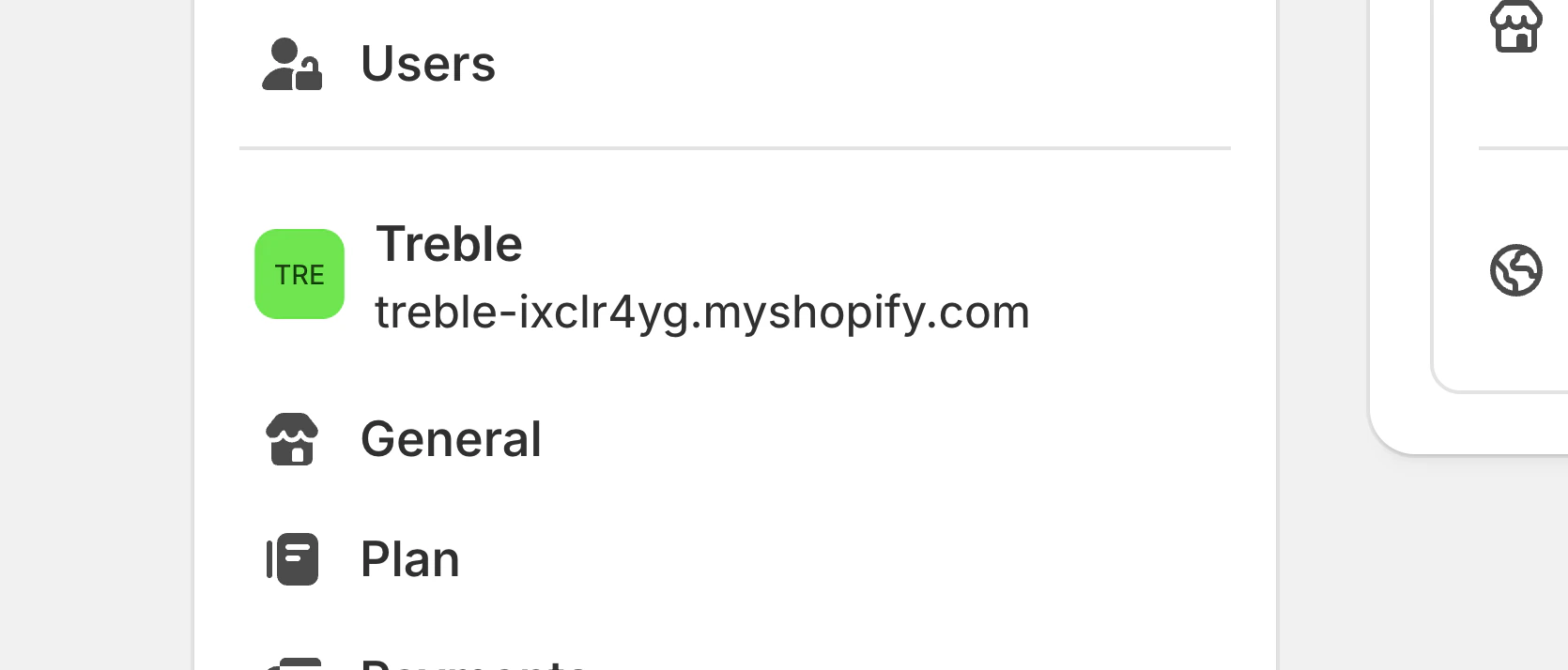
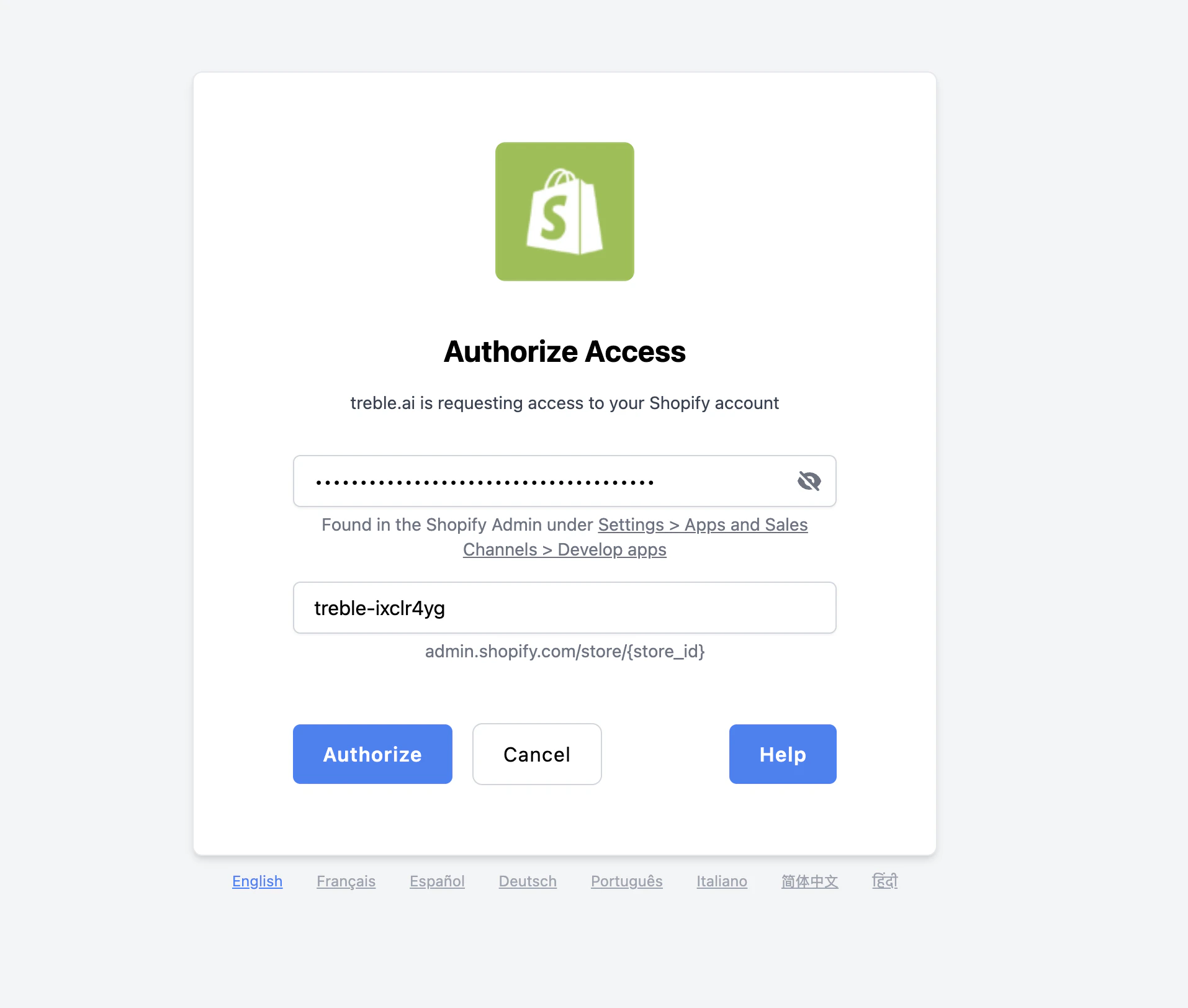
To know your Shopify store ID, look at the URL of your Shopify store, it should be something like this: https://yourstore.myshopify.com, the “yourstore” is your store ID
In our example, the store ID is treble-ixclr4yg