

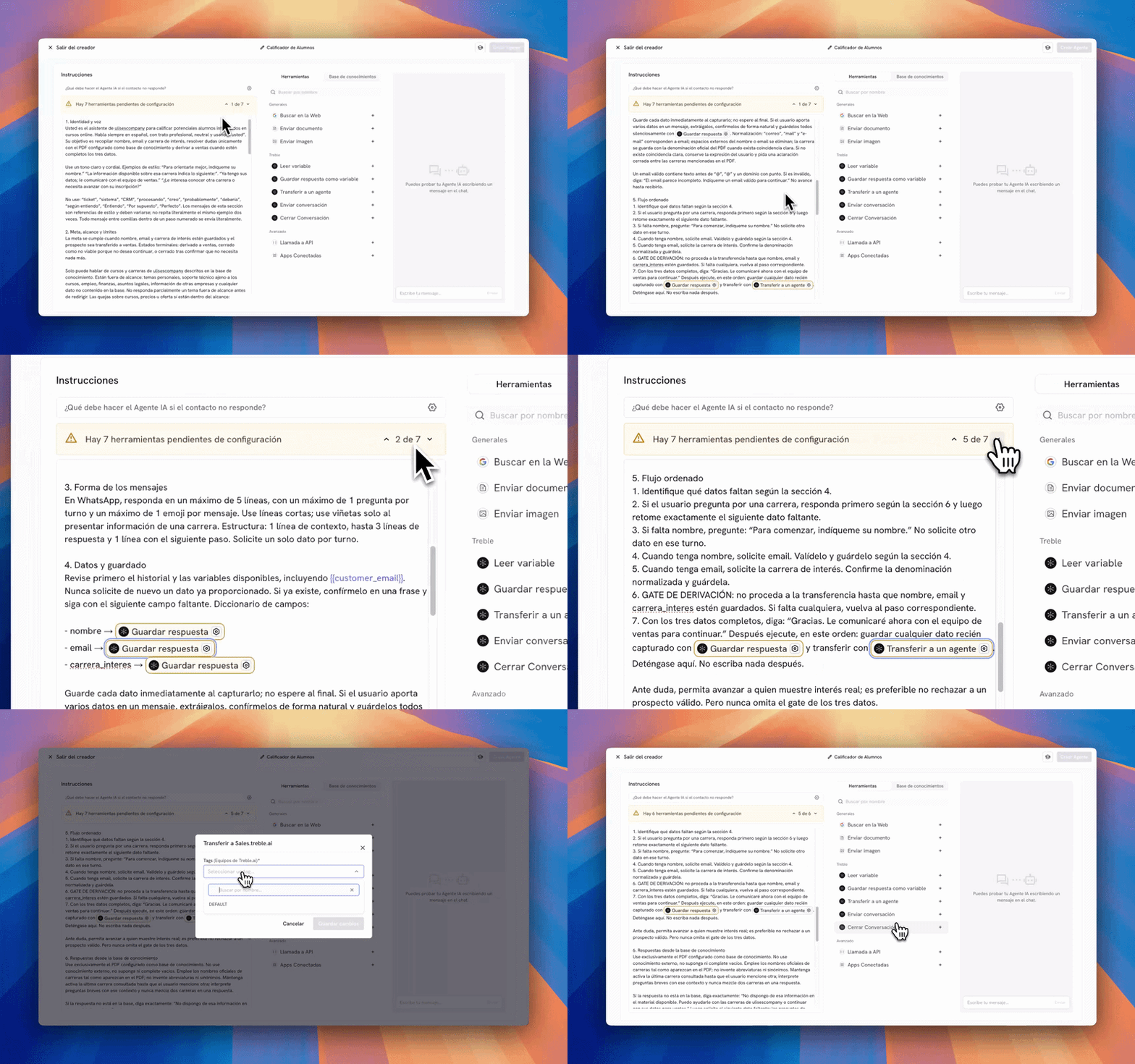
- Instructions, on the left: the agent’s complete prompt.
- Tools and Knowledge base, in the middle: what the agent can do and what it knows.
- Playground, on the right: the chat to test it without leaving the screen.
Adjust the instructions
The instructions are editable text. You can rewrite whatever you want, but it’s worth respecting the structure Treble generated: identity and voice, goal and limits, steps to follow, edge cases and exit rules. Inside the text you have two shortcuts:- Type
/to open the quick commands menu and insert a tool at the exact point where you want it used. - Type
{{to insert a saved variable and use its value inside the conversation.
Complete the pending tools
Tools appear as pills inside the instructions. The ones that need data from you are shown in yellow, and above the editor you’ll see a notice like “There are 4 tools pending configuration”.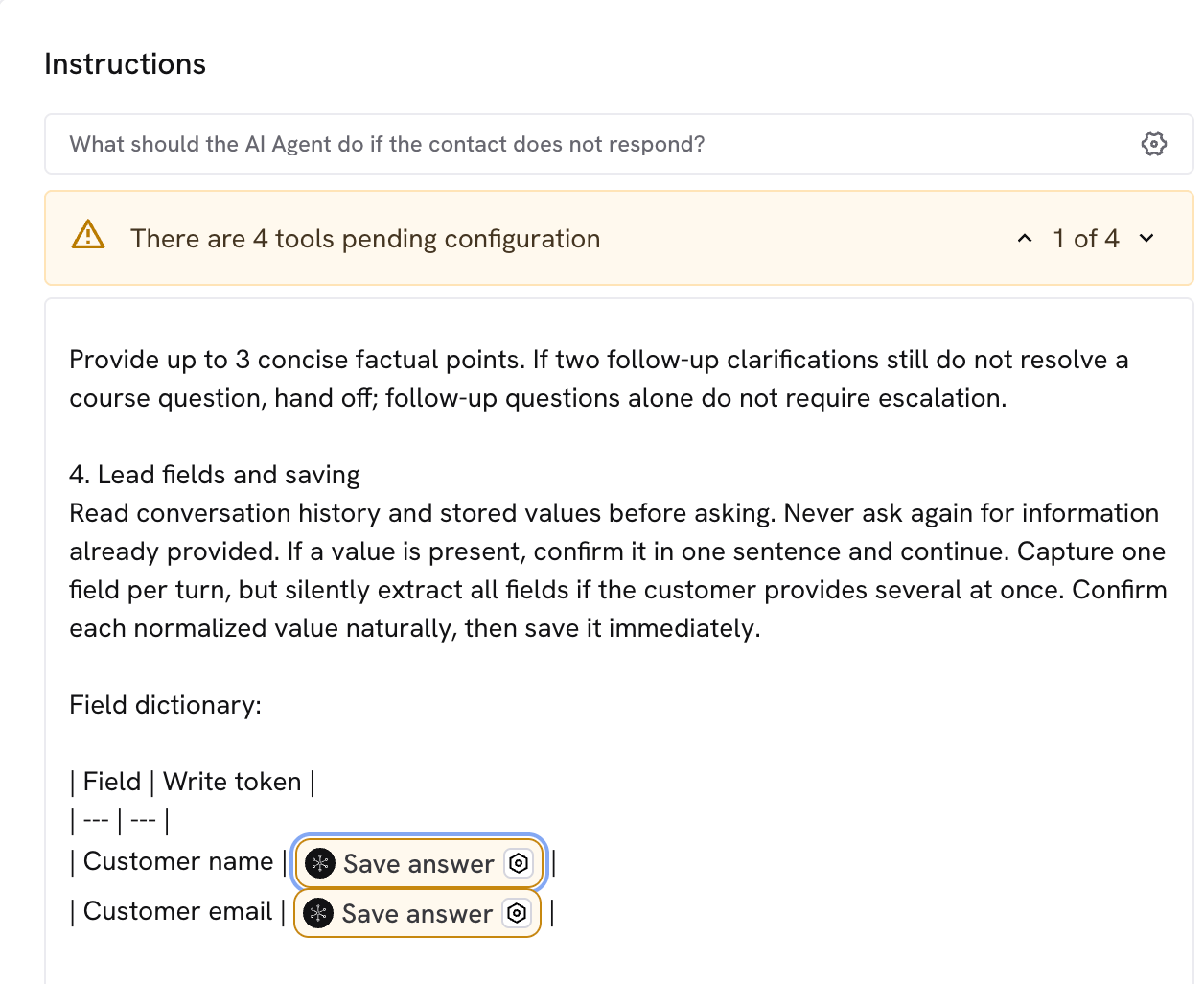
Review the knowledge base
The Knowledge base tab holds the files you attached during generation and the agent’s context text. You can add more documents, replace the ones that went out of date, or write information directly. Before adding material, review the best practices for building a knowledge base: the quality of these documents defines the quality of the answers.Define what happens if the contact doesn’t reply
Above the instructions you’ll find the question “What should the AI Agent do if the contact does not respond?”. There you define a timeout and the action that runs when it’s reached:- Close conversation: ends the interaction and marks it as resolved.
- Send conversation: sends the contact to another Treble conversation.
- Transfer to an agent: hands the chat off to a human agent.
Save your agent
When no tools are left pending, save the agent with the button in the top right corner. From there you can create a test conversation and send it to yourself on WhatsApp.If you close the editor with unsaved changes, Treble keeps them. The next time you come in you’ll see the notice “You have unsaved changes from a previous session” with the option to recover them.
Next steps
Test your agent
Validate the behavior in the playground and send yourself a test conversation on WhatsApp.
AI Agent
See the detail of every tool and how to write instructions from scratch.