

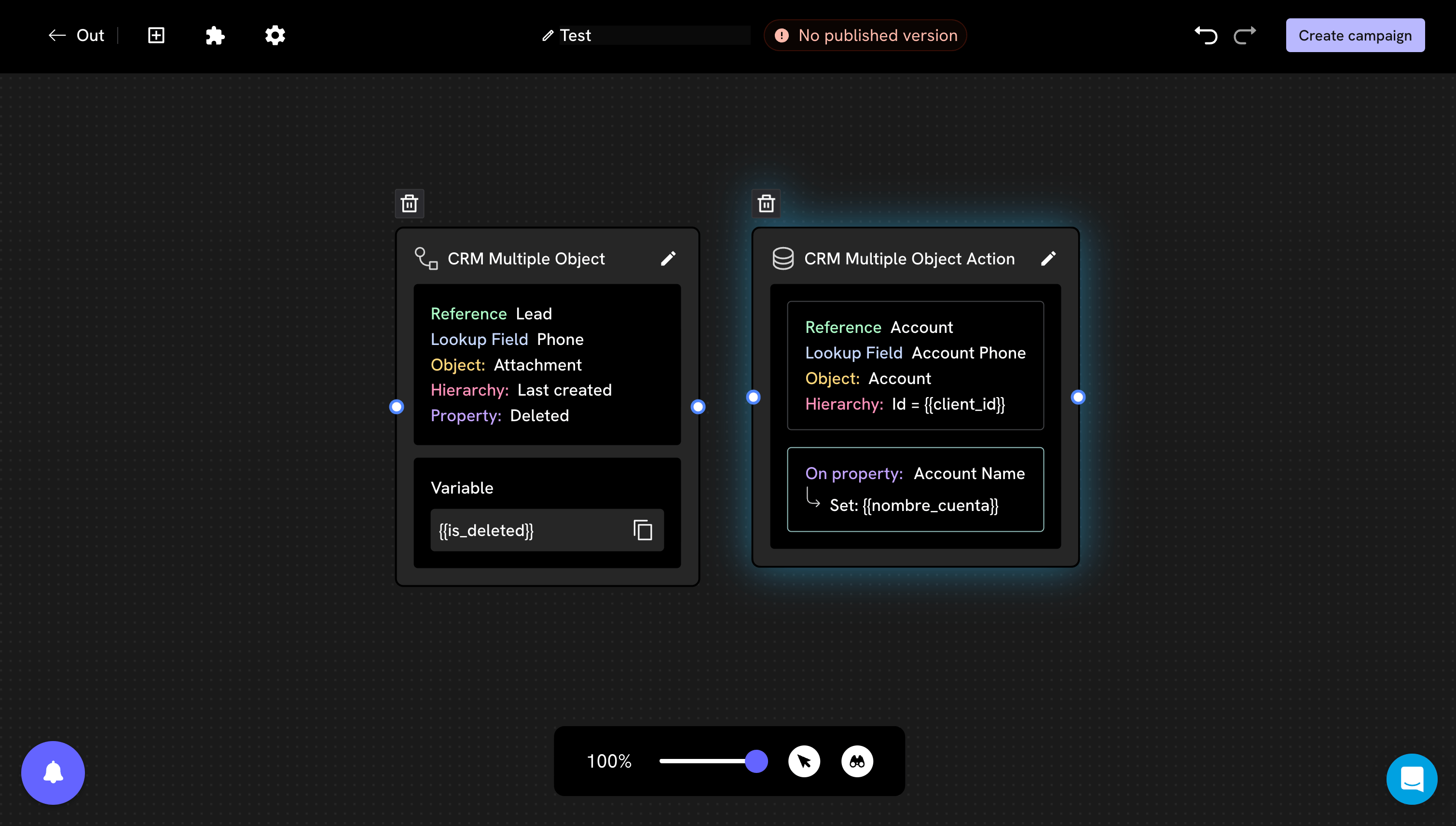
In multi-object the two Salesforce blocks have almost identical names. The one that reads is CRM Multiple Object. The one that writes is CRM Multiple Object Action, with “Action” at the end.
What to understand first
Each block reads a single field. If you need three pieces of data, you will use three blocks.Add the block
From the conversation builder, open the blocks panel and look for the read block under Advanced blocks.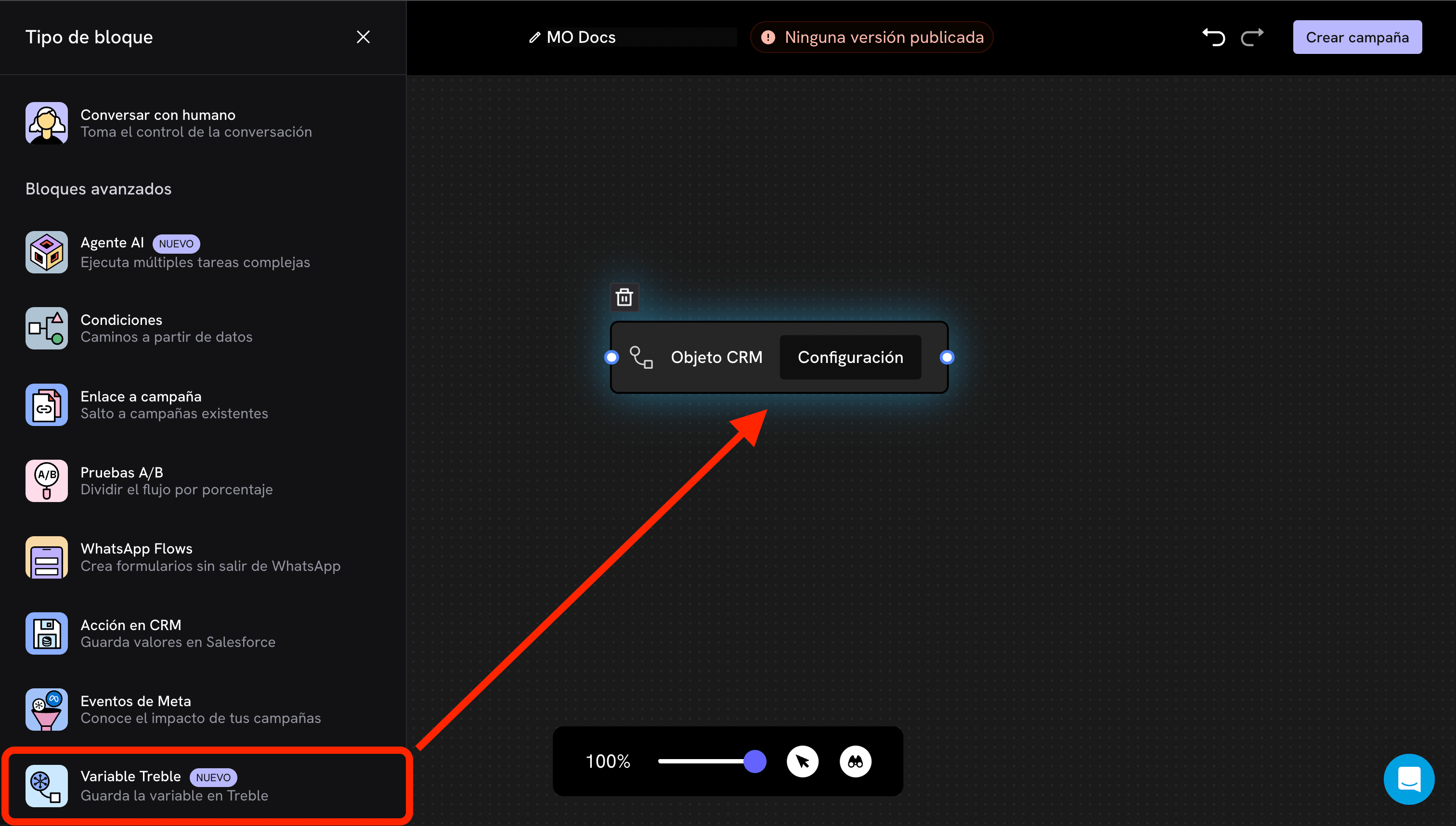
The name you see in the blocks panel may not be the same one that later appears on the block in the canvas. Go by the icon and the description (“saves the variable in Treble”): it is the block that brings information from the CRM, not the one that saves it there.
Configuration
- Single object
- Multi-object
The modal has two steps and a final field to name the variable.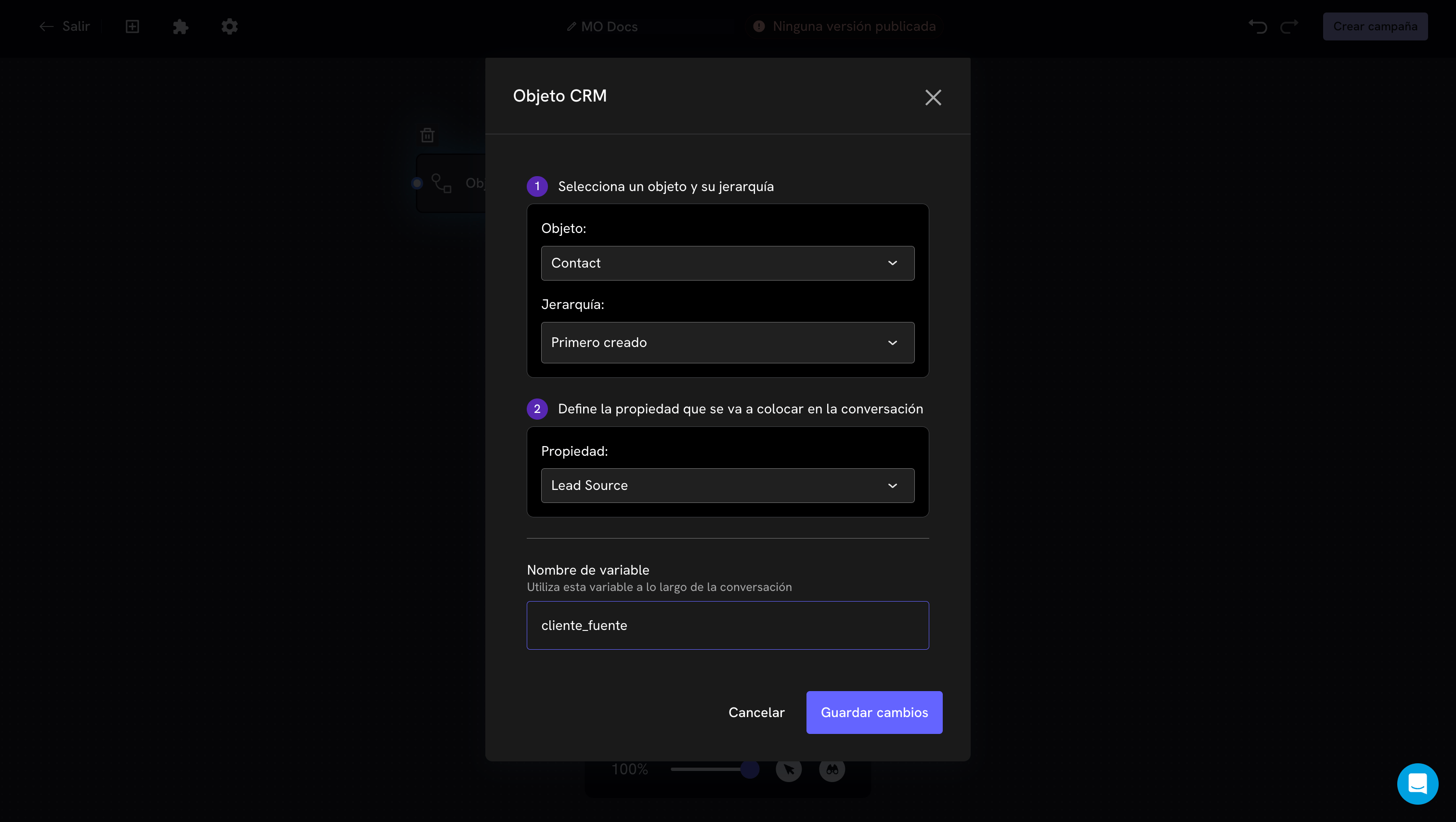
1. Object and hierarchy
Object. Which object you are going to read from. It can be your parent entity (for exampleContact) or one of its related objects.Hierarchy. What to do when the person has more than one record of that object.2. Property
The Salesforce field whose value you want to bring. In the example,Lead Source.Variable name
At the end you define what the variable will be called. If you typecliente_fuente, in the rest of the conversation you use it as {{cliente_fuente}}.Use lowercase names with underscores, without spaces or accents. They are easier to type correctly in messages and avoid errors that are hard to spot.
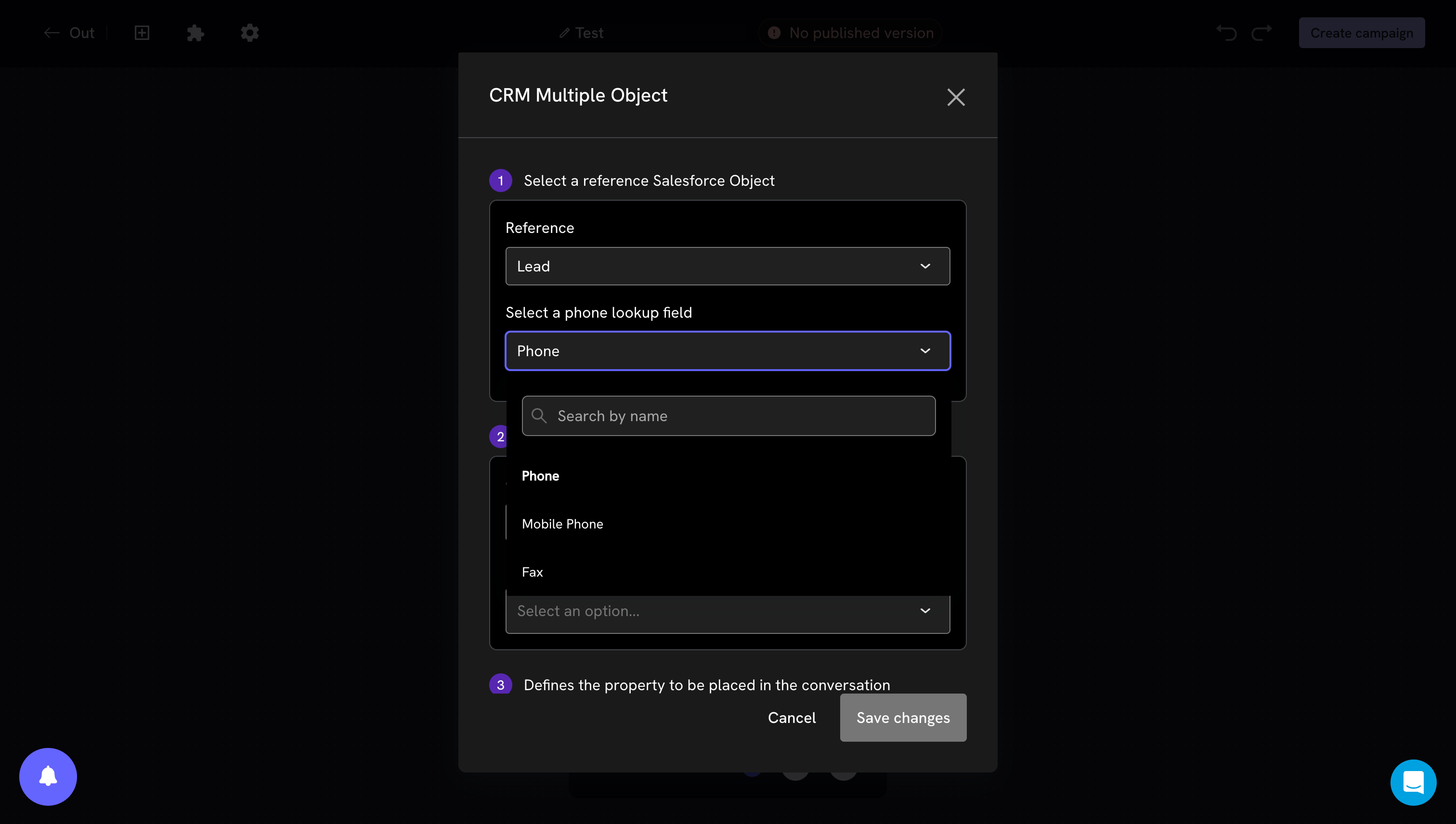
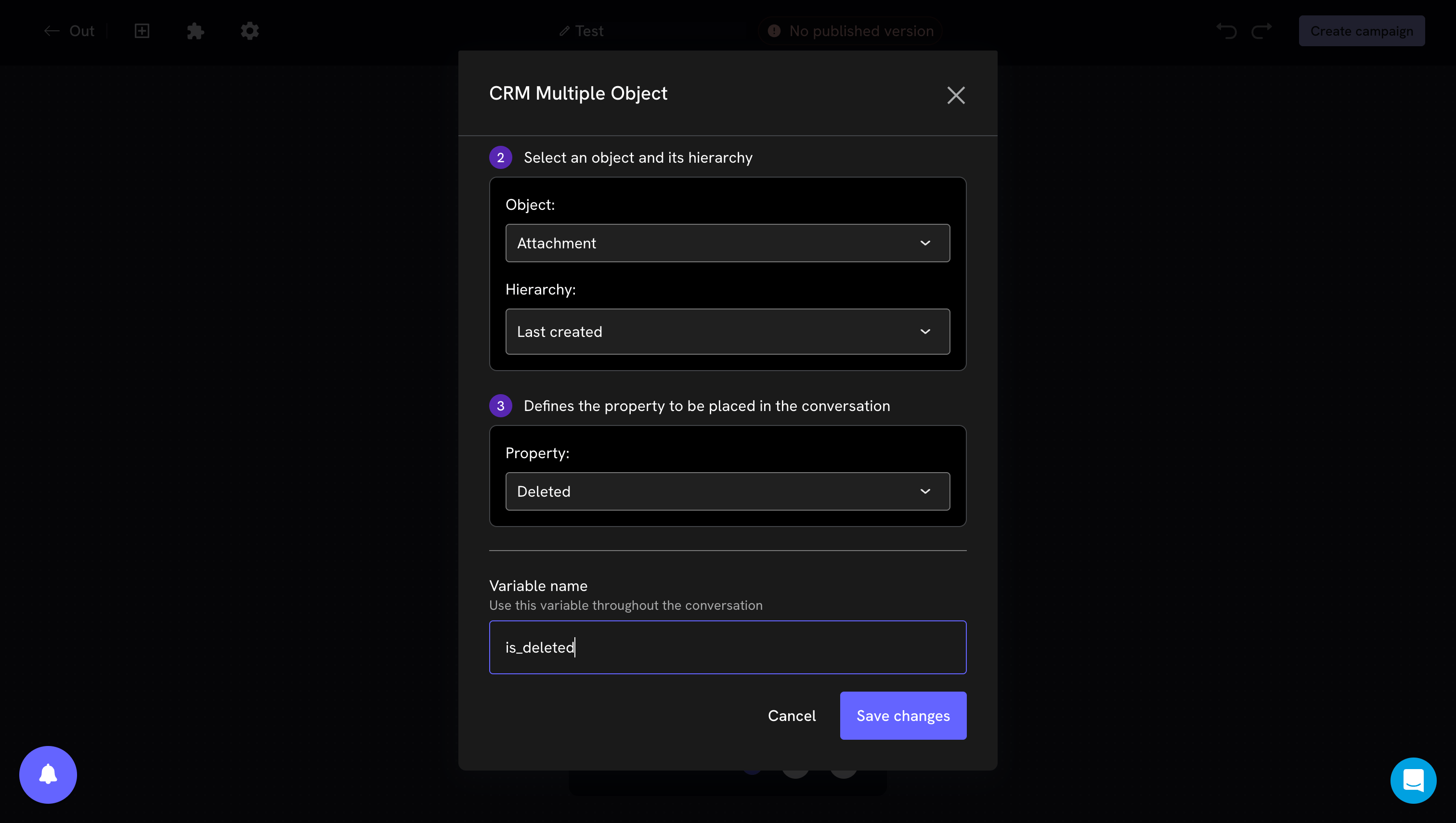
Use the variable
Once configured, the block shows a summary on the canvas and, below it, the variable it produces. You can copy it with the copy button and paste it into any later block.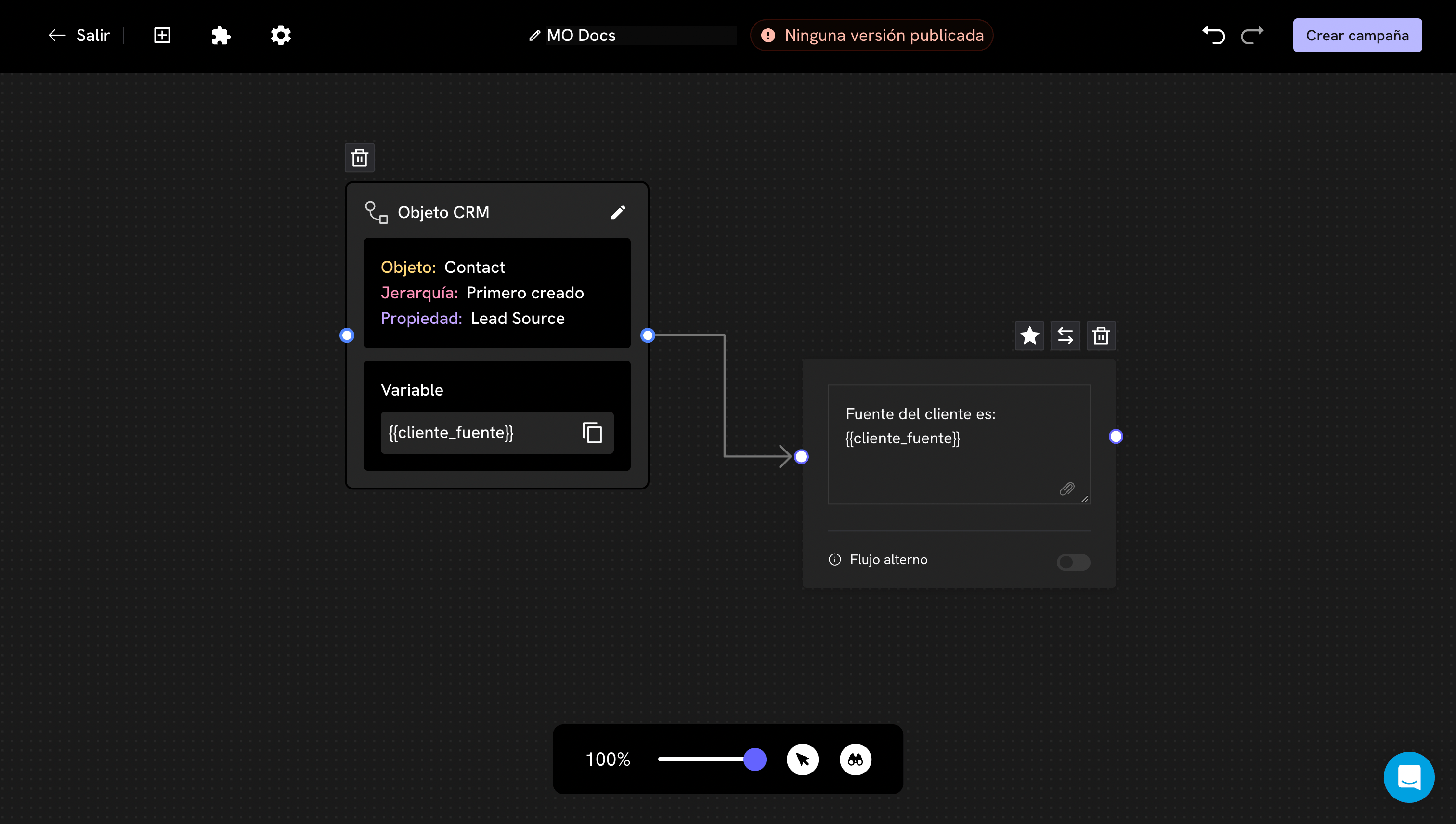
Common uses
Personalize the greeting
Personalize the greeting
Read the name from the record and use it in the first message. Remember the alternate path: if the person is new and does not exist in Salesforce, the variable arrives empty.
Branch the flow based on the status of a record
Branch the flow based on the status of a record
Read a status field and connect the block to a Conditions block. That way you can give a different message to someone whose request is in progress and to someone whose request is already approved.
Save the Id to write to that same record later
Save the Id to write to that same record later
In multi-object you can read the Id of a record into a variable and use it later in the custom hierarchy of the action block (
Account ID = {{client_id}}). It is the most reliable way to make sure the write lands on the record you want, and not on another one of the same object.CRM Action block
Avoid asking what you already know
Avoid asking what you already know
If the data is already in Salesforce, read it instead of asking for it. It shortens the conversation and prevents the person from typing something different from what you already have on record.
Common issues
The variable arrives empty
The variable arrives empty
The most common causes, in order:
- The person does not exist in the object you chose. This is normal for new contacts: set up an alternate path.
- The phone lookup field is not the right one. Check in Salesforce which field the numbers are actually stored in.
- The record exists but that field is empty in Salesforce.
- The hierarchy points to another record. If the person has several, you may be reading from the wrong one.
The field I want does not appear in the property list
The field I want does not appear in the property list
You need to sync. Run the object sync and open the block again.
The variable brings a strange code instead of the text I see in Salesforce
The variable brings a strange code instead of the text I see in Salesforce
This happens with picklist fields and relationship fields. Salesforce internally stores a value different from the one it shows on screen, and that is what Treble reads.If you need to show the text to the person, use a Conditions block to translate the code into the corresponding word.
A date field does not arrive as expected
A date field does not arrive as expected
Date and date/time fields arrive in Salesforce’s internal format, not in the format you see on screen or the one used in your country.If you are going to show the date to the person in the chat, first check how the value arrives with a real test before publishing the flow.
The message shows {{mi_variable}} as is, with the curly braces
The message shows {{mi_variable}} as is, with the curly braces
The variable name in the message does not exactly match the one you defined in the block. Check uppercase, accents and underscores; the safest thing is to copy the variable from the block with the copy button.
Next steps
Write data to Salesforce
Save to the CRM what the person answers in the chat.
Transfer to an advisor
Hand the conversation over to the record owner in Salesforce.