

Steps to install the Pipedrive integration in Treble
- Sign in to
app.treble.ai
- Go to Settings
- Go to Integrations
- Click the “Connected Apps” tab
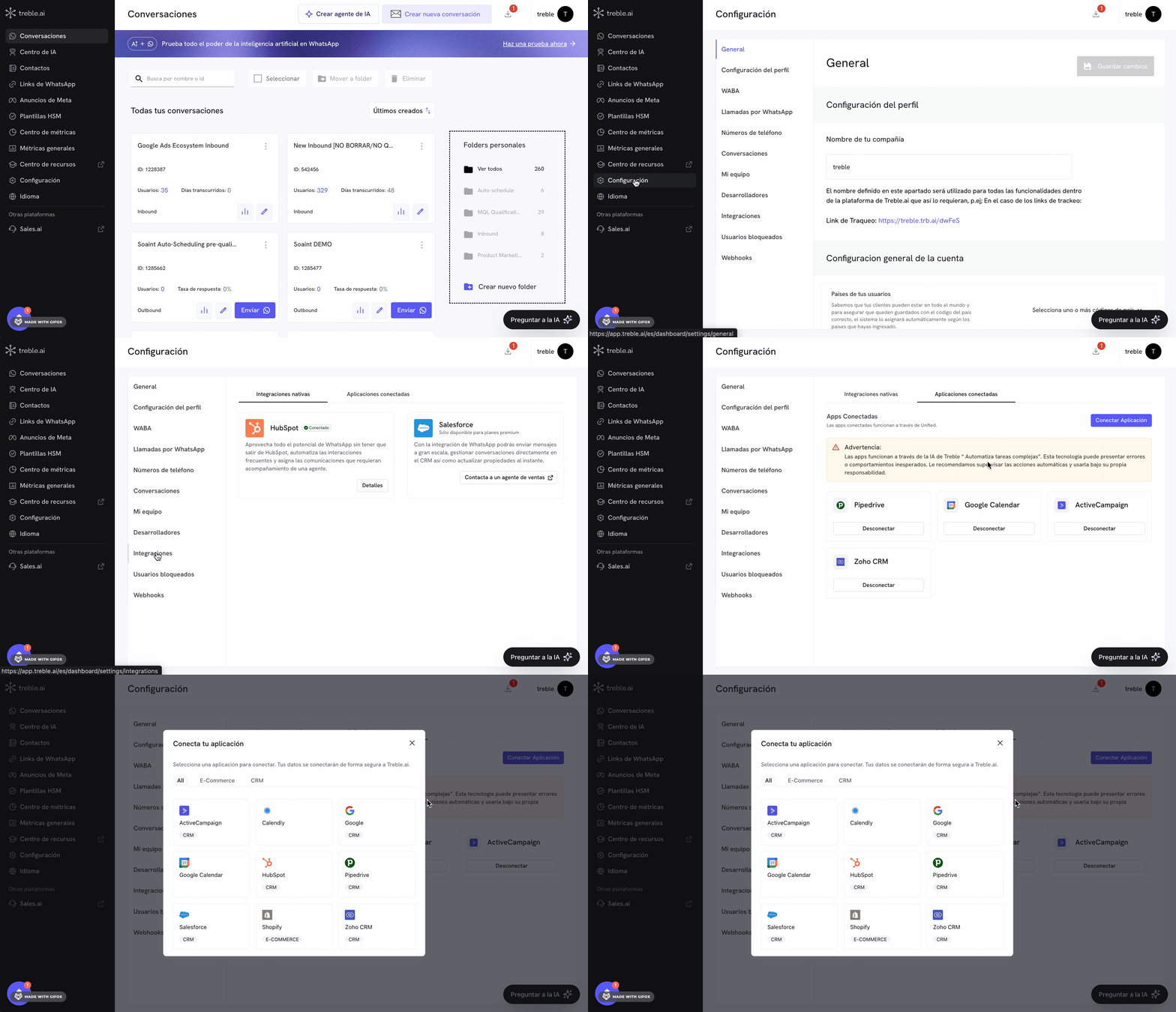
1
Pipedrive installation flow in Treble
At this point, follow the instructions. Click the “Connect App” button and a modal will open with the connection options. Click “Pipedrive”.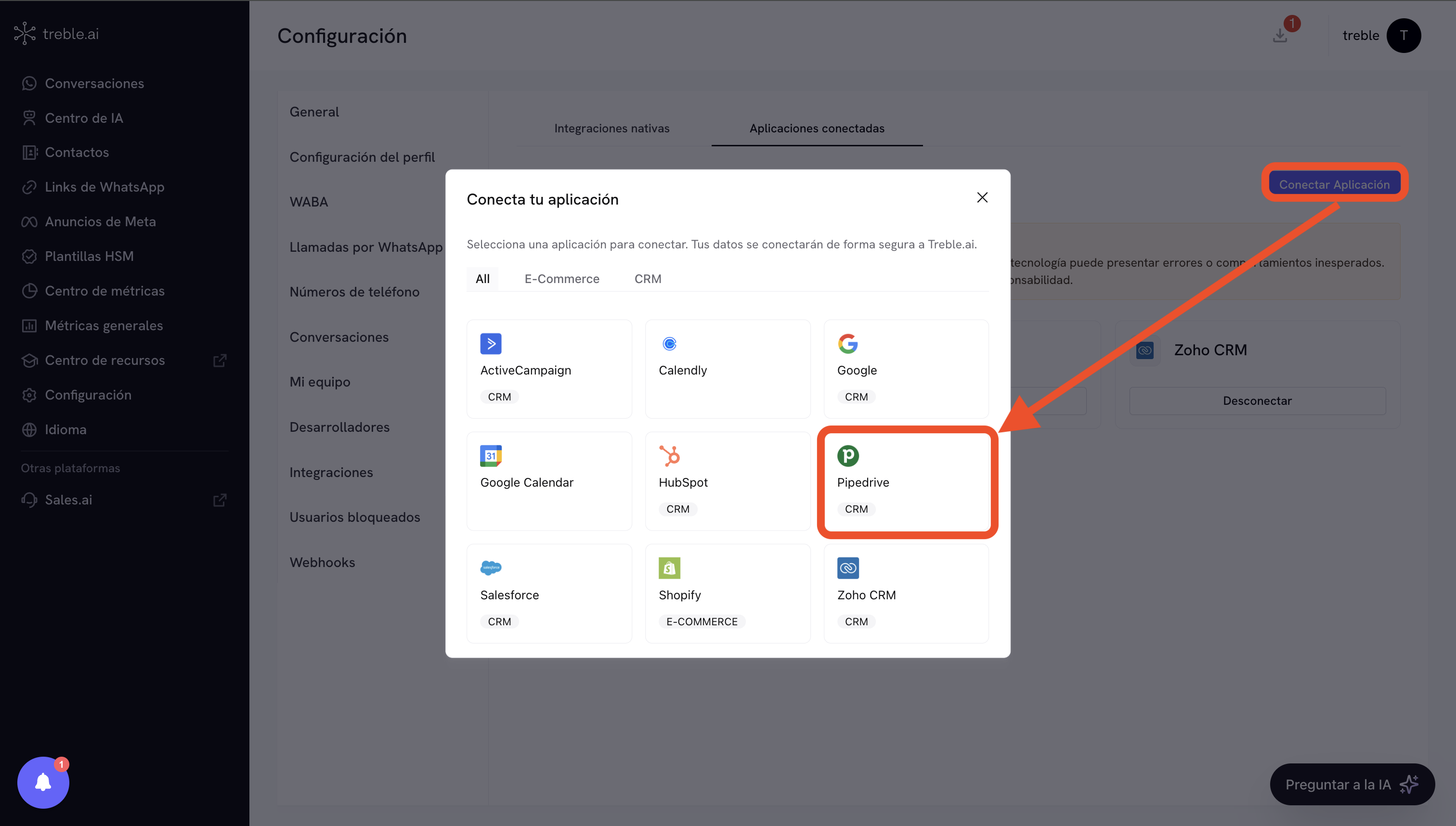
2
Sign in and authorize in Pipedrive
After clicking “Pipedrive”, the Sign in and authorize screen will open, where Treble.ai requests access to your Pipedrive account. Complete the following fields: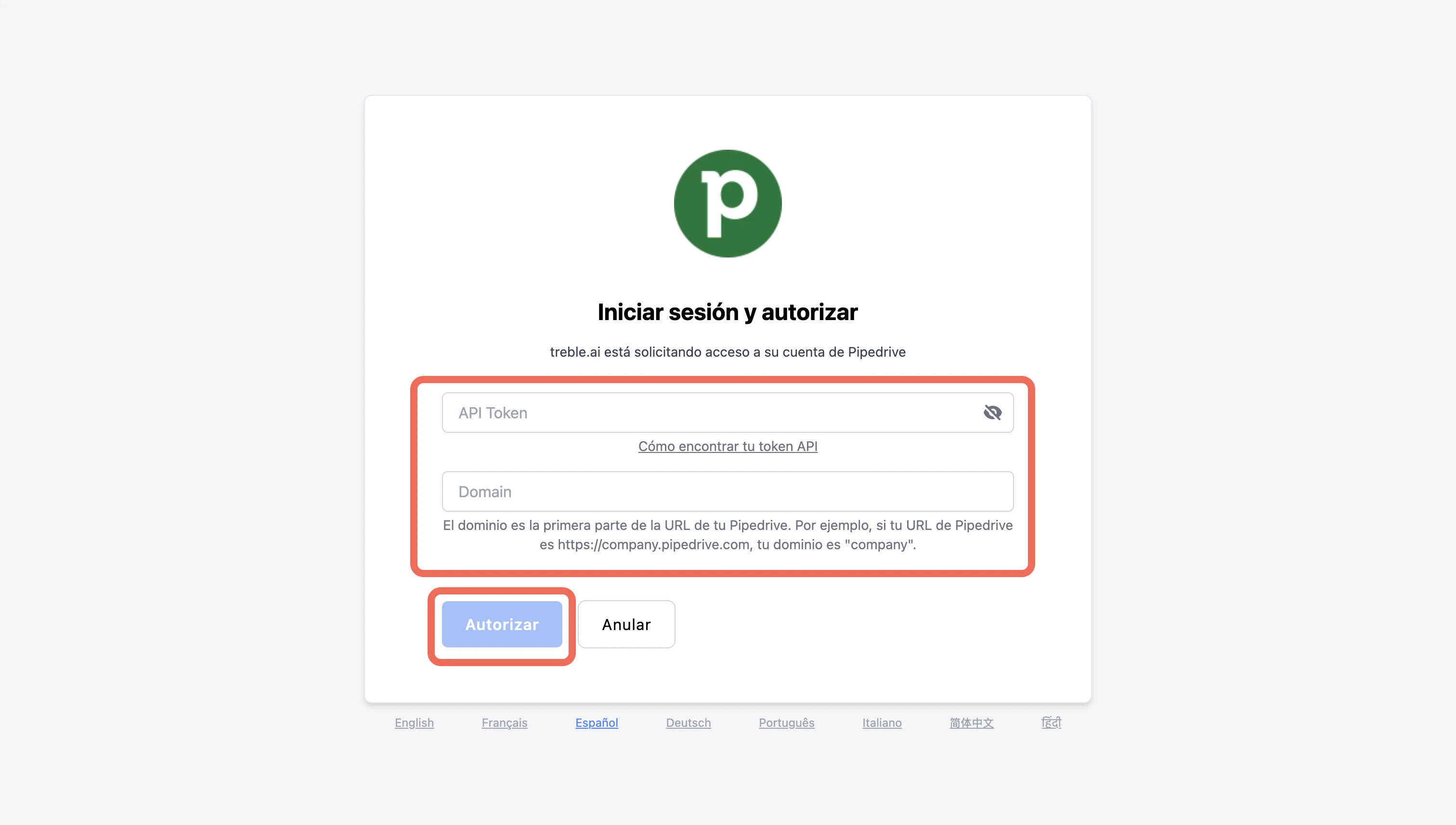
- API Token: enter your Pipedrive API token. If you do not know where to find it, use the How to find your API token link shown on the same screen.
- Domain: enter your account subdomain. It is the first part of your Pipedrive URL; for example, if your URL is
https://company.pipedrive.com, the domain iscompany.
3
Connected application
You have now connected the Pipedrive application in Treble.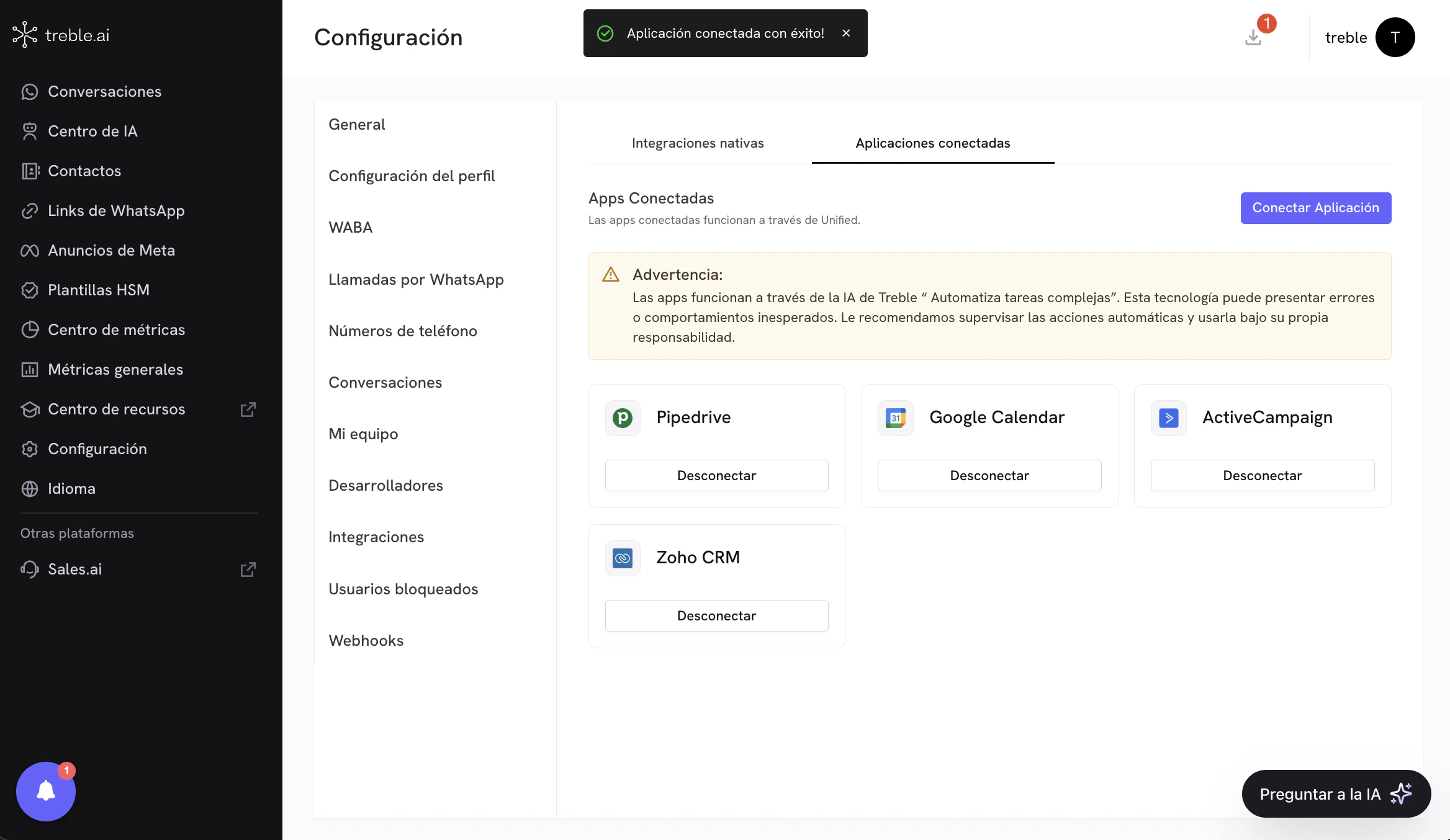
4
Use Pipedrive tools for AI in Treble
You can now use Pipedrive tools for AI in Treble. To do this, go to the “AI Agents” section and create a new AI agent. You must select the “Automate complex tasks” option. After creating the agent, go to the “Tools” section and select the “Connected Apps” option in the tools list. In this section, select the “Pipedrive” application and you will see the available tools to use in AI.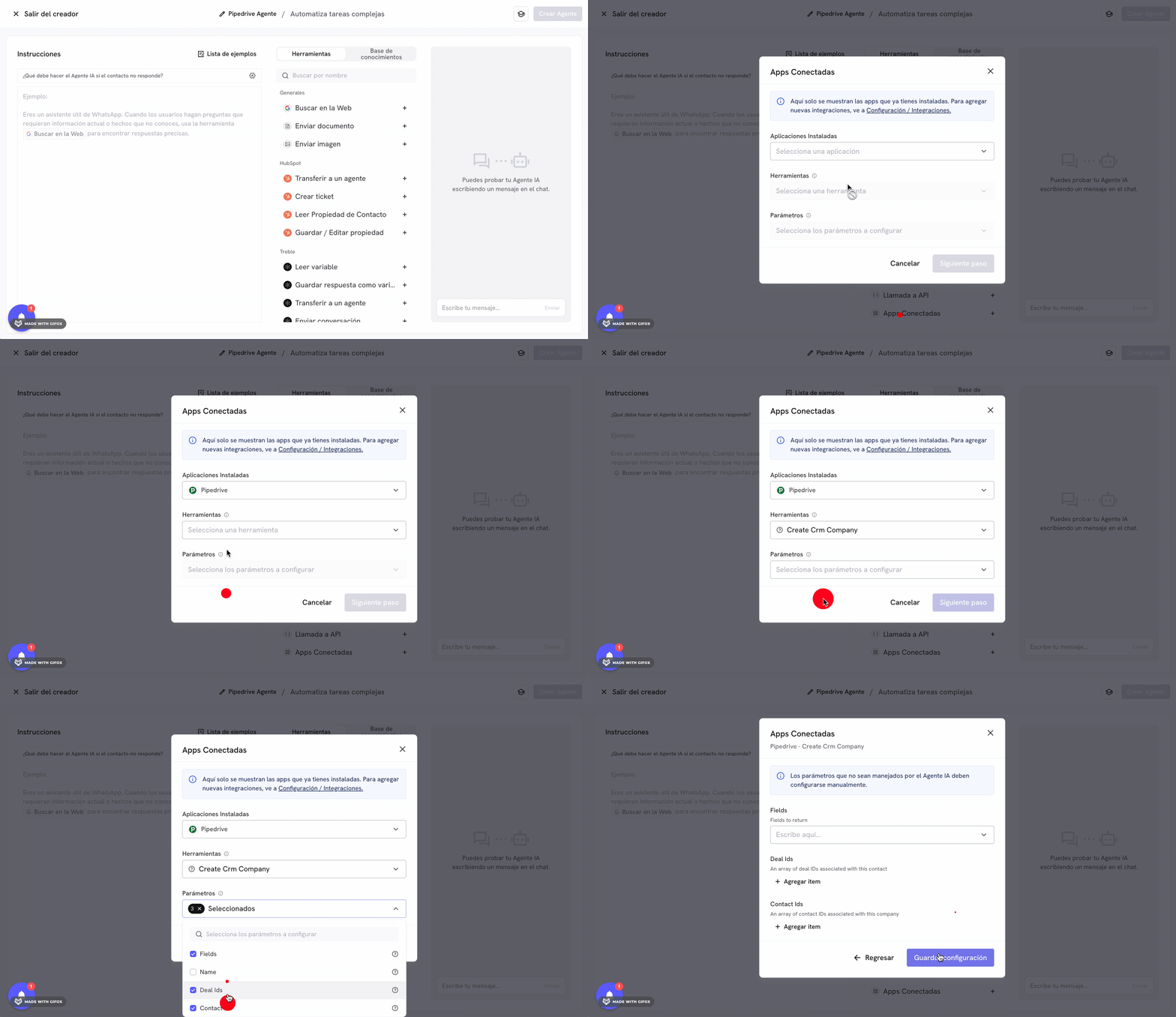
Congratulations! You have successfully installed the Pipedrive integration in Treble.