

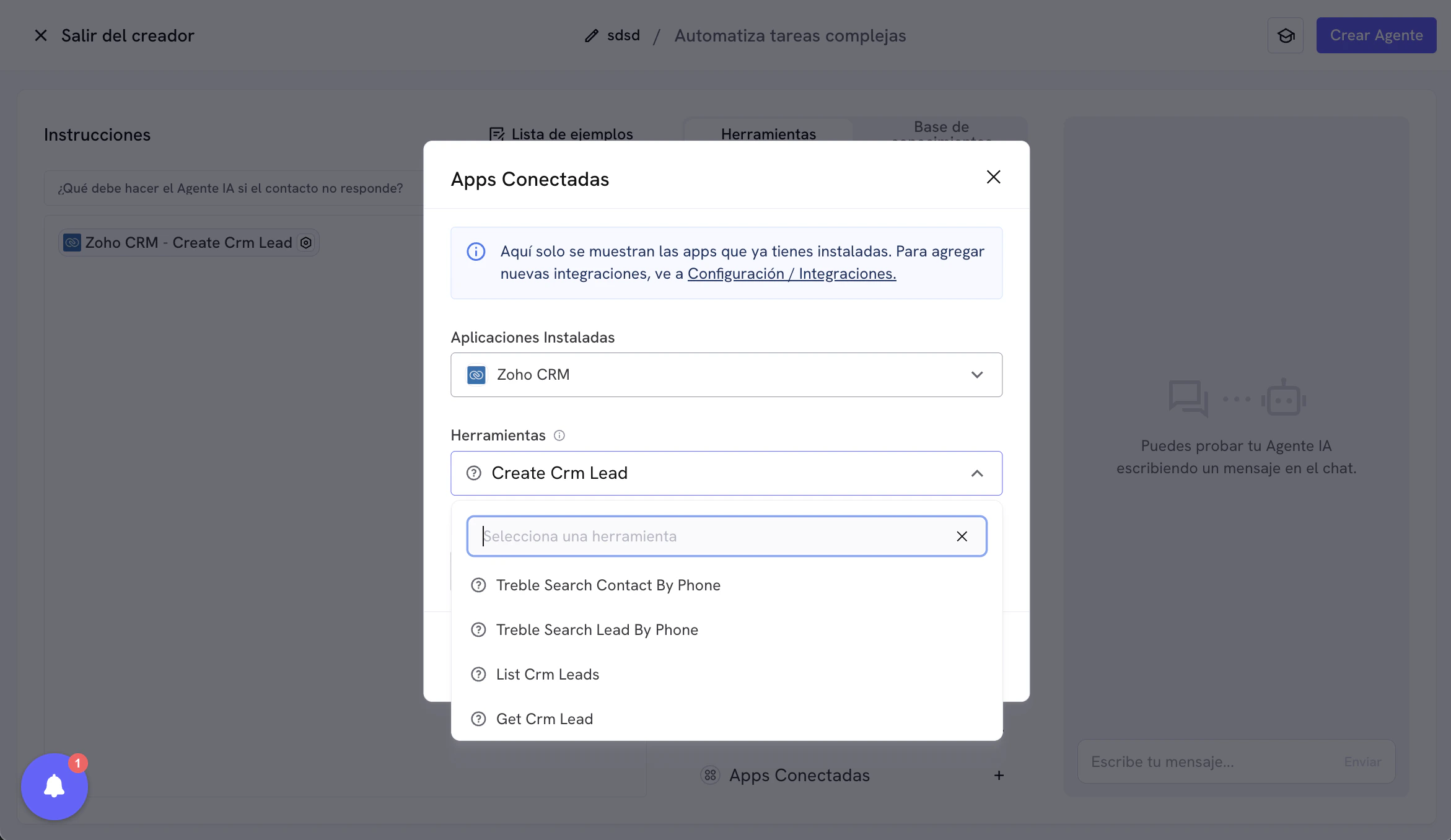
Actions available by entity
Lead
Contact
Deal (Deal / Opportunity)
Pipeline
How to use Treble tools for Zoho?
The Zoho integration with Treble uses the AI assistant “Automate complex tasks” to run Treble tool actions for Zoho. For this, it is essential that you know how to use the AI assistant “Automate complex tasks” in Treble and how to configure Treble tools for Zoho. If you need more information on how to use the AI assistant “Automate complex tasks” in Treble, you can check the “Automate complex tasks” documentation in Treble at the following link:AI Assistant: Automate complex tasks in Treble
Learn how to use the AI assistant “Automate complex tasks” in Treble.
Configuration of Treble tools for Zoho
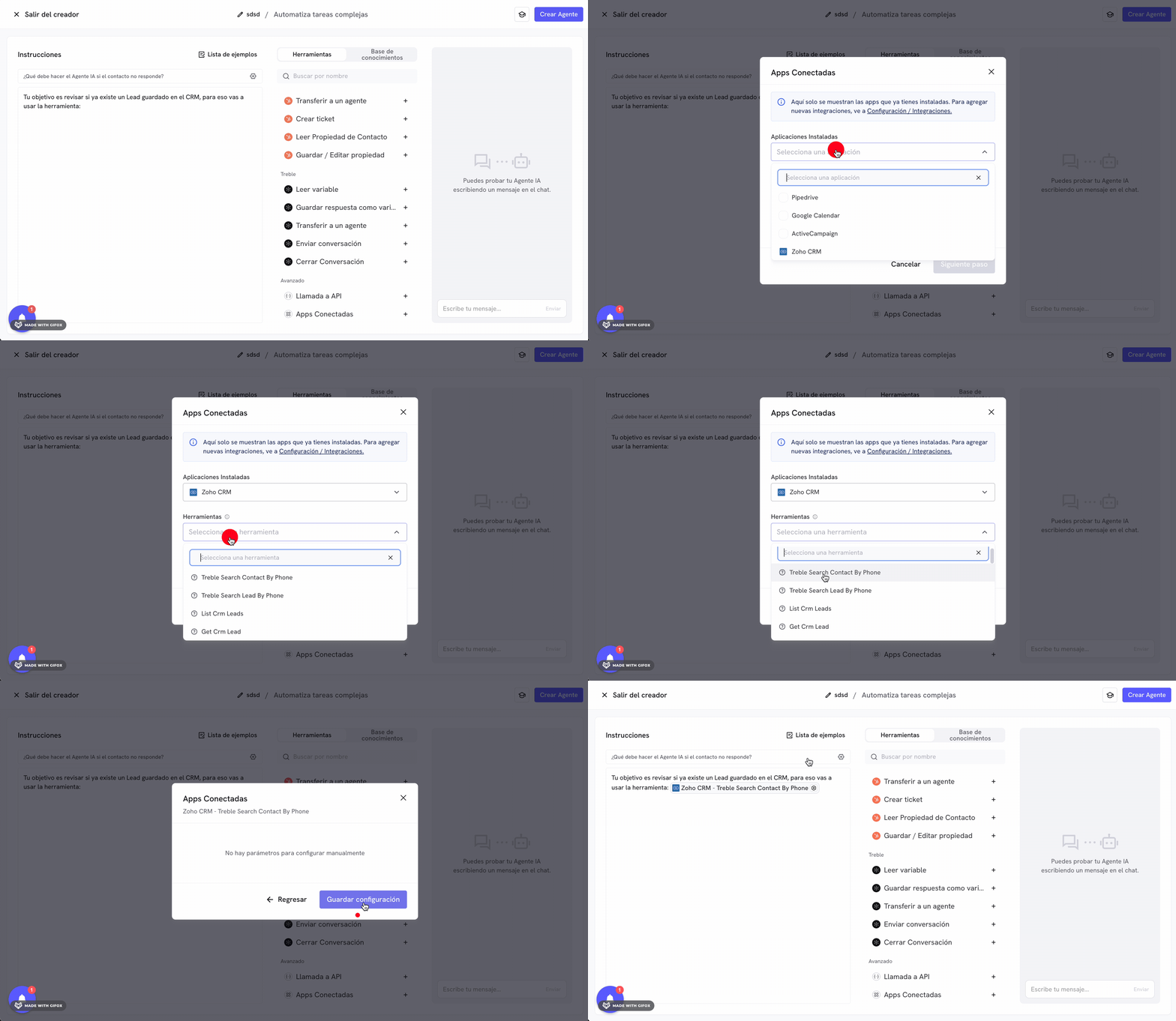
To configure Treble tools for Zoho, follow these steps:- Go to the “AI Agents” section in Treble.
- Create a new AI agent.
- Select the “Automate complex tasks” option.
- In the “Tools” section, select the “Connected Apps” tool.
- In the “Connected Apps” section, select the “Zoho” application.
- In the “Tools” section, select the “Zoho” tool you want to configure.
Tool: Search Lead or Contact by Phone
Among the listed Treble tools for Zoho, there is the “Search Lead or Contact by Phone” tool. This tool allows you to search for Leads or Contacts by phone number. The tool automatically searches the Lead or Contact in Zoho CRM based on the customer’s WhatsApp phone number who is interacting with your AI assistant through a WhatsApp line connected to Treble. Your AI assistant does not need to ask for the customer’s phone number; the tool does it automatically.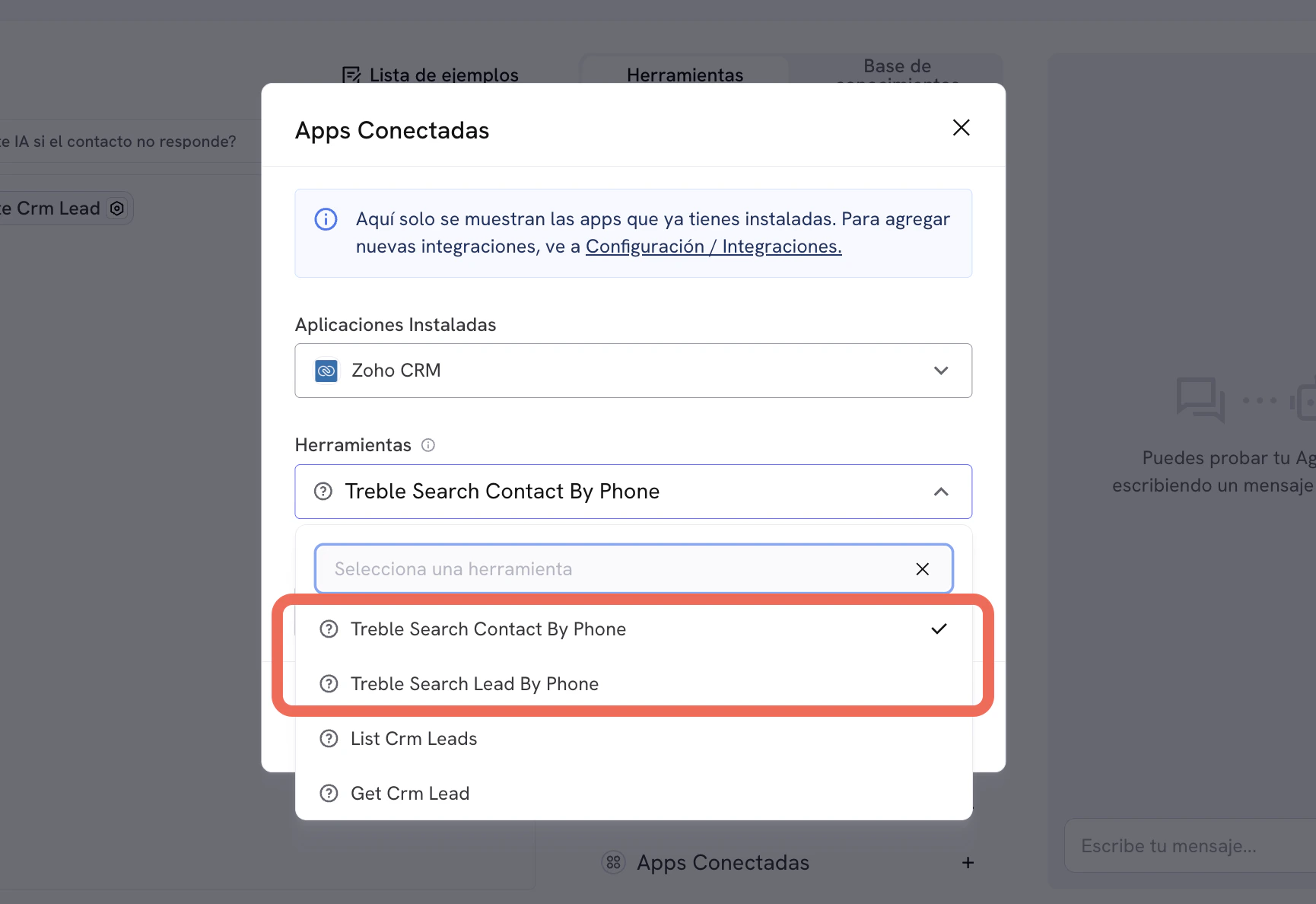
Phone format in Zoho and properties
Treble uses international phone format to search for Leads or Contacts in Zoho CRM. For example, if the customer phone is from the United States and the phone number is(917) 555-0111, Treble will search it in Zoho CRM as +19175550111. Treble will perform the search in the Phone property in Zoho CRM.
Keep in mind that ultimately the AI agent decides which format to use for the search. By default, the agent will try in international format. However, if in your Zoho CRM phone numbers are not stored in international format, you can indicate in the agent instructions (prompt) which format it should use for the search.
Examples of instructions for the AI agent:
- Colombia: “When you use the tool to search Lead or Contact by phone, first search in Colombia local format (for example,
3001234567) and, if you do not find results, try international format (+573001234567).” - Argentina: “When searching by phone in Zoho CRM, prioritize Argentina local format (for example,
1151234567or3515123456). If there are no matches, try international format (+541151234567or+543515123456).” - Brazil: “To search Leads or Contacts by phone, first use Brazil local format (for example,
11987654321). If there are no results, also try international format (+5511987654321).”
Tools with Configuration Options
For the other tools, such as Create Lead, Update Contact, Create Deal, Get a Pipeline, etc., these tools have configuration options. These configuration options allow you to interact with properties of those entities. These properties can be standard or custom. Let us look at some tool configuration examples.Example: Create Lead
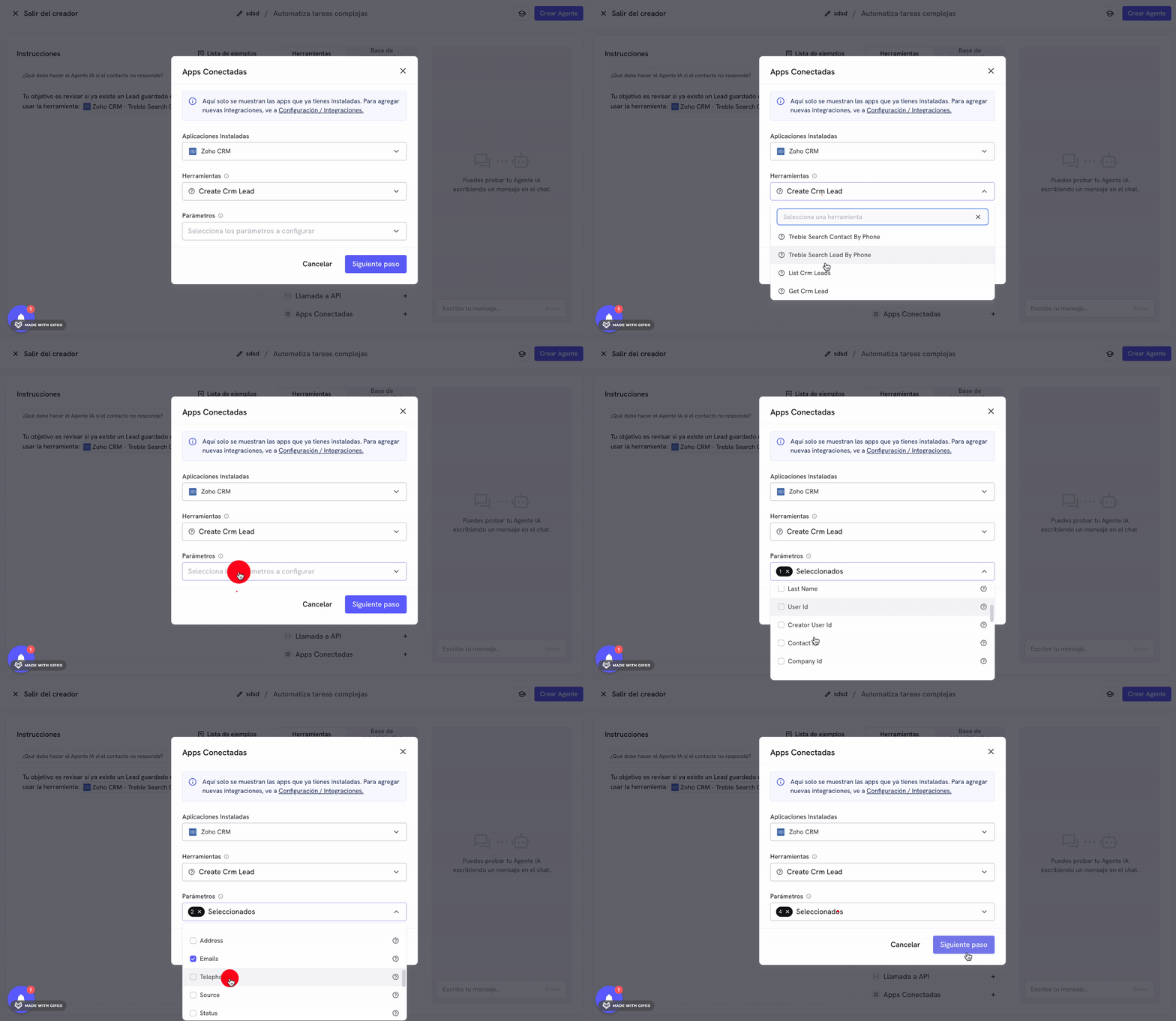
The “Create Lead” tool lets you create a new lead in Zoho CRM. To configure this tool, follow these steps:- Activate the Zoho tools view in the “Tools” section of your AI assistant.
- Click the “Create CRM Lead” tool.
- In this view select the properties you want to configure for the lead. You can select standard or custom properties. In this example, we will select the properties “Name”, “Emails”, “Telephone”, and “Status”.
-
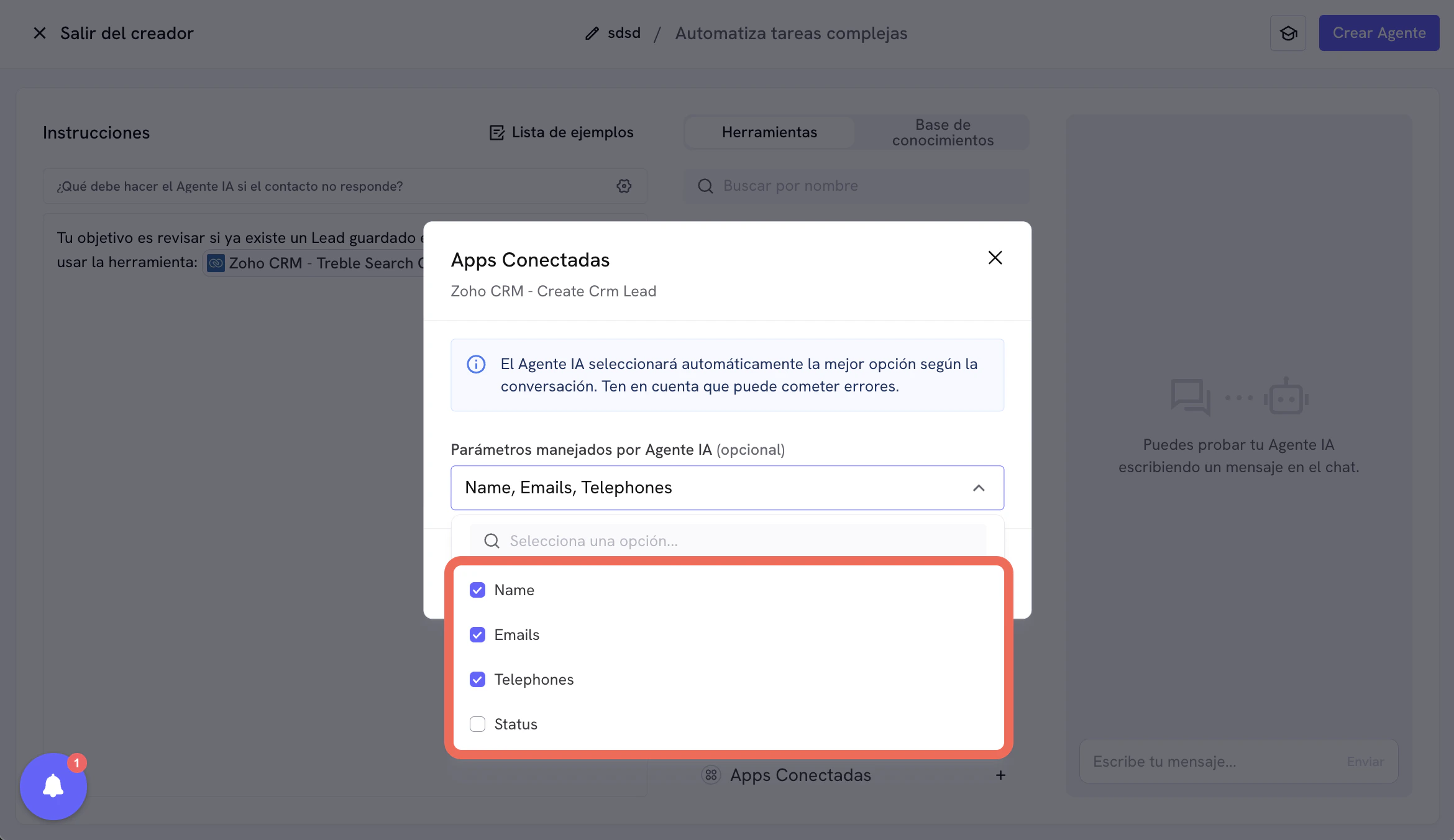
Click “Next Step”. In the “Parameters managed by AI Agent” view, you must select which properties you want the AI agent to complete dynamically during the conversation.
When a property is marked as “managed by AI Agent”, the agent will try to extract that value from the chat context (for example, name, email, or phone). If it cannot find the data clearly enough, it will ask the customer a question to complete it before running the tool.
To get better results, define explicit instructions in the agent prompt about which fields it should collect and how. Recommended example: “When you use the Create Lead tool, try to extract
Name,Emails, andTelephonefrom the conversation context. If any are missing, ask the customer briefly and then create the Lead.” In this view mark only variable fields. Fields you want to set with a predefined value (for example,Status = Lead) can be left unselected here and configured in the next section. In this case we will select the properties “Name”, “Emails”, and “Telephone”. (We leave the “Status” property unselected to configure it in the next section.)
- In the next view, we will configure fields where the Lead should be created with some predefined properties. For example, if you want the lead to be created with the status “Lead”, we will write the value “Lead” in the “Status” field. You can configure this with multiple properties, that is, you can configure several properties with a predefined value; the important part is not selecting them inside the “Parameters managed by AI Agent” view.
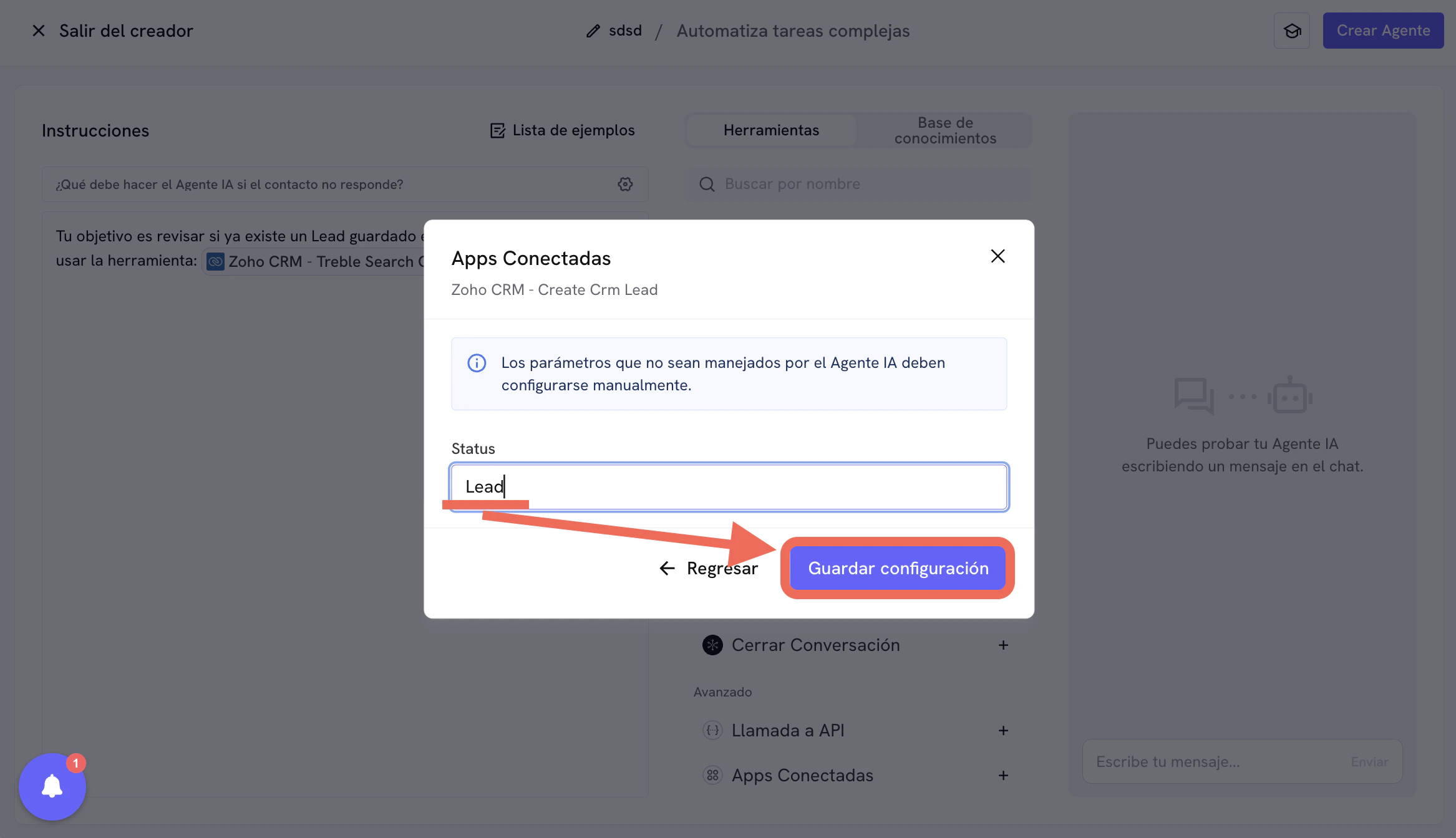
Congratulations! You have configured the Create Lead tool.