Hello! In this guide you’ll learn how to connect Treble with Google Sheets to update and get variables from a Google spreadsheet. This integration allows you to automate data management for your Treble conversations using a Google Sheets spreadsheet as a database.

Activate the integration

  1. Create a spreadsheet in Google Sheets. Recommended: leave it with public edit permission.
If you prefer to keep it private, you’ll find the instructions to do so below.
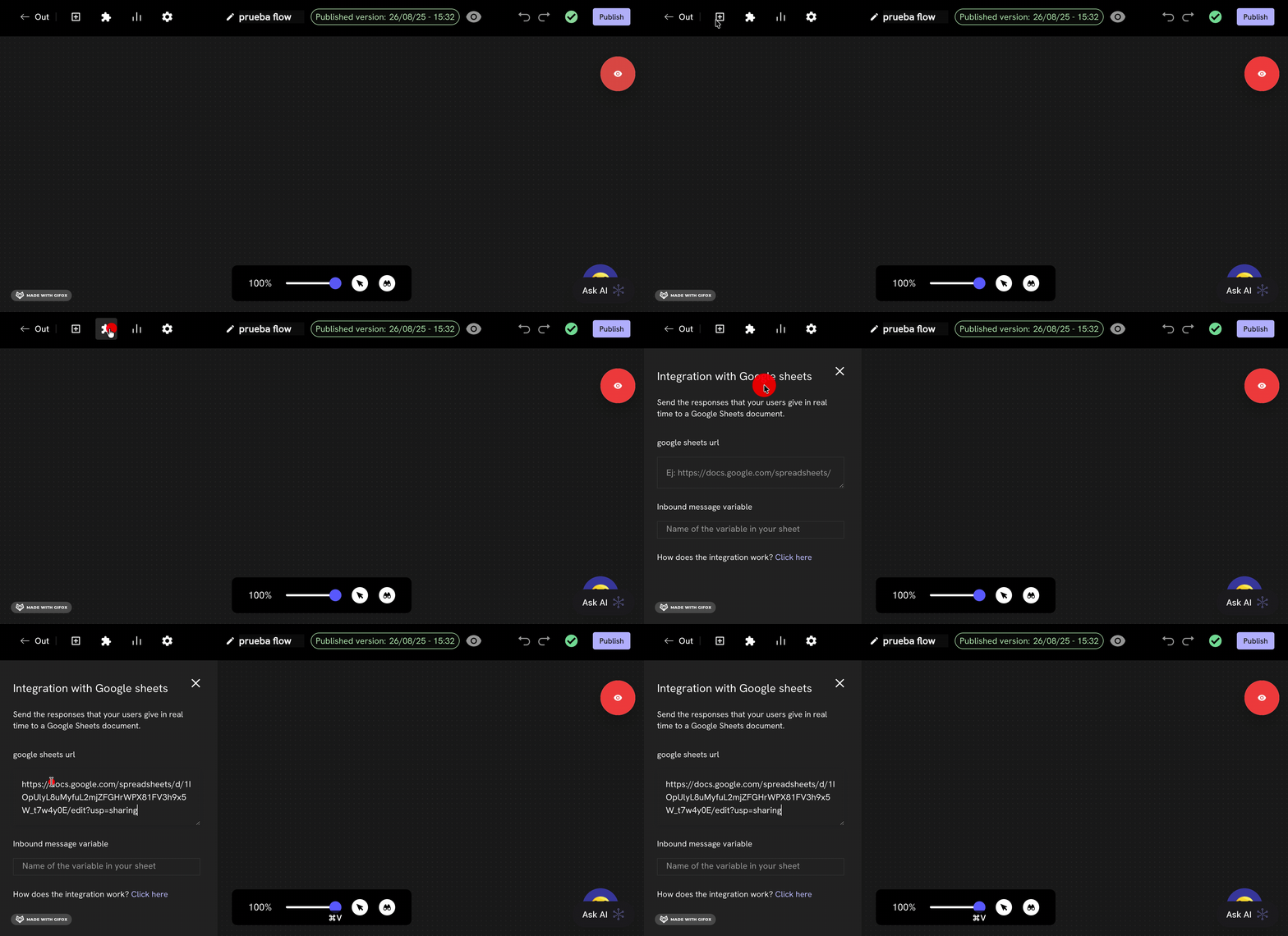
  1. In Treble’s Conversation Flow Editor, click on the puzzle icon .
  2. Select the Google Sheets option.
  3. Paste the URL of your spreadsheet in the text field.
Activate sheets integration

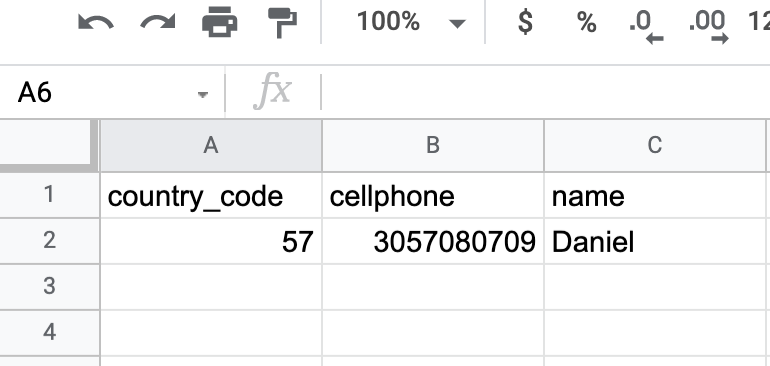
Required format in the sheet

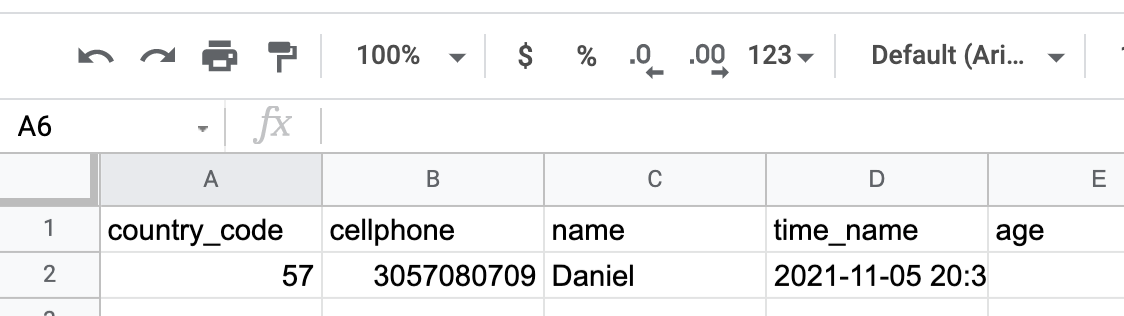
This integration requires your spreadsheet to have the following two columns in the first row: country_code and cellphone which are used to identify each user. The following columns are used to get or save information about that user. Sheets format

Query variables from Sheets

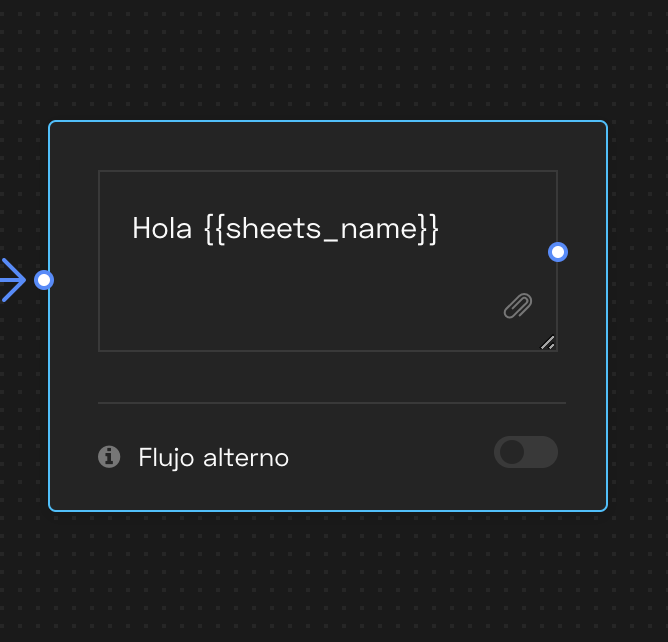
To get a variable from the spreadsheet, you must use the following format within the conversation: sheets_nombre_variable For example, if you have a column name, you can use the variable sheets_name to greet the user:
Hello {{sheets_name}}, how are you?
Query sheets variable

Save responses in Sheets

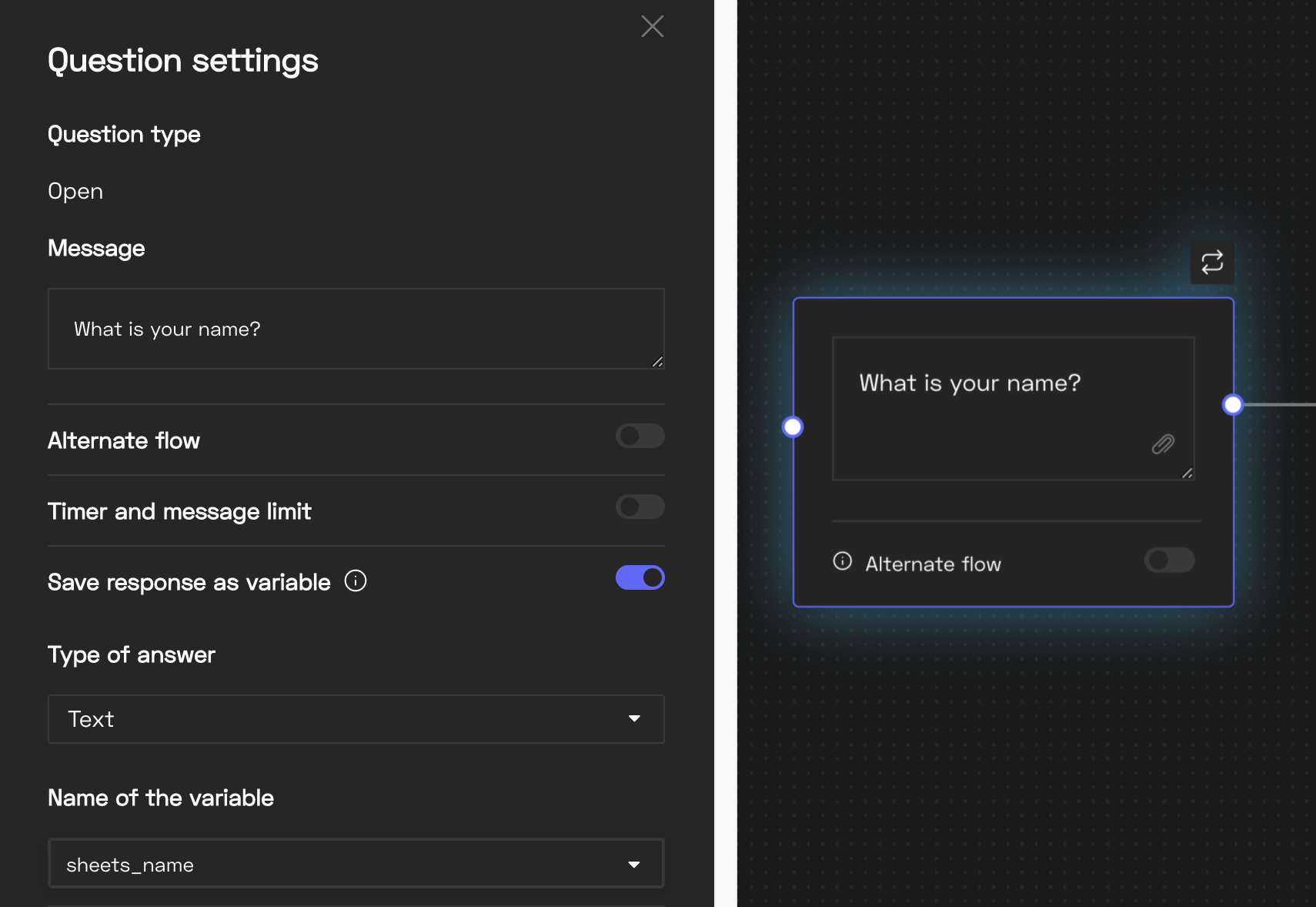
To save what the user responds in the conversation, use the same variable format sheets_nombre_variable, and check the “Save response as variable” option in the flow. Save sheets variable

Save the response time

If you want to record when a response was saved, create another column with the time_ prefix For example:
  • If you have the variable name, create another column called time_name.
Treble will automatically save the date and time when the user responds. Save response time sheets

Sheets with restricted permissions

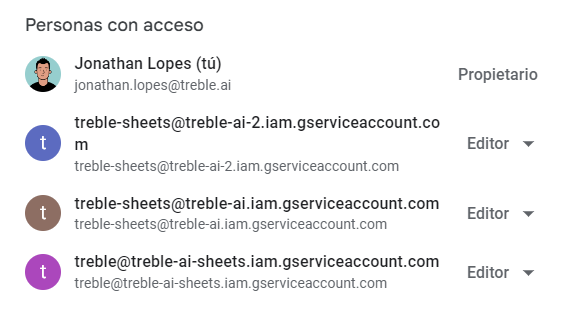
If you don’t want your sheet to be public, you must share it with Treble’s three official email addresses:
treble-sheets@treble-ai.iam.gserviceaccount.com
treble-sheets@treble-ai-2.iam.gserviceaccount.com
treble@treble-ai-sheets.iam.gserviceaccount.com
Save response time sheets

Limitations

  • Maximum supported columns: up to column ZZ.
  • Google Sheets rate limit:
    • G Suite: 5 requests per second
    • Regular Gmail: 1 request per second
If those limits are exceeded, some data may be lost.