Before you start
Before you start, make sure you have knowledge of what a template is. If you’re not clear about it, you can read the article:Templates
Learn everything about templates. Learn how to create a template and use it in a flow.
Template State Change
Templates have different states. We know that when we create one, we must send it for approval to Meta. In this case, the template remains in Under Review state. When Meta approves the template, it remains in Active state. If Meta rejects the template, it will remain in Rejected state. Why can these elements of a template change?- Meta detects that your customers are marking your conversations as spam, which causes Meta to pause or deactivate your template.
- You made an edit to the template and Meta marks it as Under Review.
- Meta approves a previously disabled or paused template so it can be used again.
How to configure a template state change webhook?
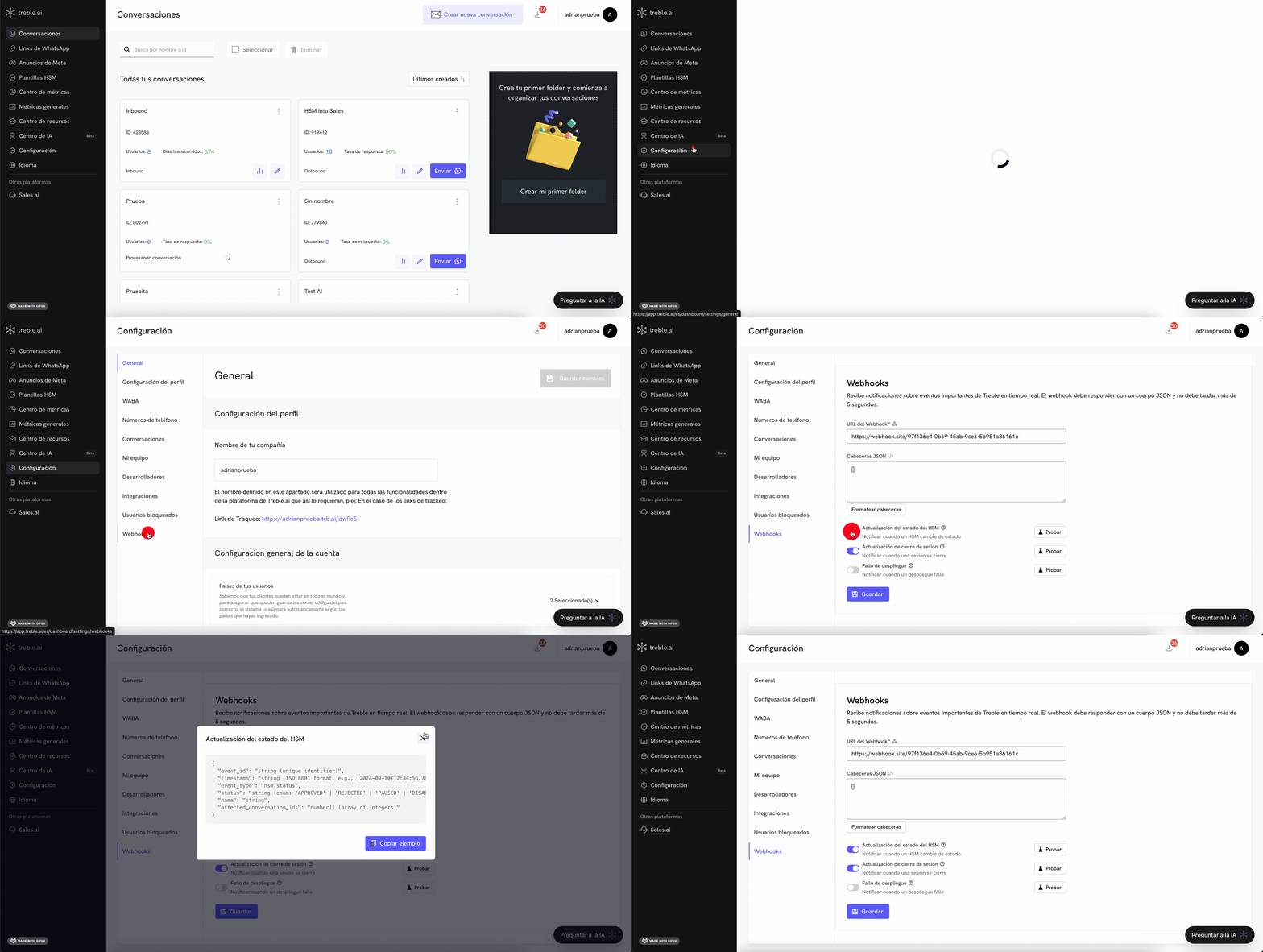
To configure a template state change webhook, you must follow these steps:- Enter Treble.ai through the following URL:
- Go to the Settings section and select Webhooks.
- You will see a Webhook URL field. This is the endpoint to which the HTTP request will be sent when a template state change occurs.
- Enter your webhook URL in the Webhook URL field.
- Click Save.
- Enter Treble.ai through the following URL:
- Go to the Settings section and select Webhooks.
- You will see a Webhook URL field. This is the endpoint to which the HTTP request will be sent.
- Enter your webhook URL in the Webhook URL field.
- Click the Template Status Update button to enable this type of notifications
- Click Save.
- Ready! Now, when a template state change occurs in Treble, the webhook will be triggered.