> ## Documentation Index
> Fetch the complete documentation index at: https://help.treble.ai/llms.txt
> Use this file to discover all available pages before exploring further.
# WhatsApp inside Salesforce
> How to create a custom tab so your advisors can see and reply to WhatsApp conversations without leaving the CRM.
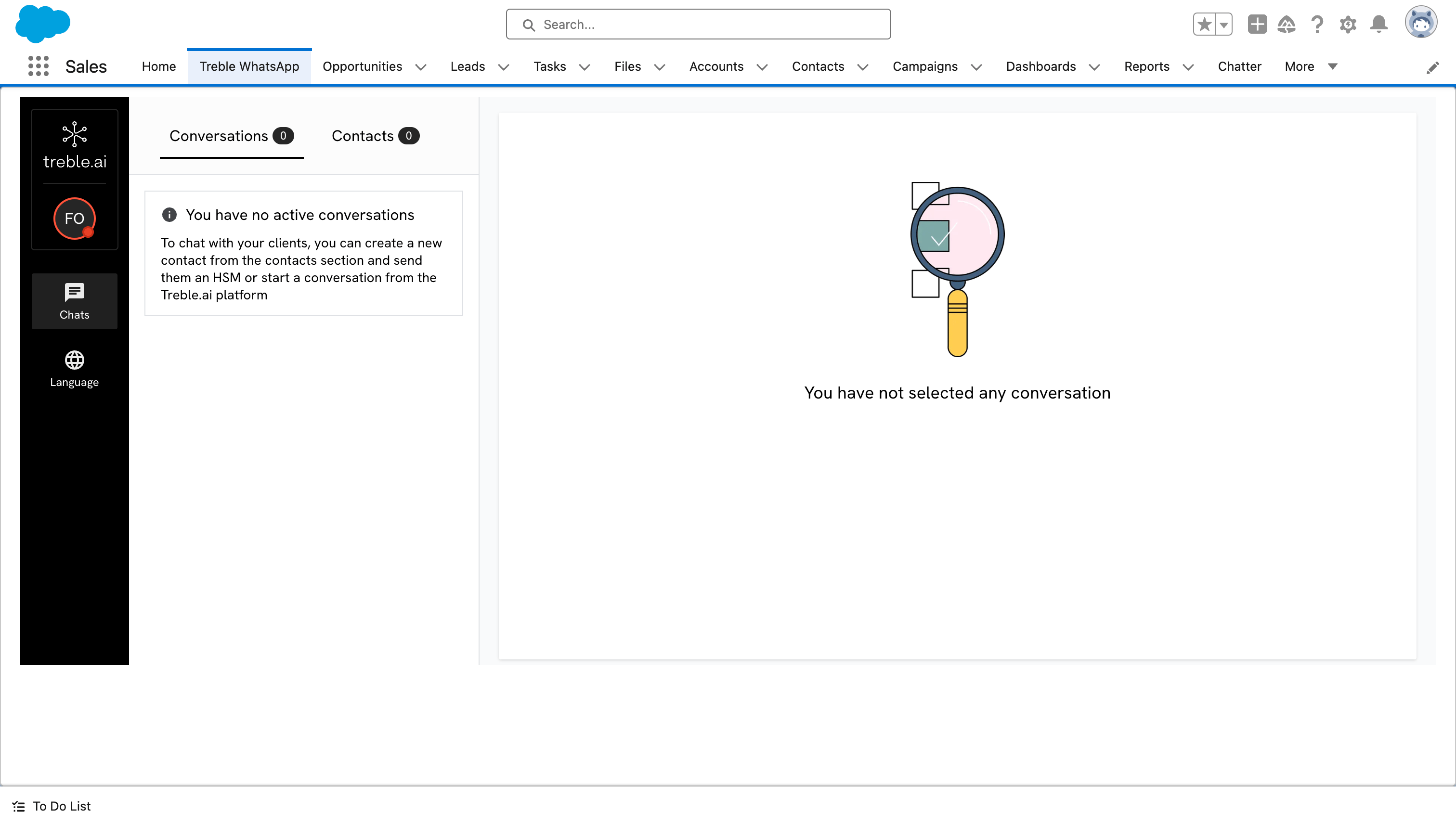
You can embed the Treble conversation inbox **inside Salesforce**, as one more tab in the navigation bar. The advisor logs in to Salesforce, clicks the tab, and replies to WhatsApp from there.
 This is configured in Salesforce, with an administrator user, and is independent of the data integration. You can have it with either of the two integration types.
## Before you start
You can find it in the Treble platform, under **Settings → Developers → API KEY**.
The API key is a credential. Treat it like a password: don't publish it, don't paste it in open channels, and don't share it outside your Salesforce administration team.
The tab logs in with the **Salesforce user's email**. If that email doesn't match a Treble agent, the tab won't be able to open their inbox.
## 1. Create the web tab
Search for "tabs" in the Setup search bar and open **Tabs**. Scroll down to the **Web Tabs** section and click **New**.
This is configured in Salesforce, with an administrator user, and is independent of the data integration. You can have it with either of the two integration types.
## Before you start
You can find it in the Treble platform, under **Settings → Developers → API KEY**.
The API key is a credential. Treat it like a password: don't publish it, don't paste it in open channels, and don't share it outside your Salesforce administration team.
The tab logs in with the **Salesforce user's email**. If that email doesn't match a Treble agent, the tab won't be able to open their inbox.
## 1. Create the web tab
Search for "tabs" in the Setup search bar and open **Tabs**. Scroll down to the **Web Tabs** section and click **New**.
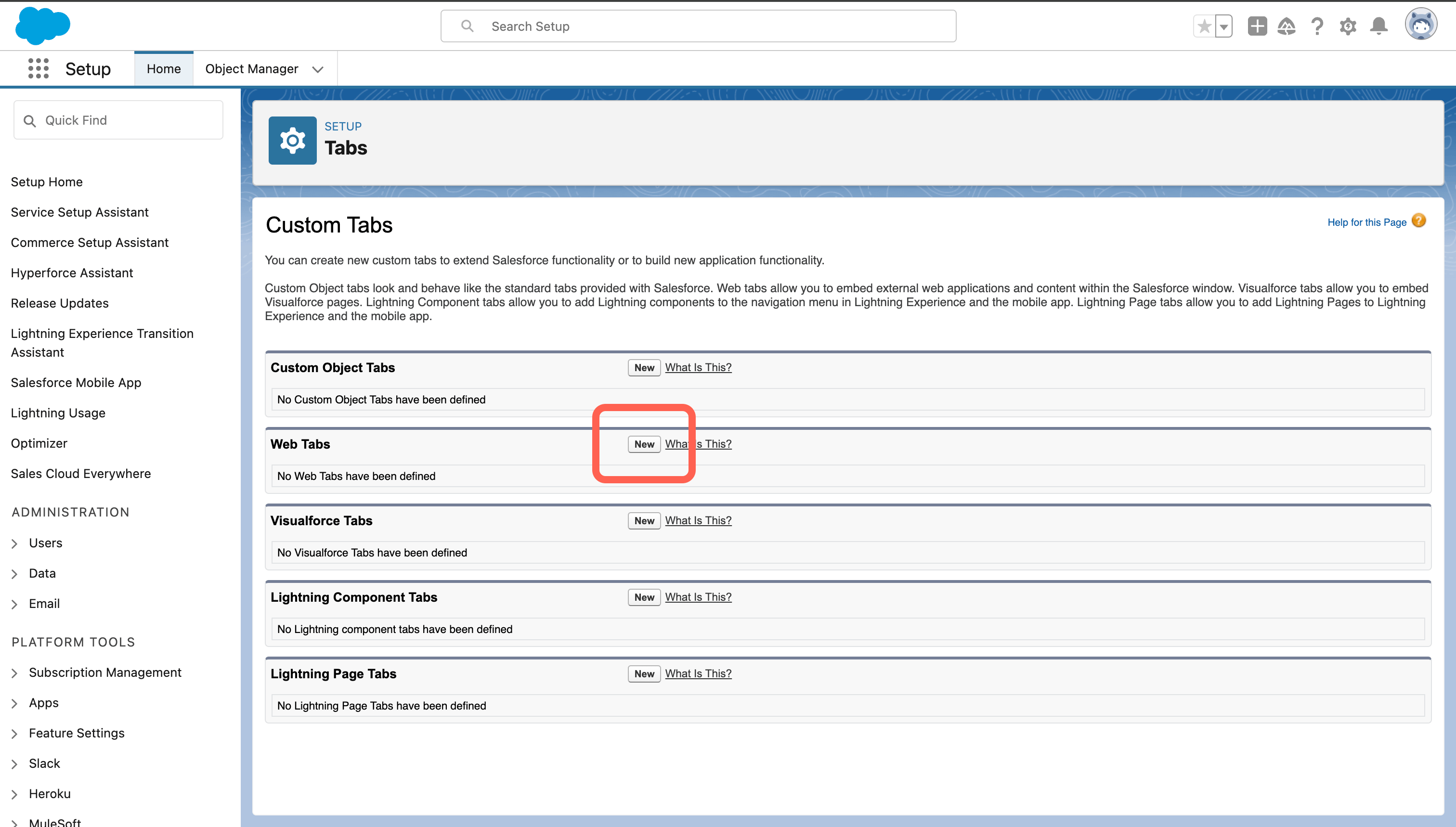 In step 1, leave the default style (full page). Click **Next**.
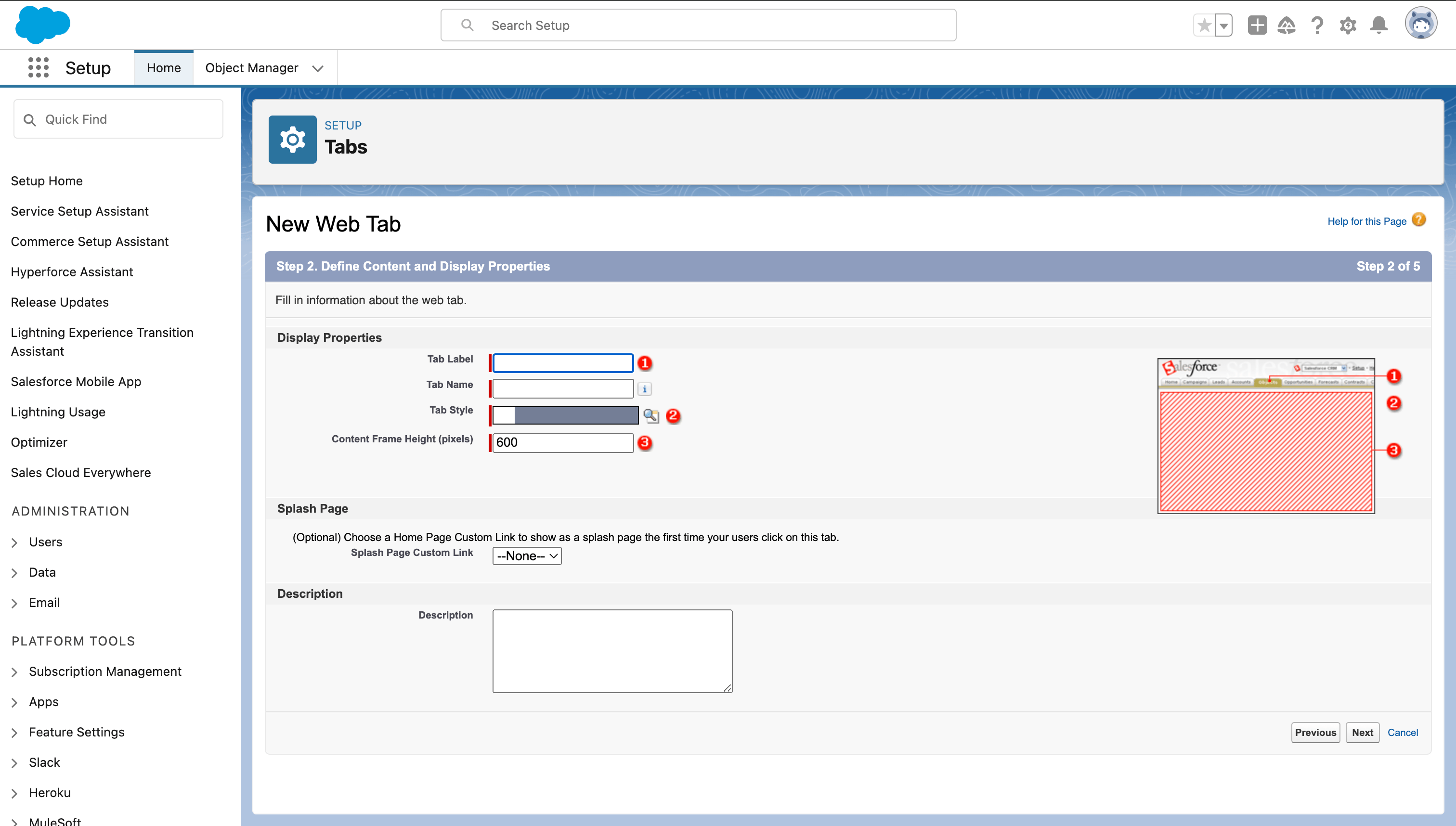 | Field | Suggested value |
| - | - |
| **Tab Label** | `Treble WhatsApp` |
| **Tab Name** | `Treble_WhatsApp` |
| **Tab Style** | The icon and color you prefer |
| **Content Frame Height (pixels)** | `600` |
600 pixels works well on most screens. If your advisors work on large monitors and the inbox looks cramped, you can increase it later by editing the tab.
In step 3, in the **Button or Link URL** field, paste:
```
https://agent-api.treble.ai/agent/login/salesforce?email={!$User.Email}&apiKey=TU_API_KEY
```
Replace `TU_API_KEY` with the key Treble gave you. Leave `{!$User.Email}` as is: it's a Salesforce merge field that automatically inserts the email of the user who opens the tab, and it's what makes each advisor see **their own** inbox.
In **Encoding**, leave `Unicode (UTF-8)`.
Don't replace `{!$User.Email}` with a fixed email. If you do, all your advisors would log in to the same person's inbox.
In steps 4 and 5, choose which profiles can see the tab and which apps it should appear in. Save.
## 2. Add the tab to the navigation bar
Creating the tab doesn't make it visible on its own: you have to add it to the app.
In the app where you want it (for example *Sales*), click the **pencil icon** at the end of the navigation bar.
| Field | Suggested value |
| - | - |
| **Tab Label** | `Treble WhatsApp` |
| **Tab Name** | `Treble_WhatsApp` |
| **Tab Style** | The icon and color you prefer |
| **Content Frame Height (pixels)** | `600` |
600 pixels works well on most screens. If your advisors work on large monitors and the inbox looks cramped, you can increase it later by editing the tab.
In step 3, in the **Button or Link URL** field, paste:
```
https://agent-api.treble.ai/agent/login/salesforce?email={!$User.Email}&apiKey=TU_API_KEY
```
Replace `TU_API_KEY` with the key Treble gave you. Leave `{!$User.Email}` as is: it's a Salesforce merge field that automatically inserts the email of the user who opens the tab, and it's what makes each advisor see **their own** inbox.
In **Encoding**, leave `Unicode (UTF-8)`.
Don't replace `{!$User.Email}` with a fixed email. If you do, all your advisors would log in to the same person's inbox.
In steps 4 and 5, choose which profiles can see the tab and which apps it should appear in. Save.
## 2. Add the tab to the navigation bar
Creating the tab doesn't make it visible on its own: you have to add it to the app.
In the app where you want it (for example *Sales*), click the **pencil icon** at the end of the navigation bar.
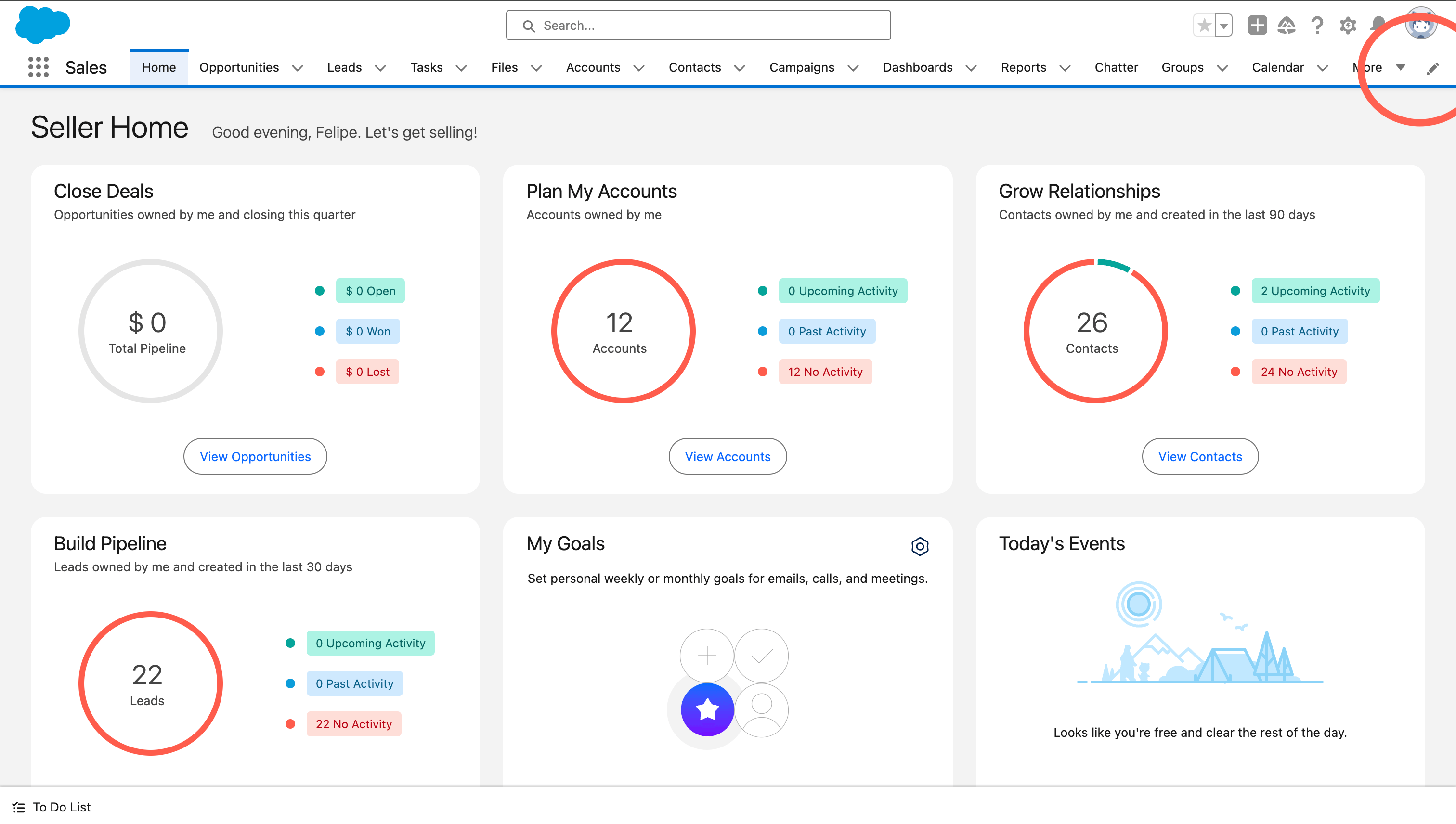 Click **Add More Items**, search for the tab you created and add it. Drag it to the position you want and click **Save**.
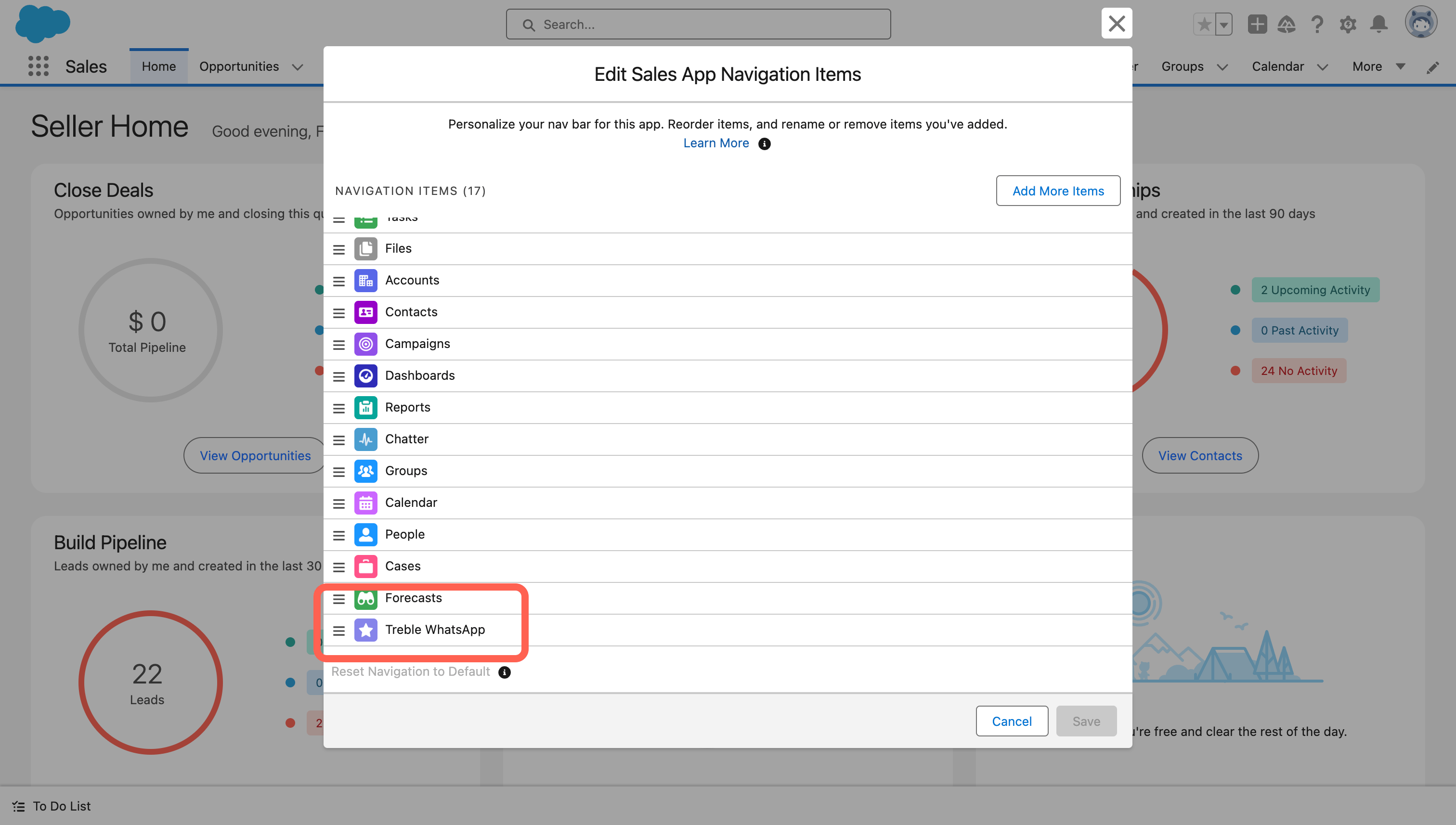 Done. The **Treble WhatsApp** tab appears in the navigation bar and opens the inbox of the advisor who is logged in.
## What the advisor sees
Inside the tab they have:
* **Conversations**: the active conversations assigned to them, to read and reply to.
* **Contacts**: the contact list, from which they can create a new one or send a template (HSM) to open a conversation.
The inbox shows the conversations **assigned to that advisor**. If an advisor says they don't see anything, the most likely reason is simply that they don't have any conversations assigned at that moment, not that the tab is misconfigured.
## Common issues
It's usually one of these:
1. **The API key is wrong or incomplete.** Check that it was pasted in full, with no trailing spaces.
2. **The Salesforce user's email doesn't match a Treble agent.** The tab logs in with the logged-in user's email; if it doesn't exist in Treble, there's no inbox to show.
3. **Browser restrictions.** Some security settings block embedded content. Salesforce warns about this on the tab creation screen.
A Salesforce session is **not** a Treble session. The tab uses the Salesforce user's email to identify the agent, but that agent needs to exist in Treble and have their own credentials.
If the advisor can't log in, the way forward is to reset their **Treble** password, not their Salesforce one. And if they don't exist as an agent, you need to create them first.
Done. The **Treble WhatsApp** tab appears in the navigation bar and opens the inbox of the advisor who is logged in.
## What the advisor sees
Inside the tab they have:
* **Conversations**: the active conversations assigned to them, to read and reply to.
* **Contacts**: the contact list, from which they can create a new one or send a template (HSM) to open a conversation.
The inbox shows the conversations **assigned to that advisor**. If an advisor says they don't see anything, the most likely reason is simply that they don't have any conversations assigned at that moment, not that the tab is misconfigured.
## Common issues
It's usually one of these:
1. **The API key is wrong or incomplete.** Check that it was pasted in full, with no trailing spaces.
2. **The Salesforce user's email doesn't match a Treble agent.** The tab logs in with the logged-in user's email; if it doesn't exist in Treble, there's no inbox to show.
3. **Browser restrictions.** Some security settings block embedded content. Salesforce warns about this on the tab creation screen.
A Salesforce session is **not** a Treble session. The tab uses the Salesforce user's email to identify the agent, but that agent needs to exist in Treble and have their own credentials.
If the advisor can't log in, the way forward is to reset their **Treble** password, not their Salesforce one. And if they don't exist as an agent, you need to create them first.
Create a new agent
`{!$User.Email}` was replaced with a fixed email in the URL. Edit the tab and put the merge field back.
Creating the tab and adding it to the app are two different steps. Review step 2 of this guide, and confirm that the advisor's profile has the tab set as visible.
Increase the **Content Frame Height** value in the tab settings.
## Next steps
How a conversation reaches an advisor's inbox.
Trigger a Treble campaign from an automation flow.
This documentation is built and hosted on [Mintlify](https://mintlify.com), a developer documentation platform.