> ## Documentation Index
> Fetch the complete documentation index at: https://help.treble.ai/llms.txt
> Use this file to discover all available pages before exploring further.
# Salesforce read block
> How to bring a piece of data from Salesforce into a conversation variable: greet by name, branch the flow based on the status of a record or reuse an Id later on.
This block does the opposite of the [action block](/en/docs/integrations/salesforce/blocks/crm-action): instead of writing to Salesforce, it **reads a field and saves it in a variable** that you can use in the rest of the conversation.
With that you can greet the person by name, tell them what status their request is in, or send them down a different path of the flow based on what their record says.
The block has a different name depending on your integration type:
| Integration type | Block name |
| - | - |
| Single object | **CRM Object** |
| Multi-object | **CRM Multiple Object** |
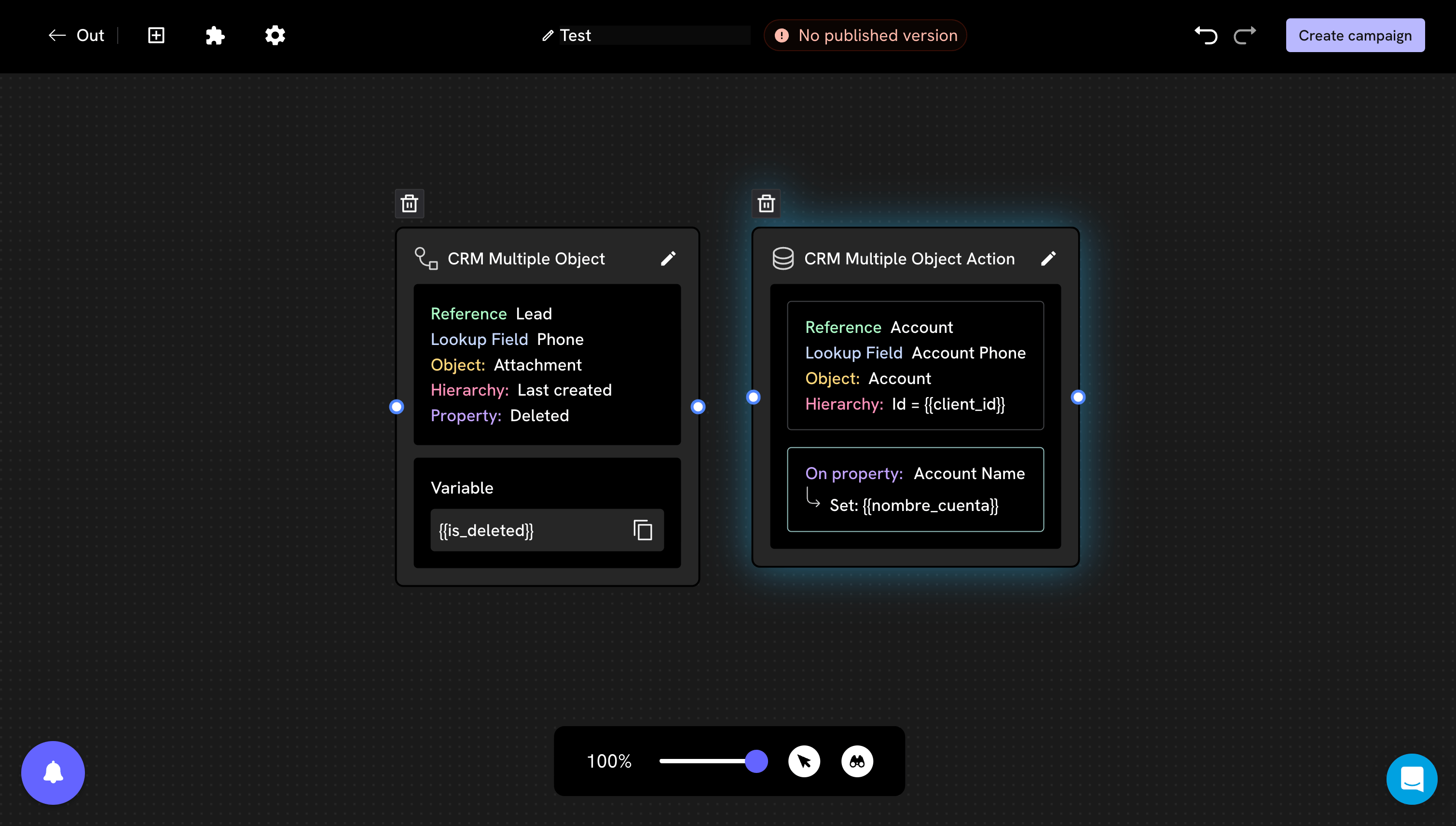
In multi-object the two Salesforce blocks have almost identical names. The one that **reads** is *CRM Multiple Object*. The one that **writes** is *CRM Multiple Object **Action***, with "Action" at the end.
## What to understand first
Each block reads **a single field**. If you need three pieces of data, you will use three blocks.
**If Treble does not find the record, the variable stays empty.** The flow does not stop or show an error: the variable simply arrives without content, and if you use it in a message the person will see a blank space.
That is why it is a good idea to place a **Conditions** block right after, which checks whether the variable has a value and sets up an alternate path when it doesn't.
## Add the block
From the conversation builder, open the blocks panel and look for the read block under *Advanced blocks*.
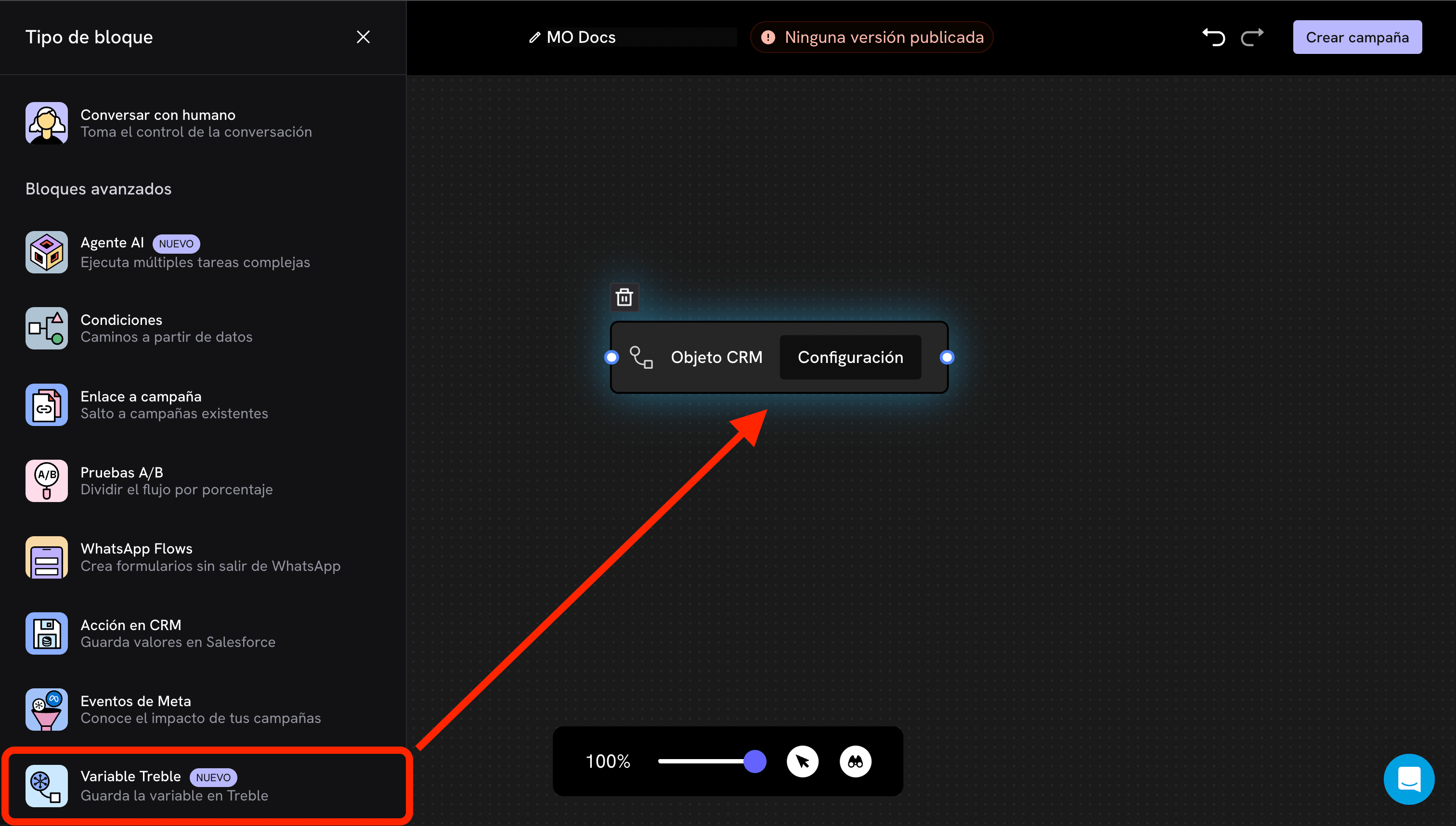 The name you see in the blocks panel may not be the same one that later appears on the block in the canvas. Go by the icon and the description ("saves the variable in Treble"): it is the block that **brings** information from the CRM, not the one that saves it there.
Drag it onto the canvas and click **Settings** to open it.
## Configuration
The modal has two steps and a final field to name the variable.
The name you see in the blocks panel may not be the same one that later appears on the block in the canvas. Go by the icon and the description ("saves the variable in Treble"): it is the block that **brings** information from the CRM, not the one that saves it there.
Drag it onto the canvas and click **Settings** to open it.
## Configuration
The modal has two steps and a final field to name the variable.
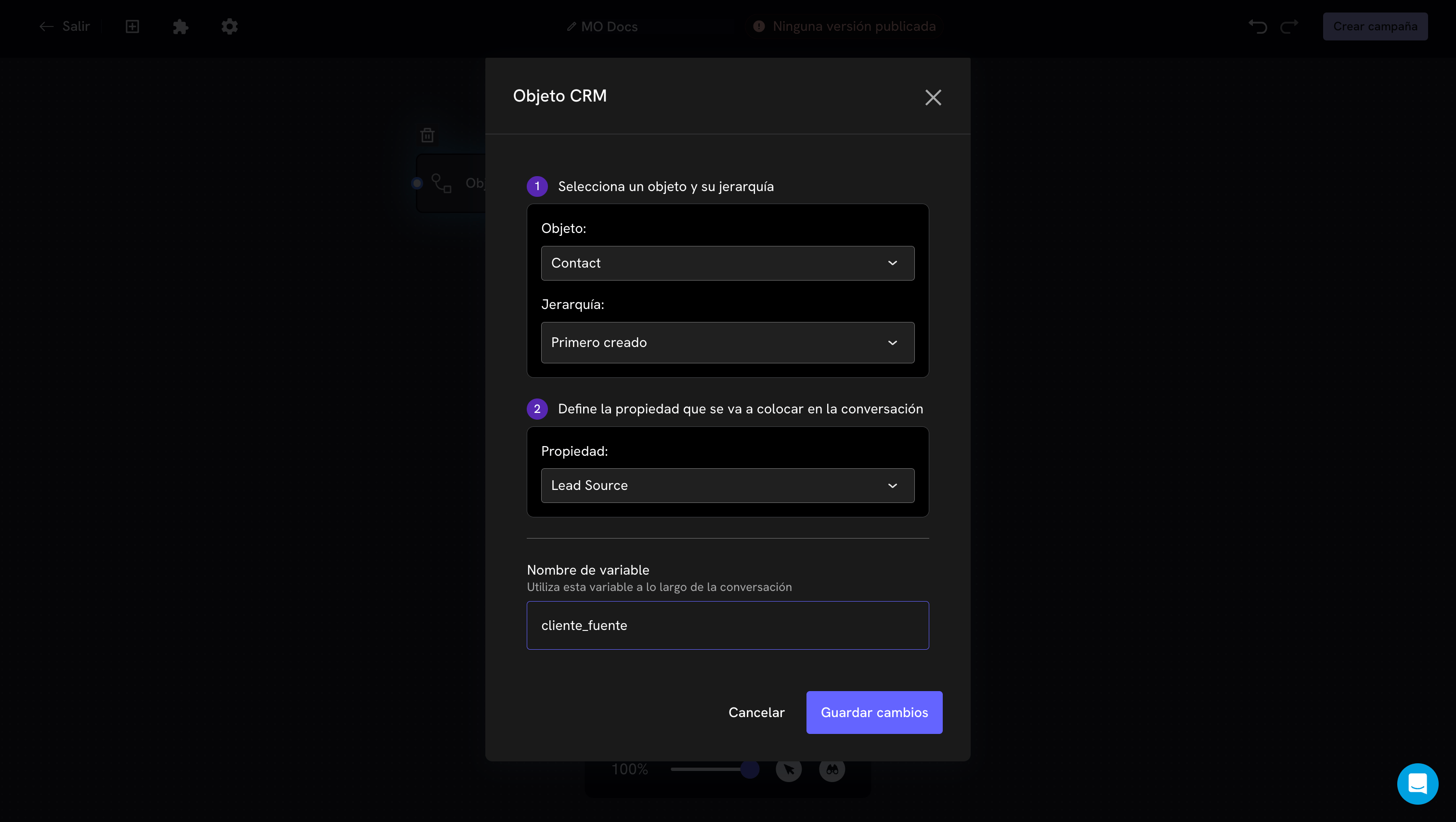 ### 1. Object and hierarchy
**Object.** Which object you are going to read from. It can be your parent entity (for example `Contact`) or one of its related objects.
**Hierarchy.** What to do when the person has **more than one record** of that object.
| Option | What it does |
| - | - |
| **First created** | Reads from the oldest record |
| **Last created** | Reads from the most recent record |
| **Custom** | You define a filter to point to a specific record |
The read hierarchy and the write hierarchy are **independent** settings. If you read with *First created* and write with *Last created*, you will read from one record and write to another. When both blocks must work on the same record, check that the hierarchy matches.
### 2. Property
The Salesforce field whose value you want to bring. In the example, `Lead Source`.
### Variable name
At the end you define what the variable will be called. If you type `cliente_fuente`, in the rest of the conversation you use it as `{{cliente_fuente}}`.
Use lowercase names with underscores, without spaces or accents. They are easier to type correctly in messages and avoid errors that are hard to spot.
The modal has three steps, because you first have to say **in which of your objects** the person will be looked up.
### 1. Reference object and phone field
### 1. Object and hierarchy
**Object.** Which object you are going to read from. It can be your parent entity (for example `Contact`) or one of its related objects.
**Hierarchy.** What to do when the person has **more than one record** of that object.
| Option | What it does |
| - | - |
| **First created** | Reads from the oldest record |
| **Last created** | Reads from the most recent record |
| **Custom** | You define a filter to point to a specific record |
The read hierarchy and the write hierarchy are **independent** settings. If you read with *First created* and write with *Last created*, you will read from one record and write to another. When both blocks must work on the same record, check that the hierarchy matches.
### 2. Property
The Salesforce field whose value you want to bring. In the example, `Lead Source`.
### Variable name
At the end you define what the variable will be called. If you type `cliente_fuente`, in the rest of the conversation you use it as `{{cliente_fuente}}`.
Use lowercase names with underscores, without spaces or accents. They are easier to type correctly in messages and avoid errors that are hard to spot.
The modal has three steps, because you first have to say **in which of your objects** the person will be looked up.
### 1. Reference object and phone field
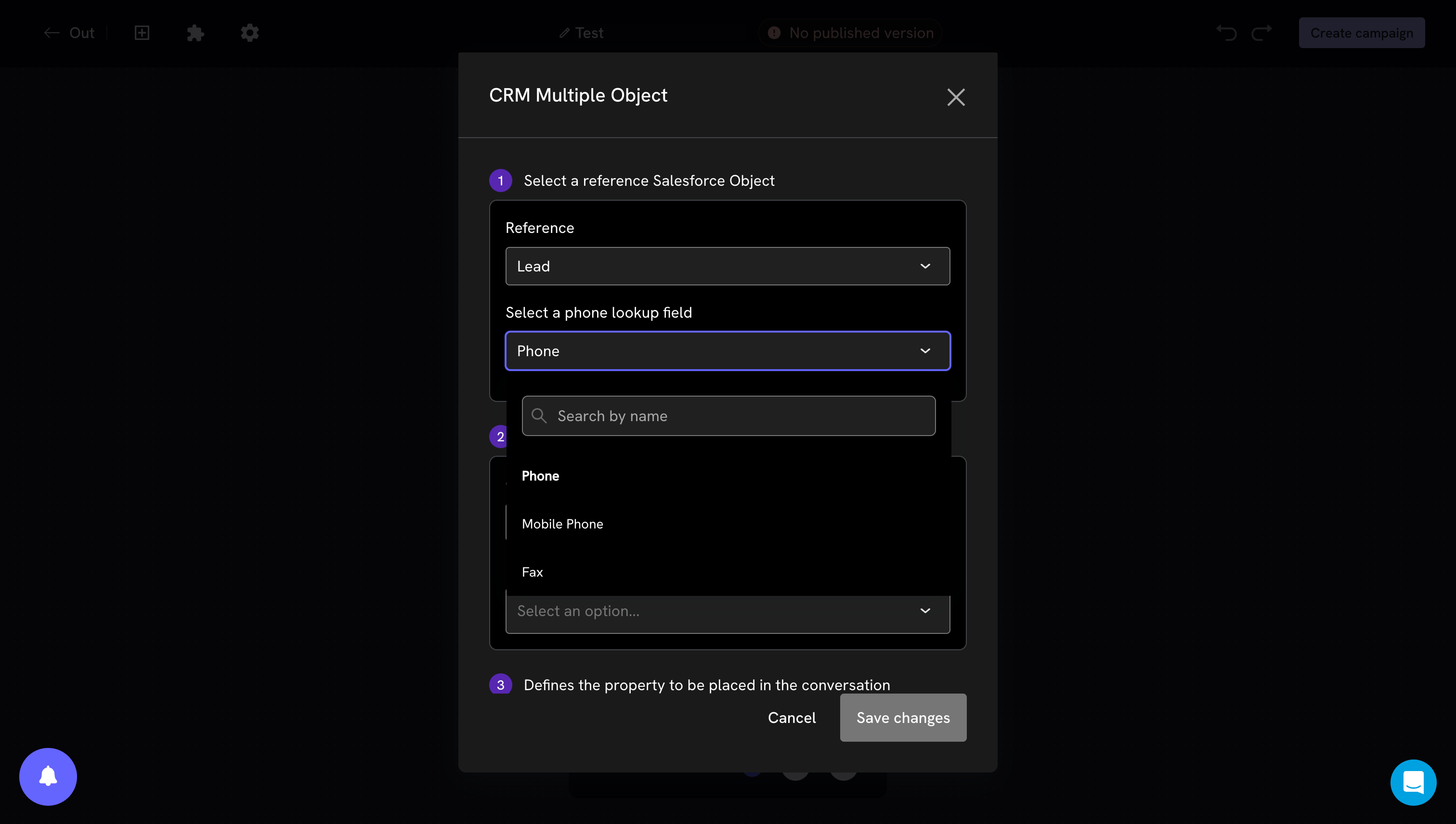 **Reference.** Which of the objects you configured during installation will be used to find the person.
**Phone lookup field.** Which phone field of that object is used for the lookup. The dropdown lists all the phone fields of the object (`Phone`, `Mobile Phone`, `Fax`, and any custom ones you have).
Choose the same field where your records' numbers are actually stored. If you choose a different one, Treble will not find anyone and all variables will arrive empty.
### 2. Object and hierarchy
**Reference.** Which of the objects you configured during installation will be used to find the person.
**Phone lookup field.** Which phone field of that object is used for the lookup. The dropdown lists all the phone fields of the object (`Phone`, `Mobile Phone`, `Fax`, and any custom ones you have).
Choose the same field where your records' numbers are actually stored. If you choose a different one, Treble will not find anyone and all variables will arrive empty.
### 2. Object and hierarchy
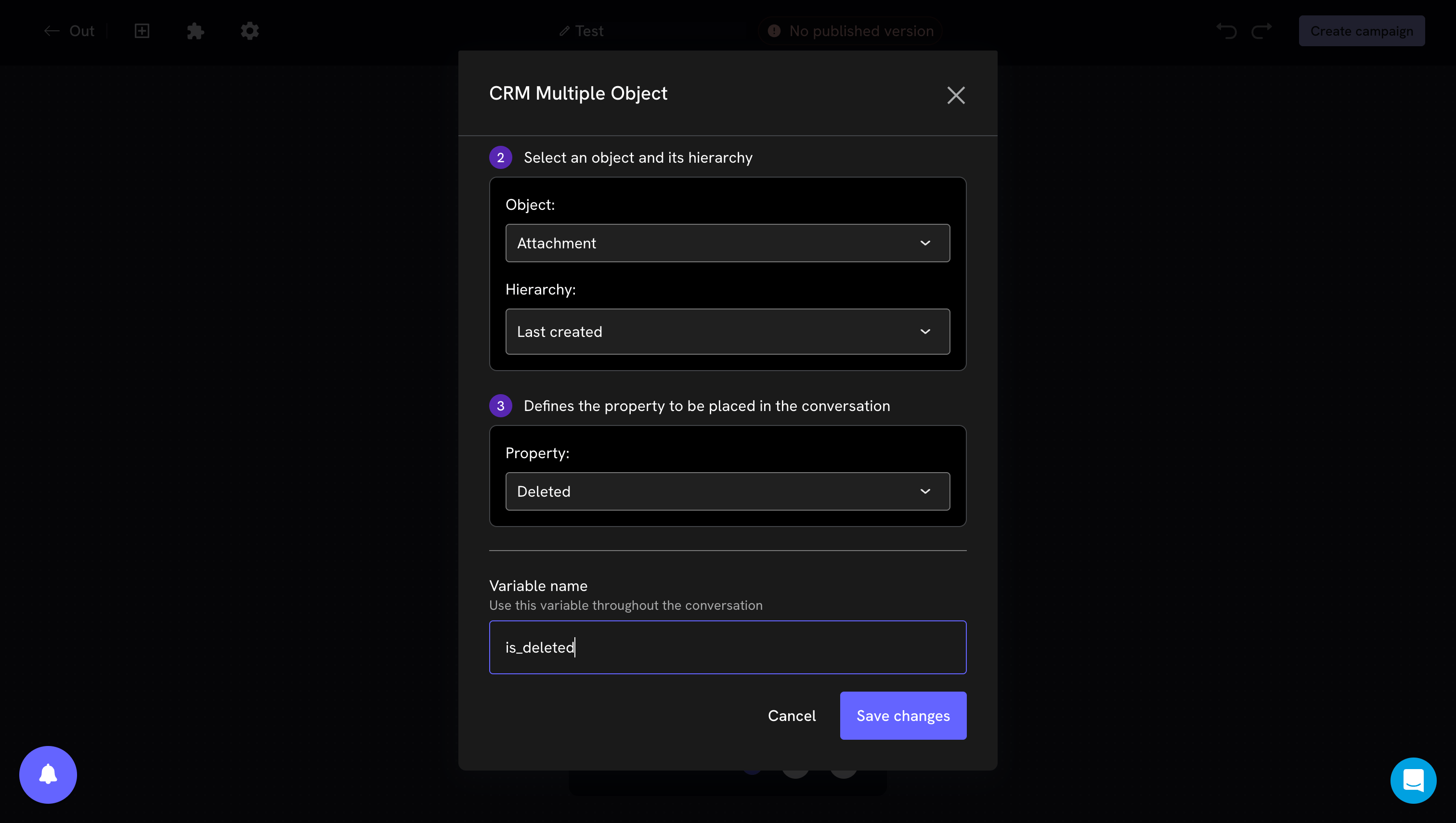 The object you are going to read from —it can be the same reference object or a related one— and what to do when there is more than one record.
### 3. Property and variable name
The property is the field you want to bring. Below it, the **variable name** you will use it with in the conversation.
## Use the variable
Once configured, the block shows a summary on the canvas and, below it, the variable it produces. You can copy it with the copy button and paste it into any later block.
The object you are going to read from —it can be the same reference object or a related one— and what to do when there is more than one record.
### 3. Property and variable name
The property is the field you want to bring. Below it, the **variable name** you will use it with in the conversation.
## Use the variable
Once configured, the block shows a summary on the canvas and, below it, the variable it produces. You can copy it with the copy button and paste it into any later block.
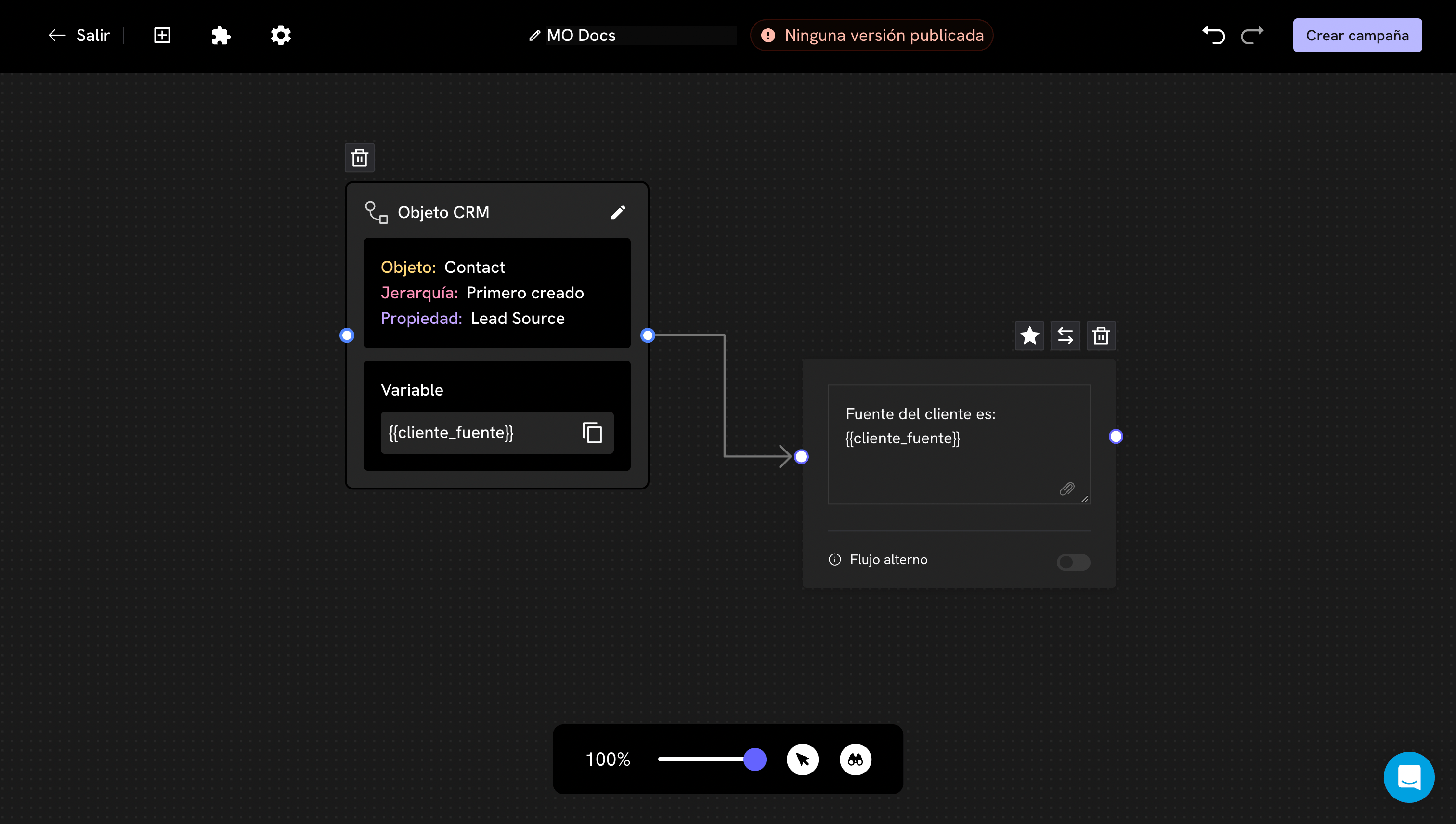 The read block has to go **earlier** in the flow than the block where you use the variable. If you place it after, the variable does not have a value yet at the moment the message is sent.
In multi-object, the read block and the write block are told apart by the last box of the summary: the read block ends in **Variable**, the action block ends in **In the property → Set**.
The read block has to go **earlier** in the flow than the block where you use the variable. If you place it after, the variable does not have a value yet at the moment the message is sent.
In multi-object, the read block and the write block are told apart by the last box of the summary: the read block ends in **Variable**, the action block ends in **In the property → Set**.
 ## Common uses
Read the name from the record and use it in the first message. Remember the alternate path: if the person is new and does not exist in Salesforce, the variable arrives empty.
Read a status field and connect the block to a **Conditions** block. That way you can give a different message to someone whose request is in progress and to someone whose request is already approved.
In multi-object you can read the Id of a record into a variable and use it later in the **custom hierarchy** of the action block (`Account ID = {{client_id}}`). It is the most reliable way to make sure the write lands on the record you want, and not on another one of the same object.
## Common uses
Read the name from the record and use it in the first message. Remember the alternate path: if the person is new and does not exist in Salesforce, the variable arrives empty.
Read a status field and connect the block to a **Conditions** block. That way you can give a different message to someone whose request is in progress and to someone whose request is already approved.
In multi-object you can read the Id of a record into a variable and use it later in the **custom hierarchy** of the action block (`Account ID = {{client_id}}`). It is the most reliable way to make sure the write lands on the record you want, and not on another one of the same object.
CRM Action block
If the data is already in Salesforce, read it instead of asking for it. It shortens the conversation and prevents the person from typing something different from what you already have on record.
## Common issues
The most common causes, in order:
1. **The person does not exist** in the object you chose. This is normal for new contacts: set up an alternate path.
2. **The phone lookup field is not the right one.** Check in Salesforce which field the numbers are actually stored in.
3. **The record exists but that field is empty** in Salesforce.
4. **The hierarchy points to another record.** If the person has several, you may be reading from the wrong one.
You need to sync. Run the [object sync](/en/docs/integrations/salesforce/object-sync) and open the block again.
This happens with picklist fields and relationship fields. Salesforce internally stores a value different from the one it shows on screen, and that is what Treble reads.
If you need to show the text to the person, use a **Conditions** block to translate the code into the corresponding word.
Date and date/time fields arrive in Salesforce's internal format, not in the format you see on screen or the one used in your country.
If you are going to show the date to the person in the chat, first check how the value arrives with a real test before publishing the flow.
The variable name in the message does not exactly match the one you defined in the block. Check uppercase, accents and underscores; the safest thing is to copy the variable from the block with the copy button.
## Next steps
Save to the CRM what the person answers in the chat.
Hand the conversation over to the record owner in Salesforce.
This documentation is built and hosted on [Mintlify](https://mintlify.com), a developer documentation platform.