> ## Documentation Index
> Fetch the complete documentation index at: https://help.treble.ai/llms.txt
> Use this file to discover all available pages before exploring further.
# CRM Action Block
> How to write data to Salesforce from a conversation: create and update records, choose which one gets updated and save what the person answers.
The **CRM Action** block writes to Salesforce from the conversation flow. With it you can save what the person answers, mark the source of a lead, change the status of a request or create a new record.
The block has a different name depending on your integration type:
| Integration type | Block name |
| - | - |
| Single object | **CRM Action** |
| Multi-object | **CRM Multiple Object Action** |
In multi-object the names are very similar and easy to mix up. The one that **writes** is *CRM Multiple Object **Action***. The one that only **reads** is called *CRM Multiple Object*, without "Action".
## What to understand first
Each CRM Action block writes **a single property**. If you need to save three pieces of data, you will use three blocks.
In addition, the block does two different things depending on the case:
* If it **finds** the person's record, it **updates** it.
* If it **does not find it**, it **creates** it.
This difference matters more than it seems. Some Salesforce fields only accept values at creation time: for example, a field that a validation rule requires on create, or the record type of a Person Account.
Since the block writes **after** the record is created, in those cases the value arrives too late. If you run into this, check [advanced settings](/en/docs/integrations/salesforce/features/advanced-settings).
## Add the block
From the conversation builder, open the blocks panel and look for **CRM Action** under *Advanced blocks*.
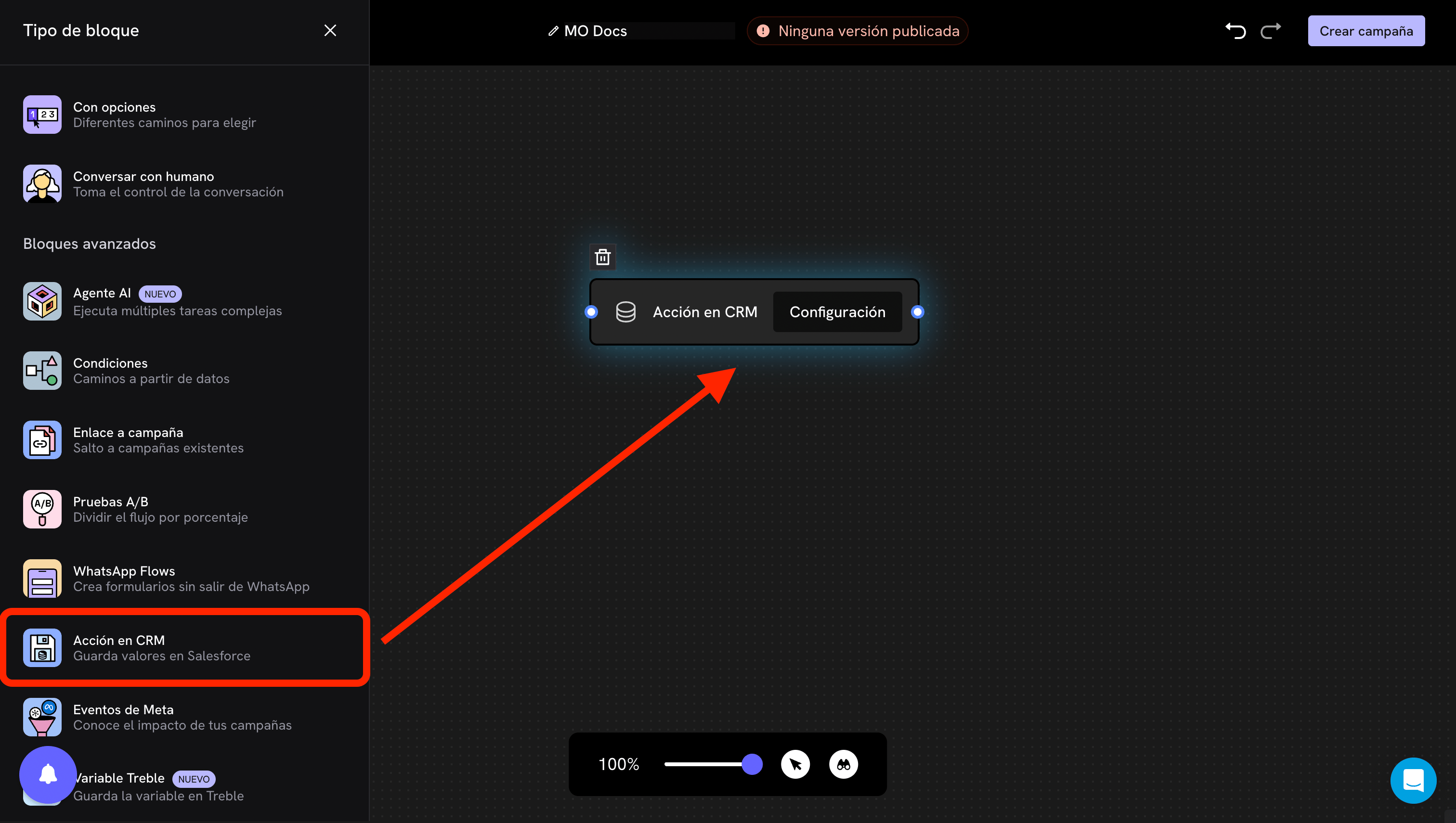 Drag it onto the canvas and click **Settings** to open it.
## Configuration
### 1. Object and hierarchy
Drag it onto the canvas and click **Settings** to open it.
## Configuration
### 1. Object and hierarchy
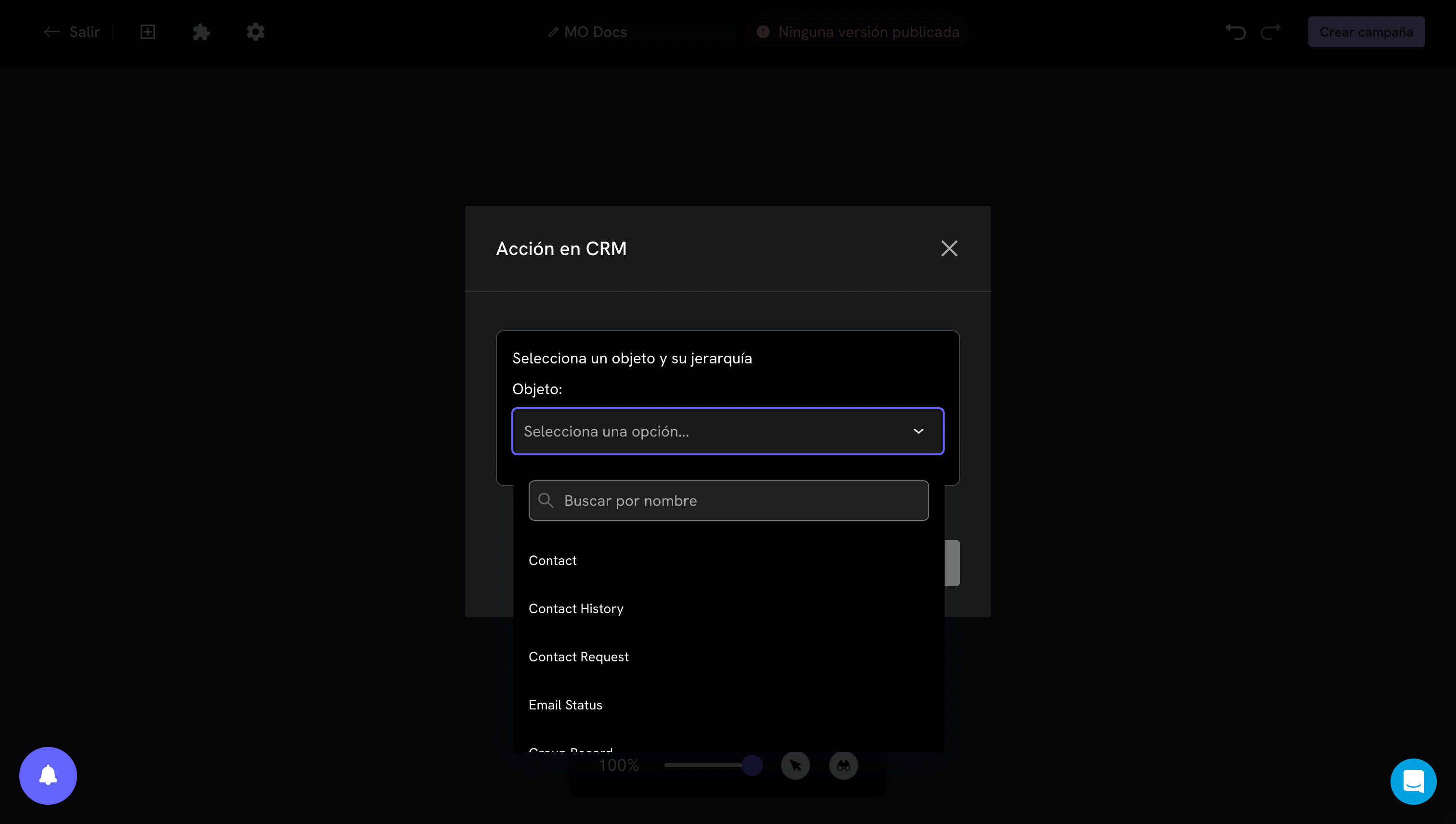 **Object.** Choose which object you are going to write to. It can be your parent entity (for example `Contact`) or one of its related objects.
**Hierarchy.** Defines what happens when the person has **more than one record** of that object. It is an important decision and easy to overlook.
**Object.** Choose which object you are going to write to. It can be your parent entity (for example `Contact`) or one of its related objects.
**Hierarchy.** Defines what happens when the person has **more than one record** of that object. It is an important decision and easy to overlook.
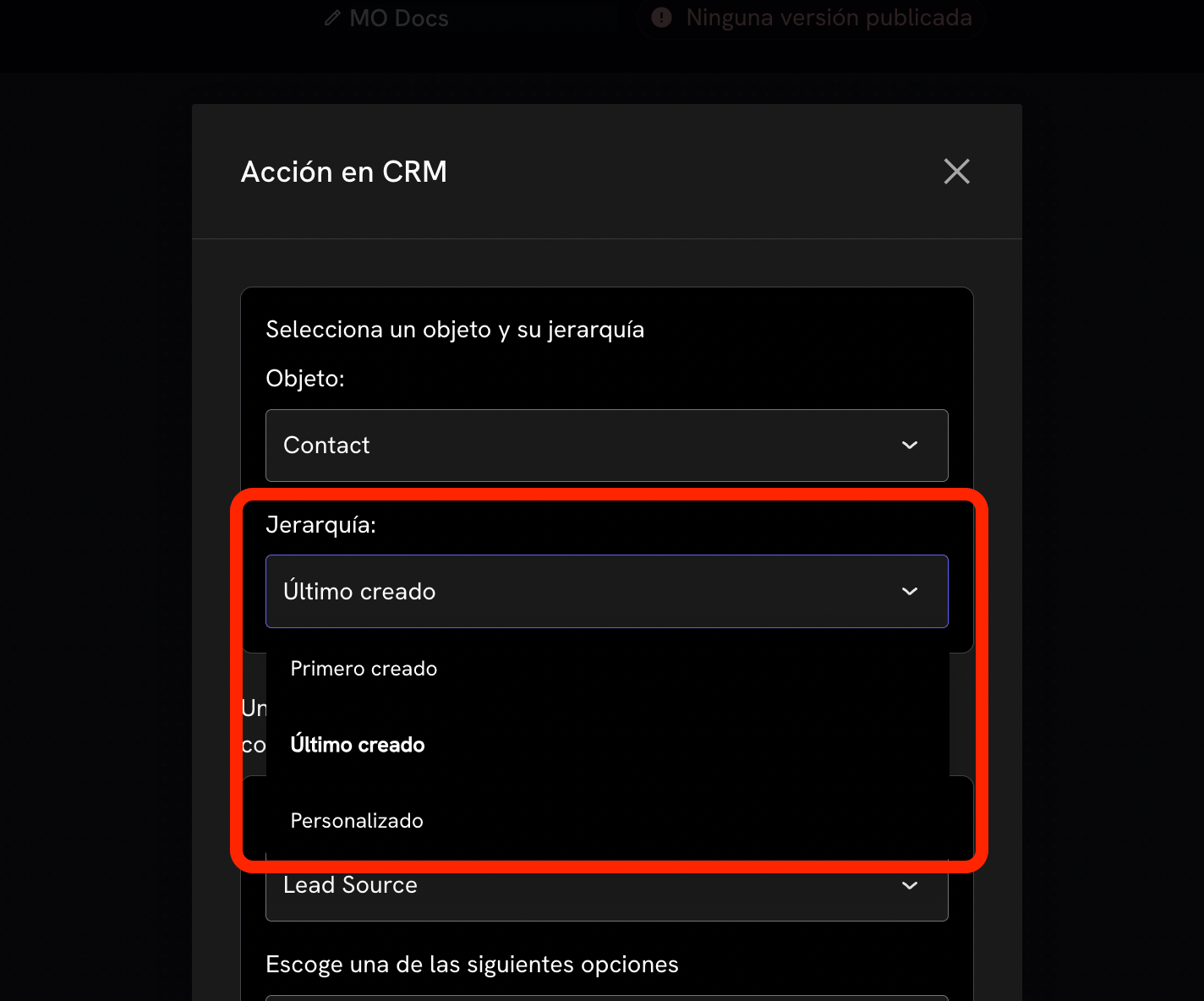 | Option | What it does |
| - | - |
| **First created** | Uses the oldest record |
| **Last created** | Uses the most recent record. It is the most common option |
| **Custom** | You define a filter: for example, the record whose *Status* field is *Active* |
### 2. Property and value
| Option | What it does |
| - | - |
| **First created** | Uses the oldest record |
| **Last created** | Uses the most recent record. It is the most common option |
| **Custom** | You define a filter: for example, the record whose *Status* field is *Active* |
### 2. Property and value
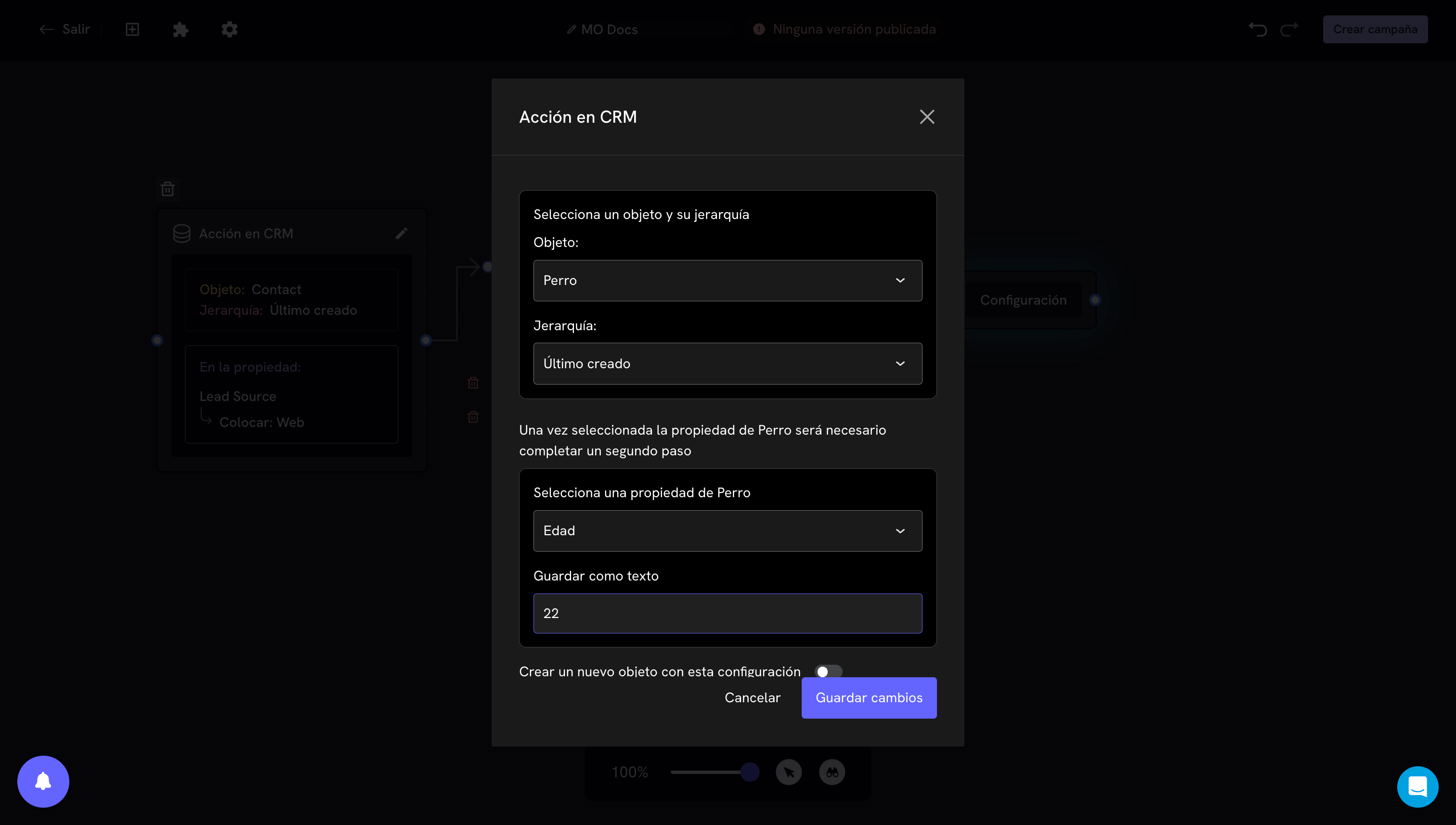 **Property.** The Salesforce field you are going to write.
**Value.** What you want to save. It can be fixed text, or a conversation variable using double curly braces, for example `{{nombre}}`.
The field type changes how this part looks. If it is a picklist, you will see the available options instead of a text box. If the options you expect do not appear, you probably need to [sync objects](/en/docs/integrations/salesforce/object-sync).
### 3. Create a new object
At the bottom of the modal there is a toggle: **"Create a new object with this configuration"**.
If you turn it on, Treble **always creates a new record**, without first checking whether the person already exists.
Use it only when you really want one record per conversation (for example, a new request each time). If you turn it on for the main object by mistake, you will end up with a duplicate contact for every conversation.
In multi-object the block asks for one more step at the beginning, because you first have to say **which of your objects** you are working on. The modal has three numbered steps.
### 1. Reference object and phone field
**Property.** The Salesforce field you are going to write.
**Value.** What you want to save. It can be fixed text, or a conversation variable using double curly braces, for example `{{nombre}}`.
The field type changes how this part looks. If it is a picklist, you will see the available options instead of a text box. If the options you expect do not appear, you probably need to [sync objects](/en/docs/integrations/salesforce/object-sync).
### 3. Create a new object
At the bottom of the modal there is a toggle: **"Create a new object with this configuration"**.
If you turn it on, Treble **always creates a new record**, without first checking whether the person already exists.
Use it only when you really want one record per conversation (for example, a new request each time). If you turn it on for the main object by mistake, you will end up with a duplicate contact for every conversation.
In multi-object the block asks for one more step at the beginning, because you first have to say **which of your objects** you are working on. The modal has three numbered steps.
### 1. Reference object and phone field
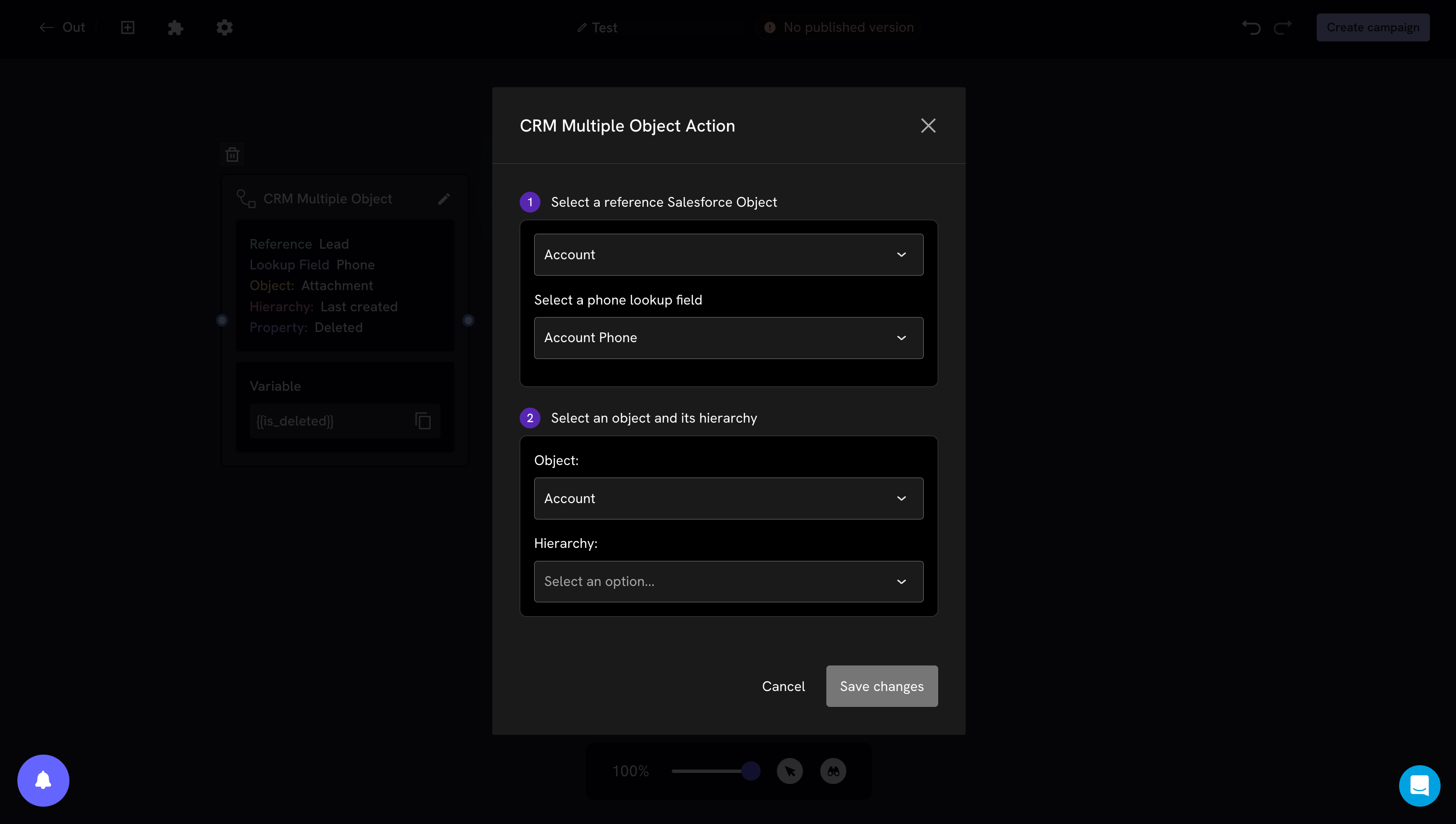 **Reference object.** Which of the objects you configured during installation you are going to use in this block (for example `Lead`, `Account` or a custom object).
**Phone lookup field.** Which field of that object is used to look up the person.
This field serves **two purposes at once**: it is where Treble looks up the record, and also where it writes the number when it creates one.
Changing it later affects both. If all your historical records have the number in the previous field, Treble will stop finding them and will start creating duplicates. Check [advanced settings](/en/docs/integrations/salesforce/features/advanced-settings) before changing it.
### 2. Object and hierarchy
On the same screen, step 2 asks for the object you are going to write to and the hierarchy. It can be the same reference object or a related one.
In addition to *First created* and *Last created*, multi-object offers **Custom**, which lets you point to a specific record with a property and a value:
**Reference object.** Which of the objects you configured during installation you are going to use in this block (for example `Lead`, `Account` or a custom object).
**Phone lookup field.** Which field of that object is used to look up the person.
This field serves **two purposes at once**: it is where Treble looks up the record, and also where it writes the number when it creates one.
Changing it later affects both. If all your historical records have the number in the previous field, Treble will stop finding them and will start creating duplicates. Check [advanced settings](/en/docs/integrations/salesforce/features/advanced-settings) before changing it.
### 2. Object and hierarchy
On the same screen, step 2 asks for the object you are going to write to and the hierarchy. It can be the same reference object or a related one.
In addition to *First created* and *Last created*, multi-object offers **Custom**, which lets you point to a specific record with a property and a value:
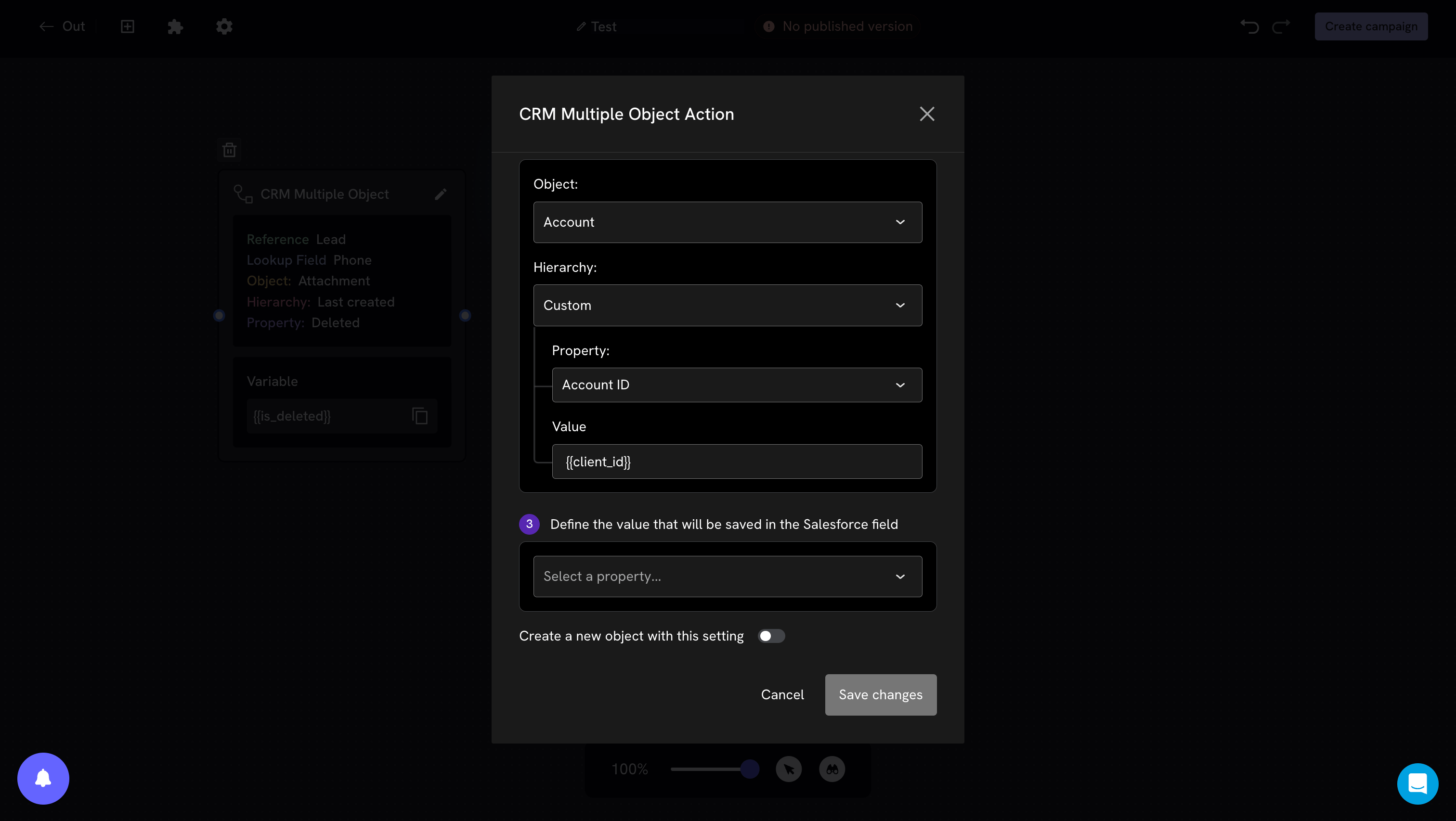 The value accepts conversation variables. In the example, `Account ID = {{client_id}}` writes exactly to the account whose Id was saved in the `{{client_id}}` variable — useful when you already read the Id in a previous block and want to make sure you write to that record and not another one.
### 3. Property and value
The value accepts conversation variables. In the example, `Account ID = {{client_id}}` writes exactly to the account whose Id was saved in the `{{client_id}}` variable — useful when you already read the Id in a previous block and want to make sure you write to that record and not another one.
### 3. Property and value
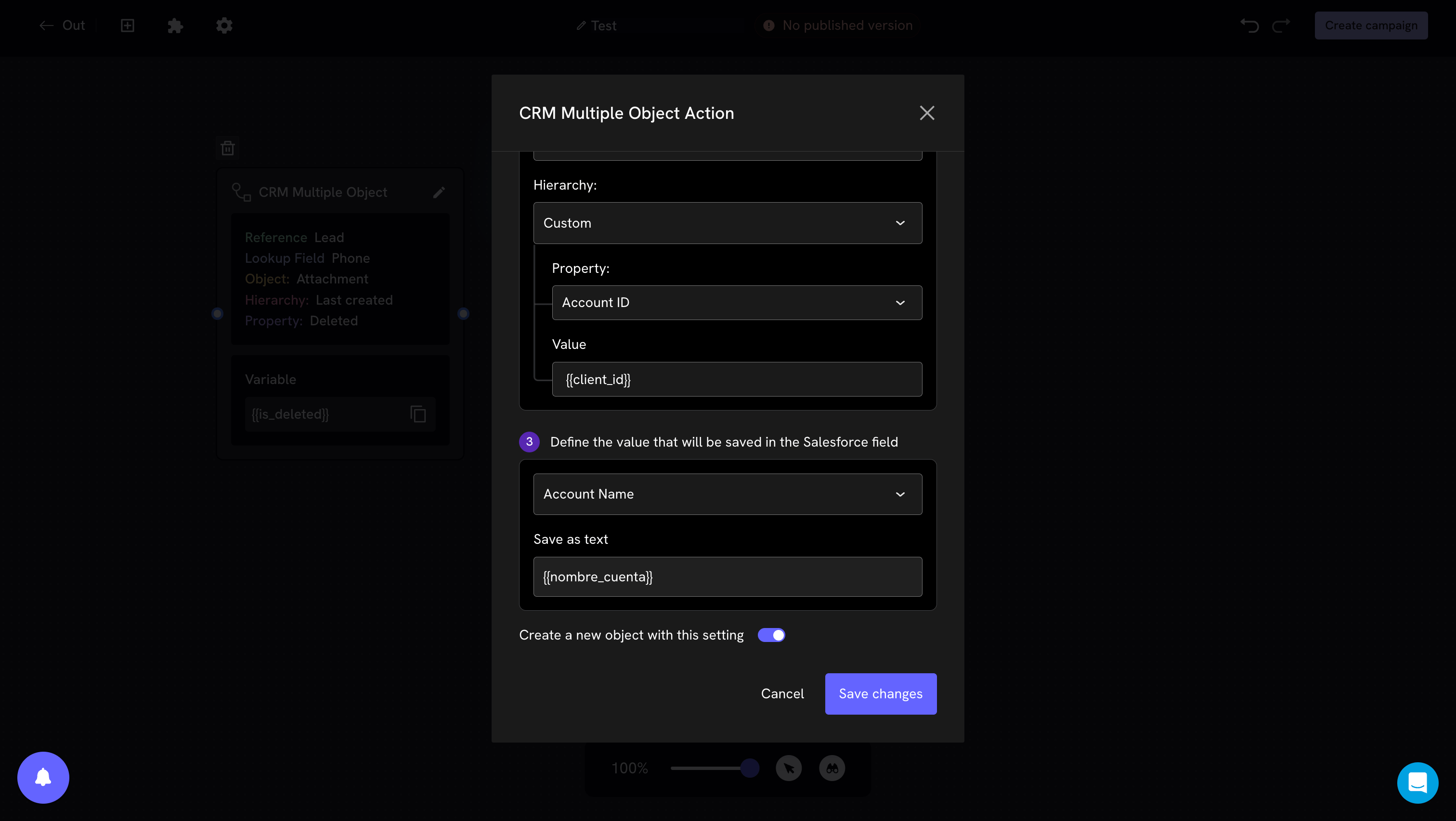 **Property.** The Salesforce field you are going to write (in the example, `Account Name`).
**Save as text.** The value. It can be fixed text or a variable with double curly braces, for example `{{nombre_cuenta}}`.
Below it is the **"Create a new object with this configuration"** toggle. If you turn it on, Treble **always creates a new record** of the object from step 2, without first checking whether it already exists.
Use it only when you really want one record per conversation. If you turn it on for your main object by mistake, you will end up with a duplicate record for every conversation.
## How it looks in the flow
Once configured, the block shows a summary of what it does, so you can read the flow without opening each one.
In **single object** it looks like this:
```
Object: Contact
Hierarchy: Last created
In the property: Lead Source
↳ Set: Web
```
In **multi-object** the summary also includes the reference object and the lookup field:
**Property.** The Salesforce field you are going to write (in the example, `Account Name`).
**Save as text.** The value. It can be fixed text or a variable with double curly braces, for example `{{nombre_cuenta}}`.
Below it is the **"Create a new object with this configuration"** toggle. If you turn it on, Treble **always creates a new record** of the object from step 2, without first checking whether it already exists.
Use it only when you really want one record per conversation. If you turn it on for your main object by mistake, you will end up with a duplicate record for every conversation.
## How it looks in the flow
Once configured, the block shows a summary of what it does, so you can read the flow without opening each one.
In **single object** it looks like this:
```
Object: Contact
Hierarchy: Last created
In the property: Lead Source
↳ Set: Web
```
In **multi-object** the summary also includes the reference object and the lookup field:
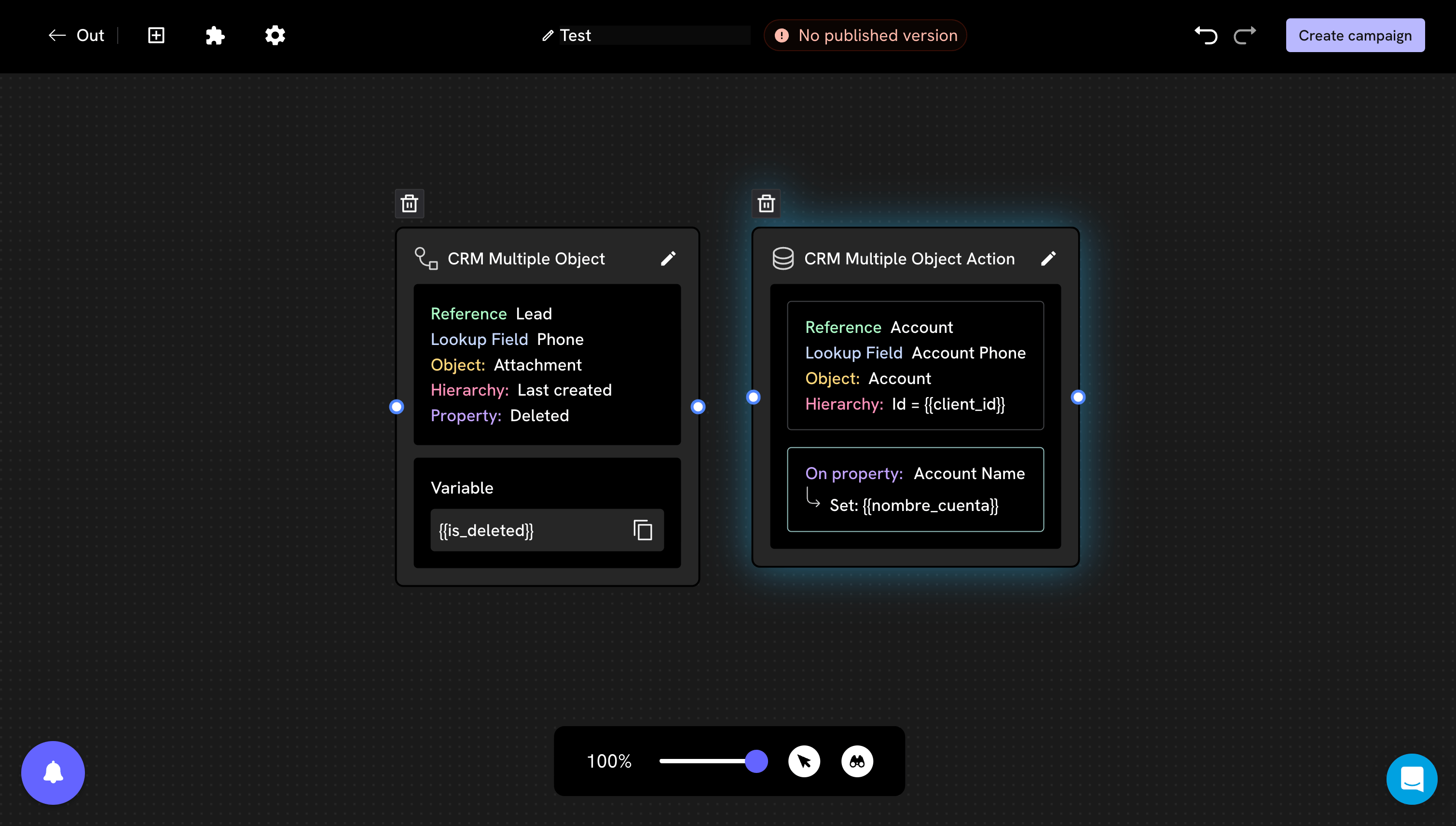 On the left is the **read** block (*CRM Multiple Object*, which ends in a variable) and on the right the **write** block (*CRM Multiple Object Action*, which ends in *In the property → Set*). The icon and the last box of the summary are the quickest way to tell them apart at a glance.
## When it writes, and why the order matters
Each block writes to Salesforce **at the exact moment the conversation passes through it**. It does not wait for the end of the flow, and it is not undone if the person abandons the conversation afterwards.
**Incomplete conversations also leave data behind.** If you place an action block right after the first question and the person drops off there, that data has already been written to Salesforce.
This is the cause of the most common complaint about "junk information in the CRM".
### How to avoid partial data
Save the answers in conversation variables during the flow, and place **all** the action blocks together at the end, after the last question.
That way only the information of those who completed the flow reaches the CRM.
On the left is the **read** block (*CRM Multiple Object*, which ends in a variable) and on the right the **write** block (*CRM Multiple Object Action*, which ends in *In the property → Set*). The icon and the last box of the summary are the quickest way to tell them apart at a glance.
## When it writes, and why the order matters
Each block writes to Salesforce **at the exact moment the conversation passes through it**. It does not wait for the end of the flow, and it is not undone if the person abandons the conversation afterwards.
**Incomplete conversations also leave data behind.** If you place an action block right after the first question and the person drops off there, that data has already been written to Salesforce.
This is the cause of the most common complaint about "junk information in the CRM".
### How to avoid partial data
Save the answers in conversation variables during the flow, and place **all** the action blocks together at the end, after the last question.
That way only the information of those who completed the flow reaches the CRM.
How to save to variables
If you prefer to write along the way —for example so you don't lose the data of those who drop off— add one last action block that marks a "flow completed" type of field. You can then filter by that field in Salesforce.
Not for the write to happen: the block writes when the flow passes through it, whether or not there is a next block.
But yes for the flow to make sense: an action block does not say anything to the person. If it is the last step, the usual thing is to add a closing message after it.
## Common issues
It is almost always a lack of sync. Run the [object sync](/en/docs/integrations/salesforce/object-sync) and open the block again.
It is usually the **record type**. Record types define which picklist values are valid on each record, so a value that is correct for one type can be invalid for another.
Record types
Check the **hierarchy**. If the person has several records and you chose *Last created*, the block writes to the most recent one, which may not be the one you have open in Salesforce.
For example, a contact whose name in Salesforce ended up as *"Hi, I saw the ad and I want information"*.
It is almost always an action block writing the **person's answer** to the name field. Check which property that block has configured: it is easy to point to `Name` or `FirstName` when you actually wanted a custom field.
Check whether the **"Create a new object"** toggle is turned on in a block where it shouldn't be. Also check that the phone lookup field is the same one where the numbers of the existing records are stored.
There may be an automation in your Salesforce (a Flow, Process Builder or trigger) that clears or overwrites that field after the record is created.
A quick way to confirm it: if the value **is** saved when writing to a record that already exists, but **not** when it is created, there is almost certainly an automation that runs on creation.
## Next steps
Bring a value from Salesforce into a conversation variable.
What to do when a field must be written at creation time.
This documentation is built and hosted on [Mintlify](https://mintlify.com), a developer documentation platform.