> ## Documentation Index
> Fetch the complete documentation index at: https://help.treble.ai/llms.txt
> Use this file to discover all available pages before exploring further.
# Getting Started
> Getting started with the Treble and HubSpot integration.
With the app installed in your account and the extension downloaded, you can start creating your first flows within the platform. If you haven't done so yet, make sure to complete the setup here
.
Let's create your first flow within the platform. In this guide, we'll create a conversation in Treble and send it.
On the conversations page
, click to create a new conversation.
Once inside the screen, select the HSM block you want to send, and then select the **"CRM Action"** block.
Click the **"CRM Action"** block and configure it to update the contact; we'll update the **"Stage"** field of the Contact in HubSpot. Choose the stage you want to update and click **"Publish"**.
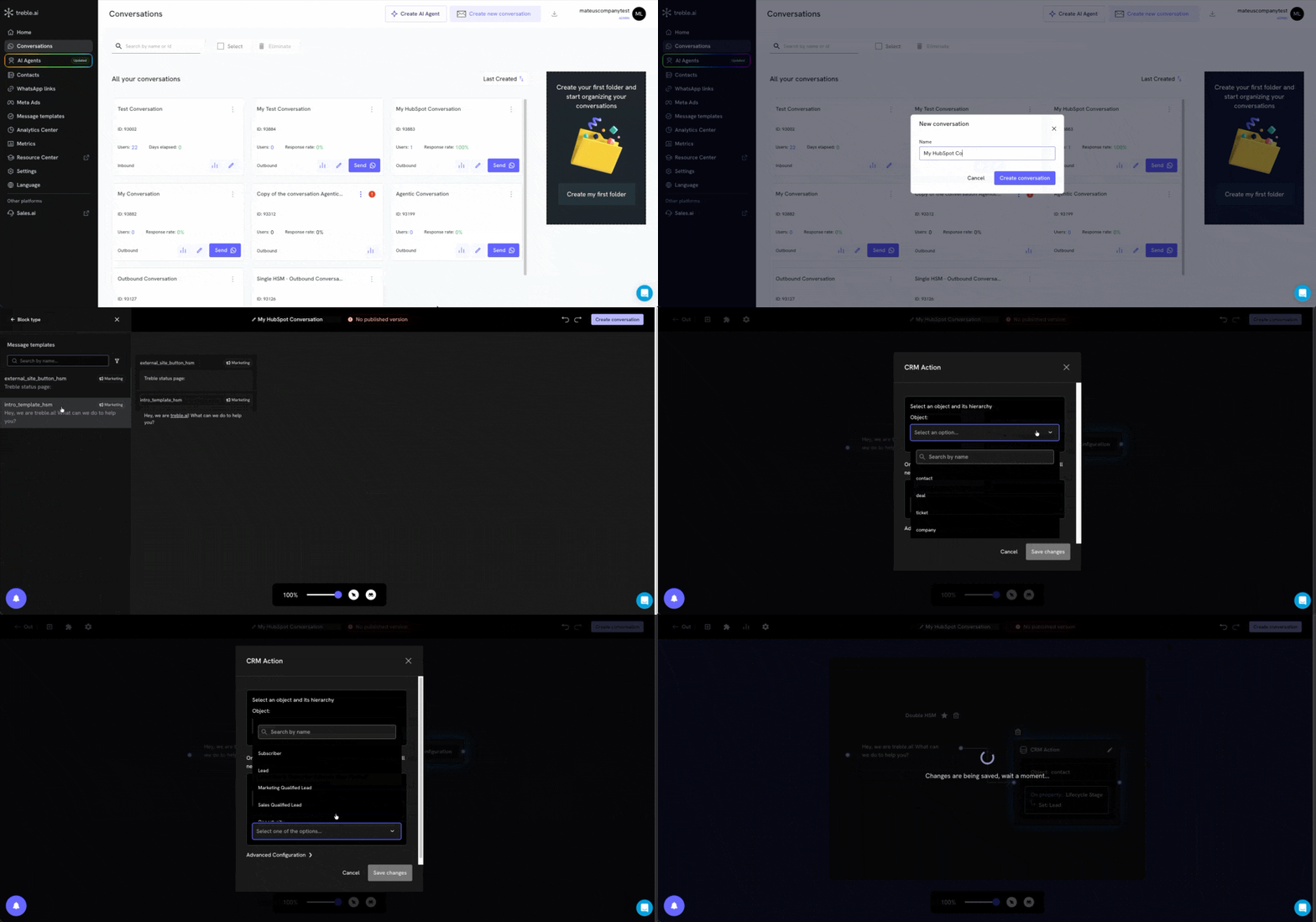 Send the conversation normally to the number you want.
Once the conversation is sent and the HSM is replied to, the contact's stage field will be updated in HubSpot:
Send the conversation normally to the number you want.
Once the conversation is sent and the HSM is replied to, the contact's stage field will be updated in HubSpot:
 Now that you know how to create a base flow, explore other ways to take advantage of the integration with the resources below:
Discover everything you can do with the integration.
Use HubSpot blocks within your Treble conversations.
Connect HubSpot with Treble's AI agents.
Now that you know how to create a base flow, explore other ways to take advantage of the integration with the resources below:
Discover everything you can do with the integration.
Use HubSpot blocks within your Treble conversations.
Connect HubSpot with Treble's AI agents.