> ## Documentation Index
> Fetch the complete documentation index at: https://help.treble.ai/llms.txt
> Use this file to discover all available pages before exploring further.
# Deploy Conversation from Contact Profile
> Learn how to deploy Treble conversations directly from the Contact view within HubSpot.
For the deploy conversation button to be available, you must have installed the Treble extension for Chrome. If you don't have the extension, learn how to do it here: Install Treble in Chrome
# Send a Treble Conversation from HubSpot to a Contact
In addition to sending mass messages through HubSpot Workflows, Treble also has the functionality to make individual sends from the customer profile in HubSpot.
To send a message to a person, you must first go to the profile of the customer you want to contact.
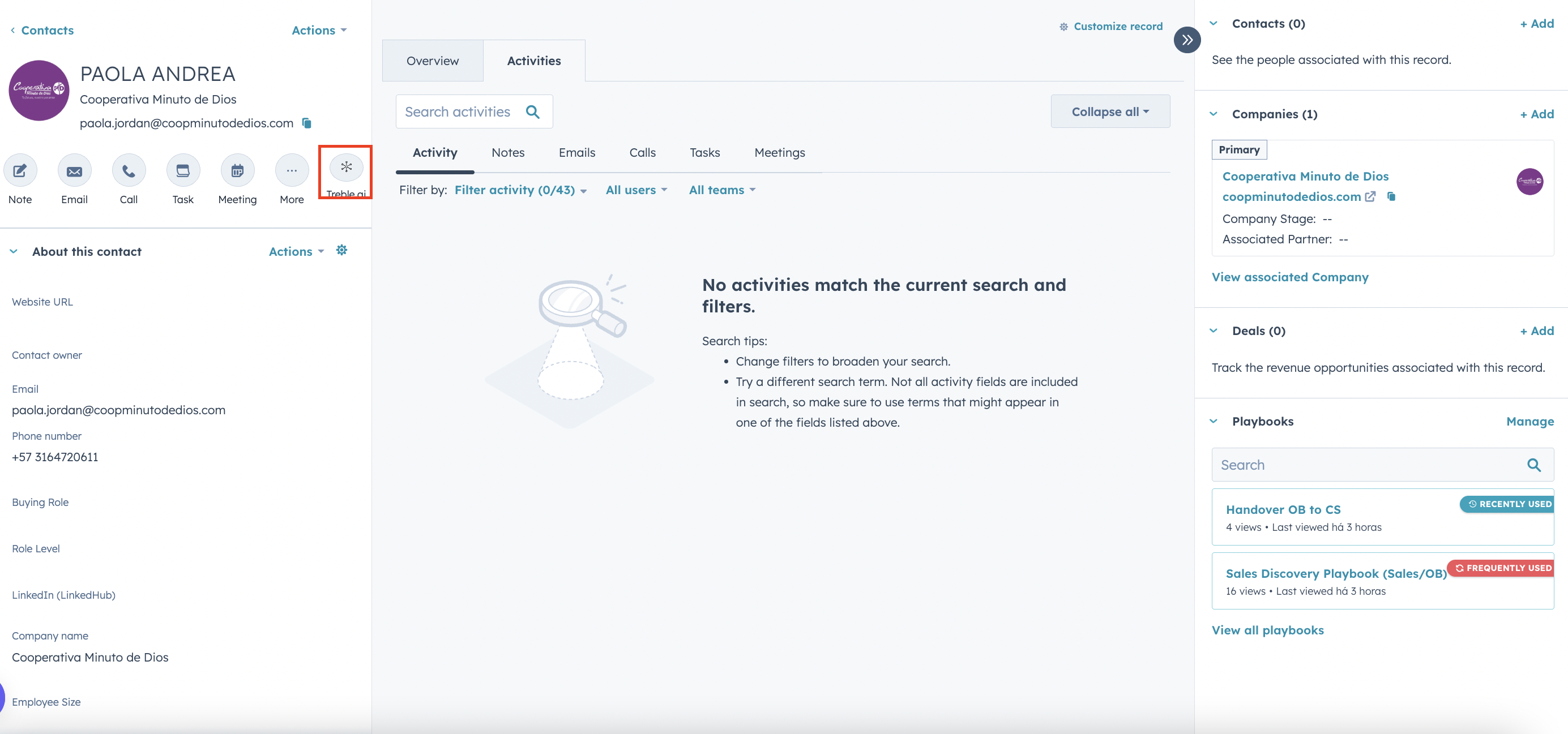 Inside the profile, you will find the Treble icon. All you need to do is click on it, select the conversation you want to send, and click on deploy.
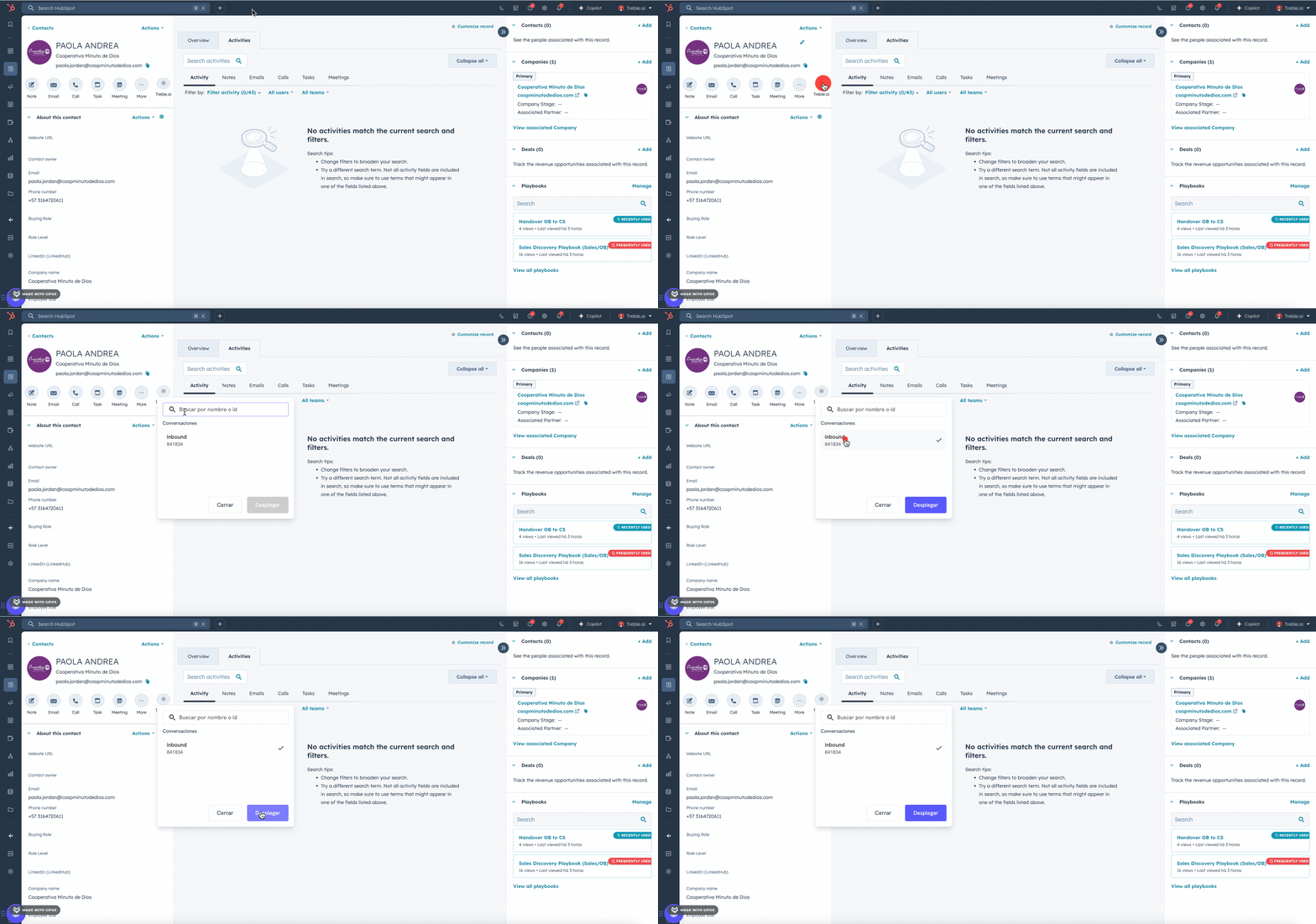 Remember that we can only send outbound conversations. Even though you will find ALL conversations in that icon, you will only be able to send outbound conversations.