> ## Documentation Index
> Fetch the complete documentation index at: https://help.treble.ai/llms.txt
> Use this file to discover all available pages before exploring further.
# HSM Templates
> Learn what HSM templates are and how to use them
## What are HSM templates?
HSM (Highly Structured Messages) templates are predefined messages that are used in WhatsApp Business API conversations.
## Why does Meta require HSM templates?
Meta implements HSM templates as a protection measure for WhatsApp users. This system helps to:
* Prevent spam and unwanted messages
* Ensure that business messages are relevant and expected
* Maintain the quality of business communication
* Protect user privacy
Templates must be approved by Meta before they can be used, which ensures they comply with policies and quality standards.
## 24-hour messaging window
When a user interacts with a business message on WhatsApp, a 24-hour "messaging window" opens. During this period:
1. The business can send messages without using HSM templates
2. More fluid and natural communication is allowed
3. Any type of content allowed by WhatsApp can be sent
Once the 24-hour window expires, the business must use an approved HSM template to initiate a new conversation.
## HSM template categories
Meta classifies templates into four main categories:
### 1. Marketing
* Promotions and offers
* Product launches
* Newsletters
* Brand updates
* Event invitations
* [Carousel](./carousel) (templates with multiple interactive cards)
**Note**: Marketing templates have stricter approval requirements and must provide a clear opt-out option.
### 2. Service
* Order confirmations
* Shipping updates
* Appointment reminders
* Customer service notifications
* Account status updates
### 3. Authentication
* Verification codes
* Login confirmations
* Password reset
* Two-step verification
* Security codes
### 4. Utility
* Registration confirmations
* Account updates
* System notifications
* Important alerts
* Billing information
Each category has its own guidelines and approval times. For example:
* Authentication templates are usually approved more quickly
* Marketing templates require more review time
* Service and utility templates have an intermediate approval process
## How to use HSM templates in Treble?
Treble allows you to create HSM templates and use them in your conversational flows.
To create an HSM template, follow these steps:
1. Go to the **HSM Templates** section in Treble.
2. Click on "New template".
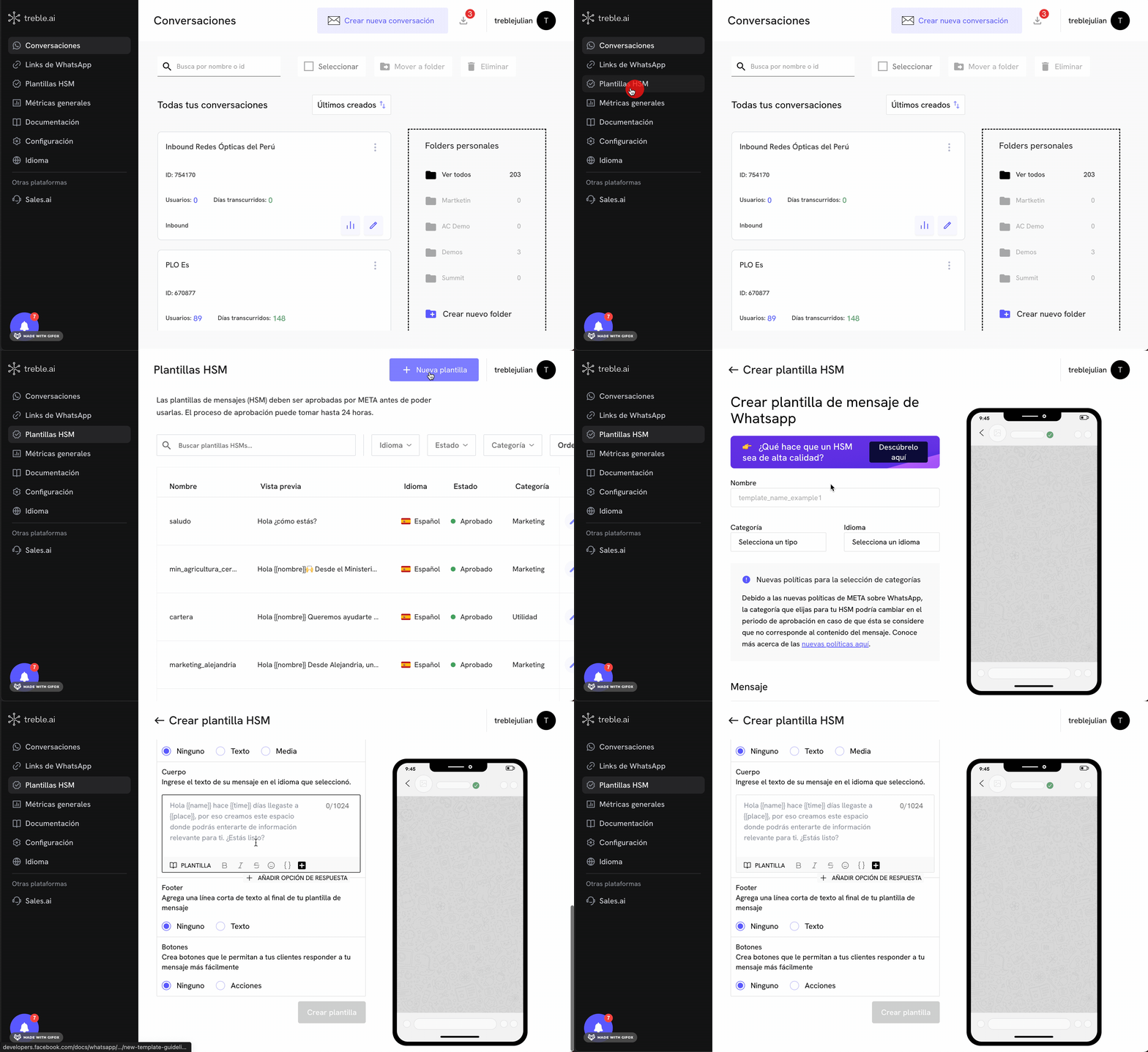 3. Enter the template content.
1. Enter the template name.
2. Choose the template category and language.
3. You can customize the template content in three parts:
* Header: Template header.
* Body: Template body.
* Footer: Template footer.
4. Enter the template language.
4. Click on "Create Template".
**Note**: Once you create the template, Meta reviews it. This process can take 1 to 3 days. Fortunately, Meta has accelerated the HSM template approval process to be almost instantaneous.
Creating effective HSM templates is key to successful communication with
your customers. Read our guide to learn the best practices for creating HSM
templates.
## Customize HSM templates with variables
You can customize HSM templates with variables. Variables are dynamic information that you can use in your HSM templates. For example, you can use variables to personalize a customer's welcome message, or to send a customer's name in a message.
To create a variable, you just need to write the variable name in the template content. For example, if you want to send a customer's name in a message, you can write `{{customer_name}}`.
It is important to understand the structure of variables. We recommend that
the variable name be a clear and descriptive name that does not contain
special characters or spaces. The variable must be enclosed in double braces ` {{}}`. Additionally, we recommend that the variable be in lowercase and not
contain spaces.
### Example of using variables
3. Enter the template content.
1. Enter the template name.
2. Choose the template category and language.
3. You can customize the template content in three parts:
* Header: Template header.
* Body: Template body.
* Footer: Template footer.
4. Enter the template language.
4. Click on "Create Template".
**Note**: Once you create the template, Meta reviews it. This process can take 1 to 3 days. Fortunately, Meta has accelerated the HSM template approval process to be almost instantaneous.
Creating effective HSM templates is key to successful communication with
your customers. Read our guide to learn the best practices for creating HSM
templates.
## Customize HSM templates with variables
You can customize HSM templates with variables. Variables are dynamic information that you can use in your HSM templates. For example, you can use variables to personalize a customer's welcome message, or to send a customer's name in a message.
To create a variable, you just need to write the variable name in the template content. For example, if you want to send a customer's name in a message, you can write `{{customer_name}}`.
It is important to understand the structure of variables. We recommend that
the variable name be a clear and descriptive name that does not contain
special characters or spaces. The variable must be enclosed in double braces ` {{}}`. Additionally, we recommend that the variable be in lowercase and not
contain spaces.
### Example of using variables
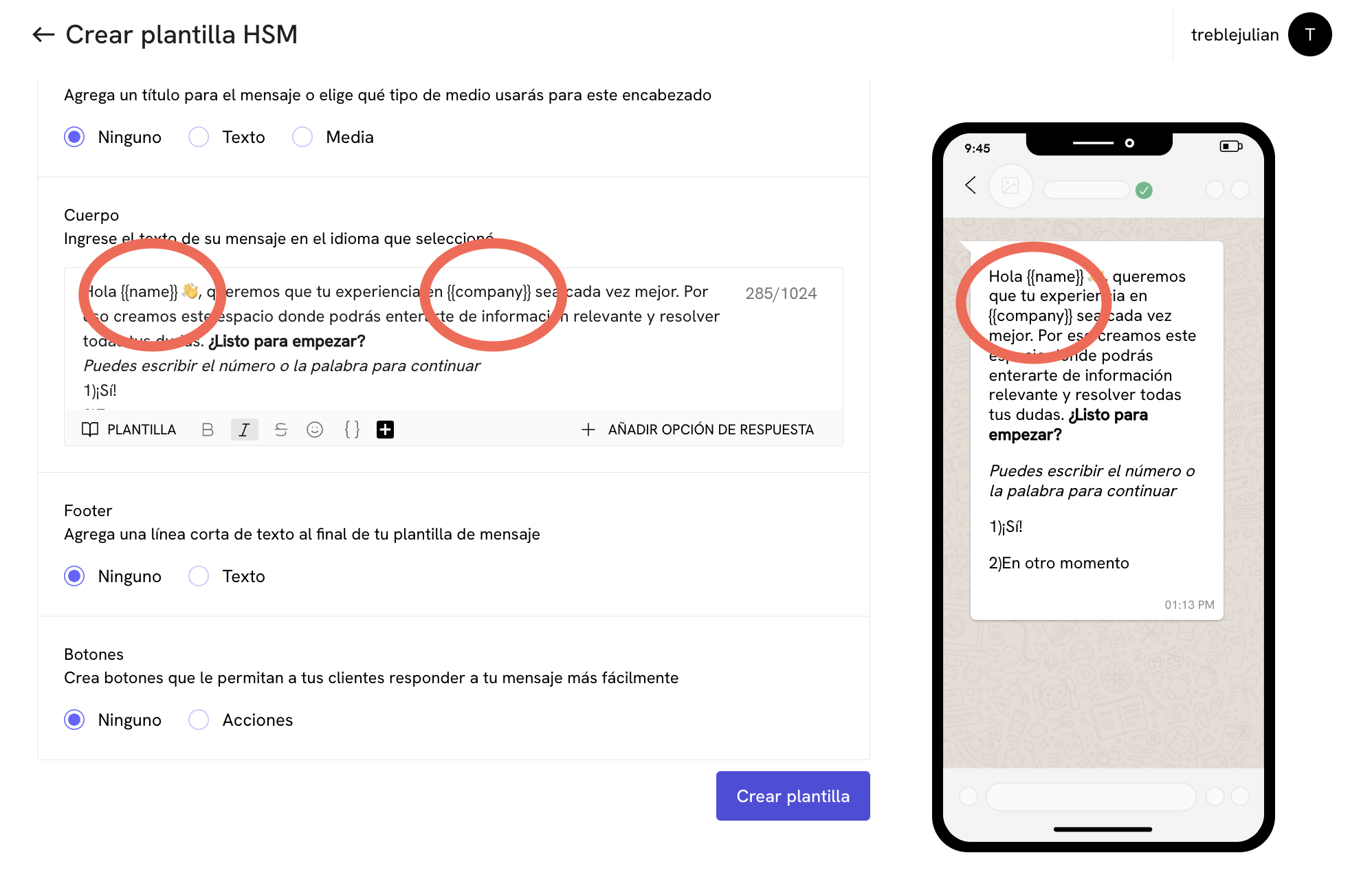 As you can see in the example, the `{{name}}` variable is replaced by the customer's name in the message and the `{{company}}` variable is replaced by the company name in the message.
Treble recognizes the variables you use in your HSM templates and allows you to use them in your conversational flows. When you are going to send a conversation, you can specify the value of the variables for each user you want to send the conversation to.
Learn how to send conversations with variables in Treble.
## Approval status of HSM templates
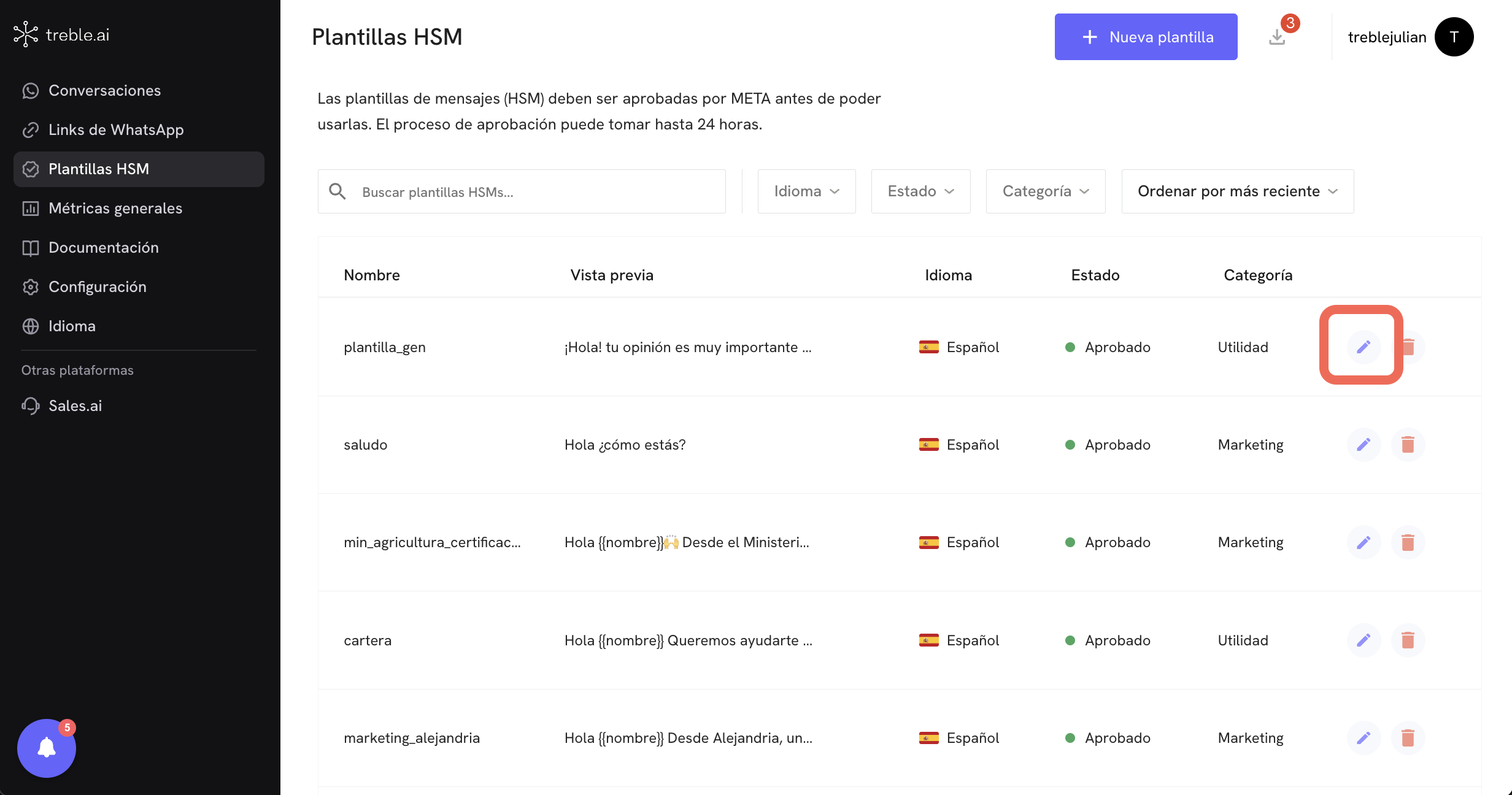
You can see the approval status of your HSM templates in the **HSM Templates** section in Treble. When you first create a template, its status will be "Pending".
As you can see in the example, the `{{name}}` variable is replaced by the customer's name in the message and the `{{company}}` variable is replaced by the company name in the message.
Treble recognizes the variables you use in your HSM templates and allows you to use them in your conversational flows. When you are going to send a conversation, you can specify the value of the variables for each user you want to send the conversation to.
Learn how to send conversations with variables in Treble.
## Approval status of HSM templates
You can see the approval status of your HSM templates in the **HSM Templates** section in Treble. When you first create a template, its status will be "Pending".
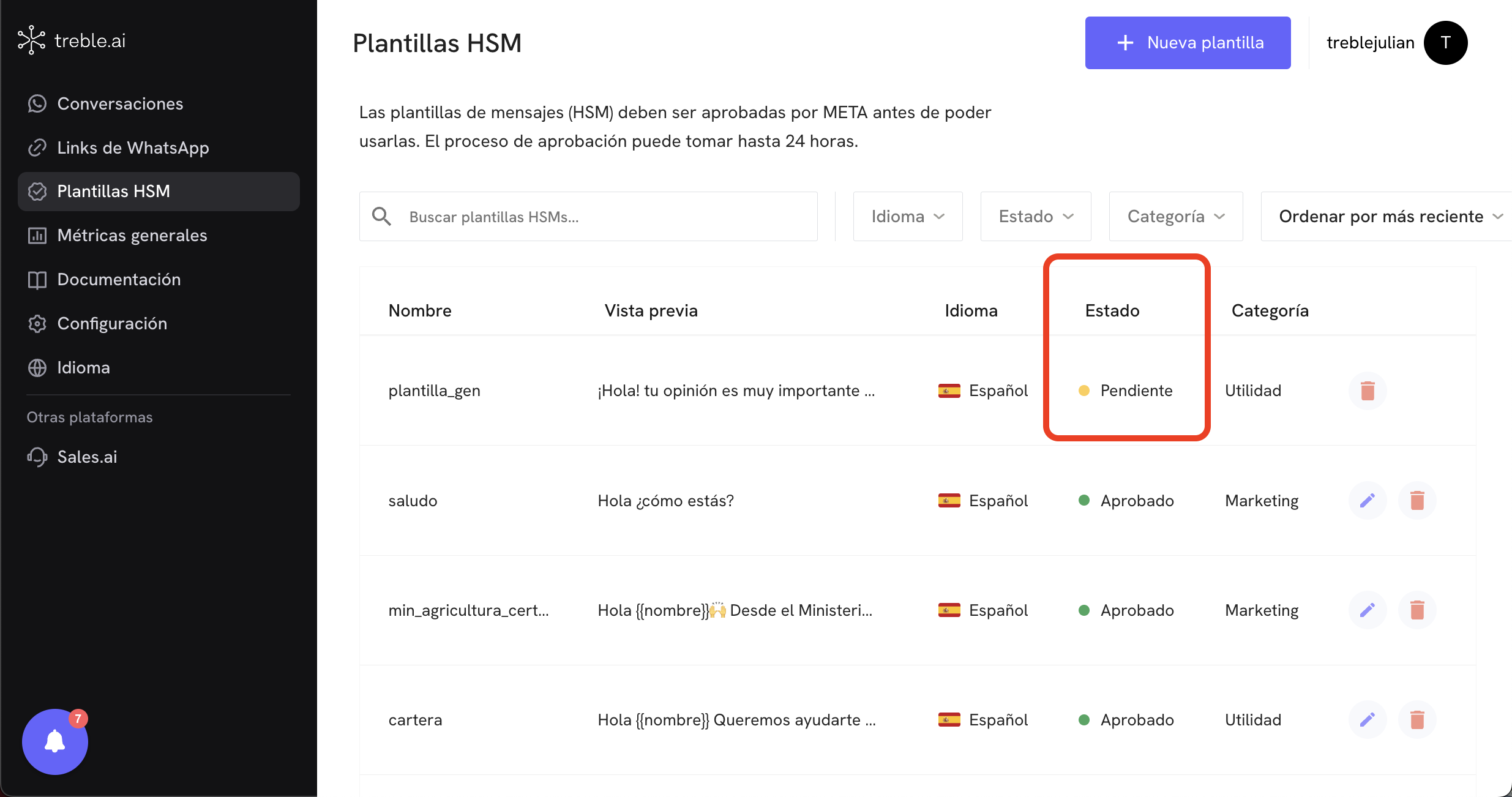 Once Meta approves the template, its status will change to "Approved".
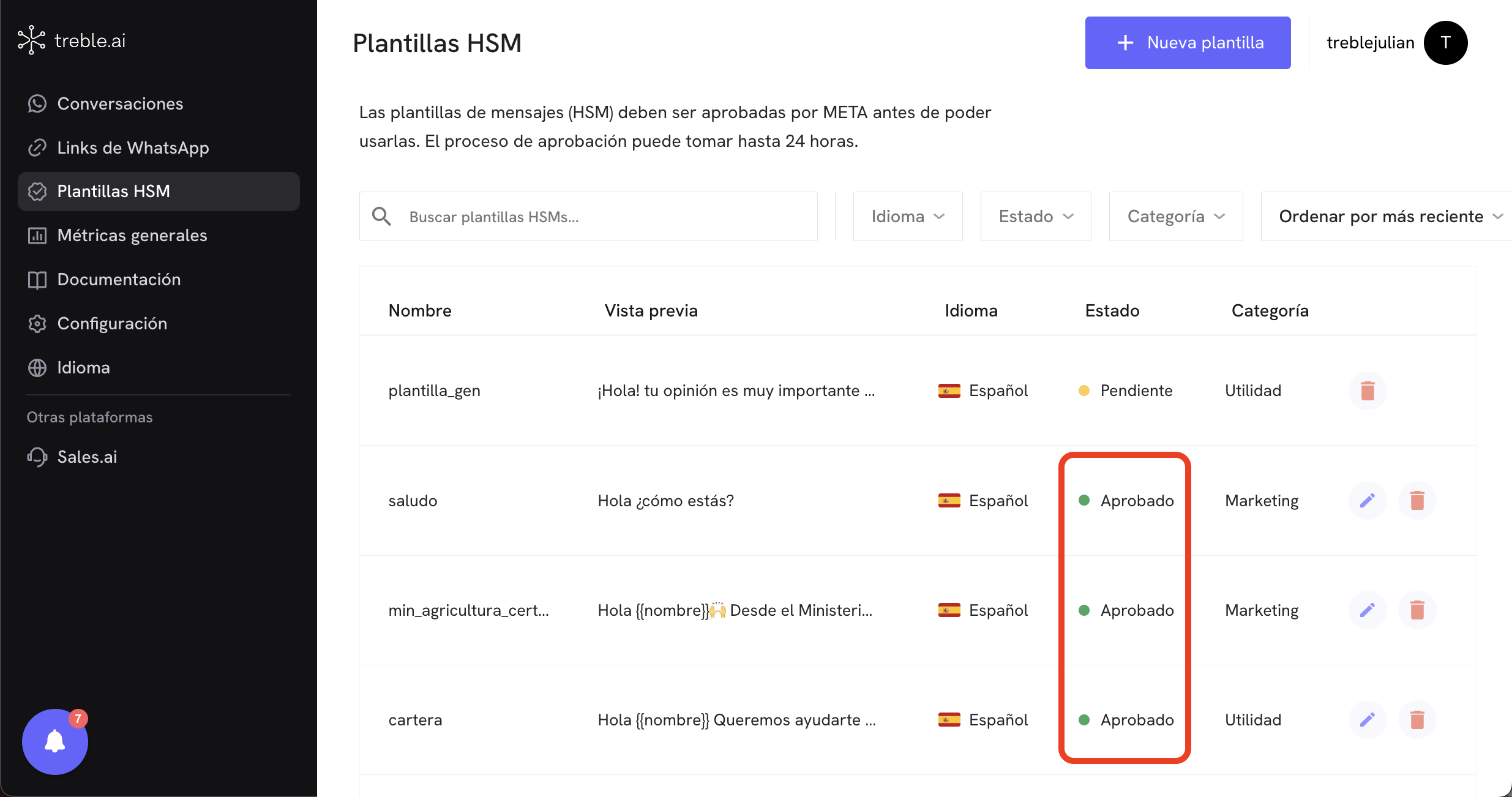 We recommend that you always check the approval status of your HSM templates before using them in your conversational flows. Since Meta's approval time can vary, it is important that you always keep an eye on this status, you just need to refresh the page to see the updated status.
From this view you can also see the approval status of each template. There are different approval statuses:
* **Approved** 🟢: The template has been approved by Meta. The template can be used in your conversational flows.
* **Pending** 🟡: The template is in the approval process.
* **Rejected** 🔴: The template has been rejected by Meta. The template can be rejected for different reasons, such as inappropriate content, lack of clarity in the opt-out option, or non-compliance with WhatsApp policies.
## Edit HSM templates
You can edit an HSM template in the **HSM Templates** section in Treble. To do this, click on the **"Edit"** button on the template you want to edit. When you click, you will be redirected to the template editing view. Keep in mind that you can only edit the content of the template, you cannot change the category, name, or language of the template.
We recommend that you always check the approval status of your HSM templates before using them in your conversational flows. Since Meta's approval time can vary, it is important that you always keep an eye on this status, you just need to refresh the page to see the updated status.
From this view you can also see the approval status of each template. There are different approval statuses:
* **Approved** 🟢: The template has been approved by Meta. The template can be used in your conversational flows.
* **Pending** 🟡: The template is in the approval process.
* **Rejected** 🔴: The template has been rejected by Meta. The template can be rejected for different reasons, such as inappropriate content, lack of clarity in the opt-out option, or non-compliance with WhatsApp policies.
## Edit HSM templates
You can edit an HSM template in the **HSM Templates** section in Treble. To do this, click on the **"Edit"** button on the template you want to edit. When you click, you will be redirected to the template editing view. Keep in mind that you can only edit the content of the template, you cannot change the category, name, or language of the template.
 ## Frequently asked questions
No, you do not need to approve all message blocks. You only need to approve
the message block that initiates the conversation. When your customer
responds, you can use any message block.
## Frequently asked questions
No, you do not need to approve all message blocks. You only need to approve
the message block that initiates the conversation. When your customer
responds, you can use any message block.