> ## Documentation Index
> Fetch the complete documentation index at: https://help.treble.ai/llms.txt
> Use this file to discover all available pages before exploring further.
# Carousel Templates
> Send multiple cards with image or video, text and buttons in a single WhatsApp message
## Introduction
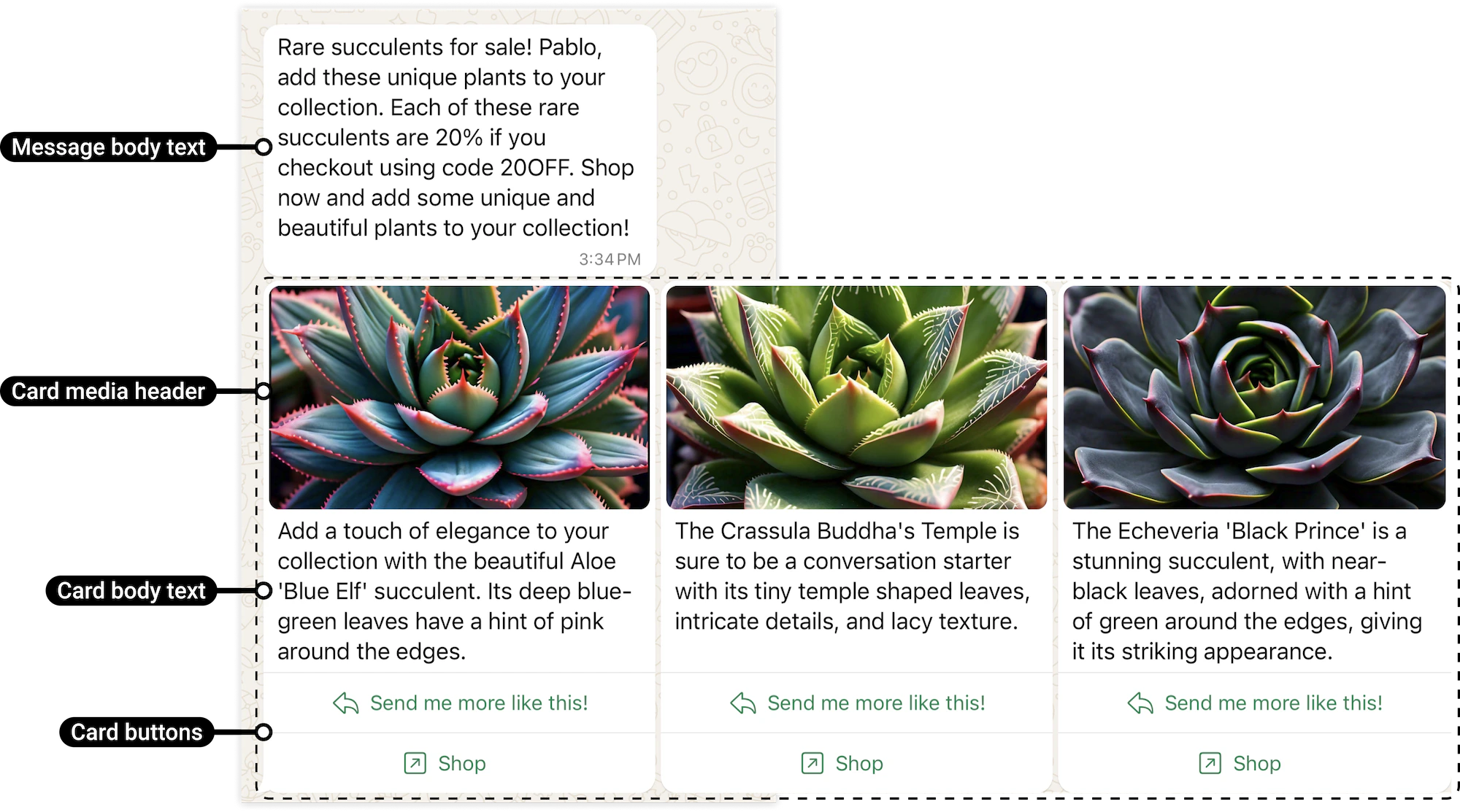
The carousel template lets you send a sequence of interactive cards directly on WhatsApp. Each card includes its own image or video, text and action buttons, all within a single message.
You can include between 2 and 10 cards in the same carousel, making it ideal for showcasing multiple products, highlighting different promotions, or driving users directly to an action: buy, call, or visit your website.
 ***
## What does a carousel HSM include?
A carousel is made up of a main message and a series of cards:
* **Main message**: text that appears above the carousel
* **Cards (2 to 10)**:
* Image or video
* Descriptive text
* Action buttons
All cards share the same button configuration, but their content can vary.
## How to create a carousel template
To create an HSM template of the Carousel type, follow these steps:
***
## What does a carousel HSM include?
A carousel is made up of a main message and a series of cards:
* **Main message**: text that appears above the carousel
* **Cards (2 to 10)**:
* Image or video
* Descriptive text
* Action buttons
All cards share the same button configuration, but their content can vary.
## How to create a carousel template
To create an HSM template of the Carousel type, follow these steps:
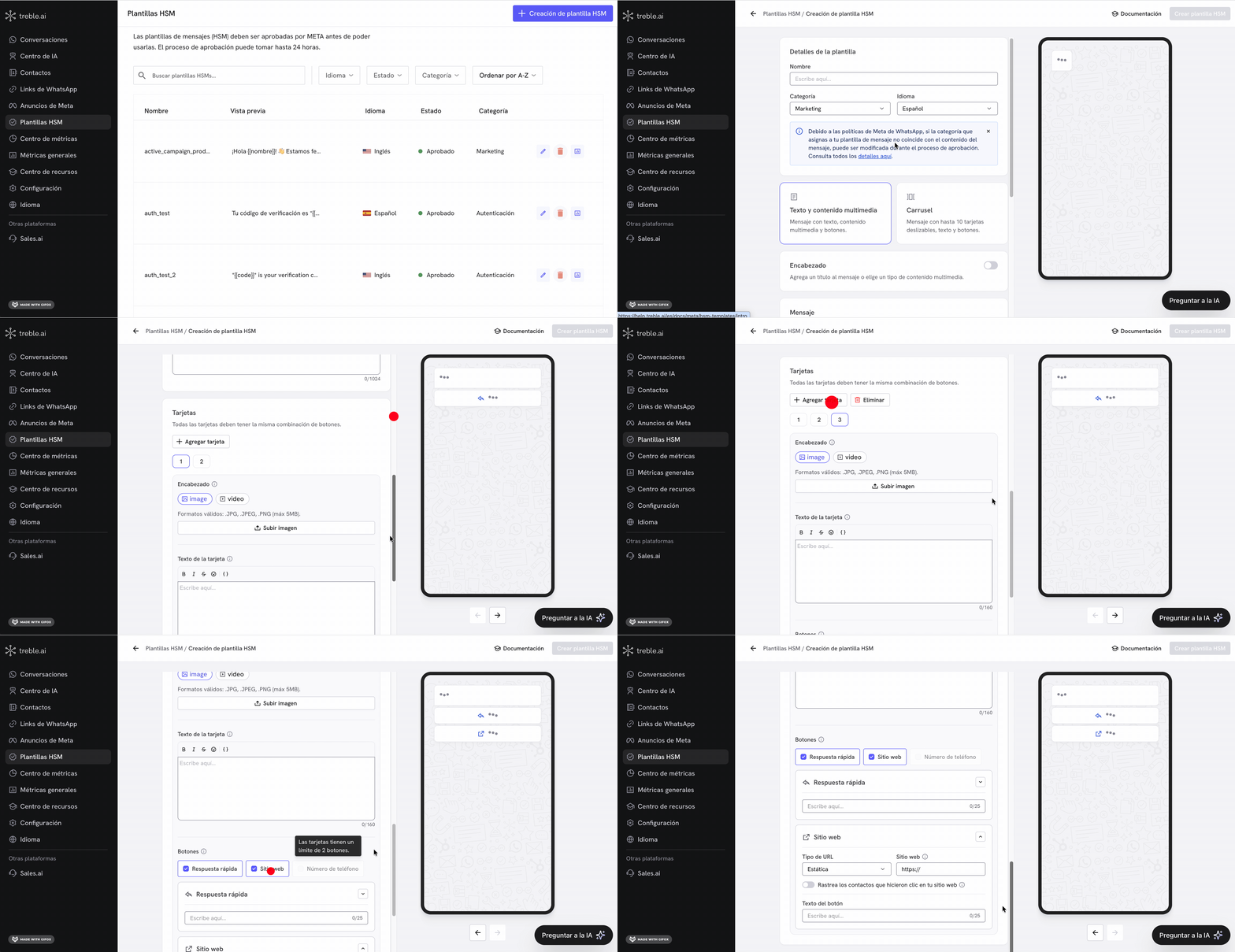 1. Go to the **HSM Templates** section in Treble.
2. Click on "HSM Template Creation".
3. Click the "Carousel" button inside the Marketing category.
4. Configure the template:
* Enter the template name.
* Select the language.
* Write the main message (Body).
* Add between **2 and 10 cards**, each with:
* Image or video
* Text
* Action buttons
5. Click "Create HSM Template" to submit it for review.
**Note**: Once you create the template, Meta reviews it. This process can take 1 to 3 days. Fortunately, Meta has accelerated the HSM template approval process to be almost instantaneous.
## Structure and rules
A carousel template has two levels:
* **Main message (body)**: text that appears above the carousel
* **Cards**: each with image or video, text and buttons
### Limits
* Minimum **2 cards**
* Maximum **10 cards**
* Maximum **1024 characters** in the main message
* Maximum **160 characters** per card
### Media
* Image: JPG, JPEG or PNG (max. 5 MB)
* Video: MP4 (max. 16 MB)
### Buttons
* Minimum **1** and maximum **2** buttons per card
* All cards must have the **same button type and order**
Available button types:
* **Quick reply**: allows the user to send a predefined response and can connect to flows
* **Website**: opens a URL
* **Phone number**: initiates a call
### Variables
You can use variables like `{{customer_name}}` in:
* The main message (body)
* The text of each card
* Website button URLs (dynamic)
All variables must have an example value before saving the template.
For more details on how variables work and how to use them in your flows, see the [customizing HSM templates with variables](../hsm-templates/intro#customize-hsm-templates-with-variables) section.
1. Go to the **HSM Templates** section in Treble.
2. Click on "HSM Template Creation".
3. Click the "Carousel" button inside the Marketing category.
4. Configure the template:
* Enter the template name.
* Select the language.
* Write the main message (Body).
* Add between **2 and 10 cards**, each with:
* Image or video
* Text
* Action buttons
5. Click "Create HSM Template" to submit it for review.
**Note**: Once you create the template, Meta reviews it. This process can take 1 to 3 days. Fortunately, Meta has accelerated the HSM template approval process to be almost instantaneous.
## Structure and rules
A carousel template has two levels:
* **Main message (body)**: text that appears above the carousel
* **Cards**: each with image or video, text and buttons
### Limits
* Minimum **2 cards**
* Maximum **10 cards**
* Maximum **1024 characters** in the main message
* Maximum **160 characters** per card
### Media
* Image: JPG, JPEG or PNG (max. 5 MB)
* Video: MP4 (max. 16 MB)
### Buttons
* Minimum **1** and maximum **2** buttons per card
* All cards must have the **same button type and order**
Available button types:
* **Quick reply**: allows the user to send a predefined response and can connect to flows
* **Website**: opens a URL
* **Phone number**: initiates a call
### Variables
You can use variables like `{{customer_name}}` in:
* The main message (body)
* The text of each card
* Website button URLs (dynamic)
All variables must have an example value before saving the template.
For more details on how variables work and how to use them in your flows, see the [customizing HSM templates with variables](../hsm-templates/intro#customize-hsm-templates-with-variables) section.