> ## Documentation Index
> Fetch the complete documentation index at: https://help.treble.ai/llms.txt
> Use this file to discover all available pages before exploring further.
# Understanding the Main Platform
> The Treble main platform is the platform that allows you to create and manage your WhatsApp conversations.
 # Conversations Overview
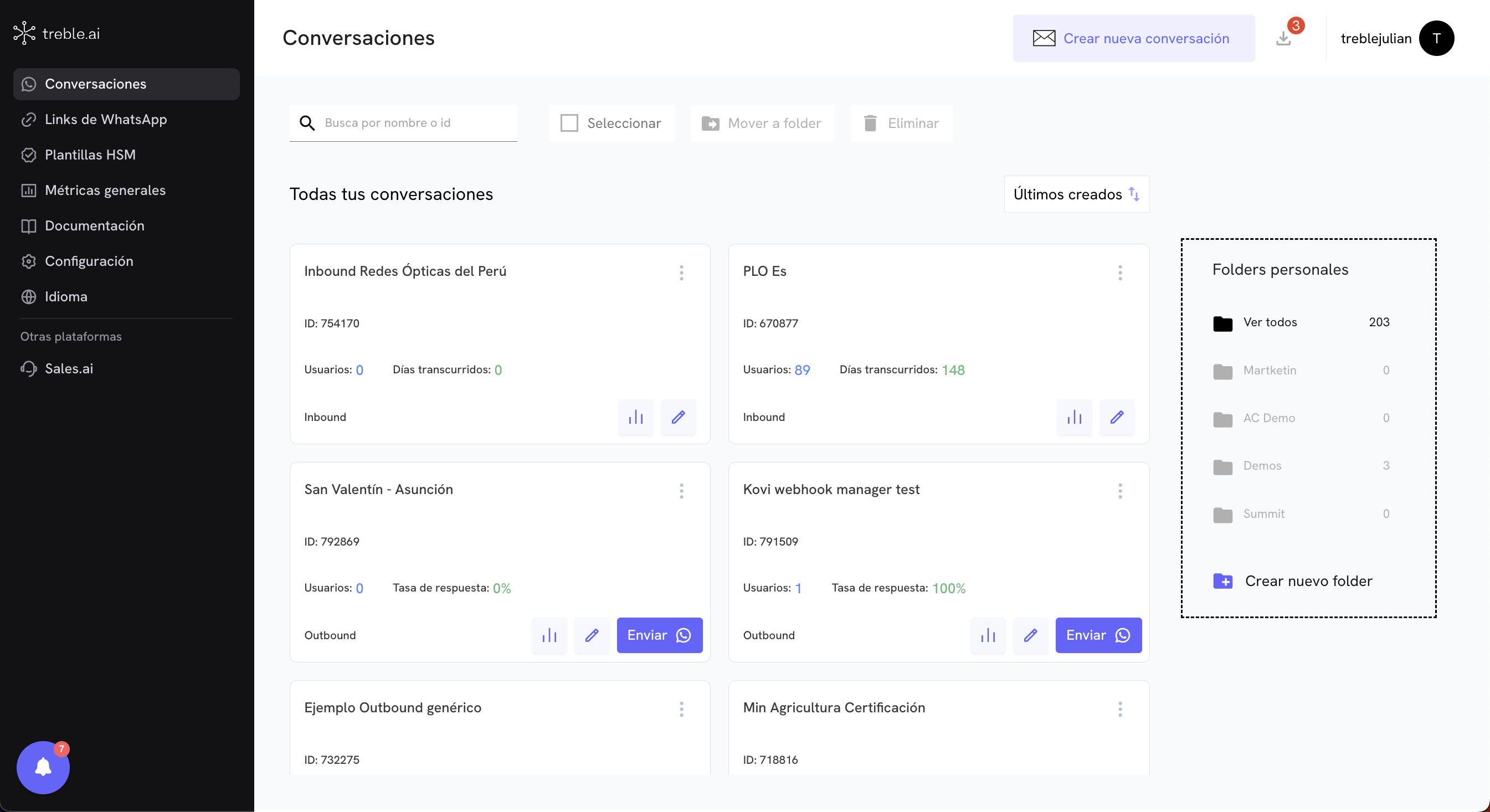
The **Conversations section** is the main panel to **view, manage and organize** all the conversational flows you have created in your account. From here you can review the status of each conversation, edit it, send it or move it between folders.
When entering this view you will find three main areas:
* **Left sidebar:** General platform navigation.
* **Central panel:** Listing of all your conversations with management tools.
* **Right panel:** Personal folder explorer to organize your flows.
## Left sidebar
Contains the main sections of the platform so you can easily navigate between functionalities:
* **Conversations:** The current view, where you manage all your flows.
* **WhatsApp Links:** Manage direct links with parameters for campaigns.
* **Meta Ads:** Configure paid campaigns on WhatsApp.
* **HSM Templates:** Manage pre-approved messages by Meta.
* **Metrics Center:** Access detailed metrics of your conversations.
* **General Metrics:** Executive summary of your account.
* **Resource Center:** Documentation and help materials.
* **Settings:** General preferences of your account.
* **Language:** Change the platform language.
You will also see access to **Other platforms**, such as **Sales.ai**.
## Top bar of the conversations module
At the top of the central panel you will find main controls:
* **Search by name or ID:** Filter your conversations by typing their name or identifier.
* **Select:** Activate multiple selection of conversations.
* **Move to folder:** Send selected conversations to a specific folder.
* **Delete:** Delete selected conversations.
* **Create new conversation:** Highlighted button to start a new conversational flow from scratch.
Additionally, it shows the **username** and activity notifications.
## Central conversations panel
Under the top controls, the **listing of all your conversations** unfolds.
### Filters and sorting
* You can sort by **last created** to see the most recent flows at the top.
### Conversation cards
# Conversations Overview
The **Conversations section** is the main panel to **view, manage and organize** all the conversational flows you have created in your account. From here you can review the status of each conversation, edit it, send it or move it between folders.
When entering this view you will find three main areas:
* **Left sidebar:** General platform navigation.
* **Central panel:** Listing of all your conversations with management tools.
* **Right panel:** Personal folder explorer to organize your flows.
## Left sidebar
Contains the main sections of the platform so you can easily navigate between functionalities:
* **Conversations:** The current view, where you manage all your flows.
* **WhatsApp Links:** Manage direct links with parameters for campaigns.
* **Meta Ads:** Configure paid campaigns on WhatsApp.
* **HSM Templates:** Manage pre-approved messages by Meta.
* **Metrics Center:** Access detailed metrics of your conversations.
* **General Metrics:** Executive summary of your account.
* **Resource Center:** Documentation and help materials.
* **Settings:** General preferences of your account.
* **Language:** Change the platform language.
You will also see access to **Other platforms**, such as **Sales.ai**.
## Top bar of the conversations module
At the top of the central panel you will find main controls:
* **Search by name or ID:** Filter your conversations by typing their name or identifier.
* **Select:** Activate multiple selection of conversations.
* **Move to folder:** Send selected conversations to a specific folder.
* **Delete:** Delete selected conversations.
* **Create new conversation:** Highlighted button to start a new conversational flow from scratch.
Additionally, it shows the **username** and activity notifications.
## Central conversations panel
Under the top controls, the **listing of all your conversations** unfolds.
### Filters and sorting
* You can sort by **last created** to see the most recent flows at the top.
### Conversation cards
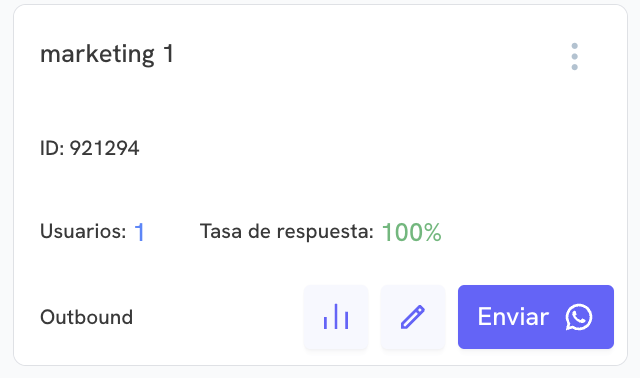 Each conversation is displayed as an **individual card** with the following data:
* **Conversation name:** User-editable identifier (example: "Location test").
* **Unique ID:** An internal reference number (example: ID: 827653).
* **Users:** Number of users who have interacted with the flow.
* **Days elapsed / Response rate:** Depending on the flow type (inbound or outbound), shows key metrics.
* **Flow type:** Can be **Inbound** (conversations initiated by users) or **Outbound** (campaigns sent by the company).
* **Quick actions:**
* **View metrics** 📊
* **Edit** ✏️
* **Send** (available for outbound campaigns).
### Additional actions
If you click on the three dots in the top right corner of the conversation card, you will see the following options:
* ** Deactivate conversation**: Deactivates the conversation so no more messages are sent. Users will no longer be able to interact with the conversation.
* ** Rename**: Edit the conversation name.
* ** Duplicate**: Duplicate the conversation. It's important to note that the duplicated conversation will not have the same data as the original conversation, only the message blocks and conversation name will be duplicated.
* ** Deployments report**: Download the conversation deployments report.
### Delete conversation flow
You can delete one or more conversations by selecting them and clicking the **Delete** button. Treble keeps your deleted conversation data in case you want to recover it.
Each conversation is displayed as an **individual card** with the following data:
* **Conversation name:** User-editable identifier (example: "Location test").
* **Unique ID:** An internal reference number (example: ID: 827653).
* **Users:** Number of users who have interacted with the flow.
* **Days elapsed / Response rate:** Depending on the flow type (inbound or outbound), shows key metrics.
* **Flow type:** Can be **Inbound** (conversations initiated by users) or **Outbound** (campaigns sent by the company).
* **Quick actions:**
* **View metrics** 📊
* **Edit** ✏️
* **Send** (available for outbound campaigns).
### Additional actions
If you click on the three dots in the top right corner of the conversation card, you will see the following options:
* ** Deactivate conversation**: Deactivates the conversation so no more messages are sent. Users will no longer be able to interact with the conversation.
* ** Rename**: Edit the conversation name.
* ** Duplicate**: Duplicate the conversation. It's important to note that the duplicated conversation will not have the same data as the original conversation, only the message blocks and conversation name will be duplicated.
* ** Deployments report**: Download the conversation deployments report.
### Delete conversation flow
You can delete one or more conversations by selecting them and clicking the **Delete** button. Treble keeps your deleted conversation data in case you want to recover it.
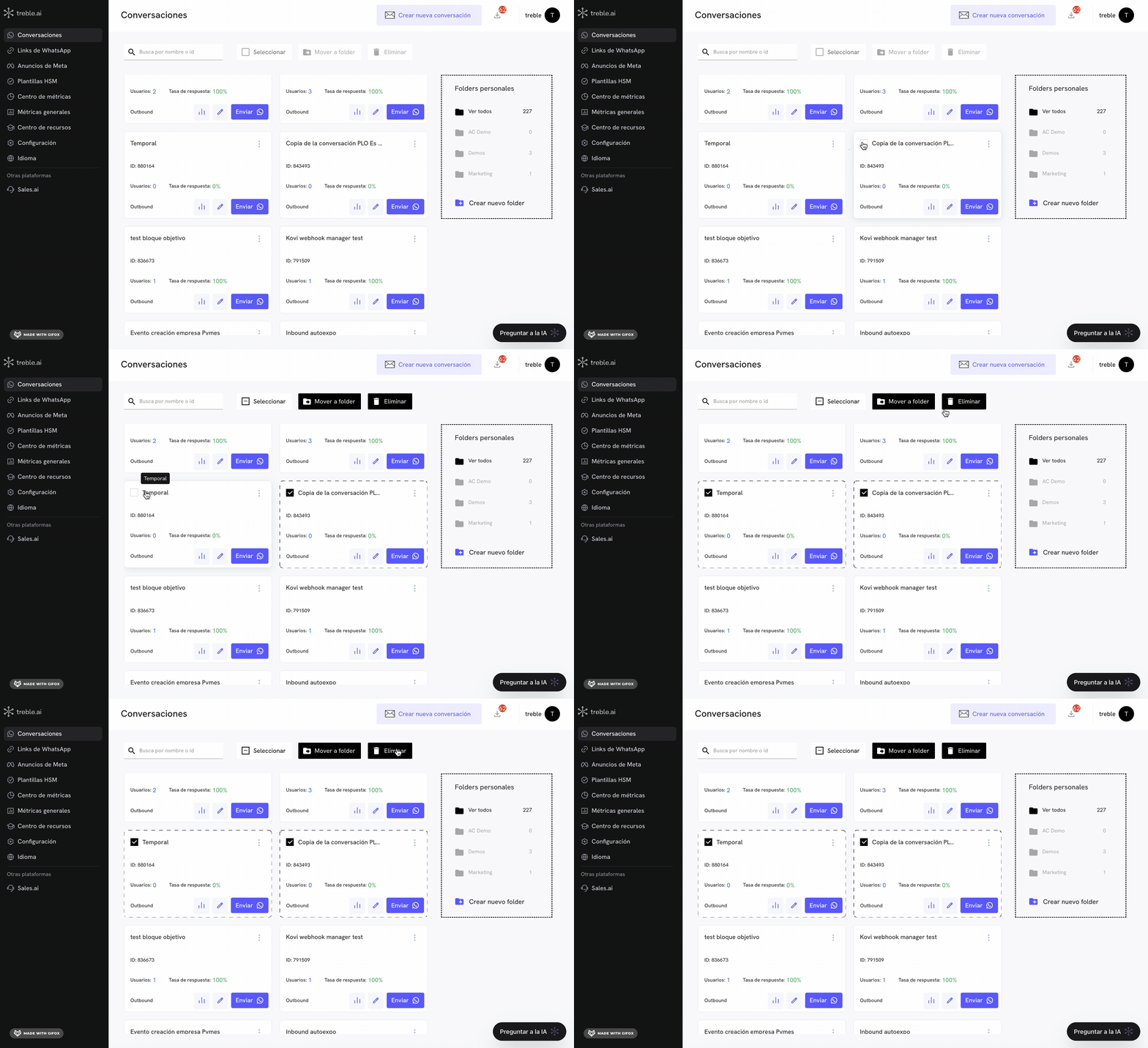 To recover a deleted conversation, you must contact support.
## Right panel: Personal folders
On the right side of the screen you will see a **folder explorer** to organize your conversations.
* **View all:** Shows the total number of conversations (example: 227).
* **Custom folders:** Folders you have created (such as "AC Demo", "Demos", "Marketing") with the number of conversations in each one.
* **Create new folder:** Button to add new custom folders and better organize your flows.
***
## How to organize your conversations?
1. Use **custom folders** to classify your flows by campaign, objective or team.
2. Select multiple conversations with the **Select** button and use **Move to folder** to organize them in batch.
3. Filter by name or ID to quickly find the flow you need to edit or send.
4. Use **Create new conversation** to design new flows from scratch with the visual editor.
***
The **Conversations** section allows you to have **total control and complete visibility** over all your flows, ensuring that you can **manage, edit and send** your WhatsApp Business API conversations in an **easy and organized** way.
To recover a deleted conversation, you must contact support.
## Right panel: Personal folders
On the right side of the screen you will see a **folder explorer** to organize your conversations.
* **View all:** Shows the total number of conversations (example: 227).
* **Custom folders:** Folders you have created (such as "AC Demo", "Demos", "Marketing") with the number of conversations in each one.
* **Create new folder:** Button to add new custom folders and better organize your flows.
***
## How to organize your conversations?
1. Use **custom folders** to classify your flows by campaign, objective or team.
2. Select multiple conversations with the **Select** button and use **Move to folder** to organize them in batch.
3. Filter by name or ID to quickly find the flow you need to edit or send.
4. Use **Create new conversation** to design new flows from scratch with the visual editor.
***
The **Conversations** section allows you to have **total control and complete visibility** over all your flows, ensuring that you can **manage, edit and send** your WhatsApp Business API conversations in an **easy and organized** way.