> ## Documentation Index
> Fetch the complete documentation index at: https://help.treble.ai/llms.txt
> Use this file to discover all available pages before exploring further.
# Conversation Flow Editor
> In the conversation flow editor you can design, configure and connect message blocks to create the automated flow of your conversation in Treble.
 # Editor Overview
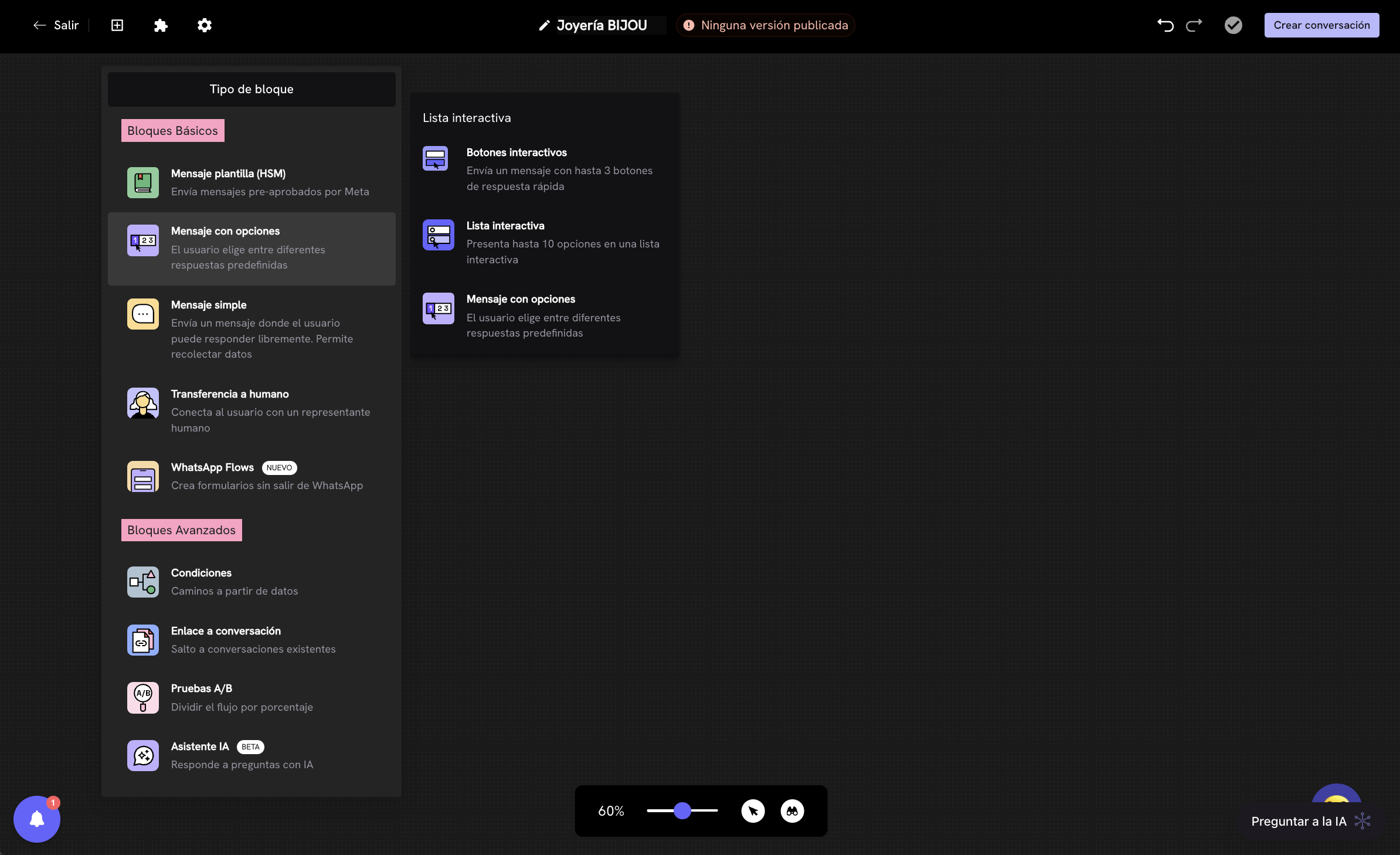
The **Conversation Editor** is the central tool for building automated attention flows in Treble for WhatsApp. It works as a **decision tree**, where each **block** represents a step in the dialogue and connects with others to guide the conversation based on user responses.
When entering the editor, you'll see a screen divided into two main areas:
* **Left panel:** Catalog of available block types to add to the flow.
* **Right canvas:** Space where you'll build and connect blocks to shape the conversational journey.
## Block type panel
# Editor Overview
The **Conversation Editor** is the central tool for building automated attention flows in Treble for WhatsApp. It works as a **decision tree**, where each **block** represents a step in the dialogue and connects with others to guide the conversation based on user responses.
When entering the editor, you'll see a screen divided into two main areas:
* **Left panel:** Catalog of available block types to add to the flow.
* **Right canvas:** Space where you'll build and connect blocks to shape the conversational journey.
## Block type panel
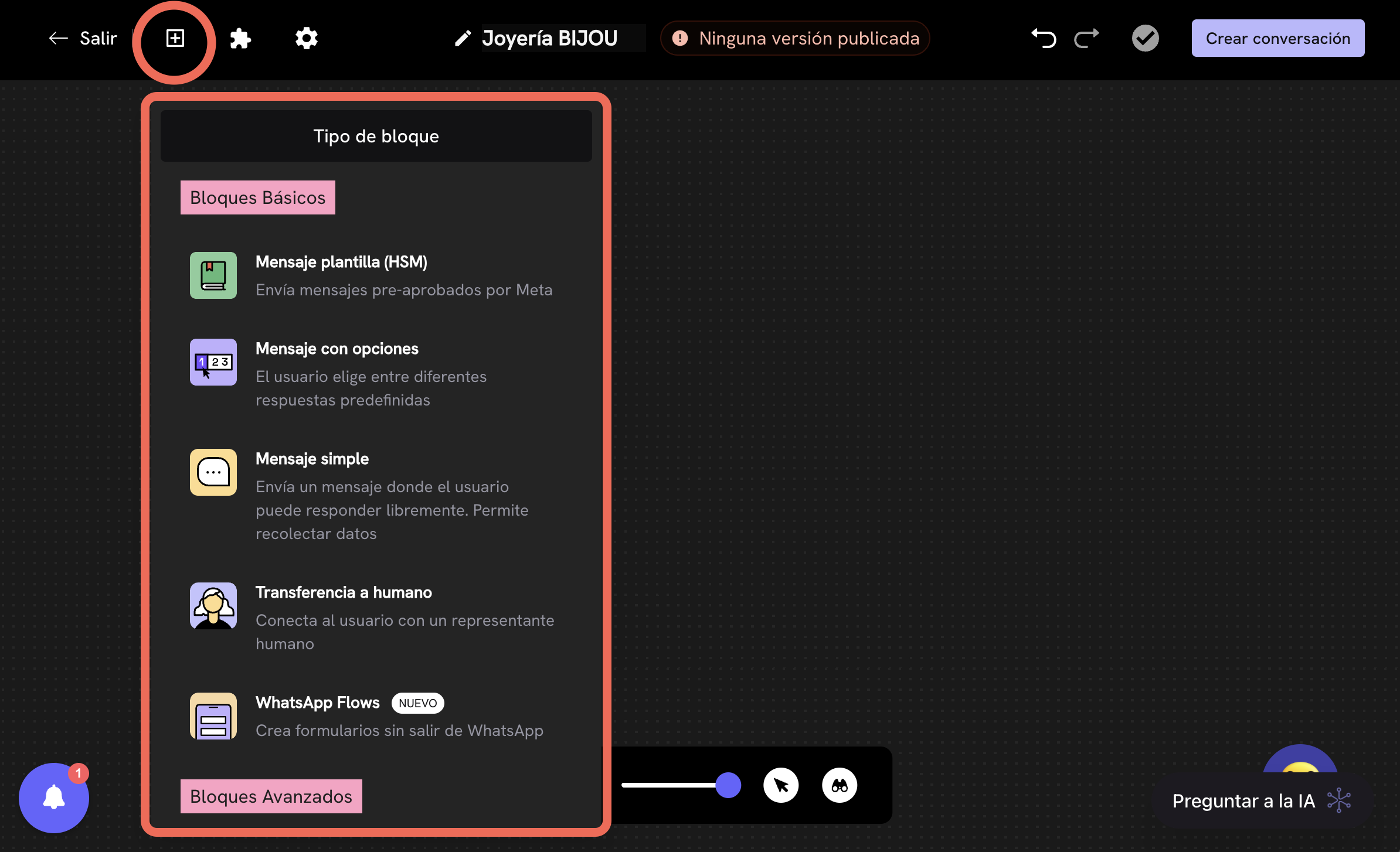 On the left side of the screen is the **block type selector**. Here you can choose between **basic blocks** and **advanced blocks** to add to the flow. To add a block, click the button and select the block type you want to add.
### Basic blocks
They are fundamental blocks for structuring the conversation:
* **Template message (HSM):** Sends pre-approved messages by Meta, useful for official notifications or follow-ups.
* **Message with options:** Allows the user to choose between different predefined responses to direct the flow.
* **Simple message:** Sends text where the user can respond freely. Allows collecting open data.
* **Transfer to human:** Connects the user with a human representative from your team.
* **WhatsApp Flows (new):** Creates native interactive forms in WhatsApp, without leaving the chat.
### Advanced blocks
Designed for more complex logic and flow customization:
* **Conditions:** Defines conditional paths based on user data or previous responses.
* **Link to conversation:** Allows jumping to other conversations already existing in your account.
* **A/B Tests:** Splits the flow between variants to compare results and optimize messages.
* **AI Assistant (beta):** Integrates a module that responds to customer questions with artificial intelligence.
## Interactive list subpanel
On the left side of the screen is the **block type selector**. Here you can choose between **basic blocks** and **advanced blocks** to add to the flow. To add a block, click the button and select the block type you want to add.
### Basic blocks
They are fundamental blocks for structuring the conversation:
* **Template message (HSM):** Sends pre-approved messages by Meta, useful for official notifications or follow-ups.
* **Message with options:** Allows the user to choose between different predefined responses to direct the flow.
* **Simple message:** Sends text where the user can respond freely. Allows collecting open data.
* **Transfer to human:** Connects the user with a human representative from your team.
* **WhatsApp Flows (new):** Creates native interactive forms in WhatsApp, without leaving the chat.
### Advanced blocks
Designed for more complex logic and flow customization:
* **Conditions:** Defines conditional paths based on user data or previous responses.
* **Link to conversation:** Allows jumping to other conversations already existing in your account.
* **A/B Tests:** Splits the flow between variants to compare results and optimize messages.
* **AI Assistant (beta):** Integrates a module that responds to customer questions with artificial intelligence.
## Interactive list subpanel
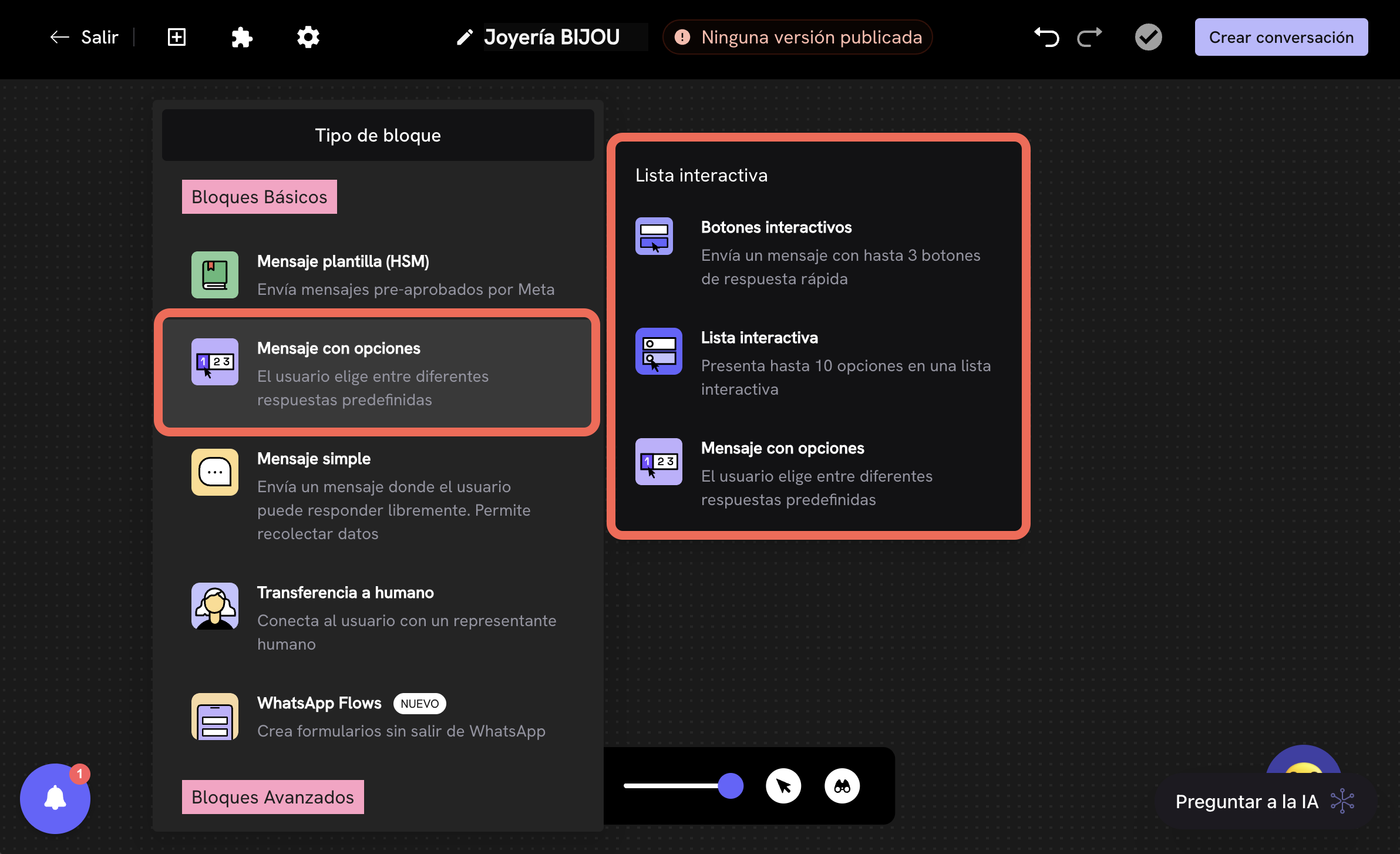 When selecting the **Message with options** block, a subpanel appears (to the right of the selector) that offers interaction variations:
* **Interactive buttons:** Allows sending up to 3 quick response buttons.
* **Interactive list:** Presents up to 10 options in a dropdown list format.
* **Message with options:** Defines predefined responses to choose from easily.
Each variant adapts to different conversation needs and customer interaction styles.
## Editing canvas
When selecting the **Message with options** block, a subpanel appears (to the right of the selector) that offers interaction variations:
* **Interactive buttons:** Allows sending up to 3 quick response buttons.
* **Interactive list:** Presents up to 10 options in a dropdown list format.
* **Message with options:** Defines predefined responses to choose from easily.
Each variant adapts to different conversation needs and customer interaction styles.
## Editing canvas
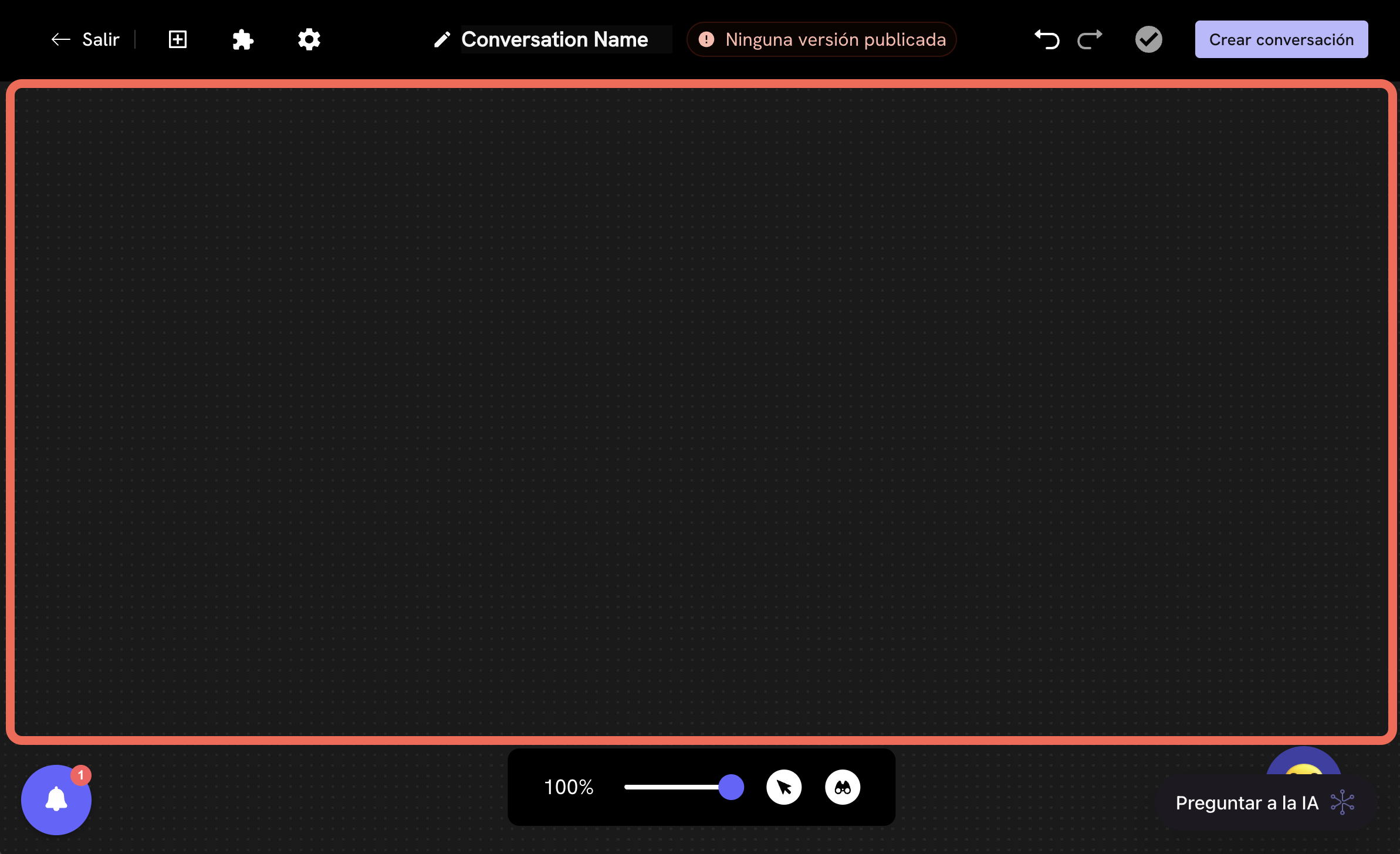 The central and right space of the screen is the **canvas**. Here you can:
* Drag and drop blocks from the left panel.
* Connect blocks to each other to define the conversation flow.
* Configure the content of each block (text, options, conditional logic).
* Visually organize the flow as a decision tree to understand and validate the user journey.
## Editor top bar
The central and right space of the screen is the **canvas**. Here you can:
* Drag and drop blocks from the left panel.
* Connect blocks to each other to define the conversation flow.
* Configure the content of each block (text, options, conditional logic).
* Visually organize the flow as a decision tree to understand and validate the user journey.
## Editor top bar
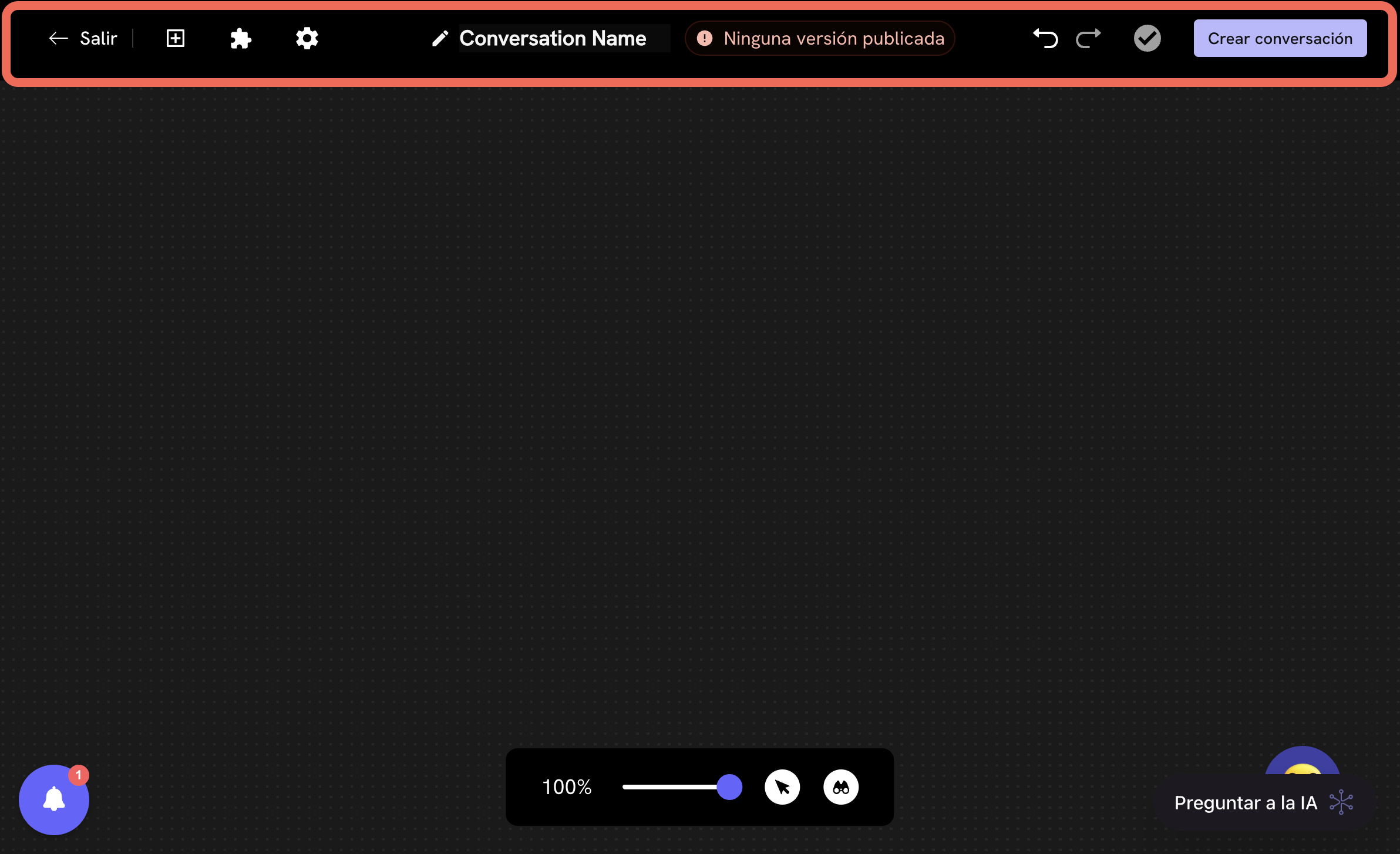 At the top you'll find key controls:
* **Flow name:** Editable to easily identify your conversation (in the image, "Conversation Name").
* **Publication status:** Indicates if the version is published or in editing (example: "No published version").
* **Create or publish button:** To save and enable the conversation for use in WhatsApp Business.
* **Undo and redo buttons:** Allow reverting or repeating recent changes.
* **Gear icon:** Access general flow or project settings.
* **Exit button:** To return to the general conversation list.
### Settings section
At the top you'll find key controls:
* **Flow name:** Editable to easily identify your conversation (in the image, "Conversation Name").
* **Publication status:** Indicates if the version is published or in editing (example: "No published version").
* **Create or publish button:** To save and enable the conversation for use in WhatsApp Business.
* **Undo and redo buttons:** Allow reverting or repeating recent changes.
* **Gear icon:** Access general flow or project settings.
* **Exit button:** To return to the general conversation list.
### Settings section
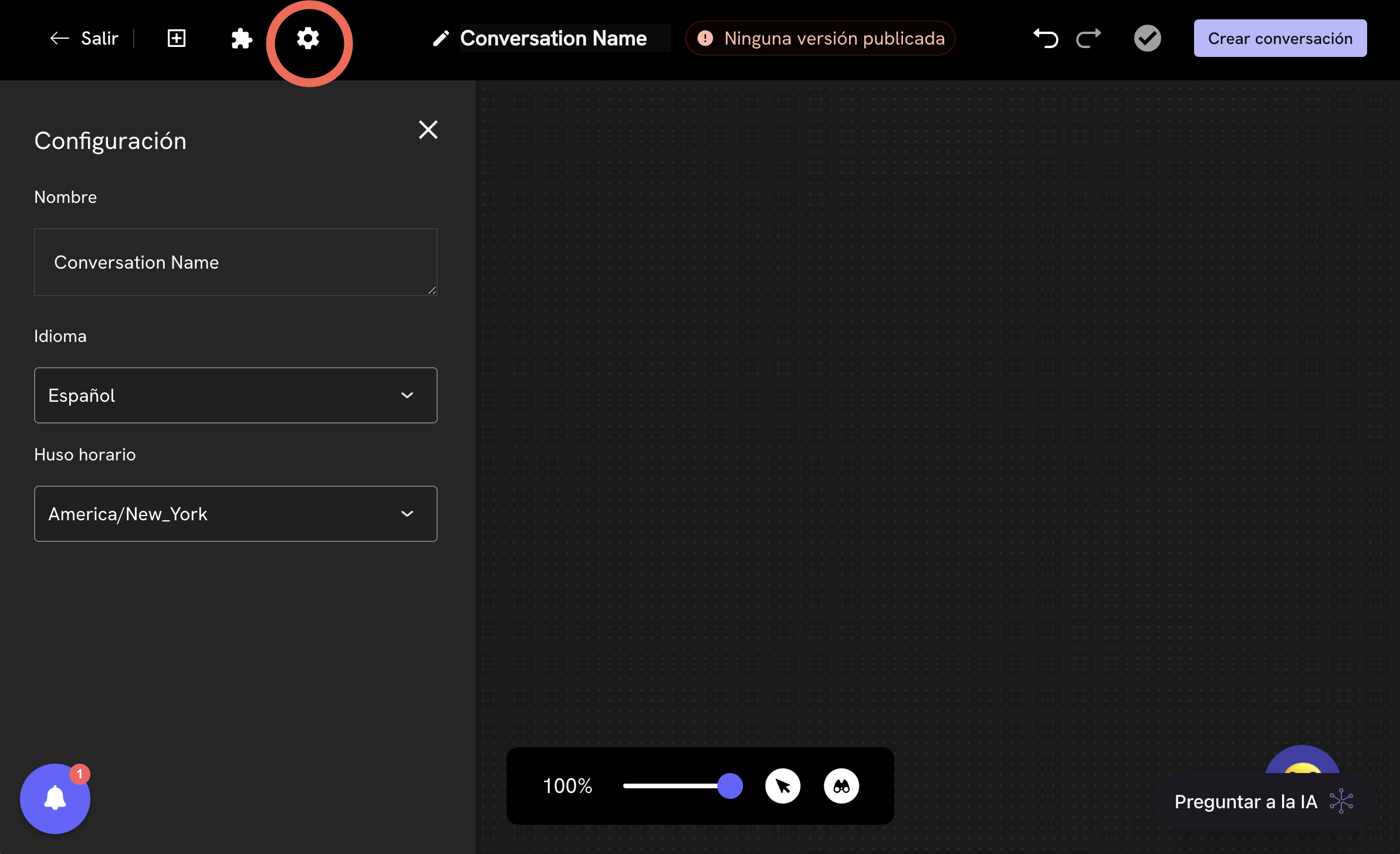 In the settings section, you'll find the following options:
* **Flow name:** Editable to easily identify your conversation (in the image, "Conversation Name").
* **Language:** Select the language of your conversation, this is important for the flow to behave correctly in the selected language and for default messages, for example, when the flow doesn't understand the user's response, to be translated to the selected language.
* **Timezone:** Allows selecting the timezone of your conversation, this is important for the flow to behave correctly in the selected timezone.
Learn how to configure schedules and time conditions.
### Light integrations section (Google Sheets)
In the settings section, you'll find the following options:
* **Flow name:** Editable to easily identify your conversation (in the image, "Conversation Name").
* **Language:** Select the language of your conversation, this is important for the flow to behave correctly in the selected language and for default messages, for example, when the flow doesn't understand the user's response, to be translated to the selected language.
* **Timezone:** Allows selecting the timezone of your conversation, this is important for the flow to behave correctly in the selected timezone.
Learn how to configure schedules and time conditions.
### Light integrations section (Google Sheets)
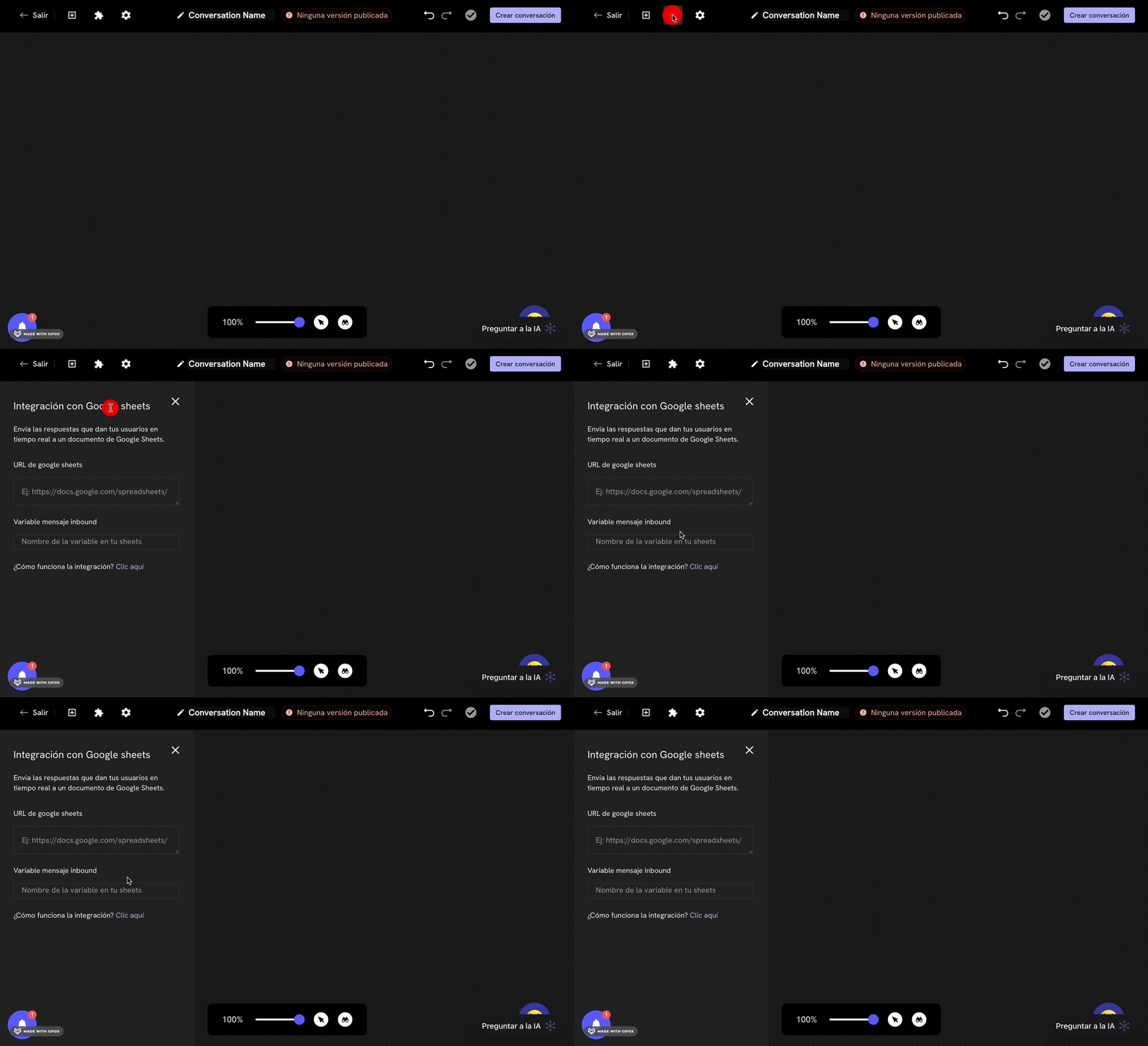 In the light integrations section, which you can find by clicking the button, you'll find the option to configure the Google Sheets integration. By clicking on the **Google Sheets** option, a configuration panel will open where you can configure the Google Sheets integration.
In the configuration panel, you'll find the following options:
* **Google sheets URL:** Allows selecting the URL of your Google Sheets that you want to use for the integration.
* **Inbound message variable:** Allows selecting the inbound message variable you want to use for the integration.
## Canvas zoom and navigation
In the light integrations section, which you can find by clicking the button, you'll find the option to configure the Google Sheets integration. By clicking on the **Google Sheets** option, a configuration panel will open where you can configure the Google Sheets integration.
In the configuration panel, you'll find the following options:
* **Google sheets URL:** Allows selecting the URL of your Google Sheets that you want to use for the integration.
* **Inbound message variable:** Allows selecting the inbound message variable you want to use for the integration.
## Canvas zoom and navigation
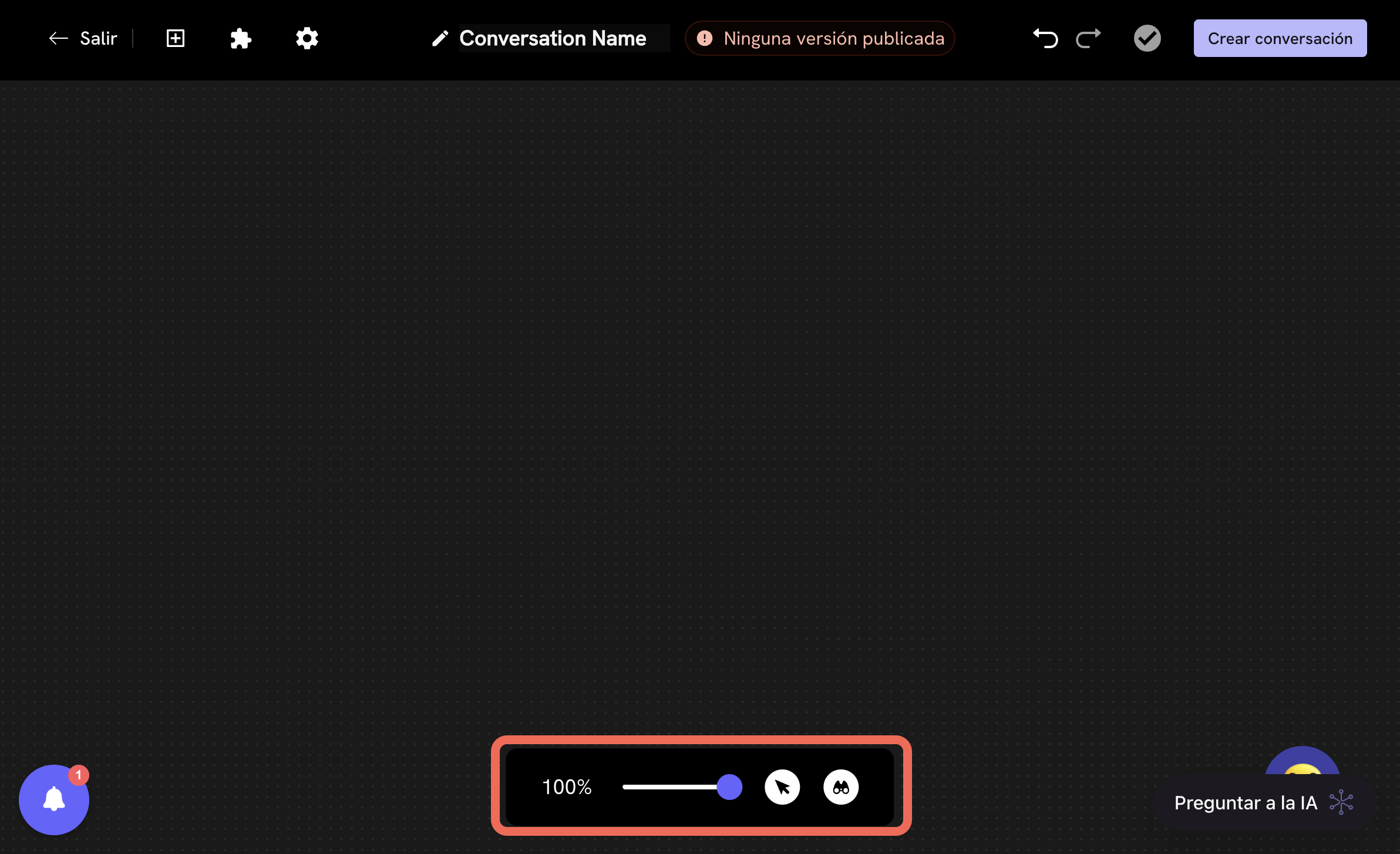 At the bottom center of the editor you'll see the **zoom control**:
* Adjust the canvas zoom level to see large flows or work in detail.
* Includes a slider control and buttons to zoom in, zoom out or adjust the view.
***
## How to design a conversation in the editor?
To create a flow:
1. Select the **block type** in the left panel.
2. Configure its content (message, options, conditions).
3. Drag it to the canvas and connect it with other blocks.
4. Define the branches based on user responses.
5. Save and publish when you're satisfied with the design.
The editor is designed for **companies of any size**, allowing them to automate conversations on WhatsApp in a **visual, flexible way without the need to program**.
At the bottom center of the editor you'll see the **zoom control**:
* Adjust the canvas zoom level to see large flows or work in detail.
* Includes a slider control and buttons to zoom in, zoom out or adjust the view.
***
## How to design a conversation in the editor?
To create a flow:
1. Select the **block type** in the left panel.
2. Configure its content (message, options, conditions).
3. Drag it to the canvas and connect it with other blocks.
4. Define the branches based on user responses.
5. Save and publish when you're satisfied with the design.
The editor is designed for **companies of any size**, allowing them to automate conversations on WhatsApp in a **visual, flexible way without the need to program**.