> ## Documentation Index
> Fetch the complete documentation index at: https://help.treble.ai/llms.txt
> Use this file to discover all available pages before exploring further.
# Create an agent
> Describe what you need in your own words and Treble writes the instructions, picks the tools and builds your AI agent.
You don't need to write a prompt from scratch to create an AI agent. Go to **AI Agents**, describe in one sentence what you want it to do, answer a few questions and Treble generates the agent for you.
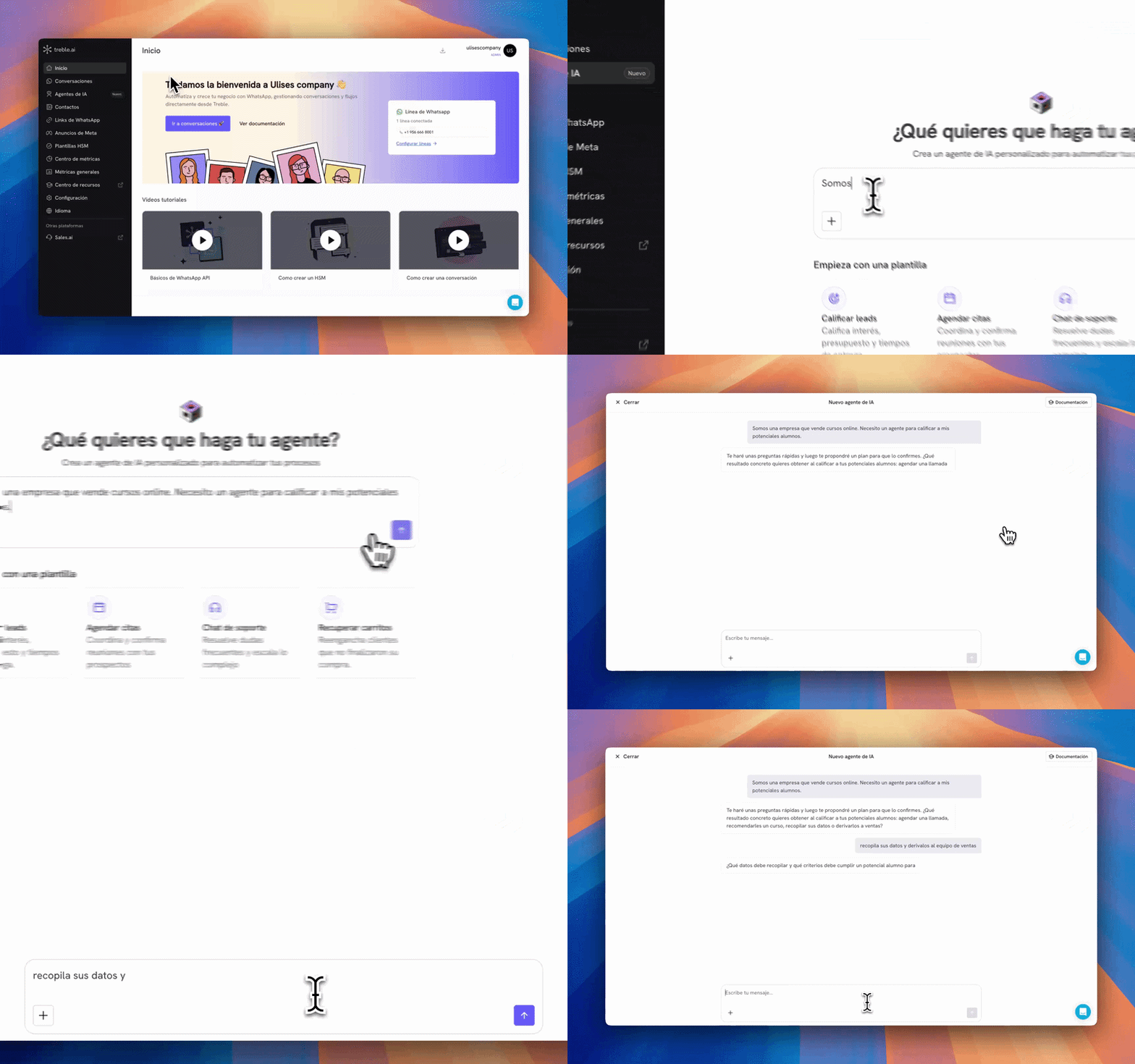 The generator writes a very solid first draft, but it is still a draft. Review it, adjust it and test it before connecting it to a real conversation.
## Start with a description or a template
In the text box, write what you want your agent to do. The clearer you are, the fewer questions you'll have to answer later.
A good description includes:
* **The goal**: what the agent has to achieve.
* **Who it talks to**: prospects, existing customers, students, patients.
* **What information it needs to collect**: name, email, budget, product of interest.
* **Where the conversation ends**: hand off to sales, book an appointment, close the case.
For example: *"We're a company that sells online courses. I need an agent to qualify my prospective students, collect name, email and course of interest, and hand them off to the sales team."*
If you'd rather start from something ready-made, pick one of the four templates and edit it:
| Template | What it's for |
| --------------------- | ------------------------------------------------------ |
| **Qualify leads** | Assess interest, budget and delivery times. |
| **Schedule meetings** | Coordinate and confirm meetings with your prospects. |
| **Support chat** | Resolve frequent questions and escalate complex ones. |
| **Recover carts** | Re-engage customers who did not finish their purchase. |
Below the text box you'll find **All your agents**, the list of the agents you already created with their connected conversations and their last activity. From there you can search, edit or delete them.
## Answer the chat's questions
Once you send your description, the chat will ask you questions to close the remaining gaps: what concrete outcome you expect, what data it should collect, which team to hand off to, what to do when the contact goes off topic.
The generator writes a very solid first draft, but it is still a draft. Review it, adjust it and test it before connecting it to a real conversation.
## Start with a description or a template
In the text box, write what you want your agent to do. The clearer you are, the fewer questions you'll have to answer later.
A good description includes:
* **The goal**: what the agent has to achieve.
* **Who it talks to**: prospects, existing customers, students, patients.
* **What information it needs to collect**: name, email, budget, product of interest.
* **Where the conversation ends**: hand off to sales, book an appointment, close the case.
For example: *"We're a company that sells online courses. I need an agent to qualify my prospective students, collect name, email and course of interest, and hand them off to the sales team."*
If you'd rather start from something ready-made, pick one of the four templates and edit it:
| Template | What it's for |
| --------------------- | ------------------------------------------------------ |
| **Qualify leads** | Assess interest, budget and delivery times. |
| **Schedule meetings** | Coordinate and confirm meetings with your prospects. |
| **Support chat** | Resolve frequent questions and escalate complex ones. |
| **Recover carts** | Re-engage customers who did not finish their purchase. |
Below the text box you'll find **All your agents**, the list of the agents you already created with their connected conversations and their last activity. From there you can search, edit or delete them.
## Answer the chat's questions
Once you send your description, the chat will ask you questions to close the remaining gaps: what concrete outcome you expect, what data it should collect, which team to hand off to, what to do when the contact goes off topic.
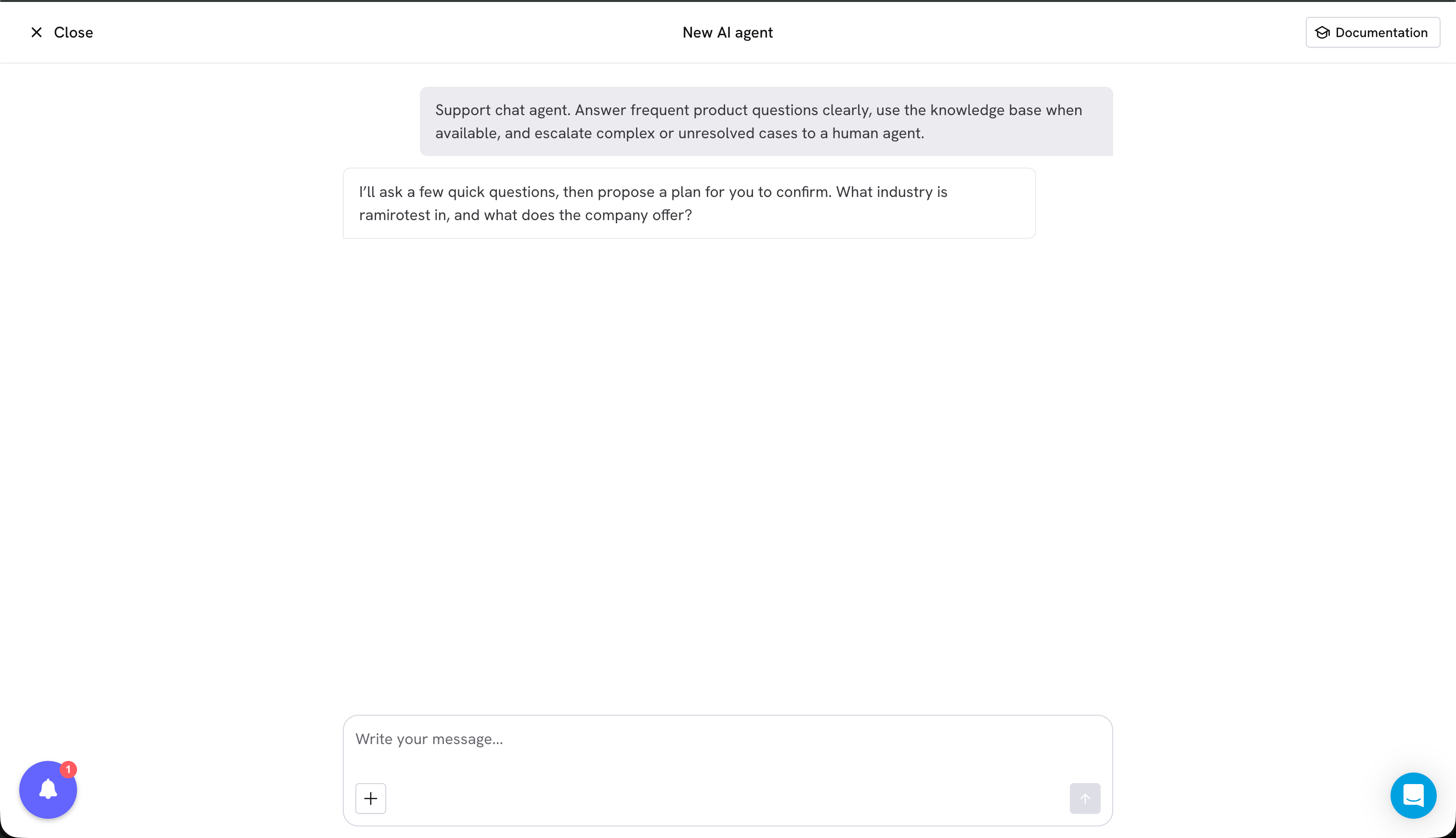 Some questions come with options to choose from and others expect you to type the answer. If none of the options fit, use **Other...** and explain it in your own words.
Answer with real examples from your operation instead of generalities. "Hand off to sales once I have name, email and course of interest" produces a far better agent than "qualify leads well".
## Attach your own files
During the conversation you can attach files with the **+** button: a PDF with your catalog, a price list, a support script or your team's frequently asked questions.
Some questions come with options to choose from and others expect you to type the answer. If none of the options fit, use **Other...** and explain it in your own words.
Answer with real examples from your operation instead of generalities. "Hand off to sales once I have name, email and course of interest" produces a far better agent than "qualify leads well".
## Attach your own files
During the conversation you can attach files with the **+** button: a PDF with your catalog, a price list, a support script or your team's frequently asked questions.
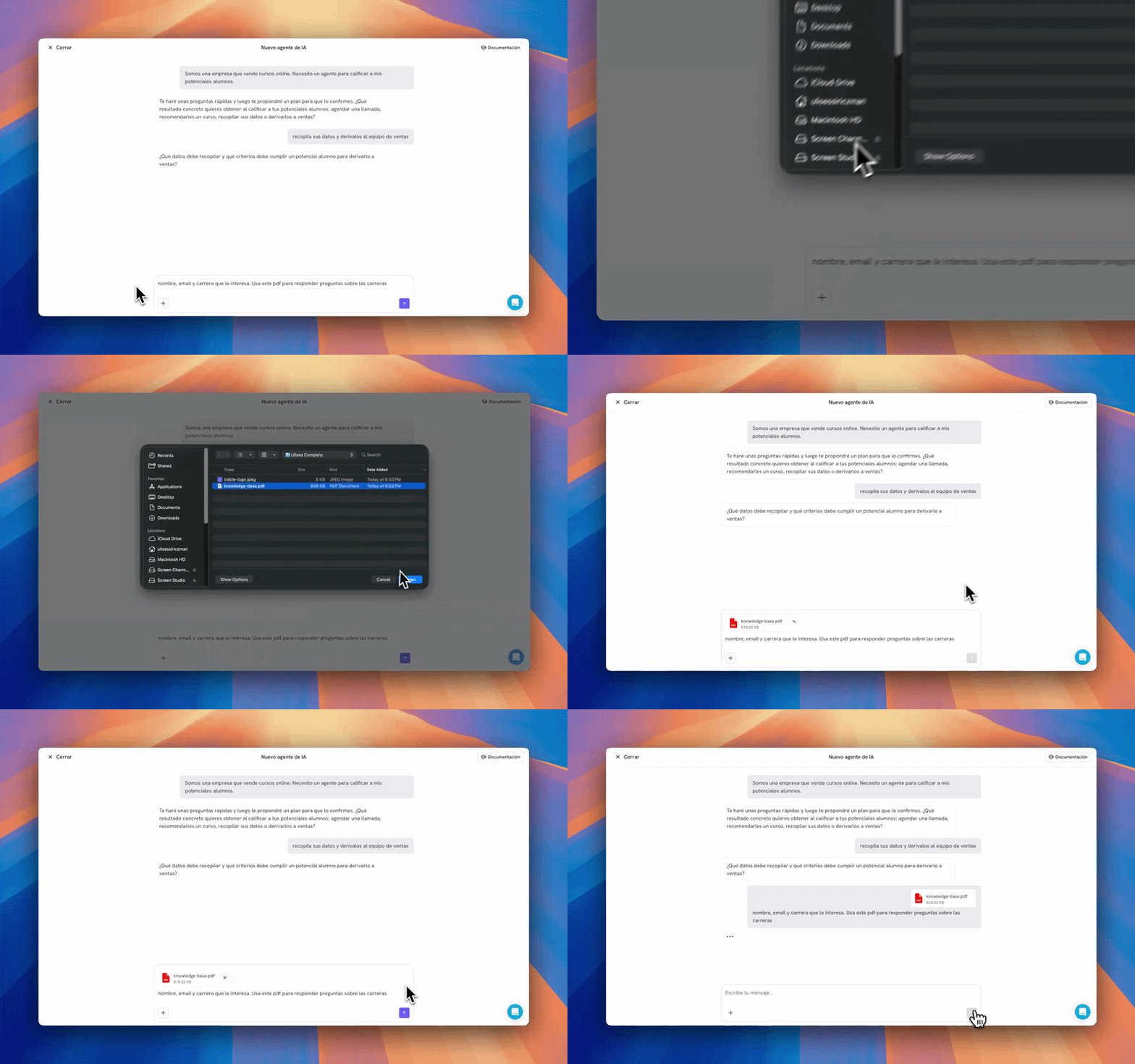 Each file can be used in three ways, and the generator confirms which one it will apply:
* **Conversation context**: helps the generator understand your business while it builds the agent, but is not available during conversations with your customers.
* **Knowledge base**: stays saved in the agent so it can answer questions about its content.
* **Both**: used to build the agent and also kept in the knowledge base.
You can attach up to 5 files. If you want to add more material later, you can do it from the **Knowledge base** tab in the editor.
## Review the plan before generating
When the generator has everything it needs, it shows you a plan of what your agent will do: its purpose, the goal, the actions it will execute and the constraints it will respect.
Each file can be used in three ways, and the generator confirms which one it will apply:
* **Conversation context**: helps the generator understand your business while it builds the agent, but is not available during conversations with your customers.
* **Knowledge base**: stays saved in the agent so it can answer questions about its content.
* **Both**: used to build the agent and also kept in the knowledge base.
You can attach up to 5 files. If you want to add more material later, you can do it from the **Knowledge base** tab in the editor.
## Review the plan before generating
When the generator has everything it needs, it shows you a plan of what your agent will do: its purpose, the goal, the actions it will execute and the constraints it will respect.
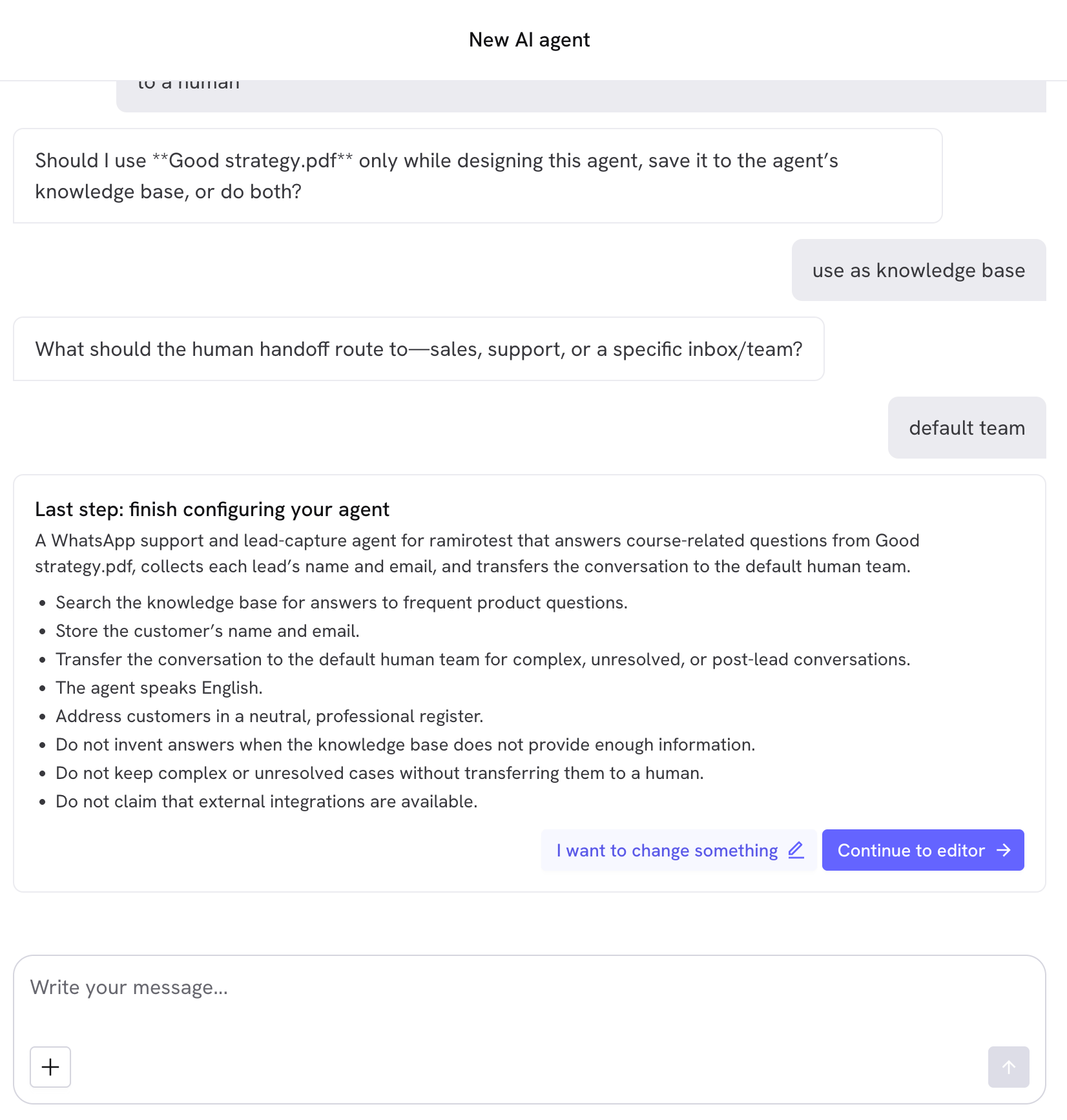 From there you have two paths:
You confirm the plan and the generator writes the agent. It takes about a minute: first it drafts the instructions, then it reviews their quality and finally it improves them.
You explain what to correct and the generator reworks the plan with your adjustments. You can repeat this as many times as you need: nothing is created until you confirm.
## What you get at the end
When generation finishes you land in the editor with the agent already built:
* **Name and description** proposed from what you asked for.
* **Complete instructions**, with the tone, the scope, the steps and the edge cases.
* **Suggested tools** based on what the agent has to do.
* **Knowledge base** with the files you marked for that use.
Tools that need data from you are flagged as pending configuration. That's the next step.
## Next steps
Adjust the instructions, complete the pending tools and define what to do if the contact doesn't reply.
Validate the behavior in the playground and send yourself a test conversation on WhatsApp.
From there you have two paths:
You confirm the plan and the generator writes the agent. It takes about a minute: first it drafts the instructions, then it reviews their quality and finally it improves them.
You explain what to correct and the generator reworks the plan with your adjustments. You can repeat this as many times as you need: nothing is created until you confirm.
## What you get at the end
When generation finishes you land in the editor with the agent already built:
* **Name and description** proposed from what you asked for.
* **Complete instructions**, with the tone, the scope, the steps and the edge cases.
* **Suggested tools** based on what the agent has to do.
* **Knowledge base** with the files you marked for that use.
Tools that need data from you are flagged as pending configuration. That's the next step.
## Next steps
Adjust the instructions, complete the pending tools and define what to do if the contact doesn't reply.
Validate the behavior in the playground and send yourself a test conversation on WhatsApp.