> ## Documentation Index
> Fetch the complete documentation index at: https://help.treble.ai/llms.txt
> Use this file to discover all available pages before exploring further.
# How to use Shopify in your conversations
> Follow these steps to use Shopify in your conversations.
This feature is in **beta**. Please ask your CSM to enable it for your account
before following these steps.
## Prerequisites
* You need to connect your Shopify account to Treble using the steps in the [Setting up Shopify Integration](/en/docs/main-platform/ai-center/agents/reasoning-agent/shopify-install) guide
## How to use Shopify in your conversations
1. Go to the "AI Center" page or [this URL](https://app.treble.ai/en/dashboard/ai-center)
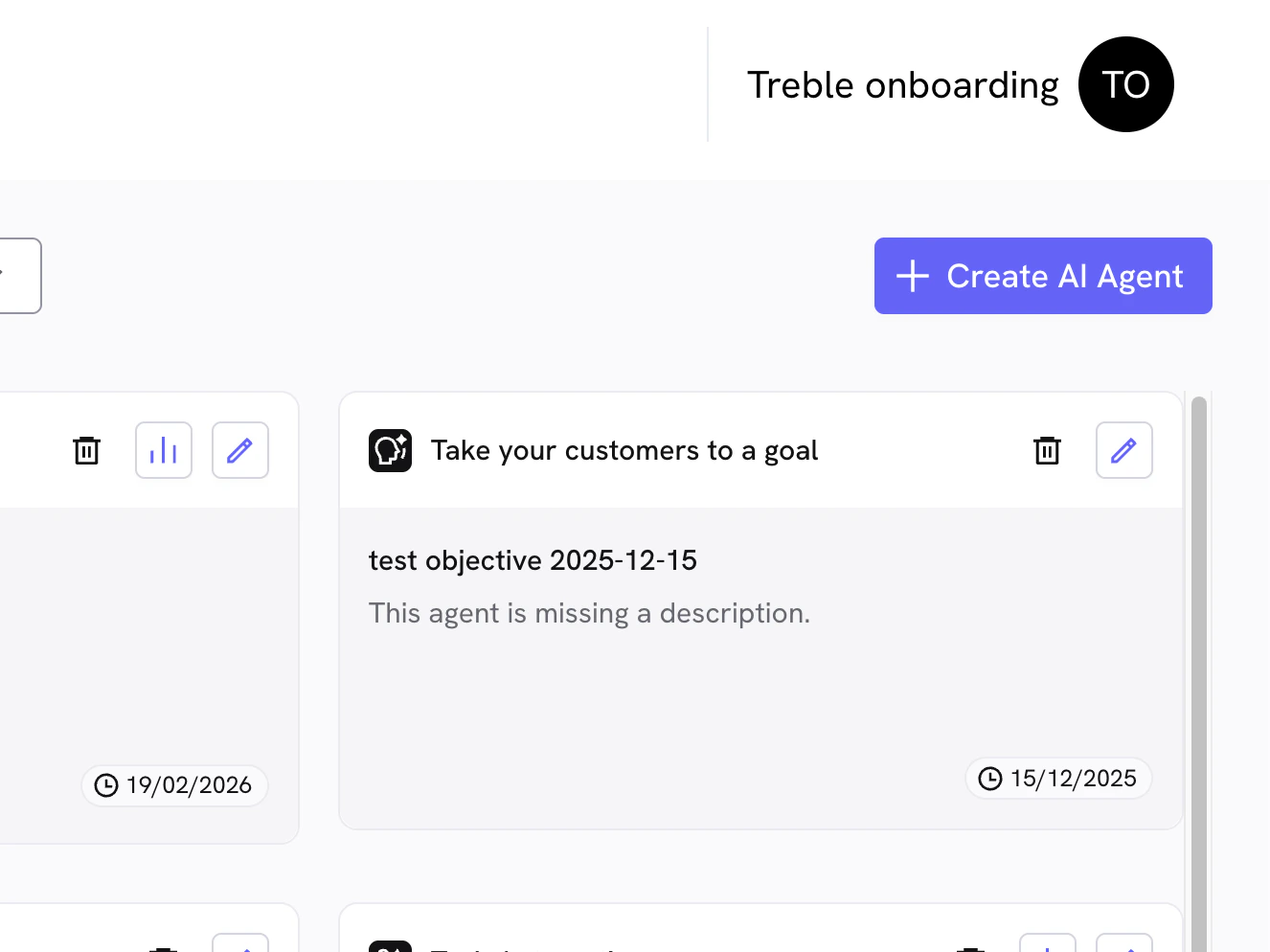
2. Click on the "Create AI Agent" button
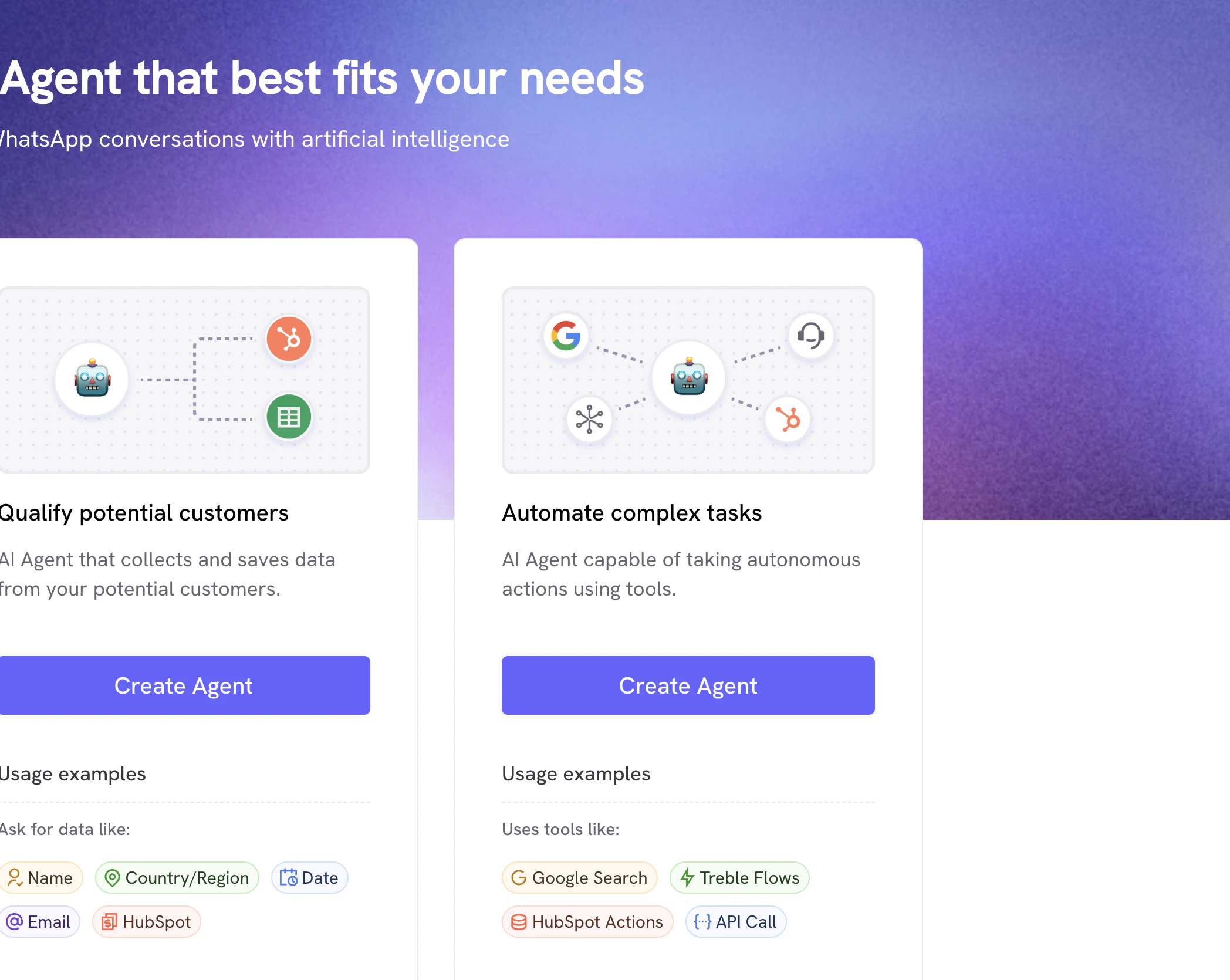
 3. Look for the "Automate complex tasks" option and click on it
 4. Give the agent a name and click on "Create" button
5. In this screen you'll be able to write the instructions for your AI Agent
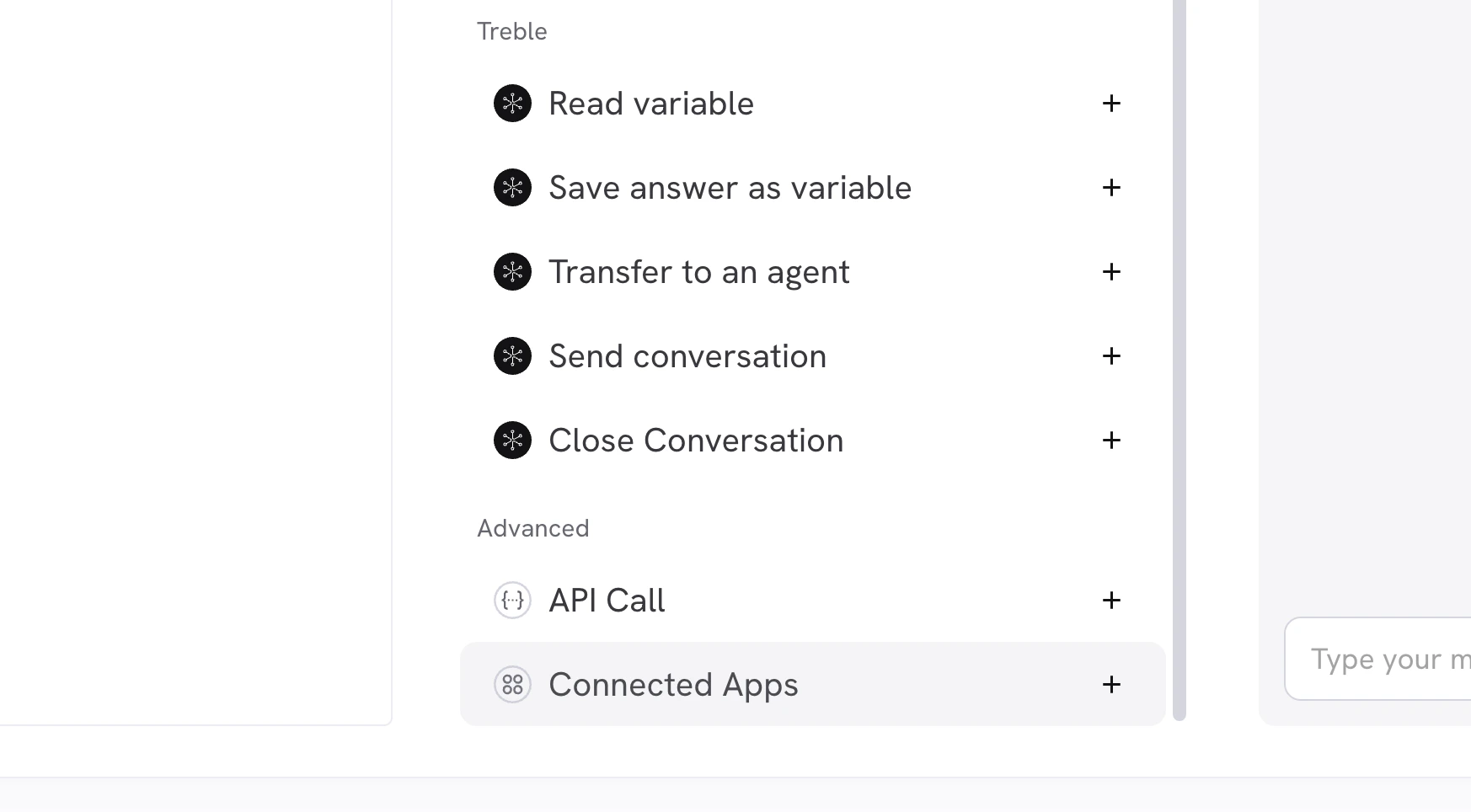
6. Look for the "Advanced" section and click on "Connected Apps" button at the bottom of the screen
4. Give the agent a name and click on "Create" button
5. In this screen you'll be able to write the instructions for your AI Agent
6. Look for the "Advanced" section and click on "Connected Apps" button at the bottom of the screen
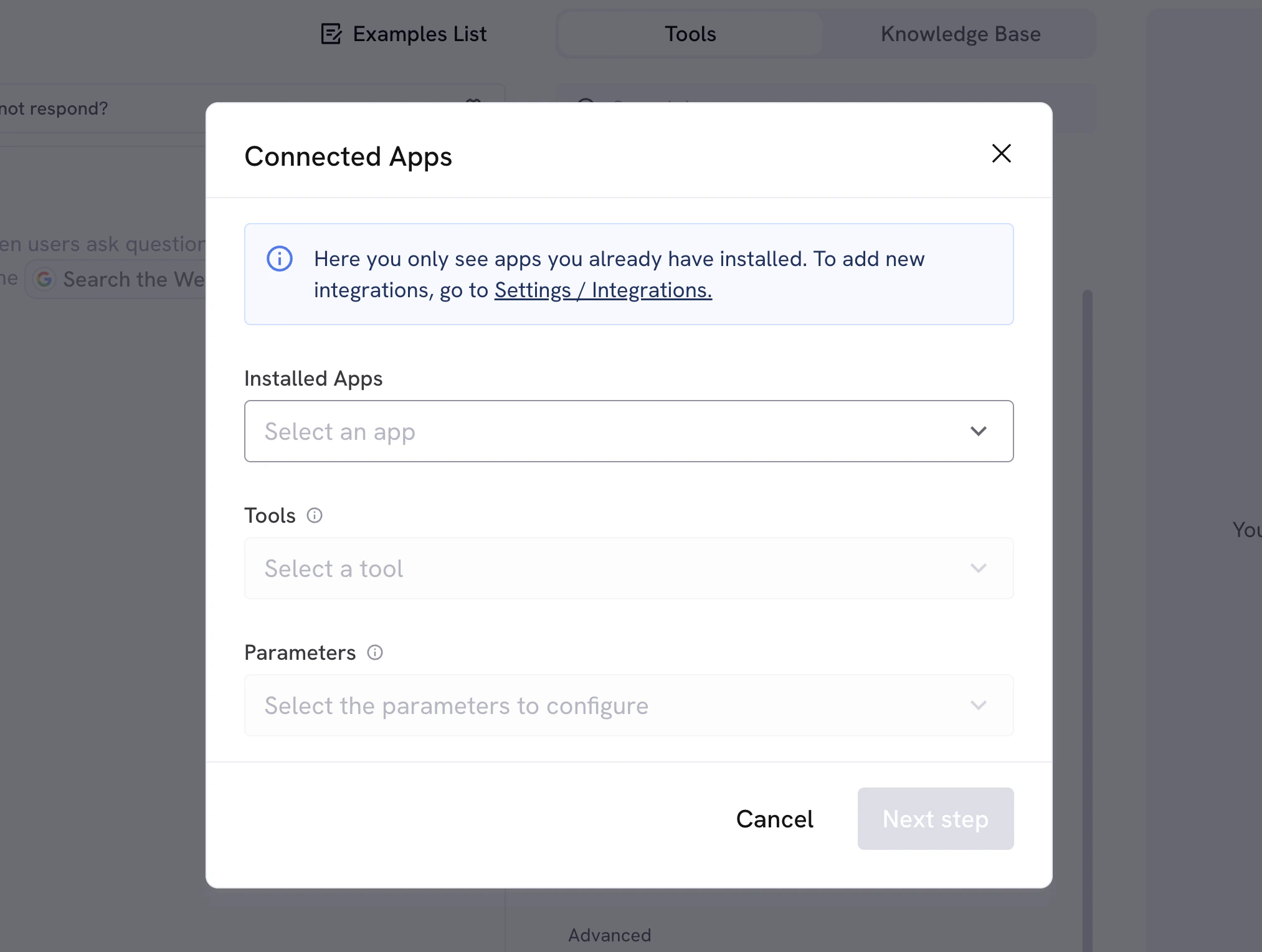
 7. Look for the "Shopify" app on the list of installed apps and click on it
 #### The available tools are:
* List Accounting Invoices
* Get Accounting Invoice
* Create Accounting Invoice
* Update Accounting Invoice
* List Accounting Contacts
* Get Accounting Contact
* Get Accounting Salesorder
* Create Accounting Salesorder
* List Accounting Salesorders
Select any of the tools, and when you click it you'll see the 3rd dropdown "Parameters" change.
#### The available tools are:
* List Accounting Invoices
* Get Accounting Invoice
* Create Accounting Invoice
* Update Accounting Invoice
* List Accounting Contacts
* Get Accounting Contact
* Get Accounting Salesorder
* Create Accounting Salesorder
* List Accounting Salesorders
Select any of the tools, and when you click it you'll see the 3rd dropdown "Parameters" change.
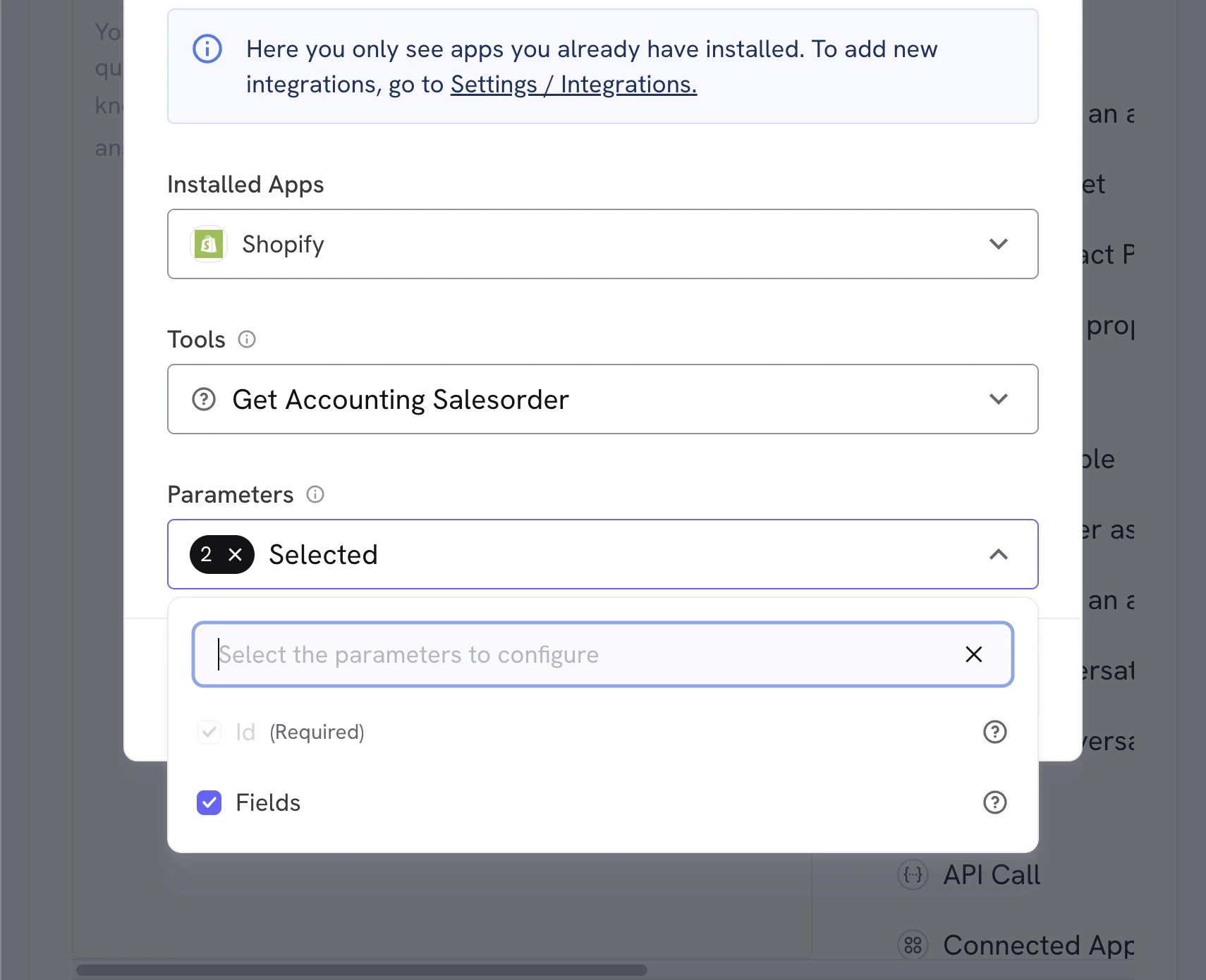 The "Parameters" dropdown will show the parameters for the tool, you'll need to fill them out before the tool can be used.
*Some tools will ask you to edit parameters. If you're not sure what to change, just let the AI handle all of them.*
Changing parameters is only useful if you need to manually send a fixed value to the AI, such as a fixed description, a fixed timezone, currency, or any other specific value.
The "Parameters" dropdown will show the parameters for the tool, you'll need to fill them out before the tool can be used.
*Some tools will ask you to edit parameters. If you're not sure what to change, just let the AI handle all of them.*
Changing parameters is only useful if you need to manually send a fixed value to the AI, such as a fixed description, a fixed timezone, currency, or any other specific value.
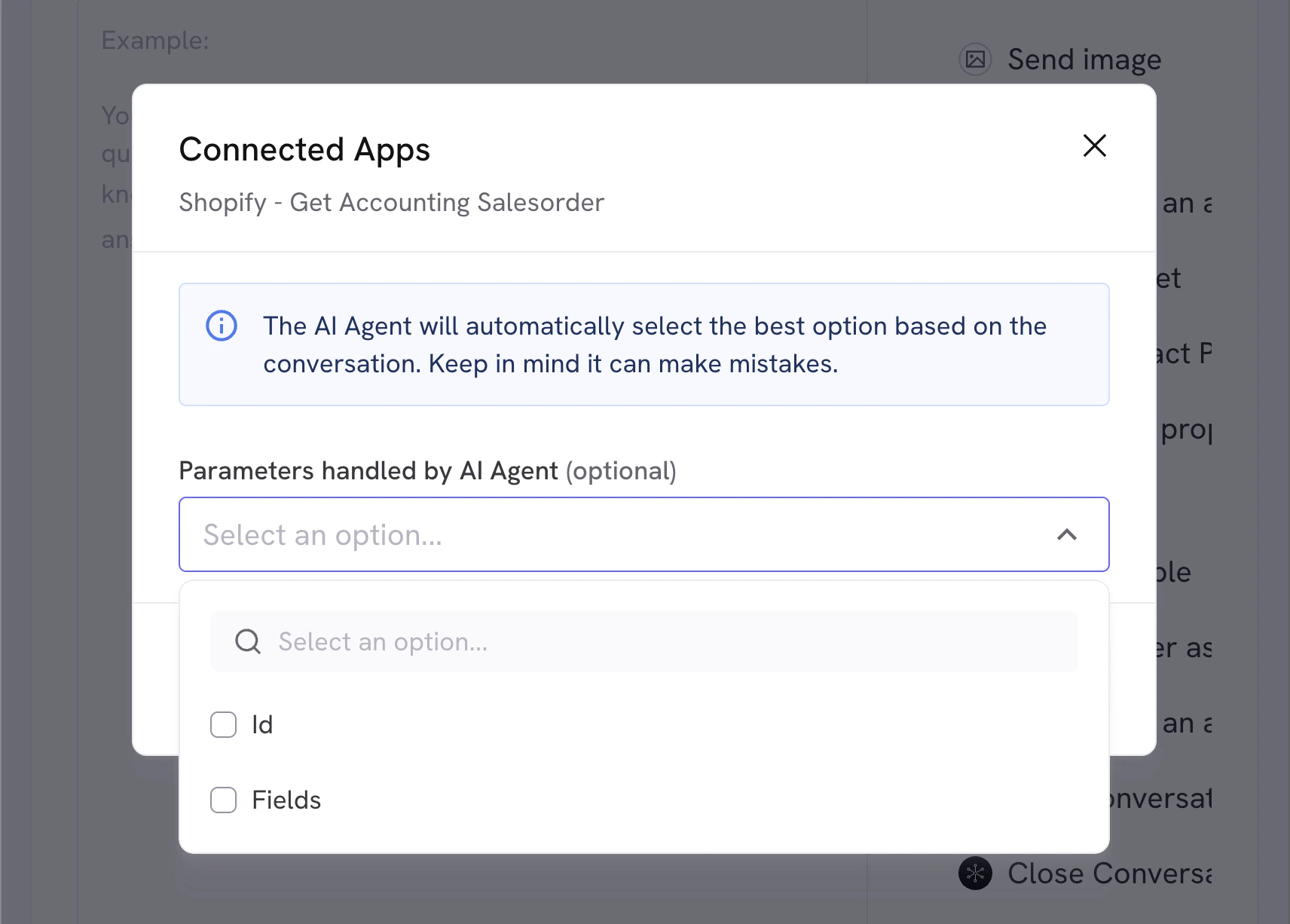 This will override the value the AI tries to generate, so it's advised to let the AI handle it unless you know the exact value you're looking for. You can always update this if you see any issues or change your mind.
If you let AI handle all parameters you can skip step 3, otherwise, enter the fixed values you want to use in step 3.
This will override the value the AI tries to generate, so it's advised to let the AI handle it unless you know the exact value you're looking for. You can always update this if you see any issues or change your mind.
If you let AI handle all parameters you can skip step 3, otherwise, enter the fixed values you want to use in step 3.
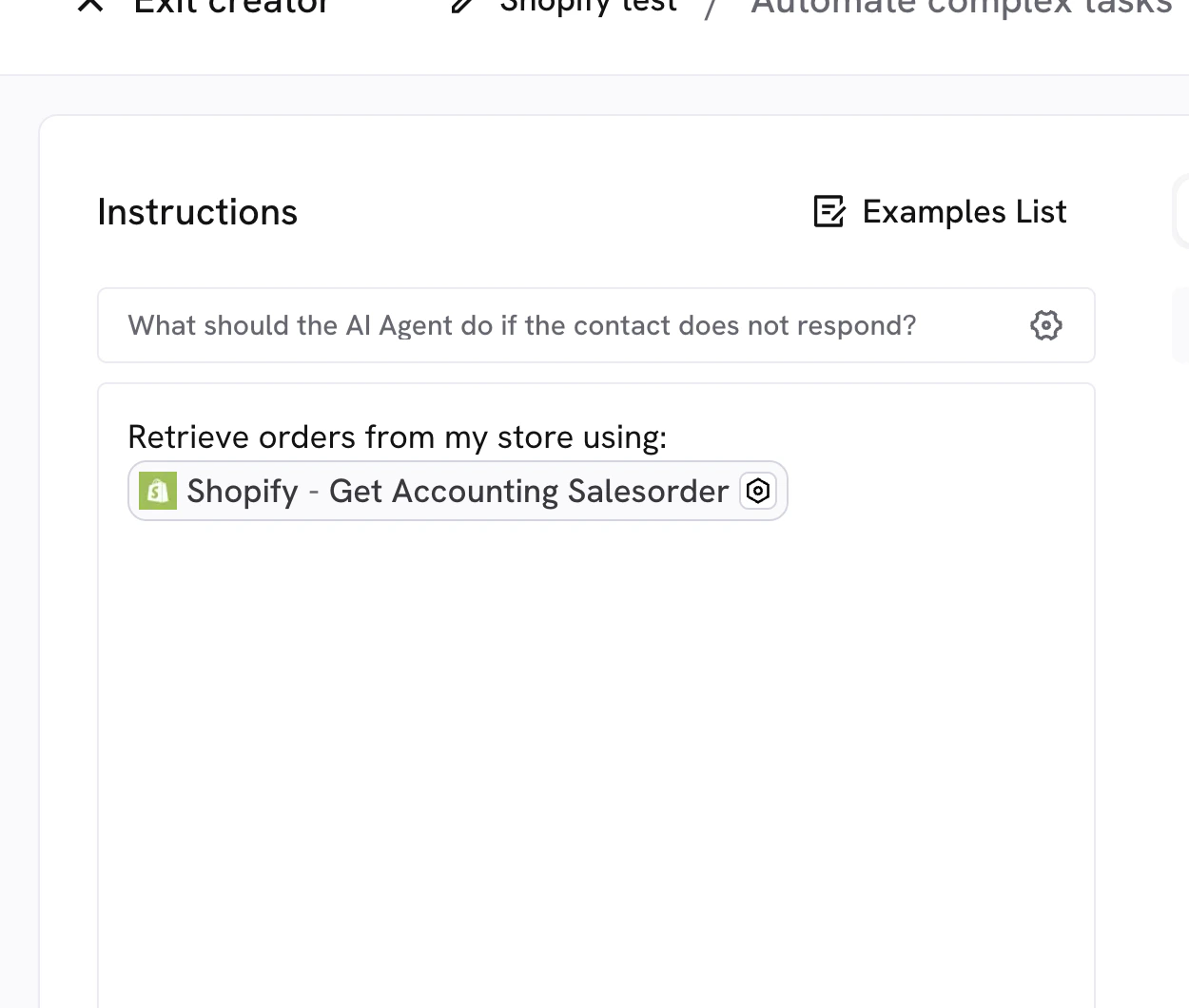
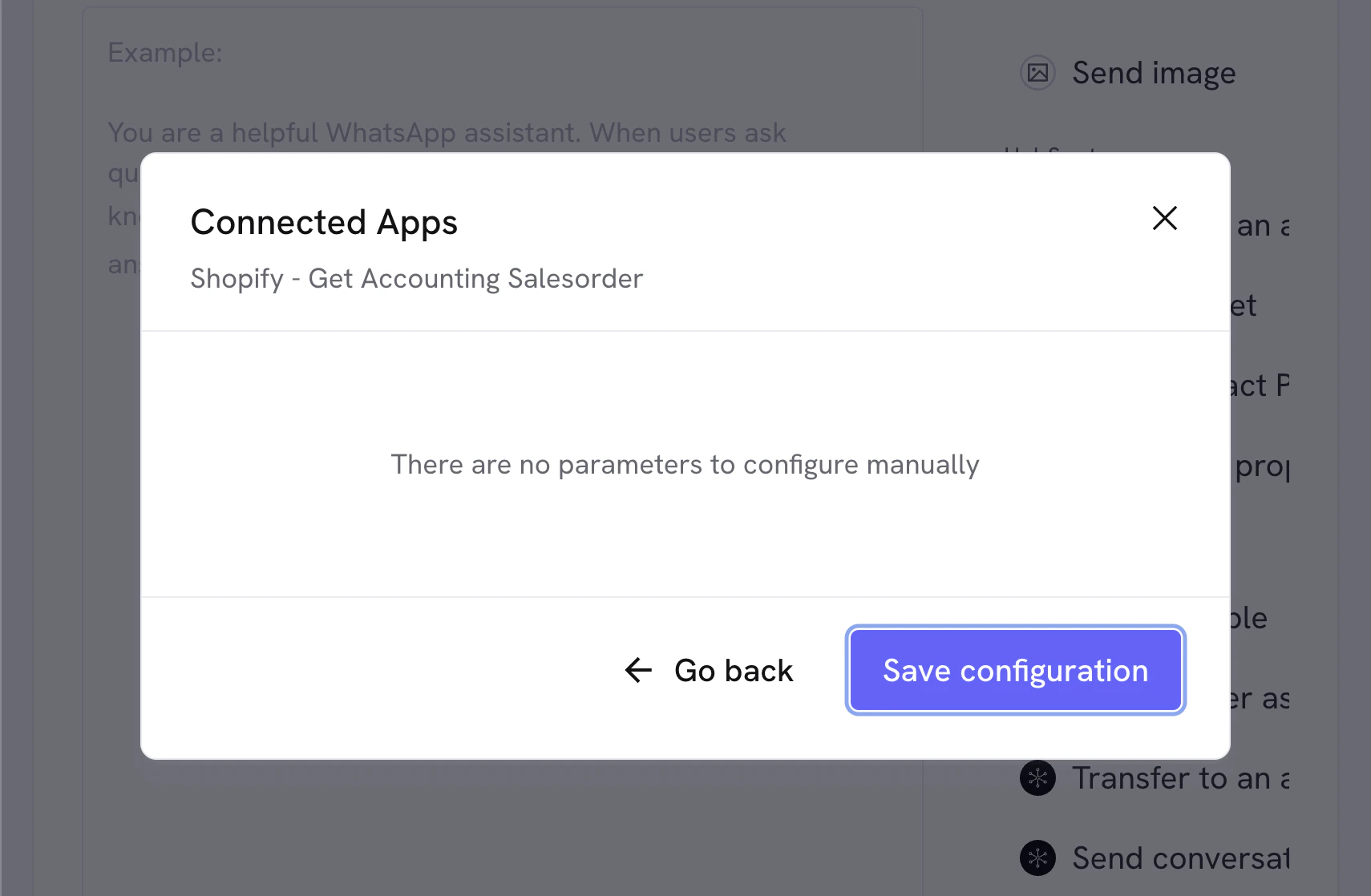 When you click "Save" you'll see the configured action in your AI Agent editor, you can now use it in your conversations.
 ## Available Shopify tools
For your reference, the available Shopify tools you can use in the Automate Complex Tasks agent are:
| Action | Description | Useful For |
| ---------------------------- | ----------------------------------------------------- | -------------------------------------------------------------------------------------- |
| List Accounting Invoices | Fetches a list of invoices from the accounting system | Showing invoice history, syncing data, dashboards, filtering by status (paid, unpaid) |
| Get Accounting Invoice | Retrieves a single invoice by ID | Displaying full invoice details, validating payment status, attaching to interactions |
| Create Accounting Invoice | Creates a new invoice in the accounting system | Generating invoices after purchase, automating billing, syncing orders into accounting |
| Update Accounting Invoice | Modifies an existing invoice | Marking as paid, updating line items, correcting amounts, syncing status changes |
| List Accounting Contacts | Returns a list of contacts (customers/vendors) | Syncing customer databases, matching users to accounting records |
| Get Accounting Contact | Fetches a single contact by ID | Retrieving billing details, validating customer info, linking to invoices/orders |
| Get Accounting Salesorder | Retrieves a specific sales order | Checking order details, validating fulfillment status |
| Create Accounting Salesorder | Creates a new sales order | Pushing orders into accounting before invoicing, handling B2B workflows |
| List Accounting Salesorders | Fetches a list of sales orders | Reporting, syncing order pipelines, reconciling orders vs invoices |
## Available Shopify tools
For your reference, the available Shopify tools you can use in the Automate Complex Tasks agent are:
| Action | Description | Useful For |
| ---------------------------- | ----------------------------------------------------- | -------------------------------------------------------------------------------------- |
| List Accounting Invoices | Fetches a list of invoices from the accounting system | Showing invoice history, syncing data, dashboards, filtering by status (paid, unpaid) |
| Get Accounting Invoice | Retrieves a single invoice by ID | Displaying full invoice details, validating payment status, attaching to interactions |
| Create Accounting Invoice | Creates a new invoice in the accounting system | Generating invoices after purchase, automating billing, syncing orders into accounting |
| Update Accounting Invoice | Modifies an existing invoice | Marking as paid, updating line items, correcting amounts, syncing status changes |
| List Accounting Contacts | Returns a list of contacts (customers/vendors) | Syncing customer databases, matching users to accounting records |
| Get Accounting Contact | Fetches a single contact by ID | Retrieving billing details, validating customer info, linking to invoices/orders |
| Get Accounting Salesorder | Retrieves a specific sales order | Checking order details, validating fulfillment status |
| Create Accounting Salesorder | Creates a new sales order | Pushing orders into accounting before invoicing, handling B2B workflows |
| List Accounting Salesorders | Fetches a list of sales orders | Reporting, syncing order pipelines, reconciling orders vs invoices |