> ## Documentation Index
> Fetch the complete documentation index at: https://help.treble.ai/llms.txt
> Use this file to discover all available pages before exploring further.
# Take your customers to a goal
> Create AI agents that guide your contacts toward specific goals like scheduling appointments or making purchases
The **Take your customers to a goal** agent guides your contacts toward a specific goal through natural conversations. It answers questions, provides information, and keeps users focused on completing the action you want them to take.
 ## Is it for you?
* Guide users toward a specific action (click, purchase, schedule)
* Answer questions about products/services before conversion
* Provide contextual information during the process
* You need to collect and save data (use [Lead Qualification](/en/docs/main-platform/ai-center/agents/lead-qualification))
* You require complex transactions without human intervention
* You need to execute external actions directly (send emails, make calls)
## Use cases by industry
**Objective**: Schedule medical appointments
**Guide the patient by answering:**
* "What are your available hours?"
* "What should I bring to the appointment?"
* "Where are you located?"
**Result**: More appointments scheduled without administrative team intervention
**Objective**: Complete online purchases
**Guide the buyer by answering:**
* "What is the price of this product?"
* "Do you ship to my city?"
* "What payment methods do you accept?"
**Result**: Less cart abandonment and higher conversion at checkout
**Objective**: Schedule property visits
**Guide the prospect by answering:**
* "What properties do you have in \[area]?"
* "What is the price per square meter?"
**Result**: More qualified visits and less time in initial filtering
**Objective**: Request program information
**Guide the student by answering:**
* "What programs do you have available?"
* "What is the course duration?"
* "Are there financing options?"
**Result**: Better informed leads ready for enrollment
**Objective**: Schedule demos or start trial
**Guide the prospect by answering:**
* "How does the platform work?"
* "What integrations do you have?"
* "What plans are available?"
**Result**: More demos scheduled with qualified prospects
***
## Basic configuration
In **"AI Agent First Message"**, you can define an initial message to greet or give context before the user responds.
**Use the "Give me an example" button** to get a base template.
**Example:**
```
Welcome to _______. How can I help you?
```
If you don't define a first message, the agent will wait for the user to start the conversation.
In **"AI Agent Objective"**, indicate the agent's main mission.
**Use the "Give me an example" button** to get a base template you can customize.
**Examples of clear objectives:**
* "Answer your customers' questions until they are interested in scheduling an appointment"
* "Help the user find the ideal product and direct them to checkout"
* "Answer questions about our educational programs until they request detailed information"
**Tip:** Be specific about the final action you want to achieve.
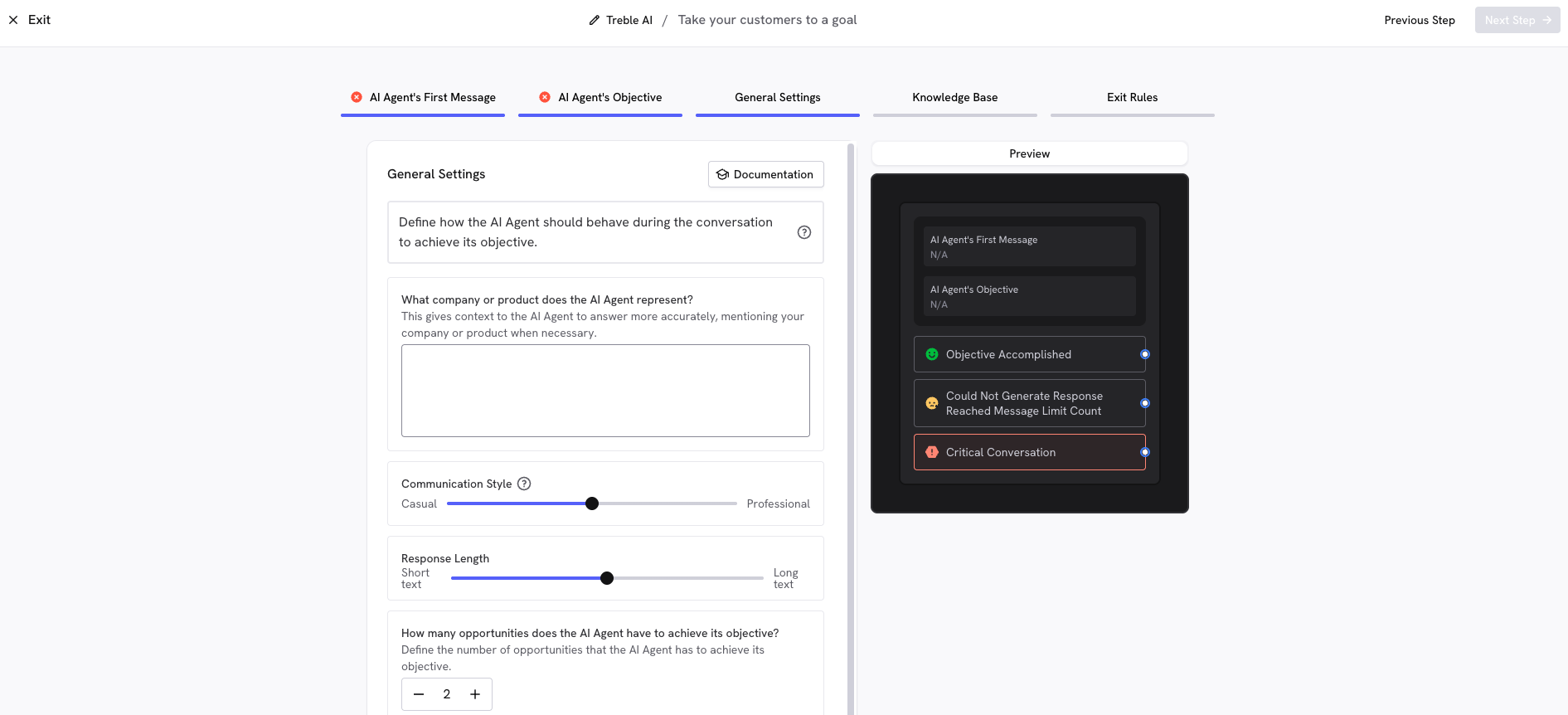
In **"General Settings"**, customize how the agent behaves:
**1. What company or product does the AI Agent represent?**
* Provide context about your company or product so the agent responds with greater accuracy
**2. Communication Style**
* Adjust the slider between **Casual** and **Professional** according to your brand
* Casual: Ideal for B2C, personal services
* Professional: Ideal for B2B, corporate services
**3. Response Length**
* Adjust between **Short Text** and **Long Text**
* Short: Concise and direct responses
* Long: More detailed and explanatory responses
**4. How many opportunities does the AI Agent have to achieve its objective?**
* Define the number of attempts or messages the agent will have to achieve the objective
**5. Additional Instructions (optional)**
* Additional instructions like: "use lots of emojis", "use expressions from \_\_\_ country", "behave like a young and relaxed advisor"
**Use the "Give me an example" button** to get ideas for additional instructions.
In **"Knowledge Base"**, upload files that help the agent answer specific questions:
* Basic information (address, hours, contact)
* Detailed products or services
* Prices and promotions
* Important policies (warranties, returns)
* Specific process to complete the objective
* Frequently asked questions
**Use the "Generate an example" button** to get a suggested content template.
**Supported formats:** PDF, DOC, DOCX, PDF, PPT, PPTX, TXT (maximum 2MB per file, up to 3 files).
In **"Exit Rules"**, you'll see the 3 automatic outputs the agent has:
1. **Objective Completed**: The user completed the desired action
2. **Could Not Generate Response / Reached Message Limit**: The agent couldn't generate a response or reached the message limit
3. **Critical Conversation**: The user is upset or frustrated
You don't need to configure anything here. These outputs will be connected in the Conversation Builder.
**Always** connect the "Critical Conversation" output to a human agent to avoid escalating frustration.
**Click "Save"** to create the agent. Once saved, it will be available to use in the Conversation Builder.
1. **Go to the Conversation Builder** of your project
2. **Drag the block of the agent you created** to your flow
3. **Select your agent** from the dropdown list
The agent is now ready to interact with users in that specific flow.
Now connect each agent output with the corresponding blocks according to the result:
**Objective Completed:**
* Connect with a **confirmation message** ("Perfect! We'll contact you soon")
* Or with the **next step in the process** (form, calendar, etc.)
**Could Not Generate Response / Reached Message Limit:**
* Connect with **transfer to human agent** to resume the conversation
* Or with a **follow-up message** offering alternatives
**Critical Conversation:**
* **Always** connect with **transfer to human agent** with high priority
* This prevents frustrated users from abandoning or escalating their annoyance
Once the outputs are connected, your agent will be ready to automatically guide users toward the objective.
***
## Frequently asked questions
No. Each agent should focus on **one specific objective**. If you have multiple objectives, create a separate agent for each one.
Not directly. The agent can guide the user to a payment link or checkout, but doesn't process transactions.
Yes. You can edit the role, objectives, and knowledge base at any time. Changes apply to new conversations.
Yes. If you transfer to a human, the agent will see the entire conversation history with the AI for better context.
Yes. The agent can **understand voice messages sent by users through WhatsApp** and will automatically respond with text in the conversation.
Yes. Use **time condition** blocks to activate the AI agent outside hours and transfer to humans during business hours.
The "take your customers to a goal" agent is a new version of the AI assistant. Although it behaves exactly the same, it has undergone architectural changes to improve its performance. Additionally, it has been moved to the AI Center to offer the ability to reuse an agent across multiple conversations and unify the experience alongside other agents, such as the lead qualification agent and the complex task automation agent.
***
## Troubleshooting
**Common causes:**
* The objective is not clearly defined in the role
* Missing information about the process in the knowledge base
* Instructions are too general
**Solutions:**
* Rewrite the objective in a more specific and measurable way
* Add clear steps to complete the action in the knowledge base
* Include examples of how to direct the conversation toward the objective
**Common causes:**
* Incomplete or outdated knowledge base
* Contradictory information in different documents
* Insufficient context in documents
**Solutions:**
* Review and update your knowledge base regularly
* Eliminate duplicate or contradictory information
* Apply [documentation best practices](/en/docs/main-platform/ai-center/knowledge-base)
**Common causes:**
* Conversations too long before reaching the objective
* Agent too insistent with the objective
* Doesn't detect when user wants to talk to human
**Solutions:**
* Simplify the flow to the objective (fewer steps)
* Add clear escape options ("talk to human")
* Adjust tone to be less aggressive
* Improve detection of critical conversations in agent role
## Important considerations
**Best practices for success:**
* Define a **unique and specific objective** per agent - avoid multiple goals in one agent
* Include **complete information** in the knowledge base - the more context, the better results
* Use **structured text** instead of images or scanned documents
* Review [knowledge base best practices](/en/docs/main-platform/ai-center/knowledge-base) before starting
## Is it for you?
* Guide users toward a specific action (click, purchase, schedule)
* Answer questions about products/services before conversion
* Provide contextual information during the process
* You need to collect and save data (use [Lead Qualification](/en/docs/main-platform/ai-center/agents/lead-qualification))
* You require complex transactions without human intervention
* You need to execute external actions directly (send emails, make calls)
## Use cases by industry
**Objective**: Schedule medical appointments
**Guide the patient by answering:**
* "What are your available hours?"
* "What should I bring to the appointment?"
* "Where are you located?"
**Result**: More appointments scheduled without administrative team intervention
**Objective**: Complete online purchases
**Guide the buyer by answering:**
* "What is the price of this product?"
* "Do you ship to my city?"
* "What payment methods do you accept?"
**Result**: Less cart abandonment and higher conversion at checkout
**Objective**: Schedule property visits
**Guide the prospect by answering:**
* "What properties do you have in \[area]?"
* "What is the price per square meter?"
**Result**: More qualified visits and less time in initial filtering
**Objective**: Request program information
**Guide the student by answering:**
* "What programs do you have available?"
* "What is the course duration?"
* "Are there financing options?"
**Result**: Better informed leads ready for enrollment
**Objective**: Schedule demos or start trial
**Guide the prospect by answering:**
* "How does the platform work?"
* "What integrations do you have?"
* "What plans are available?"
**Result**: More demos scheduled with qualified prospects
***
## Basic configuration
In **"AI Agent First Message"**, you can define an initial message to greet or give context before the user responds.
**Use the "Give me an example" button** to get a base template.
**Example:**
```
Welcome to _______. How can I help you?
```
If you don't define a first message, the agent will wait for the user to start the conversation.
In **"AI Agent Objective"**, indicate the agent's main mission.
**Use the "Give me an example" button** to get a base template you can customize.
**Examples of clear objectives:**
* "Answer your customers' questions until they are interested in scheduling an appointment"
* "Help the user find the ideal product and direct them to checkout"
* "Answer questions about our educational programs until they request detailed information"
**Tip:** Be specific about the final action you want to achieve.
In **"General Settings"**, customize how the agent behaves:
**1. What company or product does the AI Agent represent?**
* Provide context about your company or product so the agent responds with greater accuracy
**2. Communication Style**
* Adjust the slider between **Casual** and **Professional** according to your brand
* Casual: Ideal for B2C, personal services
* Professional: Ideal for B2B, corporate services
**3. Response Length**
* Adjust between **Short Text** and **Long Text**
* Short: Concise and direct responses
* Long: More detailed and explanatory responses
**4. How many opportunities does the AI Agent have to achieve its objective?**
* Define the number of attempts or messages the agent will have to achieve the objective
**5. Additional Instructions (optional)**
* Additional instructions like: "use lots of emojis", "use expressions from \_\_\_ country", "behave like a young and relaxed advisor"
**Use the "Give me an example" button** to get ideas for additional instructions.
In **"Knowledge Base"**, upload files that help the agent answer specific questions:
* Basic information (address, hours, contact)
* Detailed products or services
* Prices and promotions
* Important policies (warranties, returns)
* Specific process to complete the objective
* Frequently asked questions
**Use the "Generate an example" button** to get a suggested content template.
**Supported formats:** PDF, DOC, DOCX, PDF, PPT, PPTX, TXT (maximum 2MB per file, up to 3 files).
In **"Exit Rules"**, you'll see the 3 automatic outputs the agent has:
1. **Objective Completed**: The user completed the desired action
2. **Could Not Generate Response / Reached Message Limit**: The agent couldn't generate a response or reached the message limit
3. **Critical Conversation**: The user is upset or frustrated
You don't need to configure anything here. These outputs will be connected in the Conversation Builder.
**Always** connect the "Critical Conversation" output to a human agent to avoid escalating frustration.
**Click "Save"** to create the agent. Once saved, it will be available to use in the Conversation Builder.
1. **Go to the Conversation Builder** of your project
2. **Drag the block of the agent you created** to your flow
3. **Select your agent** from the dropdown list
The agent is now ready to interact with users in that specific flow.
Now connect each agent output with the corresponding blocks according to the result:
**Objective Completed:**
* Connect with a **confirmation message** ("Perfect! We'll contact you soon")
* Or with the **next step in the process** (form, calendar, etc.)
**Could Not Generate Response / Reached Message Limit:**
* Connect with **transfer to human agent** to resume the conversation
* Or with a **follow-up message** offering alternatives
**Critical Conversation:**
* **Always** connect with **transfer to human agent** with high priority
* This prevents frustrated users from abandoning or escalating their annoyance
Once the outputs are connected, your agent will be ready to automatically guide users toward the objective.
***
## Frequently asked questions
No. Each agent should focus on **one specific objective**. If you have multiple objectives, create a separate agent for each one.
Not directly. The agent can guide the user to a payment link or checkout, but doesn't process transactions.
Yes. You can edit the role, objectives, and knowledge base at any time. Changes apply to new conversations.
Yes. If you transfer to a human, the agent will see the entire conversation history with the AI for better context.
Yes. The agent can **understand voice messages sent by users through WhatsApp** and will automatically respond with text in the conversation.
Yes. Use **time condition** blocks to activate the AI agent outside hours and transfer to humans during business hours.
The "take your customers to a goal" agent is a new version of the AI assistant. Although it behaves exactly the same, it has undergone architectural changes to improve its performance. Additionally, it has been moved to the AI Center to offer the ability to reuse an agent across multiple conversations and unify the experience alongside other agents, such as the lead qualification agent and the complex task automation agent.
***
## Troubleshooting
**Common causes:**
* The objective is not clearly defined in the role
* Missing information about the process in the knowledge base
* Instructions are too general
**Solutions:**
* Rewrite the objective in a more specific and measurable way
* Add clear steps to complete the action in the knowledge base
* Include examples of how to direct the conversation toward the objective
**Common causes:**
* Incomplete or outdated knowledge base
* Contradictory information in different documents
* Insufficient context in documents
**Solutions:**
* Review and update your knowledge base regularly
* Eliminate duplicate or contradictory information
* Apply [documentation best practices](/en/docs/main-platform/ai-center/knowledge-base)
**Common causes:**
* Conversations too long before reaching the objective
* Agent too insistent with the objective
* Doesn't detect when user wants to talk to human
**Solutions:**
* Simplify the flow to the objective (fewer steps)
* Add clear escape options ("talk to human")
* Adjust tone to be less aggressive
* Improve detection of critical conversations in agent role
## Important considerations
**Best practices for success:**
* Define a **unique and specific objective** per agent - avoid multiple goals in one agent
* Include **complete information** in the knowledge base - the more context, the better results
* Use **structured text** instead of images or scanned documents
* Review [knowledge base best practices](/en/docs/main-platform/ai-center/knowledge-base) before starting