> ## Documentation Index
> Fetch the complete documentation index at: https://help.treble.ai/llms.txt
> Use this file to discover all available pages before exploring further.
# Lead Qualification
> Automate lead qualification 24 hours a day with AI that collects data and saves it directly to your CRM
The **Lead Qualification** agent collects prospect information through natural conversations and saves data in HubSpot, Sheets, or Treble variables so you can later use conditional blocks to redirect your users through personalized paths.
 ## Is it for you?
* Collect contact information automatically
* Capture data without manual errors
* Update your CRM automatically
* Prepare information for your sales team
* Reduce response time to prospects
* You only need to answer questions (use [Take your customers to a goal](/en/docs/main-platform/ai-center/agents/objective-ai))
* You require complex automatic decisions
## Use cases by industry
**Collect:** Budget, area of interest, property type, urgency
**Result:** Agents focus time on prospects with real budget
**Collect:** Type of consultation, urgency, availability, medical insurance
**Result:** Better prepared consultations with prior patient information
**Collect:** Education level, program of interest, modality, availability
**Result:** Advisors prioritize prospects according to academic criteria
**Collect:** Project scope, budget, previous experiences, timeline
**Result:** More accurate proposals from first contact
**Collect:** Product category, budget range, purchase volume, urgency
**Result:** Personalized recommendations and specific offers by profile
***
## Basic configuration
**Communication Style:** Adjust the slider according to your brand:
* **Casual**: Relaxed and friendly conversation
* **Professional**: Formal and business tone
This setting determines how the agent will communicate with your prospects.
In the **"Define Agent Role"** text area, specifically describe:
* What your company does
* What the agent's objective is
* How it should behave
**Use the "Generate an example" button** to get a base template you can customize.
```
Example:
You are an assistant for [Your Company] who collects information
from prospects interested in [services/products].
Your goal is to understand their needs so our
team can offer them the best solution.
```
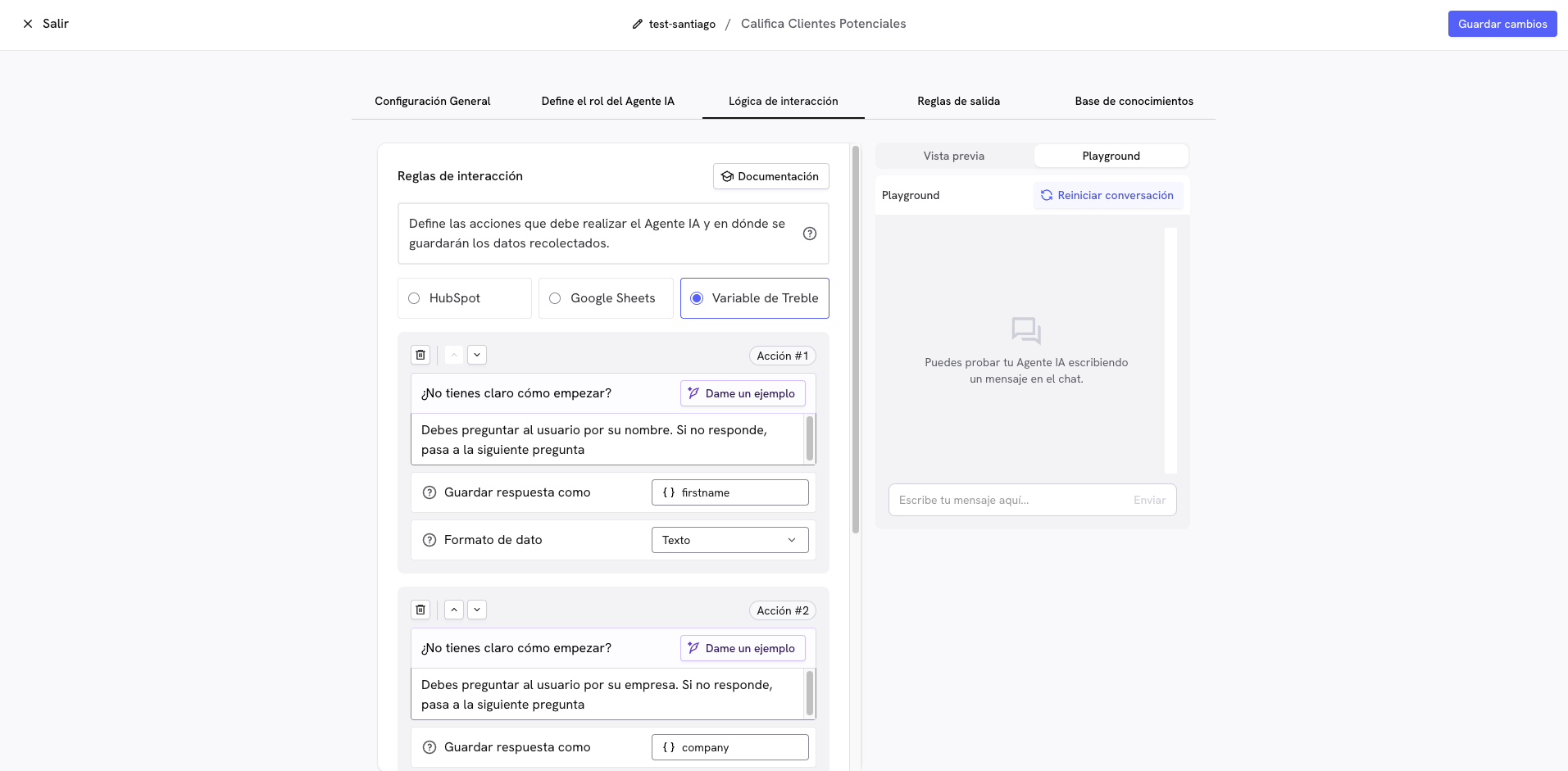
The interaction rules are all the questions this agent will ask your customers. In the configuration, you can also choose the data destination:
* **HubSpot**: Data is saved directly to your CRM
* **Google Sheets**: Information is stored in a spreadsheet
* **Treble Variable**: Internal variables to use with other blocks
**Use "Generate an example"** to get an optimized question format.
At this stage, you can see all the exit options the agent has. These options will allow you to connect with other blocks in the conversation builder:
* **All actions completed**: When it collects all requested information
* **Uncompleted actions**: With partial information
* **No actions completed**: If the user doesn't provide any relevant information
* **Critical conversation**: For cases requiring immediate human intervention, for example when the user is upset
**Upload your knowledge base** so the agent can answer questions about:
* Your company description
* Products or services
* General prices
* Frequently asked questions
**Supported formats:** PDF, DOCX, TXT, web addresses from your site.
**Click "Save"** to create the agent. Once saved, it will be available to use in the Conversation Builder.
1. **Go to the Conversation Builder**
2. **Drag the "Lead Qualification with AI" block** to your flow
3. **Select your agent** from the dropdown list
4. **Configure automatic follow-ups** for users who don't respond:
* **Frequency**: Every X minutes (recommended: 30-90 minutes)
* **Attempts**: Maximum Y attempts (recommended: 2-3 attempts)
This avoids being invasive while maintaining prospect engagement.
Now connect each agent output with the corresponding blocks. Once the outputs are connected, your agent will be ready to collect information automatically.
***
## Maximize value with conditional blocks
Once the agent collects information, use **conditional blocks** to automatically qualify and take specific actions according to each lead's profile.
### How conditional blocks work
Conditional blocks evaluate collected information and direct each lead through personalized routes:
**Basic workflow structure:**
```
Lead Qualification → Conditional Block → CRM Action (optional) → Custom Block
```
**Practical example in the Conversation Builder:**
Drag a **"Conditions" block** after your qualification agent.
Configure the condition according to collected data:
* **Property**: Select the agent variable (e.g. `budget`, `city`, `company`)
* **Operator**: Choose from `contains`, `equals`, `greater than`, `less than`, `different from`
* **Value**: Define the criterion (e.g. `$10,000`, `Mexico City`, `50 employees`)
**Example**: If `budget` is `greater than` `$10,000`
Connect the conditional block output with a **"CRM Action" block**.
Update properties in HubSpot/Salesforce:
* **Property**: `lead_status`
* **Value**: `Qualified` or `Not Qualified`
This allows you to have traceability in your CRM and activate specific workflows.
Connect the CRM block with a **message block** specific to that type of lead.
* **Qualified prospect**: "Perfect! Our sales team will contact you in the next 2 hours" And then redirect to a human agent block
* **Non-qualified prospect**: "Thank you for your interest. We'll keep you informed about new options"
***
## Frequently asked questions
No. The agent only collects information. You do the qualification afterward with conditional blocks based on captured data.
Yes. You can edit the role, questions, and knowledge base at any time.
Yes. Variables are saved progressively, even if the user doesn't finish.
Yes. You can use different agents to collect different types of information.
Directly only HubSpot and Salesforce. For other CRMs use Treble Variables and webhooks.
Yes. The agent can **understand voice messages sent by users through WhatsApp** and will automatically respond with text in the conversation.
***
## Troubleshooting
**Common causes:**
* Questions too invasive too early
* Illogical question order
* Failure to explain why data is needed
**Solutions:**
* Start with basic questions
* Explain the value of each requested data
* Reorder according to user logic
**Common causes:**
* Misconfigured variables
* Incorrect field mapping
* Incompatible format
**Solutions:**
* Verify configuration in HubSpot/Salesforce
* Review variable mapping in Treble
* Test first in Playground
**Common causes:**
* Process too long
* Irrelevant questions
* Lack of perceived value
**Solutions:**
* Reduce essential questions
* Intersperse with valuable information
* Explain benefits of completing
## Important considerations
**Privacy:** Inform users that their data will be saved and comply with applicable regulations (GDPR, etc.).
## Is it for you?
* Collect contact information automatically
* Capture data without manual errors
* Update your CRM automatically
* Prepare information for your sales team
* Reduce response time to prospects
* You only need to answer questions (use [Take your customers to a goal](/en/docs/main-platform/ai-center/agents/objective-ai))
* You require complex automatic decisions
## Use cases by industry
**Collect:** Budget, area of interest, property type, urgency
**Result:** Agents focus time on prospects with real budget
**Collect:** Type of consultation, urgency, availability, medical insurance
**Result:** Better prepared consultations with prior patient information
**Collect:** Education level, program of interest, modality, availability
**Result:** Advisors prioritize prospects according to academic criteria
**Collect:** Project scope, budget, previous experiences, timeline
**Result:** More accurate proposals from first contact
**Collect:** Product category, budget range, purchase volume, urgency
**Result:** Personalized recommendations and specific offers by profile
***
## Basic configuration
**Communication Style:** Adjust the slider according to your brand:
* **Casual**: Relaxed and friendly conversation
* **Professional**: Formal and business tone
This setting determines how the agent will communicate with your prospects.
In the **"Define Agent Role"** text area, specifically describe:
* What your company does
* What the agent's objective is
* How it should behave
**Use the "Generate an example" button** to get a base template you can customize.
```
Example:
You are an assistant for [Your Company] who collects information
from prospects interested in [services/products].
Your goal is to understand their needs so our
team can offer them the best solution.
```
The interaction rules are all the questions this agent will ask your customers. In the configuration, you can also choose the data destination:
* **HubSpot**: Data is saved directly to your CRM
* **Google Sheets**: Information is stored in a spreadsheet
* **Treble Variable**: Internal variables to use with other blocks
**Use "Generate an example"** to get an optimized question format.
At this stage, you can see all the exit options the agent has. These options will allow you to connect with other blocks in the conversation builder:
* **All actions completed**: When it collects all requested information
* **Uncompleted actions**: With partial information
* **No actions completed**: If the user doesn't provide any relevant information
* **Critical conversation**: For cases requiring immediate human intervention, for example when the user is upset
**Upload your knowledge base** so the agent can answer questions about:
* Your company description
* Products or services
* General prices
* Frequently asked questions
**Supported formats:** PDF, DOCX, TXT, web addresses from your site.
**Click "Save"** to create the agent. Once saved, it will be available to use in the Conversation Builder.
1. **Go to the Conversation Builder**
2. **Drag the "Lead Qualification with AI" block** to your flow
3. **Select your agent** from the dropdown list
4. **Configure automatic follow-ups** for users who don't respond:
* **Frequency**: Every X minutes (recommended: 30-90 minutes)
* **Attempts**: Maximum Y attempts (recommended: 2-3 attempts)
This avoids being invasive while maintaining prospect engagement.
Now connect each agent output with the corresponding blocks. Once the outputs are connected, your agent will be ready to collect information automatically.
***
## Maximize value with conditional blocks
Once the agent collects information, use **conditional blocks** to automatically qualify and take specific actions according to each lead's profile.
### How conditional blocks work
Conditional blocks evaluate collected information and direct each lead through personalized routes:
**Basic workflow structure:**
```
Lead Qualification → Conditional Block → CRM Action (optional) → Custom Block
```
**Practical example in the Conversation Builder:**
Drag a **"Conditions" block** after your qualification agent.
Configure the condition according to collected data:
* **Property**: Select the agent variable (e.g. `budget`, `city`, `company`)
* **Operator**: Choose from `contains`, `equals`, `greater than`, `less than`, `different from`
* **Value**: Define the criterion (e.g. `$10,000`, `Mexico City`, `50 employees`)
**Example**: If `budget` is `greater than` `$10,000`
Connect the conditional block output with a **"CRM Action" block**.
Update properties in HubSpot/Salesforce:
* **Property**: `lead_status`
* **Value**: `Qualified` or `Not Qualified`
This allows you to have traceability in your CRM and activate specific workflows.
Connect the CRM block with a **message block** specific to that type of lead.
* **Qualified prospect**: "Perfect! Our sales team will contact you in the next 2 hours" And then redirect to a human agent block
* **Non-qualified prospect**: "Thank you for your interest. We'll keep you informed about new options"
***
## Frequently asked questions
No. The agent only collects information. You do the qualification afterward with conditional blocks based on captured data.
Yes. You can edit the role, questions, and knowledge base at any time.
Yes. Variables are saved progressively, even if the user doesn't finish.
Yes. You can use different agents to collect different types of information.
Directly only HubSpot and Salesforce. For other CRMs use Treble Variables and webhooks.
Yes. The agent can **understand voice messages sent by users through WhatsApp** and will automatically respond with text in the conversation.
***
## Troubleshooting
**Common causes:**
* Questions too invasive too early
* Illogical question order
* Failure to explain why data is needed
**Solutions:**
* Start with basic questions
* Explain the value of each requested data
* Reorder according to user logic
**Common causes:**
* Misconfigured variables
* Incorrect field mapping
* Incompatible format
**Solutions:**
* Verify configuration in HubSpot/Salesforce
* Review variable mapping in Treble
* Test first in Playground
**Common causes:**
* Process too long
* Irrelevant questions
* Lack of perceived value
**Solutions:**
* Reduce essential questions
* Intersperse with valuable information
* Explain benefits of completing
## Important considerations
**Privacy:** Inform users that their data will be saved and comply with applicable regulations (GDPR, etc.).