> ## Documentation Index
> Fetch the complete documentation index at: https://help.treble.ai/llms.txt
> Use this file to discover all available pages before exploring further.
# Treble.ai Integration with Google Sheets
> Connect your conversations with spreadsheets to automatically save and update data.
Hello!
In this guide you'll learn how to connect **Treble** with **Google Sheets** to **update** and **get variables** from a Google spreadsheet.
This integration allows you to automate data management for your Treble conversations using a Google Sheets spreadsheet as a database.
## Activate the integration
1. Create a spreadsheet in **Google Sheets**.
*Recommended:* leave it with **public edit permission**.
If you prefer to keep it private, you'll find the instructions to do so below.
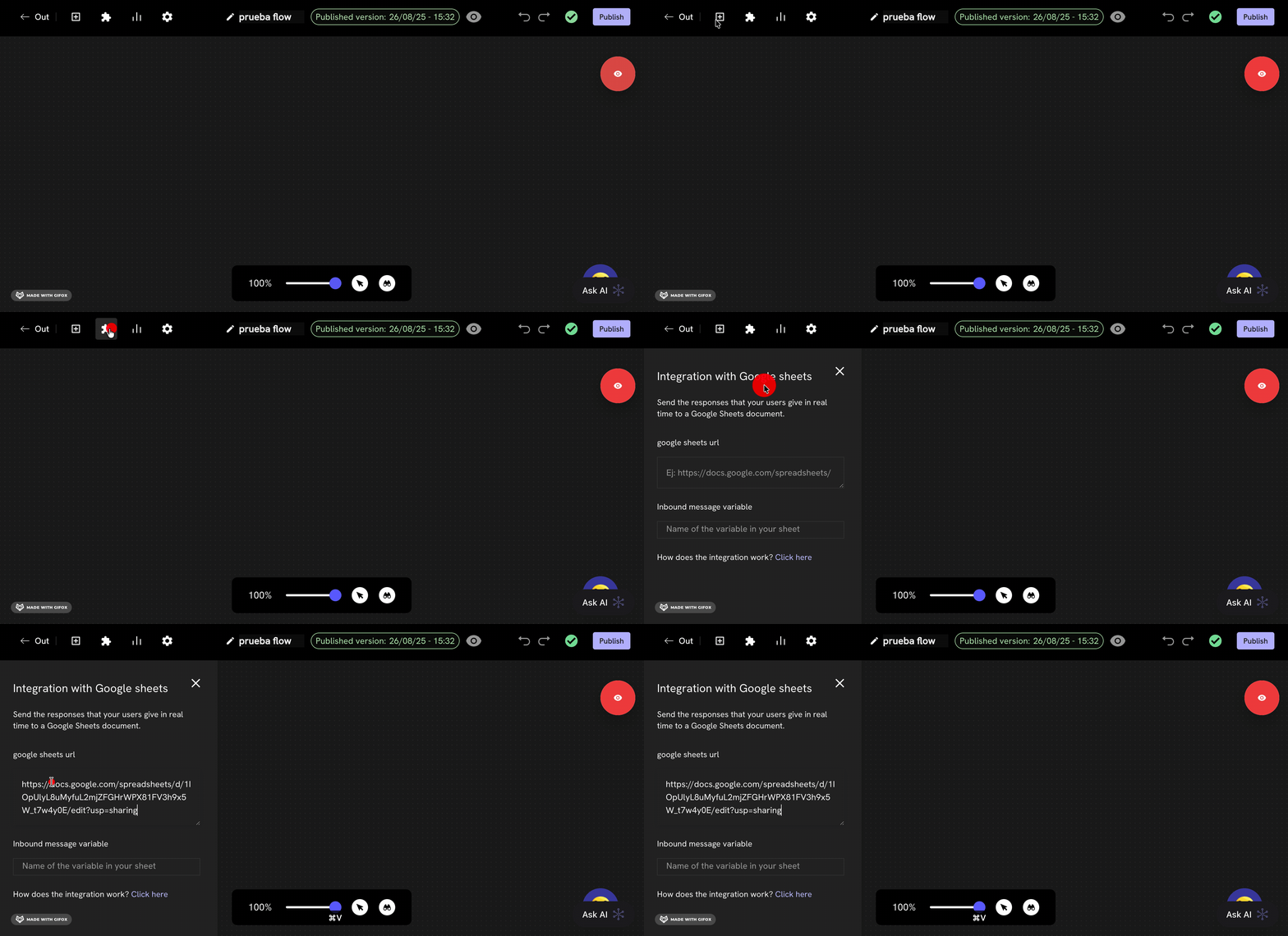
2. In Treble's **Conversation Flow Editor**, click on the puzzle icon .
3. Select the **Google Sheets** option.
4. Paste the **URL** of your spreadsheet in the text field.
 ## Required format in the sheet
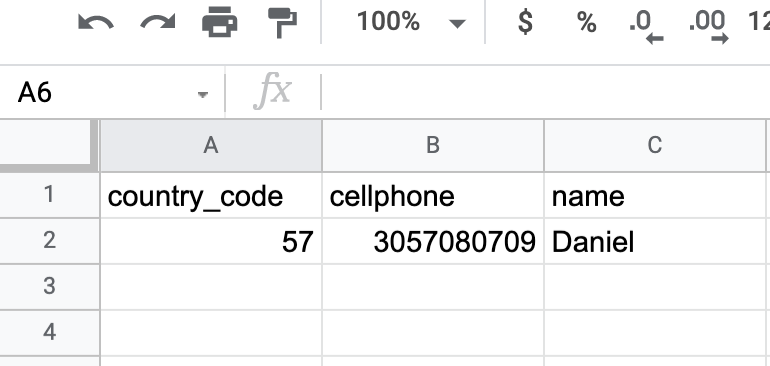
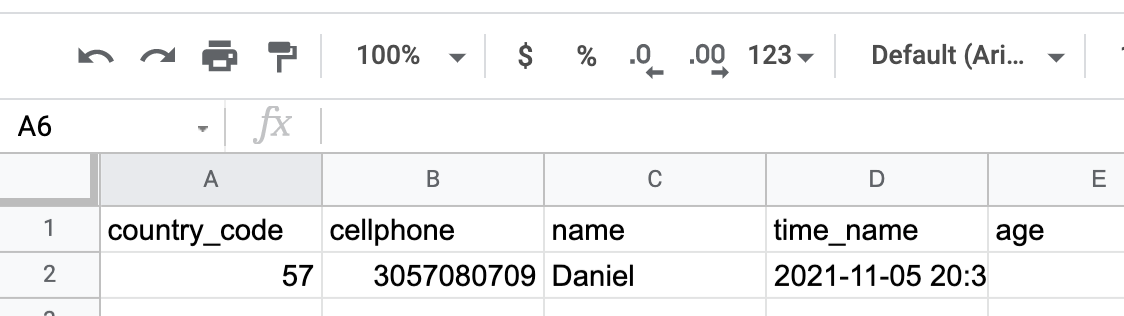
This integration requires your spreadsheet to have the following two columns in the first row:
`country_code` and `cellphone` which are used to identify each user. The following columns are used to get or save information about that user.
## Required format in the sheet
This integration requires your spreadsheet to have the following two columns in the first row:
`country_code` and `cellphone` which are used to identify each user. The following columns are used to get or save information about that user.
 ## Query variables from Sheets
To **get a variable** from the spreadsheet, you must use the following format within the conversation:
`sheets_nombre_variable`
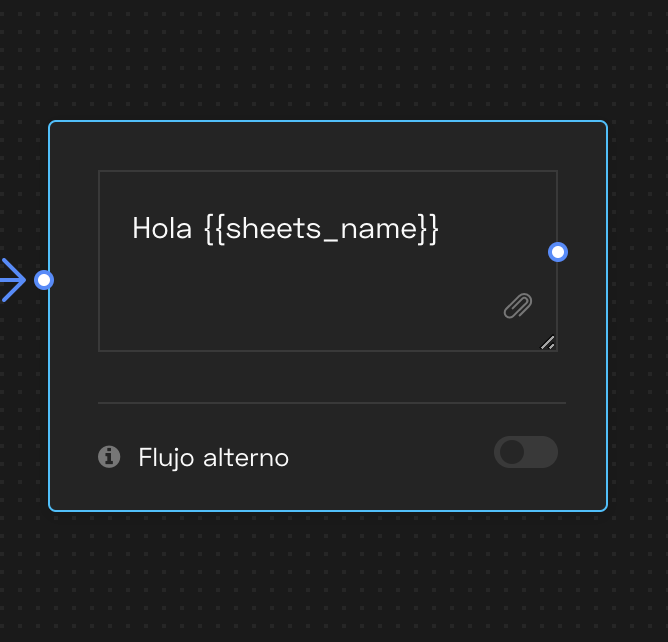
For example, if you have a column `name`, you can use the variable `sheets_name` to greet the user:
```text theme={null}
Hello {{sheets_name}}, how are you?
```
## Query variables from Sheets
To **get a variable** from the spreadsheet, you must use the following format within the conversation:
`sheets_nombre_variable`
For example, if you have a column `name`, you can use the variable `sheets_name` to greet the user:
```text theme={null}
Hello {{sheets_name}}, how are you?
```
 ## Save responses in Sheets
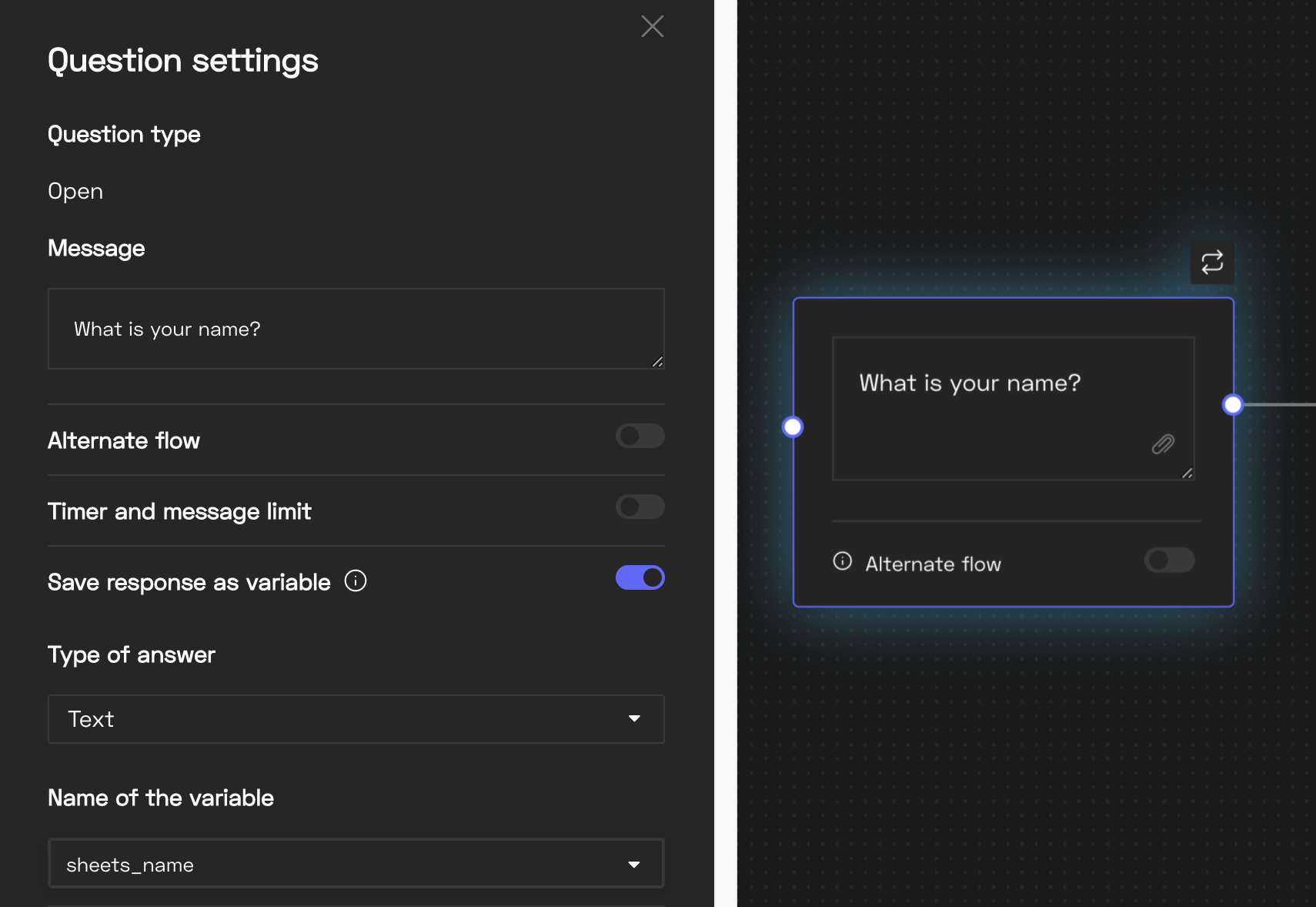
To save what the user responds in the conversation, use the same variable format `sheets_nombre_variable`, and check the **"Save response as variable"** option in the flow.
## Save responses in Sheets
To save what the user responds in the conversation, use the same variable format `sheets_nombre_variable`, and check the **"Save response as variable"** option in the flow.
 ## Save the response time
If you want to record when a response was saved, create another column with the `time_` prefix
For example:
* If you have the variable `name`, create another column called `time_name`.
Treble will automatically save the date and time when the user responds.
## Save the response time
If you want to record when a response was saved, create another column with the `time_` prefix
For example:
* If you have the variable `name`, create another column called `time_name`.
Treble will automatically save the date and time when the user responds.
 ## Sheets with restricted permissions
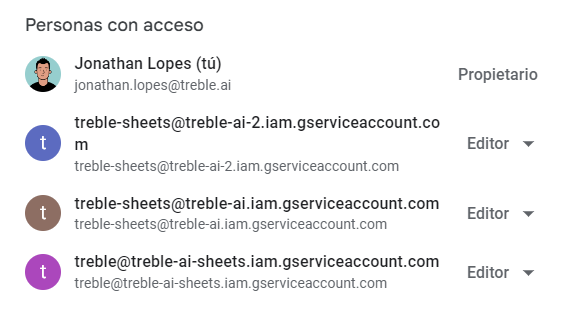
If you don't want your sheet to be public, you must share it with **Treble's three official email addresses**:
```text theme={null}
treble-sheets@treble-ai.iam.gserviceaccount.com
treble-sheets@treble-ai-2.iam.gserviceaccount.com
treble@treble-ai-sheets.iam.gserviceaccount.com
```
## Sheets with restricted permissions
If you don't want your sheet to be public, you must share it with **Treble's three official email addresses**:
```text theme={null}
treble-sheets@treble-ai.iam.gserviceaccount.com
treble-sheets@treble-ai-2.iam.gserviceaccount.com
treble@treble-ai-sheets.iam.gserviceaccount.com
```
 ## Limitations
* **Maximum supported columns**: up to column ZZ.
* **Google Sheets rate limit**:
* G Suite: 5 requests per second
* Regular Gmail: 1 request per second
If those limits are exceeded, some data may be lost.
## Limitations
* **Maximum supported columns**: up to column ZZ.
* **Google Sheets rate limit**:
* G Suite: 5 requests per second
* Regular Gmail: 1 request per second
If those limits are exceeded, some data may be lost.