> ## Documentation Index
> Fetch the complete documentation index at: https://help.treble.ai/llms.txt
> Use this file to discover all available pages before exploring further.
# Sync Salesforce objects
> How to make Treble see the changes you make in Salesforce. It's the most forgotten step and the most common cause of errors that seem to have no explanation.
Treble keeps a **copy of the structure** of your Salesforce objects and fields: which objects exist, which fields each one has, which values each picklist accepts and which ones are required.
That copy doesn't update on its own. It's updated when you run the **object sync**.
Every time you change something in Salesforce that affects the structure, run the sync. If you don't, Treble keeps working with the previous version and the errors that appear **usually have no obvious relation to the change you made**.
## When you need to sync
A new field doesn't appear in Treble's blocks until you sync.
Treble decides which fields to send when creating a record based on this information. If it's outdated, it may send fields that are no longer needed, or omit others that now are.
Validation rules affect which values Salesforce accepts when creating or updating a record.
Record types define which picklist values and which lookups are valid on each record.
Record types
Treble shows the options it had stored at the last sync.
Treble shows field labels **exactly as Salesforce returns them**, and Salesforce translates them according to the language of the user the integration is connected with.
If you want to see them in English instead of Spanish (or the other way around), you need to change that user's language in Salesforce and sync again. It's not a Treble setting.
Some integration improvements only become visible after syncing.
## How to sync
Go to your Treble platform and open any conversation flow. **It doesn't matter which one**: the sync applies to the whole account, not to the flow you're in.
Inside the conversation builder, in the top-left bar, click the gear icon ⚙.
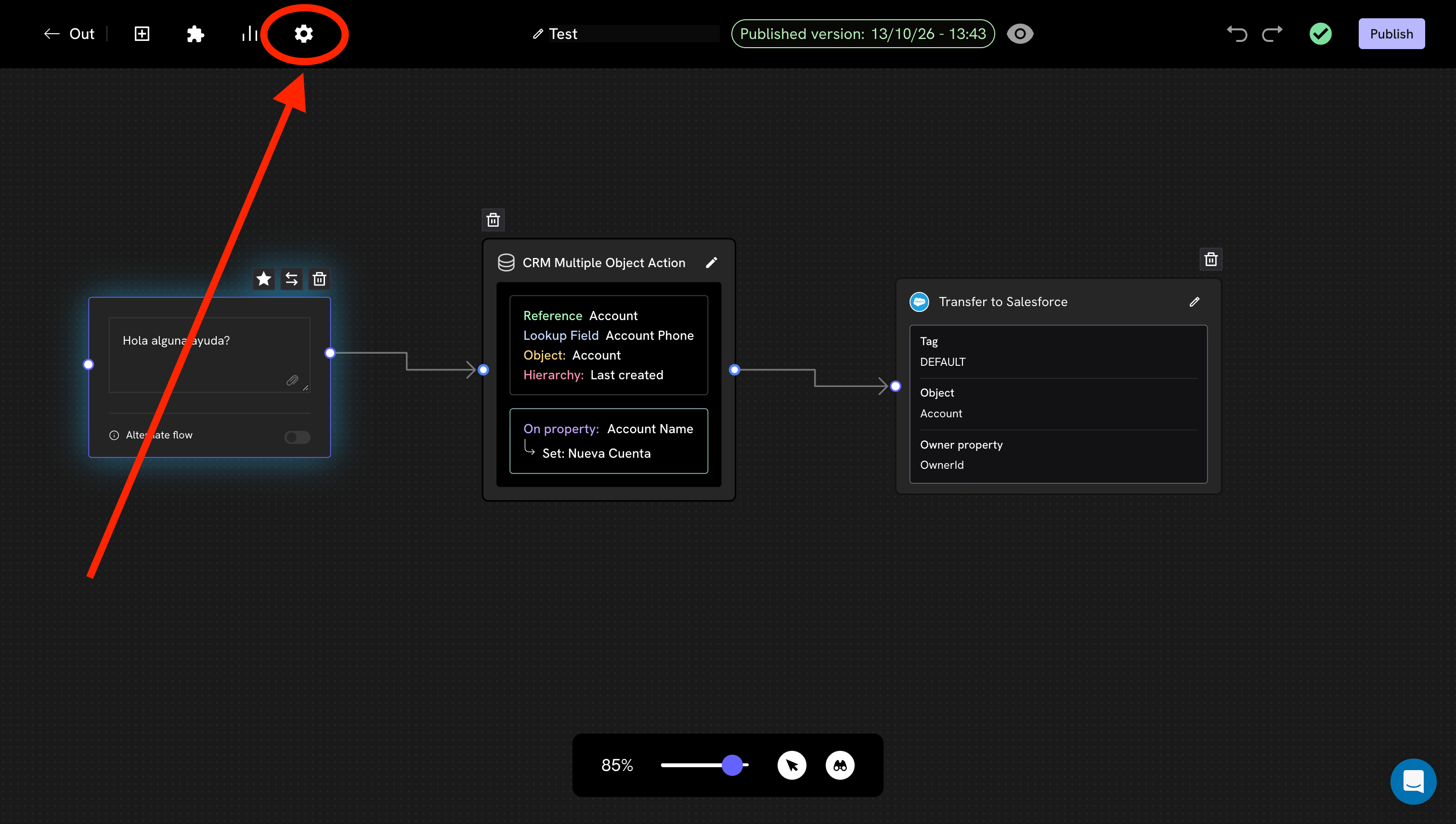 It's the same gear for all flows. If you don't see it, confirm that you're inside the conversation builder and not in the campaign list.
The **Settings** panel opens. At the very bottom is the **CRM object block: data sync** card, with the **Sync data** button.
It's the same gear for all flows. If you don't see it, confirm that you're inside the conversation builder and not in the campaign list.
The **Settings** panel opens. At the very bottom is the **CRM object block: data sync** card, with the **Sync data** button.
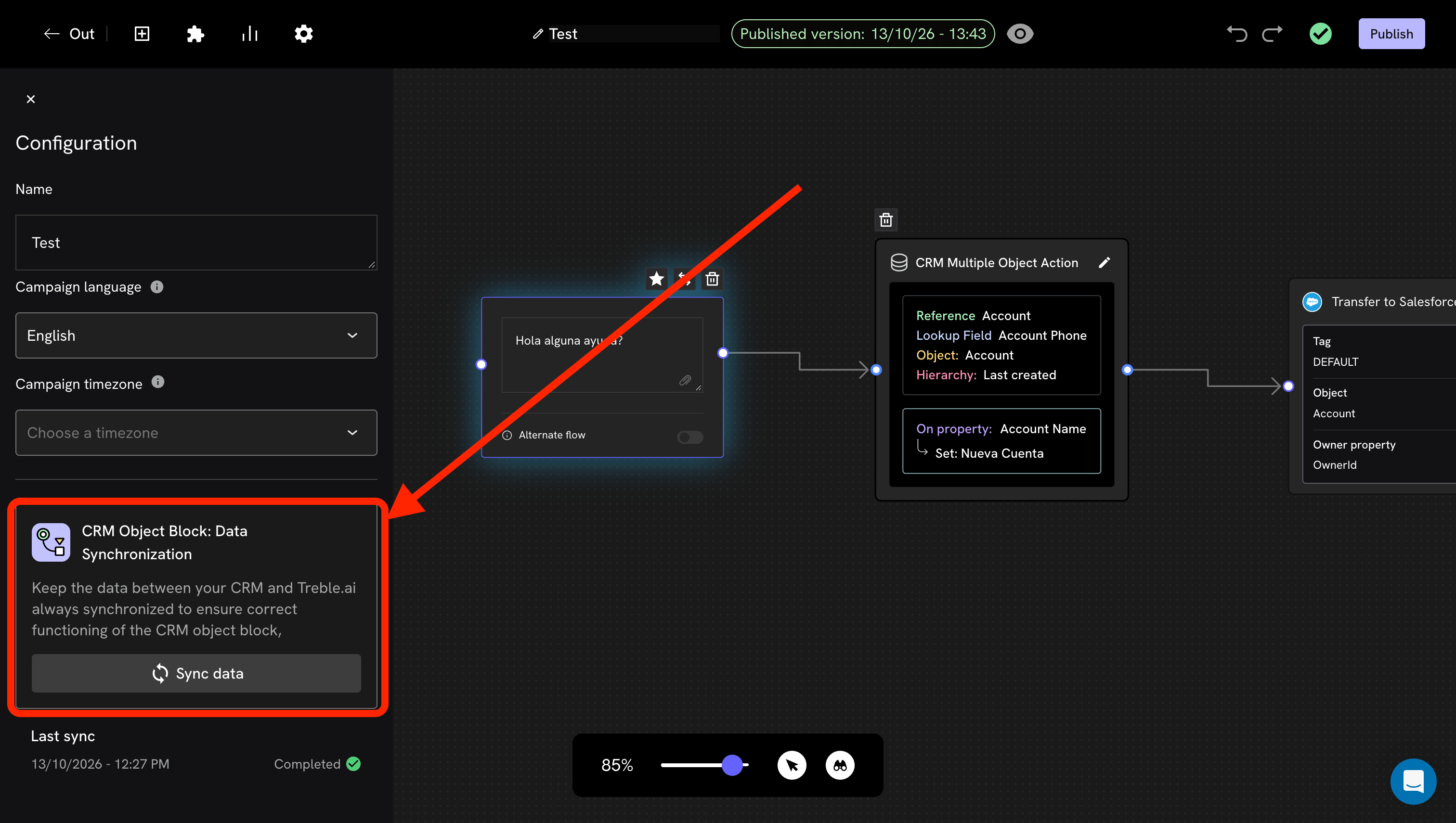 While it runs, the button shows a loading indicator. Depending on the number of objects and fields in your org, it can take anywhere from a few seconds to a few minutes.
Below the button, **Last sync** shows the date, time and status. When it says **Completed**, Treble's blocks are already showing the new structure.
That "last sync" line is the fastest way to resolve an "I already synced": if the date is old, it wasn't run; if it's recent and the problem persists, the issue is something else.
**There are three different syncs** and they're easily confused:
| Sync | What it moves | When it runs |
| - | - | - |
| **Initial contact sync** | Your Salesforce records into Treble | Once, when connecting the integration |
| **Periodic contact sync** | Records created, modified or deleted since the last pass | On its own, every \~30 minutes. You don't need to do anything |
| **Object sync** (this page) | The **structure**: objects, fields, picklists, record types | Manually, when you run it |
If someone tells you "I already synced" but the problem persists, it's worth confirming **which** of the three.
The quick rule: if a **contact** is missing, it's about the first two and is checked in the [Sales view](/en/docs/integrations/salesforce/features/sales-view). If a **field** or a picklist option is missing, it's this one.
## How to tell the problem is a missing sync
These signs usually point to an outdated structure:
| What you see | What to check |
| - | - |
| A field you created in Salesforce doesn't appear in Treble's property list | Sync |
| Treble sends a value to a picklist and Salesforce rejects it, even though the value exists | Sync, and check the record's record type |
| A new required field makes record creation fail | Sync |
| You changed a setting in Treble and "nothing happened" | Almost everything is read at sync time, not in real time |
**Practical recommendation:** make syncing part of your process. Every time your Salesforce team makes a structural change, have the person who manages Treble run the sync as the next step. It takes less than a minute and avoids long diagnoses.
## Next steps
Why a wrong record type produces errors on fields that seem unrelated.
What can be customized and what limits it has.
This documentation is built and hosted on [Mintlify](https://mintlify.com), a developer documentation platform.
While it runs, the button shows a loading indicator. Depending on the number of objects and fields in your org, it can take anywhere from a few seconds to a few minutes.
Below the button, **Last sync** shows the date, time and status. When it says **Completed**, Treble's blocks are already showing the new structure.
That "last sync" line is the fastest way to resolve an "I already synced": if the date is old, it wasn't run; if it's recent and the problem persists, the issue is something else.
**There are three different syncs** and they're easily confused:
| Sync | What it moves | When it runs |
| - | - | - |
| **Initial contact sync** | Your Salesforce records into Treble | Once, when connecting the integration |
| **Periodic contact sync** | Records created, modified or deleted since the last pass | On its own, every \~30 minutes. You don't need to do anything |
| **Object sync** (this page) | The **structure**: objects, fields, picklists, record types | Manually, when you run it |
If someone tells you "I already synced" but the problem persists, it's worth confirming **which** of the three.
The quick rule: if a **contact** is missing, it's about the first two and is checked in the [Sales view](/en/docs/integrations/salesforce/features/sales-view). If a **field** or a picklist option is missing, it's this one.
## How to tell the problem is a missing sync
These signs usually point to an outdated structure:
| What you see | What to check |
| - | - |
| A field you created in Salesforce doesn't appear in Treble's property list | Sync |
| Treble sends a value to a picklist and Salesforce rejects it, even though the value exists | Sync, and check the record's record type |
| A new required field makes record creation fail | Sync |
| You changed a setting in Treble and "nothing happened" | Almost everything is read at sync time, not in real time |
**Practical recommendation:** make syncing part of your process. Every time your Salesforce team makes a structural change, have the person who manages Treble run the sync as the next step. It takes less than a minute and avoids long diagnoses.
## Next steps
Why a wrong record type produces errors on fields that seem unrelated.
What can be customized and what limits it has.
This documentation is built and hosted on [Mintlify](https://mintlify.com), a developer documentation platform.