> ## Documentation Index
> Fetch the complete documentation index at: https://help.treble.ai/llms.txt
> Use this file to discover all available pages before exploring further.
# Salesforce contacts in Sales
> What the Contacts tab of the agent workspace shows when you have Salesforce connected, and why the contact you're looking for may not appear.
In Treble's agent workspace ([Sales](/en/docs/agent-platform/welcome)) there's a **Contacts** tab that shows the records brought in from Salesforce, so an advisor can find a person and start a conversation with them without leaving the tool.
**It's not a mirror of your Salesforce database.** The tab shows a portion of the contacts, with rules worth knowing before using it as a source of truth.
## What it shows
The contacts of your **parent entity** that Treble has imported from Salesforce.
**The person doesn't need to have had a WhatsApp conversation.** Treble imports records automatically from Salesforce, so a contact created in the CRM appears in Sales on its own.
This is different from other integrations, such as HubSpot, where the contact reaches Sales when a conversation starts.
There's an optional setting so that **each advisor sees only the contacts they own** in Salesforce. If you have it enabled, two advisors see different lists. It's an integration setting; check it with your Customer Success Manager.
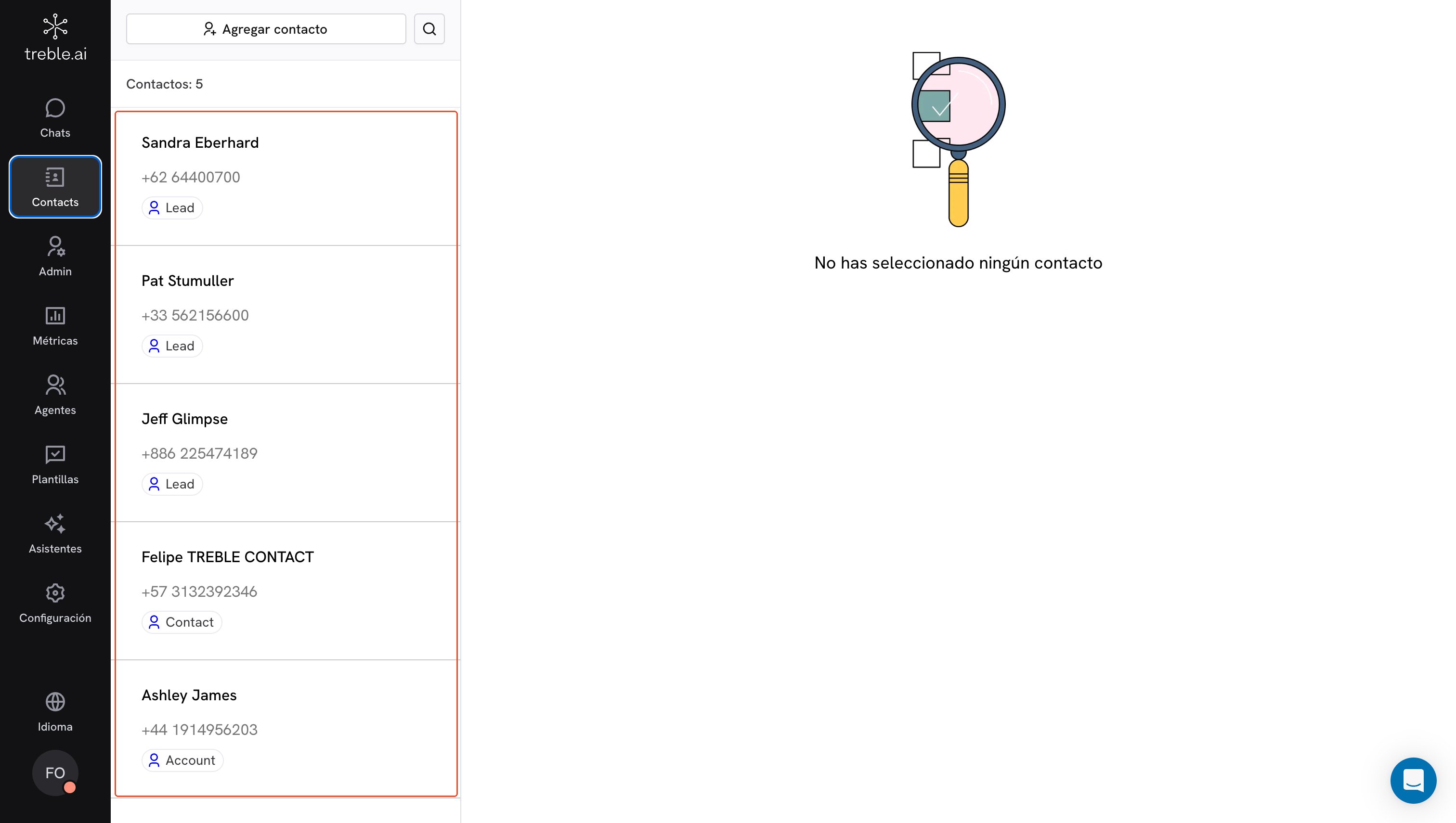
In multi-object, the list shows the **records per object**, not the people.
That means **the same person can appear several times**, once for each object in which Treble identified or created them. Each row indicates which object it is.
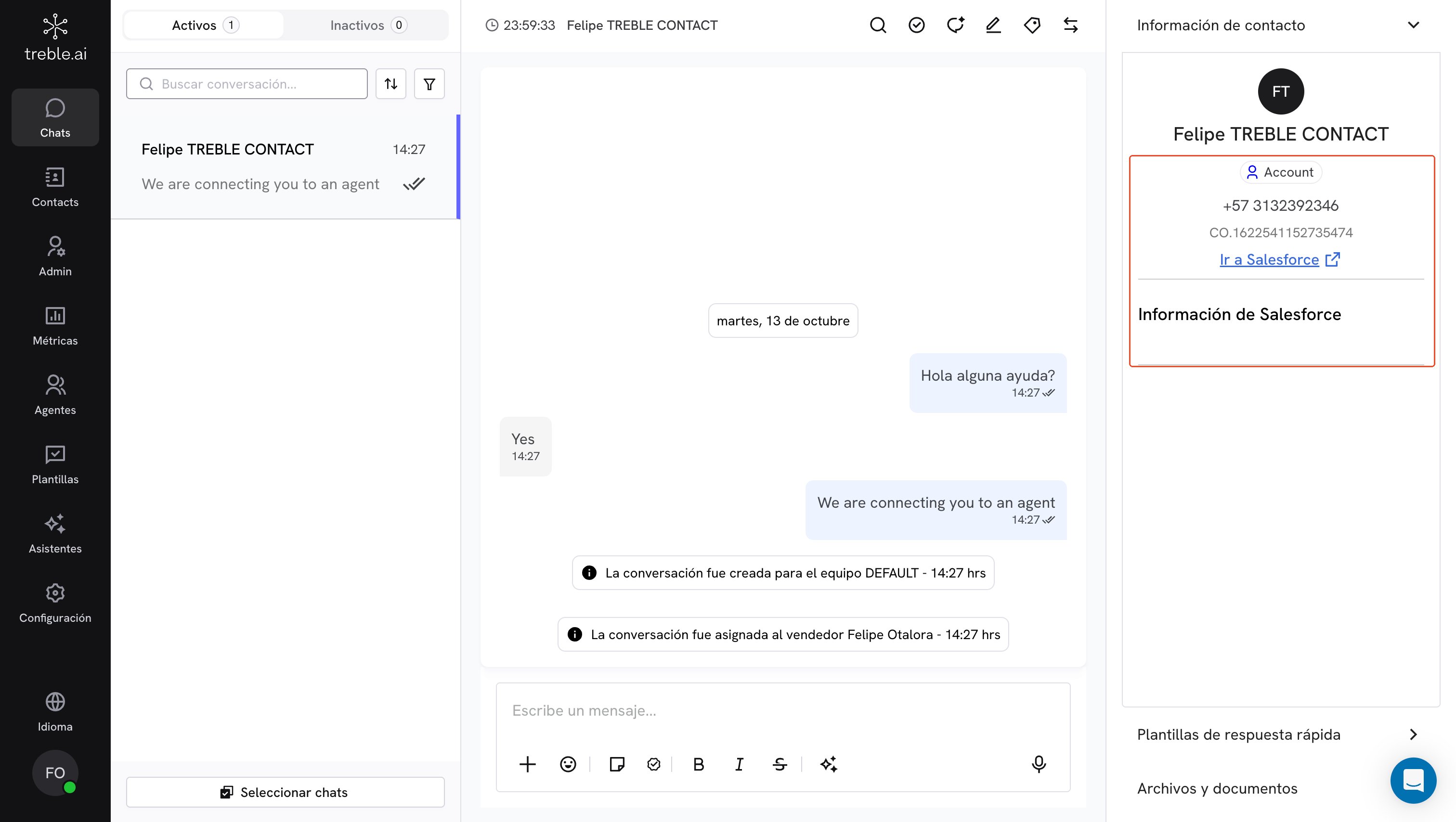
 The same happens inside a conversation: in the **Contact information** panel, right below the name, you see the label of the object that conversation is tied to (in the example, `Account`). Since each conversation is tied to a specific record, that label can be different from the one you see for the same person in the Contacts list.
 The "each advisor sees only their contacts" setting **doesn't apply** in multi-object. All advisors see the same list.
## What the advisor sees inside a conversation
When an advisor opens a conversation, the **Contact information** panel on the right shows the data of the associated Salesforce record. It works the same in single object and multi-object; the only difference is that in multi-object the object label also appears below the name (see the **Multi-object** tab above).
* **Go to Salesforce**: opens that record directly in Salesforce.
* **Contact Owner**: appears when the record owner is a Treble agent.
* **Salesforce Information**: a list of the record's fields with their values.
### The "Salesforce Information" fields
The section doesn't show all of the object's fields, only the ones configured to appear in it.
* The values are read **directly from Salesforce** every time the panel is opened, so they reflect the current state of the record. A field with no value is shown with a dash (-).
* Each field has a pencil icon to **edit the value**. The change is written to Salesforce.
* The same fields also appear in the **Add contact** form, along with the object's required fields.
**The fields are configured by the Treble team.** There's no screen in the platform to choose them: ask your Customer Success Manager which fields you want to see. In multi-object they're configured separately for each object, so a `Lead` and an `Account` can show different fields.
If no fields are configured for that object, the section appears empty.
## How contacts reach Sales
Understanding this resolves most "this contact doesn't appear" cases.
Treble brings in all the records of your parent entity that have a number in the configured phone field.
Periodically, Treble queries Salesforce again and brings in the records **created or modified** since the last time. It also processes the ones that were deleted.
You don't need to do anything for it to run, and it's not the same as the [object sync](/en/docs/integrations/salesforce/object-sync), which updates the field structure.
**A record without a number in the configured phone field is never imported.** The query Treble runs explicitly excludes records with that field empty, both in the initial import and in the periodic ones.
The number also has to be a valid, identifiable phone number. A field with text, an extension or an incomplete number can't be turned into a WhatsApp contact.
**Useful trick when a record doesn't appear:** since the periodic import looks at records *created or modified*, it's enough to edit and save that record in Salesforce (for example, by re-entering the phone number) for it to be included in the next pass.
## The list limit
The tab shows a maximum of **100 records**.
If your database has more, the ones outside those 100 simply don't appear. This is, by far, the most frequent reason for "I can't find this contact".
To reach a person who isn't in the list, don't rely on this tab: start the conversation by their phone number, or look them up in Salesforce and use the [Treble tab inside the CRM](/en/docs/integrations/salesforce/embed/custom-tab), which works on the record you have open.
## Common issues
Check in this order:
1. **Does the record have a number in the configured phone field?** It's the number one cause. An empty field means the record is never imported. In single object the default field is `Phone`.
2. **Is that the correct field?** If your numbers live in `Mobile Phone` or in a custom field but the integration is pointing to `Phone`, none are imported.
3. **Has an import cycle already passed?** It can take up to about 30 minutes from when it was created or modified in Salesforce.
4. **Is the number valid?** It has to be interpretable as a real phone number, with its country code.
5. **Is it outside the first 100 records** of the list? See the limit above.
6. **Is the owner setting active** (single object only) and does that contact belong to another advisor?
If after all this it still doesn't appear, write to support indicating the record's Id in Salesforce and the phone field you're using.
When a `Lead` is converted in Salesforce, the original record is no longer accessible through its Lead link unless the user's profile has the **"View and Edit Converted Leads"** permission.
The typical symptom is the Salesforce message *"This record is no longer available, contact your administrator"* when opening the contact from Treble, and it reads as if Treble had lost the record. It's resolved on the Salesforce side, by giving that permission to the profile.
It's the expected behavior in multi-object: one row for each Salesforce object in which Treble identified them. Look at the object label on each row.
If you're in single object and you see duplicates, then there really are duplicate records in Salesforce. Check the integration's lookup phone field and whether any block has "Create a new object" enabled.
In single object, it's the "each advisor sees only the contacts they own" setting. In multi-object it shouldn't happen, because that setting doesn't apply.
Treble shows the name it has on record. If the Salesforce record didn't have a name when Treble brought it in, the phone number is shown.
For the name to show, make sure the flow writes it to the name field configured for that object.
## Next steps
The recommended way to work on a specific record.
How a conversation reaches an advisor's inbox.
This documentation is built and hosted on [Mintlify](https://mintlify.com), a developer documentation platform.
The "each advisor sees only their contacts" setting **doesn't apply** in multi-object. All advisors see the same list.
## What the advisor sees inside a conversation
When an advisor opens a conversation, the **Contact information** panel on the right shows the data of the associated Salesforce record. It works the same in single object and multi-object; the only difference is that in multi-object the object label also appears below the name (see the **Multi-object** tab above).
* **Go to Salesforce**: opens that record directly in Salesforce.
* **Contact Owner**: appears when the record owner is a Treble agent.
* **Salesforce Information**: a list of the record's fields with their values.
### The "Salesforce Information" fields
The section doesn't show all of the object's fields, only the ones configured to appear in it.
* The values are read **directly from Salesforce** every time the panel is opened, so they reflect the current state of the record. A field with no value is shown with a dash (-).
* Each field has a pencil icon to **edit the value**. The change is written to Salesforce.
* The same fields also appear in the **Add contact** form, along with the object's required fields.
**The fields are configured by the Treble team.** There's no screen in the platform to choose them: ask your Customer Success Manager which fields you want to see. In multi-object they're configured separately for each object, so a `Lead` and an `Account` can show different fields.
If no fields are configured for that object, the section appears empty.
## How contacts reach Sales
Understanding this resolves most "this contact doesn't appear" cases.
Treble brings in all the records of your parent entity that have a number in the configured phone field.
Periodically, Treble queries Salesforce again and brings in the records **created or modified** since the last time. It also processes the ones that were deleted.
You don't need to do anything for it to run, and it's not the same as the [object sync](/en/docs/integrations/salesforce/object-sync), which updates the field structure.
**A record without a number in the configured phone field is never imported.** The query Treble runs explicitly excludes records with that field empty, both in the initial import and in the periodic ones.
The number also has to be a valid, identifiable phone number. A field with text, an extension or an incomplete number can't be turned into a WhatsApp contact.
**Useful trick when a record doesn't appear:** since the periodic import looks at records *created or modified*, it's enough to edit and save that record in Salesforce (for example, by re-entering the phone number) for it to be included in the next pass.
## The list limit
The tab shows a maximum of **100 records**.
If your database has more, the ones outside those 100 simply don't appear. This is, by far, the most frequent reason for "I can't find this contact".
To reach a person who isn't in the list, don't rely on this tab: start the conversation by their phone number, or look them up in Salesforce and use the [Treble tab inside the CRM](/en/docs/integrations/salesforce/embed/custom-tab), which works on the record you have open.
## Common issues
Check in this order:
1. **Does the record have a number in the configured phone field?** It's the number one cause. An empty field means the record is never imported. In single object the default field is `Phone`.
2. **Is that the correct field?** If your numbers live in `Mobile Phone` or in a custom field but the integration is pointing to `Phone`, none are imported.
3. **Has an import cycle already passed?** It can take up to about 30 minutes from when it was created or modified in Salesforce.
4. **Is the number valid?** It has to be interpretable as a real phone number, with its country code.
5. **Is it outside the first 100 records** of the list? See the limit above.
6. **Is the owner setting active** (single object only) and does that contact belong to another advisor?
If after all this it still doesn't appear, write to support indicating the record's Id in Salesforce and the phone field you're using.
When a `Lead` is converted in Salesforce, the original record is no longer accessible through its Lead link unless the user's profile has the **"View and Edit Converted Leads"** permission.
The typical symptom is the Salesforce message *"This record is no longer available, contact your administrator"* when opening the contact from Treble, and it reads as if Treble had lost the record. It's resolved on the Salesforce side, by giving that permission to the profile.
It's the expected behavior in multi-object: one row for each Salesforce object in which Treble identified them. Look at the object label on each row.
If you're in single object and you see duplicates, then there really are duplicate records in Salesforce. Check the integration's lookup phone field and whether any block has "Create a new object" enabled.
In single object, it's the "each advisor sees only the contacts they own" setting. In multi-object it shouldn't happen, because that setting doesn't apply.
Treble shows the name it has on record. If the Salesforce record didn't have a name when Treble brought it in, the phone number is shown.
For the name to show, make sure the flow writes it to the name field configured for that object.
## Next steps
The recommended way to work on a specific record.
How a conversation reaches an advisor's inbox.
This documentation is built and hosted on [Mintlify](https://mintlify.com), a developer documentation platform.