> ## Documentation Index
> Fetch the complete documentation index at: https://help.treble.ai/llms.txt
> Use this file to discover all available pages before exploring further.
# Launch conversations from a Flow
> How to install the Treble package in Salesforce to trigger a WhatsApp conversation from an automation flow.
The package is evolving, and its installation link changes with each new version. If something doesn't match what you see on screen, confirm with your Customer Success Manager that you're using the current version.
So far, conversations are triggered from Treble. With this package you can do it the other way around: **a Salesforce automation flow triggers a Treble WhatsApp conversation**.
It's useful for cases like: when a lead changes to a certain status, automatically sending them a WhatsApp template; or when a request is created, starting the follow-up conversation without anyone having to do anything.
## Before you start
| You need | Where to get it |
| - | - |
| A Salesforce administrator user | Your Salesforce team |
| The package installation link | It's further below, in step 1 |
| Your Treble API key | In the Treble platform: **Settings → Developers → API KEY** |
The API key is a credential with access to your Treble account. Don't share it through open channels, don't paste it into shared documents, and if you think it was exposed, ask for it to be regenerated.
## 1. Install the package
With your Salesforce session open, go to this link:
```
https://login.salesforce.com/packaging/installPackage.apexp?p0=04taj000000A3B7AAK
```
**About the link identifier.** The final part (`04taj000000A3B7AAK`) is the package version Id. When a new version is published, that Id changes.
If the link doesn't open, asks you for an installation password, or installs something that doesn't match what you see here, you're probably using an old link: ask your Customer Success Manager for the current one.
If your org is a **sandbox**, replace `login.salesforce.com` with `test.salesforce.com` in the link.
You'll see the installation screen for the **DeployTrebleConversation** package.
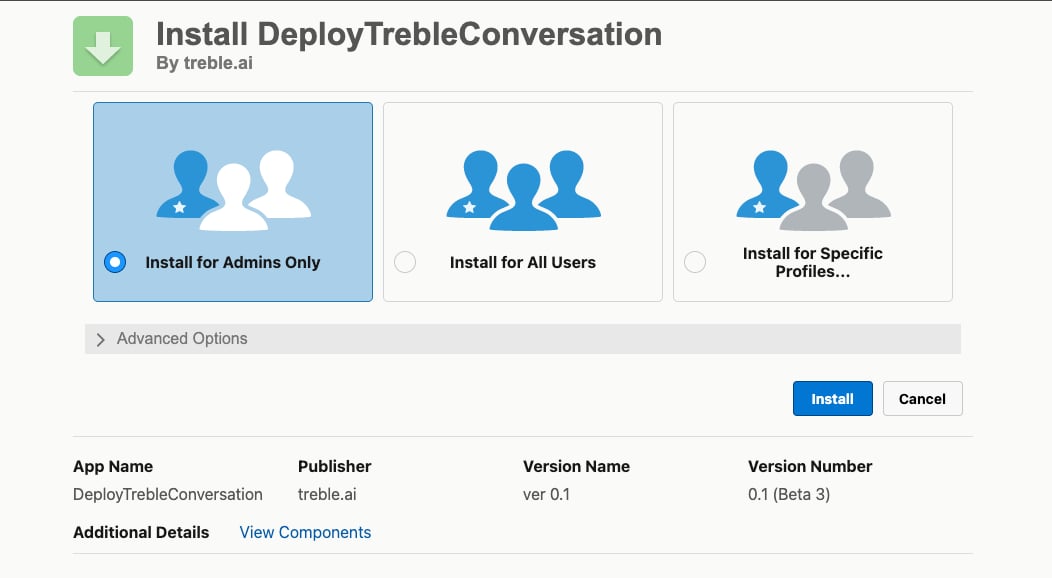 Choose who can use it:
| Option | When to use it |
| - | - |
| **Install for Admins Only** | Recommended to start. Only administrators can use it while they test it |
| **Install for All Users** | When it's already validated and several teams are going to use it |
| **Install for Specific Profiles** | When you want to limit it to certain profiles |
Click **Install** and wait for Salesforce to confirm the installation.
## 2. Configure the credential
The package installs an **external credential** and a **named credential**, which are what allow Salesforce to call the Treble API.
Choose who can use it:
| Option | When to use it |
| - | - |
| **Install for Admins Only** | Recommended to start. Only administrators can use it while they test it |
| **Install for All Users** | When it's already validated and several teams are going to use it |
| **Install for Specific Profiles** | When you want to limit it to certain profiles |
Click **Install** and wait for Salesforce to confirm the installation.
## 2. Configure the credential
The package installs an **external credential** and a **named credential**, which are what allow Salesforce to call the Treble API.
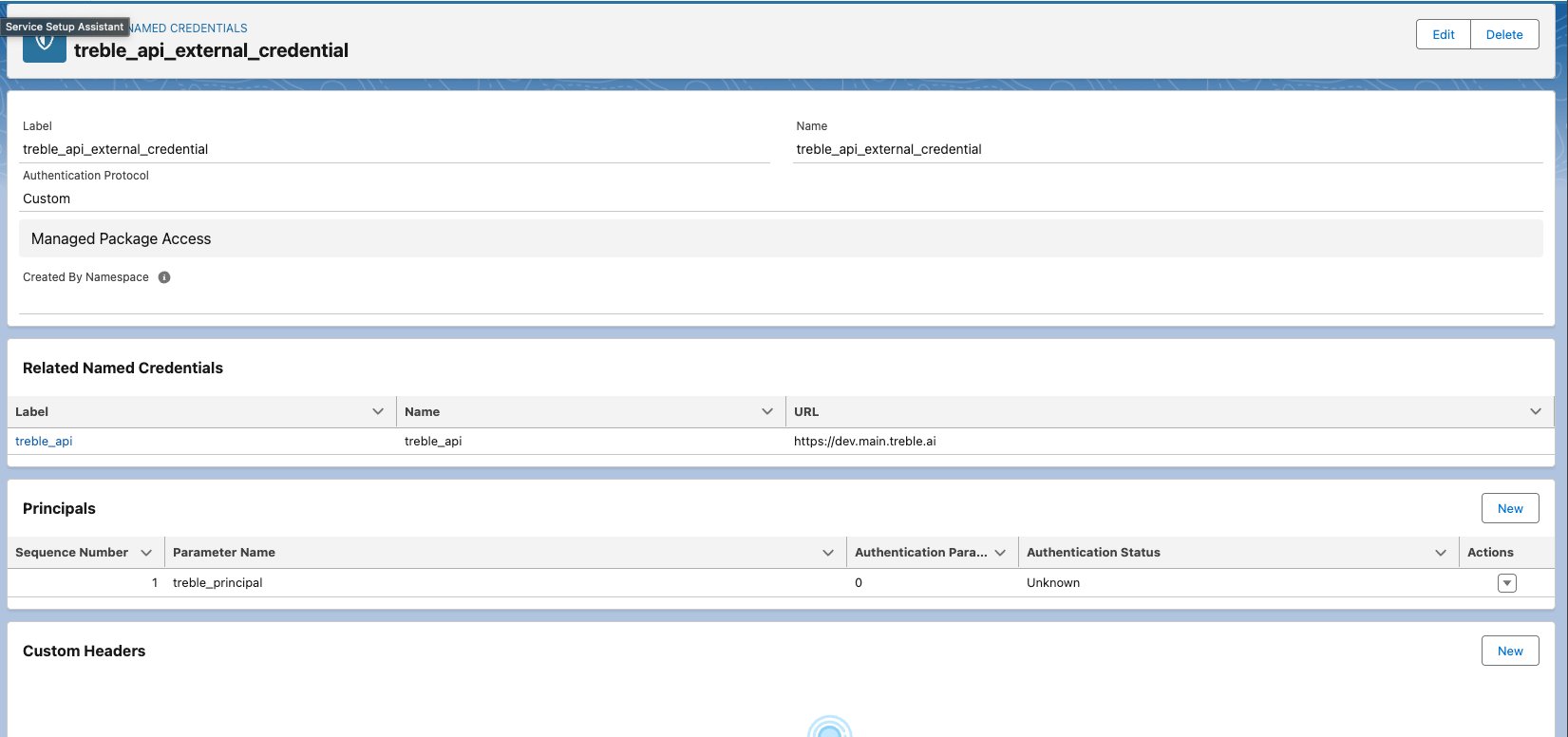 You'll see the external credential `treble_api_external_credential` and, related to it, the named credential `treble_api`.
The package already comes with the credential pointing to `https://main.treble.ai`. You don't have to configure it: just verify that it's set that way.
In the external credential, in the **Custom Headers** section, click **New** and create:
| Field | Value |
| - | - |
| **Name** | `Authorization` |
| **Value** | Your Treble API key |
| **Sequence Number** | `1` |
Save.
## 3. Give users permissions
Salesforce doesn't allow using an external credential without an explicit permission. The package comes with a ready-made permission set.
Look for the `treble_api_permission` permission set.
You'll see the external credential `treble_api_external_credential` and, related to it, the named credential `treble_api`.
The package already comes with the credential pointing to `https://main.treble.ai`. You don't have to configure it: just verify that it's set that way.
In the external credential, in the **Custom Headers** section, click **New** and create:
| Field | Value |
| - | - |
| **Name** | `Authorization` |
| **Value** | Your Treble API key |
| **Sequence Number** | `1` |
Save.
## 3. Give users permissions
Salesforce doesn't allow using an external credential without an explicit permission. The package comes with a ready-made permission set.
Look for the `treble_api_permission` permission set.
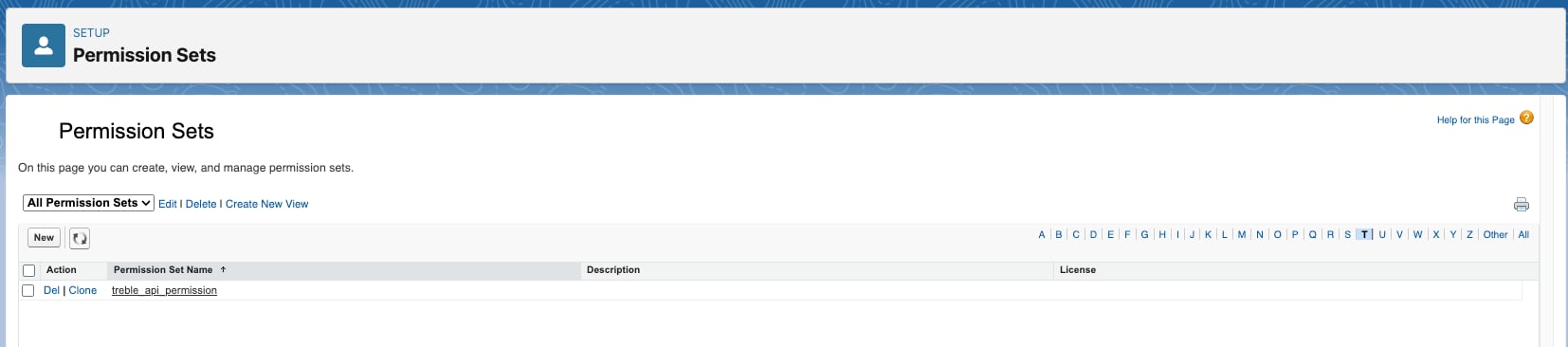 Inside the set, go to **External Credential Principal Access** and verify that the Treble principal is there.
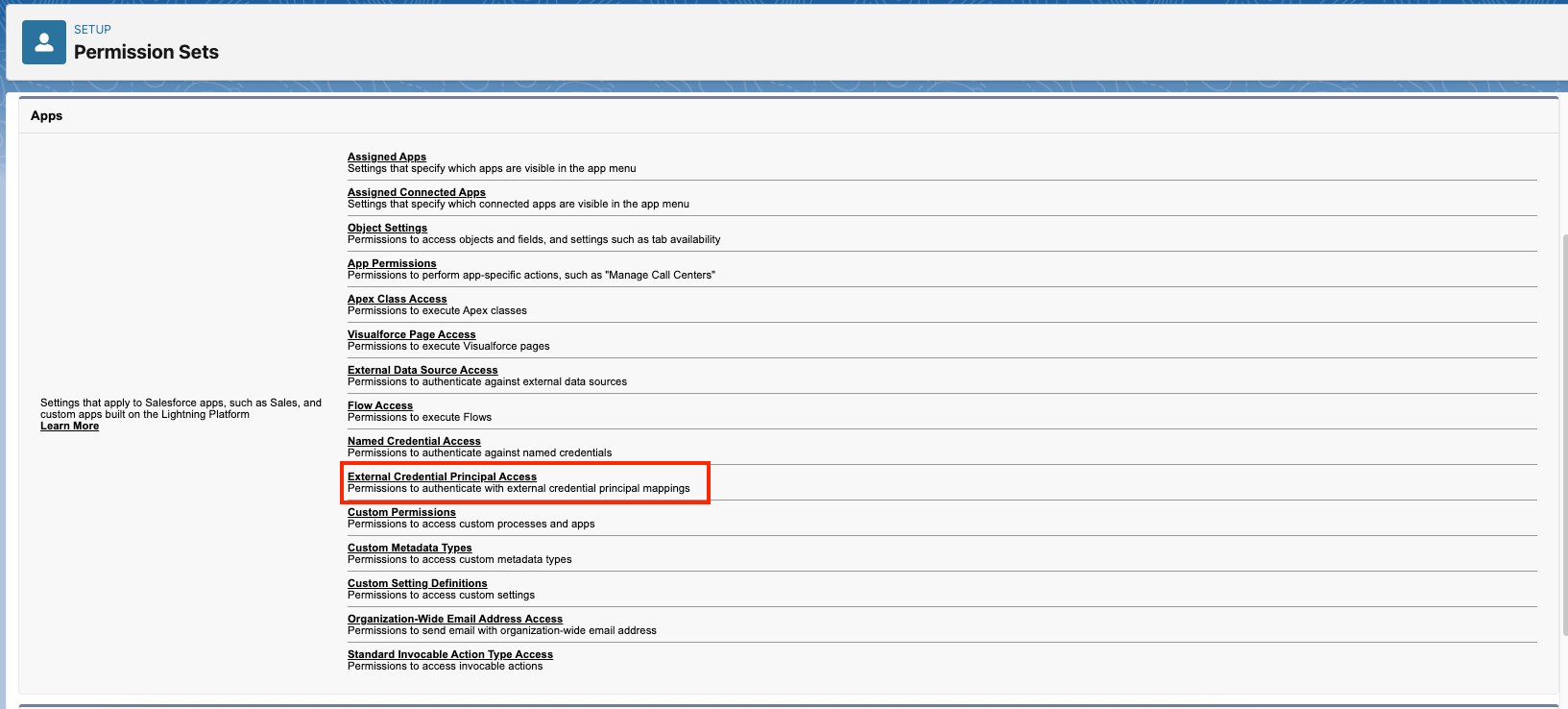 Click **Manage Assignments → Add Assignments** and select the users who are going to run the flows.
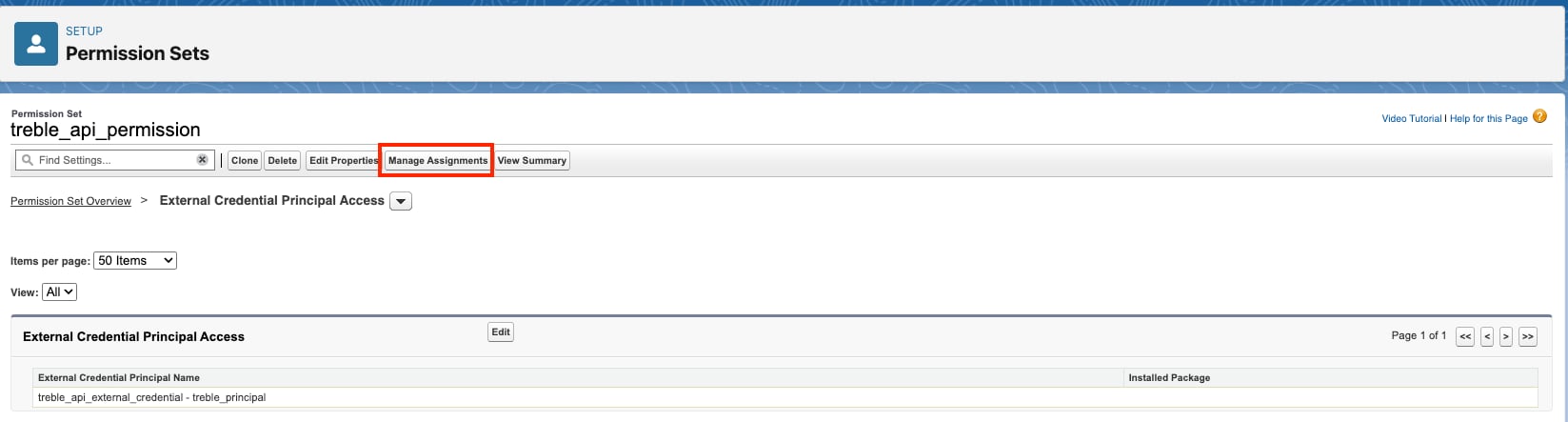 If the flow runs automatically (because of a record change, not because someone clicks), assign the permission to the **user the flow runs as**, not just to administrators. It's the most common mistake in this part.
## 4. Create the flow that launches the conversation
With the package installed and the permissions assigned, the Treble action is now available in the Salesforce **Flow Builder**.
The following example launches a WhatsApp conversation every time an account is created. The same structure works for any other trigger.
In Setup, go to **Process Automation → Flows** and click **New Flow**.
If the flow runs automatically (because of a record change, not because someone clicks), assign the permission to the **user the flow runs as**, not just to administrators. It's the most common mistake in this part.
## 4. Create the flow that launches the conversation
With the package installed and the permissions assigned, the Treble action is now available in the Salesforce **Flow Builder**.
The following example launches a WhatsApp conversation every time an account is created. The same structure works for any other trigger.
In Setup, go to **Process Automation → Flows** and click **New Flow**.
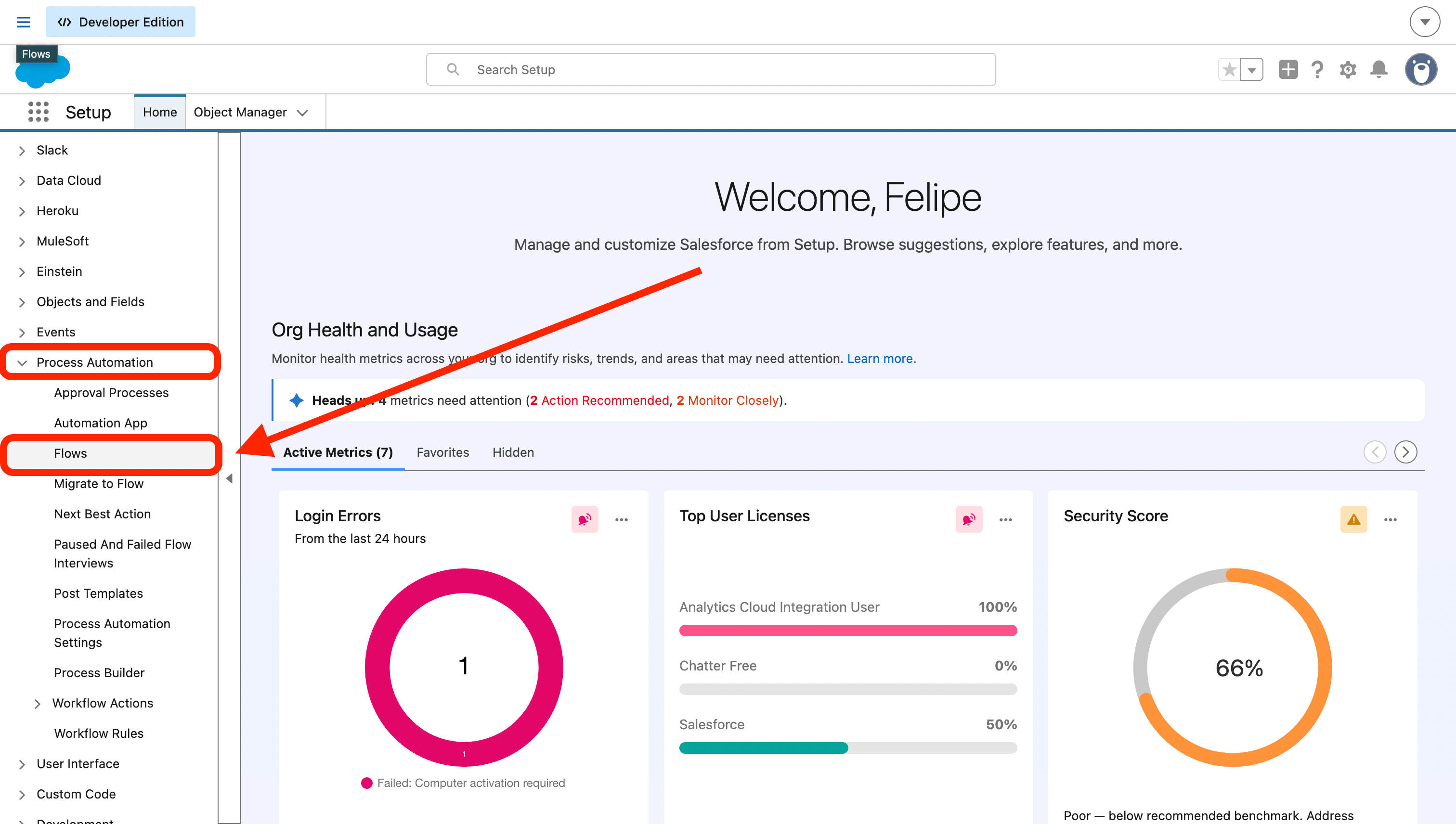 For it to trigger on its own when data changes, choose **Record-Triggered Flow**.
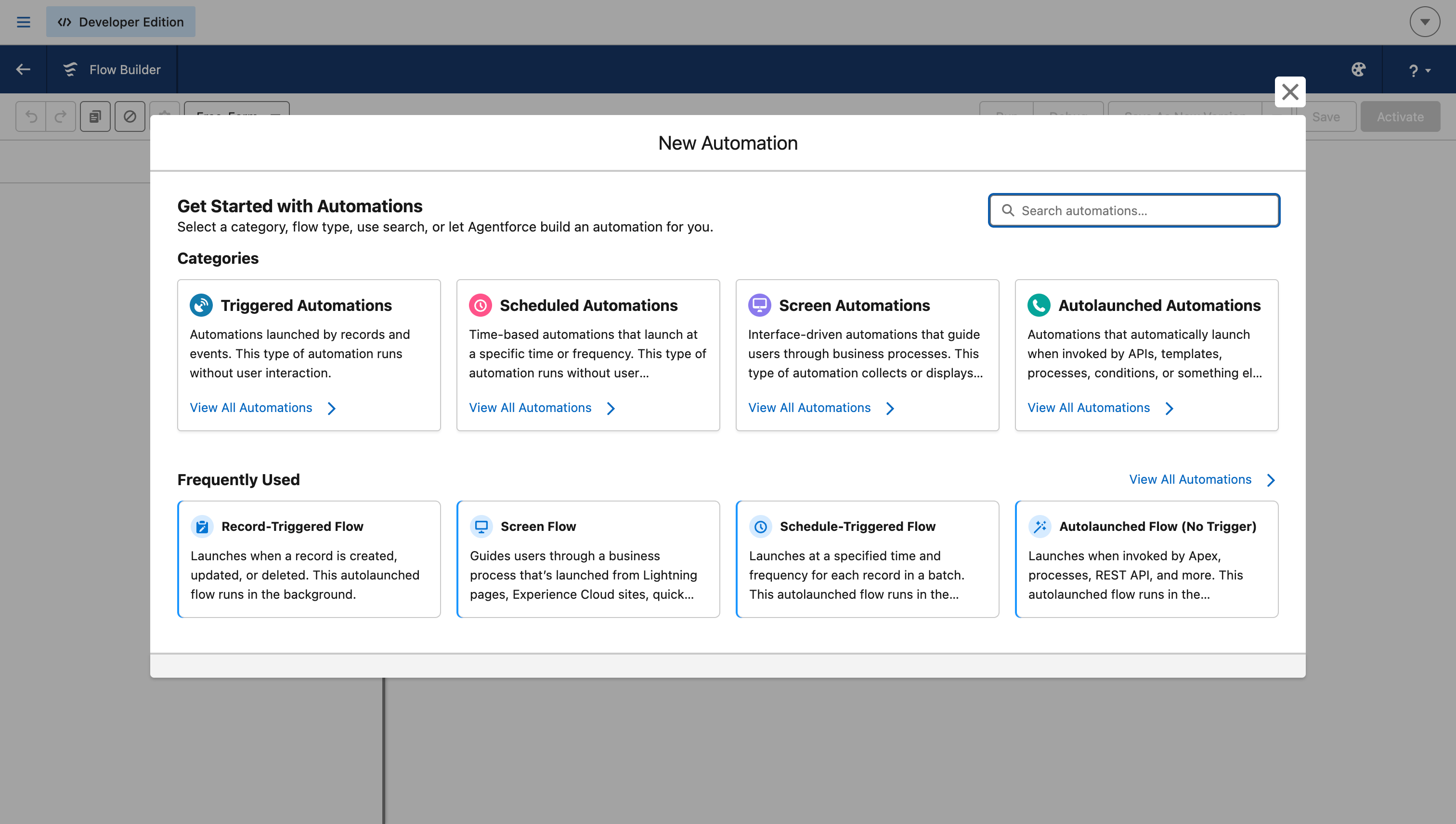 Choose the object (in the example, `Account`), when it triggers (*A record is created*), and in **Optimize the Flow for** choose **Actions and Related Records**.
**This is the step that's most often forgotten.** Below, enable **Add Asynchronous Path**.
Salesforce **doesn't allow** calling an external system from the normal path of a record-triggered flow. Without this path, the Treble action will fail.
Choose the object (in the example, `Account`), when it triggers (*A record is created*), and in **Optimize the Flow for** choose **Actions and Related Records**.
**This is the step that's most often forgotten.** Below, enable **Add Asynchronous Path**.
Salesforce **doesn't allow** calling an external system from the normal path of a record-triggered flow. Without this path, the Treble action will fail.
 When you enable it, the flow splits into two paths: **Run Immediately** and **Run Asynchronously**.
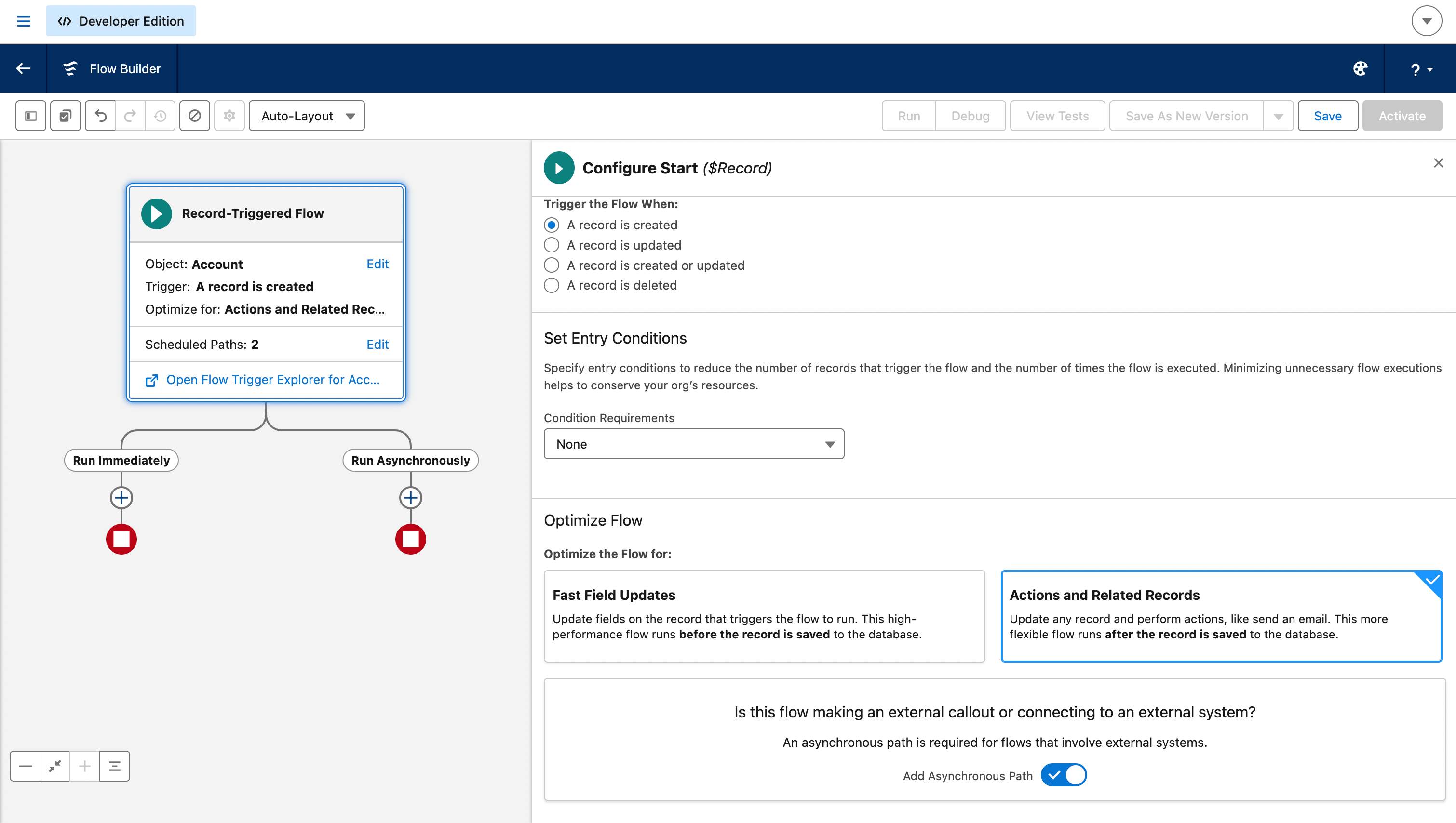 Everything that calls Treble goes in the **Run Asynchronously** branch.
If you want to have record data at hand, add an **Assignment** element in the asynchronous branch.
Everything that calls Treble goes in the **Run Asynchronously** branch.
If you want to have record data at hand, add an **Assignment** element in the asynchronous branch.
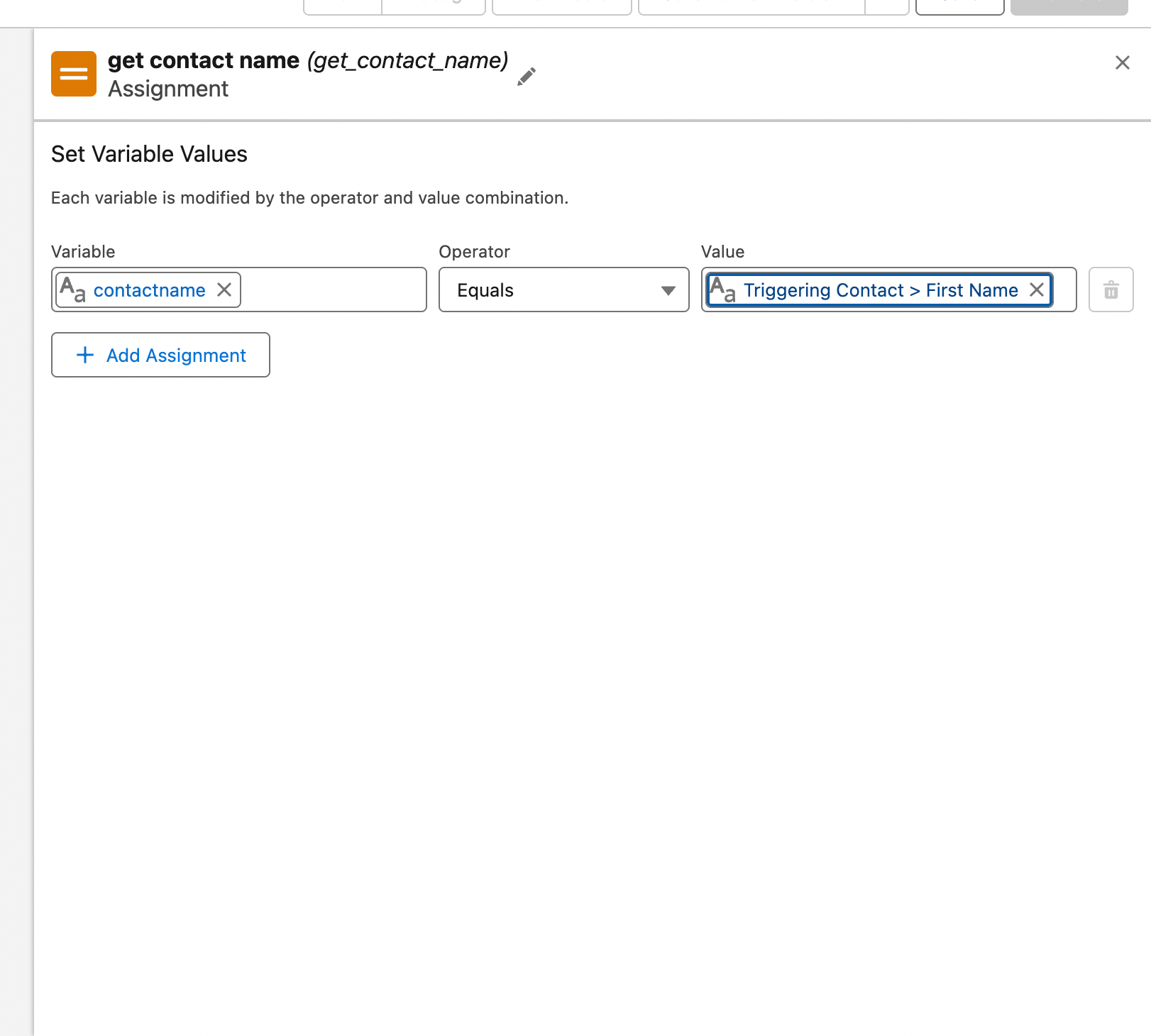 In the example, the name of the contact that triggered the flow is stored in a `contactname` variable. The same is done with the phone, which is the data the Treble action does need.
In the asynchronous branch, click **+** and choose **Action**.
In the example, the name of the contact that triggered the flow is stored in a `contactname` variable. The same is done with the phone, which is the data the Treble action does need.
In the asynchronous branch, click **+** and choose **Action**.
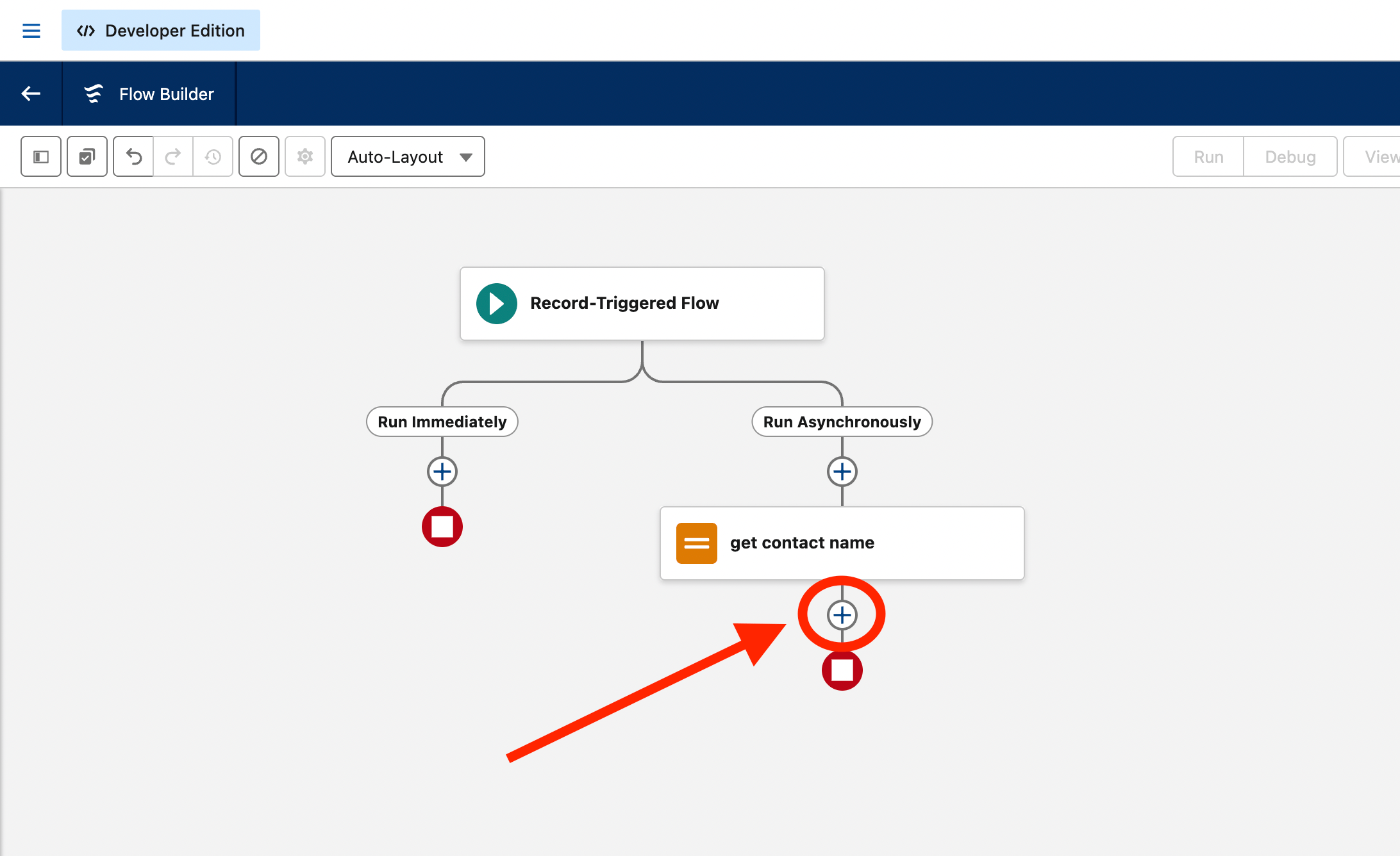
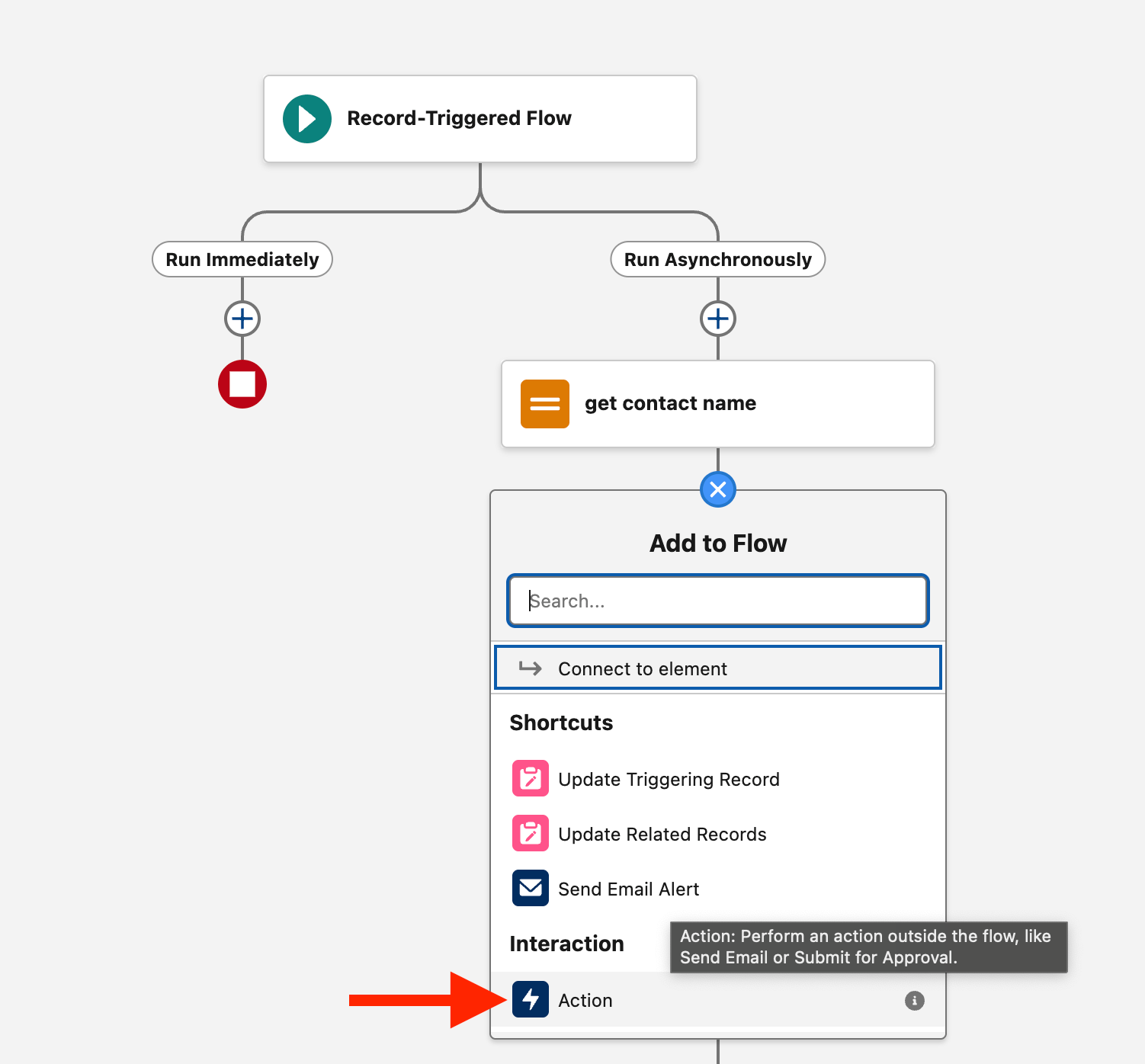 Search for `treble` and select **Deploy Treble Conversation**.
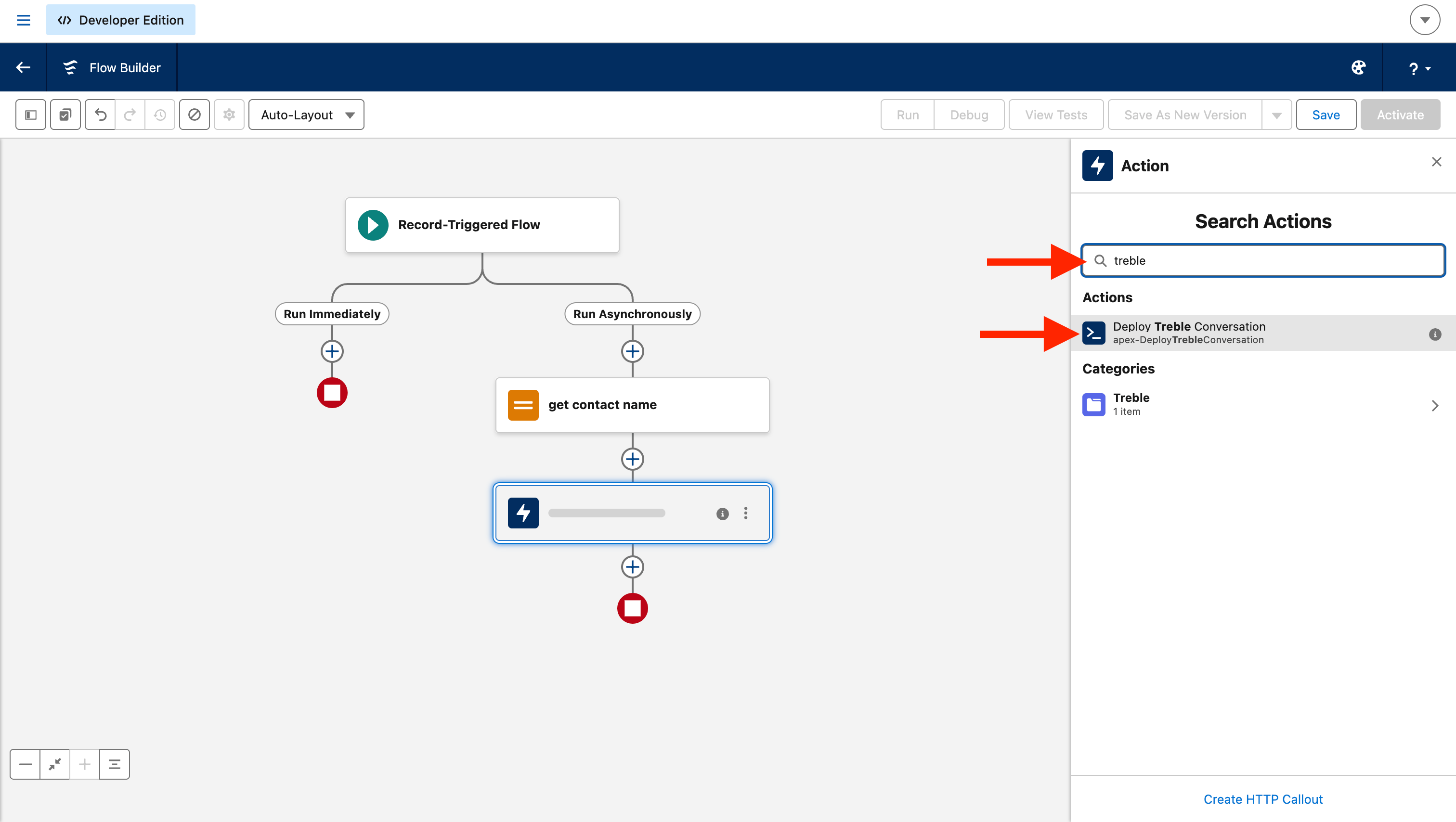 If it doesn't appear, it's an installation or permissions problem, not a flow problem. Check [common issues](#common-issues).
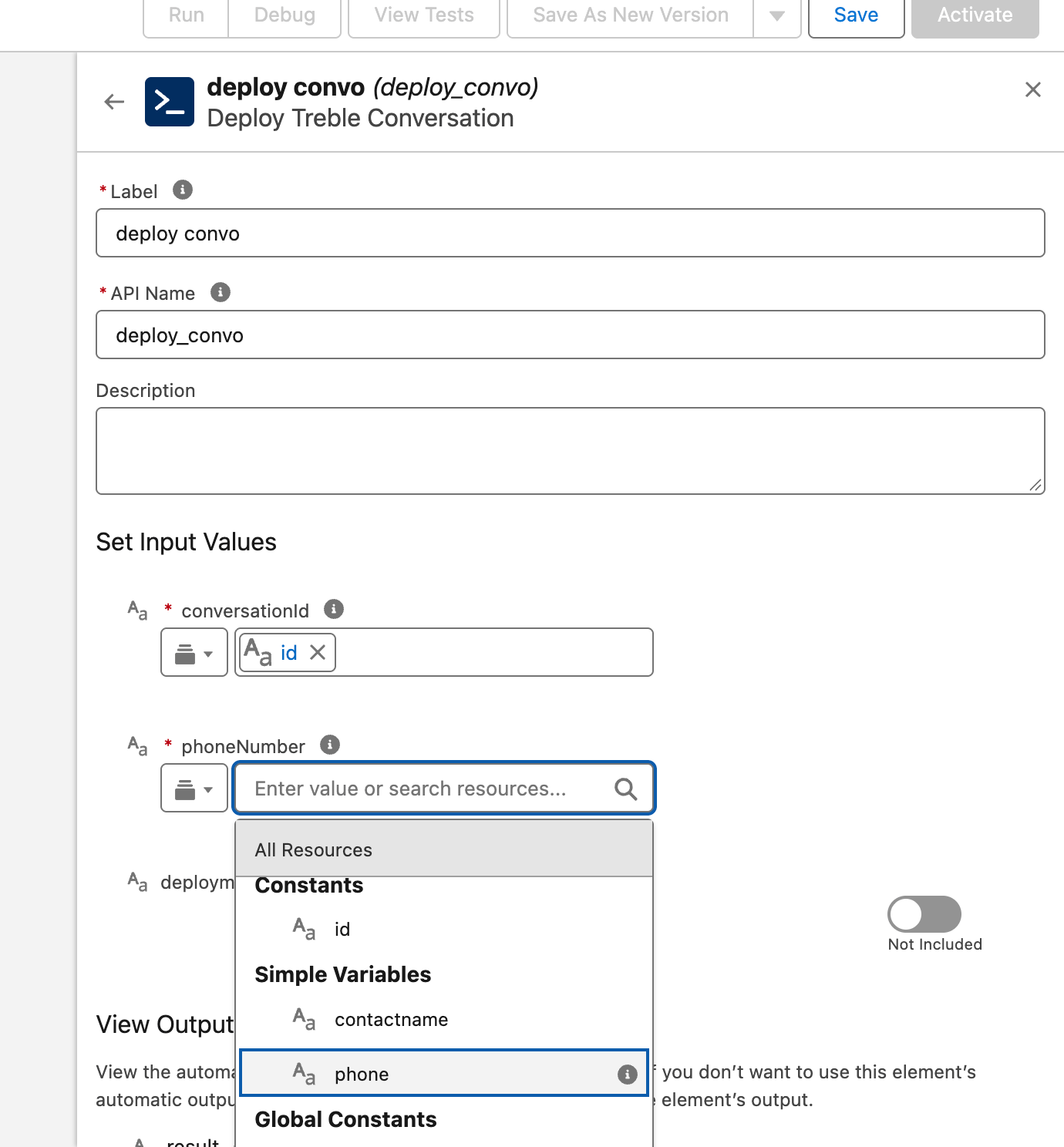
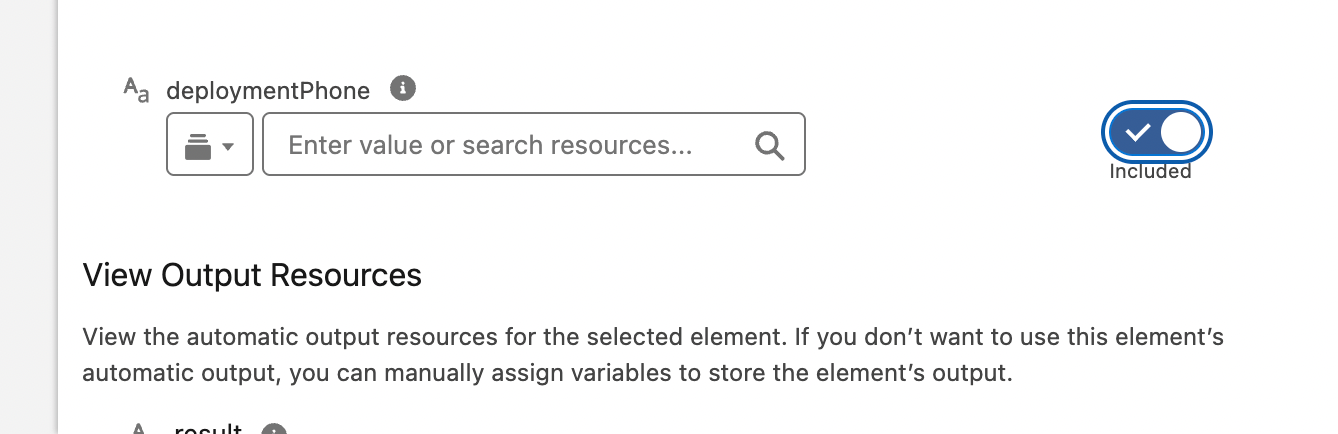 | Parameter | Required? | What goes here |
| - | - | - |
| **conversationId** | Yes | The Id of the Treble campaign you want to launch |
| **phoneNumber** | Yes | The destination mobile number, usually taken from the record that triggered the flow |
| **deploymentPhone** | No | The Treble number you want to send from. Only useful if you have several; leave it off otherwise |
`deploymentPhone` comes disabled ("Not Included"). Enable it only if you're going to use it.
Click **Save** and then **Activate**. A flow that's saved but not activated doesn't run.
## What the action does under the hood
Two things are worth knowing, because they define what can and can't be done.
The action returns a single output, `result`, with a text:
```
Success for conversation and phoneNumber . Response: ...
```
or, when something fails:
```
Error: 401 Unauthorized
```
If you want the flow to react to the failure —send an email, mark a field— you have to add a **Decision** element that evaluates that text, for example checking whether it **starts with** `Error`. There's no separate success or failure field.
The action sends Treble **the destination number and which campaign to launch**, and nothing else.
That means **you can't pass values from the Salesforce record as WhatsApp template variables** from this flow. Message personalization has to be handled on the Treble side: the campaign can read Salesforce data with the [CRM blocks](/en/docs/integrations/salesforce/blocks/crm-variable-assignment) once the conversation has started.
It's the most surprising limitation of this package, and it's worth being clear about it before designing the automation.
The action accepts batches, so it works the same in a flow that processes one record or many.
Under the hood, the action calls Treble's **deployment** endpoint, the same one used to launch campaigns via API:
| Parameter | Required? | What goes here |
| - | - | - |
| **conversationId** | Yes | The Id of the Treble campaign you want to launch |
| **phoneNumber** | Yes | The destination mobile number, usually taken from the record that triggered the flow |
| **deploymentPhone** | No | The Treble number you want to send from. Only useful if you have several; leave it off otherwise |
`deploymentPhone` comes disabled ("Not Included"). Enable it only if you're going to use it.
Click **Save** and then **Activate**. A flow that's saved but not activated doesn't run.
## What the action does under the hood
Two things are worth knowing, because they define what can and can't be done.
The action returns a single output, `result`, with a text:
```
Success for conversation and phoneNumber . Response: ...
```
or, when something fails:
```
Error: 401 Unauthorized
```
If you want the flow to react to the failure —send an email, mark a field— you have to add a **Decision** element that evaluates that text, for example checking whether it **starts with** `Error`. There's no separate success or failure field.
The action sends Treble **the destination number and which campaign to launch**, and nothing else.
That means **you can't pass values from the Salesforce record as WhatsApp template variables** from this flow. Message personalization has to be handled on the Treble side: the campaign can read Salesforce data with the [CRM blocks](/en/docs/integrations/salesforce/blocks/crm-variable-assignment) once the conversation has started.
It's the most surprising limitation of this package, and it's worth being clear about it before designing the automation.
The action accepts batches, so it works the same in a flow that processes one record or many.
Under the hood, the action calls Treble's **deployment** endpoint, the same one used to launch campaigns via API:
Deployment endpoint
**If you have two Treble accounts connected to the same Salesforce**, you need to configure the package **twice**, each with its own API key. The deployments of the two accounts can't be unified in a single configuration.
## Common issues
It's the classic symptom of an incomplete configuration: the package was installed, but the `Authorization` header or the permission set aren't set up correctly.
Our engineering team's recommendation in these cases is to **uninstall the package and reinstall it** following this guide step by step, instead of trying to fix the existing configuration.
This happens when the installation only partially completed, even if the Salesforce confirmation email arrived.
Check in *Setup → Named Credentials*, **External Credentials** tab, that `treble_api_external_credential` exists. If it's not there, uninstall the package and reinstall it.
The two usual causes:
1. **The `Authorization` header hasn't been created**, or the API key is incomplete.
2. **The user running the flow doesn't have the** `treble_api_permission` **permission set assigned**.
Search for `treble` in the action search box: **Deploy Treble Conversation** should appear, in the **Treble** category.
If it's not there, confirm that the package installation completed correctly and that your user is within the scope you chose when installing (admins, all users, or specific profiles).
You need to enable the **asynchronous path**. Salesforce doesn't allow calling an external system from the immediate path of a record-triggered flow.
Open *Configure Start*, enable **Add Asynchronous Path**, and move the Treble action to the **Run Asynchronously** branch.
It's the permission case: an automatic flow runs as a different user than you. Assign the permission set to that user.
## Next steps
So advisors can reply without leaving the CRM.
Launch conversations from Marketing Cloud.
This documentation is built and hosted on [Mintlify](https://mintlify.com), a developer documentation platform.