> ## Documentation Index
> Fetch the complete documentation index at: https://help.treble.ai/llms.txt
> Use this file to discover all available pages before exploring further.
# Install Treble in HubSpot
> In this guide, learn how to integrate Treble with HubSpot. This is something you only need to do once. Once configured, Treble will help you leverage the full potential of WhatsApp to sell more through your integration.
To install the integration of your product with HubSpot, it is crucial that the user has administrator permissions in the HubSpot account.
To verify if you have the necessary permissions, log in to your HubSpot account and go to the "Settings" section (represented by a gear icon in the upper right corner). Then, select "Users & Teams" in the left menu. Here you can see a list of users and their roles. Make sure your role is marked as "Administrator". If you don't have this role, contact the administrator of your HubSpot account to grant you the necessary permissions.
# Steps to install the Treble integration in HubSpot
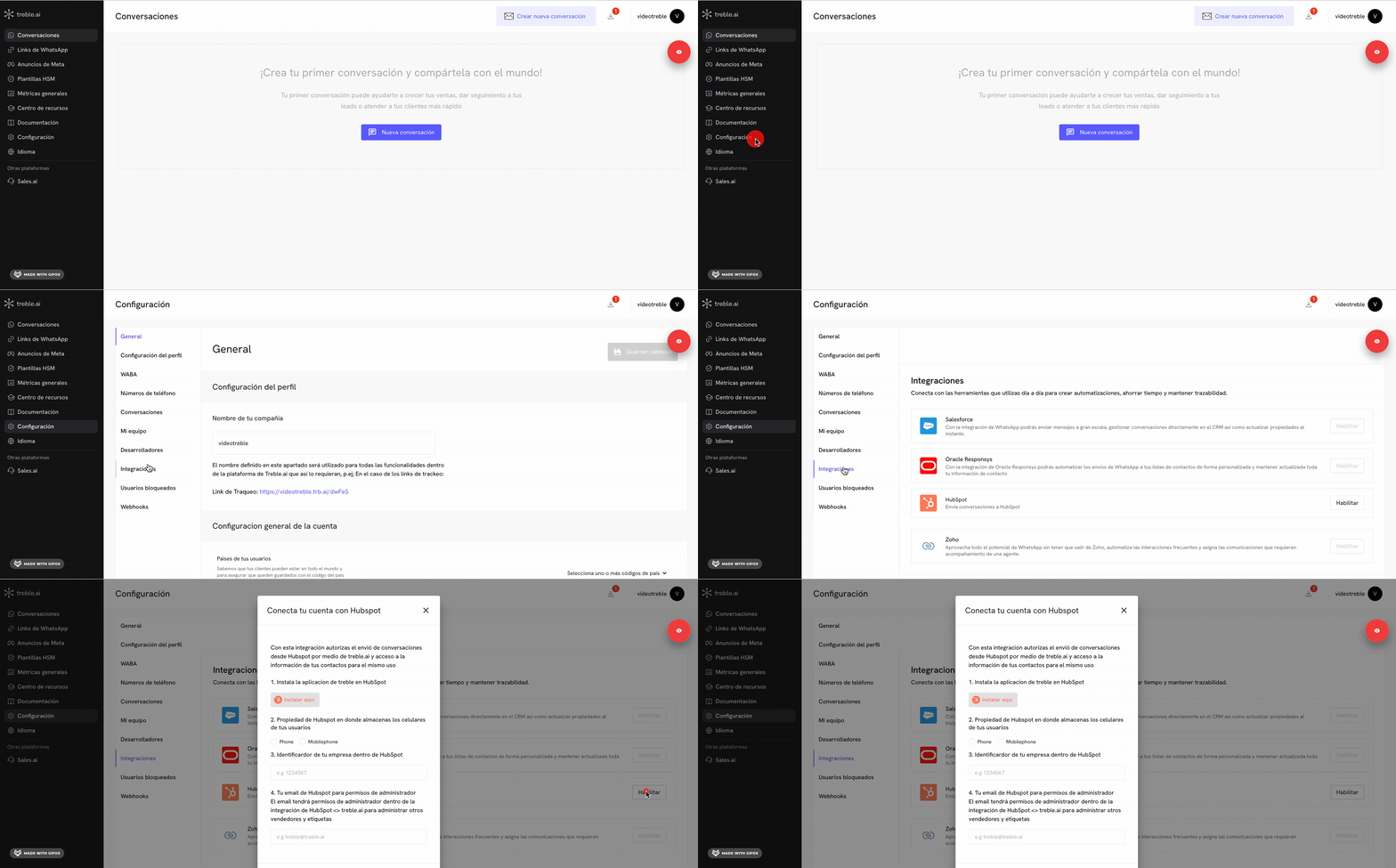
1. Log in to app.treble.ai
2. Go to Settings
3. Go to Integrations
4. Click on "Enable" in the HubSpot section
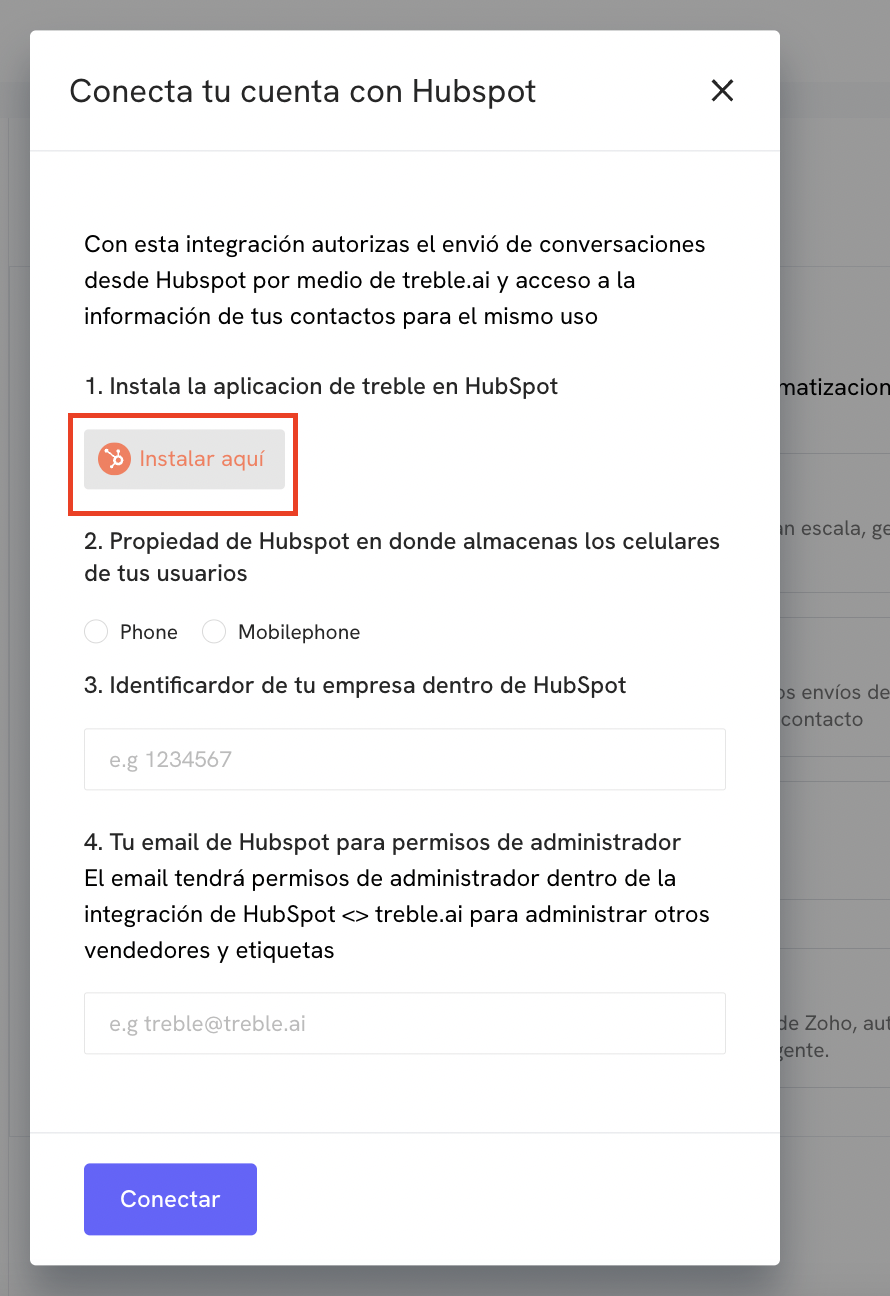
 At this point, we are going to follow the instructions. The first step indicates to install the Treble application in HubSpot. First, make sure you have logged into your HubSpot account. Then, click where it says "Install here"
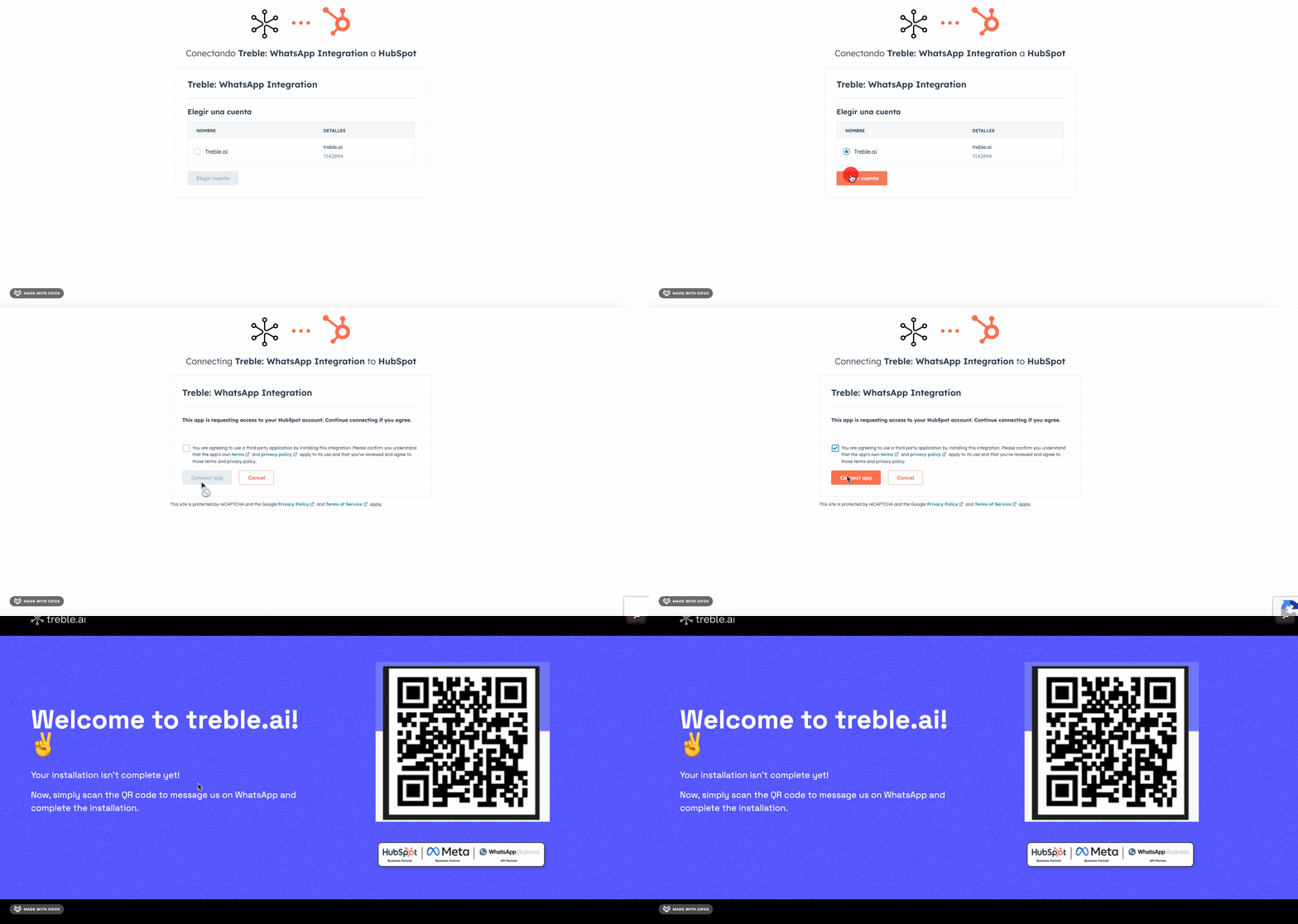
 Now you must choose the company you want to integrate with Treble. When selecting the account, a welcome message to Treble will appear. At this moment, you will know that the connection was successful.
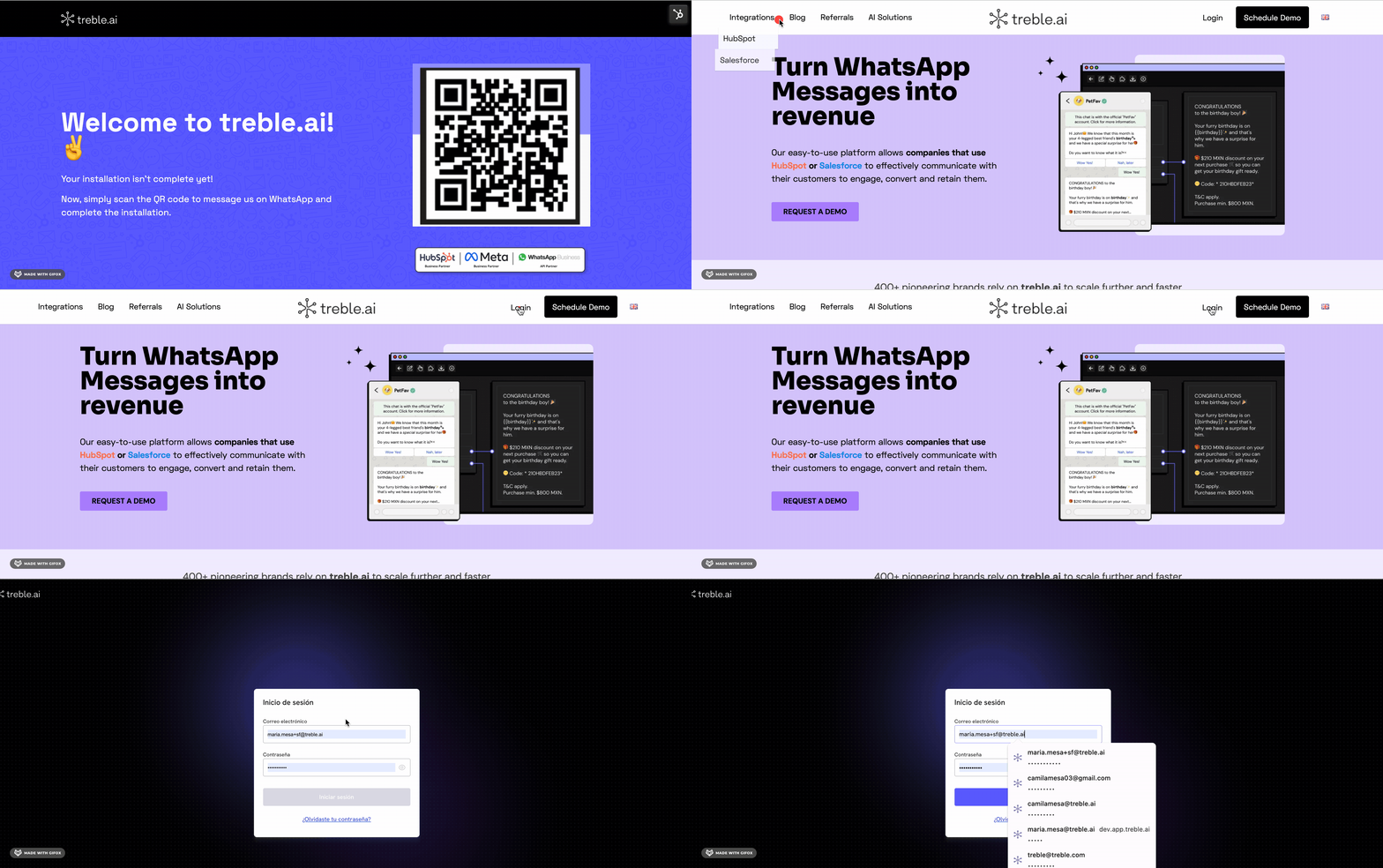
 It is normal that when selecting your company, the platform requests that you log in to HubSpot again. If this happens, simply click on the Treble icon and enter your credentials again.
 ➡️ **Return to Settings, then to Integrations, and click on "Enable" in the HubSpot section to continue with the following steps.**
In the second step, you must select the HubSpot property where you store your contacts' phone numbers.
➡️ **Return to Settings, then to Integrations, and click on "Enable" in the HubSpot section to continue with the following steps.**
In the second step, you must select the HubSpot property where you store your contacts' phone numbers.
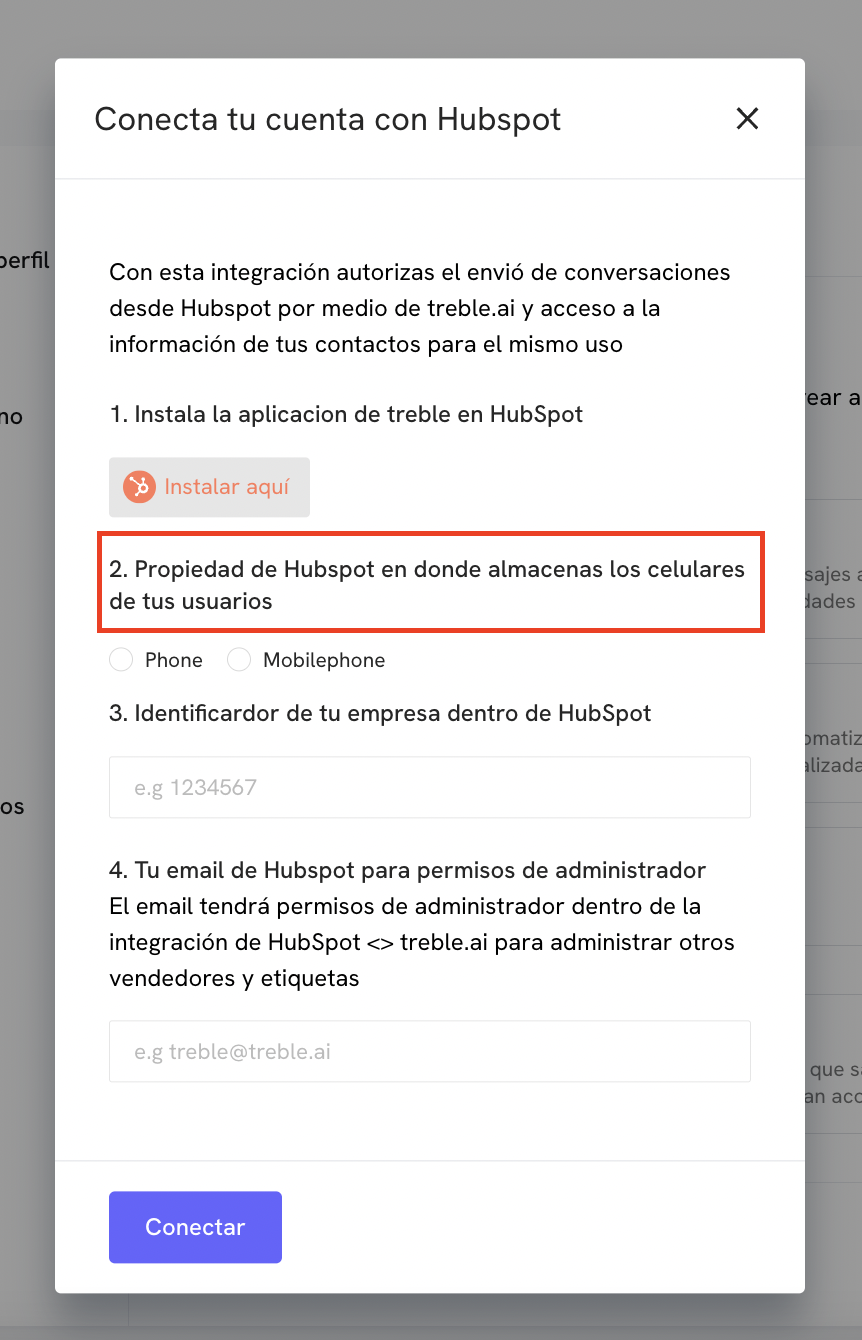 Why is it important to select the phone property?
Treble uses one of the two phone properties to identify your contacts. If you don't select the phone property, Treble won't be able to identify your contacts, and you won't be able to send messages through Treble.
If you're not clear about which property you use, you can go to HubSpot, then to Settings, Properties, and type "phone" in the search box. There you can check which property you use the most. You can watch the following video to make it clearer.
Why is it important to select the phone property?
Treble uses one of the two phone properties to identify your contacts. If you don't select the phone property, Treble won't be able to identify your contacts, and you won't be able to send messages through Treble.
If you're not clear about which property you use, you can go to HubSpot, then to Settings, Properties, and type "phone" in the search box. There you can check which property you use the most. You can watch the following video to make it clearer.
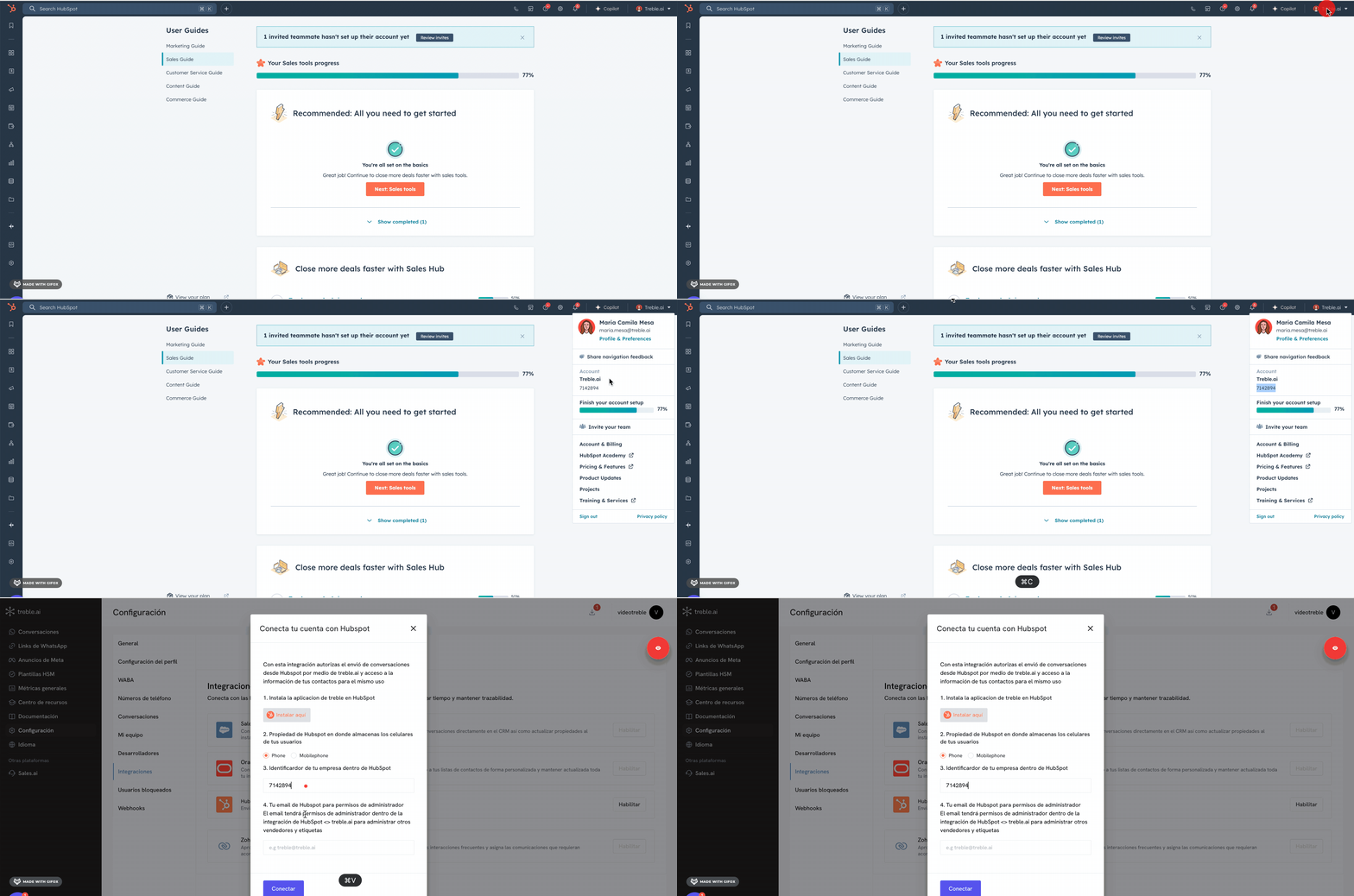
The third step asks you to enter your company identifier in HubSpot.
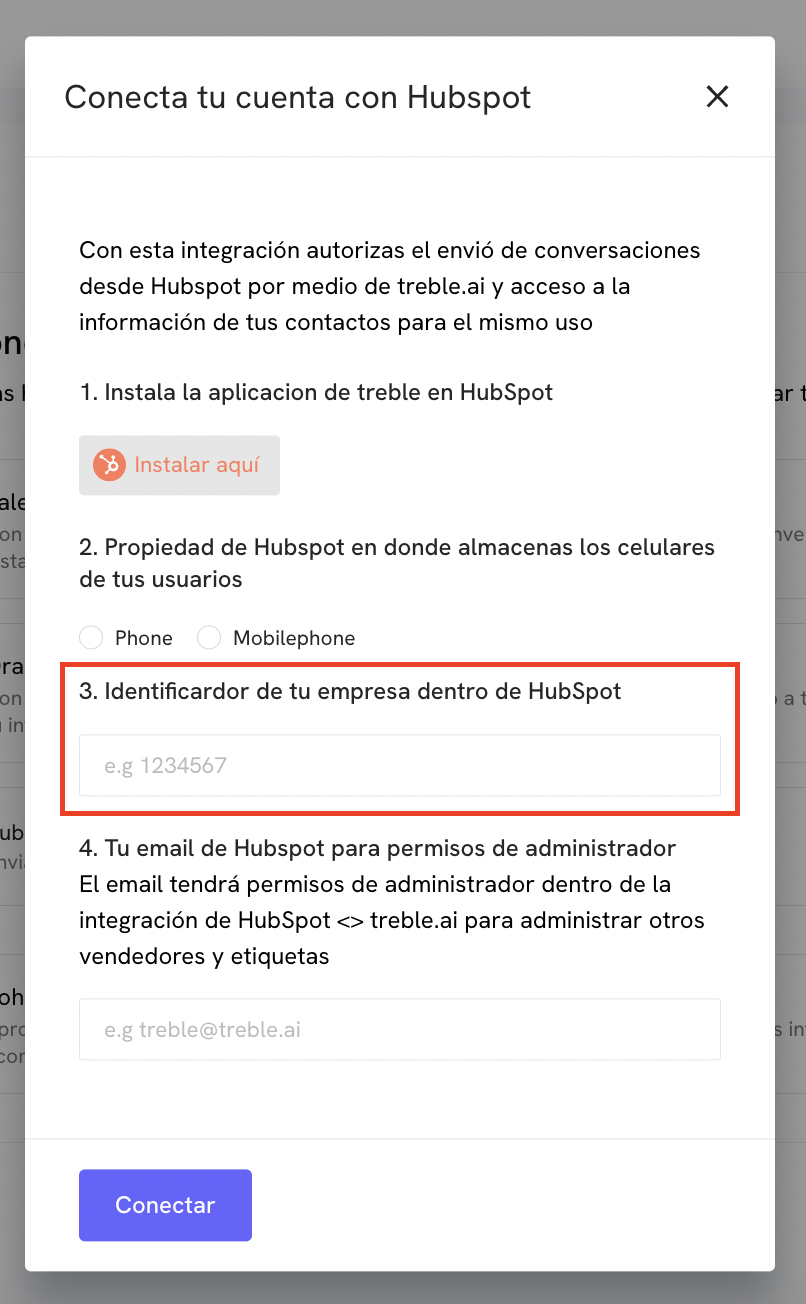 To obtain it, you must log in to HubSpot and copy the number you find in the upper left corner.
 To finish, in the fourth step, you must enter the email with which you access HubSpot.
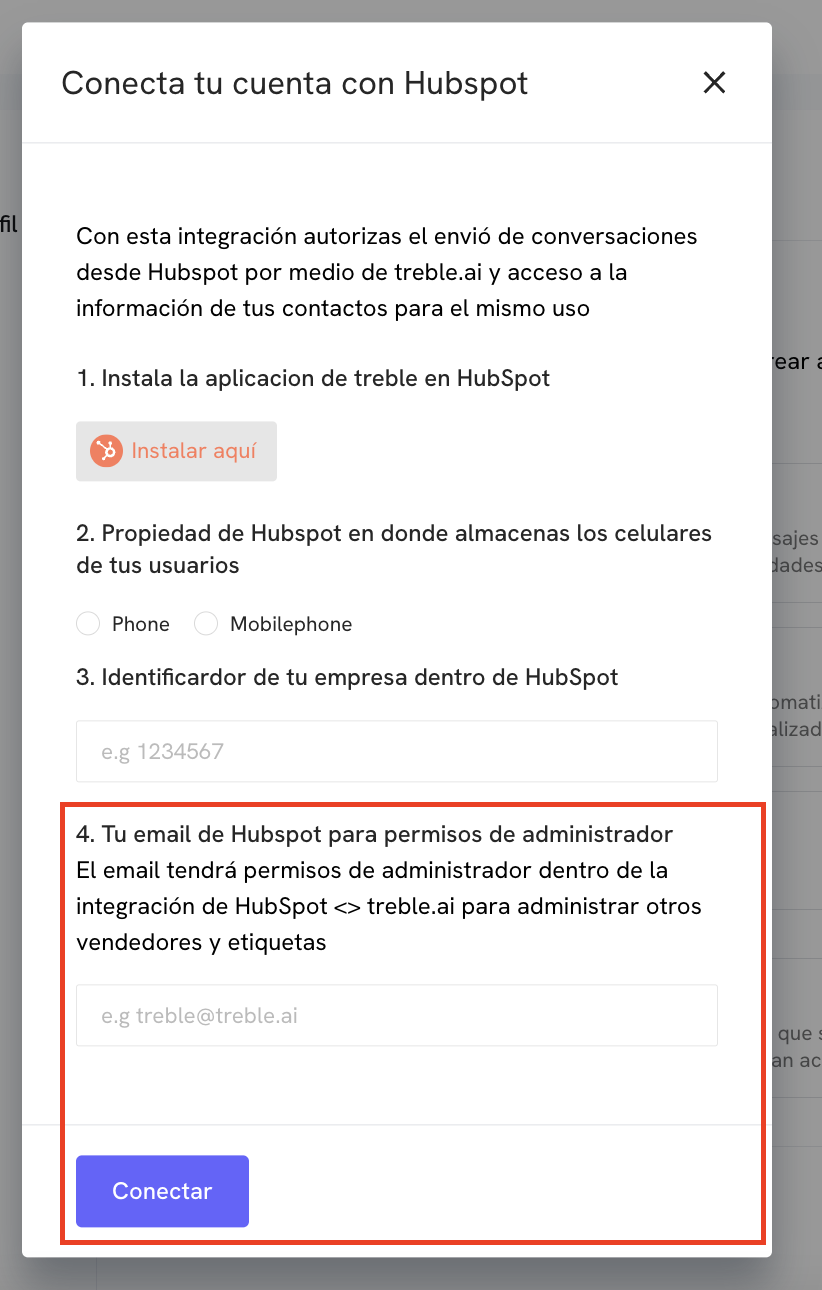 Congratulations! At this point, you have already integrated your company with Treble and HubSpot
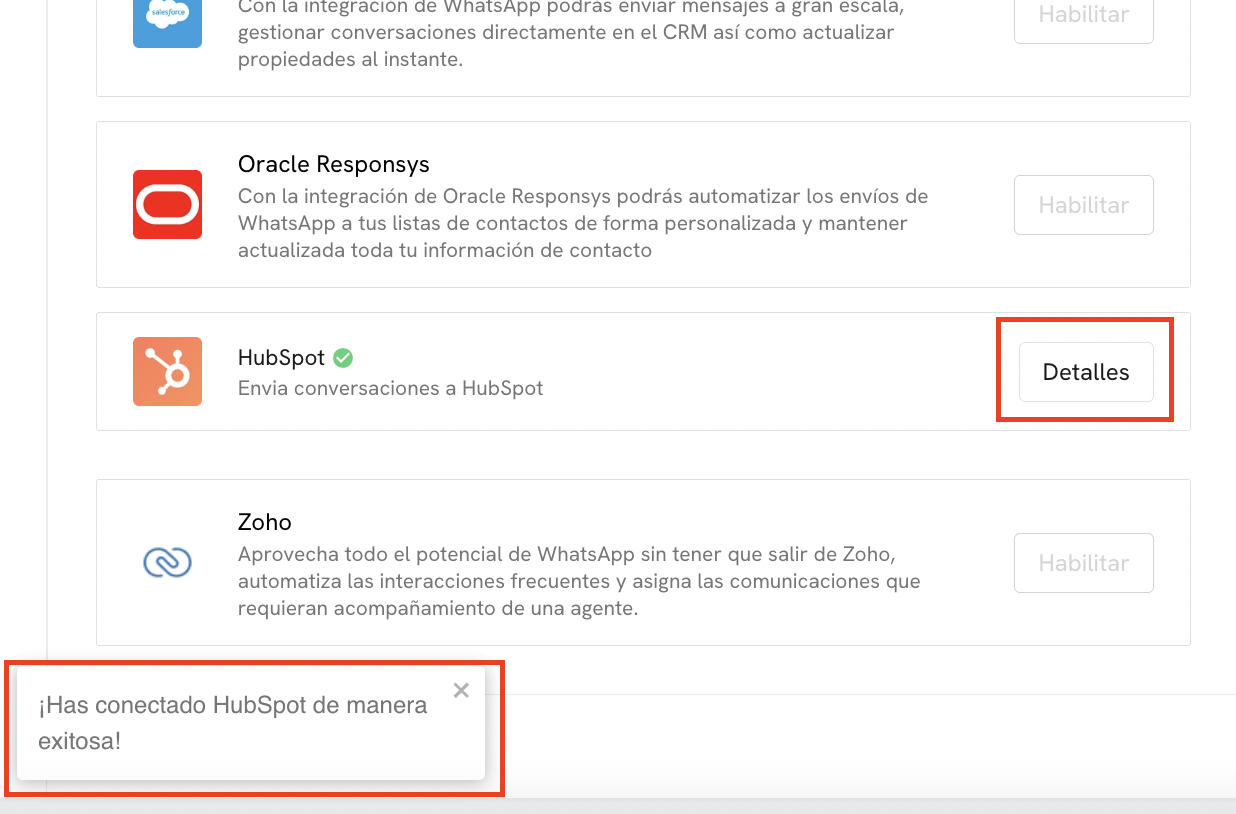 # WhatsApp Platform and Treble Inside HubSpot - Chrome Extension Installation
**What is it?:** The Treble extension for Chrome expands the Treble functionalities that are displayed in the HubSpot platform. It allows you to see the WhatsApp platform within HubSpot, making it easier for your agents to respond to incoming conversations they receive. Additionally, it allows you to send mass messages through workflows based on the conditions you choose.
Once the HubSpot integration with your company has been successfully completed, the next step is to download the Chrome extension. This extension allows you to see the WhatsApp platform within HubSpot and also send messages from there.
Both administrators and agents must install the extension, so it's important that you save this data to share when they need to download it. Each agent must download the extension using the same code and link provided.
In Treble, go to Settings → Integrations → HubSpot
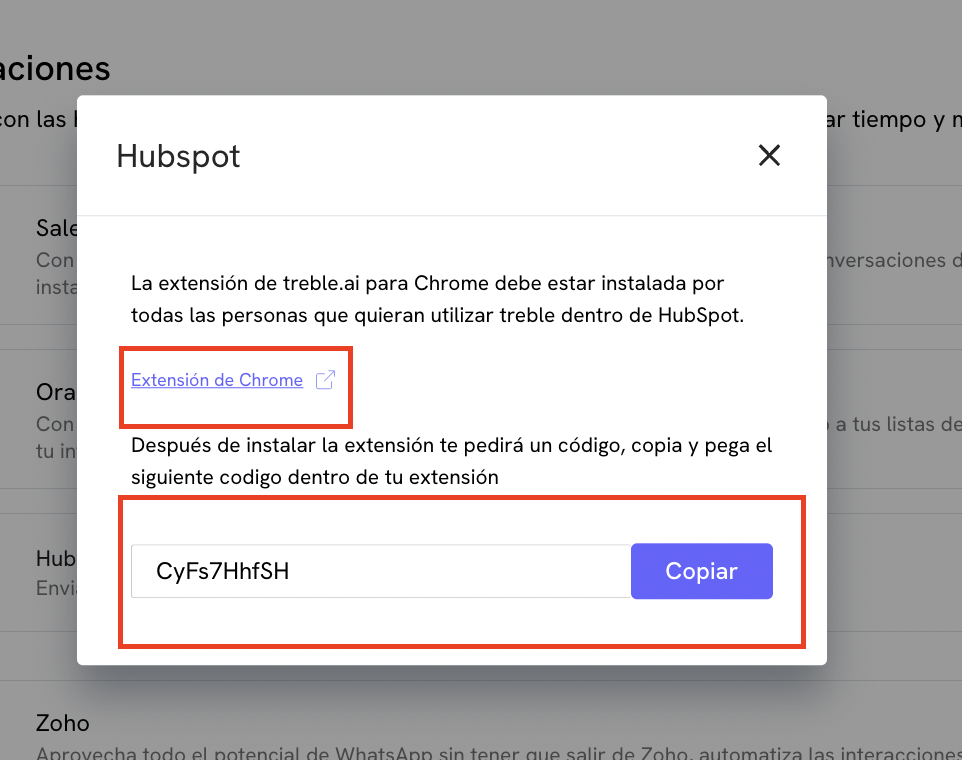
In this modal, you will find important information. You must copy the code and click where it says "Chrome extension". The code is unique for each company and is the same for all people who want to download the extension.
# WhatsApp Platform and Treble Inside HubSpot - Chrome Extension Installation
**What is it?:** The Treble extension for Chrome expands the Treble functionalities that are displayed in the HubSpot platform. It allows you to see the WhatsApp platform within HubSpot, making it easier for your agents to respond to incoming conversations they receive. Additionally, it allows you to send mass messages through workflows based on the conditions you choose.
Once the HubSpot integration with your company has been successfully completed, the next step is to download the Chrome extension. This extension allows you to see the WhatsApp platform within HubSpot and also send messages from there.
Both administrators and agents must install the extension, so it's important that you save this data to share when they need to download it. Each agent must download the extension using the same code and link provided.
In Treble, go to Settings → Integrations → HubSpot
In this modal, you will find important information. You must copy the code and click where it says "Chrome extension". The code is unique for each company and is the same for all people who want to download the extension.
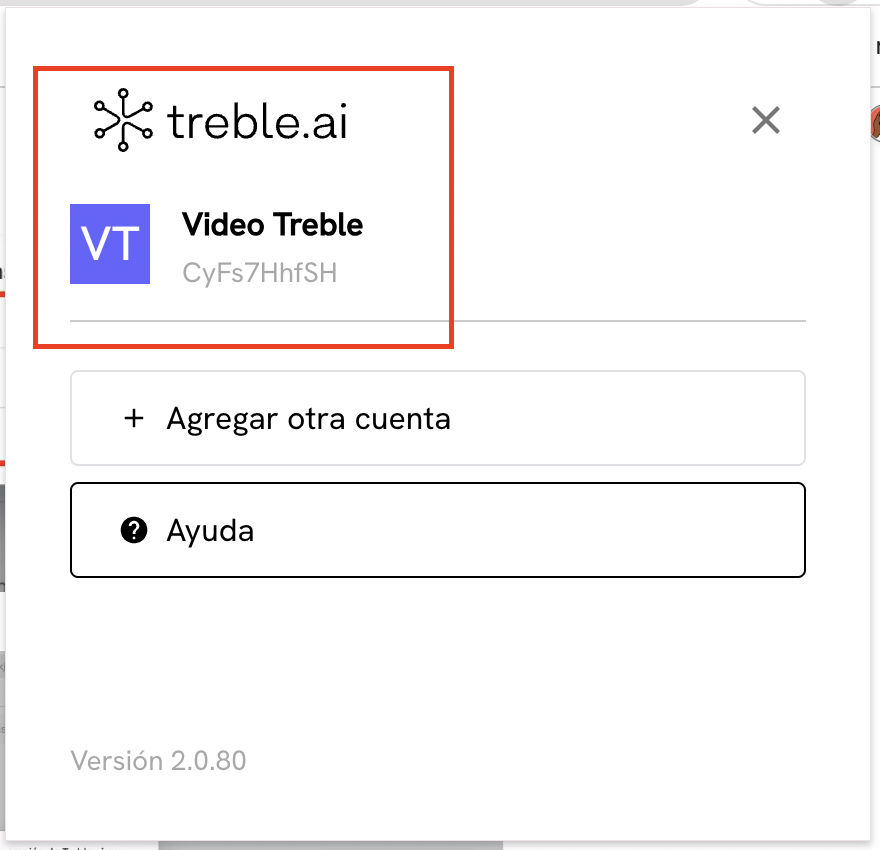
 When clicking on "connect", wait a few seconds and you will see your company name in the extension.
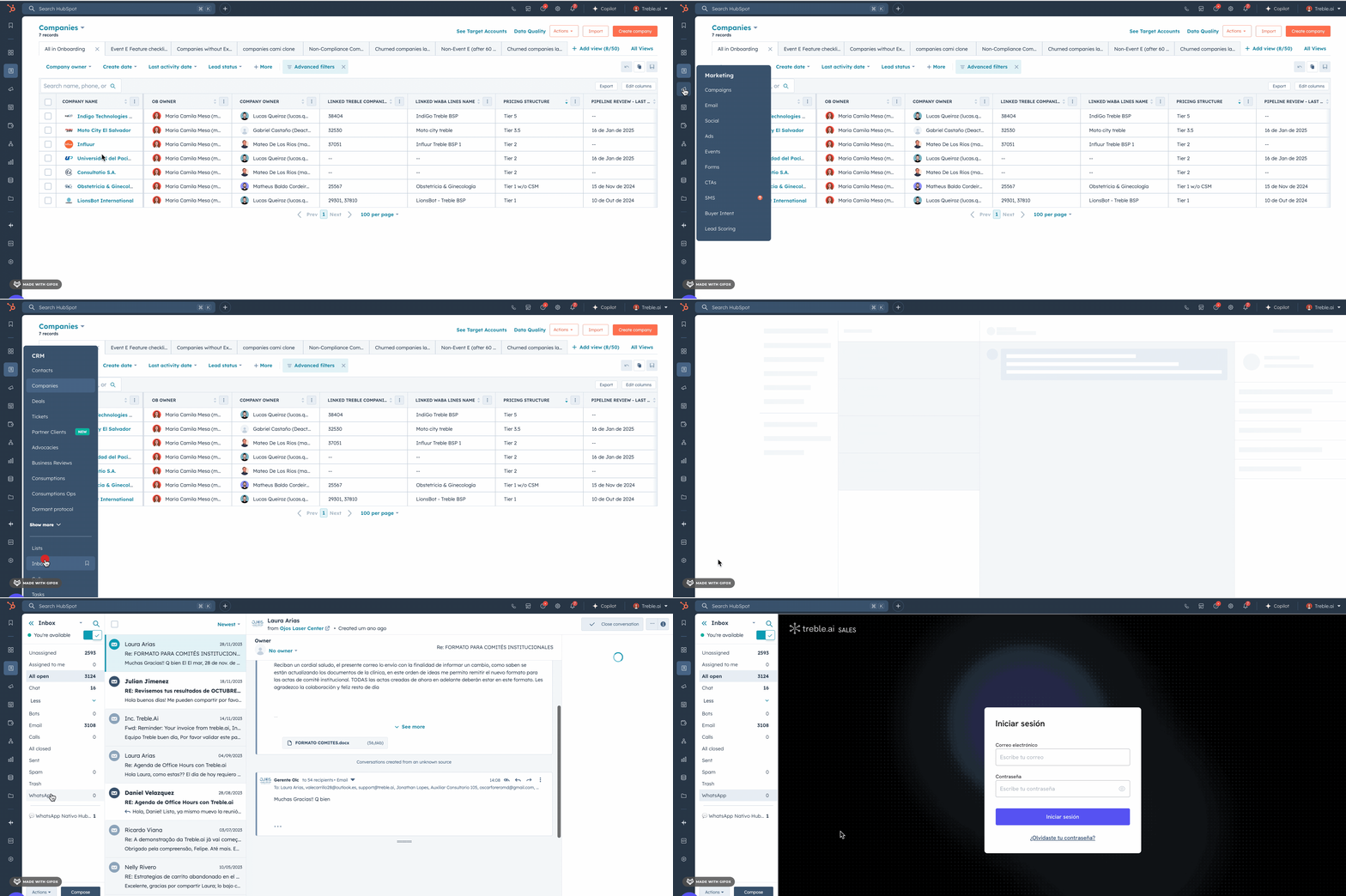
 Right after connecting the extension, go to HubSpot, select "Inbox" and look for "WhatsApp" in the left sidebar.
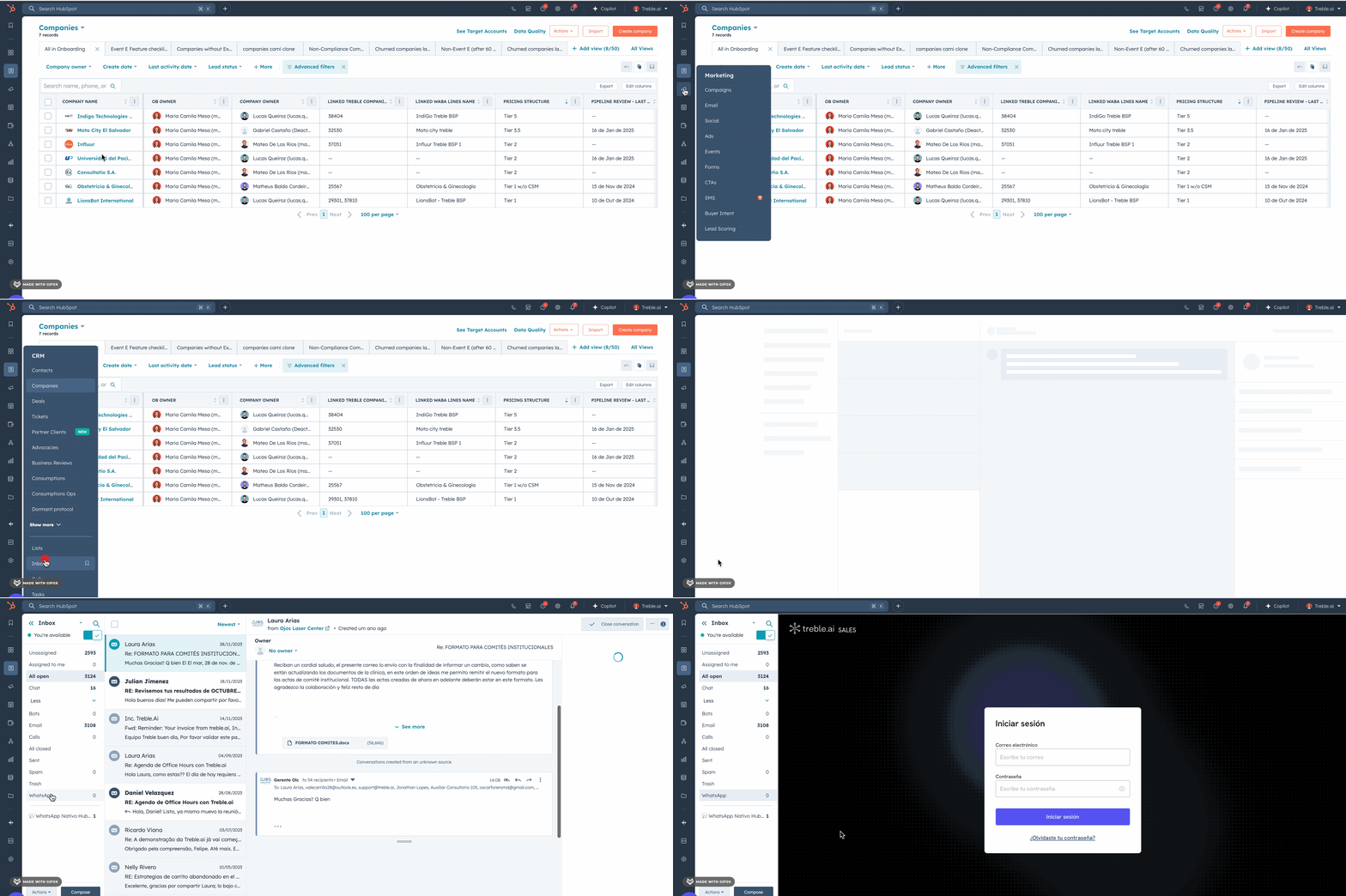 CONGRATULATIONS! You have now completed the HubSpot integration with your company.
Remember that your agents only need to download the extension using the same code and link provided to be able to see WhatsApp within HubSpot.
CONGRATULATIONS! You have now completed the HubSpot integration with your company.
Remember that your agents only need to download the extension using the same code and link provided to be able to see WhatsApp within HubSpot.