> ## Documentation Index
> Fetch the complete documentation index at: https://help.treble.ai/llms.txt
> Use this file to discover all available pages before exploring further.
# Workflows
> Learn how to create workflows in HubSpot to automate sending your Treble and WhatsApp conversations.
# HubSpot Workflows
In Treble, conversations within HubSpot Workflows are an essential tool for automating and personalizing communication with customers and leads. By integrating these conversations, you can create automatic interactions based on specific user actions, ensuring quick and efficient attention. This not only improves the customer experience but also optimizes your internal processes to increase productivity and conversions.
## Use HubSpot workflows to automate conversation sends
* Create workflows based on contacts, companies, or deals and use the triggers you prefer
* Schedule message sending based on a contact property, such as birthday date or deal close date, using the "Contact date property" workflow type
## How to deploy a WhatsApp conversation (Treble) through HubSpot Workflows
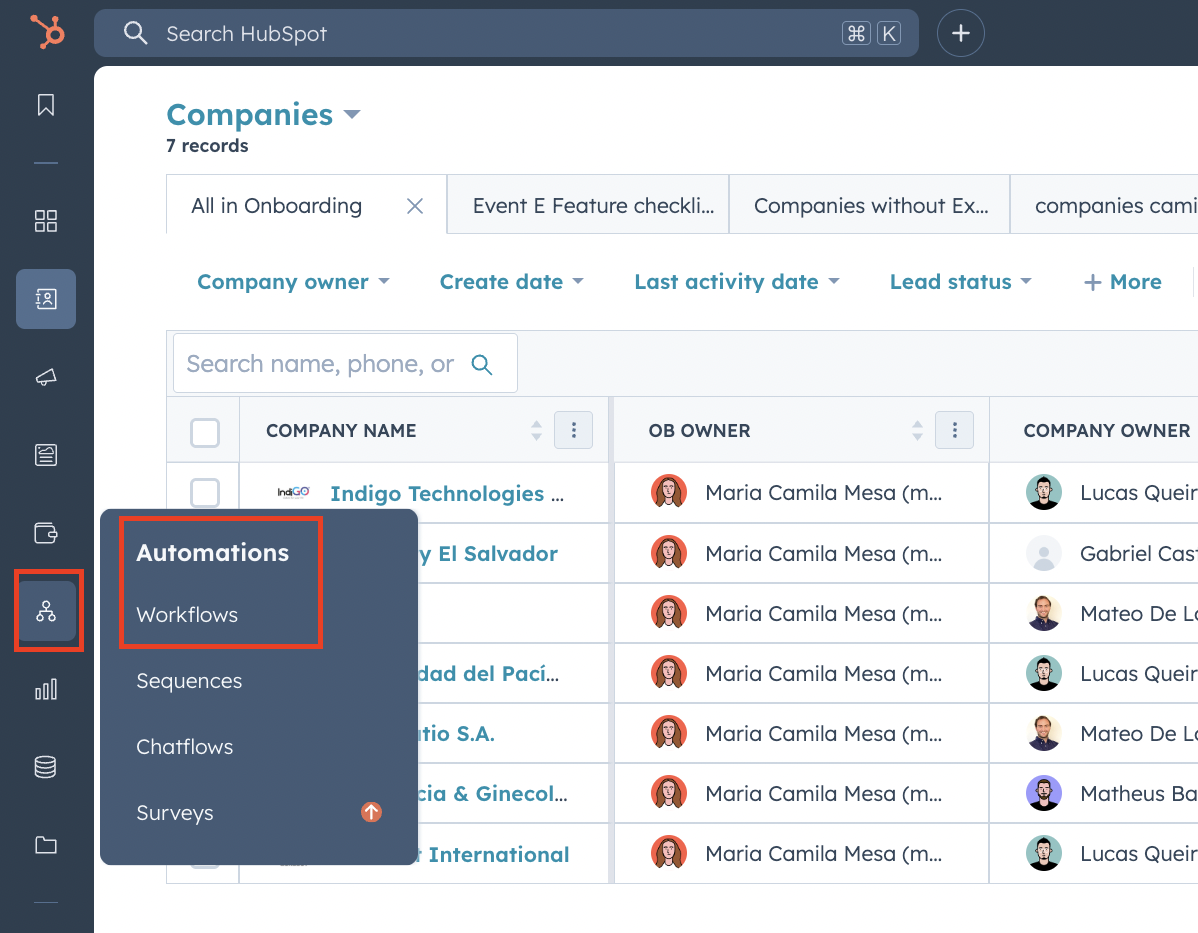
The first thing you need to do is go to HubSpot → Automation → Workflows
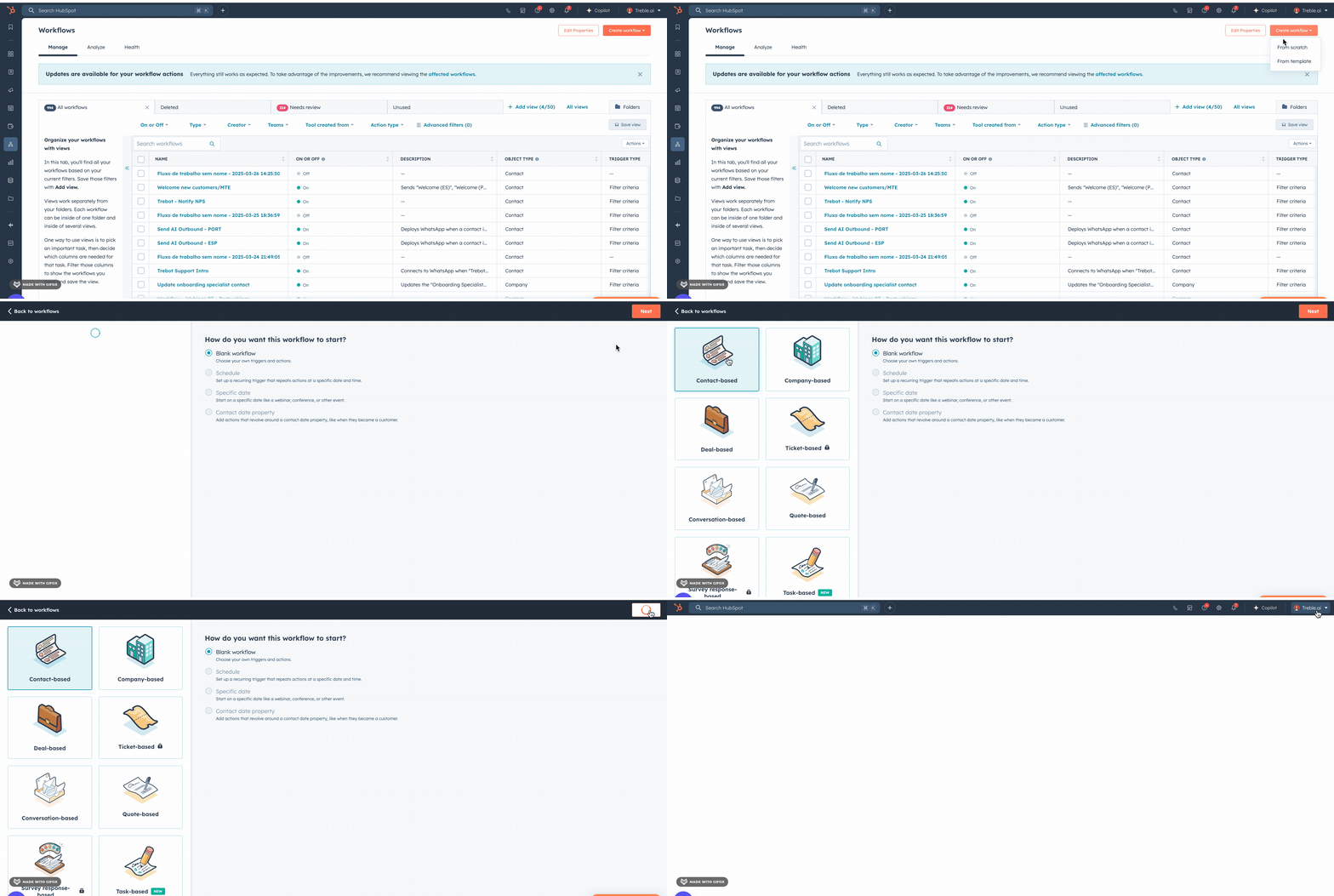
When selecting Workflows, you can create one from scratch.
Workflows can be created for contacts, deals, tickets, and other items.
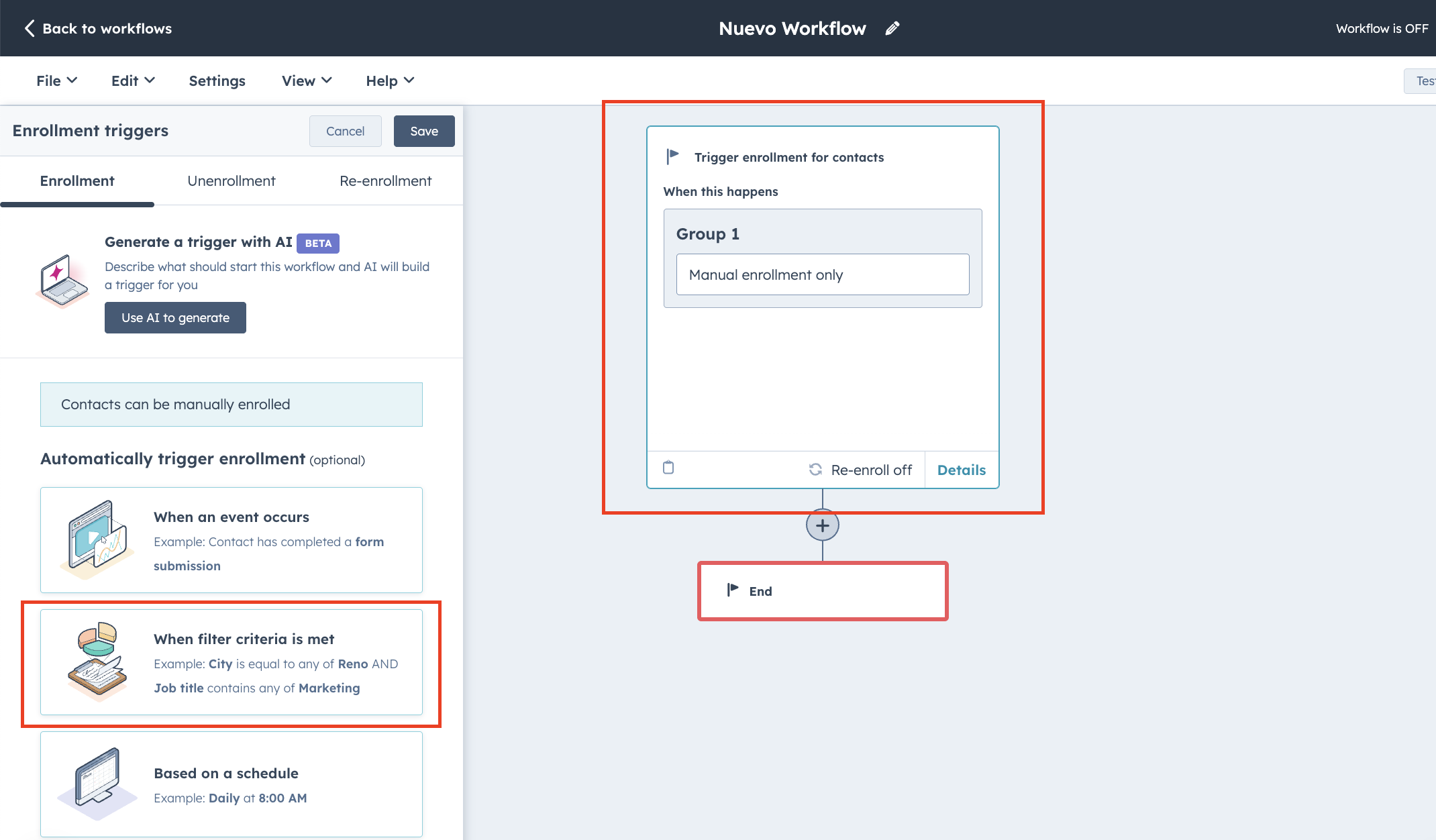
When clicking on the text box, a left sidebar appears. There we can select "When filter criteria are met". This option allows us to create rules based on property values.
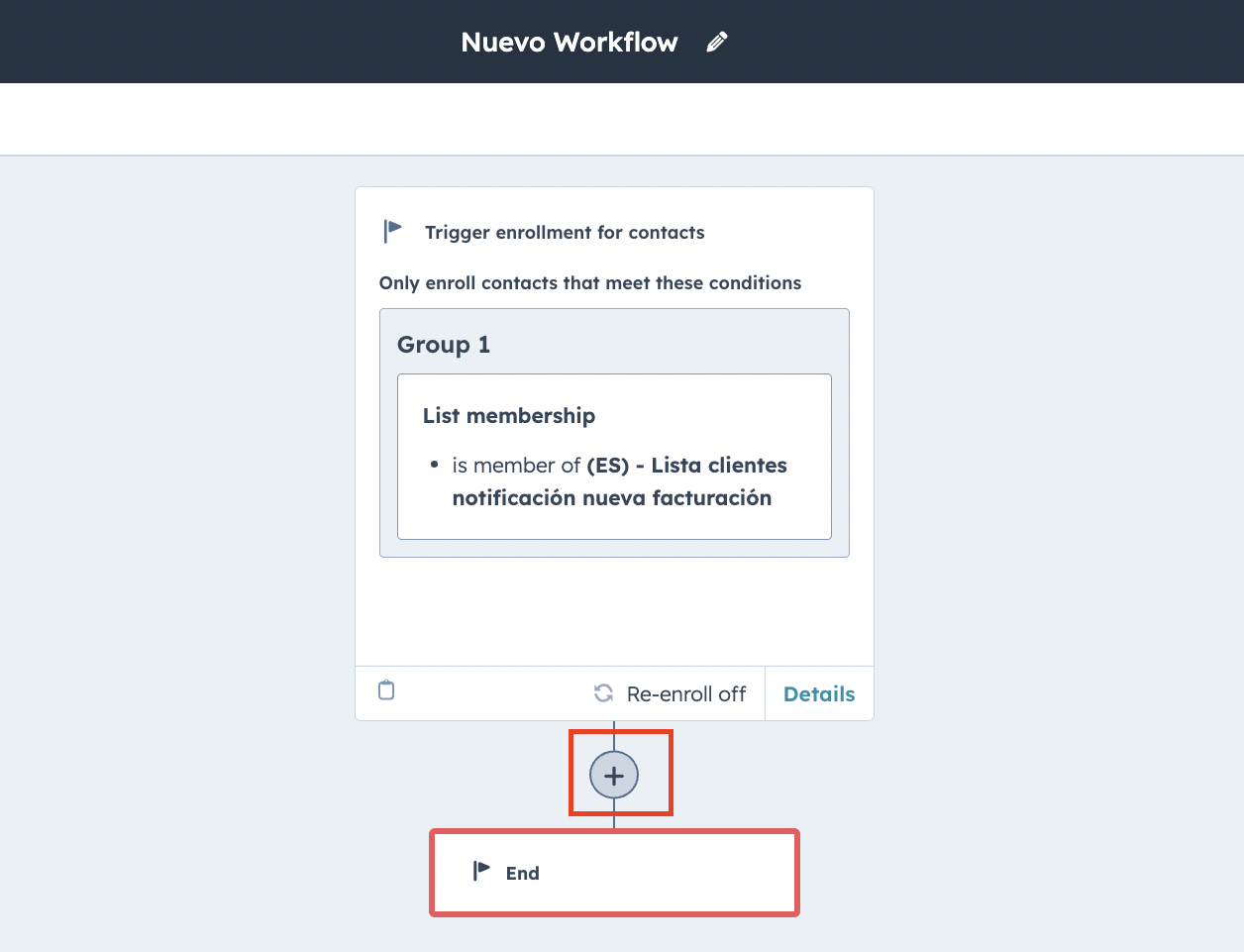
Next, we select all the properties that determine the criteria that customers must meet to send a message. When we have the criteria ready, we must click on the icon
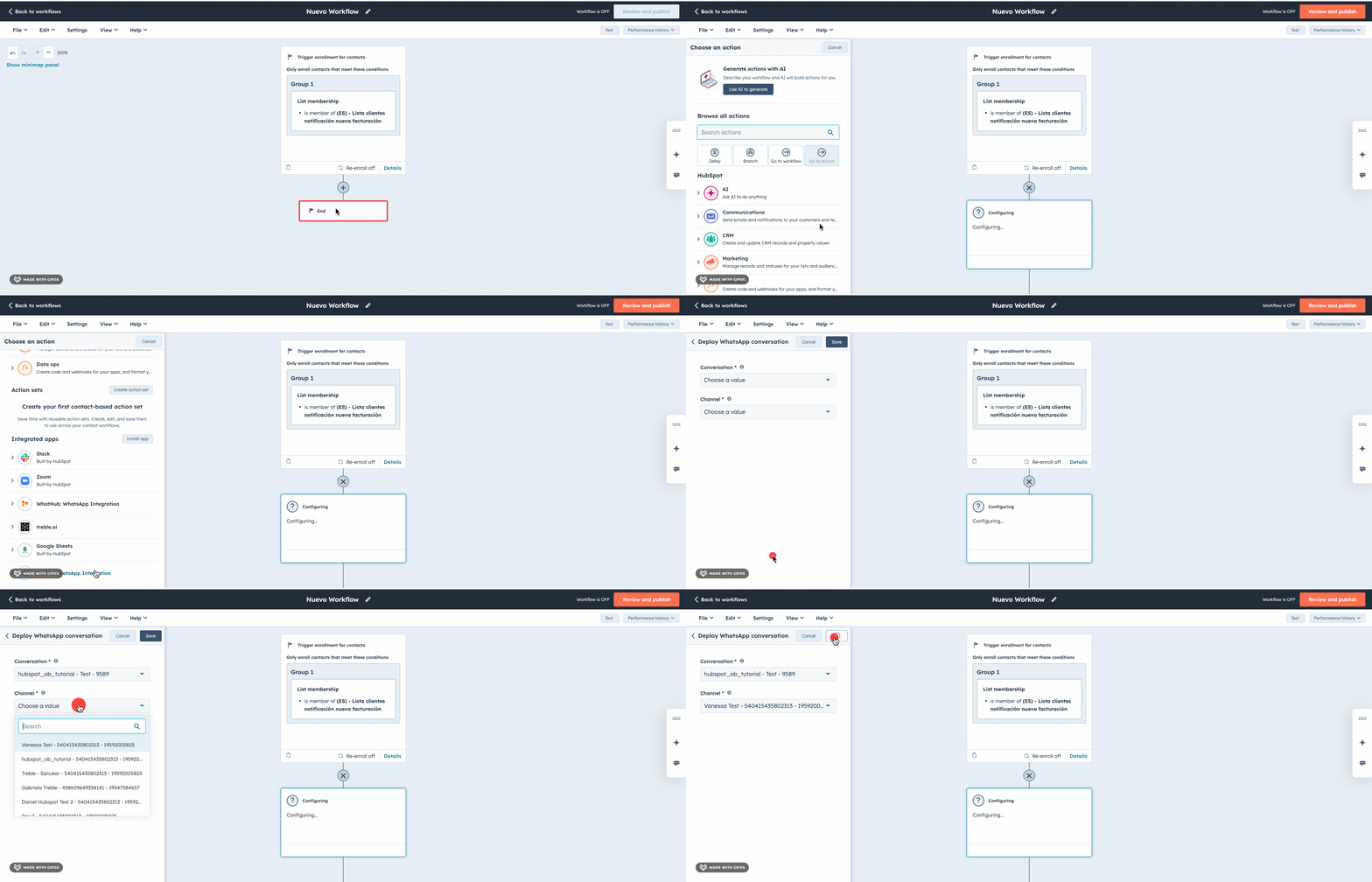
What's left now is to select the Treble action, choose the conversation we want to send, and specify the number from which the sending will be made.
1. When clicking on the button, a panel will be displayed on the left with the list of actions.
2. Scroll until you find the "Integrated Applications" section
3. Select the "Treble: WhatsApp Integration" option
4. Once you click on the option, two fields will be displayed:
* "Conversation": Select the Treble conversation you want to be sent. This conversation must be created in Treble.
Conversations in Treble are message flows that you can create to automate sending messages to your customers. If you don't know how to create a conversation, you can check the following article:
* "Number": In Treble, you can have multiple WhatsApp numbers. Select the number from which you want the conversation to be sent.
5. Click on "Save" to finish the workflow configuration.
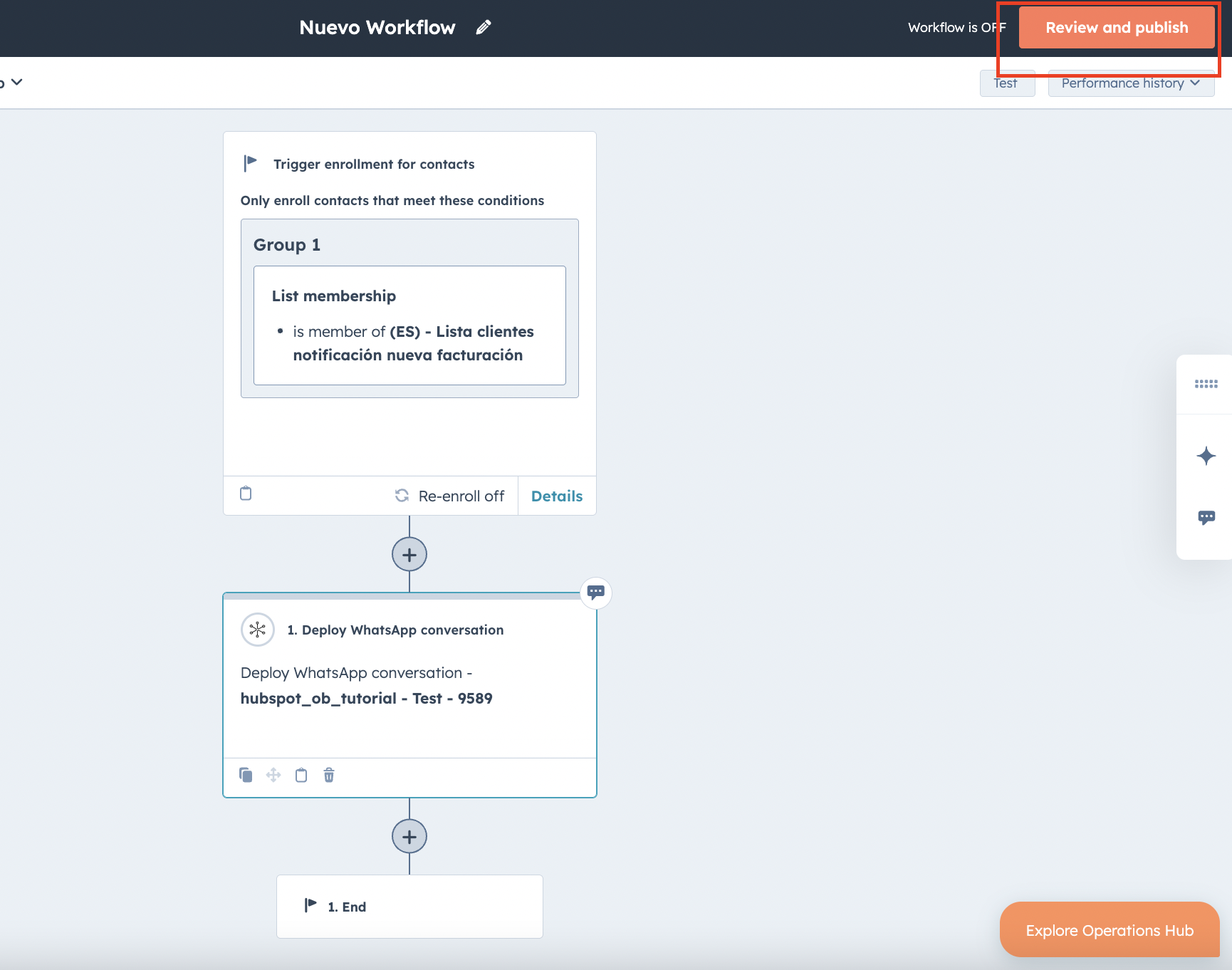
Confirm that the workflow is ready and click on "Save" to finish the configuration. You can see the following image to understand how the workflow would look in HubSpot.
As a final step, you can publish the workflow so it executes by clicking on the "Review and Publish" button
Congratulations! You have created your first workflow in HubSpot to deploy a WhatsApp conversation with Treble.
REMEMBER: Workflows are used for sending mass messages, as well as for sending automated messages.