> ## Documentation Index
> Fetch the complete documentation index at: https://help.treble.ai/llms.txt
> Use this file to discover all available pages before exploring further.
# Install the Chrome Extension
> Install the Chrome extension to see the WhatsApp platform within HubSpot.
**What is it?:** The Treble extension for Chrome expands the Treble functionalities that are displayed in the HubSpot platform. It allows you to see the WhatsApp platform within HubSpot, making it easier for your agents to respond to incoming conversations they receive. Additionally, it allows you to send mass messages through workflows based on the conditions you choose.
Once the HubSpot integration with your company has been successfully completed, the next step is to download the Chrome extension. This extension allows you to see the WhatsApp platform within HubSpot and also send messages from there.
Both administrators and agents must install the extension, so it's important that you save this data to share when they need to download it. Each agent must download the extension using the same code and link provided.
In Treble, go to Settings → Integrations → HubSpot
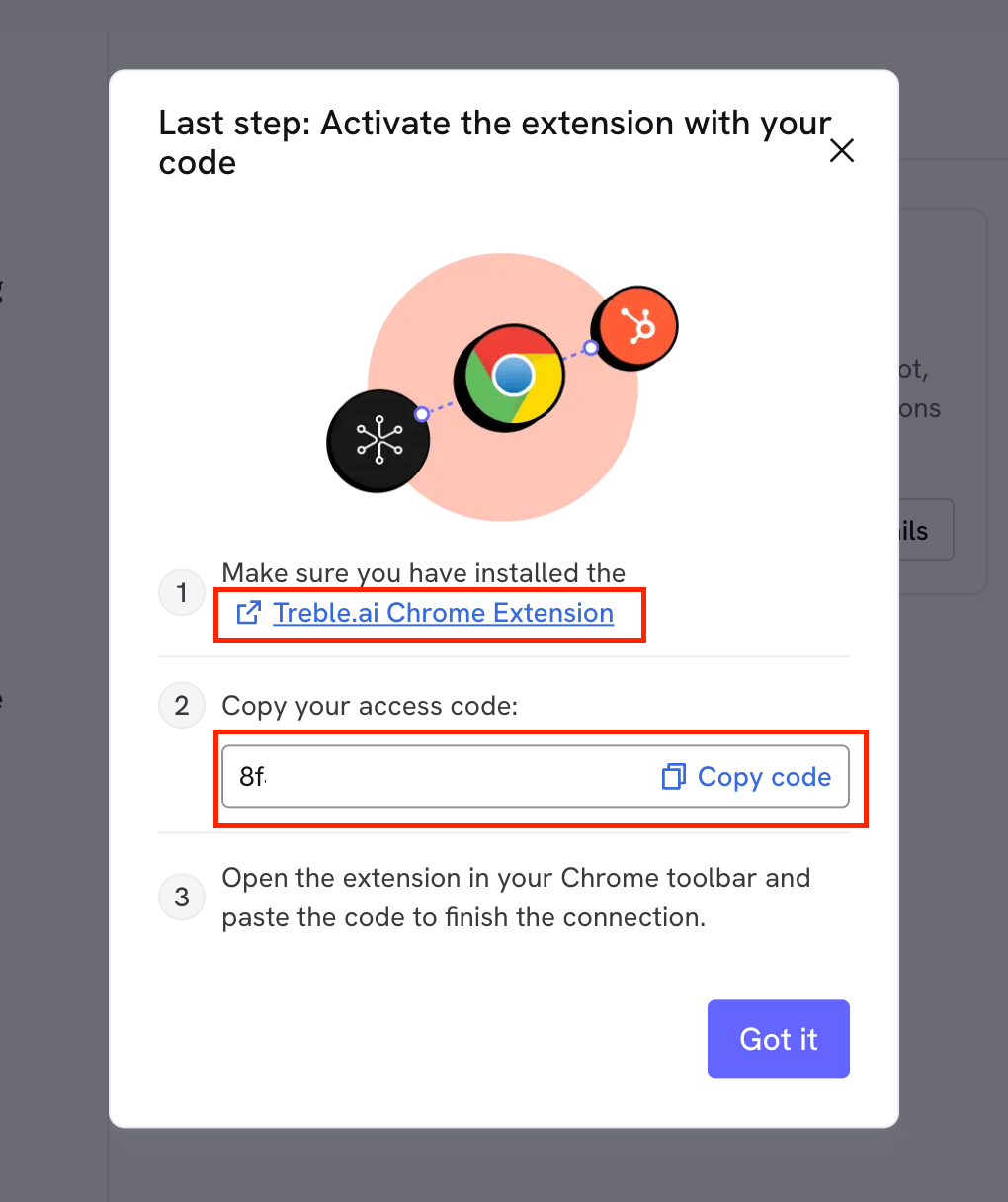
In this modal, you will find important information. You must copy the code and click where it says "Chrome extension". The code is unique for each company and is the same for all people who want to download the extension.
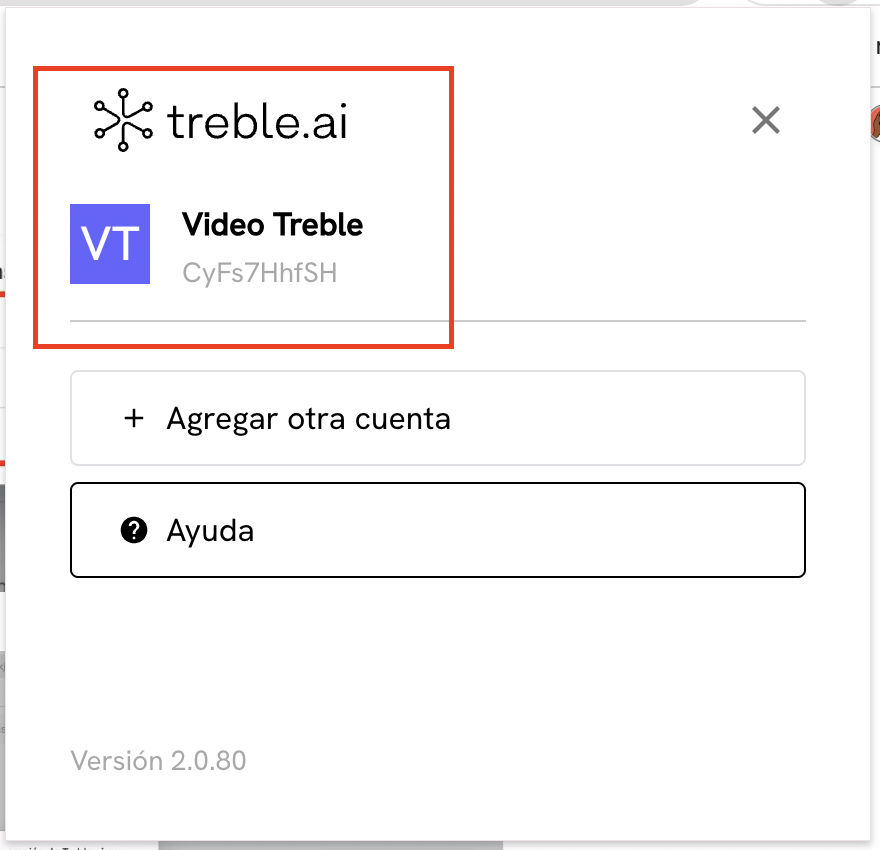
 When clicking on "connect", wait a few seconds and you will see your company name in the extension.
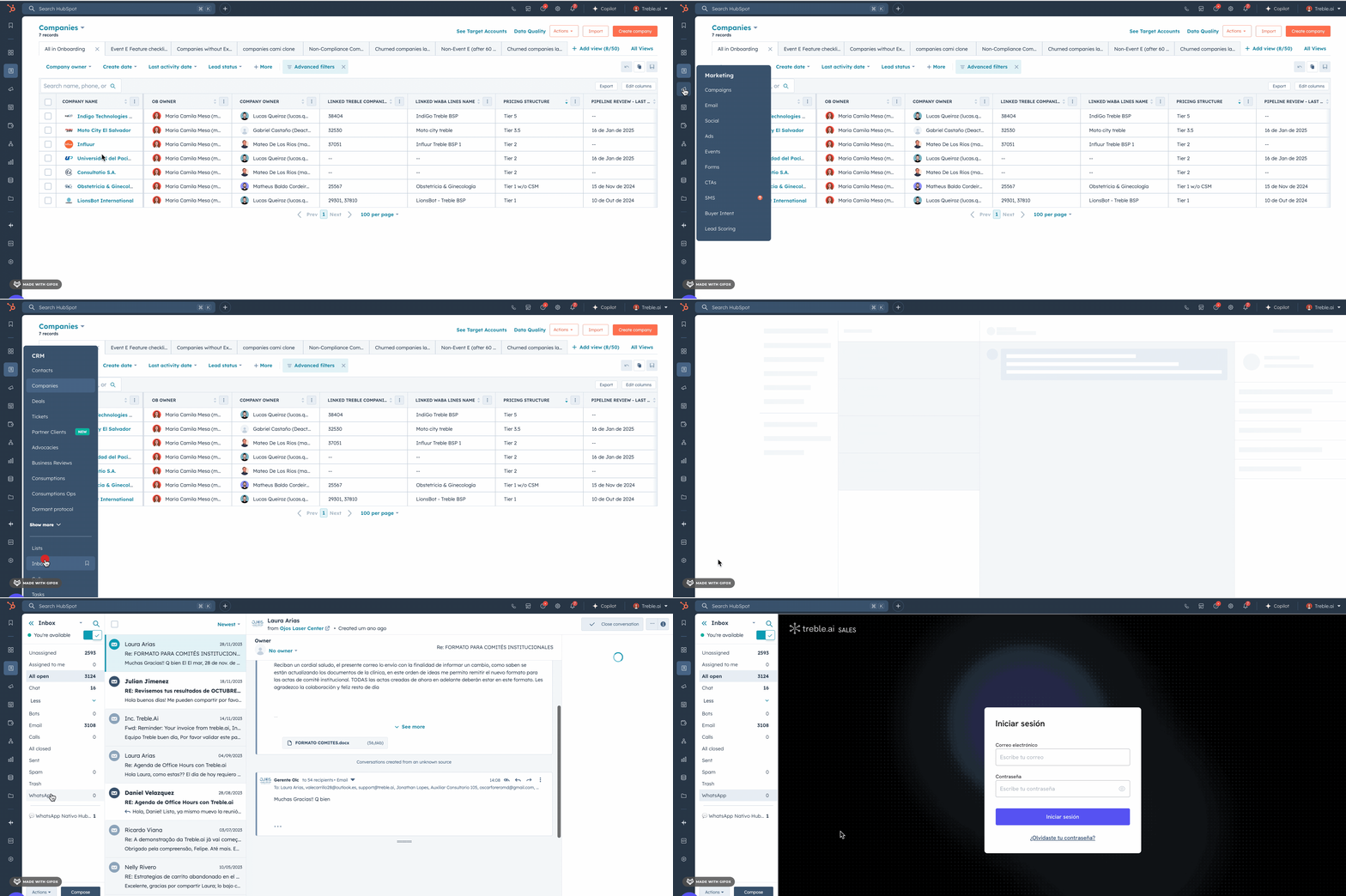
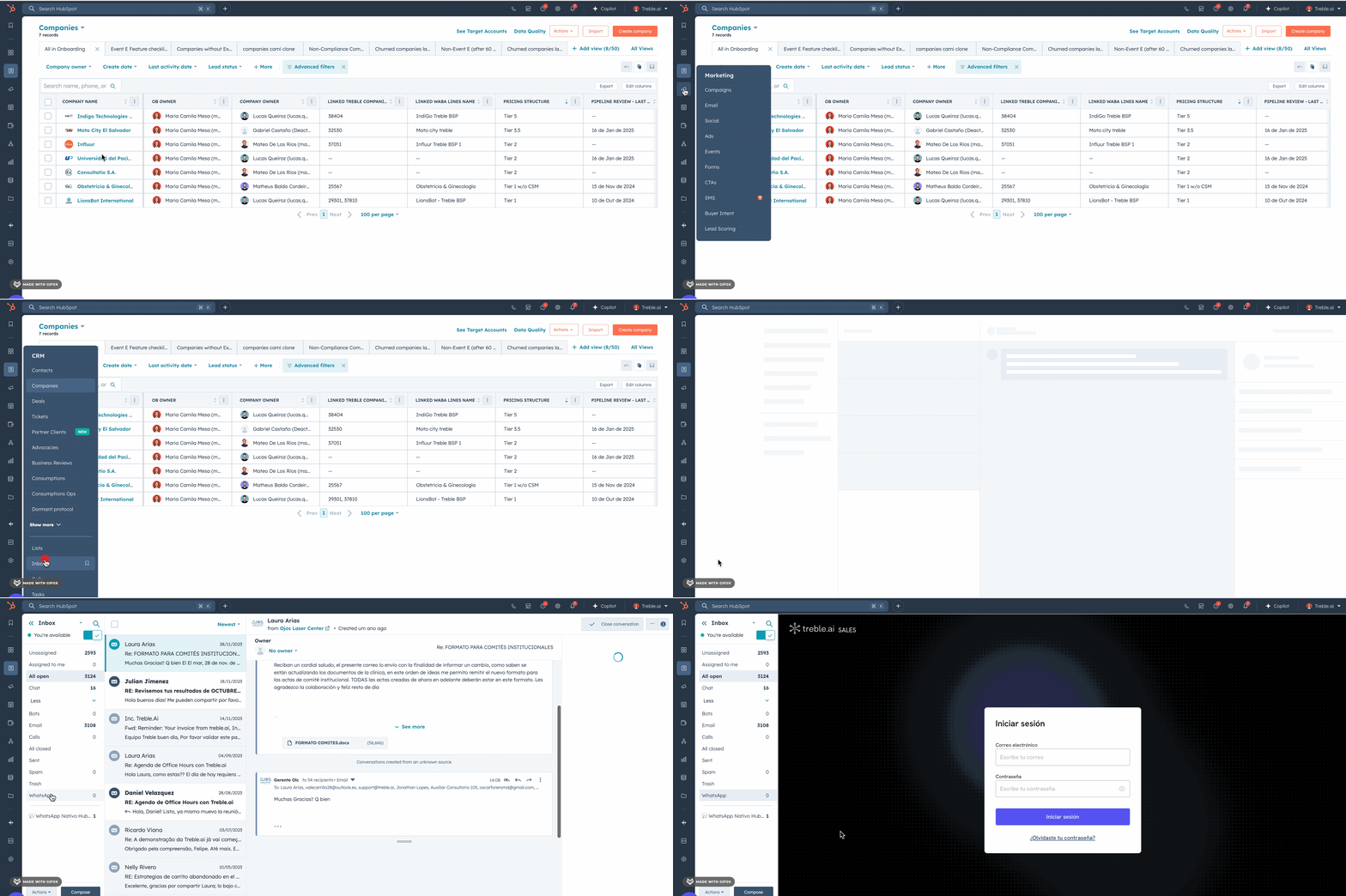
 Right after connecting the extension, go to HubSpot, select "Inbox" and look for "WhatsApp" in the left sidebar.
 CONGRATULATIONS! You have now completed the HubSpot integration with your company.
Remember that your agents only need to download the extension using the same code and link provided to be able to see WhatsApp within HubSpot.
CONGRATULATIONS! You have now completed the HubSpot integration with your company.
Remember that your agents only need to download the extension using the same code and link provided to be able to see WhatsApp within HubSpot.