> ## Documentation Index
> Fetch the complete documentation index at: https://help.treble.ai/llms.txt
> Use this file to discover all available pages before exploring further.
# Ticket Block
> Learn how to use Treble's ticket block. This block allows you to create a ticket in HubSpot based on the customer's response. You can configure the ticket with multiple properties.
# HubSpot Tickets from Treble
You can manage the creation of tickets in HubSpot automatically from Treble. To do this, you need to select the "Ticket Creation" option in the block selector. When a user passes through that block in a conversation, a ticket will be created in HubSpot, which will be associated with the user's current session. If the user passes through a HubSpot ticket block when there is already a ticket associated with the session, instead of creating a new one, the existing ticket will be updated with the specified attributes.
## How is it used?
1. Log in to Treble.ai at: app.treble.ai
2. Go to **Create Conversation**
3. Click on the button to display the block menu
4. Scroll until you find the **Ticket Creation** block
5. Click on the **Ticket Creation** block to add it to your conversation
6. Move the **Ticket Creation** block to the desired position in your flow
7. Connect the **Ticket Creation** block with the **Question** block
8. Once you've added the **Ticket Creation** block, double-click on the block to display the configuration menu
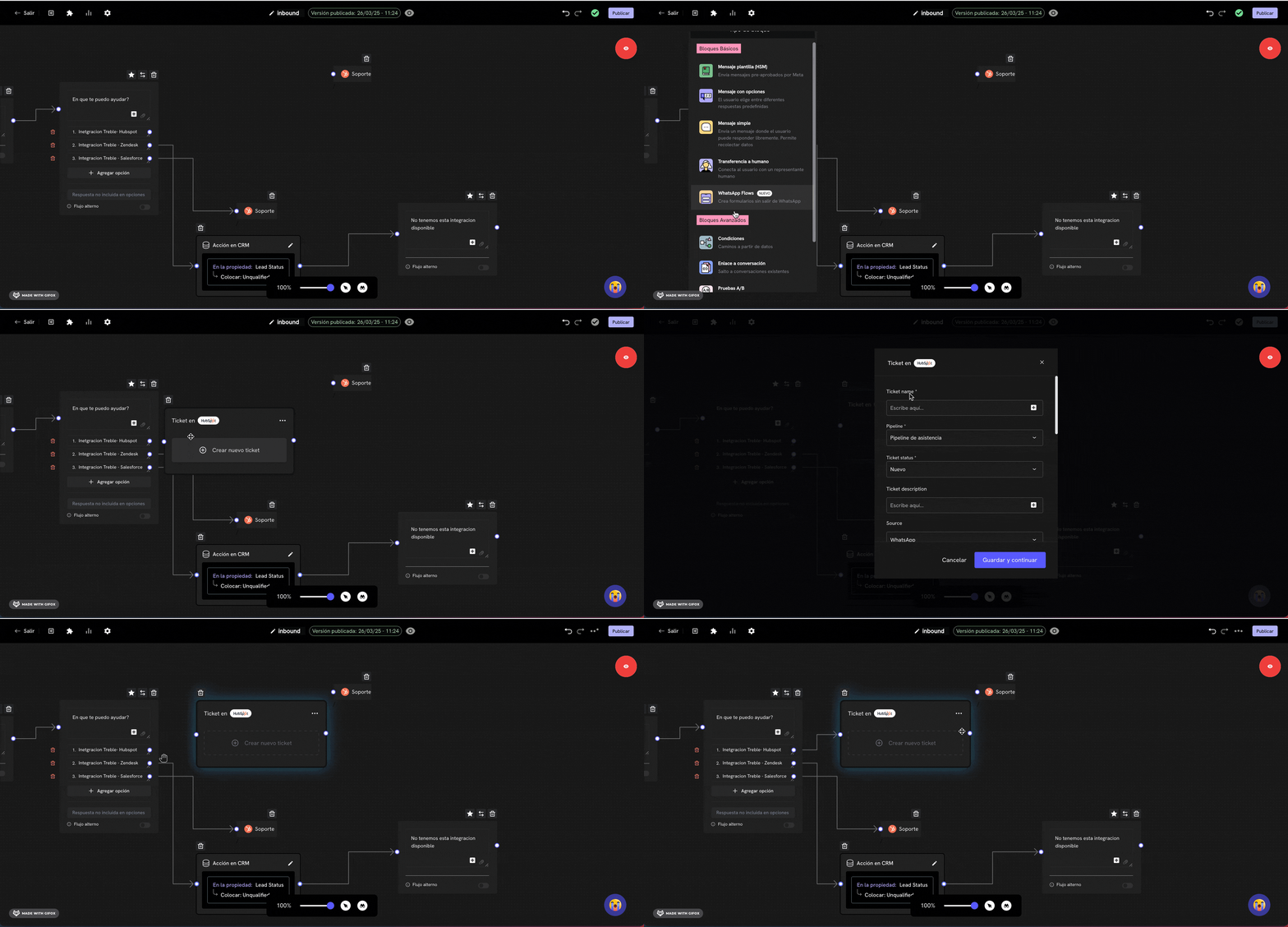 ## Configuring ticket properties
You can set the values of the properties associated with the ticket by clicking on the block. Some properties are not available for configuration, such as date-type attributes and properties that link to a HubSpot user, like `Ticket Owner`. These values will be set automatically when the ticket is created. The `Created in` attribute will be automatically assigned as soon as the ticket is generated.
When a ticket is updated and a value for an attribute has not been defined in the ticket block, that attribute will not change or be set to an empty value.
[Treble.ai](http://treble.ai/) will automatically add the `WhatsApp` option to the `Source` attribute in the HubSpot platform. This option will be pre-selected by default when creating this type of block.
Another property that [Treble.ai](http://treble.ai/) automatically creates is `Treble Rating`, where it will store the user's response to the CSAT survey at the end of the conversation.
All text-type properties will have the option to personalize the value using contact properties. To do this, simply click on the icon at the end of the input field.
## Closing a conversation
When a user closes a conversation in the helpdesk application, the platform will display a modal that allows selecting where to move the HubSpot ticket (pipeline and stage) once the conversation is closed. [Treble.ai](http://treble.ai/) will remember the last option selected when closing a conversation.
In the following cases, when the chat is closed, [Treble.ai](http://treble.ai/) will look for which pipeline the ticket is in and automatically move it to a **closed** type stage. If there are multiple stages of this type in the pipeline, it will select the first one.
* In the helpdesk application, if the company has configured the option to automatically close a conversation after a period of inactivity.
* If the user uses the "Close all chats" option.
* If the conversation never reached a helpdesk system and the user reached the end of the conversation, or if the conversation was automatically closed due to inactivity.
## Configuring ticket properties
You can set the values of the properties associated with the ticket by clicking on the block. Some properties are not available for configuration, such as date-type attributes and properties that link to a HubSpot user, like `Ticket Owner`. These values will be set automatically when the ticket is created. The `Created in` attribute will be automatically assigned as soon as the ticket is generated.
When a ticket is updated and a value for an attribute has not been defined in the ticket block, that attribute will not change or be set to an empty value.
[Treble.ai](http://treble.ai/) will automatically add the `WhatsApp` option to the `Source` attribute in the HubSpot platform. This option will be pre-selected by default when creating this type of block.
Another property that [Treble.ai](http://treble.ai/) automatically creates is `Treble Rating`, where it will store the user's response to the CSAT survey at the end of the conversation.
All text-type properties will have the option to personalize the value using contact properties. To do this, simply click on the icon at the end of the input field.
## Closing a conversation
When a user closes a conversation in the helpdesk application, the platform will display a modal that allows selecting where to move the HubSpot ticket (pipeline and stage) once the conversation is closed. [Treble.ai](http://treble.ai/) will remember the last option selected when closing a conversation.
In the following cases, when the chat is closed, [Treble.ai](http://treble.ai/) will look for which pipeline the ticket is in and automatically move it to a **closed** type stage. If there are multiple stages of this type in the pipeline, it will select the first one.
* In the helpdesk application, if the company has configured the option to automatically close a conversation after a period of inactivity.
* If the user uses the "Close all chats" option.
* If the conversation never reached a helpdesk system and the user reached the end of the conversation, or if the conversation was automatically closed due to inactivity.