> ## Documentation Index
> Fetch the complete documentation index at: https://help.treble.ai/llms.txt
> Use this file to discover all available pages before exploring further.
# Installing the Active Campaign Integration
> This guide shows you how to install the Treble integration with Active Campaign.
To install the integration of your product with Active Campaign, it is crucial that the user has administrator permissions in the Active Campaign account.
# Steps to install the Active Campaign integration in Treble
1. Sign in to app.treble.ai
2. Go to Settings
3. Go to Integrations
4. Click the "Connected Apps" tab
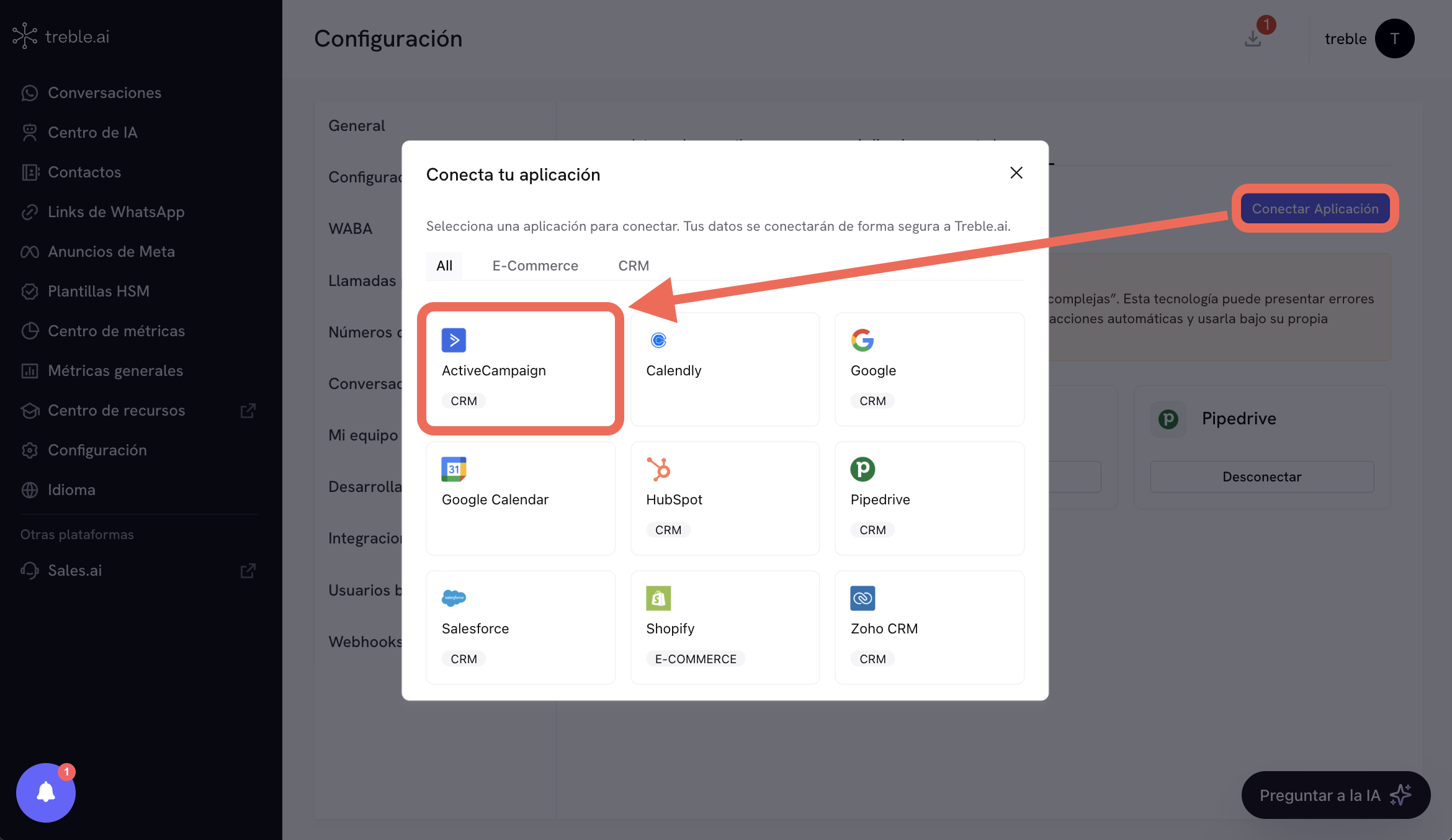
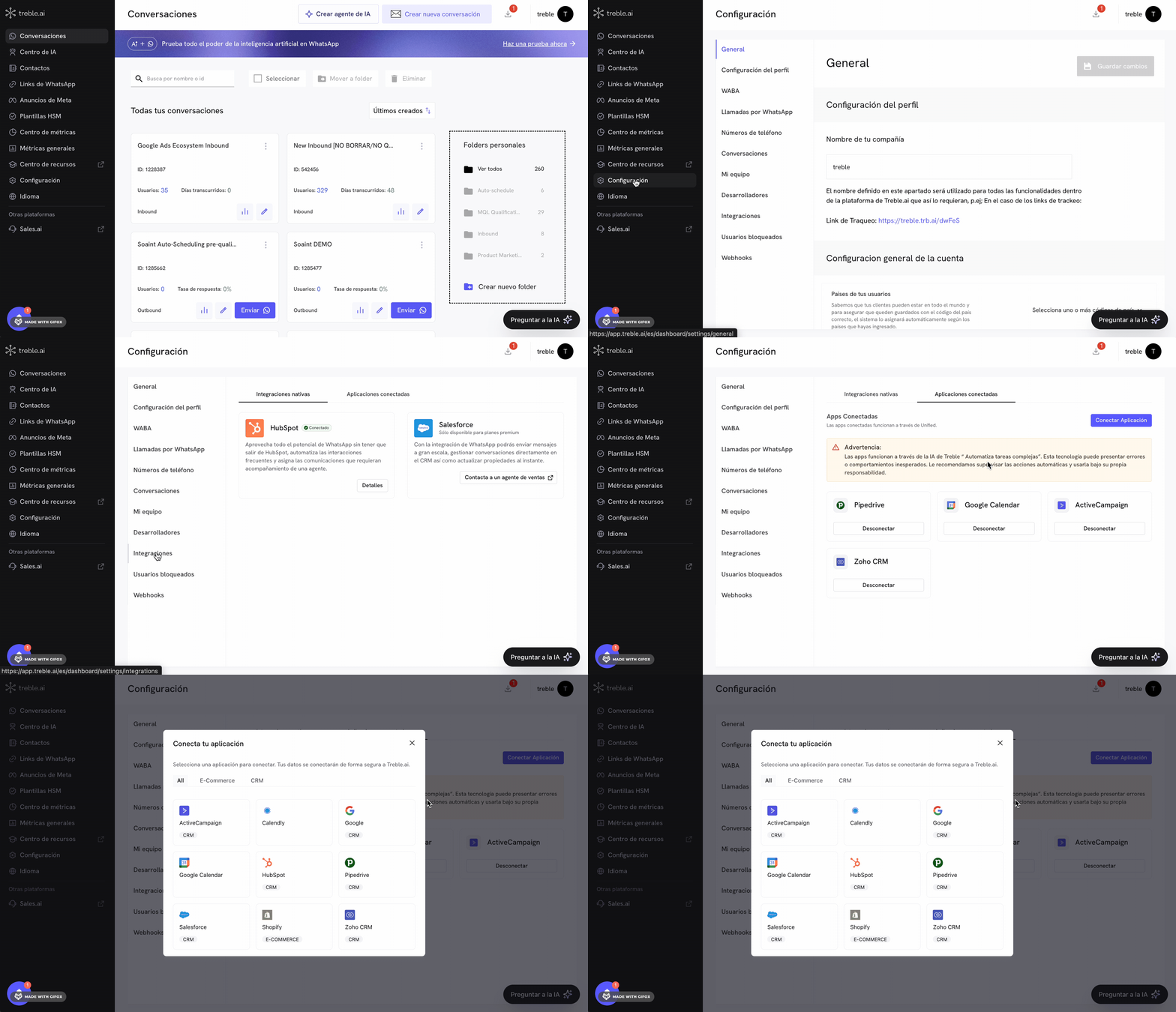 At this point, follow the instructions. Click the "Connect App" button and a modal will open with the connection options. Click "Active Campaign".
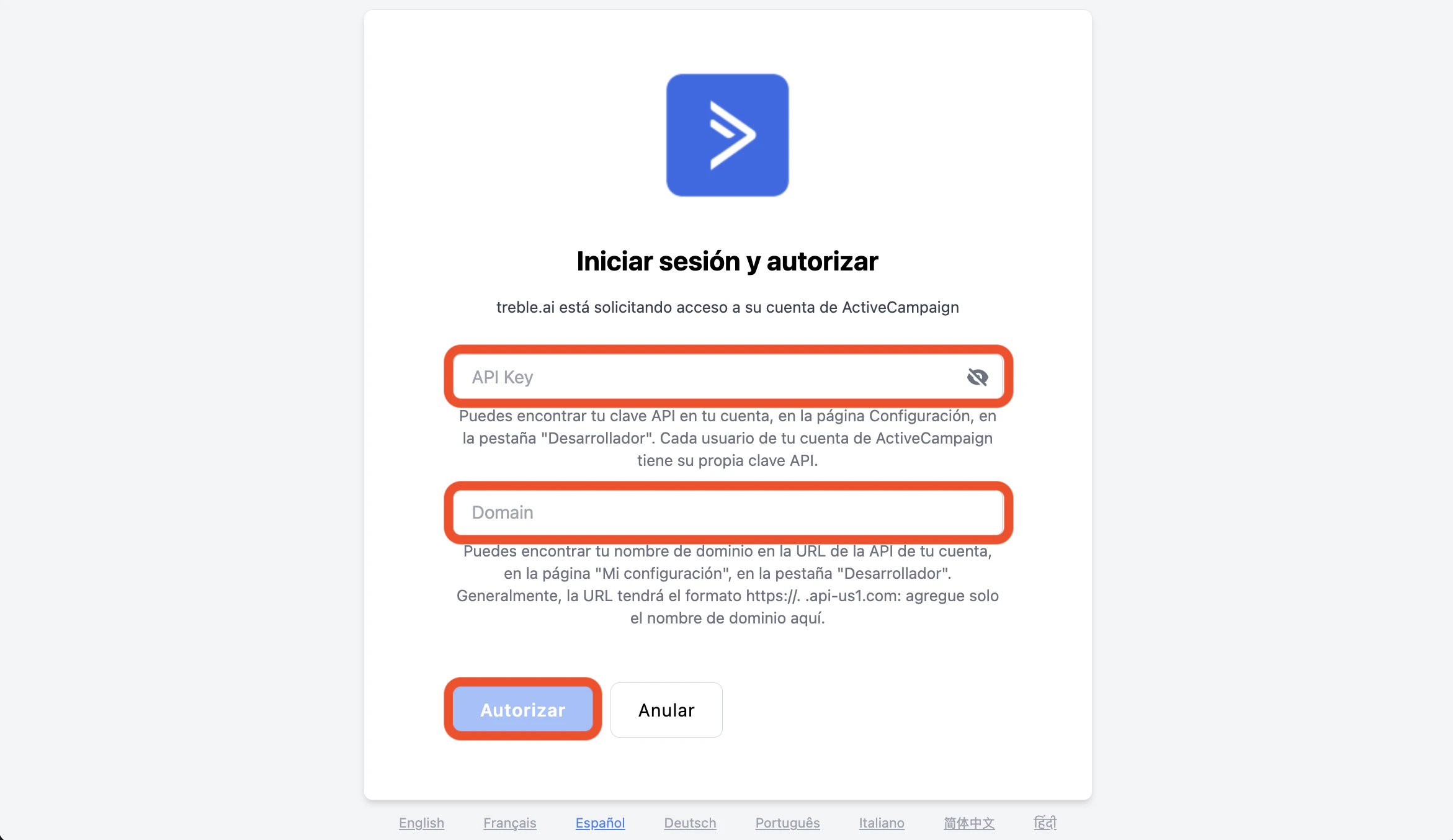
 After clicking "Active Campaign", the **Sign in and authorize** screen will open, where Treble.ai requests access to your Active Campaign account. Complete the following fields:
* **API Key**: enter your Active Campaign API key. You can find it in your account, in the developer settings section.
* **Domain**: enter the domain name of your account (just the name, without the full URL). It usually corresponds to the subdomain of your API endpoint.
When the information is correct, click **Authorize** to complete the connection. If you wish to cancel the process, click **Cancel**.
After clicking "Active Campaign", the **Sign in and authorize** screen will open, where Treble.ai requests access to your Active Campaign account. Complete the following fields:
* **API Key**: enter your Active Campaign API key. You can find it in your account, in the developer settings section.
* **Domain**: enter the domain name of your account (just the name, without the full URL). It usually corresponds to the subdomain of your API endpoint.
When the information is correct, click **Authorize** to complete the connection. If you wish to cancel the process, click **Cancel**.
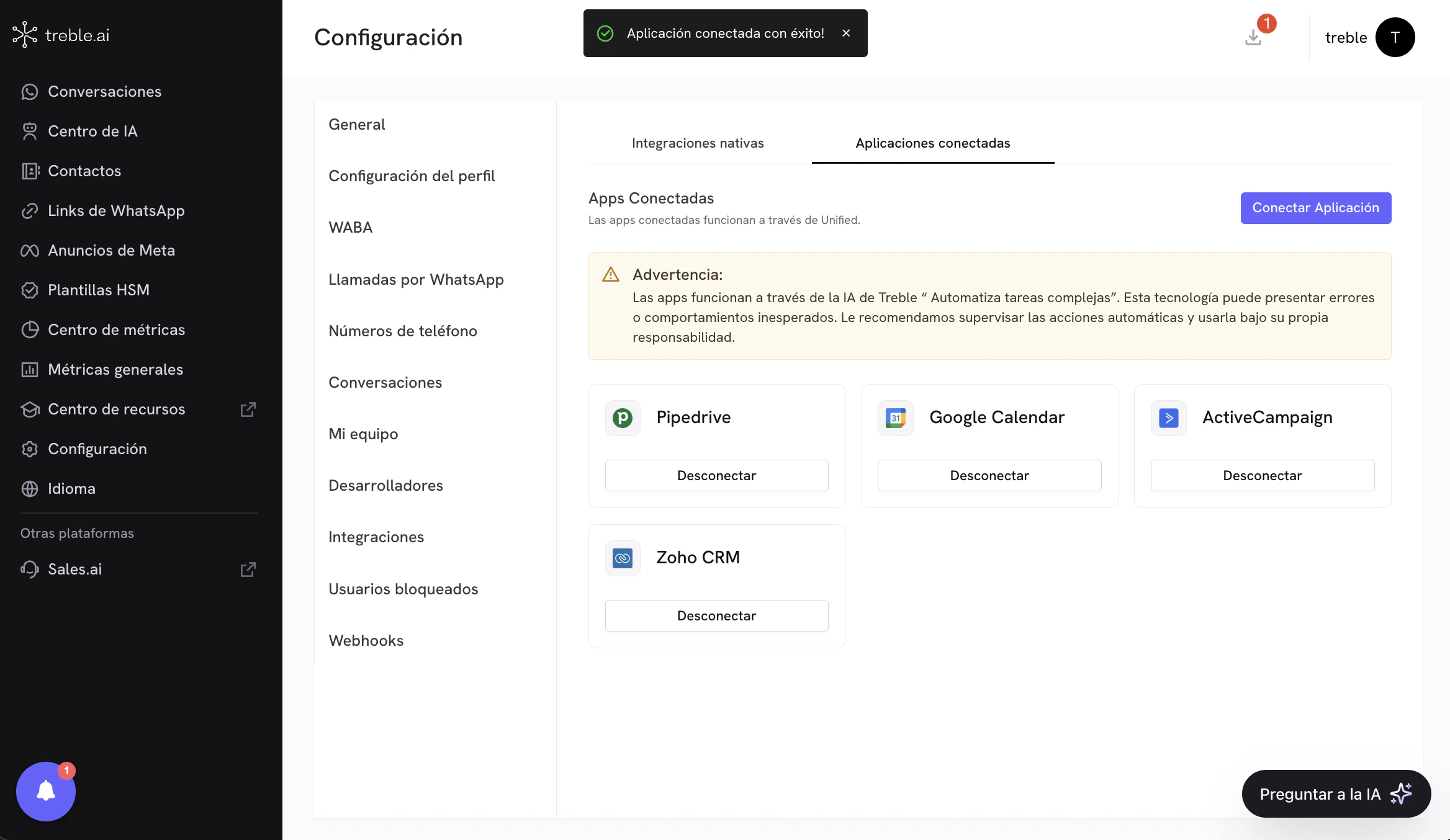
 You have now connected the Active Campaign application in Treble.
 You can now use Active Campaign tools for AI in Treble. To do this, go to the "AI Center" section and create a new AI agent. You must select the "Automate complex tasks" option. After creating the agent, go to the "Tools" section and select the "Connected Apps" option in the tools list. In this section, select the "Active Campaign" application and you will see the available tools to use in AI.
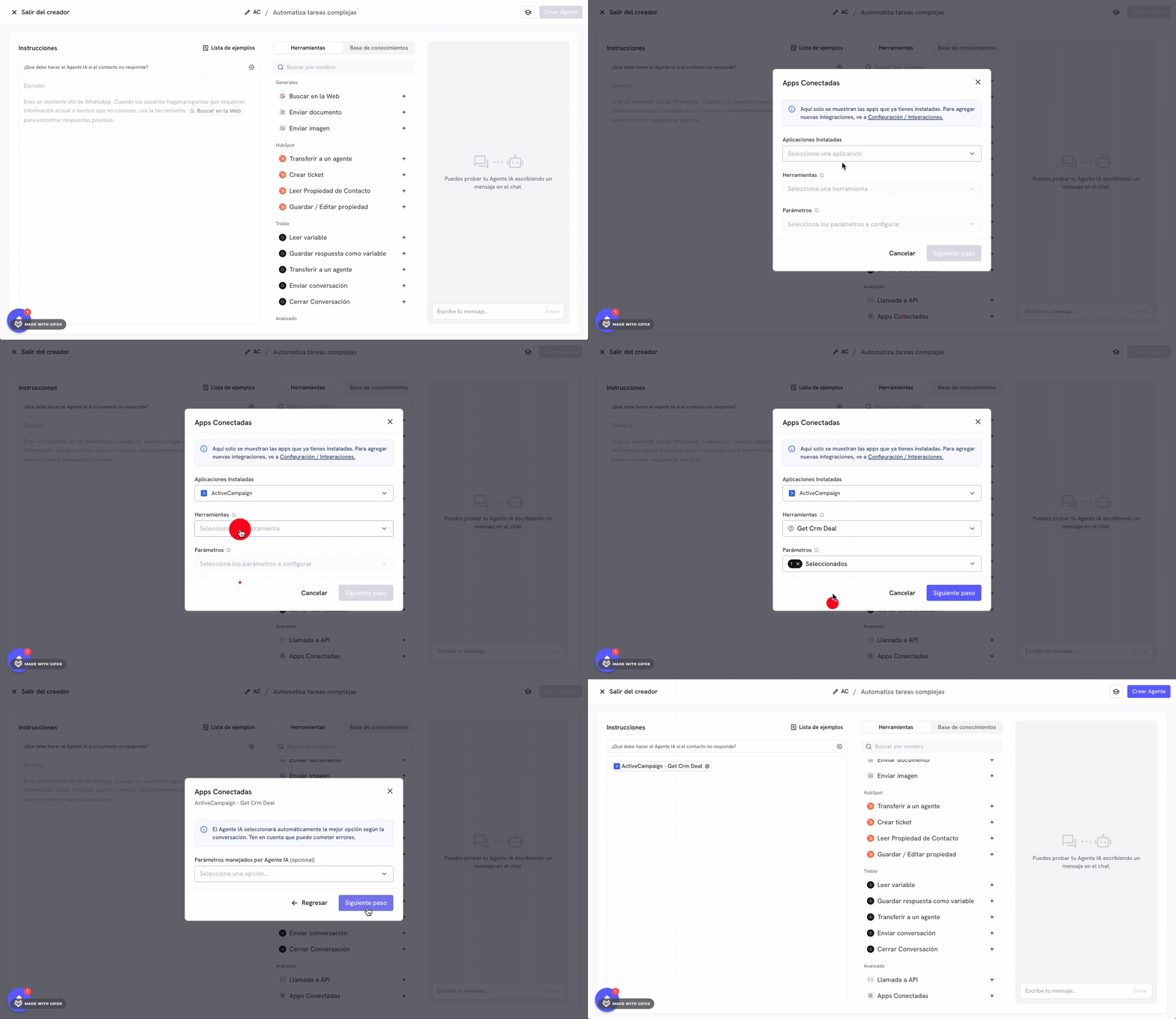 Congratulations! You have successfully installed the Active Campaign integration in Treble.
In the next section, we explain how to use Active Campaign tools for AI in Treble.
Congratulations! You have successfully installed the Active Campaign integration in Treble.
In the next section, we explain how to use Active Campaign tools for AI in Treble.