> ## Documentation Index
> Fetch the complete documentation index at: https://help.treble.ai/llms.txt
> Use this file to discover all available pages before exploring further.
# Native Variables
> Native variables are variables that come pre-configured in Treble. These allow you to access important information in your conversation flows such as the country code of the customer's phone number, the message used by your customer to start an inbound conversation flow, or even the current week number. Learn to use native variables to create personalized conversation flows.
 ## What are native variables?
**Native variables** in Treble are special variables that the system automatically provides in each conversation. You don't need to define them or ask the user for them: they are always available and you can use them directly in conditional nodes or to personalize messages and routes in your conversational flow.
These variables allow you to create intelligent and personalized flows, adapting the user experience according to context, time, country, day of the week or the initial message with which the user starts the conversation.
> **Important:** Native variables can be used directly in conditional blocks, without needing to have captured them previously in the flow.
## Why are they important?
* They allow you to personalize the user experience automatically and dynamically.
* They facilitate segmentation and routing of conversations according to context, schedule, country, etc.
* They help create more intelligent flows adapted to each customer's needs.
* They reduce the need to ask redundant information from the user.
## Available native variables
Below, each native variable is explained, how it's used and examples of use cases:
### 1. Current time (`time`)
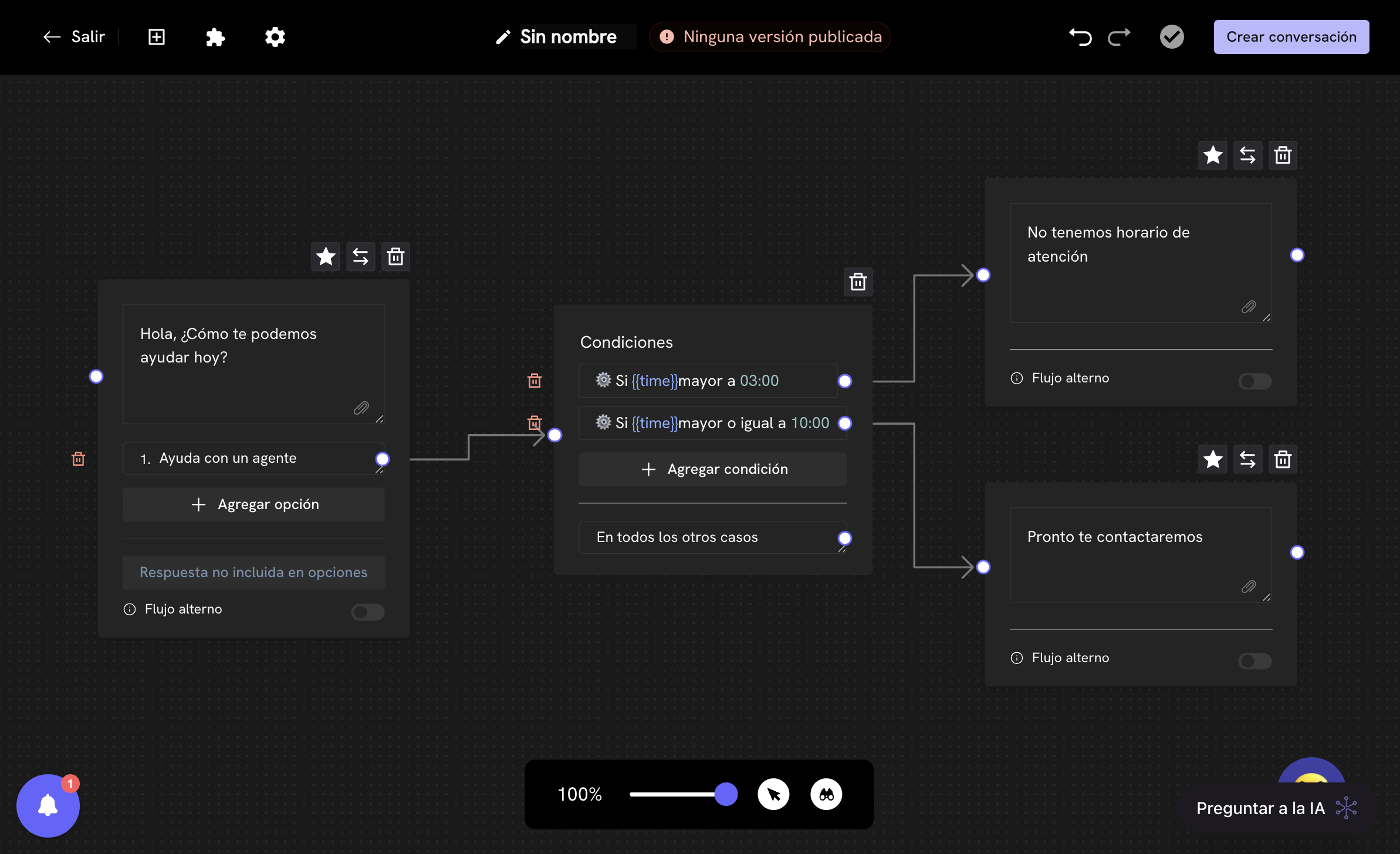
This variable stores the **current time** (in 24-hour format, GMT-0) when the user interacts with the flow. It's useful for creating flows that depend on schedule, such as out-of-hours support, night promotions, or personalized messages according to the time of day.
```code theme={null}
{{time}}
```
> **Note:** The time is in GMT-0. If your business is in another time zone (for example, Colombia GMT-5), you must adjust the condition by adding or subtracting hours as appropriate. You can use [this time converter](https://savvytime.com/converter/utc) to calculate local time.
**Usage example:**
* Redirect to an agent only during business hours:
* If `{{time}}` >= 13:00 and `{{time}}` \< 22:00, show support menu.
* If not, show out-of-hours message.
### 2. Day of the week (`weekday`)
This variable indicates the **day of the week** when the user interacts with the flow. The value is an integer where **1 is Monday** and **7 is Sunday**.
```code theme={null}
{{weekday}}
```
Learn to configure schedules and time in Treble.
**Usage example:**
* Offer promotions only on weekends:
* If `{{weekday}}` >= 6, show special promotion message.
* Change support flow according to the day:
* If `{{weekday}}` \<= 5, direct to regular support.
* If `{{weekday}}` >= 6, direct to weekend support.
### 3. Country code (`country_code`)
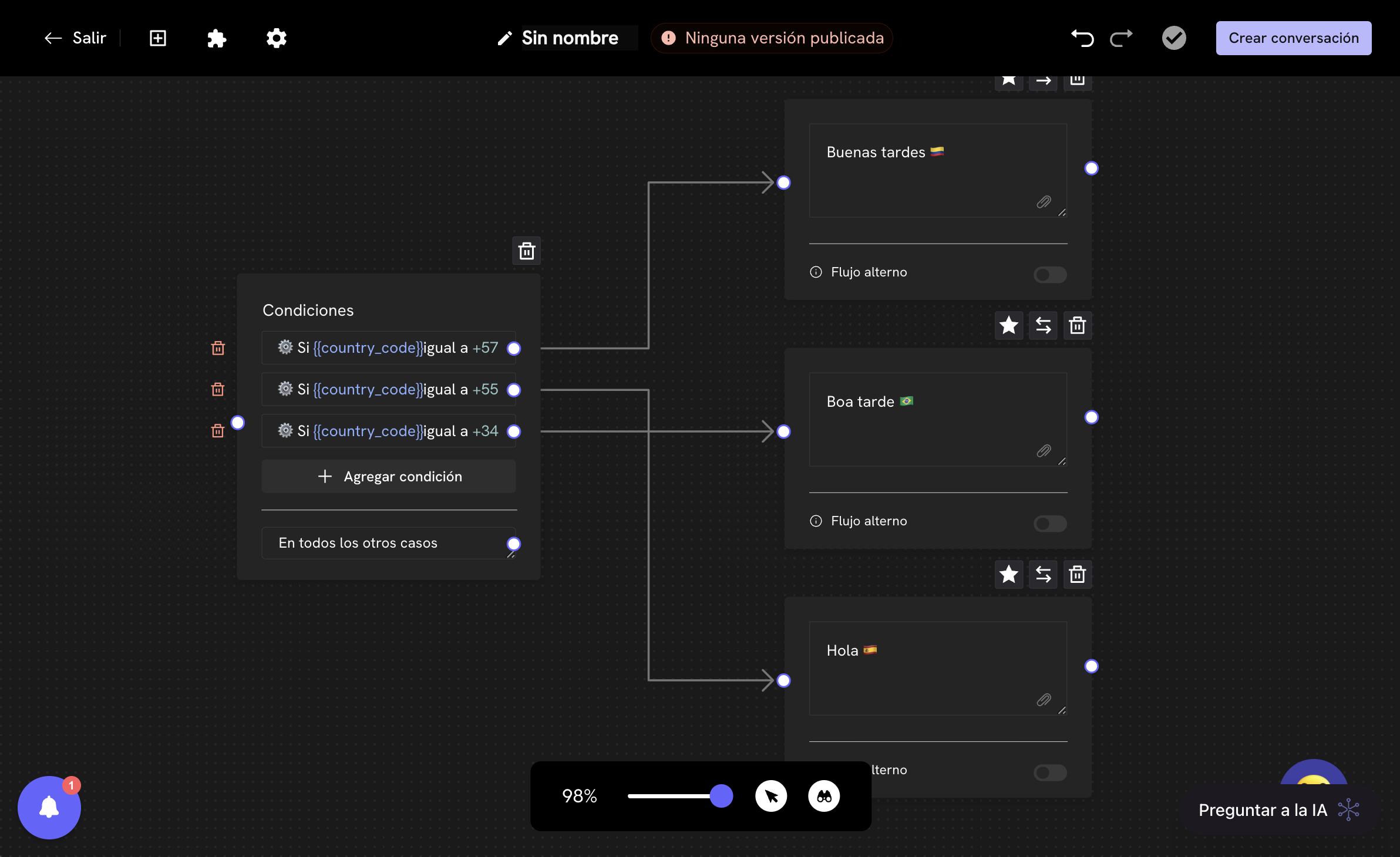
This variable contains the **country code** of the user's phone number. It's useful for personalizing messages, routes or agents according to the customer's country of origin. The format is as follows: `+57`, `+55`, etc.
```code theme={null}
{{country_code}}
```
## What are native variables?
**Native variables** in Treble are special variables that the system automatically provides in each conversation. You don't need to define them or ask the user for them: they are always available and you can use them directly in conditional nodes or to personalize messages and routes in your conversational flow.
These variables allow you to create intelligent and personalized flows, adapting the user experience according to context, time, country, day of the week or the initial message with which the user starts the conversation.
> **Important:** Native variables can be used directly in conditional blocks, without needing to have captured them previously in the flow.
## Why are they important?
* They allow you to personalize the user experience automatically and dynamically.
* They facilitate segmentation and routing of conversations according to context, schedule, country, etc.
* They help create more intelligent flows adapted to each customer's needs.
* They reduce the need to ask redundant information from the user.
## Available native variables
Below, each native variable is explained, how it's used and examples of use cases:
### 1. Current time (`time`)
This variable stores the **current time** (in 24-hour format, GMT-0) when the user interacts with the flow. It's useful for creating flows that depend on schedule, such as out-of-hours support, night promotions, or personalized messages according to the time of day.
```code theme={null}
{{time}}
```
> **Note:** The time is in GMT-0. If your business is in another time zone (for example, Colombia GMT-5), you must adjust the condition by adding or subtracting hours as appropriate. You can use [this time converter](https://savvytime.com/converter/utc) to calculate local time.
**Usage example:**
* Redirect to an agent only during business hours:
* If `{{time}}` >= 13:00 and `{{time}}` \< 22:00, show support menu.
* If not, show out-of-hours message.
### 2. Day of the week (`weekday`)
This variable indicates the **day of the week** when the user interacts with the flow. The value is an integer where **1 is Monday** and **7 is Sunday**.
```code theme={null}
{{weekday}}
```
Learn to configure schedules and time in Treble.
**Usage example:**
* Offer promotions only on weekends:
* If `{{weekday}}` >= 6, show special promotion message.
* Change support flow according to the day:
* If `{{weekday}}` \<= 5, direct to regular support.
* If `{{weekday}}` >= 6, direct to weekend support.
### 3. Country code (`country_code`)
This variable contains the **country code** of the user's phone number. It's useful for personalizing messages, routes or agents according to the customer's country of origin. The format is as follows: `+57`, `+55`, etc.
```code theme={null}
{{country_code}}
```
 **Usage example:**
* Show messages in the local language according to the country:
* If `{{country_code}}` = +57, show messages in Spanish (Colombia).
* If `{{country_code}}` = +55, show messages in Portuguese (Brazil).
* Assign specialized agents by country.
### 4. Initial message (`inbound`)
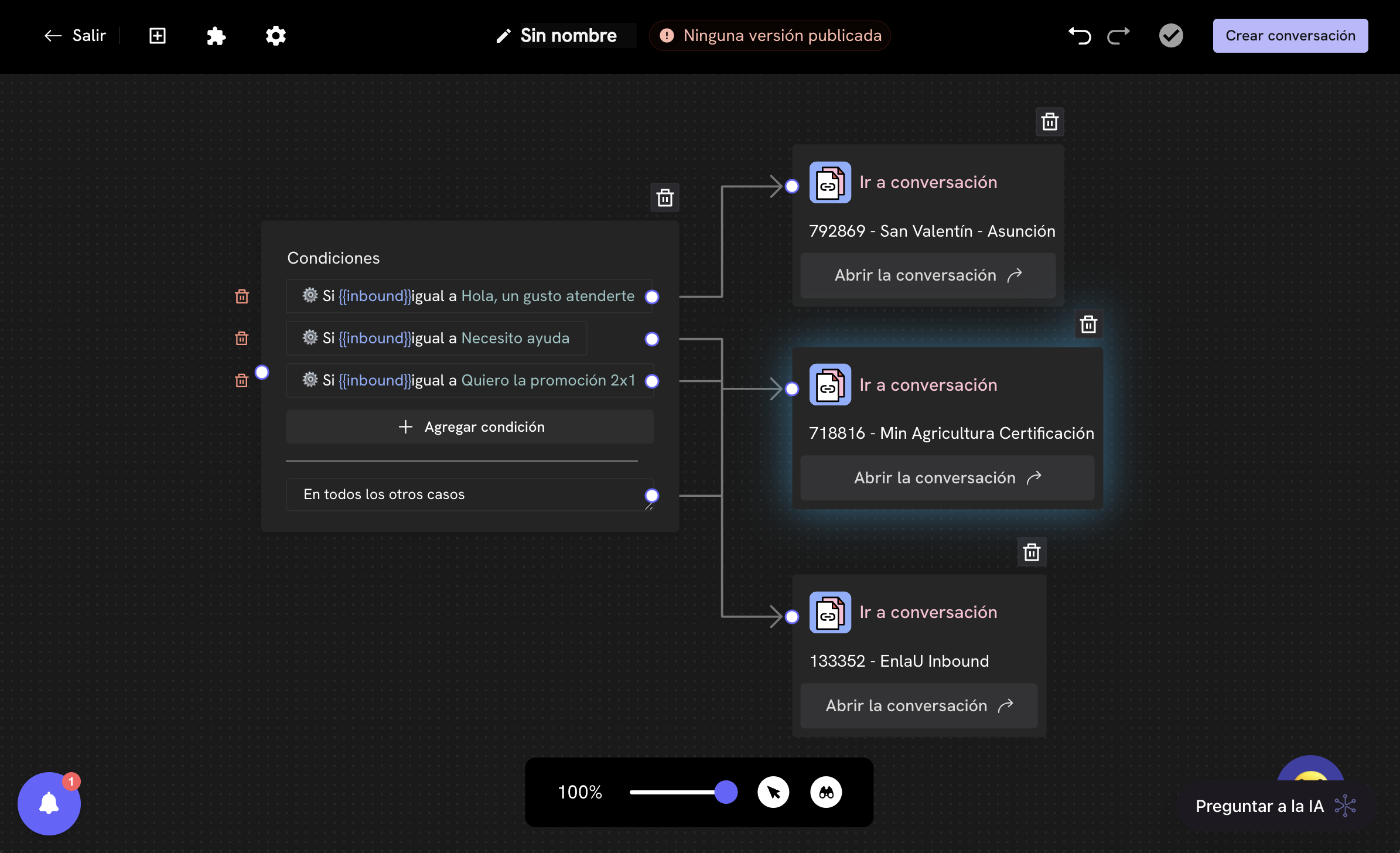
This variable stores the **message with which the user starts the conversation** (only for inbound flows). It allows you to personalize the experience according to the intention or keyword with which the user contacts your company.
```code theme={null}
{{inbound}}
```
**Usage example:**
* Show messages in the local language according to the country:
* If `{{country_code}}` = +57, show messages in Spanish (Colombia).
* If `{{country_code}}` = +55, show messages in Portuguese (Brazil).
* Assign specialized agents by country.
### 4. Initial message (`inbound`)
This variable stores the **message with which the user starts the conversation** (only for inbound flows). It allows you to personalize the experience according to the intention or keyword with which the user contacts your company.
```code theme={null}
{{inbound}}
```
 **Usage example:**
* If the user starts the conversation with "Support", direct them directly to the support flow.
* If the user writes "Quote", show the quotes menu.
Tip: You can use the
**Usage example:**
* If the user starts the conversation with "Support", direct them directly to the support flow.
* If the user writes "Quote", show the quotes menu.
Tip: You can use the {{inbound}} variable in conditional blocks to create intelligent flows according to the keyword with which the user starts the conversation.
#### Usage example of the `inbound` variable with WhatsApp Links
Suppose your company has several campaigns or acquisition channels and you want that, depending on the message with which the user starts the conversation (using a WhatsApp link with a predefined message), the user is automatically directed to a specific flow. This is possible thanks to the native variable `inbound`, which captures the initial message sent by the user.
**Scenario:**
* You have three active campaigns:
1. **Support Campaign**: The WhatsApp link has the predefined message `Support`.
2. **Sales Campaign**: The WhatsApp link has the predefined message `I want to buy`.
3. **Feedback Campaign**: The WhatsApp link has the predefined message `Leave feedback`.
When the user clicks on one of these links and sends the message, the `{{inbound}}` variable will take exactly that value. You can use a **conditional block** at the beginning of the flow to route the conversation according to the `inbound` value.
**Conditional block configuration:**
* If `{{inbound}}` equals `Support` → Redirect to support flow.
* If `{{inbound}}` equals `I want to buy` → Redirect to sales flow.
* If `{{inbound}}` equals `Leave feedback` → Redirect to feedback flow.
* In any other case → Show a general menu or standard welcome message.
```code theme={null}
Custom condition:
Variable: inbound
Operator: Equal to
Value: Support → [Support Flow]
Value: I want to buy → [Sales Flow]
Value: Leave feedback → [Feedback Flow]
In all other cases → [General Menu]
```
You can create and manage WhatsApp links from the WhatsApp Links section in Treble, defining the predefined message that will be used as the inbound value.
**Simplified flow diagram:**
```mermaid theme={null}
graph TD;
A[User clicks on WhatsApp link] --> B[Sends predefined message]
B --> C{Conditional block: What is the inbound value?}
C -- Support --> D[Support Flow]
C -- I want to buy --> E[Sales Flow]
C -- Leave feedback --> F[Feedback Flow]
C -- Other --> G[General Menu]
```
**Advantages of this approach:**
* Allows measuring the performance of each channel or campaign using WhatsApp Links metrics.
* Automates the user experience, taking them directly to the relevant flow according to their initial intention.
* Facilitates personalization and analysis of lead acquisition by channel.
Ready! This is how you can use the inbound variable along with WhatsApp Links to create an intelligent conversation router in Treble.
## Advanced use cases
* **Combined schedules and days:** You can combine `{{time}}` and `{{weekday}}` to create rules like "only show promotions on Fridays after 6pm".
* **International segmentation:** Use `{{country_code}}` to adapt language, currency or agent according to the user's country.
* **Inbound automation:** Use `{{inbound}}` to automatically route users according to the intention detected in their first message.
***
## Next steps
Learn to create and use custom variables and collected by the customer.
Learn to use native variables in conditional blocks.