> ## Documentation Index
> Fetch the complete documentation index at: https://help.treble.ai/llms.txt
> Use this file to discover all available pages before exploring further.
# Alternate Flow
> Learn how to use Treble's alternate flow. A functionality available in each message block that can be activated so the system automatically advances to the next question or sends a new message after a predefined time interval.
 ## What is alternate flow?
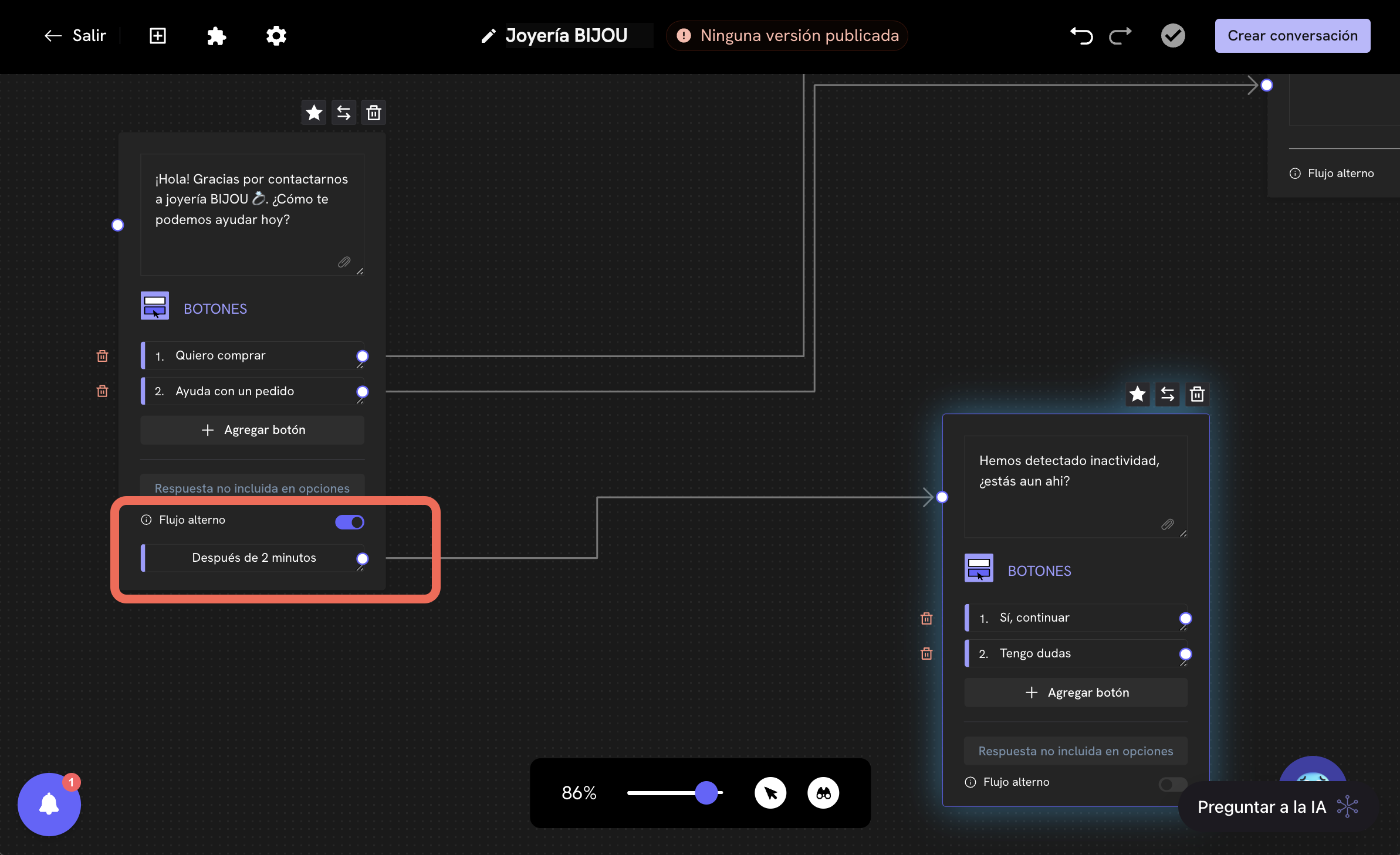
In essence, alternate flow is a functionality available in each message block that allows continuing your Treble conversation flow to another path if your customer doesn't respond to the current message after a predefined time interval.
### User case examples
* **Automatic follow-up if the user doesn't respond**: If the user doesn't respond to a current message, the alternate flow allows sending a follow-up message or a new question after a period of inactivity.
* **Automatically advance to the next question**: Normally, Treble waits for the user to respond to the current message block before advancing to the next question. With alternate flow, you can configure a time interval for the system to automatically advance to the next question if the user doesn't respond.
## How does alternate flow work?
Let's configure an alternate flow example. To do this, follow these steps:
Go to the "Conversations" section and click the "Create Conversation" button. You can also edit an existing conversation by clicking the "Edit" button of the conversation you want to edit.
## What is alternate flow?
In essence, alternate flow is a functionality available in each message block that allows continuing your Treble conversation flow to another path if your customer doesn't respond to the current message after a predefined time interval.
### User case examples
* **Automatic follow-up if the user doesn't respond**: If the user doesn't respond to a current message, the alternate flow allows sending a follow-up message or a new question after a period of inactivity.
* **Automatically advance to the next question**: Normally, Treble waits for the user to respond to the current message block before advancing to the next question. With alternate flow, you can configure a time interval for the system to automatically advance to the next question if the user doesn't respond.
## How does alternate flow work?
Let's configure an alternate flow example. To do this, follow these steps:
Go to the "Conversations" section and click the "Create Conversation" button. You can also edit an existing conversation by clicking the "Edit" button of the conversation you want to edit.
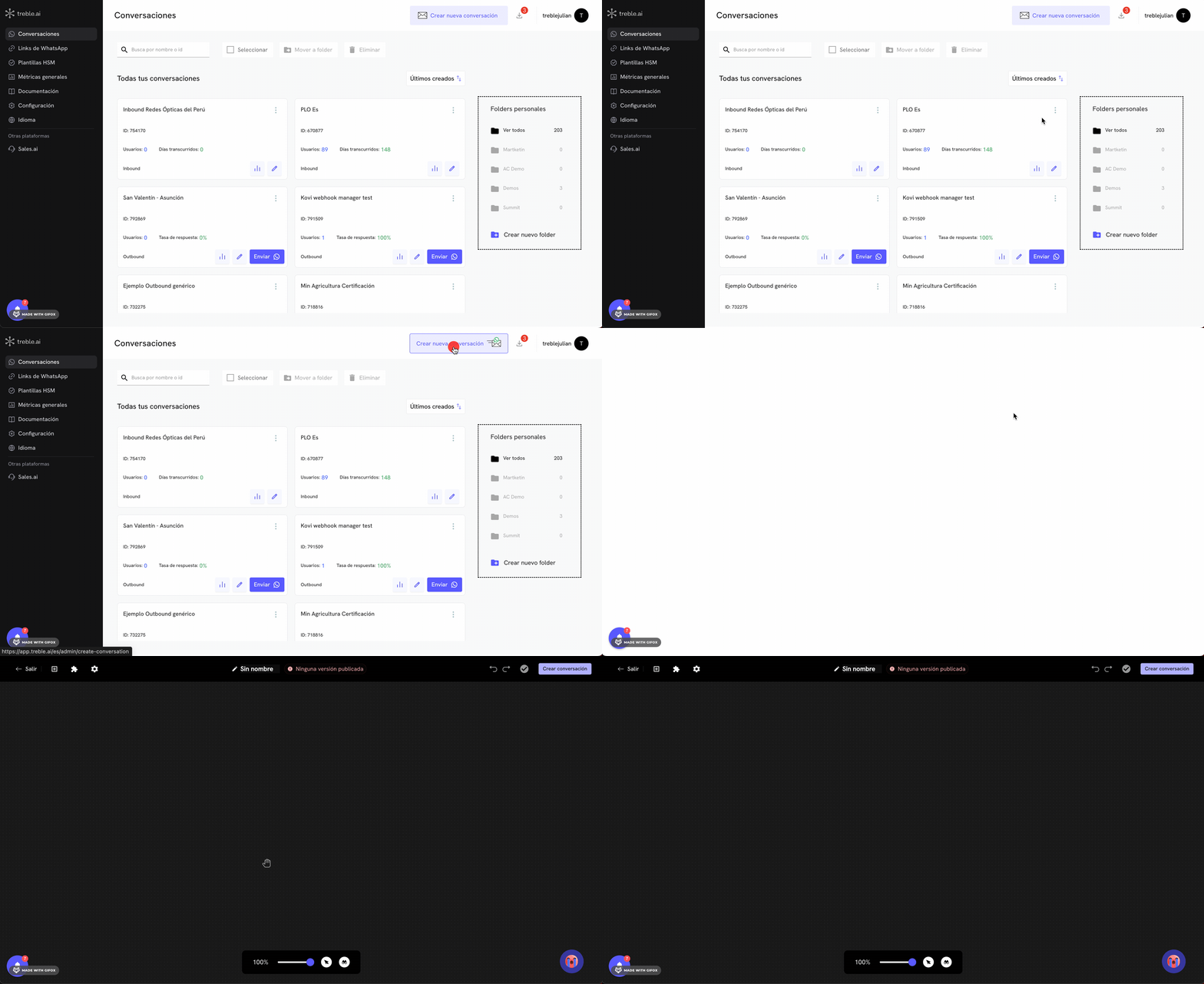 Once you've entered the conversation editor, you can add any message blocks. We can also turn on alternate flow in any message block of an existing conversation. Click the button and select the block type you want to add. In this case, we'll add a **Message with options** > **Interactive buttons** block.
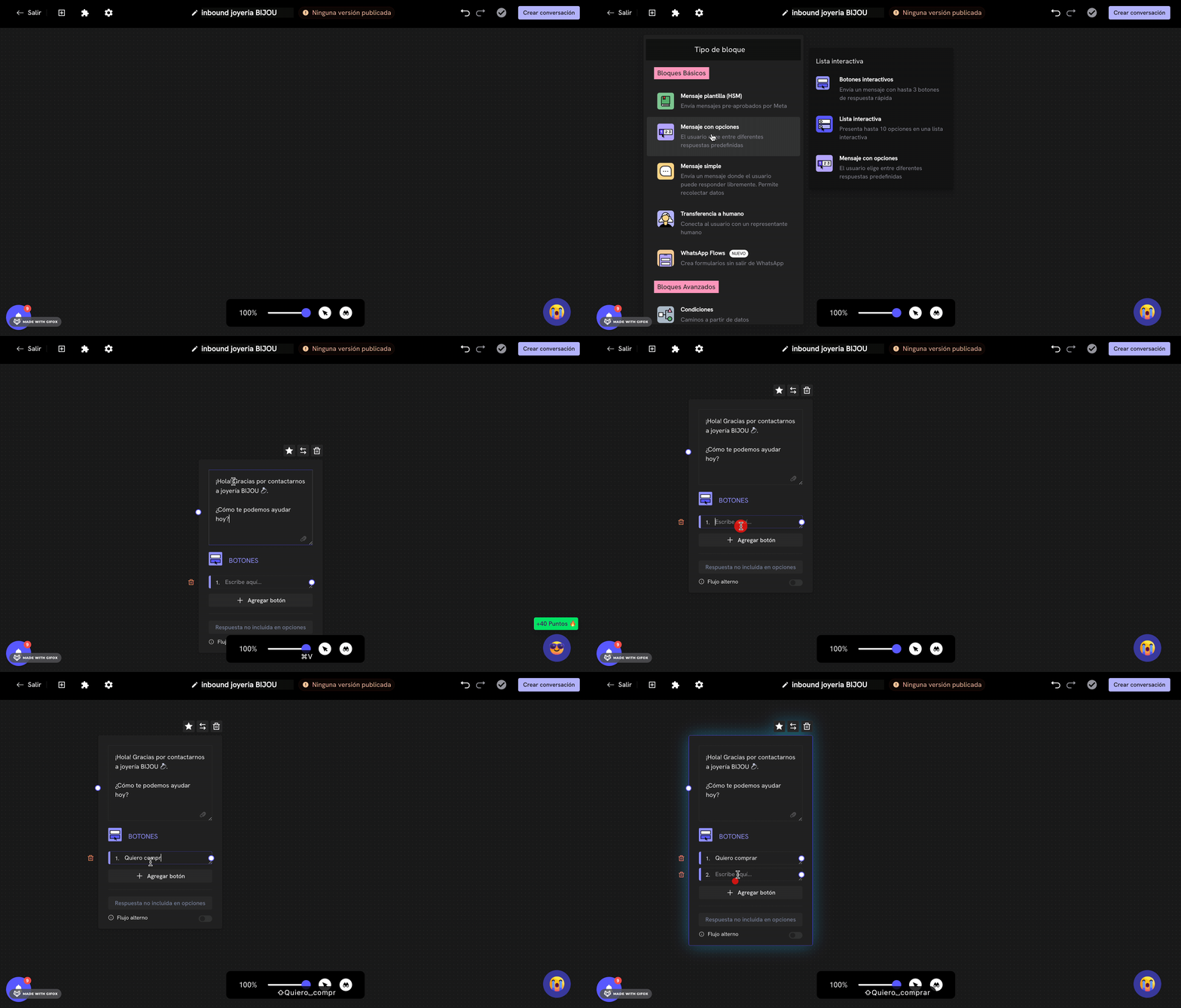 When you already have the message block ready to which you want to activate alternate flow, you'll find the **Alternate flow** switch at the bottom of the message block. Click the switch to activate it.
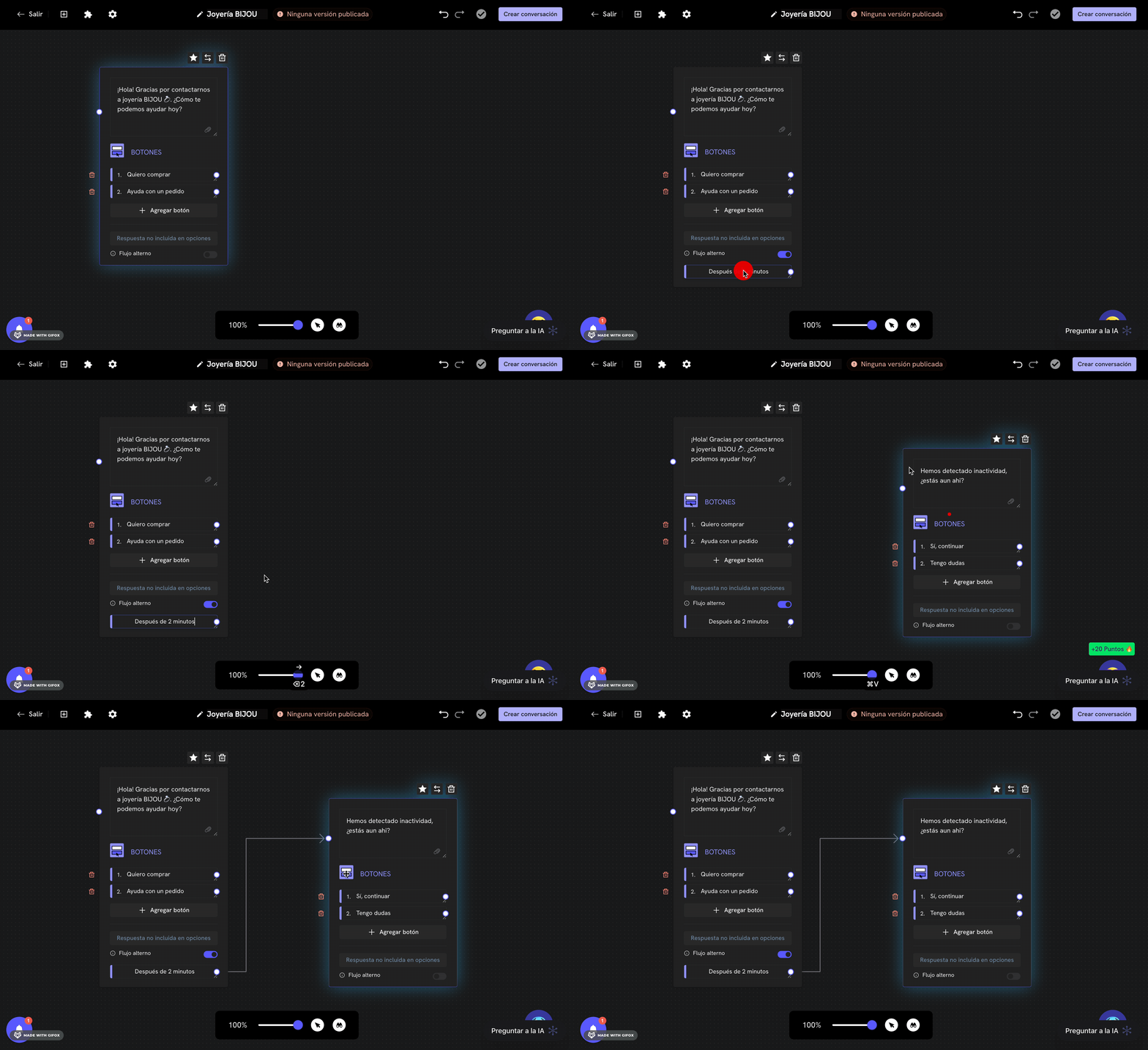
When activating alternate flow, you'll be shown a text field that by default has the value of **5 minutes**. This value indicates the time Treble will wait to send the next message if the user doesn't respond to the current message. Click on the text field and change the value to the delay you want. In this case, we'll change the value to **2 minutes**.
The value that can be configured for alternate flow is always in minutes.
When you already have the message block ready to which you want to activate alternate flow, you'll find the **Alternate flow** switch at the bottom of the message block. Click the switch to activate it.
When activating alternate flow, you'll be shown a text field that by default has the value of **5 minutes**. This value indicates the time Treble will wait to send the next message if the user doesn't respond to the current message. Click on the text field and change the value to the delay you want. In this case, we'll change the value to **2 minutes**.
The value that can be configured for alternate flow is always in minutes.
 You can also configure alternate flow in a message block by double-clicking on the message block and selecting the **Alternate flow** option in the left menu.
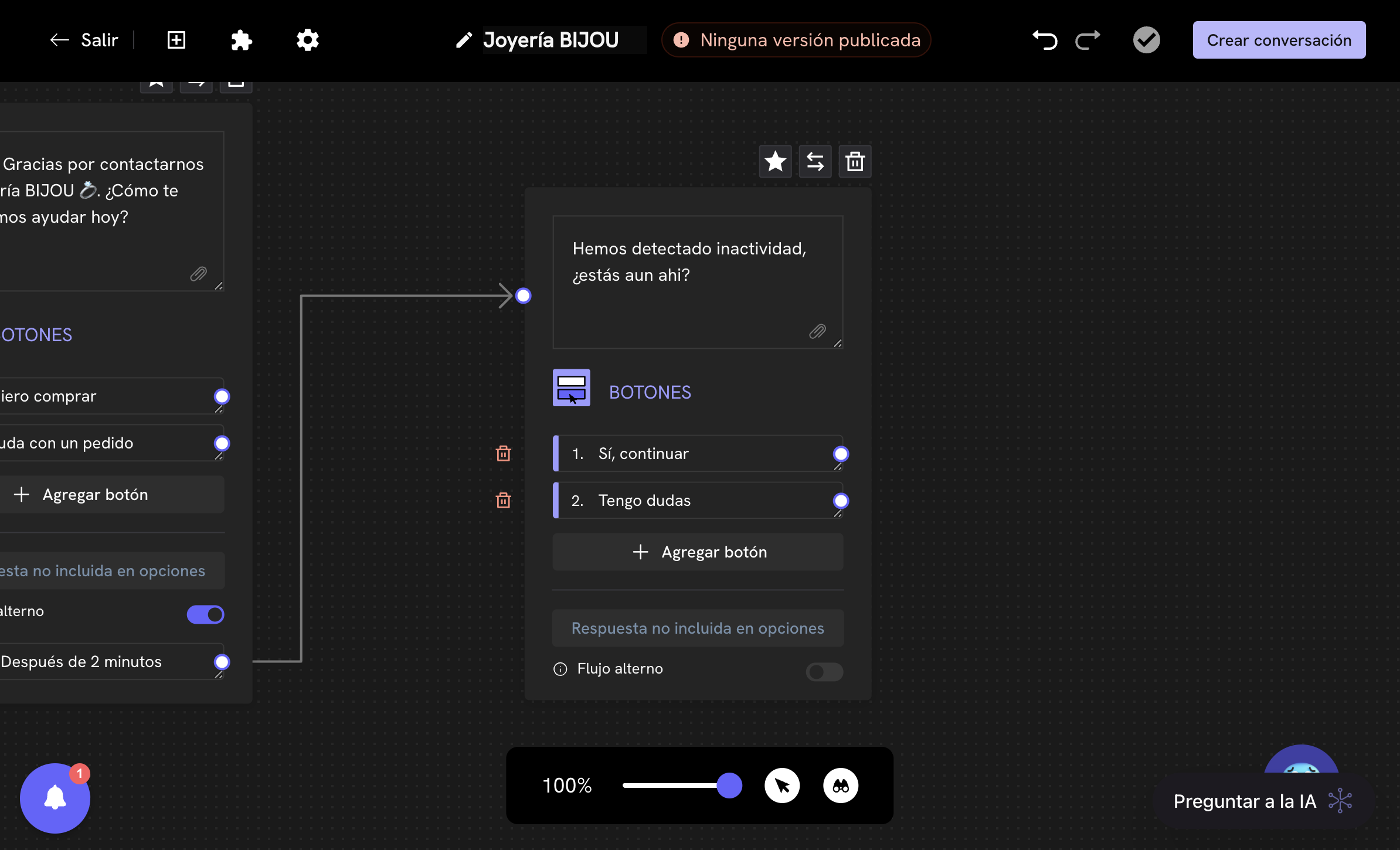
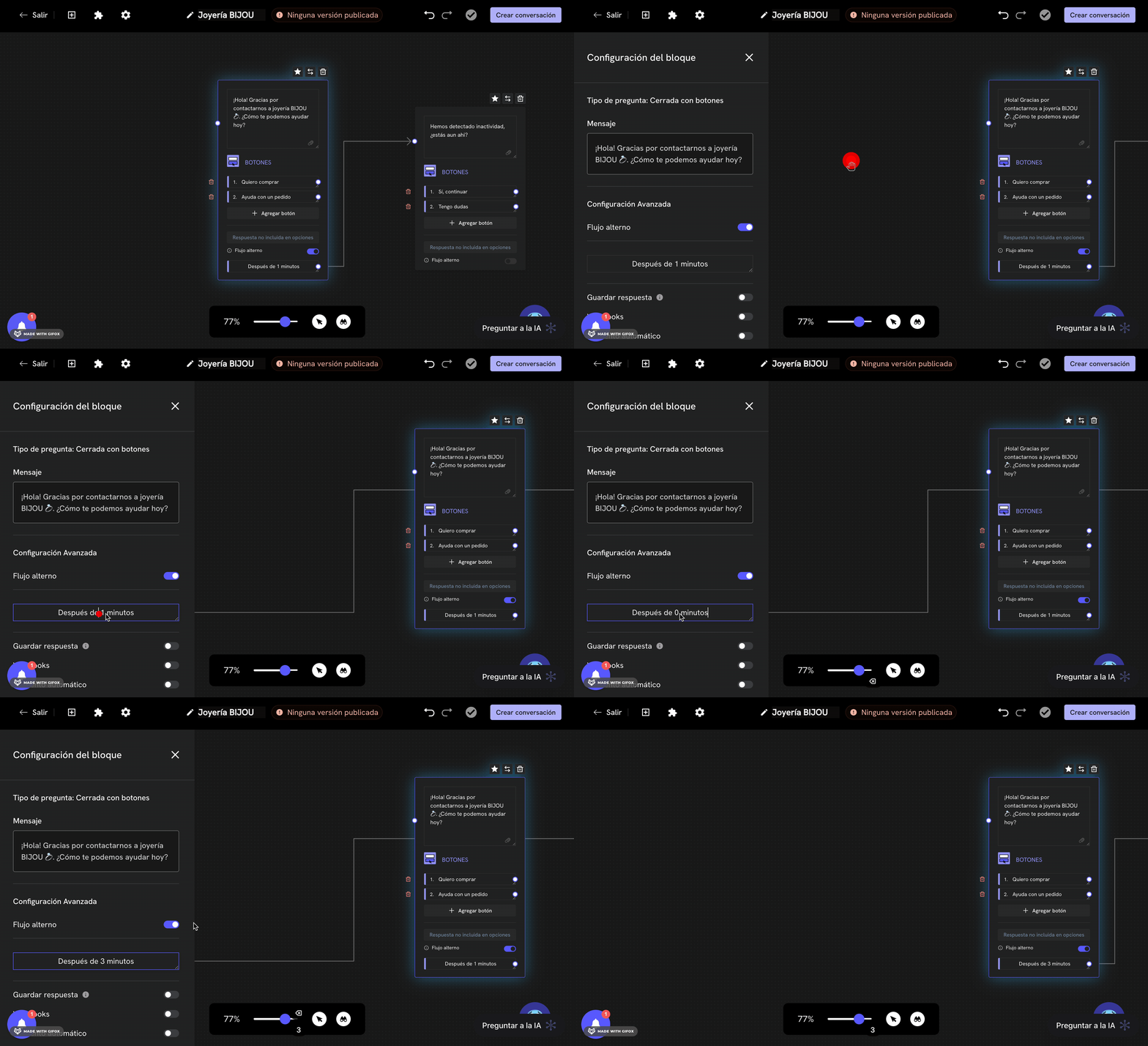 The alternate flow output must always be connected to another message block. If it's not connected to another message block, Treble won't allow you to save the conversation.
As you can see, in the example we're configuring, the alternate flow will activate after **2 minutes** if the user doesn't respond to the current message. Then we route them to a message block that asks if they want to continue with the purchase process or if they have any questions. This can be useful to encourage users to continue with your conversation flows.
The alternate flow output must always be connected to another message block. If it's not connected to another message block, Treble won't allow you to save the conversation.
As you can see, in the example we're configuring, the alternate flow will activate after **2 minutes** if the user doesn't respond to the current message. Then we route them to a message block that asks if they want to continue with the purchase process or if they have any questions. This can be useful to encourage users to continue with your conversation flows.
 In the example we're configuring, we ask the user if they want to continue with the purchase process or if they have any questions. Let's assume the user responds to the **Yes, continue** option. This allows the message block to return to the previous question. This generates what's known as a loop in the conversation flow.
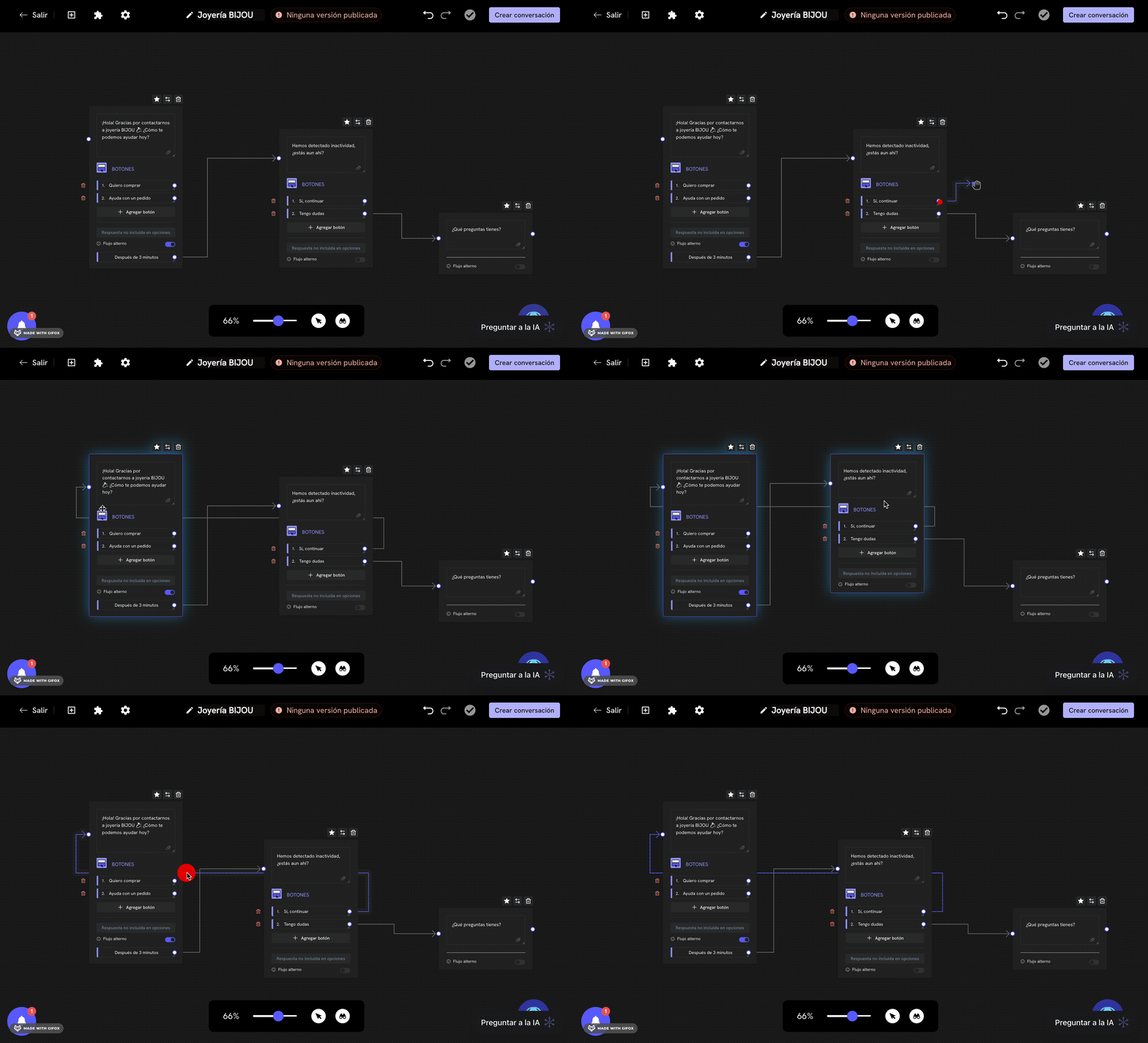 If you're going to create a loop in the conversation flow, you must ensure that your conversation has a beginning and an end without loops, otherwise Treble won't allow you to save the conversation.
You have successfully configured alternate flow to return to a previous message block. Now you can test the conversation by sending a message to your WhatsApp number.
## Using alternate flow to continue a conversation without waiting for the user to respond
Treble normally waits for the user to respond to the current message block before advancing to the next question. However, you can configure alternate flow so the system automatically advances to the next question if the user doesn't respond. This allows creating more interactive and dynamic conversations since you can send multiple consecutive messages without waiting for the user to respond.
If you're going to create a loop in the conversation flow, you must ensure that your conversation has a beginning and an end without loops, otherwise Treble won't allow you to save the conversation.
You have successfully configured alternate flow to return to a previous message block. Now you can test the conversation by sending a message to your WhatsApp number.
## Using alternate flow to continue a conversation without waiting for the user to respond
Treble normally waits for the user to respond to the current message block before advancing to the next question. However, you can configure alternate flow so the system automatically advances to the next question if the user doesn't respond. This allows creating more interactive and dynamic conversations since you can send multiple consecutive messages without waiting for the user to respond.
 ### How is this done?
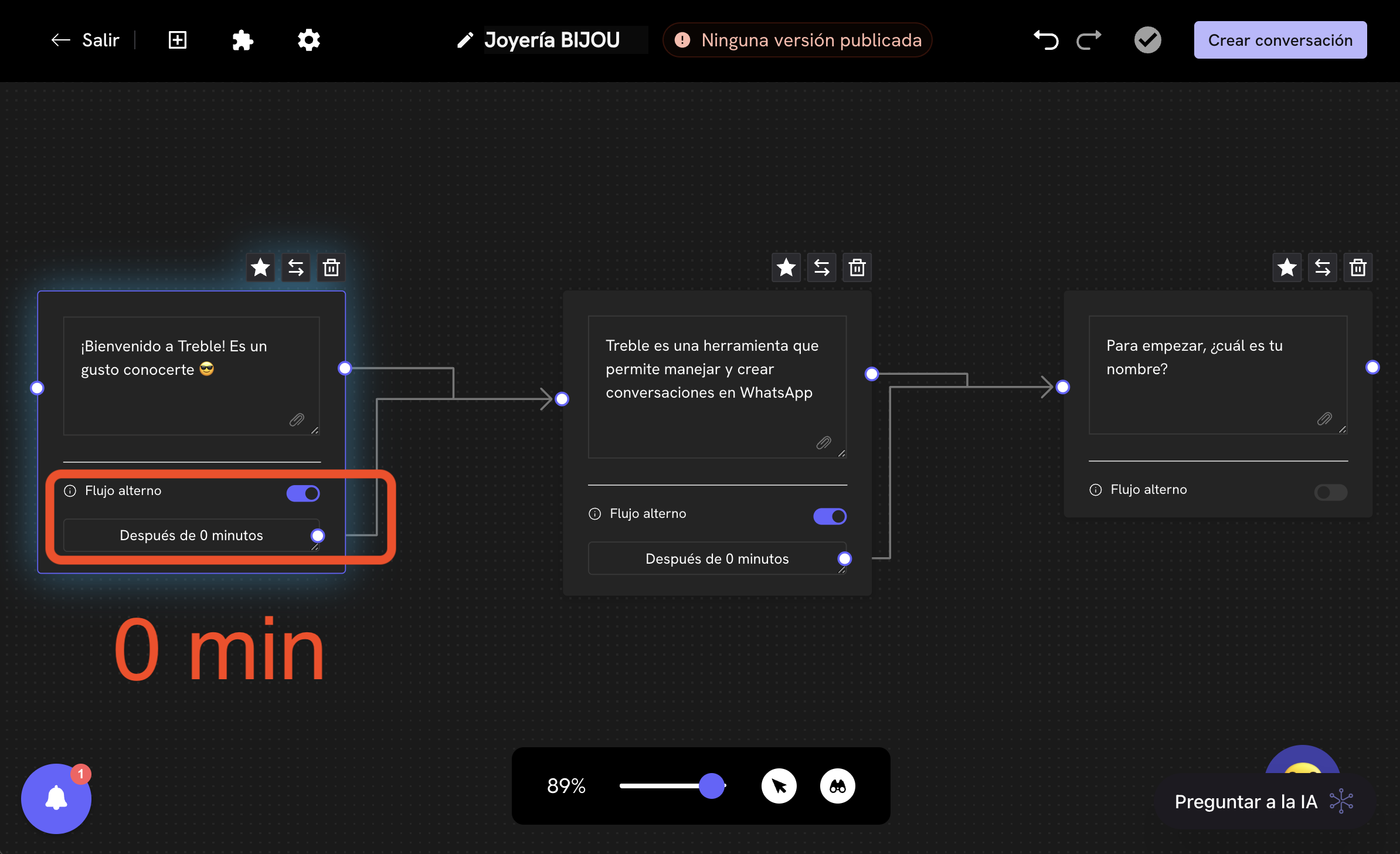
The "trick" is to configure the delay (number of minutes) of the alternate flow to 0. This will make the system automatically advance to the next question without waiting for the user to respond.
As you can see in the image above, the alternate flow is configured to 0 minutes for each step. Treble will send a message block for each step almost immediately. This is useful for generating dynamism in the conversation.
Similarly, it's important to note that message blocks in Treble expect the block's connection output to also be connected to another message block. If it's not connected to another message block, Treble won't allow you to save the conversation. Therefore, **it's necessary to both connect the block's connection output to another message block and connect the alternate flow output to another message block, if it's activated**.
***
## Frequently asked questions
No, since Meta requires your user to respond to the message template to give their consent to continue with the conversation, it's not possible to use alternate flow for HSM templates.
### How is this done?
The "trick" is to configure the delay (number of minutes) of the alternate flow to 0. This will make the system automatically advance to the next question without waiting for the user to respond.
As you can see in the image above, the alternate flow is configured to 0 minutes for each step. Treble will send a message block for each step almost immediately. This is useful for generating dynamism in the conversation.
Similarly, it's important to note that message blocks in Treble expect the block's connection output to also be connected to another message block. If it's not connected to another message block, Treble won't allow you to save the conversation. Therefore, **it's necessary to both connect the block's connection output to another message block and connect the alternate flow output to another message block, if it's activated**.
***
## Frequently asked questions
No, since Meta requires your user to respond to the message template to give their consent to continue with the conversation, it's not possible to use alternate flow for HSM templates.