> ## Documentation Index
> Fetch the complete documentation index at: https://help.treble.ai/llms.txt
> Use this file to discover all available pages before exploring further.
# WhatsApp Flows
> Learn how to create WhatsApp flows with Treble. With this guide, you'll be able to automate your customer conversations and improve the user experience.
At treble.ai, we aim for businesses to maximize the use of WhatsApp as a key channel to connect with their customers effectively and grow their businesses.
One of the pain points we've identified in our customers is the difficulty in collecting data efficiently. Without an adequate tool, companies rely on interactions with multiple time-consuming messages, resulting in high abandonment rates and making it difficult to personalize each stage of the sales process.
**WhatsApp Flows** solves this problem by offering a solution that allows you to automate conversation flows, guiding customers through enriched interactions (form-like) within WhatsApp, improving both the user experience and conversion.
This functionality is only available for WhatsApp on mobile devices and not on WhatsApp Web.
### This functionality is key for:
* **Reducing abandonment rates** when collecting data in multiple steps.
* **Improving the quality and format of your data,** as it validates that responses correspond to the requested data type
* **Increasing conversion rates** at various stages of the funnel.
# Create a WhatsApp Flow in WhatsApp Business Manager
WhatsApp Flows are an ideal way to interact with your audience and collect information without leaving WhatsApp. They allow you to automate interactions and simplify data collection, all from a single interface.
You can create your Flows directly from **WhatsApp Business Manager**, where Meta offers an easy-to-use interface, allowing anyone to create a Flow quickly, regardless of their technical experience.
Whether it's to collect opinions, conduct surveys, or capture data from potential clients, WhatsApp Flows is a very useful tool. Below, we guide you step by step to create a Flow using the no-code interface of WhatsApp Business Manager.
## Steps to create a WhatsApp Flow
Log into your WhatsApp Business Manager account. This is where you can manage all aspects of your business on WhatsApp, including creating Flows to automate interaction with your customers.
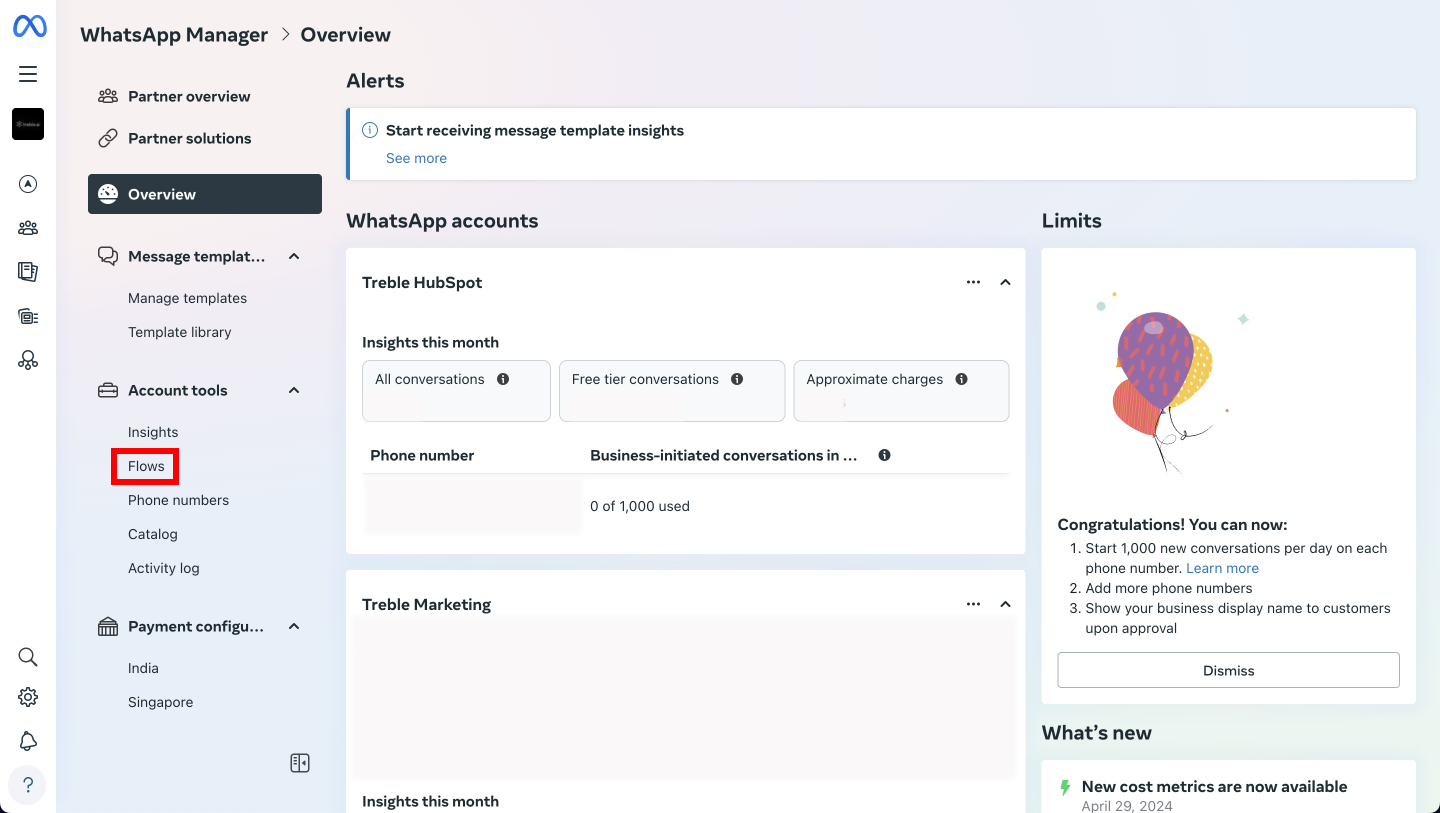
In the main panel, go to the **Account tools** section in the side menu and select **Flows**. Here you can view, edit, and create all Flows available for your account.
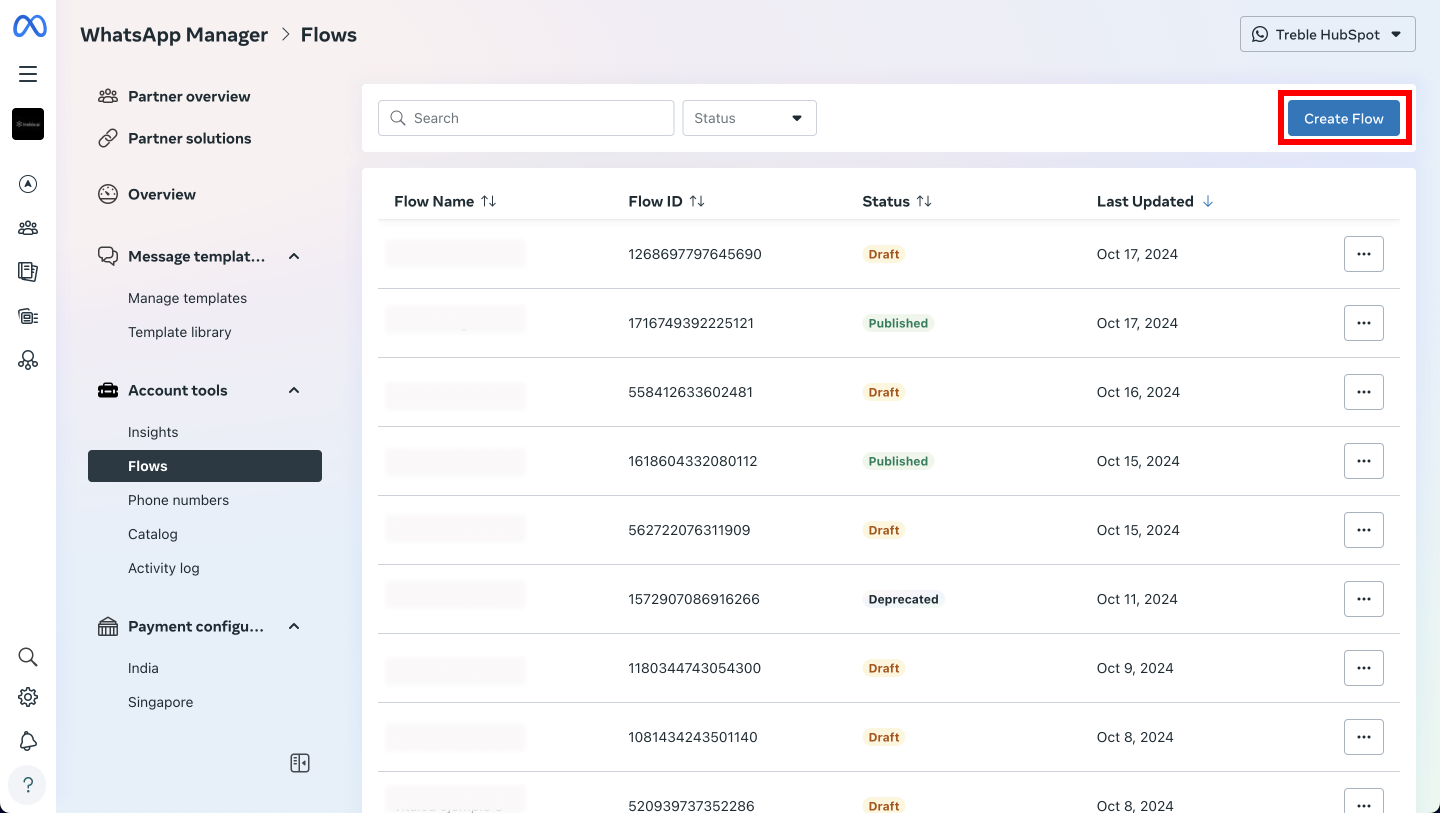
 Click on the **"Create Flow"** button to start building a new Flow that adapts to your business needs.
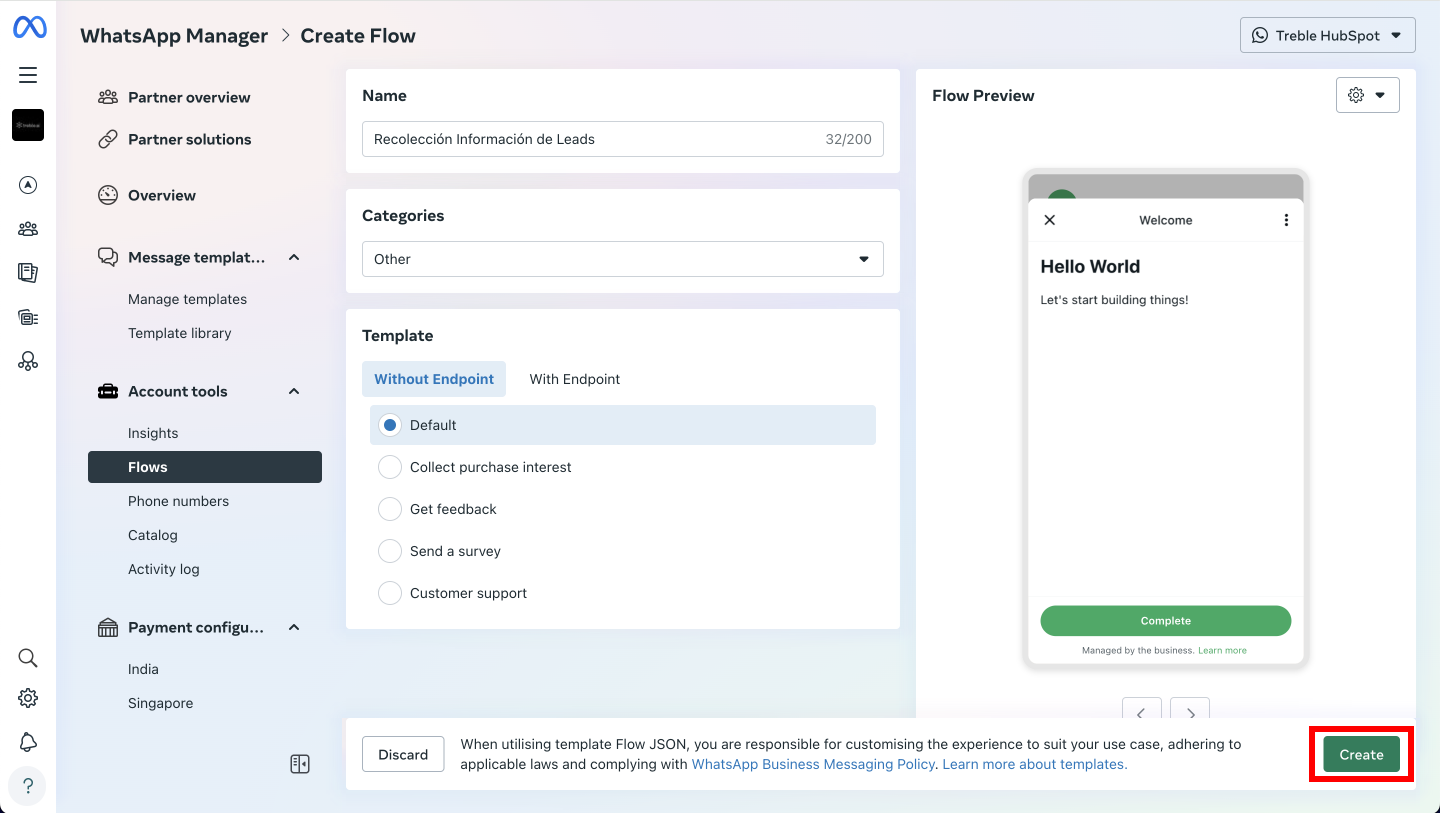
 Give your Flow a name to easily identify it. Then, select a category according to its purpose, such as **Registration**, **Customer Service**, **Survey**, among others. This will help keep your Flows organized.
It's important to leave the method without an endpoint, as this is the option currently supported by Treble. This simplifies the use of the Flow.
Click on **"Create"** to continue. This will open the interface where you can design the content and interactions of your Flow.
Give your Flow a name to easily identify it. Then, select a category according to its purpose, such as **Registration**, **Customer Service**, **Survey**, among others. This will help keep your Flows organized.
It's important to leave the method without an endpoint, as this is the option currently supported by Treble. This simplifies the use of the Flow.
Click on **"Create"** to continue. This will open the interface where you can design the content and interactions of your Flow.
 In the next screen, you'll need to manipulate a JSON file to make changes. You can follow our guide: [How to use the Meta Playground to create your WhatsApp Flows?](https://www.notion.so/C-mo-usar-el-Playground-de-Meta-para-crear-tus-WhatsApp-Flows-127e42681154808ca333e6f75d29a0b8?pvs=21) to avoid complications with the JSON format.
Click on "+ Add new" to create a new screen. Give it an easy-to-identify title, such as "Lead Qualification 1 of 2".
In the next screen, you'll need to manipulate a JSON file to make changes. You can follow our guide: [How to use the Meta Playground to create your WhatsApp Flows?](https://www.notion.so/C-mo-usar-el-Playground-de-Meta-para-crear-tus-WhatsApp-Flows-127e42681154808ca333e6f75d29a0b8?pvs=21) to avoid complications with the JSON format.
Click on "+ Add new" to create a new screen. Give it an easy-to-identify title, such as "Lead Qualification 1 of 2".
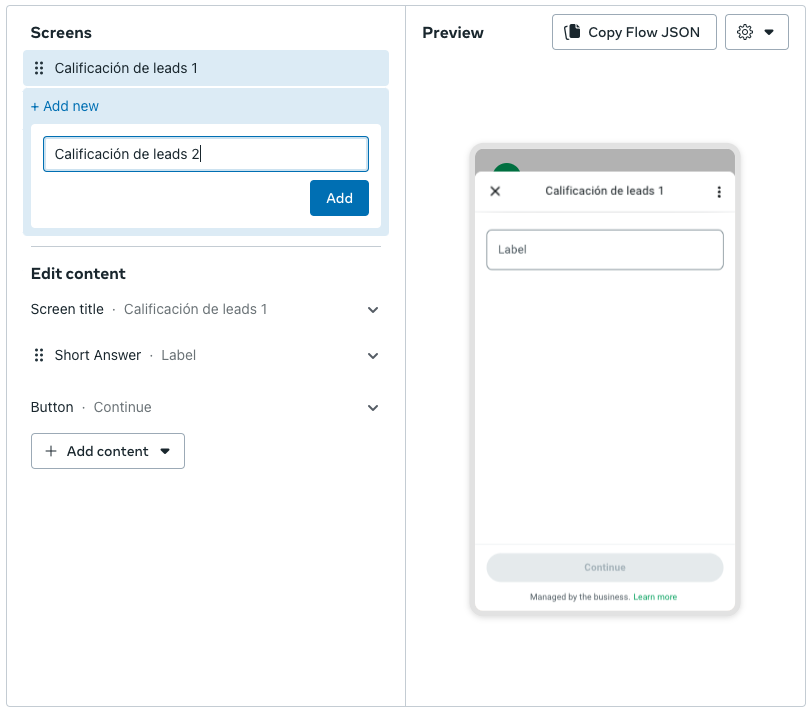 On this screen, you can add components to interact with the user.
* **Title** or **Subtitle**: Provides context to the user, such as "We want to know more about your needs".
* **Text Response - Short Answer**: Captures data like name and email.
* **Single Choice**: Question like "Does your company have more than 50 employees?" with options "Yes" or "No".
* **Checkbox Group**: Question about interests, such as "What services interest you?".
* **Button**: Use a button labeled "Continue" to guide users to the next screen.
On this screen, you can add components to interact with the user.
* **Title** or **Subtitle**: Provides context to the user, such as "We want to know more about your needs".
* **Text Response - Short Answer**: Captures data like name and email.
* **Single Choice**: Question like "Does your company have more than 50 employees?" with options "Yes" or "No".
* **Checkbox Group**: Question about interests, such as "What services interest you?".
* **Button**: Use a button labeled "Continue" to guide users to the next screen.
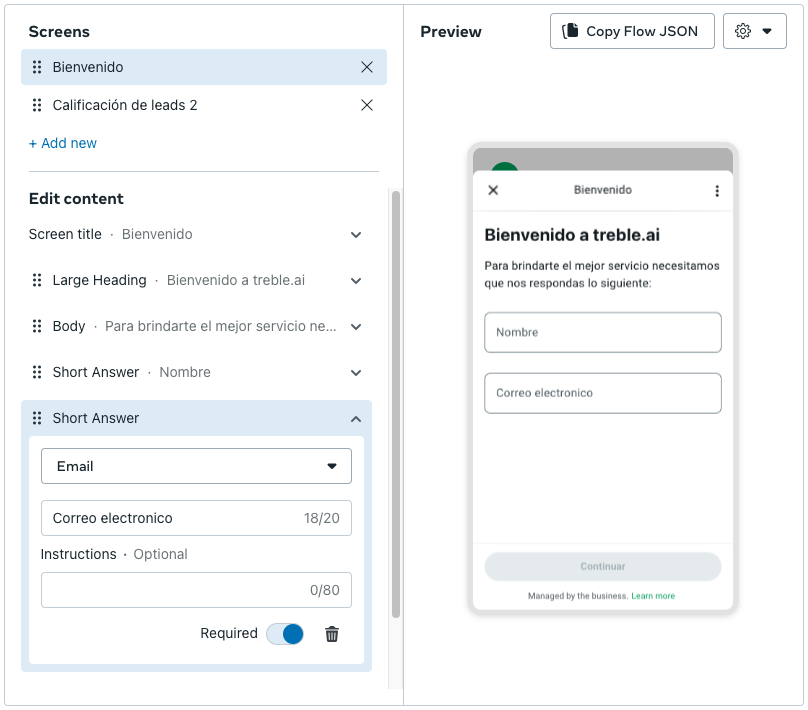 Click on "Copy Flow JSON" to save the configuration. Then, use this JSON file in WhatsApp Business Manager to publish your Flow.
```json theme={null}
{"version":"5.0","screens":[{"id":"screen_gkypco","title":"Bienvenido","data":{},"layout":{"type":"SingleColumnLayout","children":[{"type":"Form","name":"flow_path","children":[{"type":"TextHeading","text":"Bienvenido a treble.ai"},{"type":"TextBody","text":"Para brindarte el mejor servicio necesitamos que nos respondas lo siguiente:"},{"type":"TextInput","label":"Nombre","name":"TextInput_8f1836","required":true,"input-type":"text"},{"type":"TextInput","label":"Correo electronico","name":"TextInput_b8cfca","required":true,"input-type":"email","helper-text":""},{"type":"Footer","label":"Continuar","on-click-action":{"name":"navigate","next":{"type":"screen","name":"screen_xqdzlw"},"payload":{"screen_0_TextInput_0":"${form.TextInput_8f1836}","screen_0_TextInput_1":"${form.TextInput_b8cfca}"}}}]}]}},{"id":"screen_xqdzlw","title":"Productos","data":{"screen_0_TextInput_0":{"type":"string","__example__":"Example"},"screen_0_TextInput_1":{"type":"string","__example__":"Example"}},"terminal":true,"layout":{"type":"SingleColumnLayout","children":[{"type":"Form","name":"flow_path","children":[{"type":"TextHeading","text":"¿En qué productos estás interesado?"},{"type":"TextBody","text":"Cuéntanos que productos te interesan para que nuestros agentes te puedan dar información relevante cuánto antes."},{"type":"RadioButtonsGroup","label":"Productos","required":true,"name":"RadioButtonsGroup_f63f8c","data-source":[{"id":"0_Marketing","title":"Marketing"},{"id":"1_Ventas","title":"Ventas"},{"id":"2_Atención_al_cliente","title":"Atención al cliente"}]},{"type":"Footer","label":"Finalizar","on-click-action":{"name":"complete","payload":{"screen_1_RadioButtonsGroup_0":"${form.RadioButtonsGroup_f63f8c}","screen_0_TextInput_0":"${data.screen_0_TextInput_0}","screen_0_TextInput_1":"${data.screen_0_TextInput_1}"}}}]}]}}]}
```
If you get an error, check that the JSON has the correct format with this site: [https://jsonlint.com/](https://jsonlint.com/)
The Playground assigns generic values that can be difficult to identify later. We recommend replacing the values following our mini guide:
When you create a flow in the **Meta Playground**, the system generates automatic names for the fields (like **TextInput\_8f1836**), which can be confusing. However, **you only need to change the names in the payload**, and you can use the same names that you have in the field **labels**, such as "Name" or "Email", to make the process easier.
The **payload** is where data entered by users on one screen is stored to pass to the next screen. For example, when a user types their name, that value is sent through the payload so you can use it in later screens.
* **Clarity**: Using clear and descriptive names will allow you to understand what information you're capturing.
* **Ease of use**: If the names are easy to read, it will be easier to make changes or adjustments in the future.
We offer two options: in one you make the change manually and in the other you just need to copy a prompt and your JSON into ChatGPT and you're done.
For example, if you have a field where you ask for the **Name**, it should appear like this in the JSON:
```json theme={null}
{
"type": "TextInput",
"label": "Name",
"name": "TextInput_8f1836",
"required": true
}
```
To avoid confusion, you can use the **label** ("Name", in this case) as the new name in the **payload**. This way, you don't need to change the automatically generated names, just the payload.
If the original payload looks like this, change only the payload to reflect the **labels**:
```json theme={null}
"payload": {
"screen_0_TextInput_0": "${form.TextInput_8f1836}",
"screen_0_TextInput_1": "${form.TextInput_b8cfca}"
}
```
```json theme={null}
"payload": {
"Name": "${form.TextInput_8f1836}",
"Email": "${form.TextInput_b8cfca}"
}
```
If in a later screen you need to use **Name** and **Email**, use the label names in the payload:
```json theme={null}
"payload": {
"Name": "${data.Name}",
"Email": "${data.Email}",
"Products": "${form.RadioButtonsGroup_f63f8c}"
}
```
For ChatGPT you just need to copy this prompt and add your JSON for ChatGPT to make the adjustments:
```
I have a WhatsApp Flow JSON and need to optimize it following best practices. Please make the following changes:
Change the automatically generated names (like TextInput_8f1836, RadioButtonsGroup_f63f8c) to more descriptive names, based on the field labels.
Update the payloads of each screen to also use these descriptive names.
Change the keys and variables in the payload to match the label names.
Make sure the changes are applied across all component types: TextInput, RadioButtonsGroup, Footer, and any other present component.
Here's my JSON:
(PASTE YOUR JSON HERE)
Examples for the changes:
TextInput: If a field's label is "Name", rename the field from TextInput_8f1836 to name and update the payload from ${form.TextInput_8f1836} to ${form.name}.
RadioButtonsGroup: If a button group's label is "Products", rename the field from RadioButtonsGroup_f63f8c to interested_products and update the payload from ${form.RadioButtonsGroup_f63f8c} to ${form.interested_products}.
Footer: If you have an action button like "Continue" or "Finish", make sure the names in the payload reflect the changes made in the other fields (for example, Name, Email, Products).
Expected changes:
Field names replaced with the values of the labels.
Payloads updated to use the same descriptive names.
Keys and variables in the payload aligned with label names to ensure coherence and readability."
Expected result:
With this prompt, ChatGPT should make the following changes:
TextInput:
The automatically generated name is replaced with something descriptive (for example, from TextInput_8f1836 to name).
The payload is updated: ${form.TextInput_8f1836} becomes ${form.name}.
RadioButtonsGroup:
The generated name is changed to something clear and related to the label (for example, from RadioButtonsGroup_f63f8c to interested_products).
The payload is adjusted: ${form.RadioButtonsGroup_f63f8c} becomes ${form.interested_products}.
Footer:
Ensures that the payloads of the action buttons use the correct keys (for example, using ${data.Name}, ${data.Email} and ${data.Products} if those values are collected in previous screens).
```
Once you have the result, you can paste it into WhatsApp Business Manager.
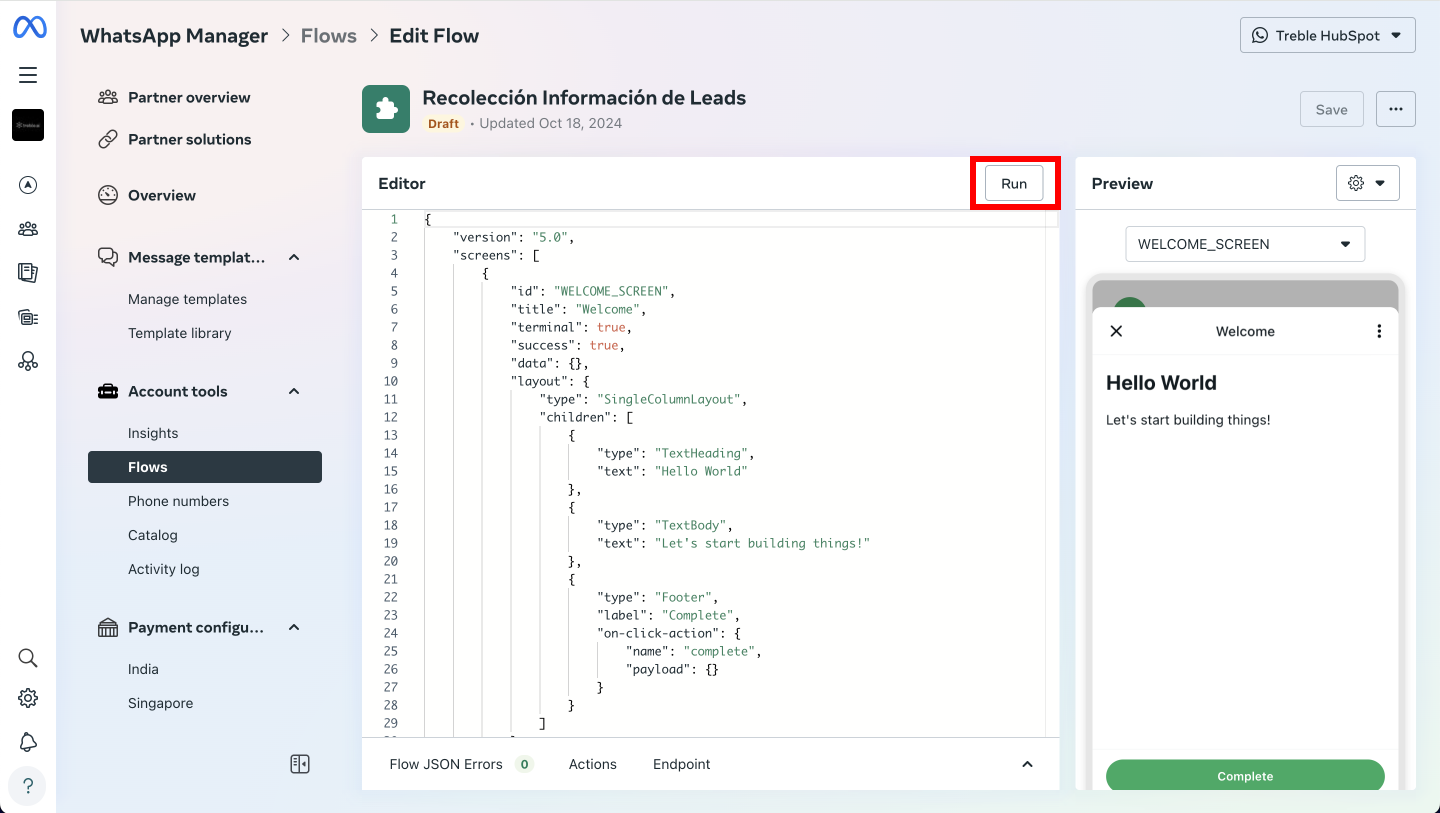
Paste the created JSON into the editor and click on **"RUN"** to verify that the Flow works correctly.
Click on "Copy Flow JSON" to save the configuration. Then, use this JSON file in WhatsApp Business Manager to publish your Flow.
```json theme={null}
{"version":"5.0","screens":[{"id":"screen_gkypco","title":"Bienvenido","data":{},"layout":{"type":"SingleColumnLayout","children":[{"type":"Form","name":"flow_path","children":[{"type":"TextHeading","text":"Bienvenido a treble.ai"},{"type":"TextBody","text":"Para brindarte el mejor servicio necesitamos que nos respondas lo siguiente:"},{"type":"TextInput","label":"Nombre","name":"TextInput_8f1836","required":true,"input-type":"text"},{"type":"TextInput","label":"Correo electronico","name":"TextInput_b8cfca","required":true,"input-type":"email","helper-text":""},{"type":"Footer","label":"Continuar","on-click-action":{"name":"navigate","next":{"type":"screen","name":"screen_xqdzlw"},"payload":{"screen_0_TextInput_0":"${form.TextInput_8f1836}","screen_0_TextInput_1":"${form.TextInput_b8cfca}"}}}]}]}},{"id":"screen_xqdzlw","title":"Productos","data":{"screen_0_TextInput_0":{"type":"string","__example__":"Example"},"screen_0_TextInput_1":{"type":"string","__example__":"Example"}},"terminal":true,"layout":{"type":"SingleColumnLayout","children":[{"type":"Form","name":"flow_path","children":[{"type":"TextHeading","text":"¿En qué productos estás interesado?"},{"type":"TextBody","text":"Cuéntanos que productos te interesan para que nuestros agentes te puedan dar información relevante cuánto antes."},{"type":"RadioButtonsGroup","label":"Productos","required":true,"name":"RadioButtonsGroup_f63f8c","data-source":[{"id":"0_Marketing","title":"Marketing"},{"id":"1_Ventas","title":"Ventas"},{"id":"2_Atención_al_cliente","title":"Atención al cliente"}]},{"type":"Footer","label":"Finalizar","on-click-action":{"name":"complete","payload":{"screen_1_RadioButtonsGroup_0":"${form.RadioButtonsGroup_f63f8c}","screen_0_TextInput_0":"${data.screen_0_TextInput_0}","screen_0_TextInput_1":"${data.screen_0_TextInput_1}"}}}]}]}}]}
```
If you get an error, check that the JSON has the correct format with this site: [https://jsonlint.com/](https://jsonlint.com/)
The Playground assigns generic values that can be difficult to identify later. We recommend replacing the values following our mini guide:
When you create a flow in the **Meta Playground**, the system generates automatic names for the fields (like **TextInput\_8f1836**), which can be confusing. However, **you only need to change the names in the payload**, and you can use the same names that you have in the field **labels**, such as "Name" or "Email", to make the process easier.
The **payload** is where data entered by users on one screen is stored to pass to the next screen. For example, when a user types their name, that value is sent through the payload so you can use it in later screens.
* **Clarity**: Using clear and descriptive names will allow you to understand what information you're capturing.
* **Ease of use**: If the names are easy to read, it will be easier to make changes or adjustments in the future.
We offer two options: in one you make the change manually and in the other you just need to copy a prompt and your JSON into ChatGPT and you're done.
For example, if you have a field where you ask for the **Name**, it should appear like this in the JSON:
```json theme={null}
{
"type": "TextInput",
"label": "Name",
"name": "TextInput_8f1836",
"required": true
}
```
To avoid confusion, you can use the **label** ("Name", in this case) as the new name in the **payload**. This way, you don't need to change the automatically generated names, just the payload.
If the original payload looks like this, change only the payload to reflect the **labels**:
```json theme={null}
"payload": {
"screen_0_TextInput_0": "${form.TextInput_8f1836}",
"screen_0_TextInput_1": "${form.TextInput_b8cfca}"
}
```
```json theme={null}
"payload": {
"Name": "${form.TextInput_8f1836}",
"Email": "${form.TextInput_b8cfca}"
}
```
If in a later screen you need to use **Name** and **Email**, use the label names in the payload:
```json theme={null}
"payload": {
"Name": "${data.Name}",
"Email": "${data.Email}",
"Products": "${form.RadioButtonsGroup_f63f8c}"
}
```
For ChatGPT you just need to copy this prompt and add your JSON for ChatGPT to make the adjustments:
```
I have a WhatsApp Flow JSON and need to optimize it following best practices. Please make the following changes:
Change the automatically generated names (like TextInput_8f1836, RadioButtonsGroup_f63f8c) to more descriptive names, based on the field labels.
Update the payloads of each screen to also use these descriptive names.
Change the keys and variables in the payload to match the label names.
Make sure the changes are applied across all component types: TextInput, RadioButtonsGroup, Footer, and any other present component.
Here's my JSON:
(PASTE YOUR JSON HERE)
Examples for the changes:
TextInput: If a field's label is "Name", rename the field from TextInput_8f1836 to name and update the payload from ${form.TextInput_8f1836} to ${form.name}.
RadioButtonsGroup: If a button group's label is "Products", rename the field from RadioButtonsGroup_f63f8c to interested_products and update the payload from ${form.RadioButtonsGroup_f63f8c} to ${form.interested_products}.
Footer: If you have an action button like "Continue" or "Finish", make sure the names in the payload reflect the changes made in the other fields (for example, Name, Email, Products).
Expected changes:
Field names replaced with the values of the labels.
Payloads updated to use the same descriptive names.
Keys and variables in the payload aligned with label names to ensure coherence and readability."
Expected result:
With this prompt, ChatGPT should make the following changes:
TextInput:
The automatically generated name is replaced with something descriptive (for example, from TextInput_8f1836 to name).
The payload is updated: ${form.TextInput_8f1836} becomes ${form.name}.
RadioButtonsGroup:
The generated name is changed to something clear and related to the label (for example, from RadioButtonsGroup_f63f8c to interested_products).
The payload is adjusted: ${form.RadioButtonsGroup_f63f8c} becomes ${form.interested_products}.
Footer:
Ensures that the payloads of the action buttons use the correct keys (for example, using ${data.Name}, ${data.Email} and ${data.Products} if those values are collected in previous screens).
```
Once you have the result, you can paste it into WhatsApp Business Manager.
Paste the created JSON into the editor and click on **"RUN"** to verify that the Flow works correctly.
 Before finishing, test the Flow using the **preview** view to ensure everything works as expected.
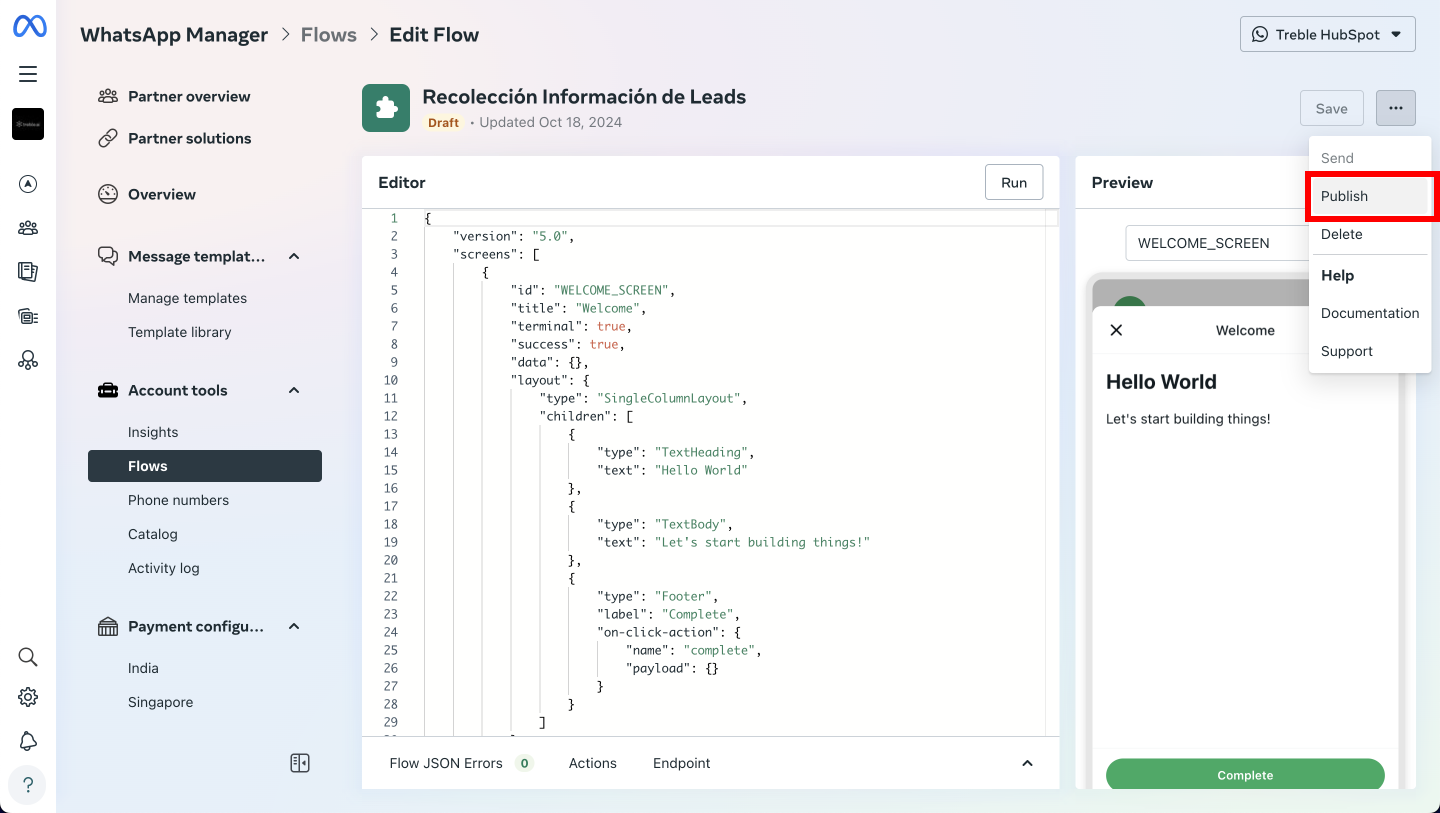
When you're satisfied with the design and functionality of the Flow, click on the three dots next to the save button and select **"Publish"**. Keep in mind that you won't be able to make changes after publishing.
Before finishing, test the Flow using the **preview** view to ensure everything works as expected.
When you're satisfied with the design and functionality of the Flow, click on the three dots next to the save button and select **"Publish"**. Keep in mind that you won't be able to make changes after publishing.
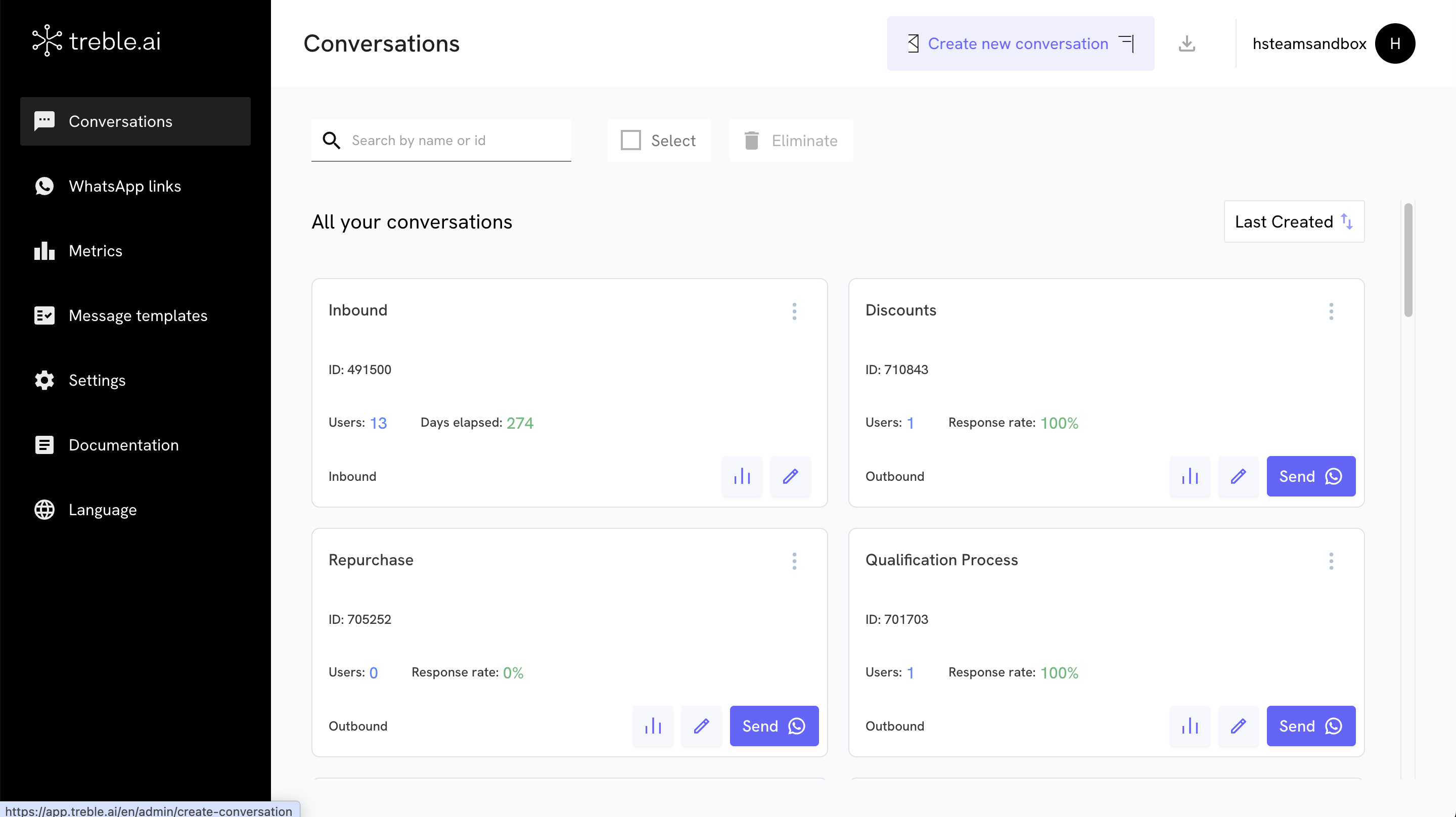
 The first step is to create a new conversation in Treble, where you'll add the Flow you previously created. You can also add the Flow to an existing conversation or even to the inbound conversation that your company has configured.
To do this, log into Treble, go to the "Conversations" section and select "Create a new conversation". This will allow you to start customizing the message flow specifically for your users.
The first step is to create a new conversation in Treble, where you'll add the Flow you previously created. You can also add the Flow to an existing conversation or even to the inbound conversation that your company has configured.
To do this, log into Treble, go to the "Conversations" section and select "Create a new conversation". This will allow you to start customizing the message flow specifically for your users.
 Once you're in the Treble drag and drop editor, you can use the specialized block for WhatsApp Flows. This block will allow you to add your Flow easily and ensure it's correctly integrated into the chatbot.
Drag and drop the WhatsApp Flows block in the corresponding place within the conversation flow to start the configuration.
Once you're in the Treble drag and drop editor, you can use the specialized block for WhatsApp Flows. This block will allow you to add your Flow easily and ensure it's correctly integrated into the chatbot.
Drag and drop the WhatsApp Flows block in the corresponding place within the conversation flow to start the configuration.
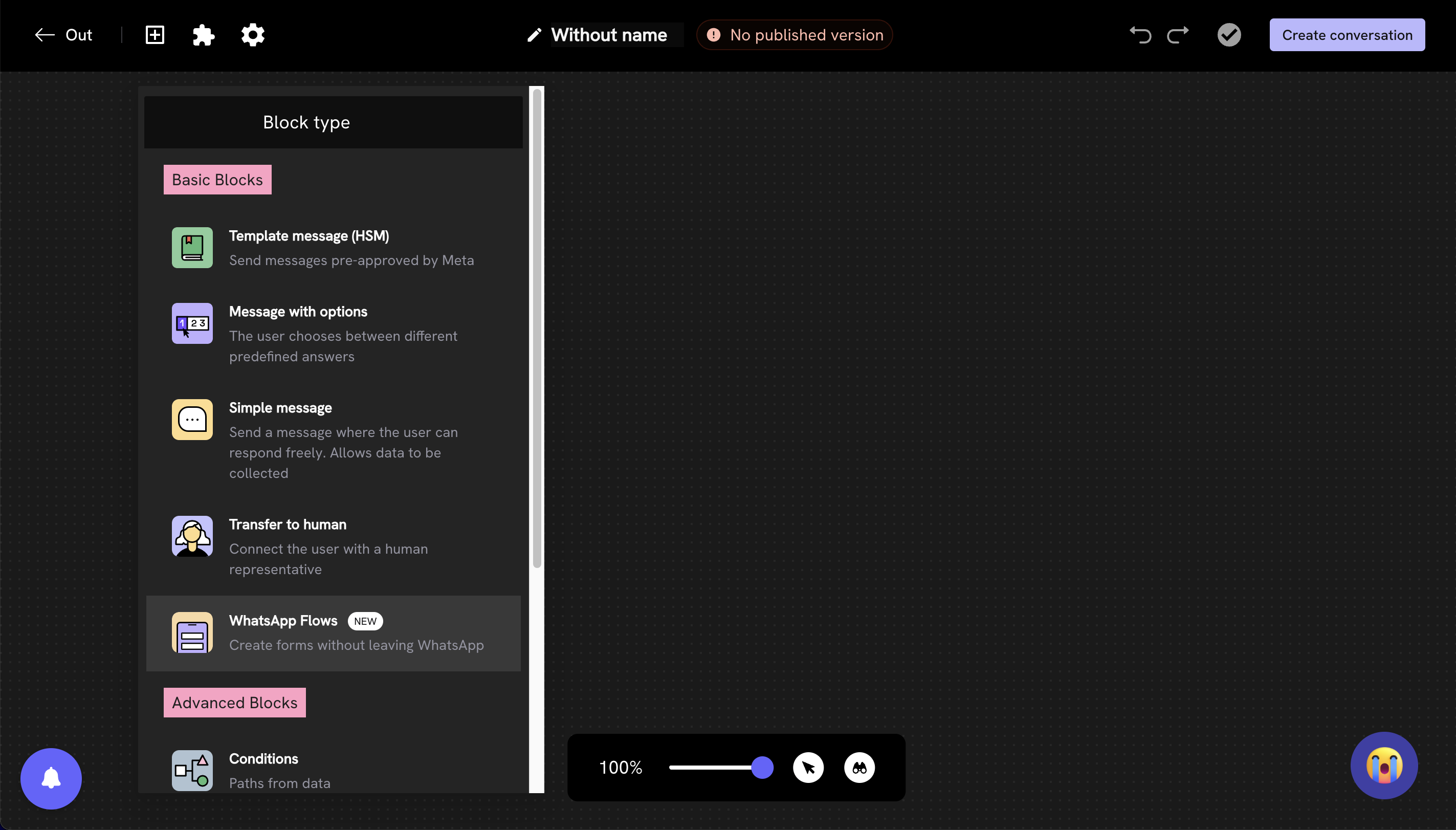 Once you've added the WhatsApp Flows block, it's time to configure the Flow in three stages:
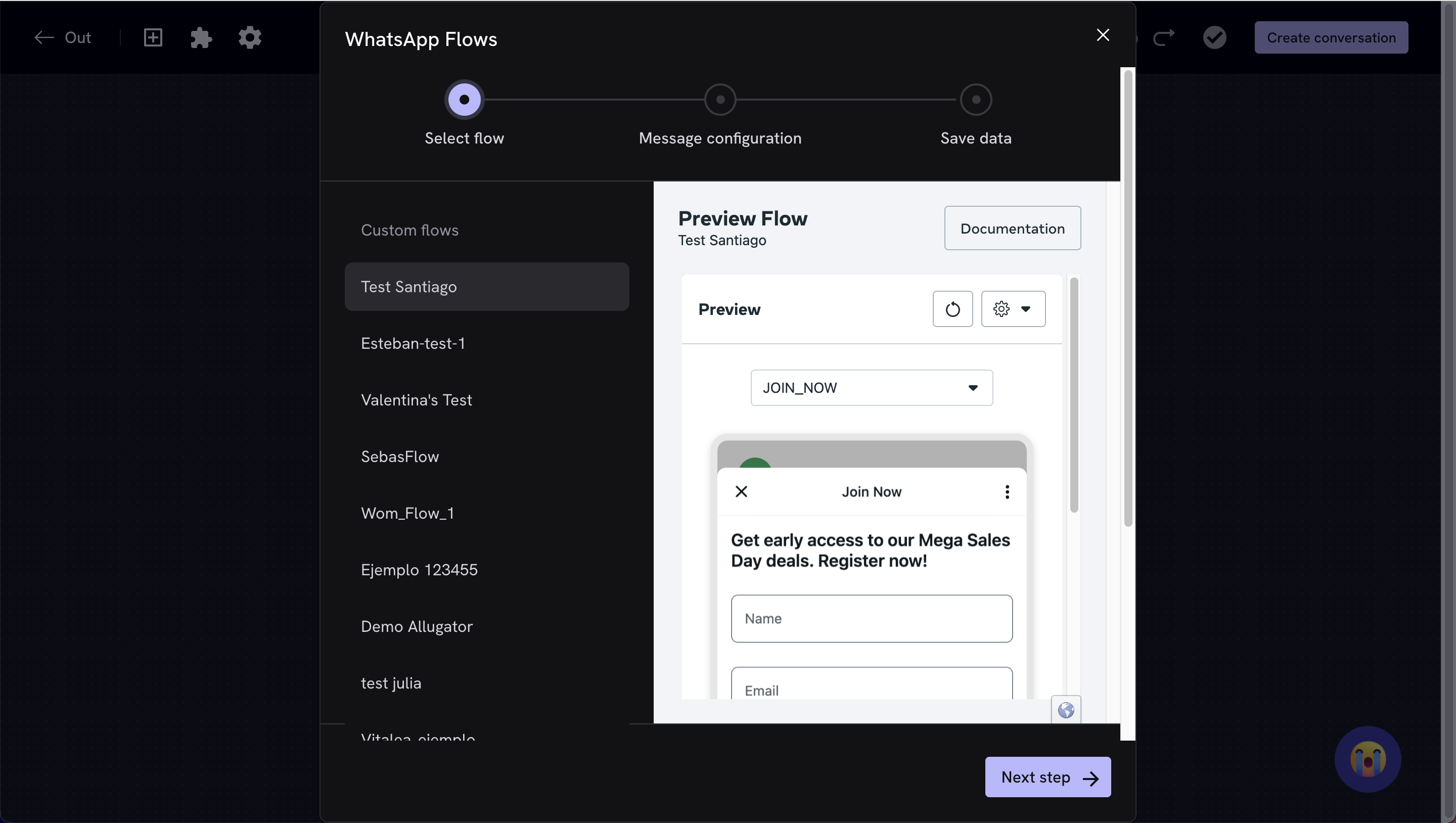
In this first stage, select the flow you want to implement. In this step, only Flows that have been published in WhatsApp Business Manager will appear. You'll be able to see a preview to ensure you've selected the correct Flow.
Once you've added the WhatsApp Flows block, it's time to configure the Flow in three stages:
In this first stage, select the flow you want to implement. In this step, only Flows that have been published in WhatsApp Business Manager will appear. You'll be able to see a preview to ensure you've selected the correct Flow.
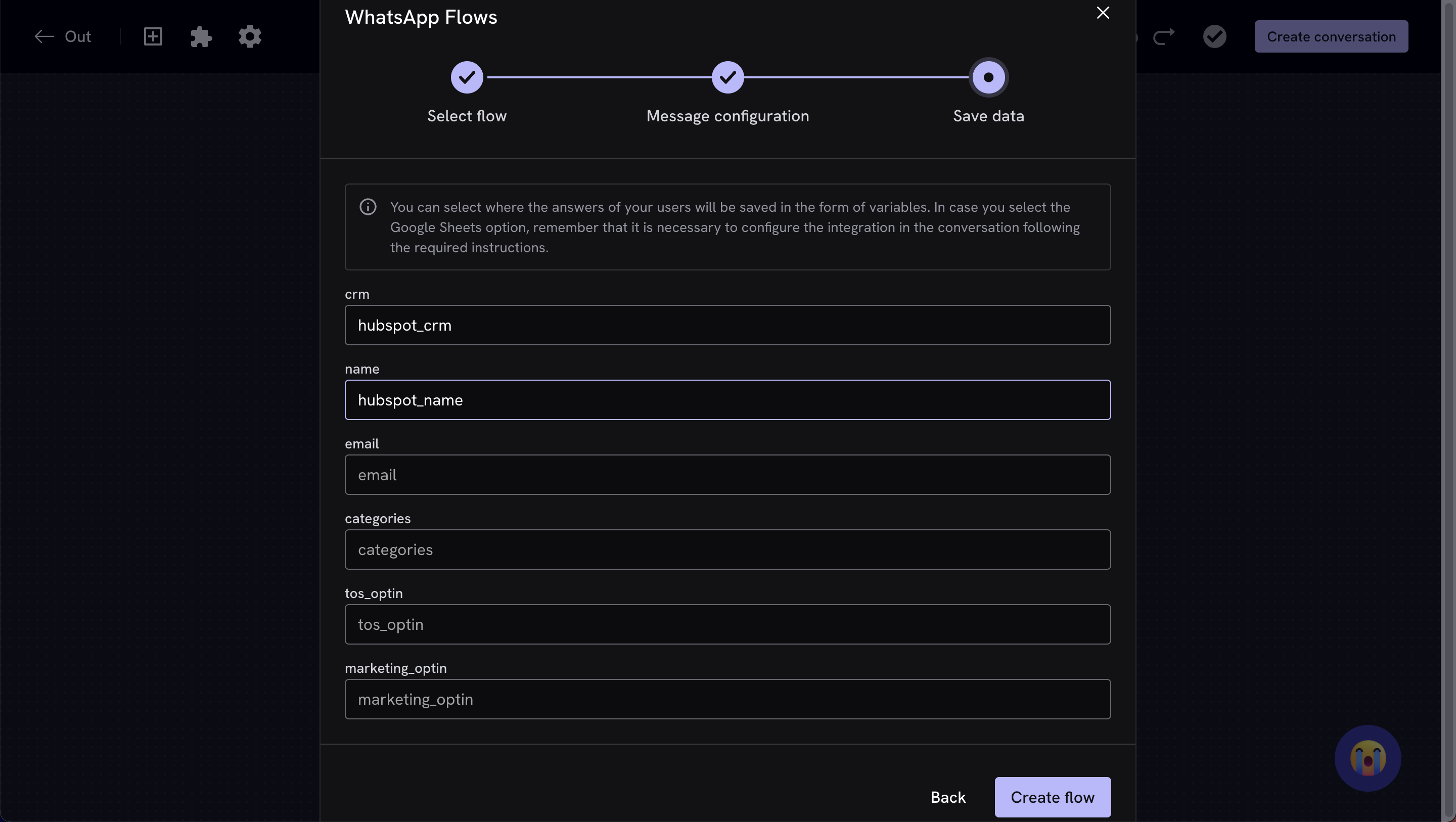
 This stage consists of creating the message that your users will see before beginning the interaction with the Flow. Additionally, you must define the text of the button on which users will click to start the Flow. You can also choose if you want to add a header and a footer to the message.
Finally, in the last configuration stage, you'll need to define the names with which the variables will be saved. This breaks down into the following steps:
1. **Get the payload value**: Identify the property value within the Flow's payload.
2. **Define the name and storage of variables**: Assign a name that allows saving this value within Treble or in the CRM that you have integrated. If you want to store variables in external integrations such as HubSpot or Google Sheets, use the following nomenclature:
* For HubSpot: "hubspot\_variablename". For example, if you have a variable called "name", you could save it as "hubspot\_name".
* For Google Sheets: "sheets\_variablename". For example, if you have a variable called "email", you could save it as "sheets\_email".
This stage consists of creating the message that your users will see before beginning the interaction with the Flow. Additionally, you must define the text of the button on which users will click to start the Flow. You can also choose if you want to add a header and a footer to the message.
Finally, in the last configuration stage, you'll need to define the names with which the variables will be saved. This breaks down into the following steps:
1. **Get the payload value**: Identify the property value within the Flow's payload.
2. **Define the name and storage of variables**: Assign a name that allows saving this value within Treble or in the CRM that you have integrated. If you want to store variables in external integrations such as HubSpot or Google Sheets, use the following nomenclature:
* For HubSpot: "hubspot\_variablename". For example, if you have a variable called "name", you could save it as "hubspot\_name".
* For Google Sheets: "sheets\_variablename". For example, if you have a variable called "email", you could save it as "sheets\_email".
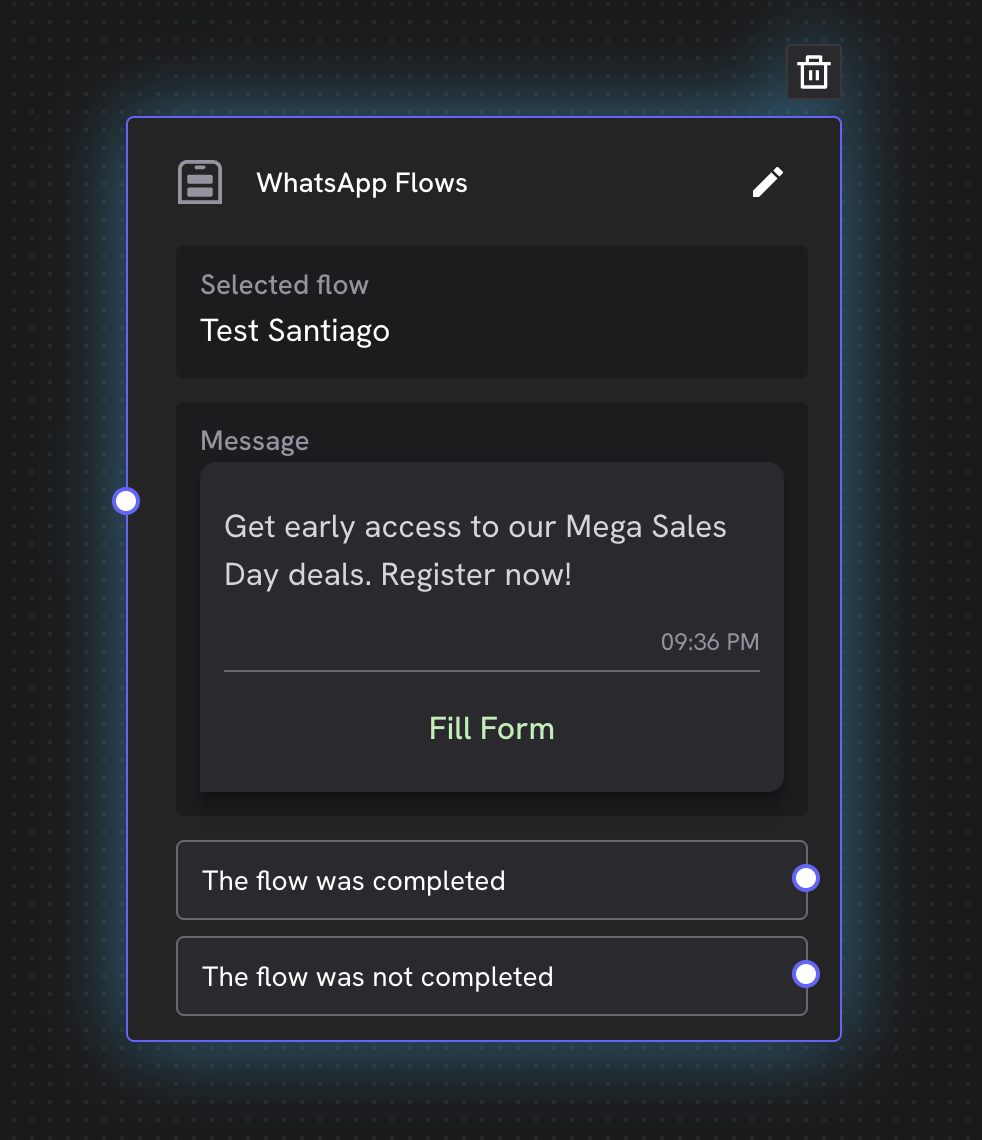
 Once the Flow is created, you'll need to connect the nodes within the chatbot to define the actions that will be taken according to the state of the Flow.
* **Completed flow**: You can configure an action for when the Flow is successfully completed, such as sending a thank you message to users.
* **Incomplete flow**: You can also define what happens if the Flow is not completed. In this case, you can send a follow-up message and invite the user to try the Flow again or provide another option.
Once the Flow is created, you'll need to connect the nodes within the chatbot to define the actions that will be taken according to the state of the Flow.
* **Completed flow**: You can configure an action for when the Flow is successfully completed, such as sending a thank you message to users.
* **Incomplete flow**: You can also define what happens if the Flow is not completed. In this case, you can send a follow-up message and invite the user to try the Flow again or provide another option.
 Finally, once you've finished connecting all the nodes and configuring the Flow, click on "Create" or "Save conversation". Your new Flow will be ready to be used when relevant and provide your users with an agile and automated experience.
And that's it! Now you have your WhatsApp Flow perfectly integrated into a Treble chatbot, ready to optimize your interactions with customers and provide them with a personalized experience.
With these steps, you'll be able to create an effective WhatsApp Flow to improve communication with your customers.
# 6 Best Practices for WhatsApp Flows
WhatsApp Flows is a powerful tool that can help your company optimize its conversion funnel through WhatsApp. By following best practices, you can improve the customer experience, reduce abandonment, and increase conversion. This guide is based on best practices proposed by Meta and our experience validating the tool to optimize interactions with your customers.
Customers want to complete tasks quickly. When designing a flow, ensure it doesn't take more than five minutes to complete. If a flow becomes too long, it can generate frustration and customers might abandon it.
### Recommendations to Keep Flows Concise:
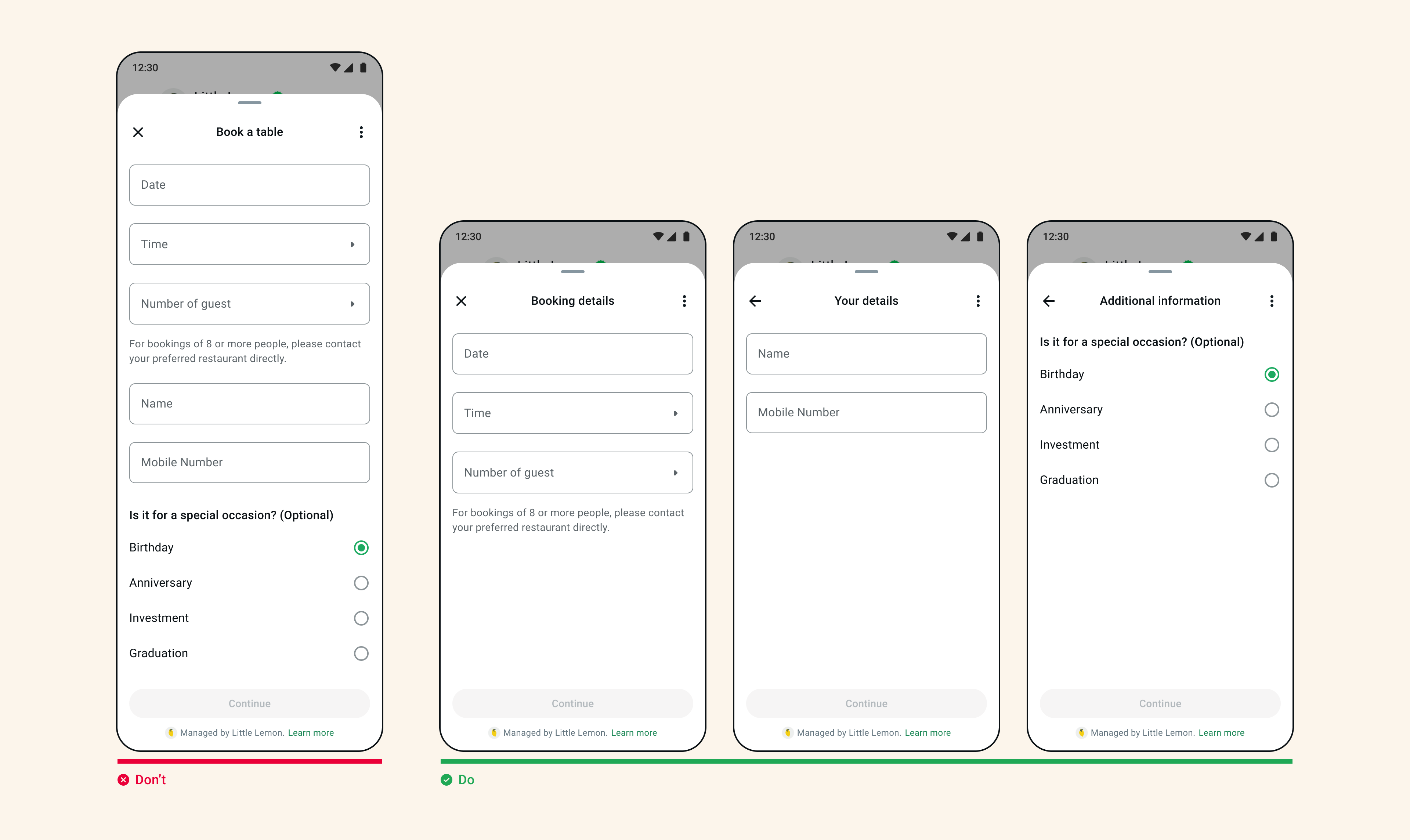
* **Limit Tasks per Screen**: Include only one task per screen to avoid overwhelming the customer. This makes the experience clearer and easier to follow.
* **Minimize Components**: Avoid using too many components on a single screen, as it can saturate the interface and slow down loading times. If you need several components, distribute them across multiple screens.
Finally, once you've finished connecting all the nodes and configuring the Flow, click on "Create" or "Save conversation". Your new Flow will be ready to be used when relevant and provide your users with an agile and automated experience.
And that's it! Now you have your WhatsApp Flow perfectly integrated into a Treble chatbot, ready to optimize your interactions with customers and provide them with a personalized experience.
With these steps, you'll be able to create an effective WhatsApp Flow to improve communication with your customers.
# 6 Best Practices for WhatsApp Flows
WhatsApp Flows is a powerful tool that can help your company optimize its conversion funnel through WhatsApp. By following best practices, you can improve the customer experience, reduce abandonment, and increase conversion. This guide is based on best practices proposed by Meta and our experience validating the tool to optimize interactions with your customers.
Customers want to complete tasks quickly. When designing a flow, ensure it doesn't take more than five minutes to complete. If a flow becomes too long, it can generate frustration and customers might abandon it.
### Recommendations to Keep Flows Concise:
* **Limit Tasks per Screen**: Include only one task per screen to avoid overwhelming the customer. This makes the experience clearer and easier to follow.
* **Minimize Components**: Avoid using too many components on a single screen, as it can saturate the interface and slow down loading times. If you need several components, distribute them across multiple screens.
 The visual and text aspects of your flow are crucial to keep customers engaged and informed.
### Best Practices for Design and Content:
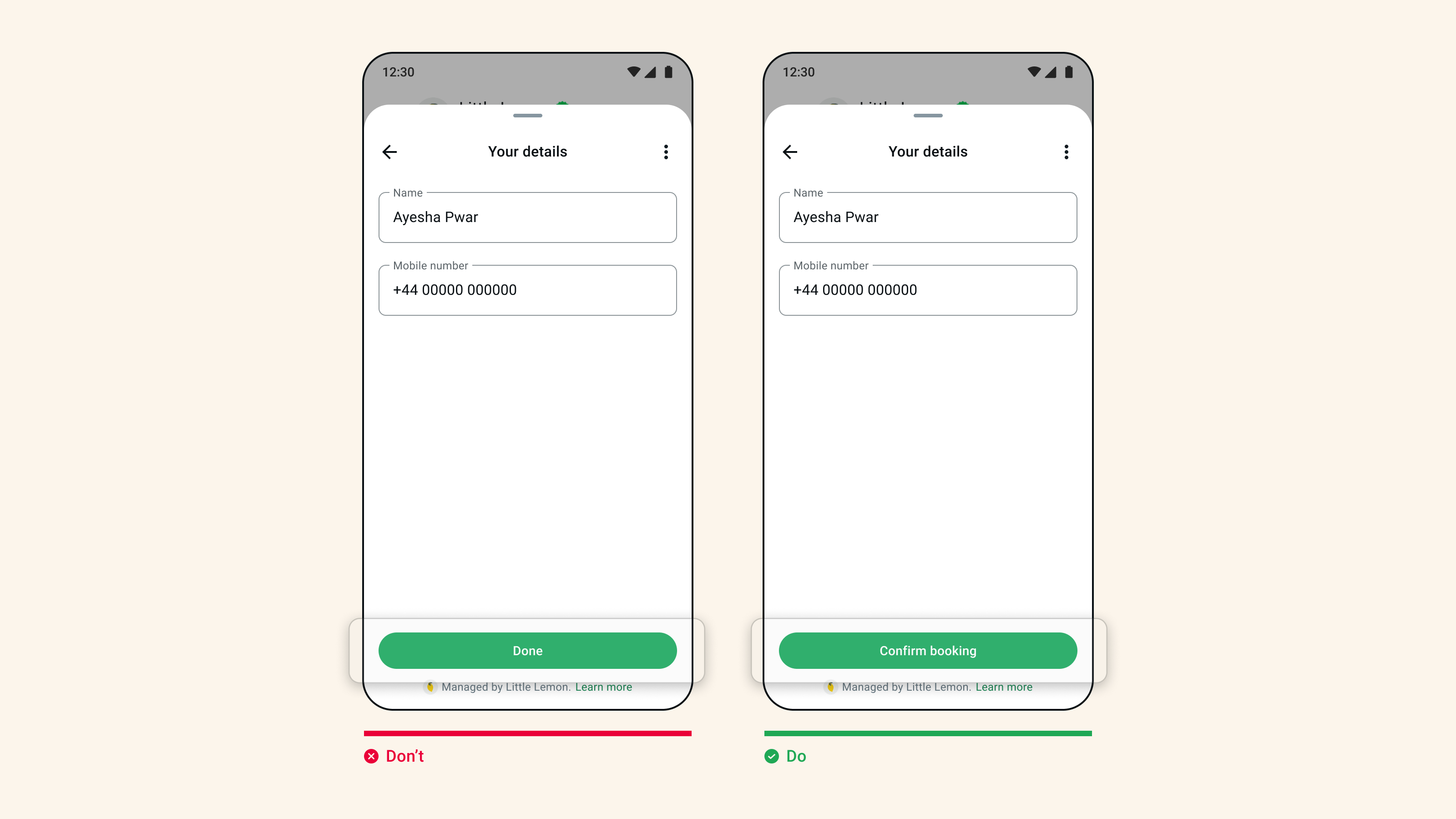
* **Effective Calls to Action (CTAs)**: The CTA should clearly indicate what will happen next. For example, use phrases like "Confirm booking" so the customer knows exactly what action they're taking.
The visual and text aspects of your flow are crucial to keep customers engaged and informed.
### Best Practices for Design and Content:
* **Effective Calls to Action (CTAs)**: The CTA should clearly indicate what will happen next. For example, use phrases like "Confirm booking" so the customer knows exactly what action they're taking.
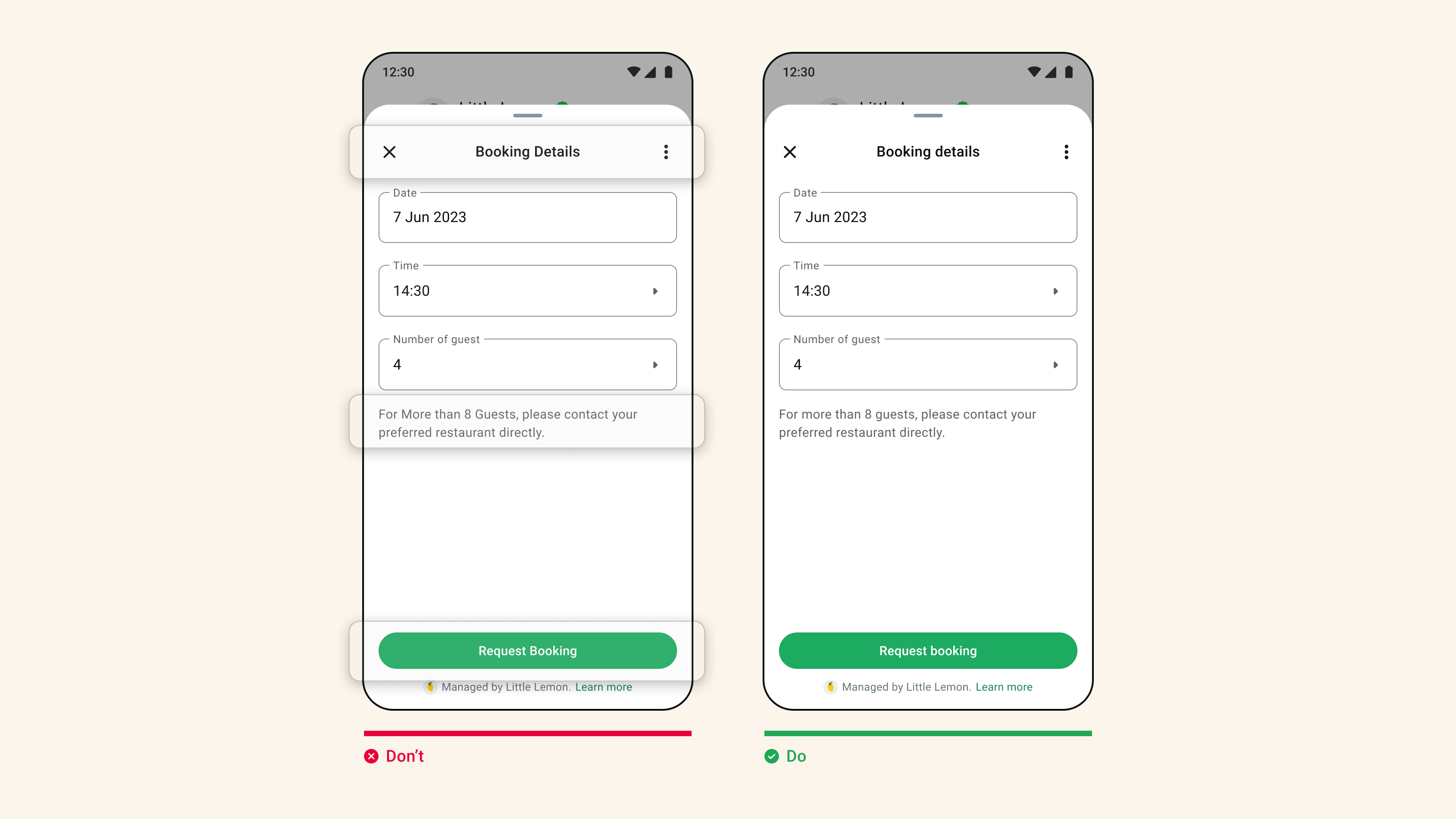
 * **Capitalization and Grammar**: Use capitals at the beginning of titles and CTAs, maintain consistent capitalization, and always review content to correct grammar and spelling errors. This ensures a professional and consistent experience for the customer.
 * **Emojis**: Use emojis in moderation and consider the context. Make sure they align with your brand and add value to the message rather than distract.
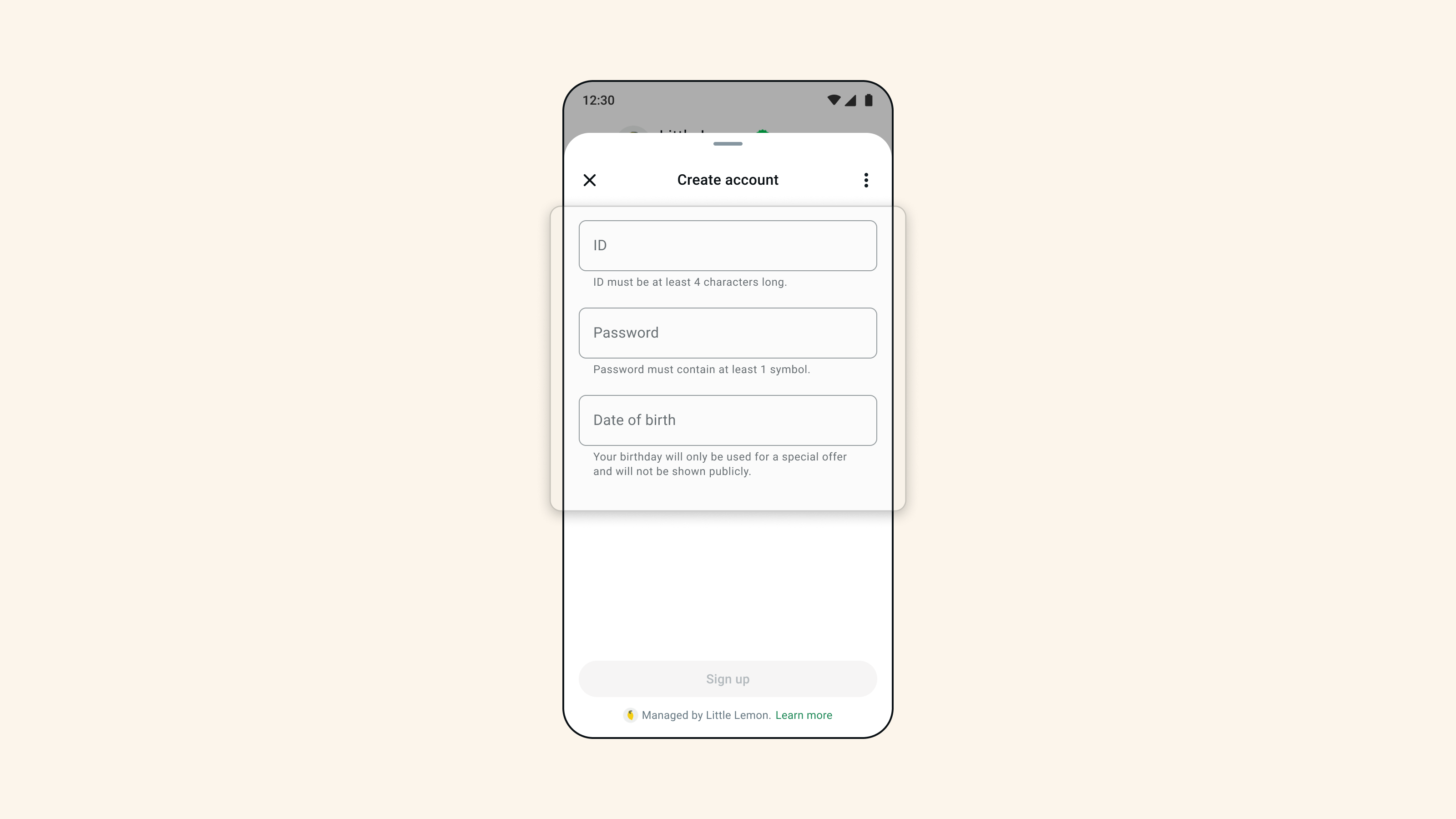
* **Help Text**: Help text should provide clarity to customers, for example, the correct format for a phone number, entering a date, or an email address.
* **Emojis**: Use emojis in moderation and consider the context. Make sure they align with your brand and add value to the message rather than distract.
* **Help Text**: Help text should provide clarity to customers, for example, the correct format for a phone number, entering a date, or an email address.
 To make forms easy to use and maintain input data quality:
### Tips for Effective Forms:
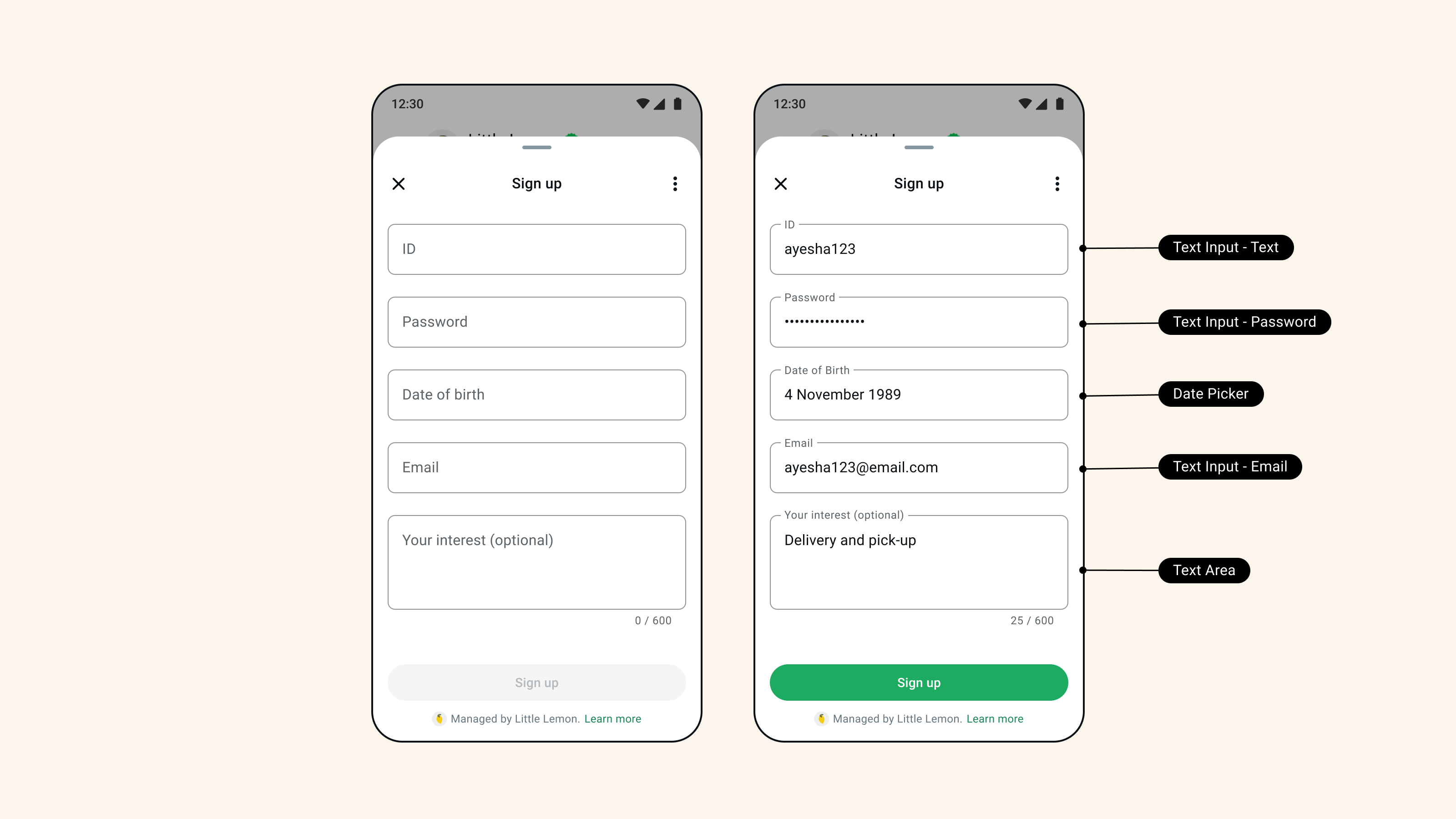
* **Use the Right Components**: Using the correct components will ensure your users have a better experience and your data format is the best. For example, use a date picker for birth dates or a text input - email to request your customers' email.
To make forms easy to use and maintain input data quality:
### Tips for Effective Forms:
* **Use the Right Components**: Using the correct components will ensure your users have a better experience and your data format is the best. For example, use a date picker for birth dates or a text input - email to request your customers' email.
 * **Provide Clarity**: Labels and questions should be self-explanatory, and form fields should be logically ordered (for example, first name before last name).
* **Optional Forms**: If a form is not essential to completing a task, make it optional.
Effectively guiding customers through the flow improves completion rates.
### Tips for Clear and Guided Navigation:
* **Customers Want to Complete a Task**: The CTA should go hand in hand with the message content. It should be brief and concise, indicating what task the customer can expect to complete when opening the flow.
* **Set Expectations**: Inform customers how long it will take to complete a task, such as "It should only take a few minutes". Use concise and action-oriented screen titles (e.g., "Confirm registration").
* **Clarity in Initiation Flow**: Customers decide to open a flow based on the clarity of initiation messages. The conversation should feel fluid and provide clear context and actions centered on the task.
* **No Surprises**: The first screen of the flow should reflect the CTA action. Any deviation from the task will result in a poor experience for the customer and could lead them to close the flow.
Make sure you're informing your users about how their data will be used.
### Considerations for Opt-in:
* **Opt-in Clarity**: It's essential that the customer clearly understands what they're consenting to when interacting with a flow. Provide a simple and direct explanation of the purpose of the flow and any information that will be collected.
* **Include a 'Read More'**: Include a 'Read More' button that links to relevant information, such as Terms and Conditions. This increases transparency and helps build trust with customers.
Ending a flow properly is as important as starting it.
* **Provide Clarity**: Labels and questions should be self-explanatory, and form fields should be logically ordered (for example, first name before last name).
* **Optional Forms**: If a form is not essential to completing a task, make it optional.
Effectively guiding customers through the flow improves completion rates.
### Tips for Clear and Guided Navigation:
* **Customers Want to Complete a Task**: The CTA should go hand in hand with the message content. It should be brief and concise, indicating what task the customer can expect to complete when opening the flow.
* **Set Expectations**: Inform customers how long it will take to complete a task, such as "It should only take a few minutes". Use concise and action-oriented screen titles (e.g., "Confirm registration").
* **Clarity in Initiation Flow**: Customers decide to open a flow based on the clarity of initiation messages. The conversation should feel fluid and provide clear context and actions centered on the task.
* **No Surprises**: The first screen of the flow should reflect the CTA action. Any deviation from the task will result in a poor experience for the customer and could lead them to close the flow.
Make sure you're informing your users about how their data will be used.
### Considerations for Opt-in:
* **Opt-in Clarity**: It's essential that the customer clearly understands what they're consenting to when interacting with a flow. Provide a simple and direct explanation of the purpose of the flow and any information that will be collected.
* **Include a 'Read More'**: Include a 'Read More' button that links to relevant information, such as Terms and Conditions. This increases transparency and helps build trust with customers.
Ending a flow properly is as important as starting it.