> ## Documentation Index
> Fetch the complete documentation index at: https://help.treble.ai/llms.txt
> Use this file to discover all available pages before exploring further.
# Jump to Conversation Block
> The jump to conversation block allows you to redirect the flow of a conversation to another Treble conversation. This is useful if you have a message flow that you want to be carried out across multiple conversations or if you want a customer to be able to continue a conversation in another conversation flow. Learn to use this block to create intelligent and personalized conversation flows.
 ## What is the jump to conversation block?
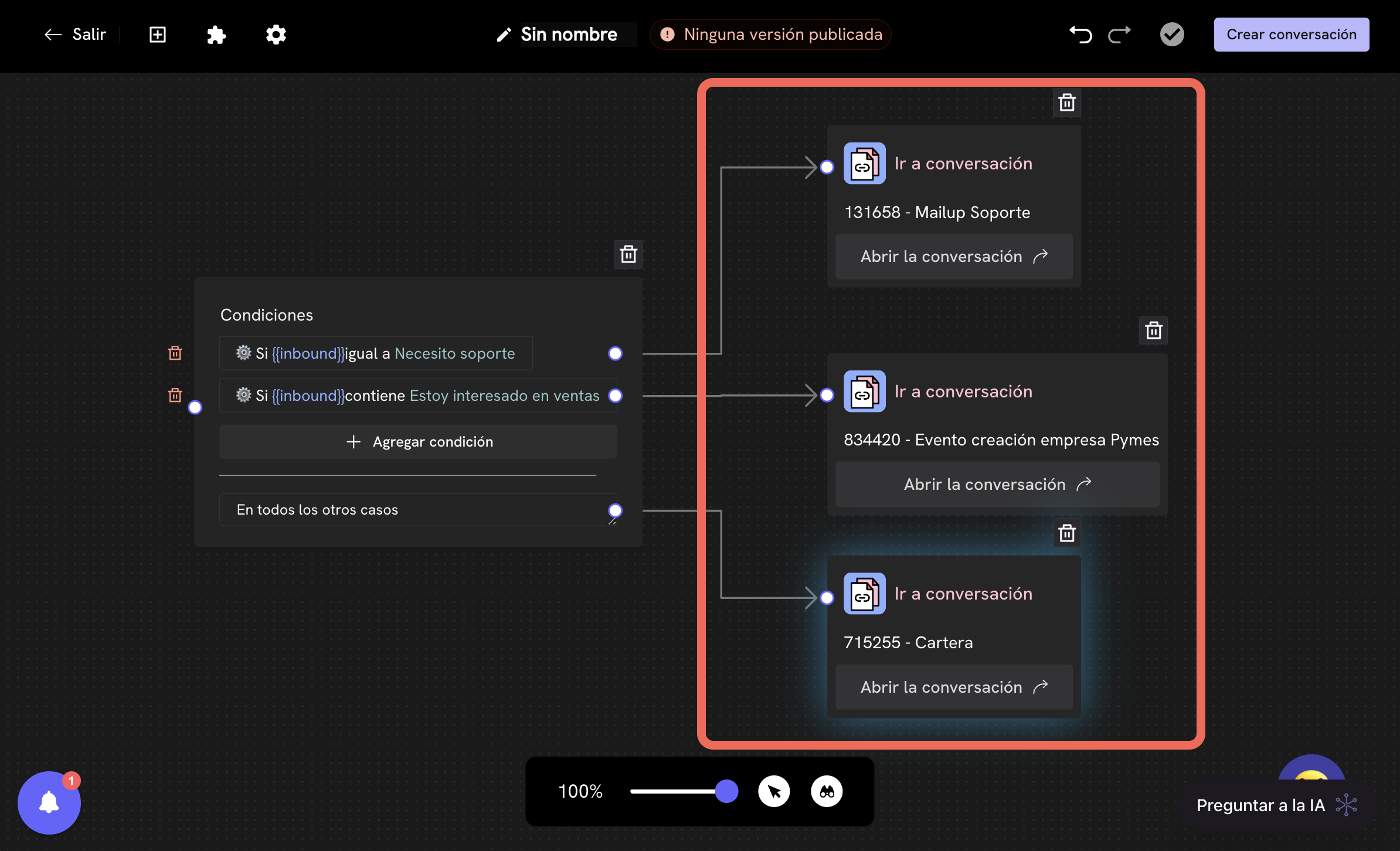
The jump to conversation block is a block that allows you to redirect the flow of a conversation to another Treble conversation flow. This block is useful for creating more complex and personalized conversation flows.
Examples:
* **Recurring sales flow**: If you have a conversation flow where the customer can make purchases and it's a process that repeats several times, you can have different conversations that when they detect that the customer wants to make a purchase, redirect to the recurring sales flow.
* **Conversation routing flow**: If you have created an inbound conversation flow, you can compare the native variable `inbound` with a value to redirect the conversation flow to another existing conversation flow. For example, you can have one for sales, another for support, and a third for frequent customers.
* **Agent routing**: If you have an advanced agent configuration (for example, different agent teams by day of the week and schedules), you can create a conversation that handles agent routing and you can use the jump to conversation block to redirect to it when the customer wants to talk to an agent.
## How to use the jump to conversation block?
To use the jump to conversation block, you must follow these steps:
Sign in to Treble.ai at:
## What is the jump to conversation block?
The jump to conversation block is a block that allows you to redirect the flow of a conversation to another Treble conversation flow. This block is useful for creating more complex and personalized conversation flows.
Examples:
* **Recurring sales flow**: If you have a conversation flow where the customer can make purchases and it's a process that repeats several times, you can have different conversations that when they detect that the customer wants to make a purchase, redirect to the recurring sales flow.
* **Conversation routing flow**: If you have created an inbound conversation flow, you can compare the native variable `inbound` with a value to redirect the conversation flow to another existing conversation flow. For example, you can have one for sales, another for support, and a third for frequent customers.
* **Agent routing**: If you have an advanced agent configuration (for example, different agent teams by day of the week and schedules), you can create a conversation that handles agent routing and you can use the jump to conversation block to redirect to it when the customer wants to talk to an agent.
## How to use the jump to conversation block?
To use the jump to conversation block, you must follow these steps:
Sign in to Treble.ai at: app.treble.ai
Go to the **Conversations** section and click on **Create new conversation** or edit an existing conversation.
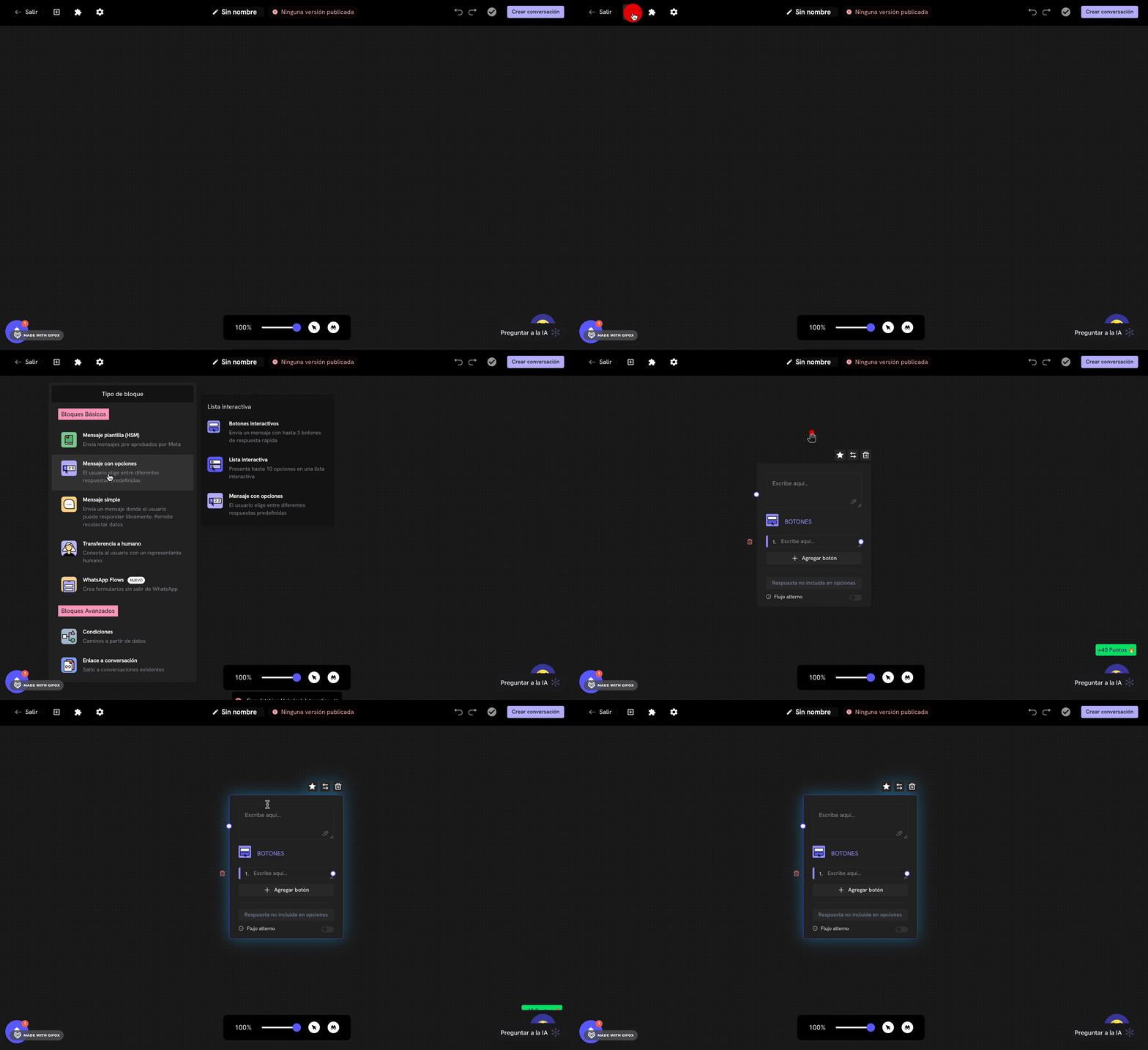
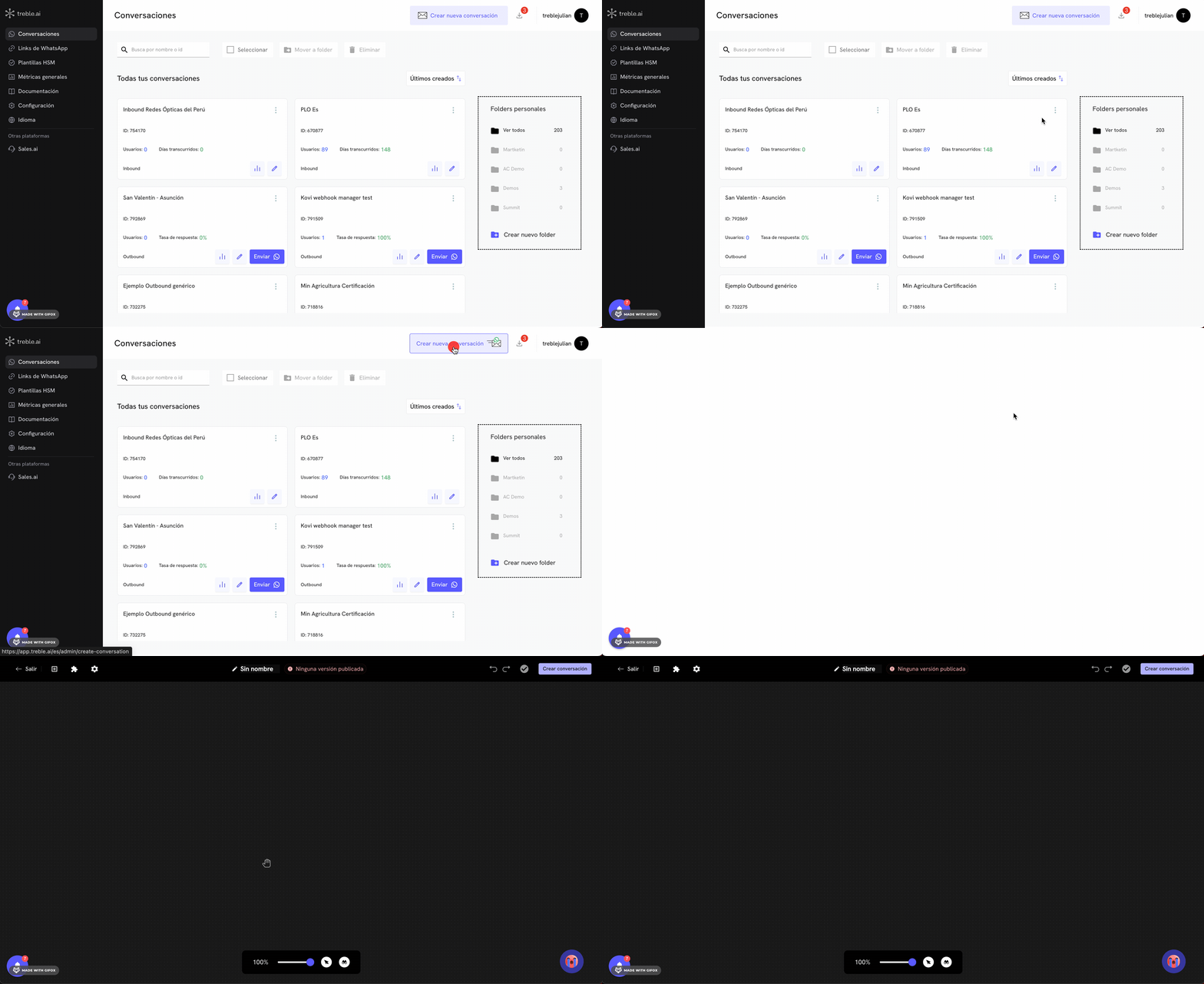 Once in the flow editor, click on the button in the top left panel to show the blocks menu.
 Scroll down in the blocks menu until you find the **Jump to Conversation** section. You'll see the **Jump to Conversation** block available to add to your flow. Click on the block and drag it to the position you want in your conversation flow.
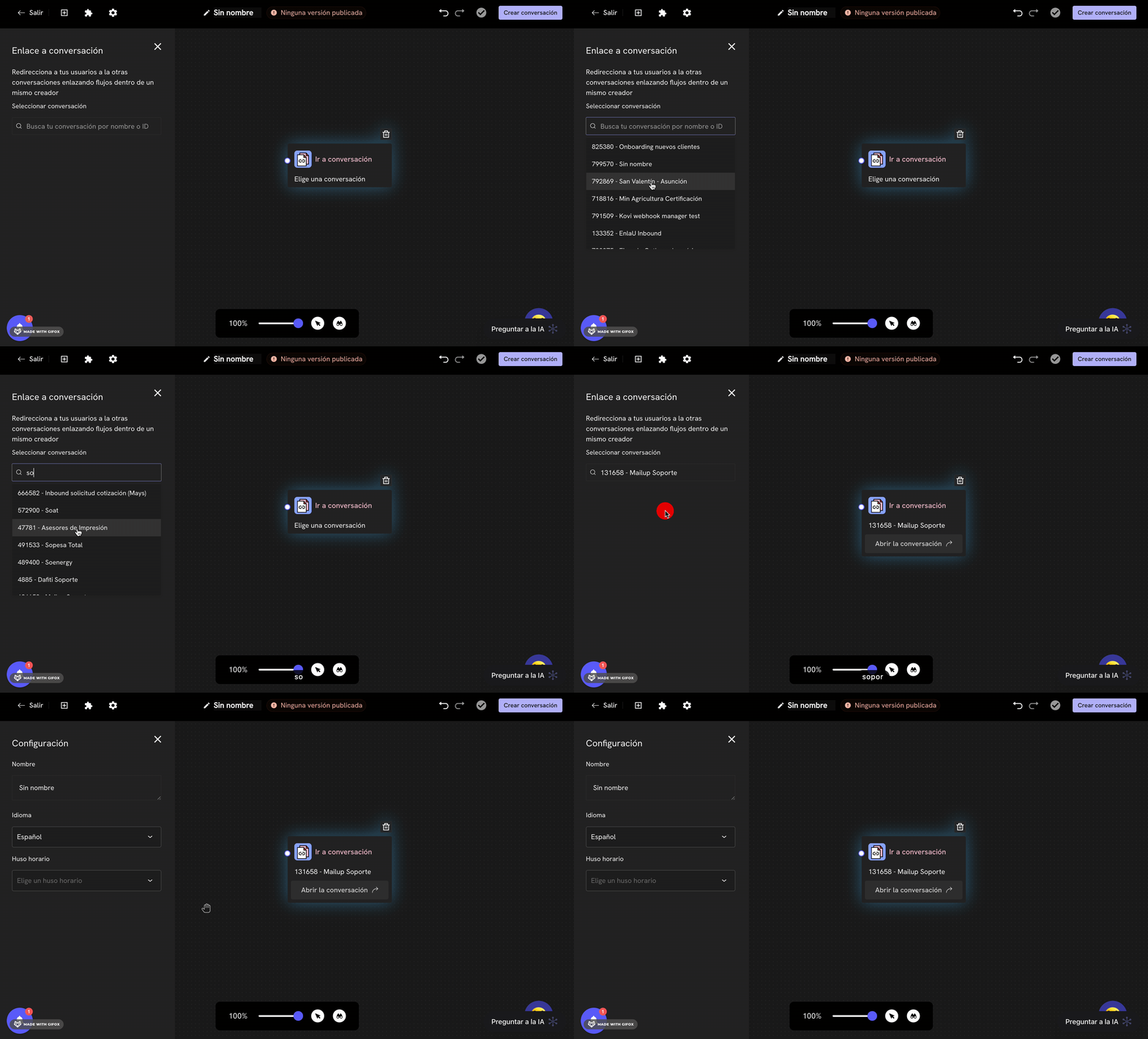
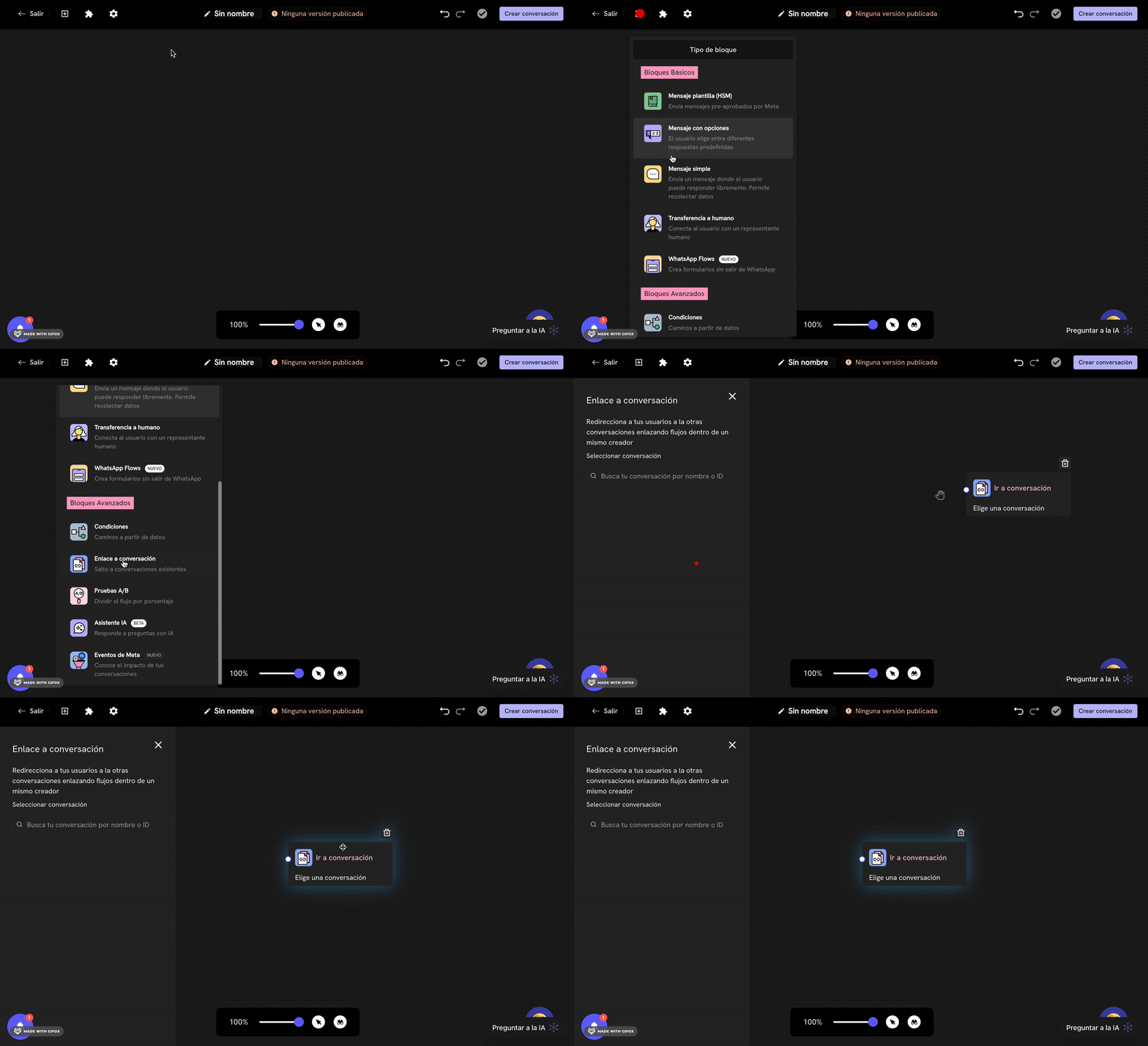 Once the block is added, the block configuration panel will automatically open on the left.
Here you can search and select the conversation to which the flow will be redirected. Once you find the conversation, click on it to select it. You can search by the `id` or the name of the conversation.
Once the conversation is selected, the block will be named with the selected conversation.
Once the block is added, the block configuration panel will automatically open on the left.
Here you can search and select the conversation to which the flow will be redirected. Once you find the conversation, click on it to select it. You can search by the `id` or the name of the conversation.
Once the conversation is selected, the block will be named with the selected conversation.
 Success! Now you know how to use the jump to conversation block to redirect the flow of a conversation to another Treble conversation
## Basic scenario: Routing with `inbound` variable
Suppose you have a company that handles different types of customer requests. Instead of having a single long and complex conversation flow, you decide to create specialized flows for each type of request. For this, you create a **routing conversation** that acts as an intelligent router.
**Conversations you have created:**
* **Sales Conversation**: Handles product inquiries, quotes and purchases
* **Support Conversation**: Handles technical problems and help requests
* **Billing Conversation**: Handles inquiries about invoices, payments and account status
* **Routing Conversation**: Determines which flow to direct the customer to
**Routing flow configuration:**
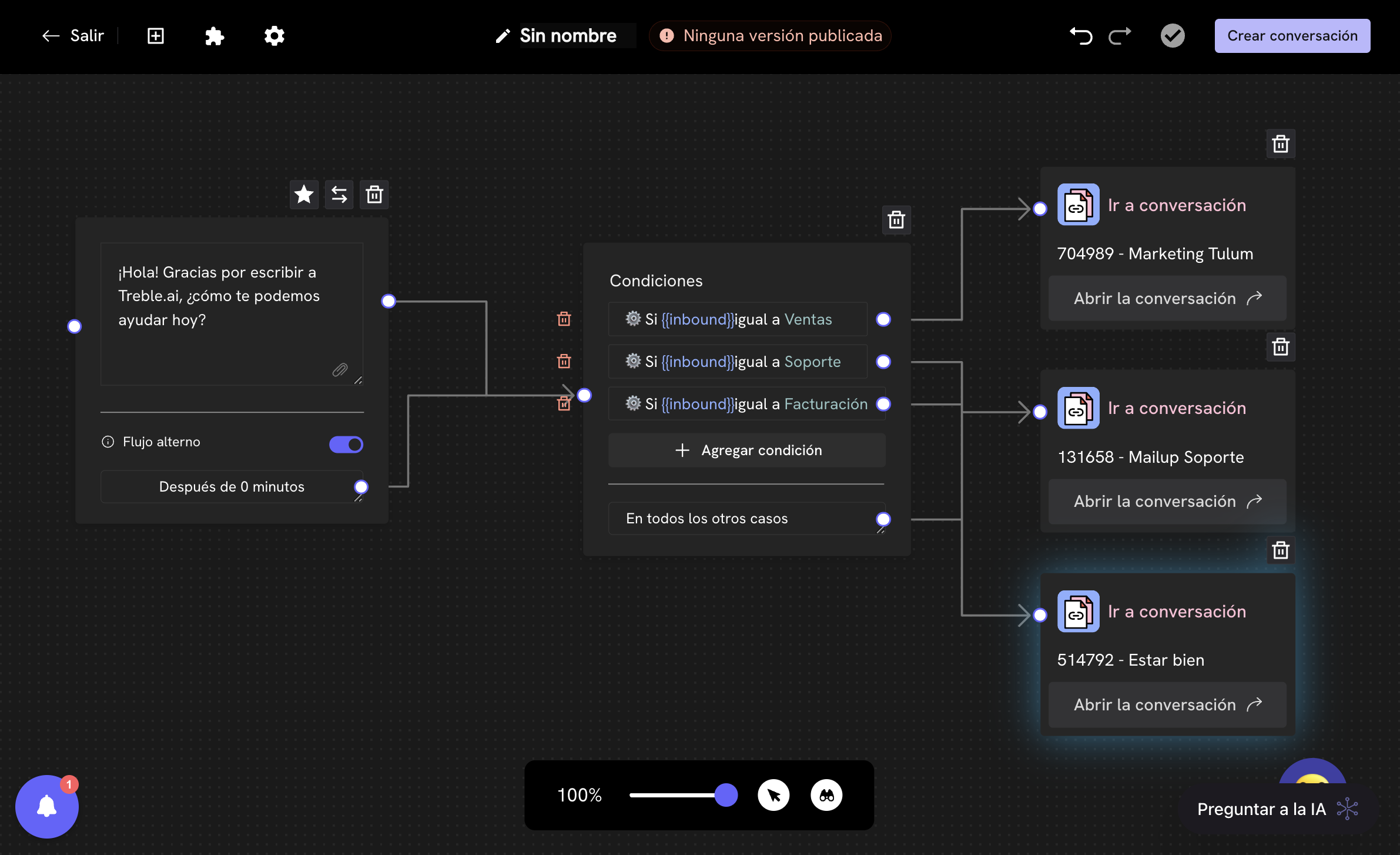
1. **Initial message block**: Welcome message
2. **Conditional block**: Evaluates the `inbound` variable
3. **Jump to conversation blocks**: Redirect based on the condition
**Conditional block configuration:**
* **Variable**: `inbound`
* **Operator**: Equal to
* **Value**: `Sales`
**Complete flow:**
* If `inbound` = `Sales` → Jump to Sales conversation
* If `inbound` = `Support` → Jump to Support conversation
* If `inbound` = `Billing` → Jump to Billing conversation
* In all other cases → Help message with options
Success! Now you know how to use the jump to conversation block to redirect the flow of a conversation to another Treble conversation
## Basic scenario: Routing with `inbound` variable
Suppose you have a company that handles different types of customer requests. Instead of having a single long and complex conversation flow, you decide to create specialized flows for each type of request. For this, you create a **routing conversation** that acts as an intelligent router.
**Conversations you have created:**
* **Sales Conversation**: Handles product inquiries, quotes and purchases
* **Support Conversation**: Handles technical problems and help requests
* **Billing Conversation**: Handles inquiries about invoices, payments and account status
* **Routing Conversation**: Determines which flow to direct the customer to
**Routing flow configuration:**
1. **Initial message block**: Welcome message
2. **Conditional block**: Evaluates the `inbound` variable
3. **Jump to conversation blocks**: Redirect based on the condition
**Conditional block configuration:**
* **Variable**: `inbound`
* **Operator**: Equal to
* **Value**: `Sales`
**Complete flow:**
* If `inbound` = `Sales` → Jump to Sales conversation
* If `inbound` = `Support` → Jump to Support conversation
* If `inbound` = `Billing` → Jump to Billing conversation
* In all other cases → Help message with options
 **Advantages of this approach:**
* **Simplified maintenance**: Each flow can be updated independently
* **Specific analysis**: You can measure the performance of each type of conversation separately
* **Scalability**: Easy to add new types of conversations without affecting existing ones
* **Personalization**: Each flow can have its own tone and structure
## Advanced scenario: Marketing campaigns with WhatsApp links
In this more complex example, your company runs multiple marketing campaigns across different channels (Facebook, Google Ads, LinkedIn, Email Marketing) and you want to measure the performance of each campaign while automatically directing customers to the most appropriate flow.
**Active campaigns:**
1. **Facebook Campaign - Premium Products**: Link with message `Premium Products`
2. **Google Ads Campaign - Technical Support**: Link with message `Technical Support`
3. **LinkedIn Campaign - Consulting**: Link with message `Consulting`
4. **Email Marketing - Billing**: Link with message `Billing`
**Specialized conversations:**
* **Premium Products Conversation**: Sales flow for high-end products
* **Technical Support Conversation**: Specialized flow for technical problems
* **Consulting Conversation**: Flow for business consulting services
* **Billing Conversation**: Flow for billing and payment inquiries
* **Advanced Router Conversation**: Determines the flow based on the campaign
### Advanced router configuration
**Step 1: Create WhatsApp links**
For each campaign, you create a WhatsApp link with a specific predefined message:
Learn to create and manage WhatsApp links in Treble.
**Link configuration:**
| Campaign | WhatsApp Link | Predefined Message | Destination Conversation |
| ------------------------------ | -------------------------------------------- | ------------------- | ------------------------------ |
| Facebook - Premium Products | `wa.me/your-number?text=Premium%20Products` | `Premium Products` | Premium Products Conversation |
| Google Ads - Technical Support | `wa.me/your-number?text=Technical%20Support` | `Technical Support` | Technical Support Conversation |
| LinkedIn - Consulting | `wa.me/your-number?text=Consulting` | `Consulting` | Consulting Conversation |
| Email Marketing - Billing | `wa.me/your-number?text=Billing` | `Billing` | Billing Conversation |
**Step 2: Configure the advanced router**
The flow of the **Advanced Router Conversation** is configured as follows:
1. **Welcome message block**:
```
Hello! Thank you for contacting us. We are directing you to the most appropriate area to help you.
```
2. **Main conditional block**: Evaluates the `inbound` variable
* **Variable**: `inbound`
* **Operator**: Equal to
* **Value**: `Premium Products`
3. **Jump to conversation blocks**: One for each campaign
**Router flow:**
* If `inbound` = `Premium Products` → Jump to Premium Products conversation
* If `inbound` = `Technical Support` → Jump to Technical Support conversation
* If `inbound` = `Consulting` → Jump to Consulting conversation
* If `inbound` = `Billing` → Jump to Billing conversation
* In all other cases → Help message with options menu
### Advantages of the advanced approach
**1. Granular campaign measurement:**
* You can see exactly how many leads each campaign generates
* You measure conversion by marketing channel
* You identify which campaigns have better ROI
**2. Personalized experience:**
* Each customer arrives directly at the most relevant flow
* You reduce friction in the conversation
* You improve conversion rate
**3. Advanced analytics:**
* You compare the performance of Facebook vs Google Ads vs LinkedIn
* You identify what type of message generates more engagement
* You optimize your marketing budget
**4. Scalability:**
* Easy to add new campaigns without modifying existing flows
* Each specialized flow can evolve independently
* Simplified maintenance
### Example of metrics you get
With this configuration, you can get metrics like:
**By campaign:**
* Facebook - Premium Products: 150 clicks, 45 conversions
* Google Ads - Technical Support: 200 clicks, 80 conversions
* LinkedIn - Consulting: 75 clicks, 25 conversions
* Email Marketing - Billing: 300 clicks, 120 conversions
**By conversation flow:**
* Premium Products Conversation: 45 leads, 15 sales (33% conversion)
* Technical Support Conversation: 80 leads, 60 resolved (75% resolution)
* Consulting Conversation: 25 leads, 8 consultations (32% conversion)
* Billing Conversation: 120 leads, 100 resolved (83% resolution)
### Detailed technical configuration
**Step 3: Configure each specialized conversation**
Each destination conversation should be optimized for its specific purpose:
**Premium Products Conversation:**
* Personalized welcome message
* Premium product catalog
* Options to contact specialized sales agents
* Information about warranties and premium services
**Technical Support Conversation:**
* Initial problem diagnosis
* Integrated knowledge base
* Automatic escalation to technical agents
* Integrated ticket system
**Consulting Conversation:**
* Business needs assessment
* Consulting services portfolio
* Integrated appointment calendar
* Information about success cases
**Billing Conversation:**
* Invoice status inquiry
* Available payment options
* Escalation to billing agents
* Information about payment policies
### Best practices for the advanced router
**1. Clear predefined messages:**
* Use specific and descriptive messages
* Avoid generic messages like "Hello" or "Information"
* Include keywords that clearly identify the intention
**2. Optimized conversation flows:**
* Each flow should be designed specifically for its purpose
* Include relevant information and appropriate options
* Maintain a tone consistent with the original campaign
**3. Measurement and analysis:**
* Regularly review metrics for each campaign
* Identify patterns in user behavior
* Optimize flows based on data
**4. Scalability:**
* Design the router to handle future campaigns
* Maintain consistent structure across all flows
* Document the process to facilitate maintenance
Perfect! Now you know how to use the jump to conversation block to create intelligent routing systems, both basic and advanced with WhatsApp links.
## Next steps
Learn to use the inbound variable for intelligent routing.
Learn to create and manage WhatsApp links for marketing campaigns.
**Advantages of this approach:**
* **Simplified maintenance**: Each flow can be updated independently
* **Specific analysis**: You can measure the performance of each type of conversation separately
* **Scalability**: Easy to add new types of conversations without affecting existing ones
* **Personalization**: Each flow can have its own tone and structure
## Advanced scenario: Marketing campaigns with WhatsApp links
In this more complex example, your company runs multiple marketing campaigns across different channels (Facebook, Google Ads, LinkedIn, Email Marketing) and you want to measure the performance of each campaign while automatically directing customers to the most appropriate flow.
**Active campaigns:**
1. **Facebook Campaign - Premium Products**: Link with message `Premium Products`
2. **Google Ads Campaign - Technical Support**: Link with message `Technical Support`
3. **LinkedIn Campaign - Consulting**: Link with message `Consulting`
4. **Email Marketing - Billing**: Link with message `Billing`
**Specialized conversations:**
* **Premium Products Conversation**: Sales flow for high-end products
* **Technical Support Conversation**: Specialized flow for technical problems
* **Consulting Conversation**: Flow for business consulting services
* **Billing Conversation**: Flow for billing and payment inquiries
* **Advanced Router Conversation**: Determines the flow based on the campaign
### Advanced router configuration
**Step 1: Create WhatsApp links**
For each campaign, you create a WhatsApp link with a specific predefined message:
Learn to create and manage WhatsApp links in Treble.
**Link configuration:**
| Campaign | WhatsApp Link | Predefined Message | Destination Conversation |
| ------------------------------ | -------------------------------------------- | ------------------- | ------------------------------ |
| Facebook - Premium Products | `wa.me/your-number?text=Premium%20Products` | `Premium Products` | Premium Products Conversation |
| Google Ads - Technical Support | `wa.me/your-number?text=Technical%20Support` | `Technical Support` | Technical Support Conversation |
| LinkedIn - Consulting | `wa.me/your-number?text=Consulting` | `Consulting` | Consulting Conversation |
| Email Marketing - Billing | `wa.me/your-number?text=Billing` | `Billing` | Billing Conversation |
**Step 2: Configure the advanced router**
The flow of the **Advanced Router Conversation** is configured as follows:
1. **Welcome message block**:
```
Hello! Thank you for contacting us. We are directing you to the most appropriate area to help you.
```
2. **Main conditional block**: Evaluates the `inbound` variable
* **Variable**: `inbound`
* **Operator**: Equal to
* **Value**: `Premium Products`
3. **Jump to conversation blocks**: One for each campaign
**Router flow:**
* If `inbound` = `Premium Products` → Jump to Premium Products conversation
* If `inbound` = `Technical Support` → Jump to Technical Support conversation
* If `inbound` = `Consulting` → Jump to Consulting conversation
* If `inbound` = `Billing` → Jump to Billing conversation
* In all other cases → Help message with options menu
### Advantages of the advanced approach
**1. Granular campaign measurement:**
* You can see exactly how many leads each campaign generates
* You measure conversion by marketing channel
* You identify which campaigns have better ROI
**2. Personalized experience:**
* Each customer arrives directly at the most relevant flow
* You reduce friction in the conversation
* You improve conversion rate
**3. Advanced analytics:**
* You compare the performance of Facebook vs Google Ads vs LinkedIn
* You identify what type of message generates more engagement
* You optimize your marketing budget
**4. Scalability:**
* Easy to add new campaigns without modifying existing flows
* Each specialized flow can evolve independently
* Simplified maintenance
### Example of metrics you get
With this configuration, you can get metrics like:
**By campaign:**
* Facebook - Premium Products: 150 clicks, 45 conversions
* Google Ads - Technical Support: 200 clicks, 80 conversions
* LinkedIn - Consulting: 75 clicks, 25 conversions
* Email Marketing - Billing: 300 clicks, 120 conversions
**By conversation flow:**
* Premium Products Conversation: 45 leads, 15 sales (33% conversion)
* Technical Support Conversation: 80 leads, 60 resolved (75% resolution)
* Consulting Conversation: 25 leads, 8 consultations (32% conversion)
* Billing Conversation: 120 leads, 100 resolved (83% resolution)
### Detailed technical configuration
**Step 3: Configure each specialized conversation**
Each destination conversation should be optimized for its specific purpose:
**Premium Products Conversation:**
* Personalized welcome message
* Premium product catalog
* Options to contact specialized sales agents
* Information about warranties and premium services
**Technical Support Conversation:**
* Initial problem diagnosis
* Integrated knowledge base
* Automatic escalation to technical agents
* Integrated ticket system
**Consulting Conversation:**
* Business needs assessment
* Consulting services portfolio
* Integrated appointment calendar
* Information about success cases
**Billing Conversation:**
* Invoice status inquiry
* Available payment options
* Escalation to billing agents
* Information about payment policies
### Best practices for the advanced router
**1. Clear predefined messages:**
* Use specific and descriptive messages
* Avoid generic messages like "Hello" or "Information"
* Include keywords that clearly identify the intention
**2. Optimized conversation flows:**
* Each flow should be designed specifically for its purpose
* Include relevant information and appropriate options
* Maintain a tone consistent with the original campaign
**3. Measurement and analysis:**
* Regularly review metrics for each campaign
* Identify patterns in user behavior
* Optimize flows based on data
**4. Scalability:**
* Design the router to handle future campaigns
* Maintain consistent structure across all flows
* Document the process to facilitate maintenance
Perfect! Now you know how to use the jump to conversation block to create intelligent routing systems, both basic and advanced with WhatsApp links.
## Next steps
Learn to use the inbound variable for intelligent routing.
Learn to create and manage WhatsApp links for marketing campaigns.