> ## Documentation Index
> Fetch the complete documentation index at: https://help.treble.ai/llms.txt
> Use this file to discover all available pages before exploring further.
# Conditional Block
> The conditional block allows you to make decisions based on user responses, native variables and custom variables to direct the flow of a Treble conversation. Learn to use this block to create intelligent and personalized conversation flows.
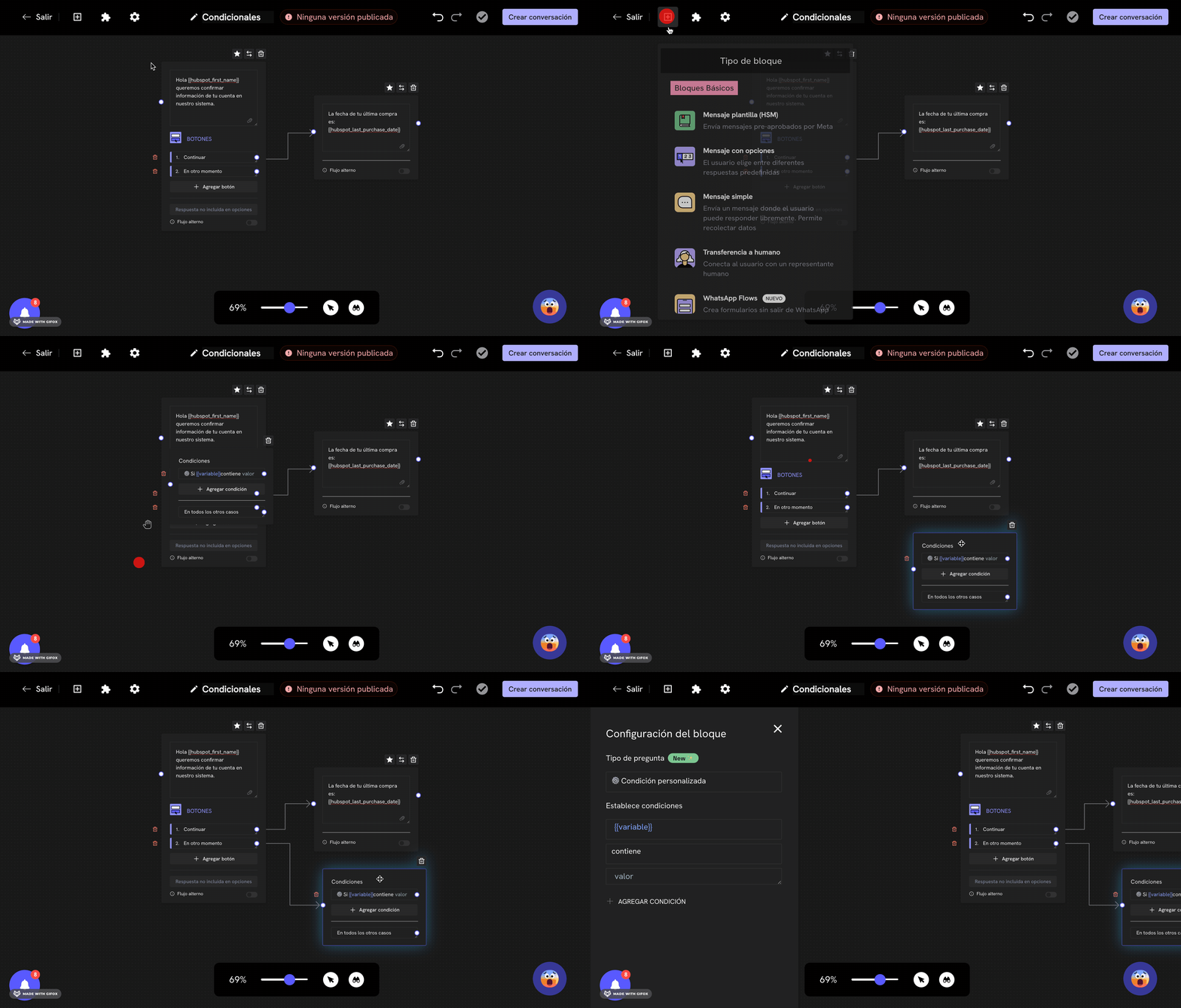 ## What is the conditional block?
The **conditional block** is one of the most powerful blocks in Treble. It allows you to create intelligent conversation flows that make automatic decisions based on user responses, native variables, custom variables and HubSpot contact properties.
This block evaluates a condition and directs the conversation flow to different paths depending on whether the condition is true or false. It's fundamental for creating personalized experiences and automating decision-making in your conversations.
## Before you start
Conditional blocks use different types of variables to evaluate conditions. Before you start, make sure you understand how they work:
### Variables in Treble
Conditional blocks use Treble variables to evaluate conditions. If you're not clear on how variables work, you can read our guide on variables here:
Learn to create and use custom variables and collected by the customer.
### Native variables
Native variables are special variables that the system automatically provides. You can use them directly in conditional blocks without needing to have captured them previously:
Learn about the native variables available in Treble.
### HubSpot variables (if you use the integration)
If you use the HubSpot integration, conditional blocks can also use HubSpot contact properties:
Learn to use HubSpot properties in your conditional blocks.
## Where to find the conditional block?
Sign in to Treble.ai at:
## What is the conditional block?
The **conditional block** is one of the most powerful blocks in Treble. It allows you to create intelligent conversation flows that make automatic decisions based on user responses, native variables, custom variables and HubSpot contact properties.
This block evaluates a condition and directs the conversation flow to different paths depending on whether the condition is true or false. It's fundamental for creating personalized experiences and automating decision-making in your conversations.
## Before you start
Conditional blocks use different types of variables to evaluate conditions. Before you start, make sure you understand how they work:
### Variables in Treble
Conditional blocks use Treble variables to evaluate conditions. If you're not clear on how variables work, you can read our guide on variables here:
Learn to create and use custom variables and collected by the customer.
### Native variables
Native variables are special variables that the system automatically provides. You can use them directly in conditional blocks without needing to have captured them previously:
Learn about the native variables available in Treble.
### HubSpot variables (if you use the integration)
If you use the HubSpot integration, conditional blocks can also use HubSpot contact properties:
Learn to use HubSpot properties in your conditional blocks.
## Where to find the conditional block?
Sign in to Treble.ai at: app.treble.ai
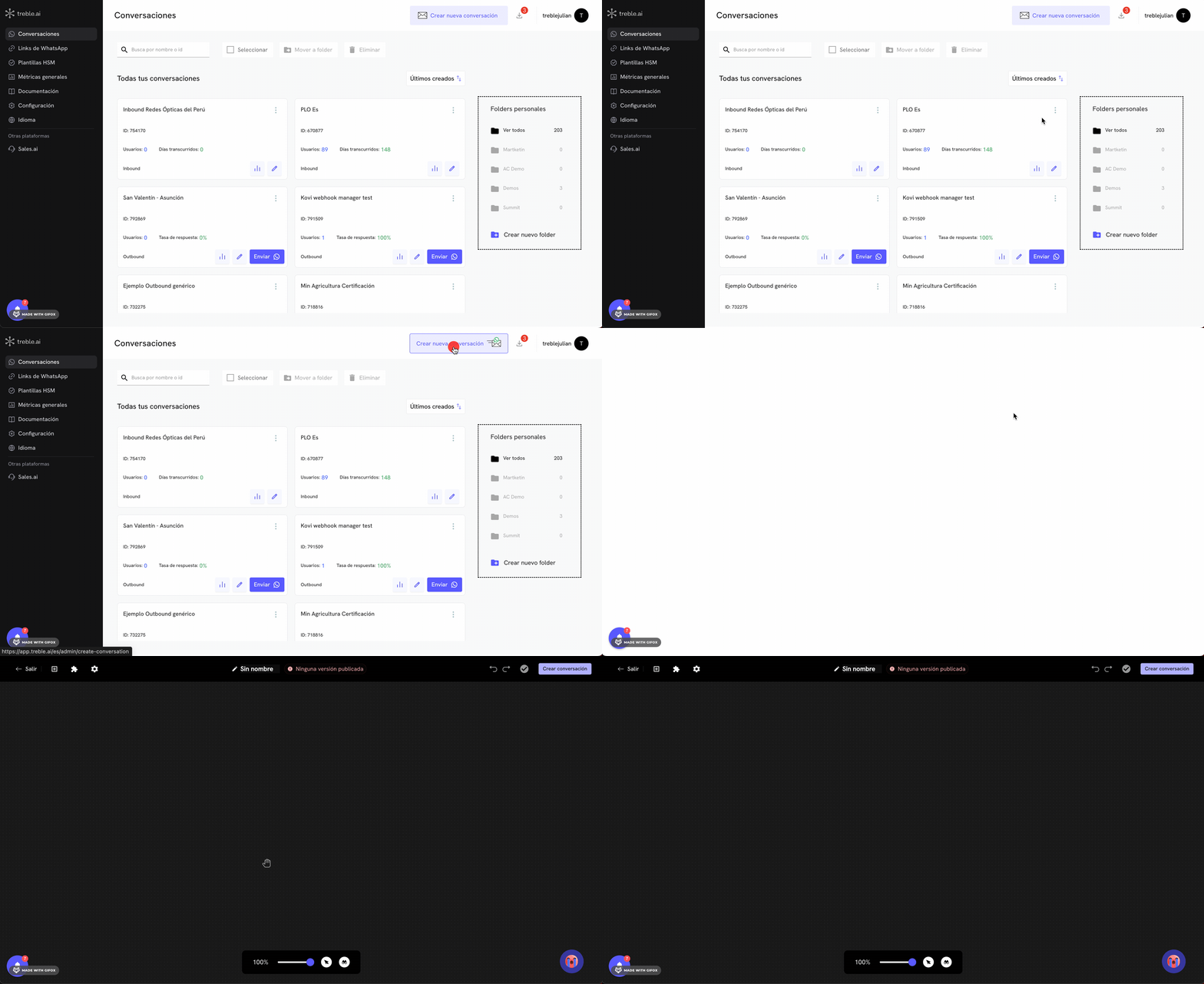
Go to the **Conversations** section and click on **Create new conversation** or edit an existing conversation.
 Once in the flow editor, click on the button in the top left panel to show the blocks menu.
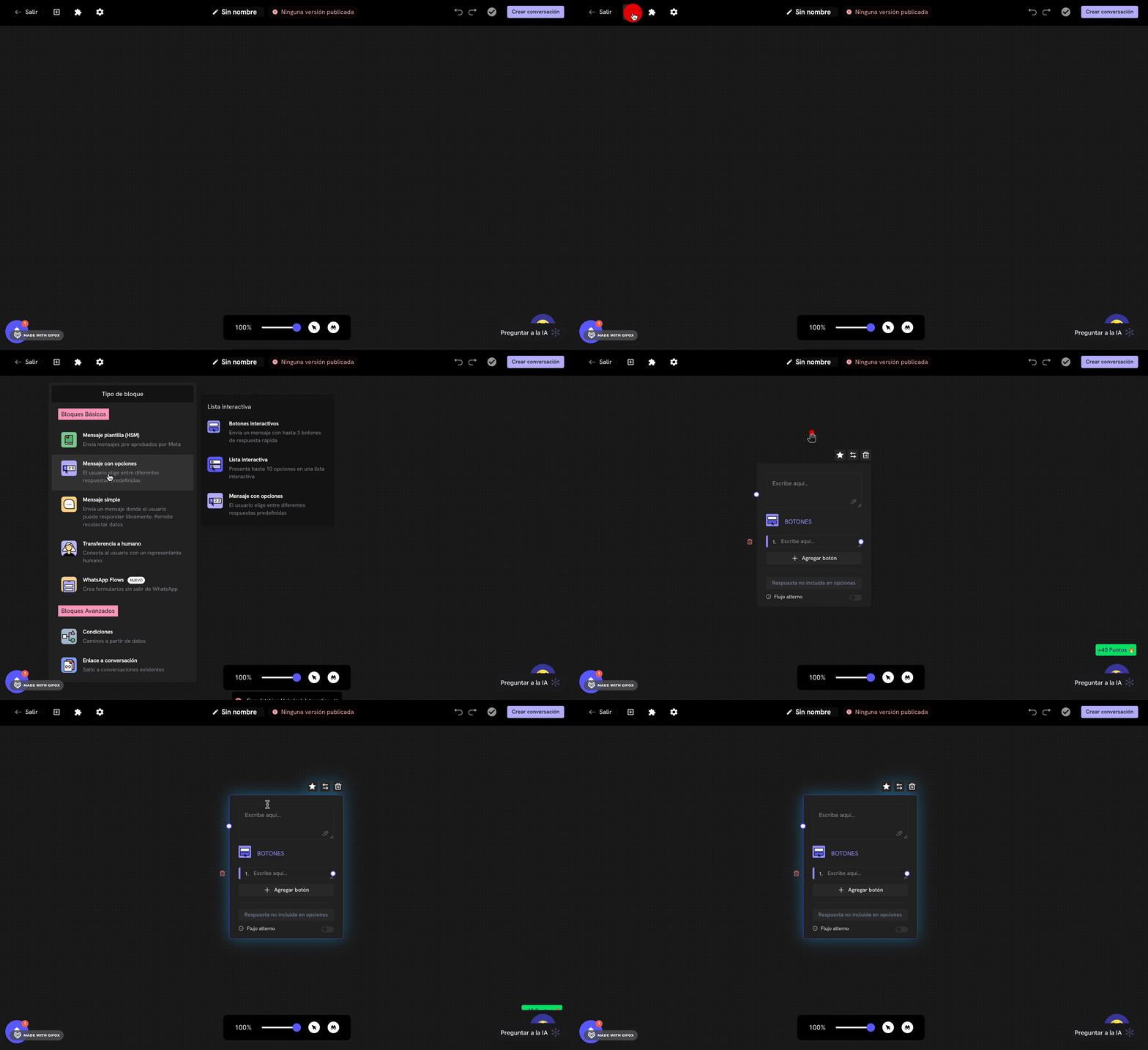 Scroll down in the blocks menu until you find the **Conditions** section. You'll see the **Conditions** block available to add to your flow.
Click on the **Conditions** block to add it to your conversation flow. The block will appear in the editor and you can move it to the position you want.
## Conditional block configuration
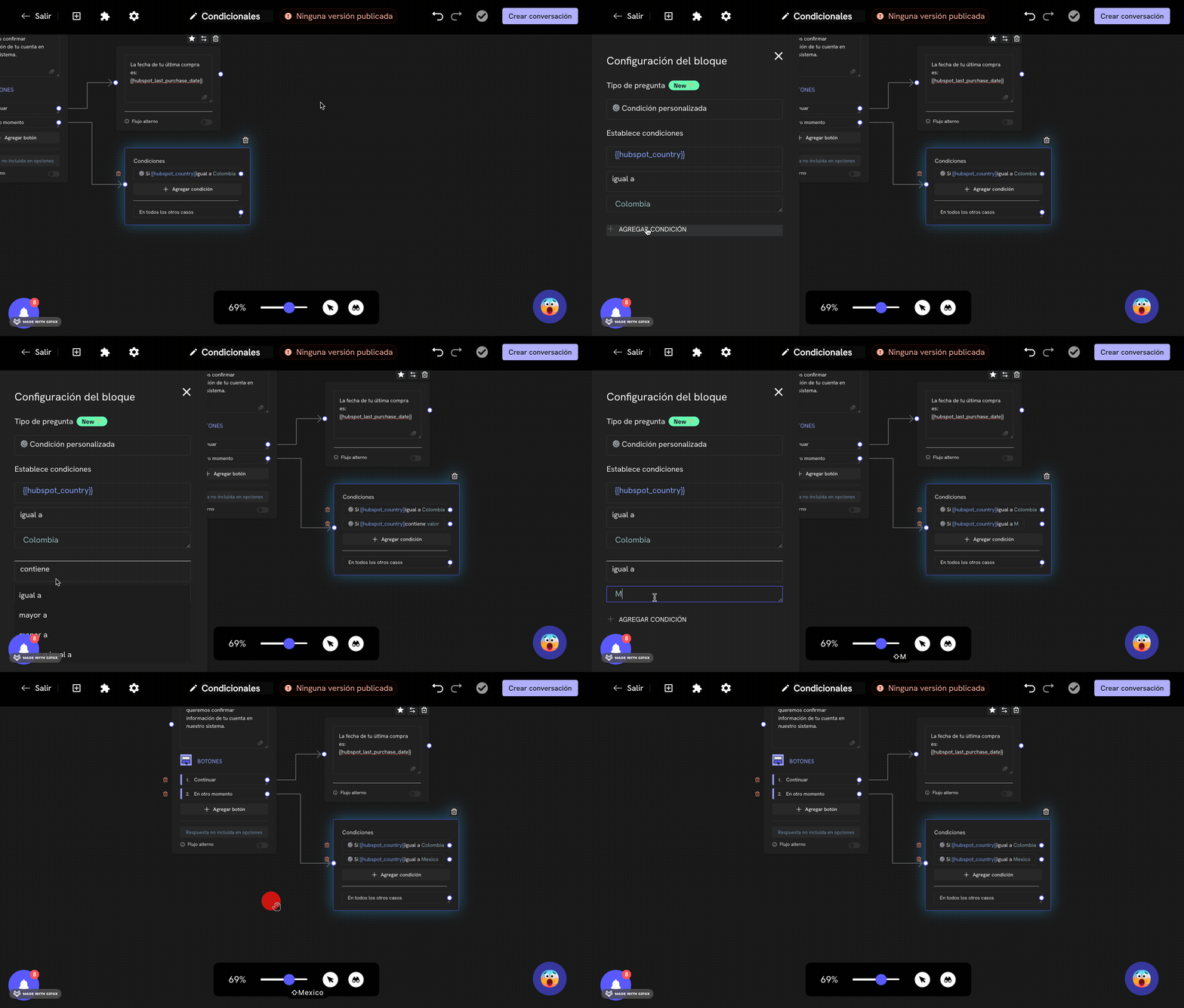
Once the conditional block is added to your flow, double-click on the block to open the configuration panel on the left side of the editor.
Scroll down in the blocks menu until you find the **Conditions** section. You'll see the **Conditions** block available to add to your flow.
Click on the **Conditions** block to add it to your conversation flow. The block will appear in the editor and you can move it to the position you want.
## Conditional block configuration
Once the conditional block is added to your flow, double-click on the block to open the configuration panel on the left side of the editor.
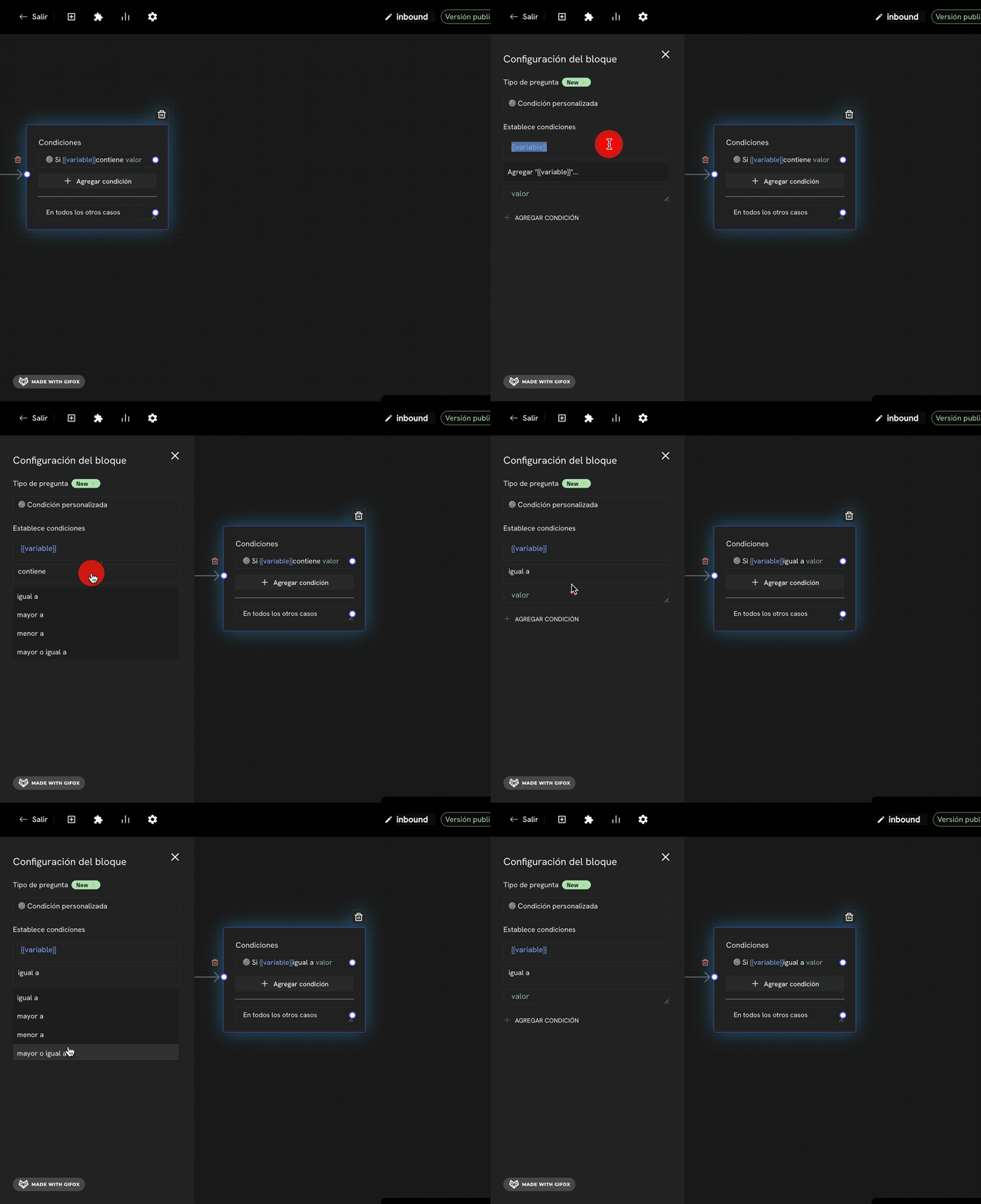 In the configuration panel, you'll see different types of conditions available:
* **Custom condition**: To evaluate Treble variables, native variables or HubSpot properties
* **Time condition**: To configure conditions based on time and business hours
Select **Custom condition** for most use cases.
In the **Set conditions** section, you'll configure three elements:
* **Variable**: The variable you want to evaluate (e.g., `age`, `country_code`, `inbound`)
* **Operator**: The comparison operator (e.g., Equal to, Greater than, Contains)
* **Value**: The value to compare against (e.g., `18`, `+57`, `Support`)
If you need to evaluate multiple conditions, click on the **Add condition** button to add more conditions to the same block.
In the configuration panel, you'll see different types of conditions available:
* **Custom condition**: To evaluate Treble variables, native variables or HubSpot properties
* **Time condition**: To configure conditions based on time and business hours
Select **Custom condition** for most use cases.
In the **Set conditions** section, you'll configure three elements:
* **Variable**: The variable you want to evaluate (e.g., `age`, `country_code`, `inbound`)
* **Operator**: The comparison operator (e.g., Equal to, Greater than, Contains)
* **Value**: The value to compare against (e.g., `18`, `+57`, `Support`)
If you need to evaluate multiple conditions, click on the **Add condition** button to add more conditions to the same block.
 ## Available operators
Treble offers 8 different operators to evaluate conditions:
| Operator | Description | Example |
| ---------------------------- | ------------------------------------------------------- | --------------------------------- |
| **Equal to** | Compares if the value is exactly equal | `age = 18` |
| **Greater than** | Compares if the value is greater | `age > 18` |
| **Less than** | Compares if the value is less | `age < 18` |
| **Greater than or equal to** | Compares if the value is greater than or equal | `age >= 18` |
| **Less than or equal to** | Compares if the value is less than or equal | `age <= 18` |
| **Contains** | Checks if the value contains the specified text | `message` contains `help` |
| **Does not contain** | Checks if the value does NOT contain the specified text | `message` does not contain `spam` |
| **Not equal to** | Compares if the value is different | `country != Colombia` |
## Use cases with native variables
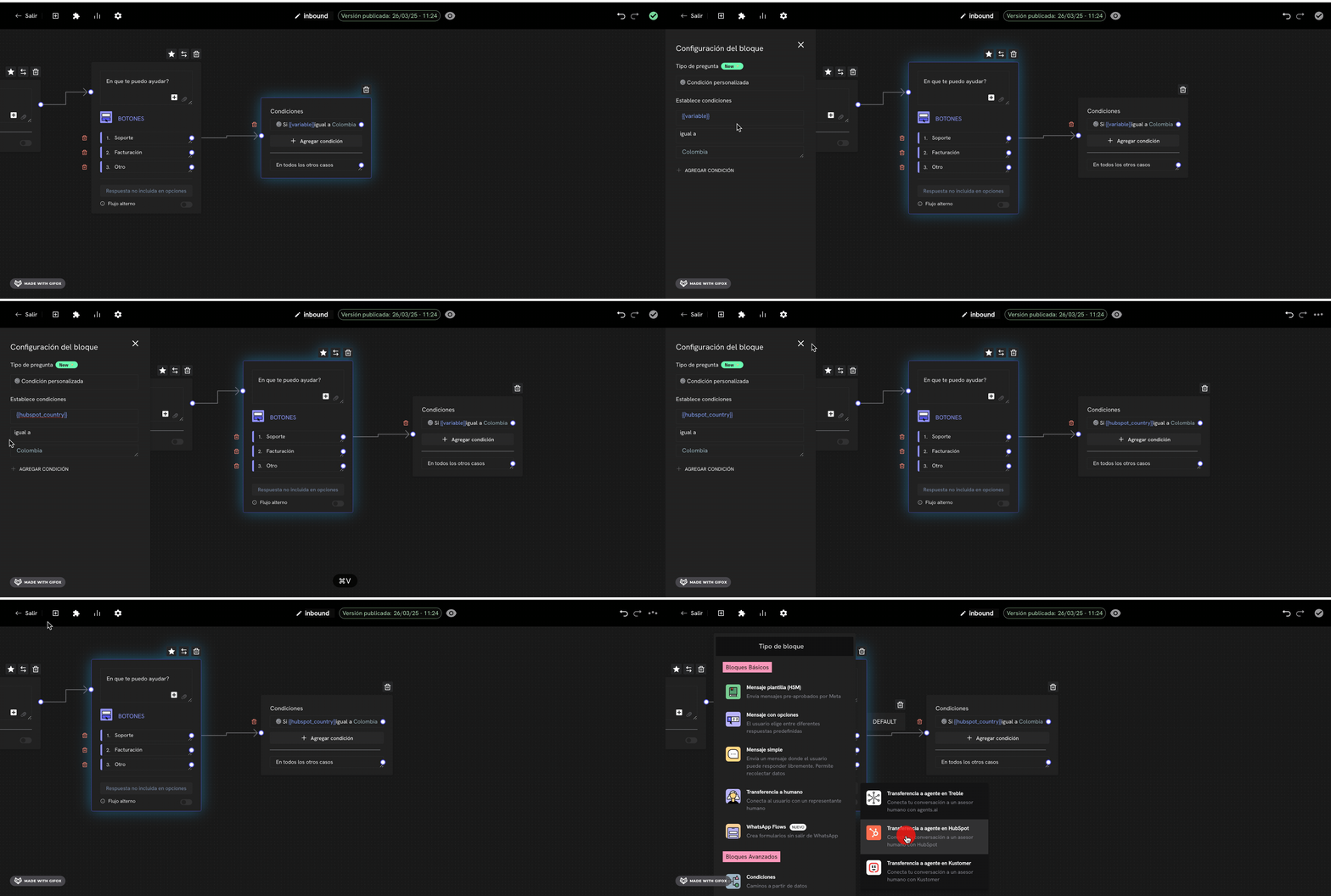
### Example 1: Redirect based on user's country
**Objective**: Automatically direct the customer to the agent who handles their country of residence.
**Configuration**:
* **Variable**: `country_code`
* **Operator**: Equal to
* **Value**: `+57` (Colombia)
**Flow**:
* If `country_code` = `+57` → Colombia Agent
* In all other cases → General Agent
## Available operators
Treble offers 8 different operators to evaluate conditions:
| Operator | Description | Example |
| ---------------------------- | ------------------------------------------------------- | --------------------------------- |
| **Equal to** | Compares if the value is exactly equal | `age = 18` |
| **Greater than** | Compares if the value is greater | `age > 18` |
| **Less than** | Compares if the value is less | `age < 18` |
| **Greater than or equal to** | Compares if the value is greater than or equal | `age >= 18` |
| **Less than or equal to** | Compares if the value is less than or equal | `age <= 18` |
| **Contains** | Checks if the value contains the specified text | `message` contains `help` |
| **Does not contain** | Checks if the value does NOT contain the specified text | `message` does not contain `spam` |
| **Not equal to** | Compares if the value is different | `country != Colombia` |
## Use cases with native variables
### Example 1: Redirect based on user's country
**Objective**: Automatically direct the customer to the agent who handles their country of residence.
**Configuration**:
* **Variable**: `country_code`
* **Operator**: Equal to
* **Value**: `+57` (Colombia)
**Flow**:
* If `country_code` = `+57` → Colombia Agent
* In all other cases → General Agent
 ### Example 2: Business hours
**Objective**: Show different messages according to the time of day.
**Configuration**:
* **Variable**: `time`
* **Operator**: Greater than or equal to
* **Value**: `09:00`
**Flow**:
* If `time` >= `09:00` and `time` \< `18:00` → Business hours message
* In all other cases → Out of hours message
### Example 3: Days of the week
**Objective**: Offer promotions only on weekends.
**Configuration**:
* **Variable**: `weekday`
* **Operator**: Greater than or equal to
* **Value**: `6` (Saturday)
**Flow**:
* If `weekday` >= `6` → Weekend promotion
* In all other cases → Regular message
### Example 4: Initial keywords
**Objective**: Route based on the keyword with which the user starts the conversation.
**Configuration**:
* **Variable**: `inbound`
* **Operator**: Equal to
* **Value**: `Support`
**Flow**:
* If `inbound` = `Support` → Support flow
* If `inbound` = `Sales` → Sales flow
* If `inbound` = `Quote` → Quote flow
* In all other cases → General menu
## Use cases with custom variables
### Example 1: Customer age
**Objective**: Offer different products based on customer age.
**Configuration**:
* **Variable**: `customer_age`
* **Operator**: Greater than or equal to
* **Value**: `18`
**Flow**:
* If `customer_age` >= `18` → Adult products
* In all other cases → Minor products
### Example 2: Problem type
**Objective**: Direct to different agents based on the type of problem reported.
**Configuration**:
* **Variable**: `problem_type`
* **Operator**: Contains
* **Value**: `technical`
**Flow**:
* If `problem_type` contains `technical` → Technical agent
* If `problem_type` contains `billing` → Billing agent
* In all other cases → General agent
## Compound conditions
### Example 1: Multiple conditions in one block
You can add multiple conditions in the same conditional block:
**Configuration**:
* Condition 1: `country_code` = `+57`
* Condition 2: `time` >= `09:00`
* Condition 3: `time` \< `18:00`
**Result**: The flow will follow the "Yes" path only if ALL conditions are true (Colombia user AND during business hours).
### Example 2: Conditional block followed by another conditional block
You can chain multiple conditional blocks to create complex flows:
### Example 2: Business hours
**Objective**: Show different messages according to the time of day.
**Configuration**:
* **Variable**: `time`
* **Operator**: Greater than or equal to
* **Value**: `09:00`
**Flow**:
* If `time` >= `09:00` and `time` \< `18:00` → Business hours message
* In all other cases → Out of hours message
### Example 3: Days of the week
**Objective**: Offer promotions only on weekends.
**Configuration**:
* **Variable**: `weekday`
* **Operator**: Greater than or equal to
* **Value**: `6` (Saturday)
**Flow**:
* If `weekday` >= `6` → Weekend promotion
* In all other cases → Regular message
### Example 4: Initial keywords
**Objective**: Route based on the keyword with which the user starts the conversation.
**Configuration**:
* **Variable**: `inbound`
* **Operator**: Equal to
* **Value**: `Support`
**Flow**:
* If `inbound` = `Support` → Support flow
* If `inbound` = `Sales` → Sales flow
* If `inbound` = `Quote` → Quote flow
* In all other cases → General menu
## Use cases with custom variables
### Example 1: Customer age
**Objective**: Offer different products based on customer age.
**Configuration**:
* **Variable**: `customer_age`
* **Operator**: Greater than or equal to
* **Value**: `18`
**Flow**:
* If `customer_age` >= `18` → Adult products
* In all other cases → Minor products
### Example 2: Problem type
**Objective**: Direct to different agents based on the type of problem reported.
**Configuration**:
* **Variable**: `problem_type`
* **Operator**: Contains
* **Value**: `technical`
**Flow**:
* If `problem_type` contains `technical` → Technical agent
* If `problem_type` contains `billing` → Billing agent
* In all other cases → General agent
## Compound conditions
### Example 1: Multiple conditions in one block
You can add multiple conditions in the same conditional block:
**Configuration**:
* Condition 1: `country_code` = `+57`
* Condition 2: `time` >= `09:00`
* Condition 3: `time` \< `18:00`
**Result**: The flow will follow the "Yes" path only if ALL conditions are true (Colombia user AND during business hours).
### Example 2: Conditional block followed by another conditional block
You can chain multiple conditional blocks to create complex flows:
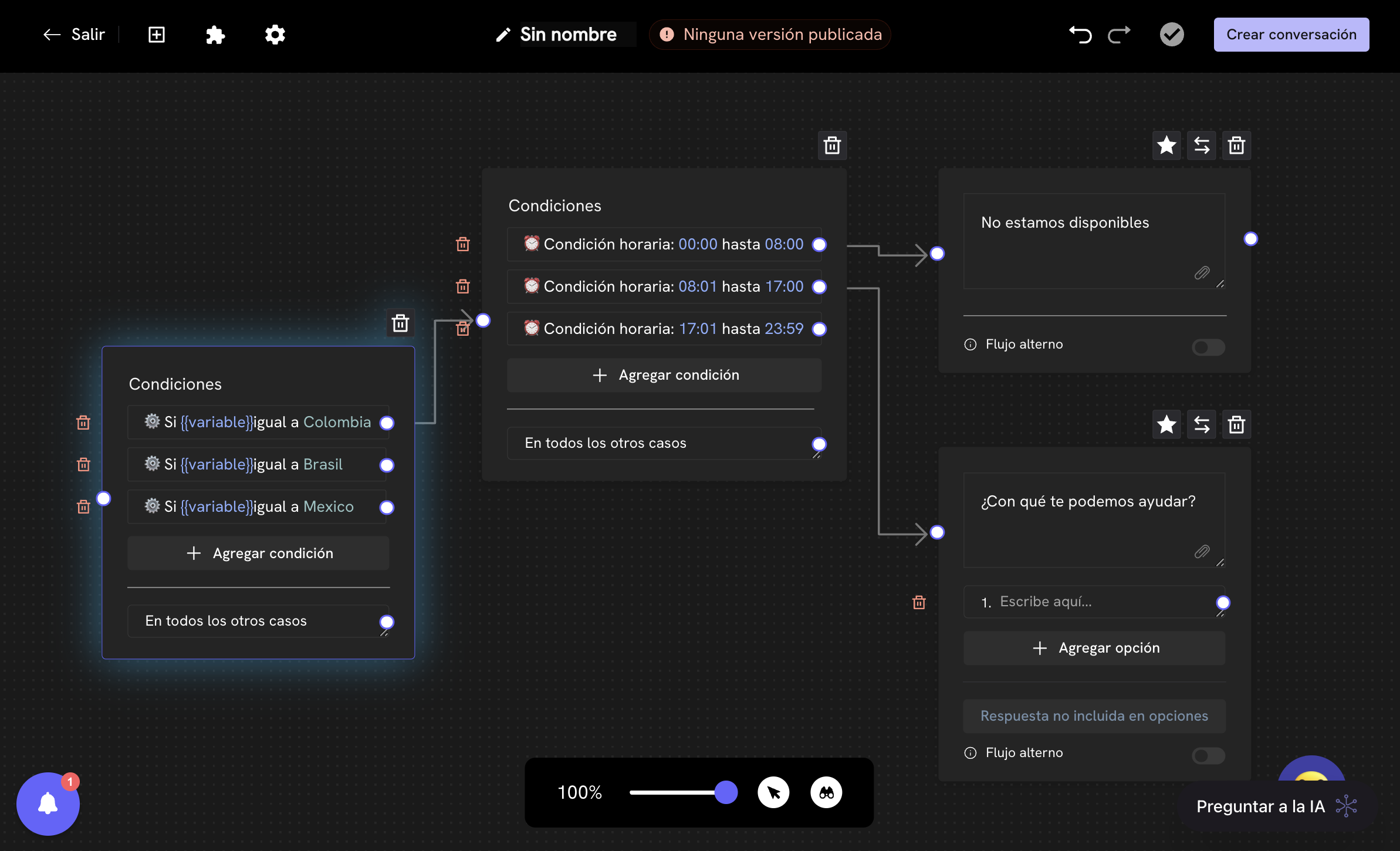 **Flow**:
1. First conditional block: Is the customer from Colombia?
* Yes → Second conditional block: Is it business hours?
* Yes → Colombia agent during business hours
* No → Colombia agent outside business hours
* No → Third conditional block: Is it business hours?
* Yes → International agent during business hours
* No → International agent outside business hours
## Using "In all other cases"
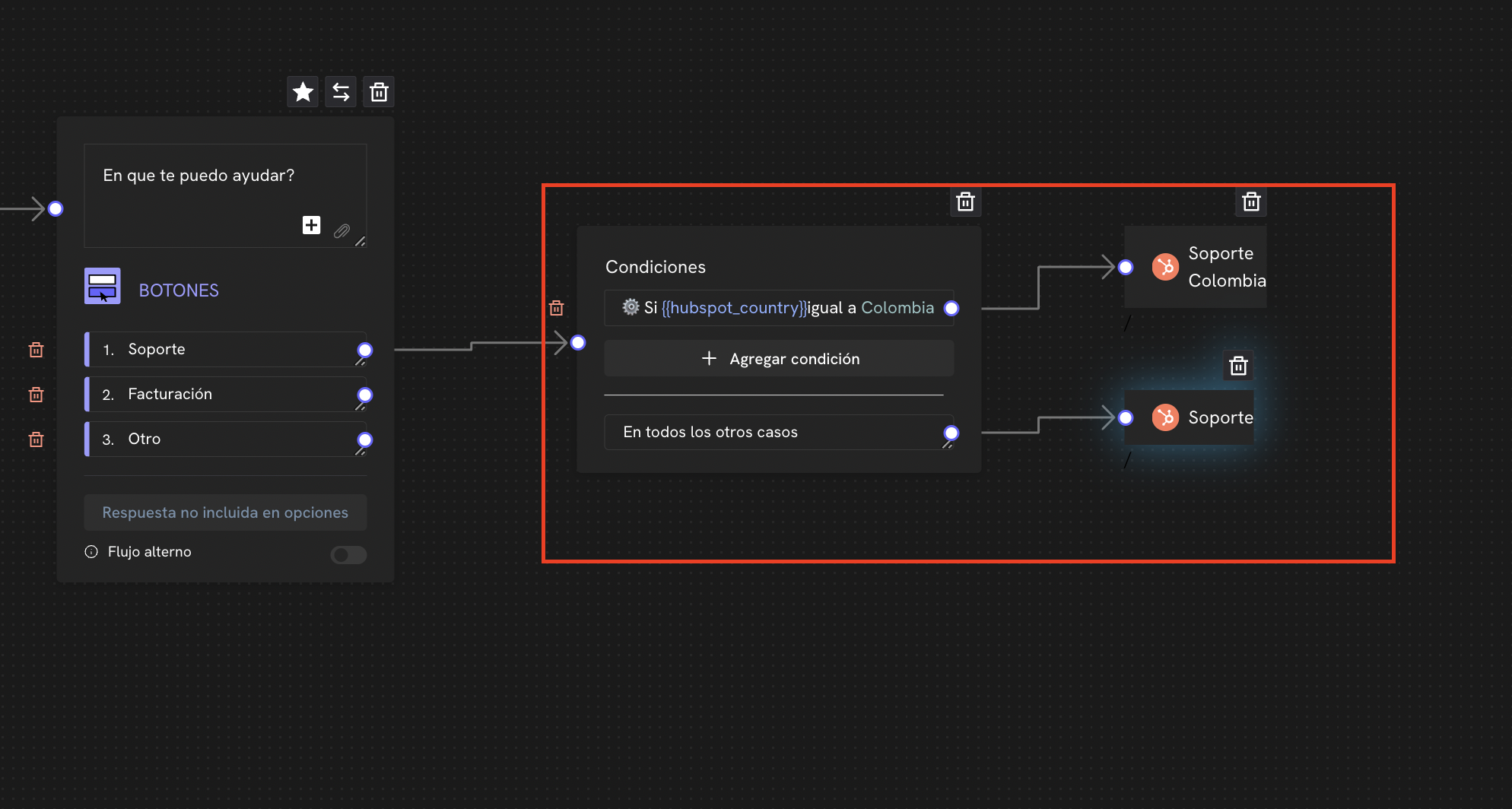
The **"In all other cases"** is fundamental in conditional blocks. It defines what happens when none of the configured conditions are met.
### Practical example:
**Configuration**:
* If `country_code` = `+57` → Colombia Agent
* If `country_code` = `+55` → Brazil Agent
* **In all other cases** → International Agent
**Important**: You must always connect the **"In all other cases"** to a message block or action. Never leave this route unconnected.
**Flow**:
1. First conditional block: Is the customer from Colombia?
* Yes → Second conditional block: Is it business hours?
* Yes → Colombia agent during business hours
* No → Colombia agent outside business hours
* No → Third conditional block: Is it business hours?
* Yes → International agent during business hours
* No → International agent outside business hours
## Using "In all other cases"
The **"In all other cases"** is fundamental in conditional blocks. It defines what happens when none of the configured conditions are met.
### Practical example:
**Configuration**:
* If `country_code` = `+57` → Colombia Agent
* If `country_code` = `+55` → Brazil Agent
* **In all other cases** → International Agent
**Important**: You must always connect the **"In all other cases"** to a message block or action. Never leave this route unconnected.
 ## Schedule and time configuration
To configure time-based conditions, you can use the **Time condition**:
Learn to configure schedules and time in Treble.
### Time condition configuration example:
**Configuration**:
* **Type**: Time condition
* **Time zone**: America/Bogota
* **Schedule**: 09:00 - 18:00 (Monday to Friday)
**Flow**:
* If it's business hours → Regular agent
* In all other cases → Out of hours message
## Best practices
### 1. Always connect "In all other cases"
Never leave this route unconnected. It should always lead to a message block or action.
### 2. Use descriptive names for variables
Instead of `var1`, use names like `customer_age`, `problem_type`, `user_country`.
### 3. Test your conditions
Before deploying, verify that your conditions work correctly with different values.
### 4. Keep flows simple
Avoid creating overly complex flows. If you have many conditions, consider splitting them into multiple blocks.
### 5. Document your decisions
Use comments in message blocks to document why you made certain decisions in the flow.
## Common troubleshooting
### Problem: The block doesn't work as expected
**Solution**: Verify that:
* The variable exists and has the correct value
* The operator is appropriate for the data type
* The comparison value is in the correct format
### Problem: Multiple conditions don't work
**Solution**: Remember that all conditions must be met for the flow to follow the "Yes" path. If you need only one to be met, use separate conditional blocks.
### Problem: Time condition doesn't work
**Solution**: Verify that:
* The time zone is configured correctly
* Times are in 24-hour format
* Days of the week are configured correctly
## Advanced examples
### Example 1: Intelligent support system
**Objective**: Create a system that automatically directs based on country, schedule and problem type.
**Flow**:
1. Conditional block: Is it business hours?
* Yes → Conditional block: Is the customer from Colombia?
* Yes → Colombia agent
* No → International agent
* No → Out of hours message
### Example 2: Personalized sales system
**Objective**: Offer products based on customer age and country.
**Flow**:
1. Conditional block: Is the customer of legal age?
* Yes → Conditional block: Is the customer from Brazil?
* Yes → Adult products in Brazil
* No → International adult products
* No → Minor products
### Example 3: Conversation router
**Objective**: Automatically route based on initial keyword.
**Flow**:
1. Conditional block: What is the initial keyword?
* If `inbound` = `Support` → Support flow
* If `inbound` = `Sales` → Sales flow
* If `inbound` = `Billing` → Billing flow
* In all other cases → Main menu
Perfect! Now you know how to use the conditional block to create intelligent and personalized conversation flows in Treble.
## Next steps
Learn to use native variables in your conditional blocks.
Learn to configure schedules and time in your conversations.
## Schedule and time configuration
To configure time-based conditions, you can use the **Time condition**:
Learn to configure schedules and time in Treble.
### Time condition configuration example:
**Configuration**:
* **Type**: Time condition
* **Time zone**: America/Bogota
* **Schedule**: 09:00 - 18:00 (Monday to Friday)
**Flow**:
* If it's business hours → Regular agent
* In all other cases → Out of hours message
## Best practices
### 1. Always connect "In all other cases"
Never leave this route unconnected. It should always lead to a message block or action.
### 2. Use descriptive names for variables
Instead of `var1`, use names like `customer_age`, `problem_type`, `user_country`.
### 3. Test your conditions
Before deploying, verify that your conditions work correctly with different values.
### 4. Keep flows simple
Avoid creating overly complex flows. If you have many conditions, consider splitting them into multiple blocks.
### 5. Document your decisions
Use comments in message blocks to document why you made certain decisions in the flow.
## Common troubleshooting
### Problem: The block doesn't work as expected
**Solution**: Verify that:
* The variable exists and has the correct value
* The operator is appropriate for the data type
* The comparison value is in the correct format
### Problem: Multiple conditions don't work
**Solution**: Remember that all conditions must be met for the flow to follow the "Yes" path. If you need only one to be met, use separate conditional blocks.
### Problem: Time condition doesn't work
**Solution**: Verify that:
* The time zone is configured correctly
* Times are in 24-hour format
* Days of the week are configured correctly
## Advanced examples
### Example 1: Intelligent support system
**Objective**: Create a system that automatically directs based on country, schedule and problem type.
**Flow**:
1. Conditional block: Is it business hours?
* Yes → Conditional block: Is the customer from Colombia?
* Yes → Colombia agent
* No → International agent
* No → Out of hours message
### Example 2: Personalized sales system
**Objective**: Offer products based on customer age and country.
**Flow**:
1. Conditional block: Is the customer of legal age?
* Yes → Conditional block: Is the customer from Brazil?
* Yes → Adult products in Brazil
* No → International adult products
* No → Minor products
### Example 3: Conversation router
**Objective**: Automatically route based on initial keyword.
**Flow**:
1. Conditional block: What is the initial keyword?
* If `inbound` = `Support` → Support flow
* If `inbound` = `Sales` → Sales flow
* If `inbound` = `Billing` → Billing flow
* In all other cases → Main menu
Perfect! Now you know how to use the conditional block to create intelligent and personalized conversation flows in Treble.
## Next steps
Learn to use native variables in your conditional blocks.
Learn to configure schedules and time in your conversations.