> ## Documentation Index
> Fetch the complete documentation index at: https://help.treble.ai/llms.txt
> Use this file to discover all available pages before exploring further.
# SLA Automations
> Create rules that monitor your conversation response times and run automatic actions when a threshold is exceeded: send a message, notify by email or webhook, change an agent's status or start a Treble conversation.
**SLA Automations** let you define service-level (SLA) rules over your conversations. Each rule monitors a response time —for example, how long an agent takes to give the first response— and, when that time is **exceeded**, runs one or more **actions** automatically. This lets you react in time when a conversation is delayed, without having to monitor it manually.
Each automation has two parts:
* **When met** → the **condition**: the time being monitored and the threshold at which the rule fires.
* **Then** → the **action(s)**: what Treble does when the condition is met.
Each rule runs **once per conversation**. If the same conversation exceeds the threshold again later, the rule won't fire again for that conversation.
***
## Step by step
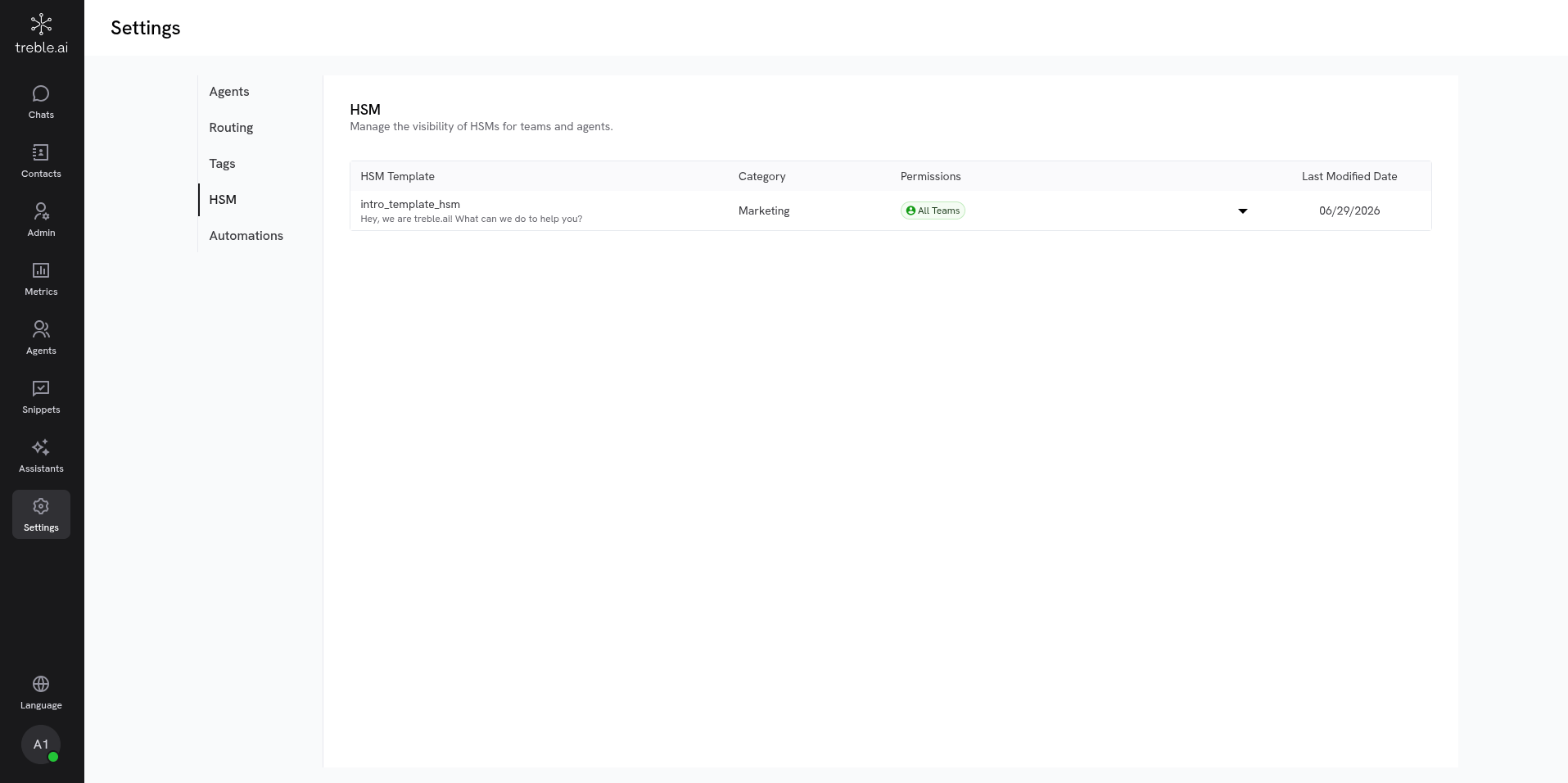
Go to **Settings** on your platform and select the **Automations** section.
Here you'll see the list of existing automations, sorted from newest to oldest.
 Click the **Create automation** button to start.
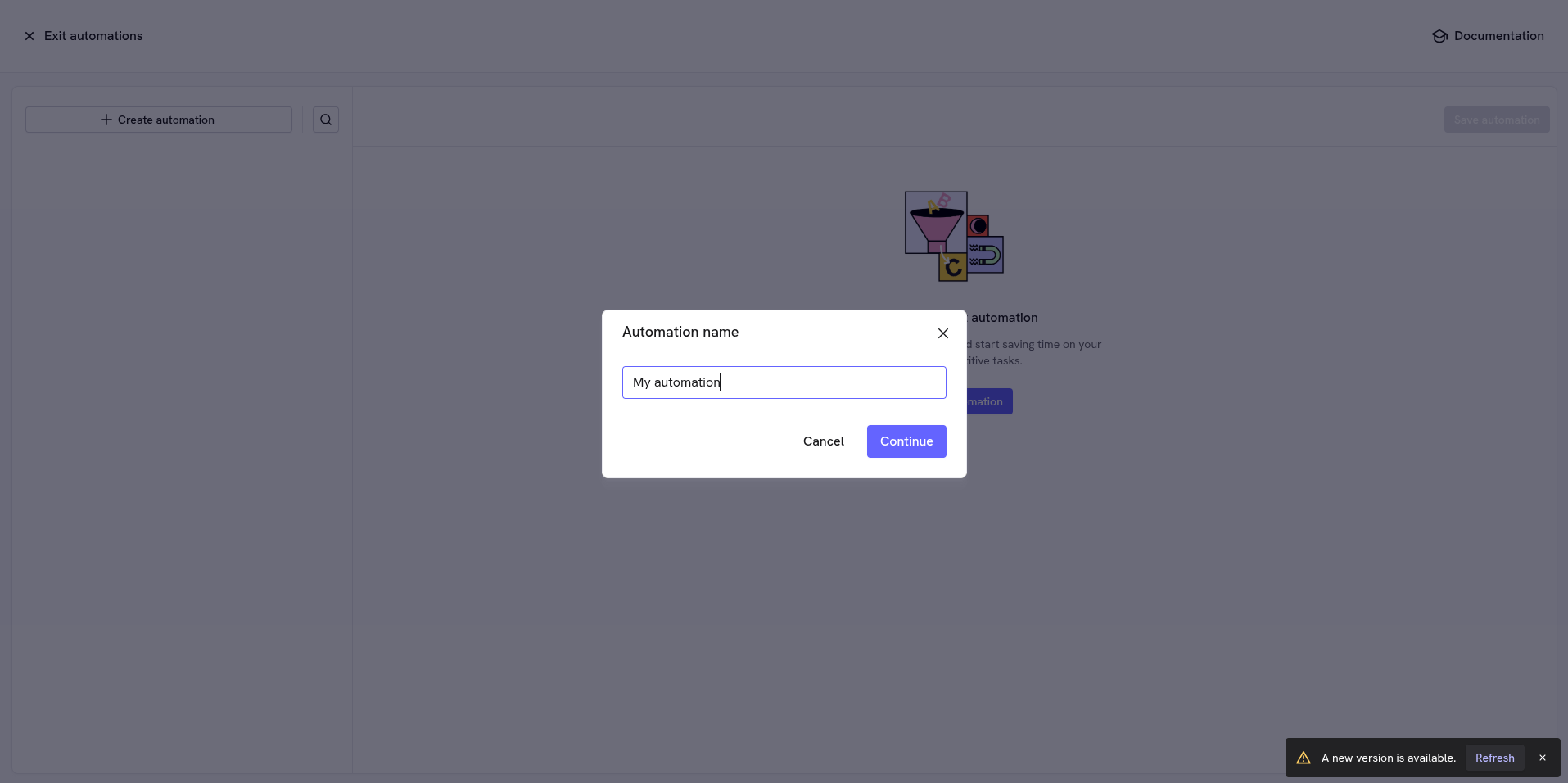
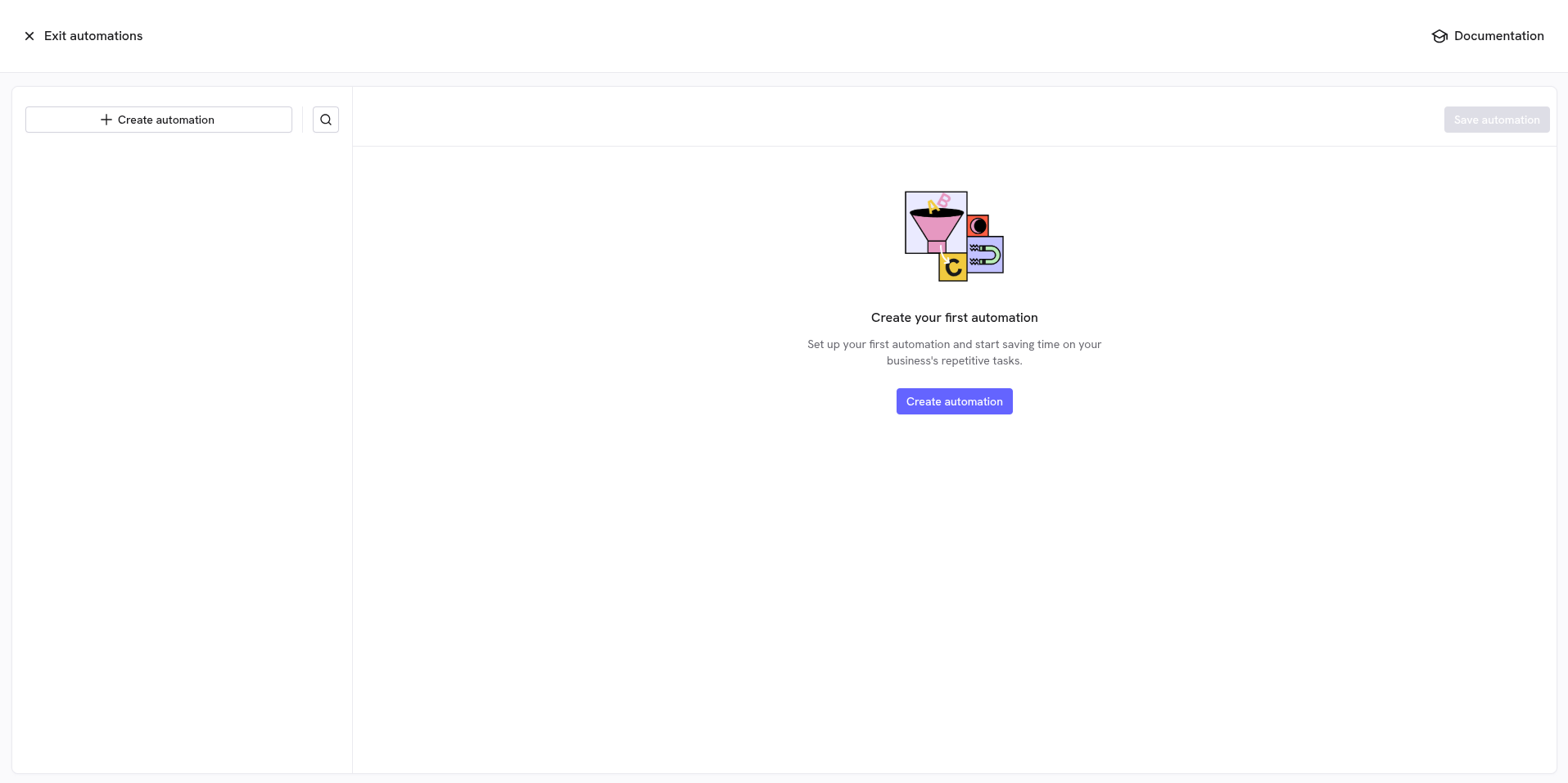 Type a **name** that describes what the automation monitors (for example,
"First response > 10 min") and click **Continue**.
Type a **name** that describes what the automation monitors (for example,
"First response > 10 min") and click **Continue**.
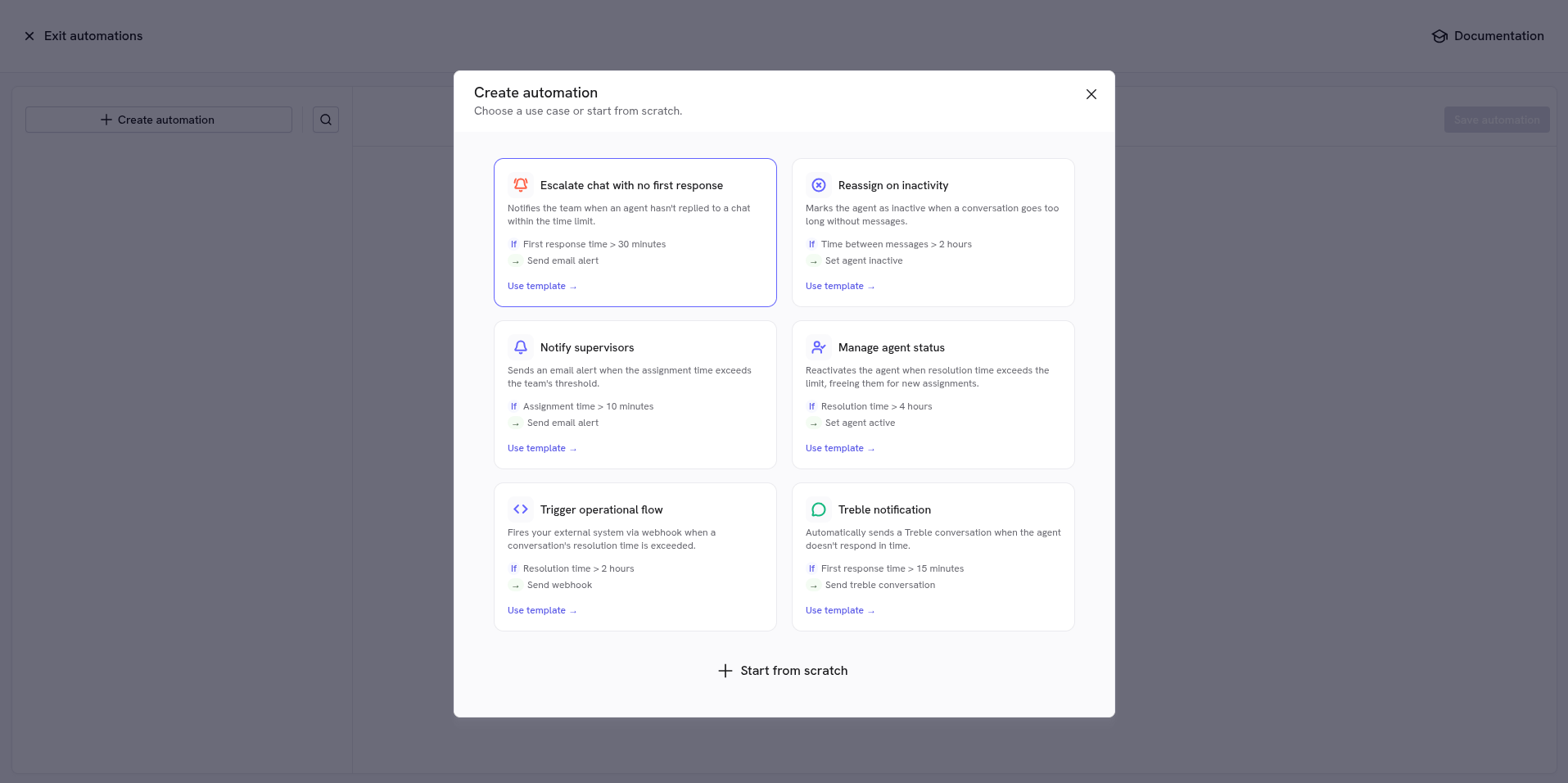
 Select a **template** with a ready-made use case or choose **Start from scratch**
to configure the condition and actions manually.
Select a **template** with a ready-made use case or choose **Start from scratch**
to configure the condition and actions manually.
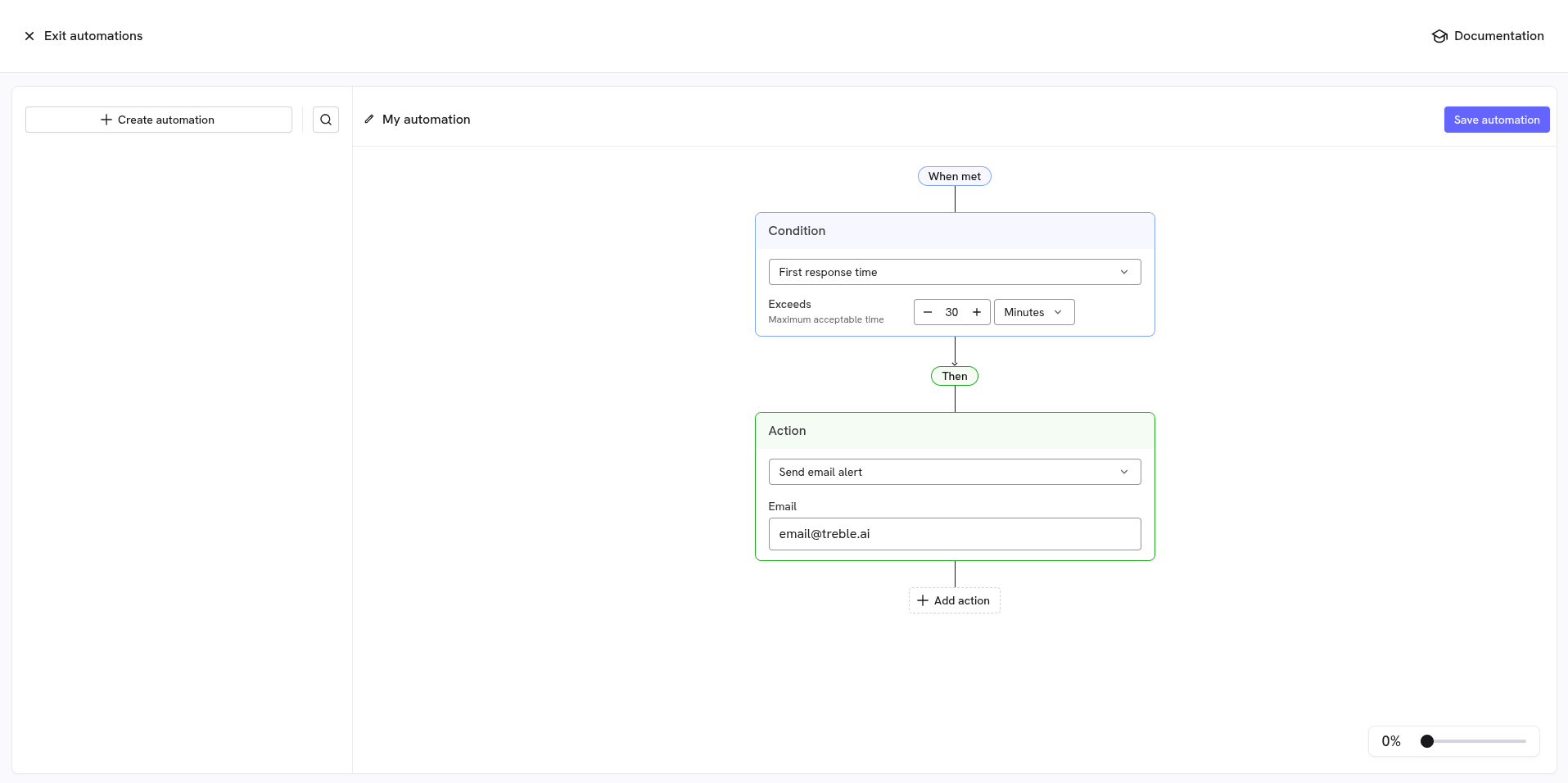
 The automation is built on a canvas with two blocks: **When met** (the condition) and
**Then** (the actions).
* **Condition**: defines which conversation time is monitored and the **threshold** that fires it. See [Conditions](#conditions).
* **Actions**: what happens when the threshold is exceeded. See [Actions](#actions).
When done, click **Save automation**.
The automation is built on a canvas with two blocks: **When met** (the condition) and
**Then** (the actions).
* **Condition**: defines which conversation time is monitored and the **threshold** that fires it. See [Conditions](#conditions).
* **Actions**: what happens when the threshold is exceeded. See [Actions](#actions).
When done, click **Save automation**.
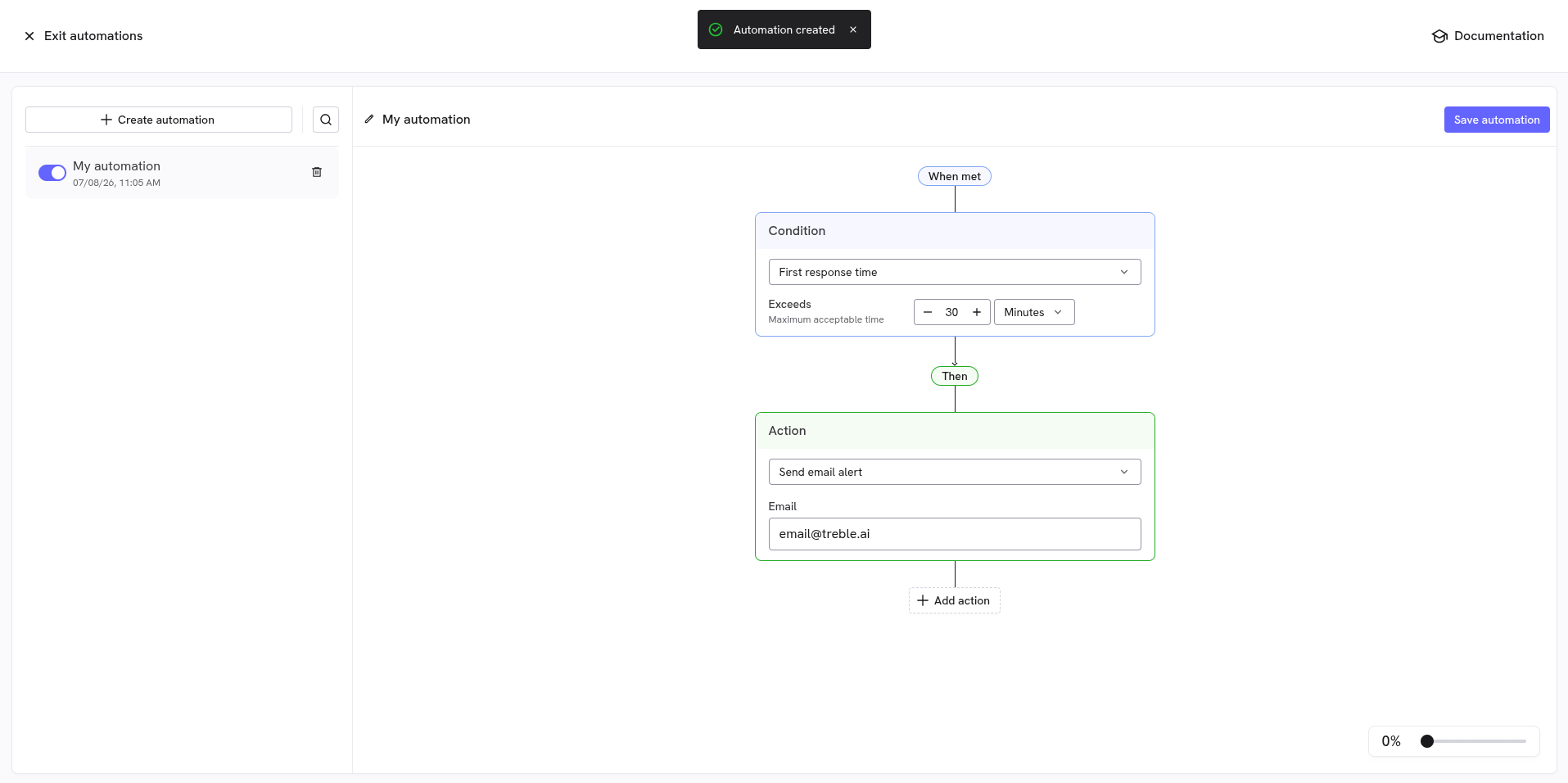
 The automation will be saved and you'll be able to see it listed in the left sidebar.
Done! Your SLA automation is configured and active.
The automation will be saved and you'll be able to see it listed in the left sidebar.
Done! Your SLA automation is configured and active.
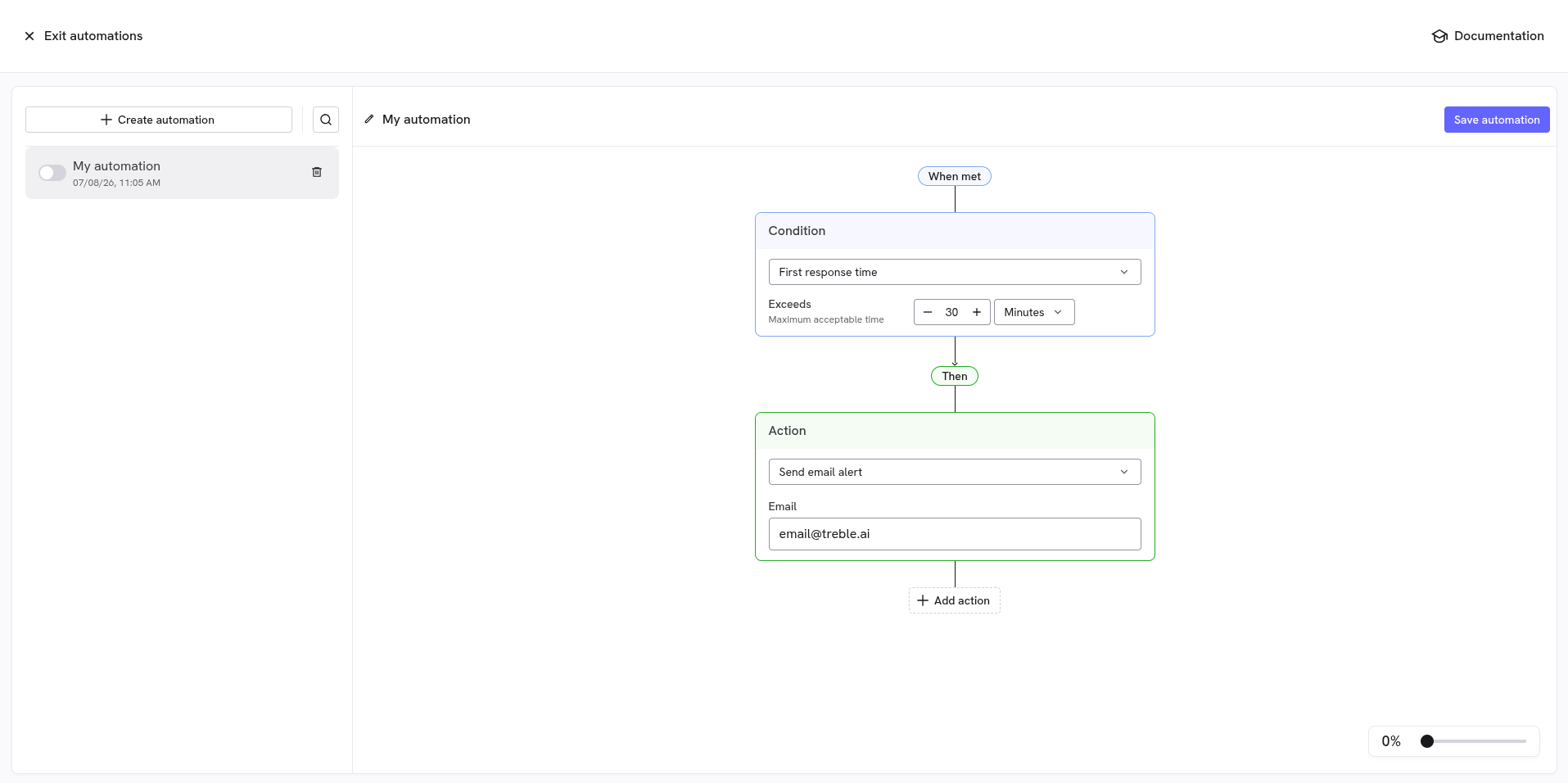
 You can **enable or disable** any automation using the switch next to its name
in the sidebar, without having to delete it.
You can **enable or disable** any automation using the switch next to its name
in the sidebar, without having to delete it.
 ***
## Conditions
The condition defines **which time is monitored** and the **threshold** that fires it. It reads as:
*"\[time] **exceeds** \[value] minutes/hours"*.
The minimum threshold is **5 minutes**.
| Condition | What it measures | Fires when… |
| ------------------------- | ----------------------------------------------------------------------------- | ------------------------------------------------------ |
| **First response time** | The time from the customer's first message until an agent's first reply. | No agent replied within the threshold. |
| **Assignment time** | The time from when the conversation comes in until it's assigned to an agent. | The conversation wasn't assigned within the threshold. |
| **Resolution time** | The time from when the conversation starts until it's resolved (closed). | The conversation wasn't resolved within the threshold. |
| **Time between messages** | The time elapsed since the last message without a reply. | The threshold passes without a new message. |
### Maximum acceptable time
Besides the threshold, you can set a **Maximum acceptable time**. The rule only applies to conversations **newer** than that time, to avoid firing on old conversations that no longer make sense to act on.
***
## Actions
When the condition is met, Treble runs the actions you configured. You can add **several actions** to a single automation with **Add action**.
### Send automatic message
Sends an **automatic WhatsApp message** to the customer in the conversation. Type the text in the **Message** field.
### Send email alert
Sends an **email alert** to the address you enter in the **Email** field. Useful to notify a supervisor when an SLA is breached.
### Send webhook
Makes a **POST** request to the endpoint you set in **Endpoint URL**. You can leave it with **No authentication** or add a **Token / API Key** that will be sent in the `Authorization` header.
### Send Treble conversation
Starts a **Treble conversation** (a flow) with the customer, through the **same number** they already have the conversation on.
The selector only shows conversations that are **push notifications** and that **have no variables to fill**. Conversations with variables can't be used here because those variables would arrive empty. If none qualify, the selector won't appear.
### Set agent active
Sets the agent assigned to the conversation to **active**, so they start receiving conversations again.
### Set agent inactive
Sets the assigned agent to **inactive**, to stop assigning new conversations to them.
***
## Important considerations
* **Runs once per conversation.** The same rule won't fire twice for the same conversation.
* **Enable/disable without deleting.** Use each automation's switch in the list to pause it temporarily.
* **Several actions per rule.** You can combine, for example, an automatic message to the customer and an email alert to the supervisor in the same automation.
***
## Conclusion and next steps
With SLA Automations you can ensure consistent response times and react automatically when a conversation is delayed, without manual monitoring.
Discover all the features available for your agent team.
Automatically mark agents inactive when they stop responding.
***
## Conditions
The condition defines **which time is monitored** and the **threshold** that fires it. It reads as:
*"\[time] **exceeds** \[value] minutes/hours"*.
The minimum threshold is **5 minutes**.
| Condition | What it measures | Fires when… |
| ------------------------- | ----------------------------------------------------------------------------- | ------------------------------------------------------ |
| **First response time** | The time from the customer's first message until an agent's first reply. | No agent replied within the threshold. |
| **Assignment time** | The time from when the conversation comes in until it's assigned to an agent. | The conversation wasn't assigned within the threshold. |
| **Resolution time** | The time from when the conversation starts until it's resolved (closed). | The conversation wasn't resolved within the threshold. |
| **Time between messages** | The time elapsed since the last message without a reply. | The threshold passes without a new message. |
### Maximum acceptable time
Besides the threshold, you can set a **Maximum acceptable time**. The rule only applies to conversations **newer** than that time, to avoid firing on old conversations that no longer make sense to act on.
***
## Actions
When the condition is met, Treble runs the actions you configured. You can add **several actions** to a single automation with **Add action**.
### Send automatic message
Sends an **automatic WhatsApp message** to the customer in the conversation. Type the text in the **Message** field.
### Send email alert
Sends an **email alert** to the address you enter in the **Email** field. Useful to notify a supervisor when an SLA is breached.
### Send webhook
Makes a **POST** request to the endpoint you set in **Endpoint URL**. You can leave it with **No authentication** or add a **Token / API Key** that will be sent in the `Authorization` header.
### Send Treble conversation
Starts a **Treble conversation** (a flow) with the customer, through the **same number** they already have the conversation on.
The selector only shows conversations that are **push notifications** and that **have no variables to fill**. Conversations with variables can't be used here because those variables would arrive empty. If none qualify, the selector won't appear.
### Set agent active
Sets the agent assigned to the conversation to **active**, so they start receiving conversations again.
### Set agent inactive
Sets the assigned agent to **inactive**, to stop assigning new conversations to them.
***
## Important considerations
* **Runs once per conversation.** The same rule won't fire twice for the same conversation.
* **Enable/disable without deleting.** Use each automation's switch in the list to pause it temporarily.
* **Several actions per rule.** You can combine, for example, an automatic message to the customer and an email alert to the supervisor in the same automation.
***
## Conclusion and next steps
With SLA Automations you can ensure consistent response times and react automatically when a conversation is delayed, without manual monitoring.
Discover all the features available for your agent team.
Automatically mark agents inactive when they stop responding.