> ## Documentation Index
> Fetch the complete documentation index at: https://help.treble.ai/llms.txt
> Use this file to discover all available pages before exploring further.
# Push Notifications Setup
> Enable platform push notifications by configuring both your browser and system settings. This guide will help you properly set up notifications on desktop (Mac and Windows) and mobile devices (Android and iOS).
## Why is it useful?
Push notifications allow you to stay informed in real-time about updates in your chats, even when you're not actively using the platform. This facilitates more agile and efficient task management.
* Receive immediate alerts for new chats or actions that require your attention.
* Improve your response times without constantly monitoring the platform.
## Prerequisites
Before you begin, make sure that:
* You are not using a **private or incognito window**
* **Notifications are enabled** in both the browser and system settings
* **Do Not Disturb** or **Focus** mode is **disabled**
* You have a **stable internet connection**
Configure notifications for Mac and Windows devices
Configure notifications for Android and iOS devices
## Desktop Setup
***
### Browser Configuration
Click on the **site information icon** in the address bar (may appear as a lock icon or sliders)
Make sure notifications are turned on by clicking the slider.
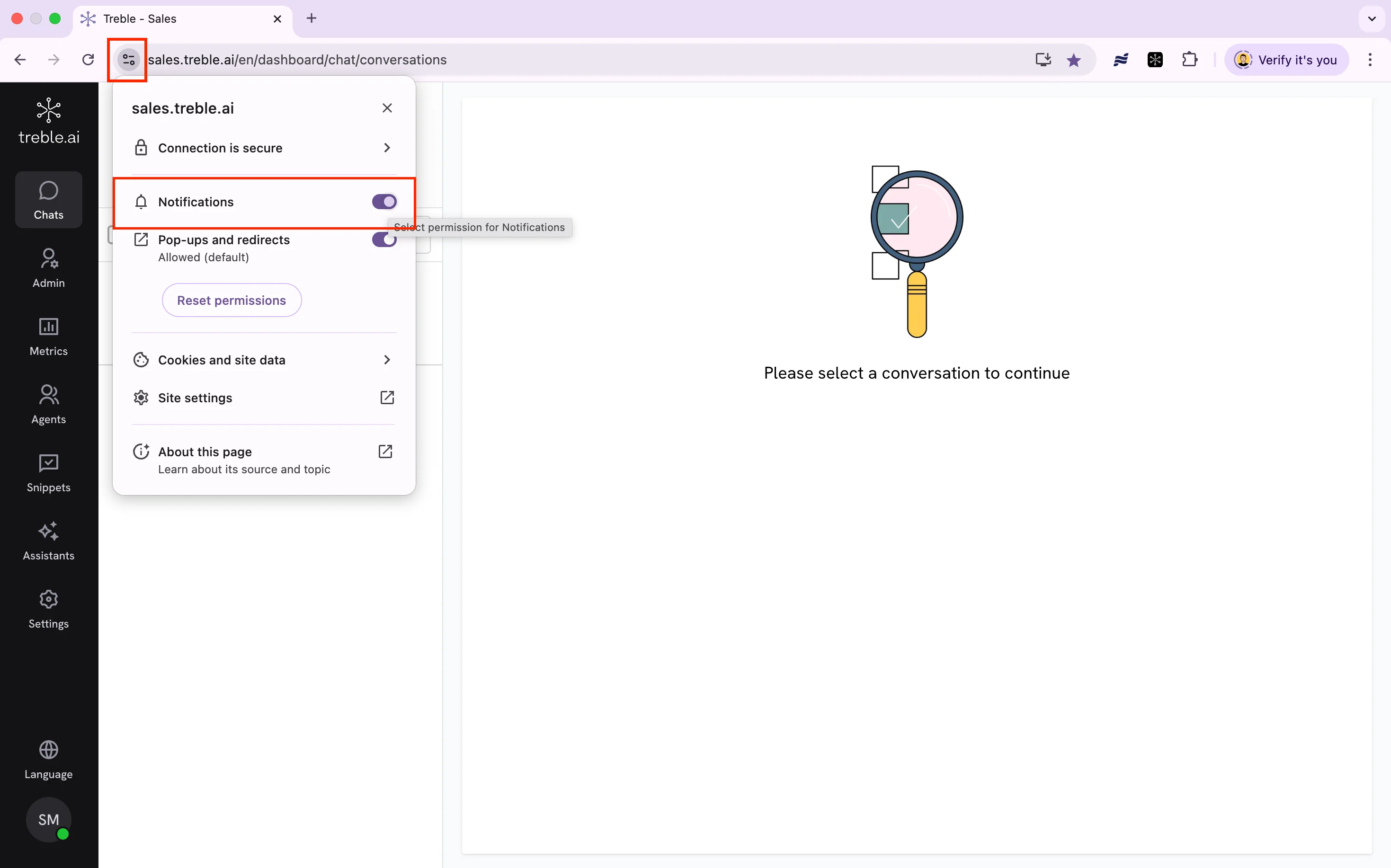 That's all you need to do in your browser if you use Chrome.
Go to **Safari > Settings** (or **Preferences** in earlier versions)
Navigate to the **Websites** tab
Select **Notifications** in the left sidebar
That's all you need to do in your browser if you use Chrome.
Go to **Safari > Settings** (or **Preferences** in earlier versions)
Navigate to the **Websites** tab
Select **Notifications** in the left sidebar
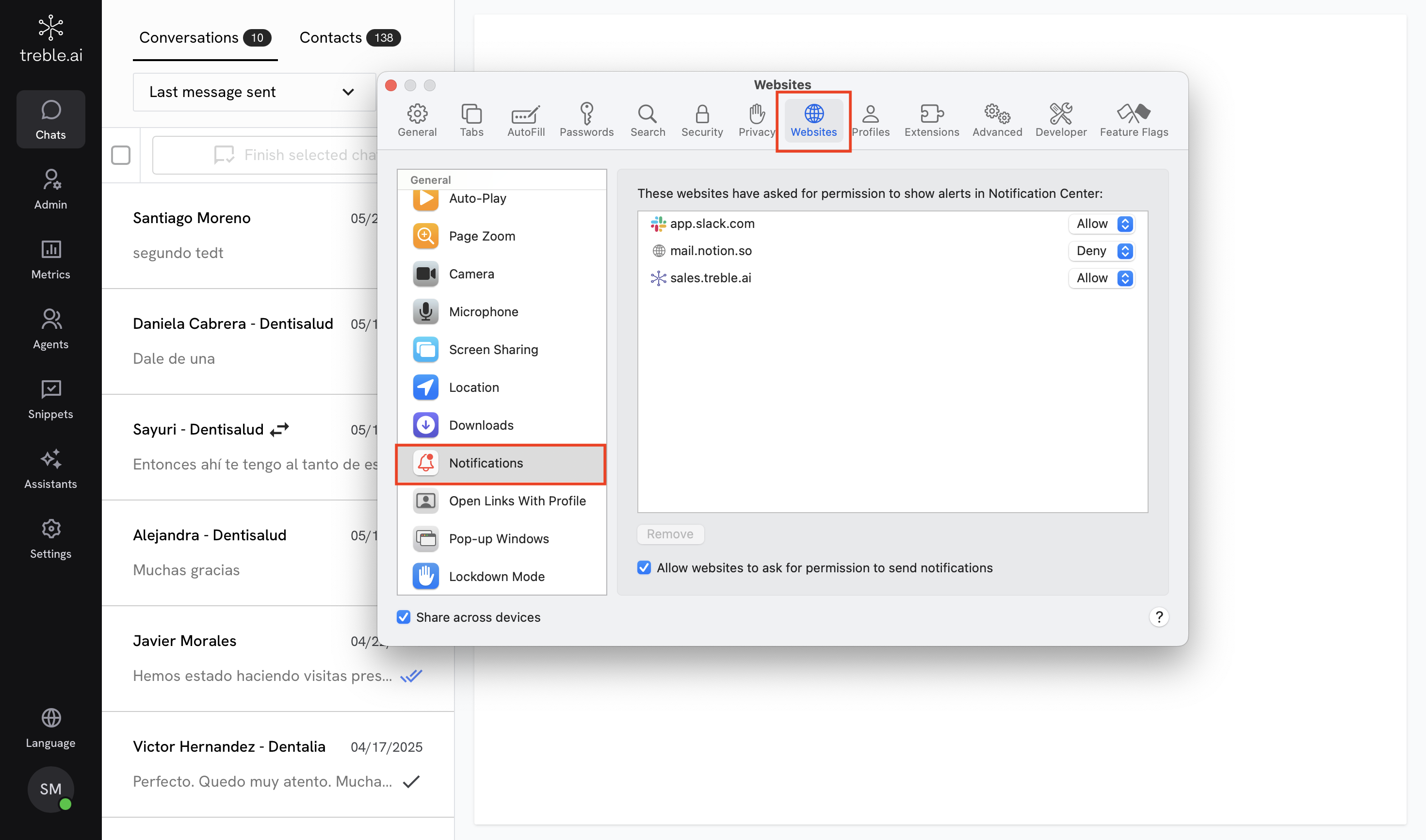 Make sure sales.treble.ai is set to **Allow**
If it doesn't appear in the list, enable the option **"Allow websites to ask for permission to send notifications"**
When visiting the platform, click **Allow** when prompted by the browser
### System Configuration
Go to **Settings > System > Notifications**
Verify that **Notifications** are enabled globally
Find your browser (e.g., **Chrome**) and ensure it has permission to send notifications
Go to **Settings > System > Focus assist** and make sure it's set to **Off** or **Priority only**, with your browser included as a priority sender
Go to **System Settings > Notifications**
Look for your browser (e.g., **Chrome** or **Safari**) in the apps list. You might also see [sales.treble.ai](http://sales.treble.ai) if you use **Safari**
Make sure sales.treble.ai is set to **Allow**
If it doesn't appear in the list, enable the option **"Allow websites to ask for permission to send notifications"**
When visiting the platform, click **Allow** when prompted by the browser
### System Configuration
Go to **Settings > System > Notifications**
Verify that **Notifications** are enabled globally
Find your browser (e.g., **Chrome**) and ensure it has permission to send notifications
Go to **Settings > System > Focus assist** and make sure it's set to **Off** or **Priority only**, with your browser included as a priority sender
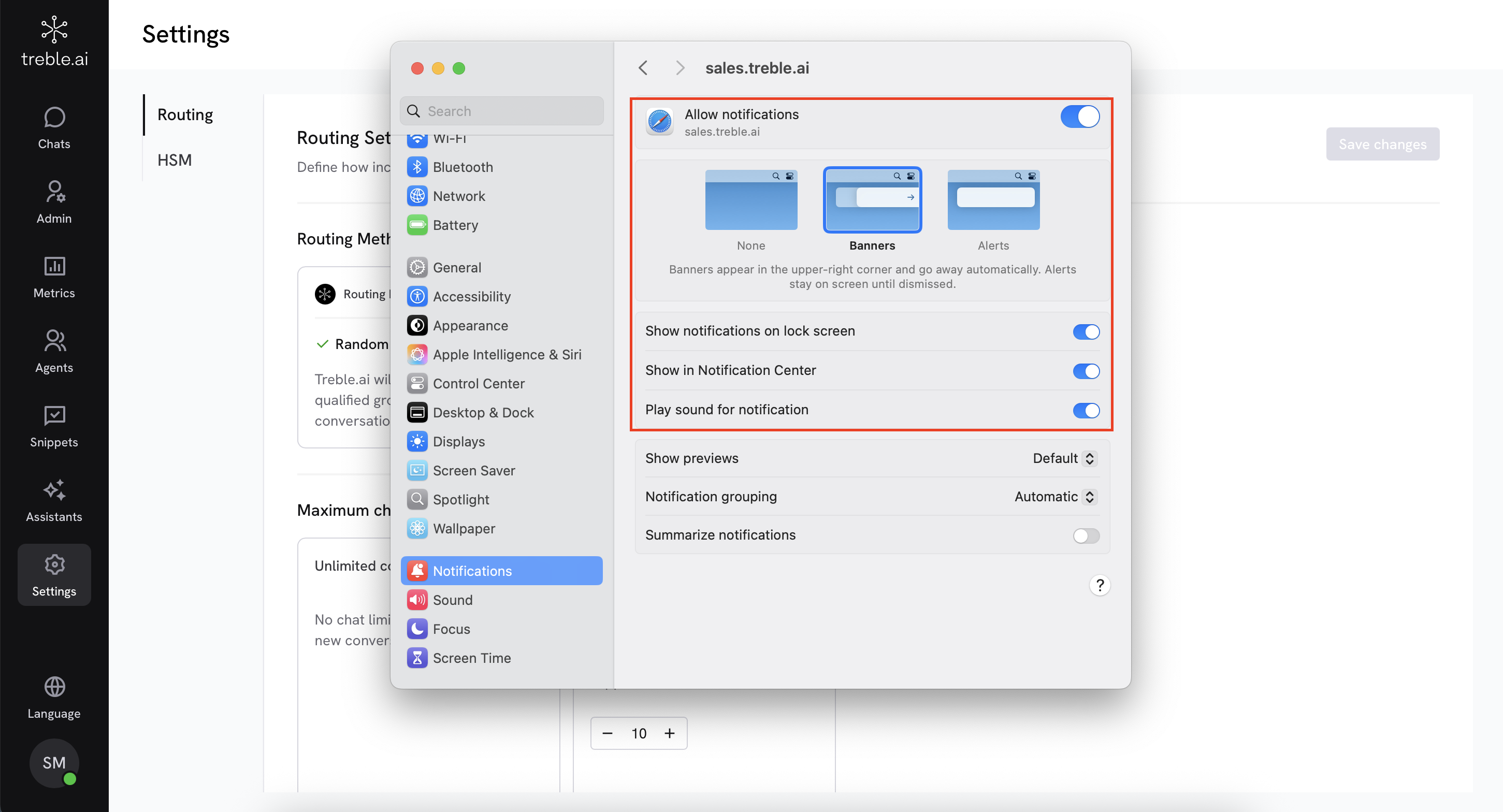
Go to **System Settings > Notifications**
Look for your browser (e.g., **Chrome** or **Safari**) in the apps list. You might also see [sales.treble.ai](http://sales.treble.ai) if you use **Safari**
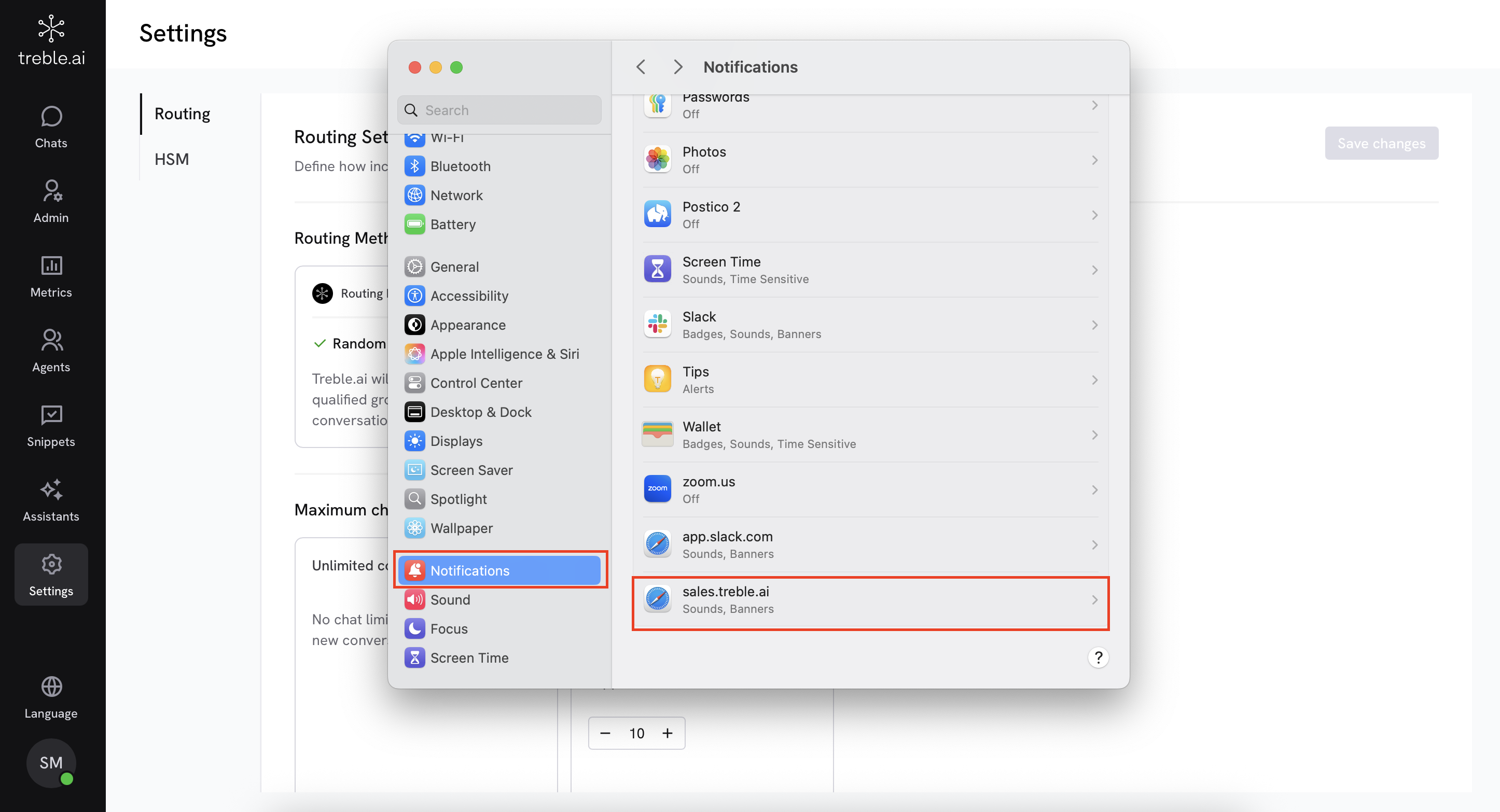 Make sure the **Allow notifications** option is enabled
 Verify that **Focus** mode is disabled in **Control Center > Focus**
## Mobile Setup
***
Go to **Settings > Apps & notifications > Chrome**
Tap **Notifications** and verify they are enabled
Make sure **Do Not Disturb** mode is disabled in device settings
Go to **Settings > Notifications**
Look for the **Treble** option. If you experience any issues, make sure to also configure the browser notifications (**Safari or Chrome**).
Verify that **Focus** mode is disabled in **Control Center > Focus**
## Mobile Setup
***
Go to **Settings > Apps & notifications > Chrome**
Tap **Notifications** and verify they are enabled
Make sure **Do Not Disturb** mode is disabled in device settings
Go to **Settings > Notifications**
Look for the **Treble** option. If you experience any issues, make sure to also configure the browser notifications (**Safari or Chrome**).
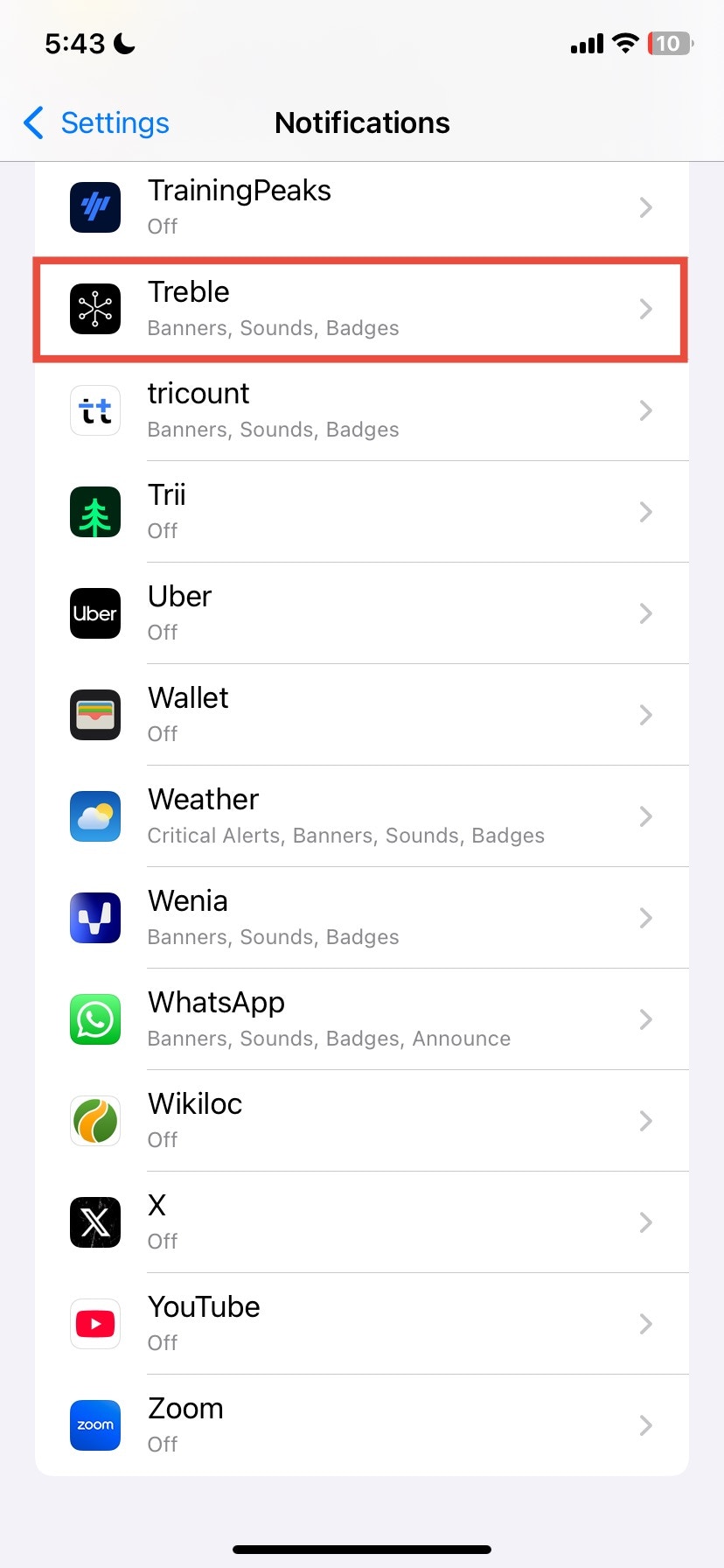 Enable the **Allow notifications** option
Go to **Settings > Focus** and verify that **Do Not Disturb** or any active mode is disabled
## Troubleshooting
If you still don't receive notifications after following all the previous steps:
* Try another browser or device to isolate the problem
* Review system and browser settings again
* Make sure your device is not in battery saver mode or focus mode
* Contact the support team for personalized assistance
Enable the **Allow notifications** option
Go to **Settings > Focus** and verify that **Do Not Disturb** or any active mode is disabled
## Troubleshooting
If you still don't receive notifications after following all the previous steps:
* Try another browser or device to isolate the problem
* Review system and browser settings again
* Make sure your device is not in battery saver mode or focus mode
* Contact the support team for personalized assistance