> ## Documentation Index
> Fetch the complete documentation index at: https://help.treble.ai/llms.txt
> Use this file to discover all available pages before exploring further.
# How to Sort and Filter Conversations
> Learn how to use treble.ai's chat view to work with focus, track conversations, and never miss an important interaction.
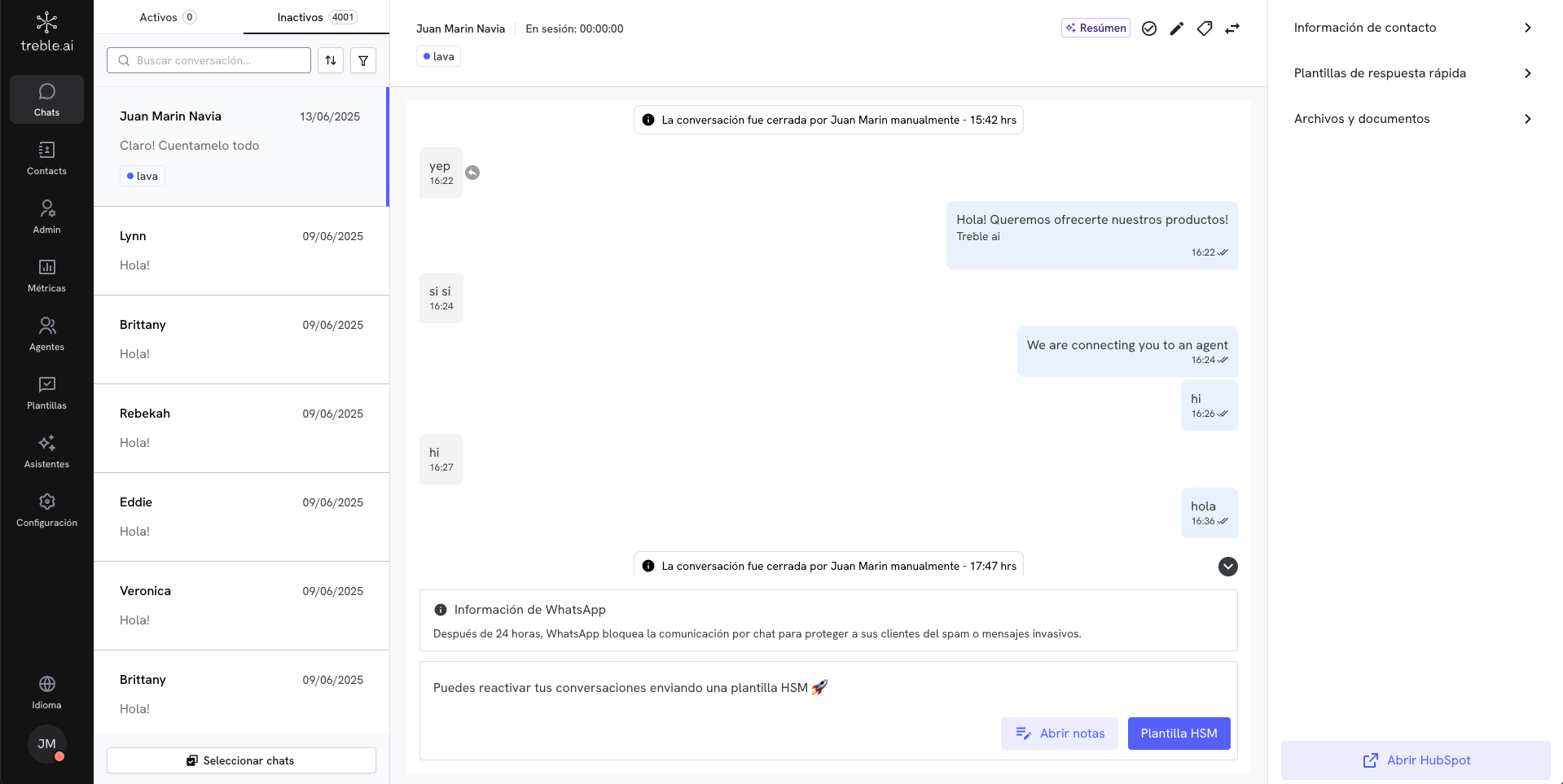 The chat view in treble.ai is designed to help you prioritize what's important: responding to those who need it most. Whether you're handling dozens or hundreds of conversations per day, this tool allows you to quickly find the right chats and take action without wasting time.
With options to search, sort, and filter conversations —plus separating active from inactive ones— you can work with focus, keep your inbox clean, and ensure good follow-up.
## Active and Inactive Conversations
At the top of the chat view, you'll see two tabs:
The chat view in treble.ai is designed to help you prioritize what's important: responding to those who need it most. Whether you're handling dozens or hundreds of conversations per day, this tool allows you to quickly find the right chats and take action without wasting time.
With options to search, sort, and filter conversations —plus separating active from inactive ones— you can work with focus, keep your inbox clean, and ensure good follow-up.
## Active and Inactive Conversations
At the top of the chat view, you'll see two tabs:
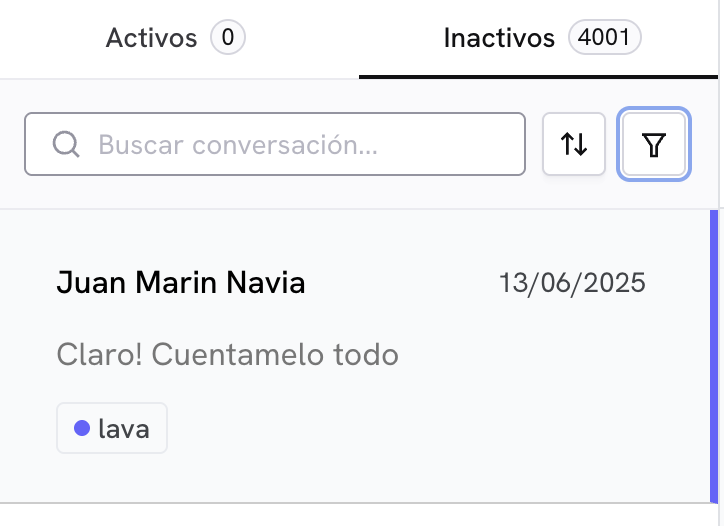 * **Active**: conversations that have an active WhatsApp chat window. In this tab, you'll find all the conversations you're handling.
* **Inactive**: conversations that have an expired window and haven't been finalized. Here you can identify if there are conversations where you need to re-establish contact by sending an HSM.
## 🔍 Search Conversations
The search bar allows you to quickly find a specific conversation.
You can type:
* The **contact's name**.
* A **word or phrase** that appears in the messages.
Perfect for when you need to find specific information in a conversation
without wasting time manually navigating.
## Sort Conversations
You can sort conversations so that the most relevant ones appear first according to your priorities.
* **Active**: conversations that have an active WhatsApp chat window. In this tab, you'll find all the conversations you're handling.
* **Inactive**: conversations that have an expired window and haven't been finalized. Here you can identify if there are conversations where you need to re-establish contact by sending an HSM.
## 🔍 Search Conversations
The search bar allows you to quickly find a specific conversation.
You can type:
* The **contact's name**.
* A **word or phrase** that appears in the messages.
Perfect for when you need to find specific information in a conversation
without wasting time manually navigating.
## Sort Conversations
You can sort conversations so that the most relevant ones appear first according to your priorities.
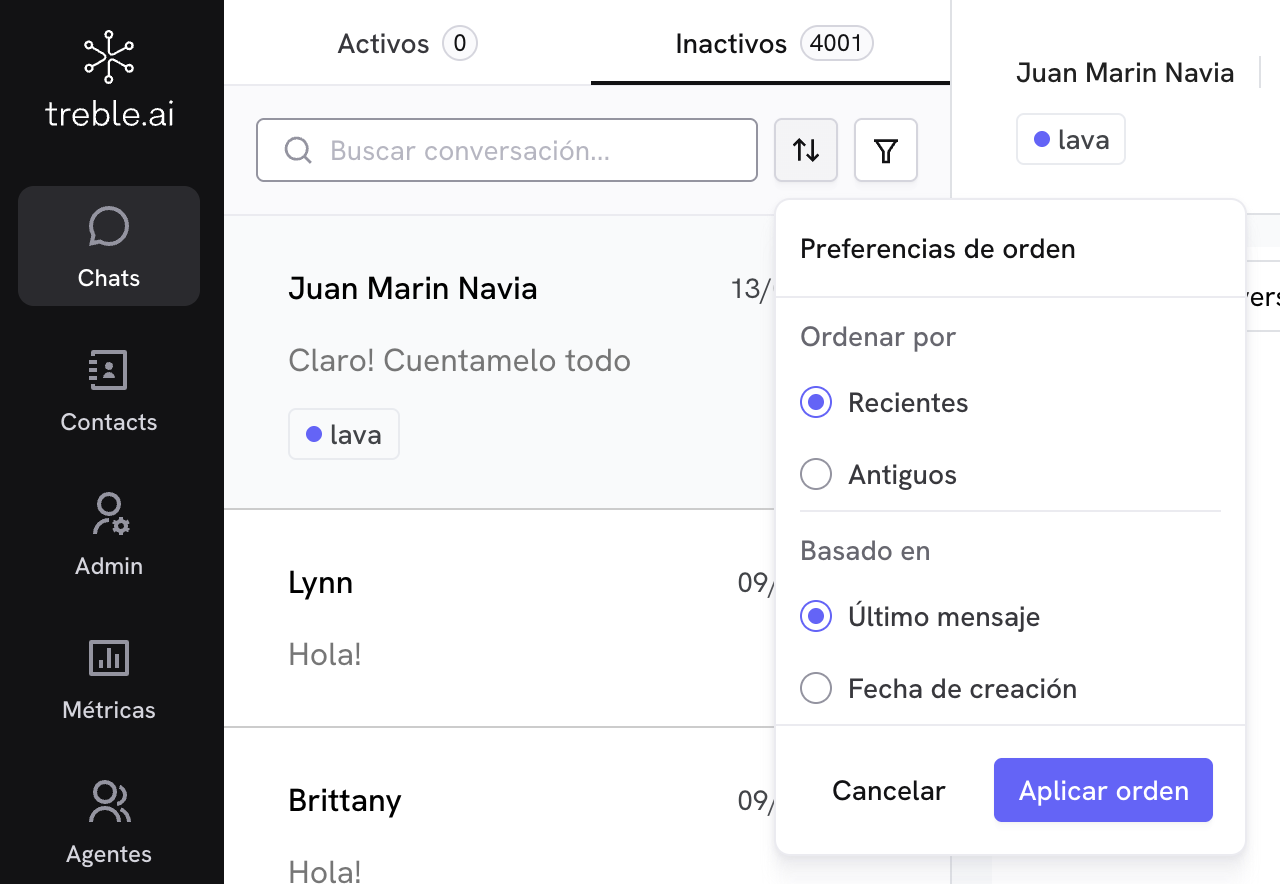 ### Sorting Options
**Based on:**
* **Last message**: takes into account the last message received or sent.
* **Creation date**: takes into account when the chat session started.
**Order:**
* **Recent**: newest conversations first.
* **Old**: oldest conversations first.
### 💡 Practical Examples
**Goal:** View the most recent messages you've received
**Configuration:**
* **Based on:** Last message
* **Order:** Recent first
Perfect for staying up to date with the most active conversations
**Goal:** Attend to customers who have been waiting longer
**Configuration:**
* **Based on:** Creation date
* **Order:** Old first
Ideal for prioritizing those who wrote first
**Goal:** Review the latest chats opened today
**Configuration:**
* **Based on:** Creation date
* **Order:** Recent first
Useful for reviewing the day's activity
## Filter Conversations
Filters allow you to refine your view to focus on specific types of conversations. You can apply multiple filters at once.
### Sorting Options
**Based on:**
* **Last message**: takes into account the last message received or sent.
* **Creation date**: takes into account when the chat session started.
**Order:**
* **Recent**: newest conversations first.
* **Old**: oldest conversations first.
### 💡 Practical Examples
**Goal:** View the most recent messages you've received
**Configuration:**
* **Based on:** Last message
* **Order:** Recent first
Perfect for staying up to date with the most active conversations
**Goal:** Attend to customers who have been waiting longer
**Configuration:**
* **Based on:** Creation date
* **Order:** Old first
Ideal for prioritizing those who wrote first
**Goal:** Review the latest chats opened today
**Configuration:**
* **Based on:** Creation date
* **Order:** Recent first
Useful for reviewing the day's activity
## Filter Conversations
Filters allow you to refine your view to focus on specific types of conversations. You can apply multiple filters at once.
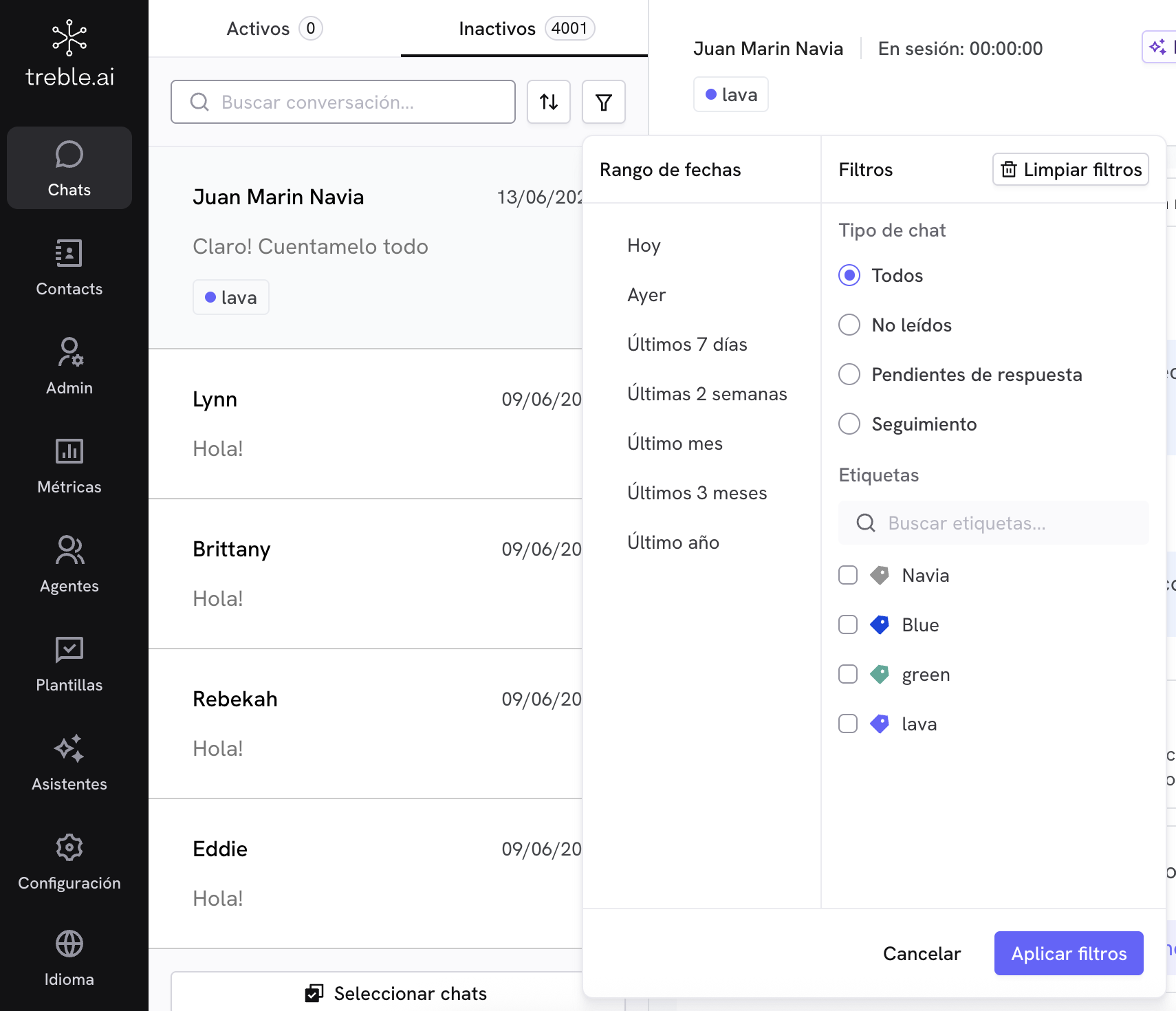 ### Available Filters
Filter conversations by when they occurred:
* **Today** - Only today's conversations
* **Yesterday** - Yesterday's conversations
* **Last 7 days** - Weekly activity
* **Last 2 weeks** - Biweekly activity
* **Last month** - Monthly activity
* **Last 3 months** - Quarterly activity
* **Last year** - Annual activity
Date ranges are based on the most recent activity of each conversation
Filter by conversation status:
No additional filter - shows all conversations
Messages you haven't opened or reviewed yet
The customer wrote and you haven't responded yet
You wrote last, but the customer hasn't responded
Filter by specific tags:
You can select **one or multiple tags** to focus on:
* Specific campaigns
* Customer segments
* Special cases
* Products or services
Combine multiple tags to create very specific views of your conversations
## Useful Filter and Sort Combinations
Below are recommended configurations for common cases:
**Filters:** `Date = Today` + `Type = Unread`
Perfect for starting the day by reviewing new messages.
**Order:** `Last message + Recent first`
Attend to those who wrote most recently first.
**Filters:** `Type = Follow-up` + `Date = Today or Yesterday`
Take advantage of the WhatsApp window to reactivate conversations.
**Filters:** `Type = Pending Response` + `Date = Last 7 days`
Review which conversations need your attention this week.
**Filters:** `Type = Pending Response` + `Tag = Coco`
Focus on a specific campaign that requires response.
**Filters:** `Tags = Social Media, Website`
Compare the performance of different campaigns.
**Tab:** `Inactive` + **Order:** `Creation date + Old first`
Identify conversations you can finalize so all history moves to HubSpot.
You can use filters and sorting together to have a very specific and focused view.
💡 **Practical Example:**
**"I want to see chats tagged as 'Audi' or 'BMW', that are pending response, and sort them by who contacted me first."**
* Tags: Audi + BMW
* Type: Follow-up
* Order: Creation date + Old first
This way you ensure no important conversation slips through, you can work with greater clarity, and reduce your response times.
### Available Filters
Filter conversations by when they occurred:
* **Today** - Only today's conversations
* **Yesterday** - Yesterday's conversations
* **Last 7 days** - Weekly activity
* **Last 2 weeks** - Biweekly activity
* **Last month** - Monthly activity
* **Last 3 months** - Quarterly activity
* **Last year** - Annual activity
Date ranges are based on the most recent activity of each conversation
Filter by conversation status:
No additional filter - shows all conversations
Messages you haven't opened or reviewed yet
The customer wrote and you haven't responded yet
You wrote last, but the customer hasn't responded
Filter by specific tags:
You can select **one or multiple tags** to focus on:
* Specific campaigns
* Customer segments
* Special cases
* Products or services
Combine multiple tags to create very specific views of your conversations
## Useful Filter and Sort Combinations
Below are recommended configurations for common cases:
**Filters:** `Date = Today` + `Type = Unread`
Perfect for starting the day by reviewing new messages.
**Order:** `Last message + Recent first`
Attend to those who wrote most recently first.
**Filters:** `Type = Follow-up` + `Date = Today or Yesterday`
Take advantage of the WhatsApp window to reactivate conversations.
**Filters:** `Type = Pending Response` + `Date = Last 7 days`
Review which conversations need your attention this week.
**Filters:** `Type = Pending Response` + `Tag = Coco`
Focus on a specific campaign that requires response.
**Filters:** `Tags = Social Media, Website`
Compare the performance of different campaigns.
**Tab:** `Inactive` + **Order:** `Creation date + Old first`
Identify conversations you can finalize so all history moves to HubSpot.
You can use filters and sorting together to have a very specific and focused view.
💡 **Practical Example:**
**"I want to see chats tagged as 'Audi' or 'BMW', that are pending response, and sort them by who contacted me first."**
* Tags: Audi + BMW
* Type: Follow-up
* Order: Creation date + Old first
This way you ensure no important conversation slips through, you can work with greater clarity, and reduce your response times.