> ## Documentation Index
> Fetch the complete documentation index at: https://help.treble.ai/llms.txt
> Use this file to discover all available pages before exploring further.
# Contacts Section
> Learn how to get the most out of this section. Learn how to add contacts, start a new conversation, or check the history of a past conversation.
### How to create a new contact
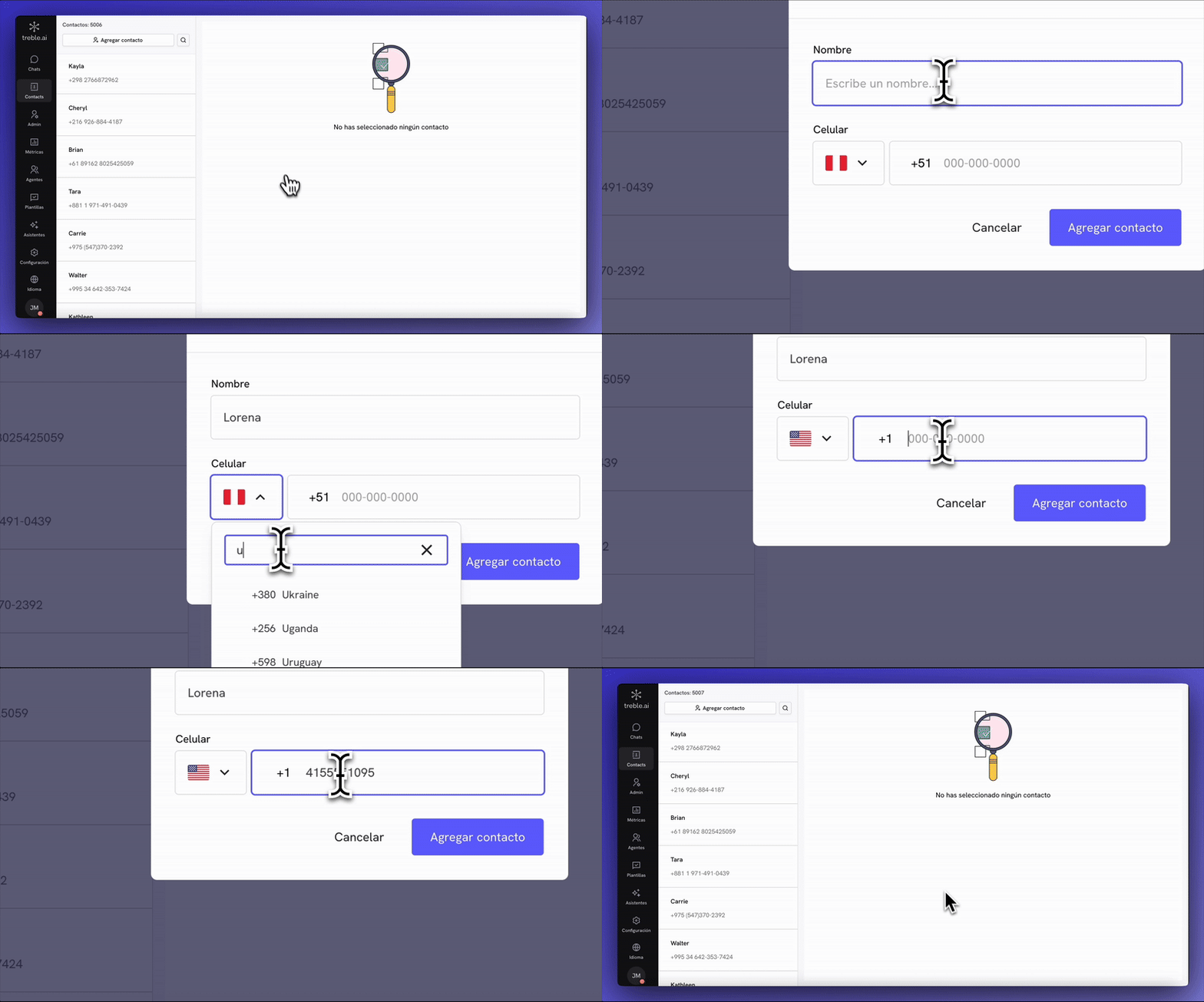
1. You must enter the contacts section (which you find in the left panel).
2. Then you must click on the add contact button and fill in the data such as their name and phone number.
3. Finally, you must click on add contact, and that's it.
 ### How to search for a contact
1. To the right of the add contact button, there is the search button, where you can search for a contact by name or phone number.
### How to search for a contact
1. To the right of the add contact button, there is the search button, where you can search for a contact by name or phone number.
 ### How to view conversation history events
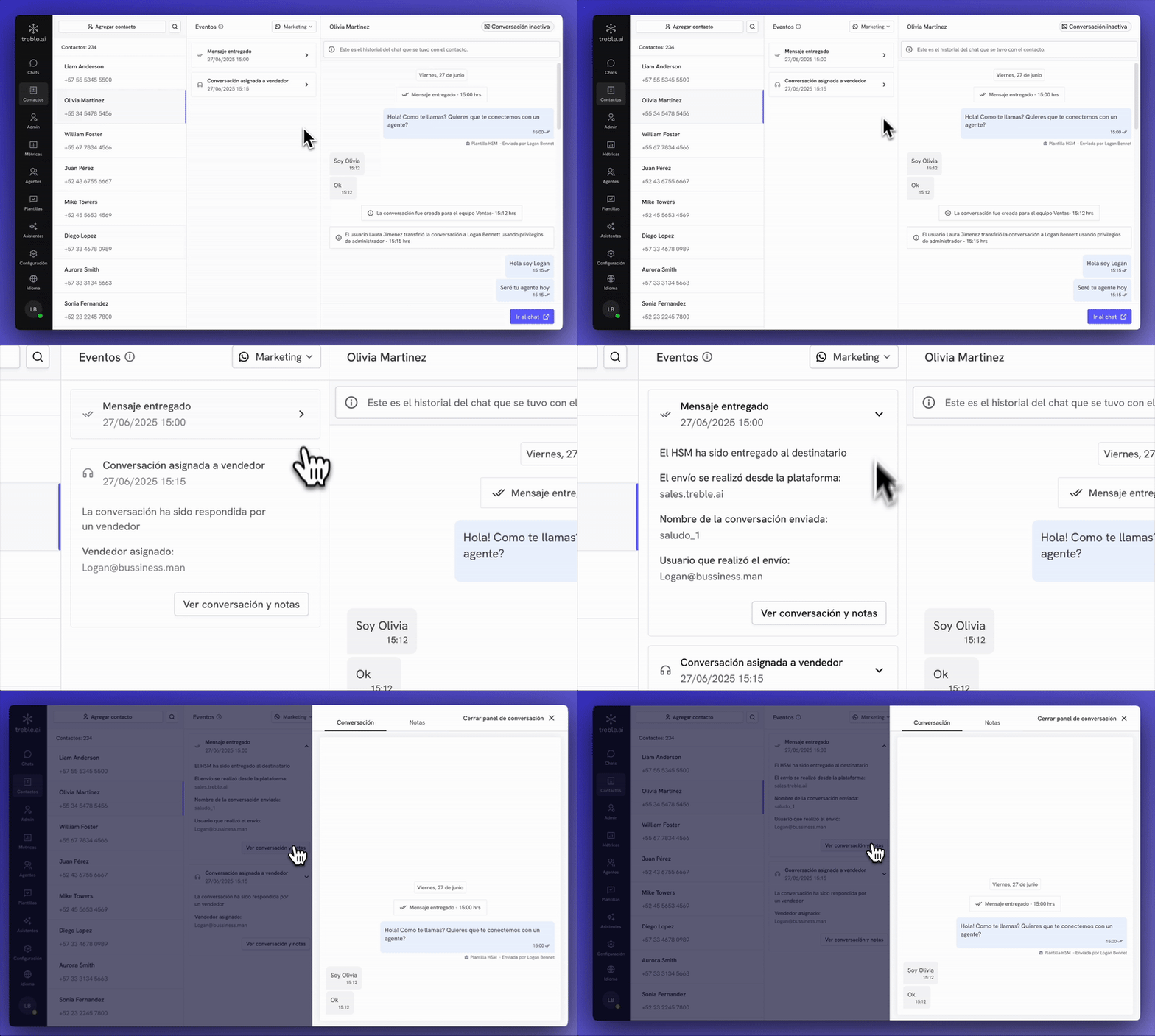
The complete conversation history now has a general view on the right side of the screen. There you can find all the history of that contact as an infinite scroll.
If you want to access only a fragment of a conversation, you can use the events as a reference and then click on **view conversation and notes** to see only what corresponds to that event.
### How to view conversation history events
The complete conversation history now has a general view on the right side of the screen. There you can find all the history of that contact as an infinite scroll.
If you want to access only a fragment of a conversation, you can use the events as a reference and then click on **view conversation and notes** to see only what corresponds to that event.
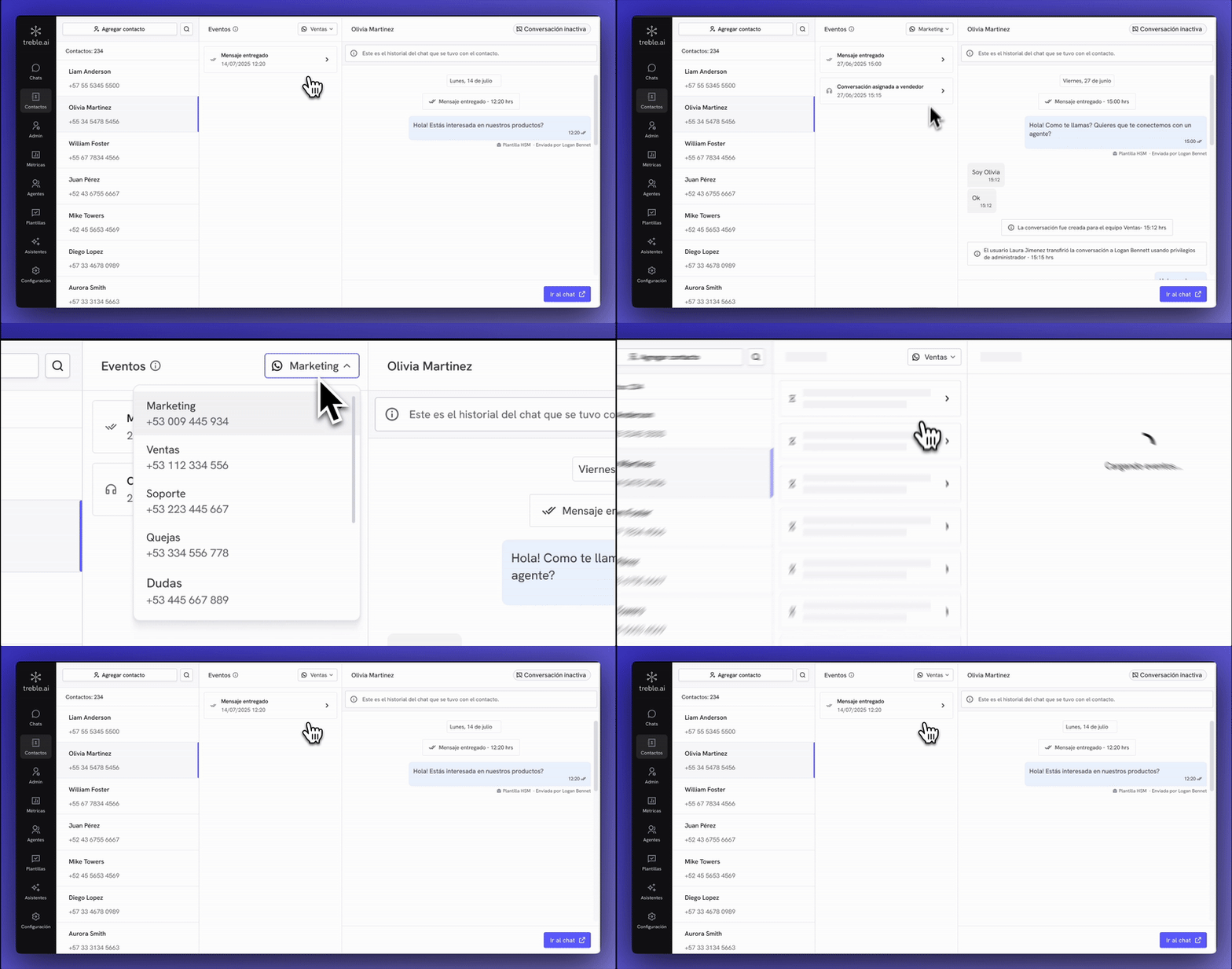
 There are cases where the same contact has spoken with different company lines. The conversation history is divided by WhatsApp lines. If you have more than one line, it's important to select the contact and the line corresponding to the history you want to see.
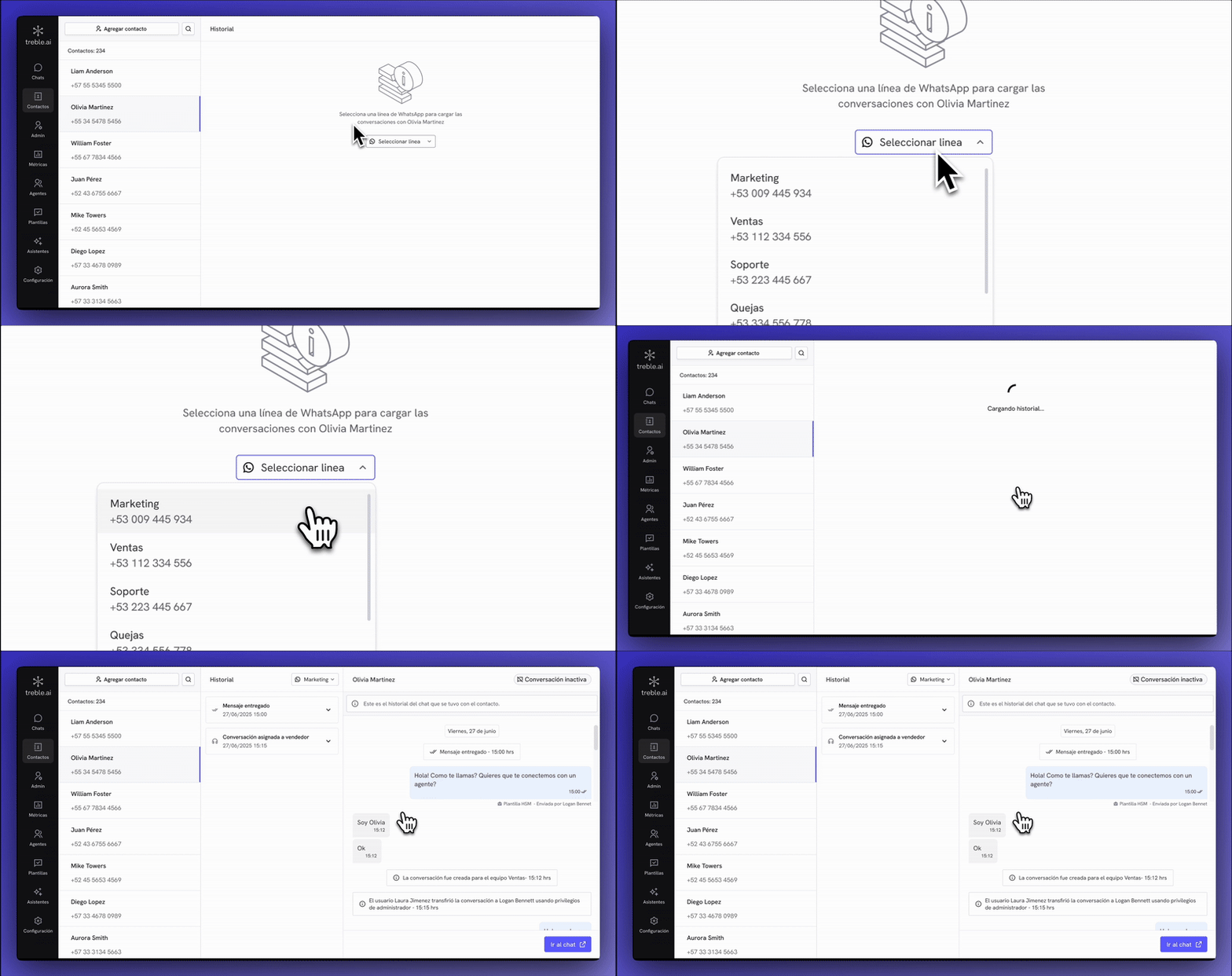 Once you're inside the history belonging to a line, you can change by clicking on the dropdown
 ### How to start a conversation from a contact
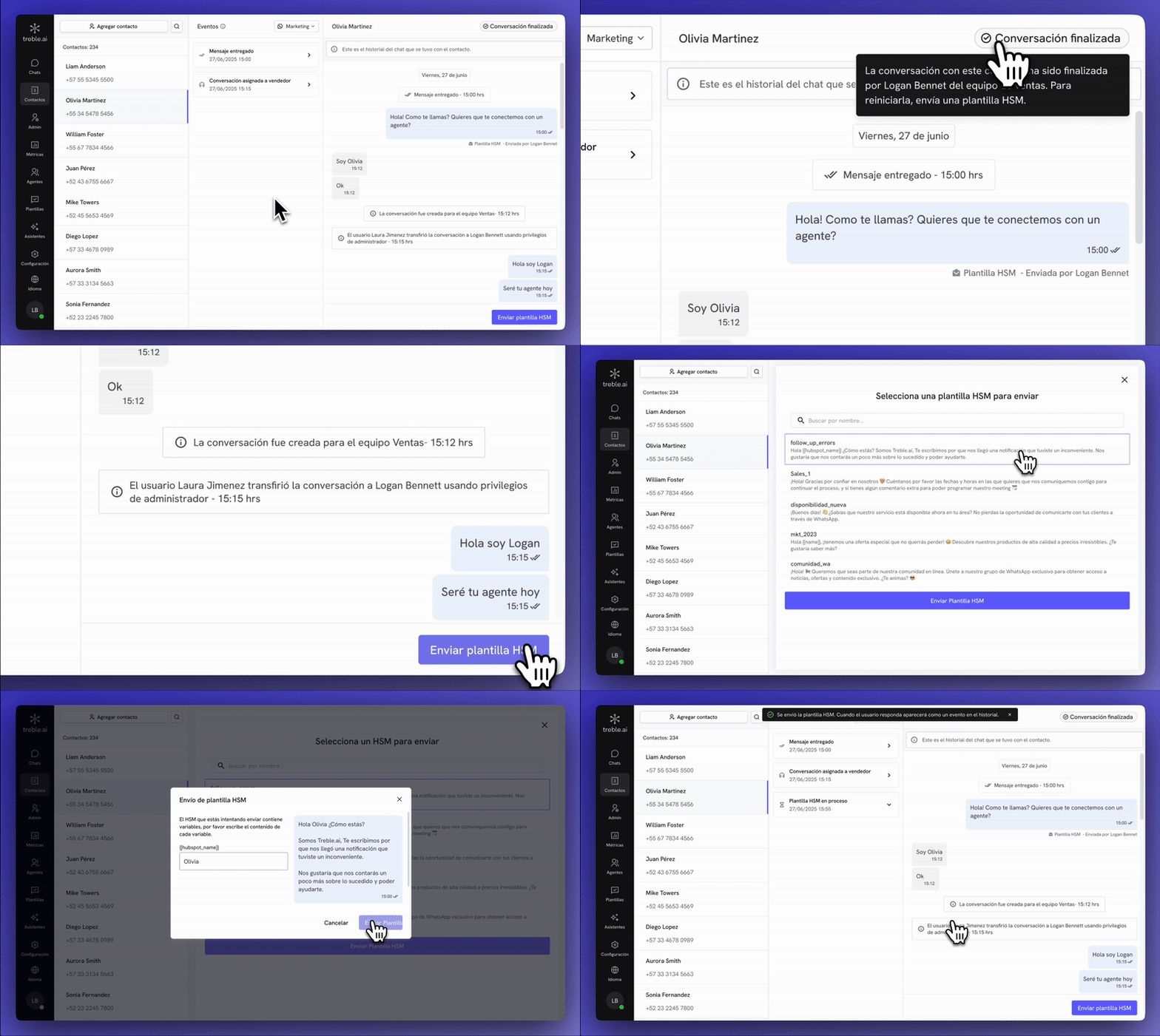
Once inside a contact, the process of starting a conversation will depend on the status of the conversation.
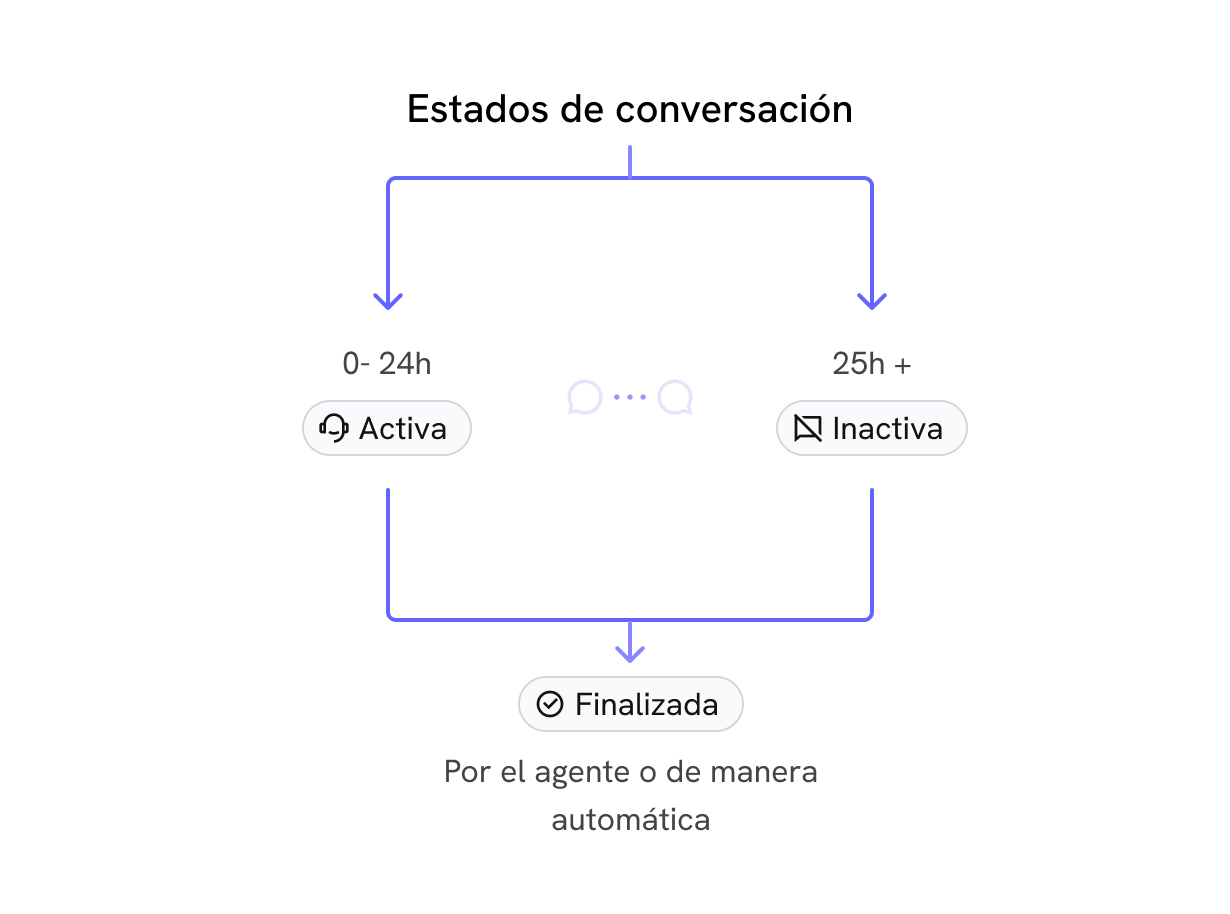
Within [sales.treble.ai](http://sales.treble.ai) it's possible to have three conversation statuses:
1. **Active:** This conversation is currently assigned to an agent and with the WhatsApp window open for open message exchange.
2. **Inactive:** This conversation is currently assigned to an agent but with the WhatsApp window closed. This doesn't allow message exchange that aren't an HSM template until it's opened again.
3. **Finished:** This conversation has been closed by an agent and there's no WhatsApp or treble session. To exchange messages, an HSM template must be sent.
### How to start a conversation from a contact
Once inside a contact, the process of starting a conversation will depend on the status of the conversation.
Within [sales.treble.ai](http://sales.treble.ai) it's possible to have three conversation statuses:
1. **Active:** This conversation is currently assigned to an agent and with the WhatsApp window open for open message exchange.
2. **Inactive:** This conversation is currently assigned to an agent but with the WhatsApp window closed. This doesn't allow message exchange that aren't an HSM template until it's opened again.
3. **Finished:** This conversation has been closed by an agent and there's no WhatsApp or treble session. To exchange messages, an HSM template must be sent.
 Depending on the conversation status, you'll have the following options within the contacts view.
1. **Active/Inactive:** For this type of conversations, you'll have a direct access link to the chat to resume the conversation from the chats view
Depending on the conversation status, you'll have the following options within the contacts view.
1. **Active/Inactive:** For this type of conversations, you'll have a direct access link to the chat to resume the conversation from the chats view
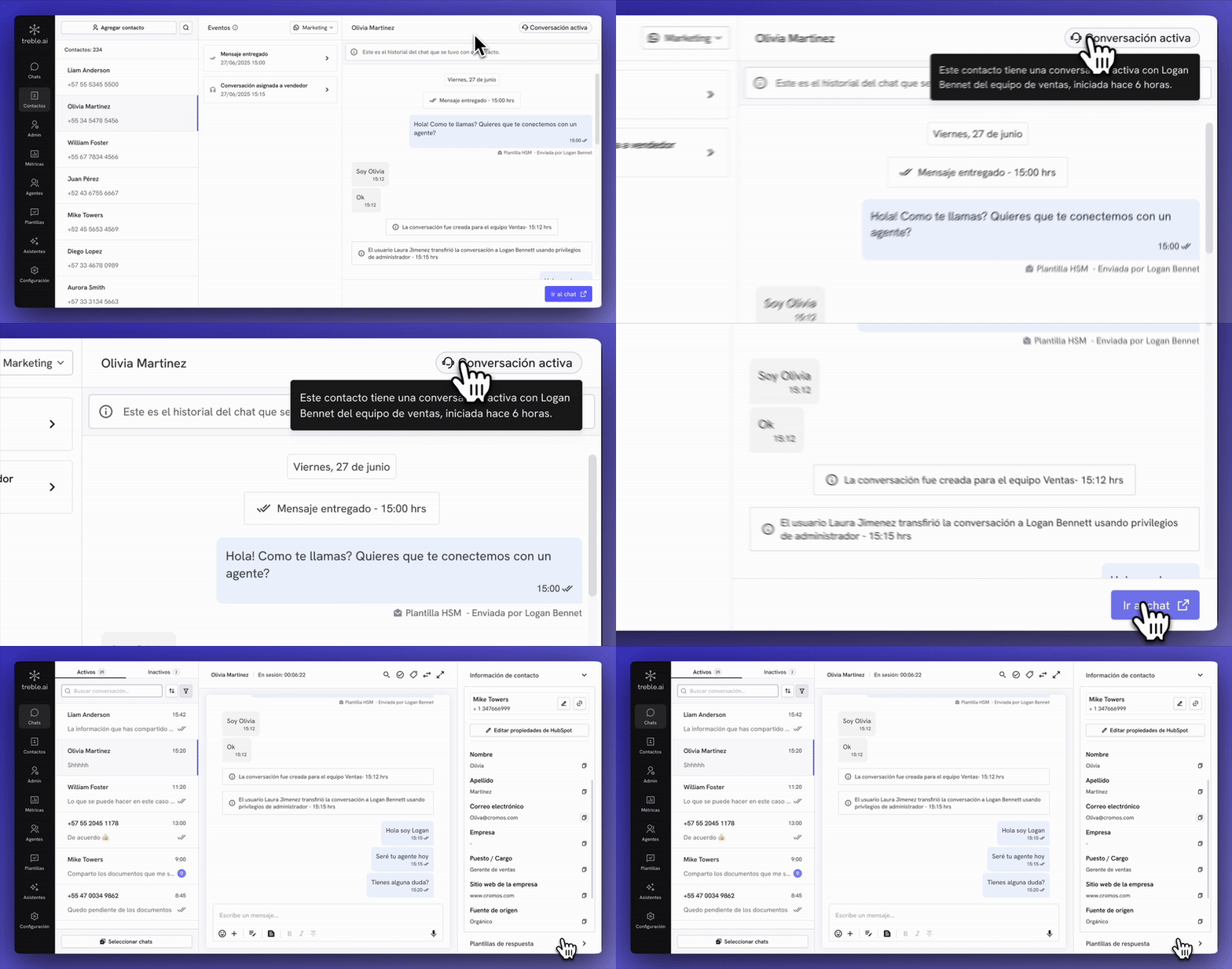 2. **Finished:** For this type of conversations, you can send an HSM template from the contacts view.