> ## Documentation Index
> Fetch the complete documentation index at: https://help.treble.ai/llms.txt
> Use this file to discover all available pages before exploring further.
# Quick Response Templates
> Quick response templates are predefined messages that you can use to respond to your customers quickly and efficiently. This allows your agents to select a quick response and send it to your customers.
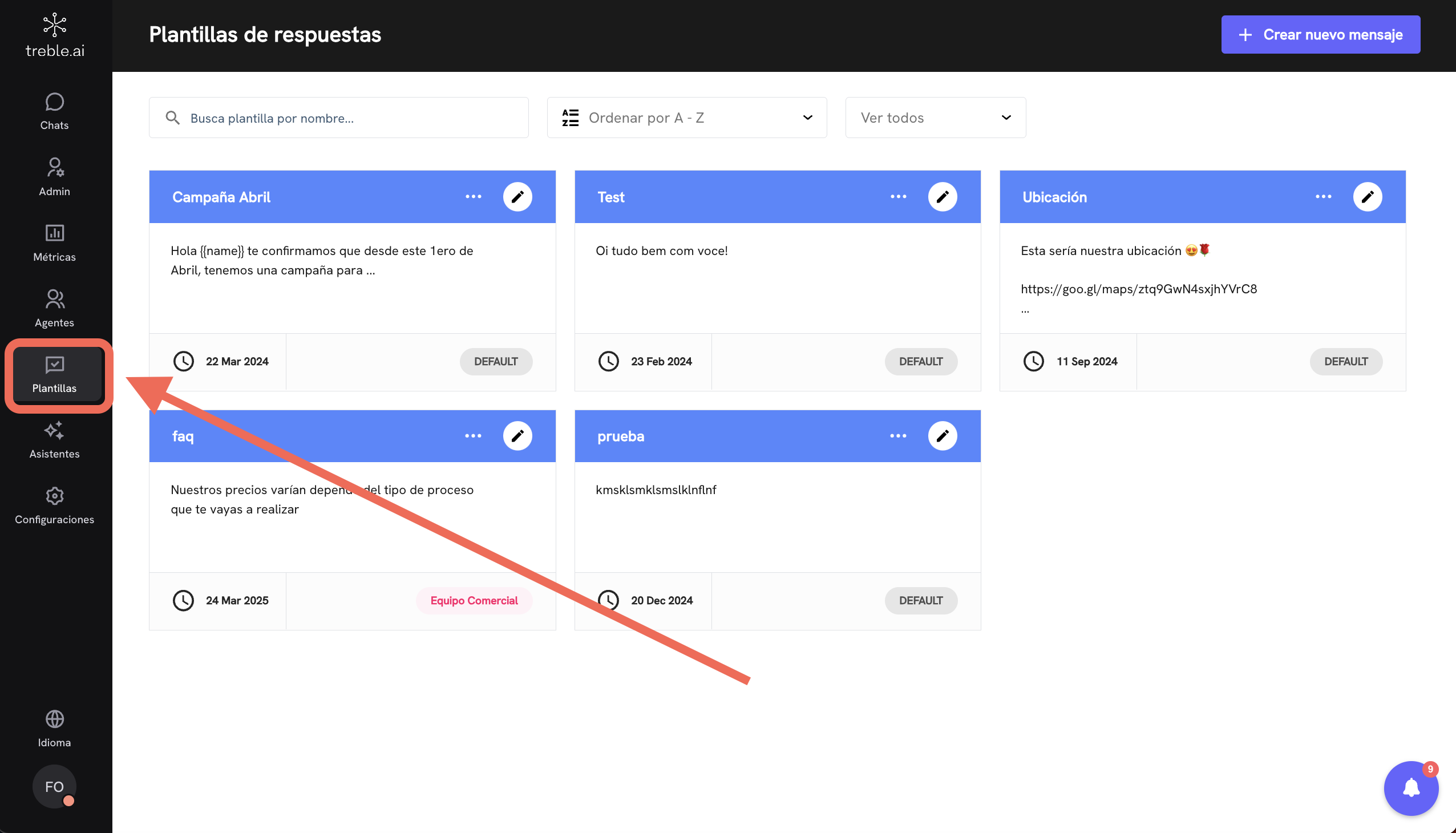 In **Treble.ai**, the **library of pre-edited quick messages** is an essential resource to make customer service **more efficient, standardized, and agile**. With this functionality, agents can answer frequently asked questions and interact with customers in a **quick and consistent** manner, without having to write the same information repeatedly.
## **How does the quick message library work?**
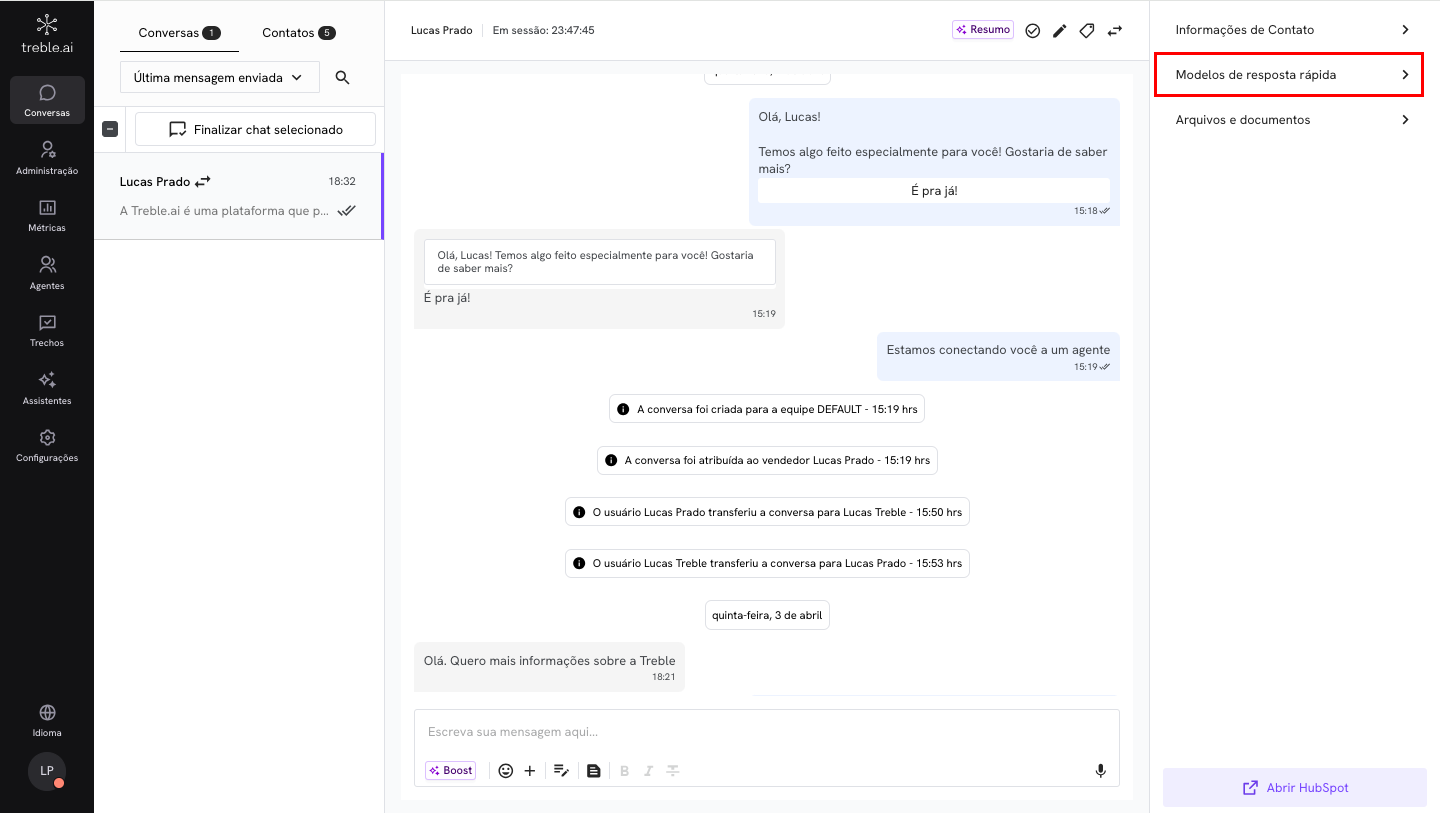
Treble.ai allows agents to store and use **preconfigured messages** to streamline customer service. These messages can be used for:
* **Answers to frequently asked questions**, such as service hours and payment instructions.
* **Standardized information about products and services**.
* **Detailed guidance on internal processes**.
In **Treble.ai**, the **library of pre-edited quick messages** is an essential resource to make customer service **more efficient, standardized, and agile**. With this functionality, agents can answer frequently asked questions and interact with customers in a **quick and consistent** manner, without having to write the same information repeatedly.
## **How does the quick message library work?**
Treble.ai allows agents to store and use **preconfigured messages** to streamline customer service. These messages can be used for:
* **Answers to frequently asked questions**, such as service hours and payment instructions.
* **Standardized information about products and services**.
* **Detailed guidance on internal processes**.
 ## **Main benefits of the quick message library**
### **Agility in service**
With ready responses, agents reduce the time needed to serve each customer, ensuring a more efficient communication flow.
### **Standardization and error reduction**
Pre-edited messages ensure that all interactions follow a **uniform tone of voice**, avoiding variations and errors in communication.
### **Ease in training new agents**
New agents can use the library to **respond with more confidence and precision**, reducing the learning curve.
# How to manage response templates for your team?
From the **Templates** section, you can create, organize, and update predefined messages that your agents can use to respond quickly, consistently, and professionally to customers.
This functionality is key to saving time, maintaining aligned communication, and reducing errors in responses.
## What do I see in the templates section?
## **Main benefits of the quick message library**
### **Agility in service**
With ready responses, agents reduce the time needed to serve each customer, ensuring a more efficient communication flow.
### **Standardization and error reduction**
Pre-edited messages ensure that all interactions follow a **uniform tone of voice**, avoiding variations and errors in communication.
### **Ease in training new agents**
New agents can use the library to **respond with more confidence and precision**, reducing the learning curve.
# How to manage response templates for your team?
From the **Templates** section, you can create, organize, and update predefined messages that your agents can use to respond quickly, consistently, and professionally to customers.
This functionality is key to saving time, maintaining aligned communication, and reducing errors in responses.
## What do I see in the templates section?
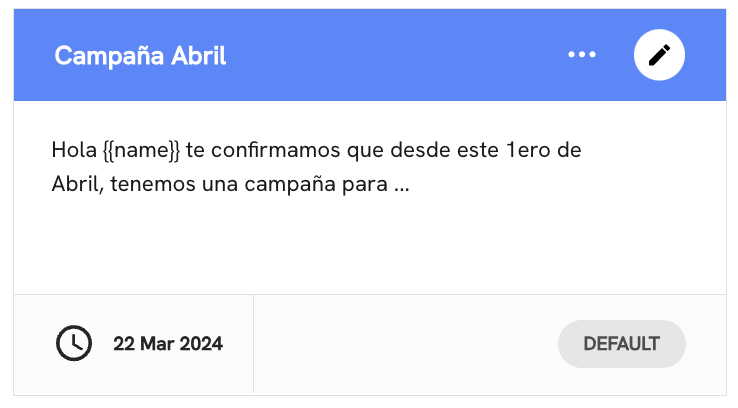 In this view, you will see all the templates created by your team, organized in cards that contain the following information:
* **Template name:** Appears as a title (for example, "April Campaign").
* **Message content:** Text that will be sent when the template is used.
* **Creation or modification date:** Visible below the message.
* **Assigned group:** Indicates if it belongs to the `DEFAULT` group or another custom one (like "Commercial Team").
* **Quick actions:** You can edit a template with the pencil icon ✏️ or access more options by clicking on the three dots ⋯.
## Filters and search
In this view, you will see all the templates created by your team, organized in cards that contain the following information:
* **Template name:** Appears as a title (for example, "April Campaign").
* **Message content:** Text that will be sent when the template is used.
* **Creation or modification date:** Visible below the message.
* **Assigned group:** Indicates if it belongs to the `DEFAULT` group or another custom one (like "Commercial Team").
* **Quick actions:** You can edit a template with the pencil icon ✏️ or access more options by clicking on the three dots ⋯.
## Filters and search
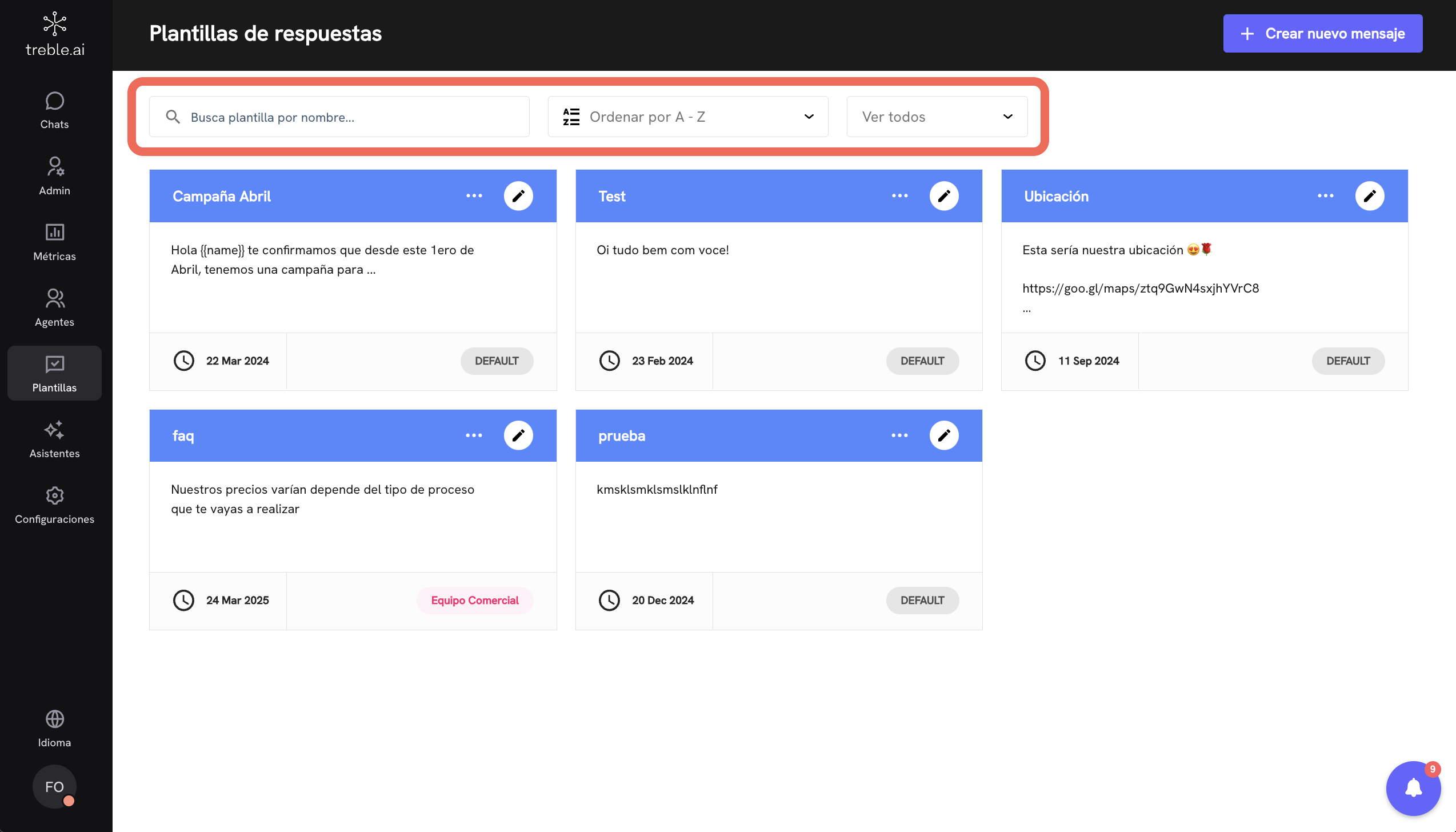 To facilitate navigation between many templates, you can:
* **Search by name** using the top bar.
* **Sort alphabetically** or by date, using the order selector.
* **Filter by group** to see only the templates relevant to a specific team.
## How to create a new template?
To facilitate navigation between many templates, you can:
* **Search by name** using the top bar.
* **Sort alphabetically** or by date, using the order selector.
* **Filter by group** to see only the templates relevant to a specific team.
## How to create a new template?
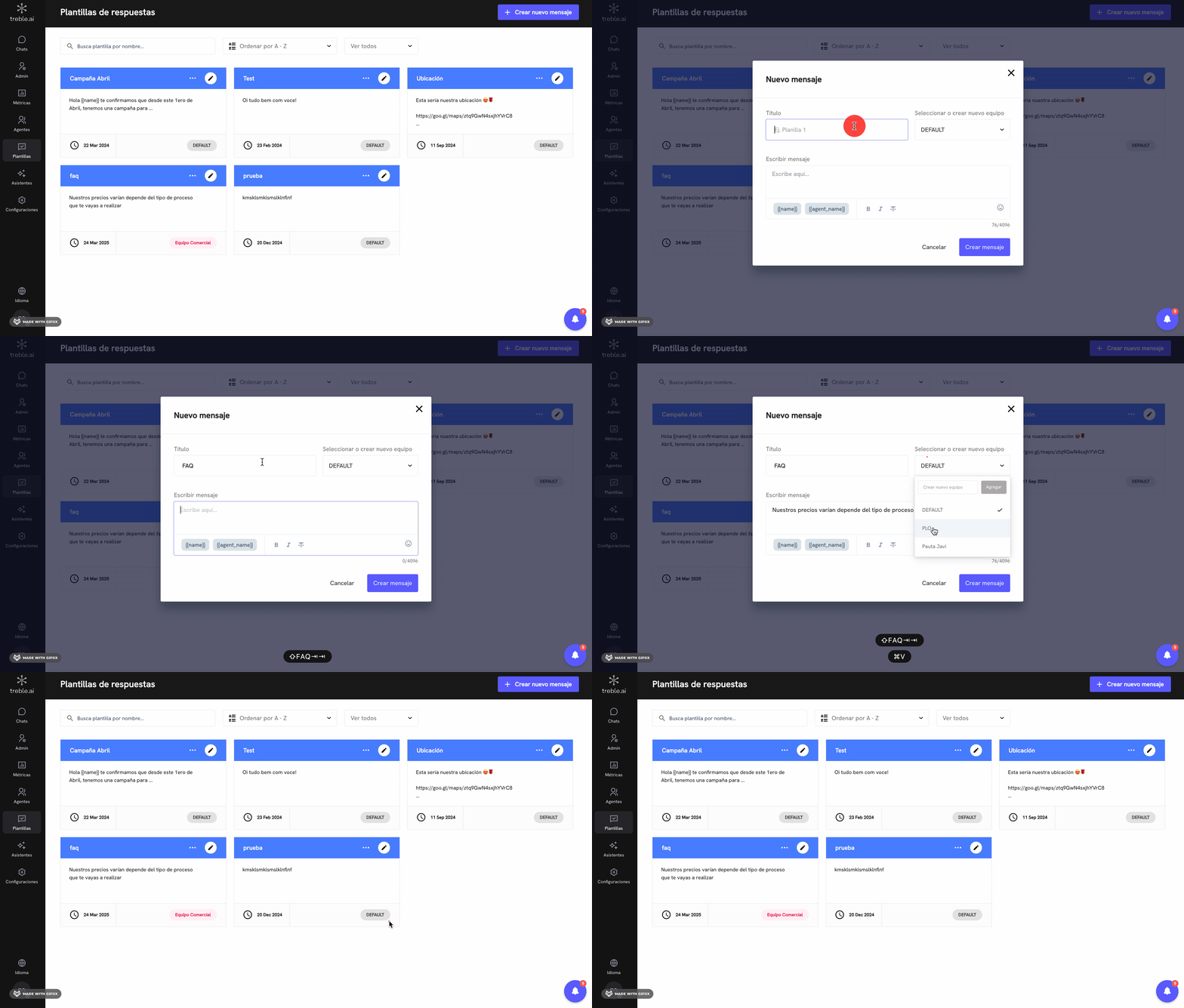 1. Click on the **"Create new message"** button in the top right corner.
2. Write a name, content, and select the group it should belong to.
3. Save the template and it will be immediately available to agents who belong to that group.
> 💡 **Tip:** You can use variables like `{{name}}` to automatically personalize messages with customer data.
## Best practices
* Keep messages brief and clear.
* Use emojis in moderation to humanize the message.
* Update templates frequently so they reflect current promotions, policies, or processes.
* Create templates by type of interaction: location, prices, greeting, promotions, etc.
***
This section is ideal for teams that handle high volumes of conversations or that need to maintain standardized communication without losing the human touch.
1. Click on the **"Create new message"** button in the top right corner.
2. Write a name, content, and select the group it should belong to.
3. Save the template and it will be immediately available to agents who belong to that group.
> 💡 **Tip:** You can use variables like `{{name}}` to automatically personalize messages with customer data.
## Best practices
* Keep messages brief and clear.
* Use emojis in moderation to humanize the message.
* Update templates frequently so they reflect current promotions, policies, or processes.
* Create templates by type of interaction: location, prices, greeting, promotions, etc.
***
This section is ideal for teams that handle high volumes of conversations or that need to maintain standardized communication without losing the human touch.